

The Kubernetes Dashboard that shipped with kubeadm for years is showing its age. It crashes on large clusters, has a clunky token login that forgets you every browser refresh, and its feature set barely moved between 2019 and 2024. If you manage more than a handful of workloads, you already know the pain. Headlamp is the modern replacement most teams should be running instead.
Headlamp is an open-source, extensible Kubernetes web UI now maintained under the official Kubernetes SIG UI. It started at Kinvolk (later acquired by Microsoft) and in 2025 became a full Kubernetes community project. The current release (v0.41.0, March 2026) ships a built-in AI Assistant via MCP, multi-cluster management, deployment rollback to any revision, a plugin marketplace, and a Desktop app for Linux, macOS, and Windows. This guide covers the three real installation paths: in-cluster with Helm, in-cluster with the upstream manifest, and the Desktop app for local development.
Tested April 2026 on Rocky Linux 10.1 (kernel 6.12.0-124.45), k3s v1.34.6, Headlamp v0.41.0 via the official Helm chart, Helm v3.20.2
What Headlamp actually gives you
Headlamp is not a reskin of the old Kubernetes Dashboard. The team rebuilt it from scratch on React and Material UI, and it shows.
- Multi-cluster by default. Switch between contexts from your kubeconfig without restarting the app. Works in-cluster or on the desktop.
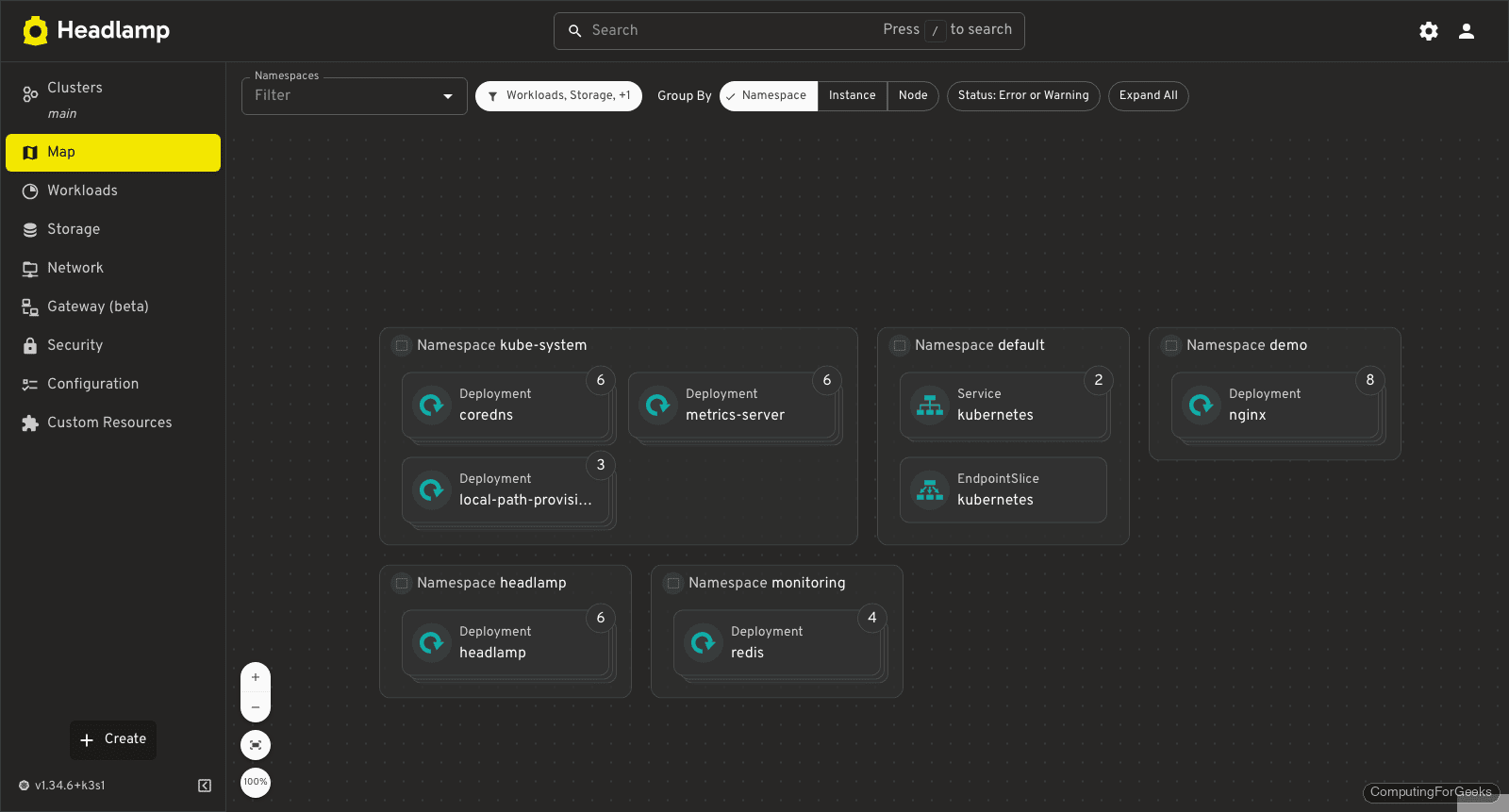
- Cluster Map. A real graph of namespaces, workloads, and their relationships, not a flat sidebar. Good for visualizing what runs where.
- Rollback to any revision. Deployment, DaemonSet, and StatefulSet history is exposed in the UI. You pick a revision, click, done. Added in v0.41.0.
- AI Assistant plugin. A natural-language chat built into the UI that speaks MCP. Ask “which pods are unhealthy in kube-system” or “show logs for the failing replica” and it answers against your live cluster.
- Plugin marketplace. A curated catalog of plugins (Flux, ArgoCD, OPA, container security scanners, cost views). Drop-in, no fork required.
- Read-write on everything. Edit YAML in the browser, scale replicas, restart deployments, delete pods, drain nodes. No need to drop back to kubectl for routine work.
- Proper auth. Bearer tokens, client certs, and OIDC (Keycloak, Dex, Entra ID, Google, etc.) with configurable session TTL. No cookie shenanigans.
Headlamp vs Kubernetes Dashboard vs Lens vs K9s
If you are picking a dashboard in 2026, here is the honest comparison. All four are worth knowing, they just solve slightly different problems.
| Feature | Headlamp | Kubernetes Dashboard | Lens Desktop | K9s |
|---|---|---|---|---|
| Interface | Web + Desktop | Web only | Desktop only | Terminal |
| Multi-cluster | Yes | No | Yes | Yes |
| License | Apache 2.0 | Apache 2.0 | Mixed (paid tiers) | Apache 2.0 |
| Plugins | Yes (catalog) | No | Yes | Yes |
| OIDC login | Yes | Bearer token only | Yes | Kubeconfig only |
| Rollback UI | Yes (v0.41+) | No | Partial | Yes |
| AI assistant | Yes (MCP) | No | Paid tier | No |
| Governance | Kubernetes SIG | Kubernetes SIG | Mirantis (commercial) | Community |
Short version: if you want a free, web-based, multi-cluster UI that you can share with your team and extend with plugins, Headlamp is the right answer. Lens Desktop is more polished but has a commercial direction. K9s is still unbeatable if you live in tmux. The legacy Kubernetes Dashboard is maintenance-only at this point.
Prerequisites
- A running Kubernetes cluster. Tested on k3s v1.34.6, also works on kubeadm, EKS, GKE, AKS, kind, minikube, Rancher RKE2.
kubectlconfigured and able to reach the cluster (kubectl get nodesreturns Ready).helmv3.10 or newer for the Helm install path. Tested on Helm v3.20.2.- A user with
cluster-adminprivileges to create the ServiceAccount and ClusterRoleBinding. - Outbound access to
ghcr.iofrom cluster nodes (the image lives atghcr.io/headlamp-k8s/headlamp).
Do not have a cluster yet? Pick one from these guides and come back:
- Install Kubernetes on Rocky Linux 10 with kubeadm
- Install Kubernetes Cluster on Ubuntu 24.04 with kubeadm
- K3s Kubernetes Quickstart on Ubuntu 24.04 and Rocky Linux 10
- Deploy HA Kubernetes Cluster on Rocky Linux 10 using RKE2
Option 1: Install Headlamp in-cluster with Helm (recommended)
Helm is the cleanest path. The chart is maintained in the same repository as Headlamp itself, upgrades are a one-liner, and every knob (ingress, OIDC, plugin catalog, persistence) is exposed as a value.
Add the Headlamp Helm repository and refresh it:
helm repo add headlamp https://kubernetes-sigs.github.io/headlamp/
helm repo update
Confirm the chart version you are about to install matches the release you expect:
helm search repo headlampYou should see the chart and app version lined up like this:
NAME             	CHART VERSION	APP VERSION	DESCRIPTION
headlamp/headlamp	0.41.0       	0.41.0     	Headlamp is an easy-to-use and extensible Kuber...
Create a dedicated namespace and install the chart. The example below exposes the UI with a NodePort on 30003 because it is the fastest way to click through the setup on a lab cluster. For production, skip the NodePort and wire an Ingress instead (covered further down).
kubectl create namespace headlamp
helm install headlamp headlamp/headlamp \
  --namespace headlamp \
  --set service.type=NodePort \
  --set service.nodePort=30003
Helm returns the release status and the post-install notes on how to get a token:
NAME: headlamp
LAST DEPLOYED: Sat Apr 11 02:39:47 2026
NAMESPACE: headlamp
STATUS: deployed
REVISION: 1
TEST SUITE: None
Give the pod 20 seconds to pull the image and confirm it is running:
kubectl -n headlamp get pods,svcThe pod should be in Ready 1/1 and the service should be listening on port 80 and the NodePort you chose:
NAME                            READY   STATUS    RESTARTS   AGE
pod/headlamp-59c74bbb47-m7kvq   1/1     Running   0          25s

NAME               TYPE       CLUSTER-IP      EXTERNAL-IP   PORT(S)        AGE
service/headlamp   NodePort   10.43.252.154   <none>        80:30003/TCP   25s
One last sanity check: the image tag that was actually pulled. This is the version you will see in the Headlamp footer later.
kubectl -n headlamp get deploy headlamp -o jsonpath='{.spec.template.spec.containers[0].image}'The output on our test cluster confirms v0.41.0:
ghcr.io/headlamp-k8s/headlamp:v0.41.0Option 2: Install Headlamp from the upstream manifest
If you do not want Helm in the path for any reason (air-gapped clusters, GitOps that consumes raw manifests, a pipeline that forbids Tiller-era tools), the Headlamp project publishes a ready-to-apply YAML in its repo. It installs into kube-system by default with a ClusterIP service and no ingress, so you still need to expose it yourself.
kubectl apply -f https://raw.githubusercontent.com/kubernetes-sigs/headlamp/main/kubernetes-headlamp.yamlCheck that the Deployment and Service came up cleanly:
kubectl -n kube-system get deploy,svc -l k8s-app=headlampTo reach the UI, either port-forward it to your laptop (fast for a quick look):
kubectl -n kube-system port-forward svc/headlamp 8080:80or flip the service to NodePort:
kubectl -n kube-system patch svc headlamp -p '{"spec":{"type":"NodePort"}}'The manifest path is fine for a quick test, but if you want upgrades, OIDC, plugins, or tuned resource requests, the Helm chart is the path of least pain.
Option 3: Run Headlamp as a Desktop app (local dev)
The Desktop build is what you want when you manage several clusters from your laptop and do not want to expose a dashboard inside every cluster. It reads your existing ~/.kube/config, switches contexts with one click, and supports the same plugins as the in-cluster build.
On macOS and Linux, install with a package manager:
# macOS (Homebrew)
brew install --cask headlamp

# Linux (Flatpak, from Flathub)
flatpak install flathub io.kinvolk.Headlamp

# Arch Linux (AUR)
yay -S headlamp-bin
For Windows, grab the signed installer from the latest GitHub release and run it. First launch auto-detects clusters from your kubeconfig and lists them on the home screen, no token needed.
One practical note from production use: on Apple Silicon Macs, v0.41.0 finally auto-detects the arm64 build. Earlier releases needed a manual arch flag.
Create a ServiceAccount and get a login token
The in-cluster deployment does not ship an admin account by design. Headlamp delegates auth to Kubernetes, so you log in with a bearer token belonging to a ServiceAccount that has the RBAC you want. For a lab cluster, cluster-admin is fine. For anything real, scope it down.
Create the ServiceAccount and bind it to cluster-admin:
kubectl -n headlamp create serviceaccount headlamp-admin
kubectl create clusterrolebinding headlamp-admin \
  --serviceaccount=headlamp:headlamp-admin \
  --clusterrole=cluster-admin
Then mint a short-lived token. The --duration flag controls how long the token is valid. Twelve to twenty four hours is a good lab default, drop it to an hour for anything touching production.
kubectl create token headlamp-admin -n headlamp --duration=24hThe command prints a long JWT starting with eyJ. Copy the whole string. You will paste it into the Headlamp login screen next.
On clusters where you installed from the manifest, the namespace is kube-system instead of headlamp. The rest of the commands are identical.
Log in to the Headlamp Web UI
Grab the external IP of any node and open http://NODE_IP:30003 in your browser. Headlamp greets you with a token paste field. This is the same login whether you installed via Helm or the upstream manifest.
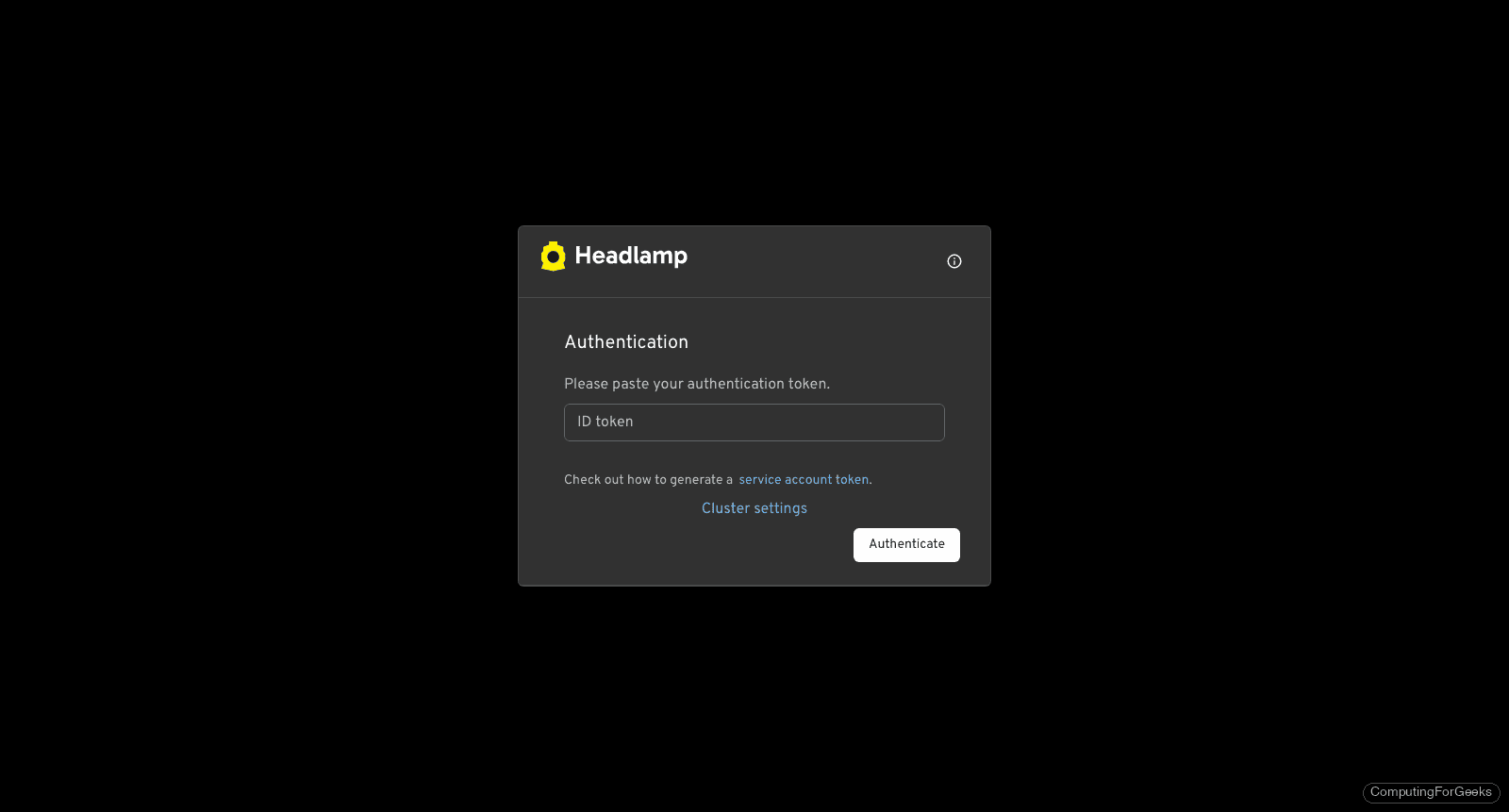
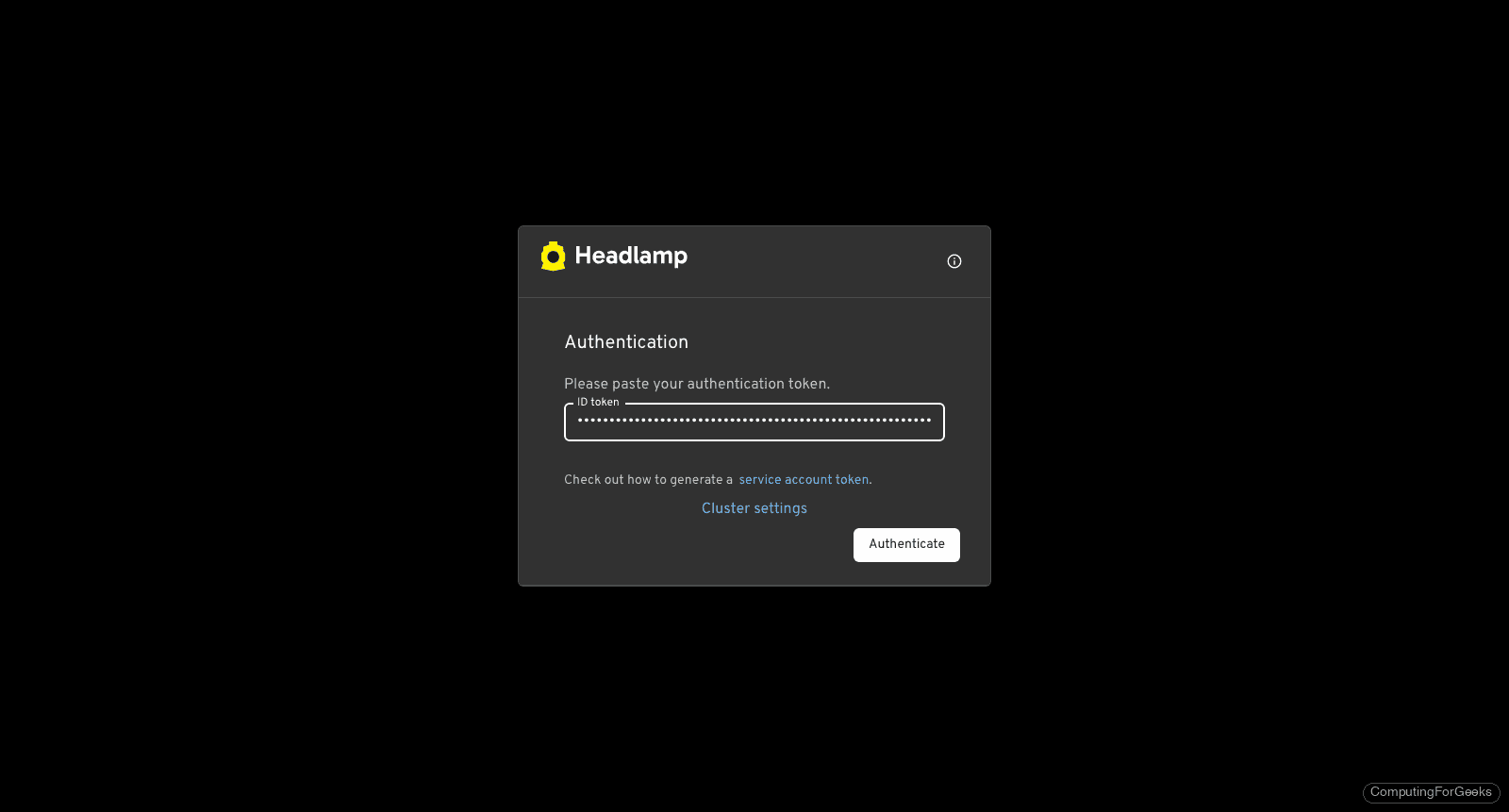
Paste the JWT you generated earlier and click Authenticate.
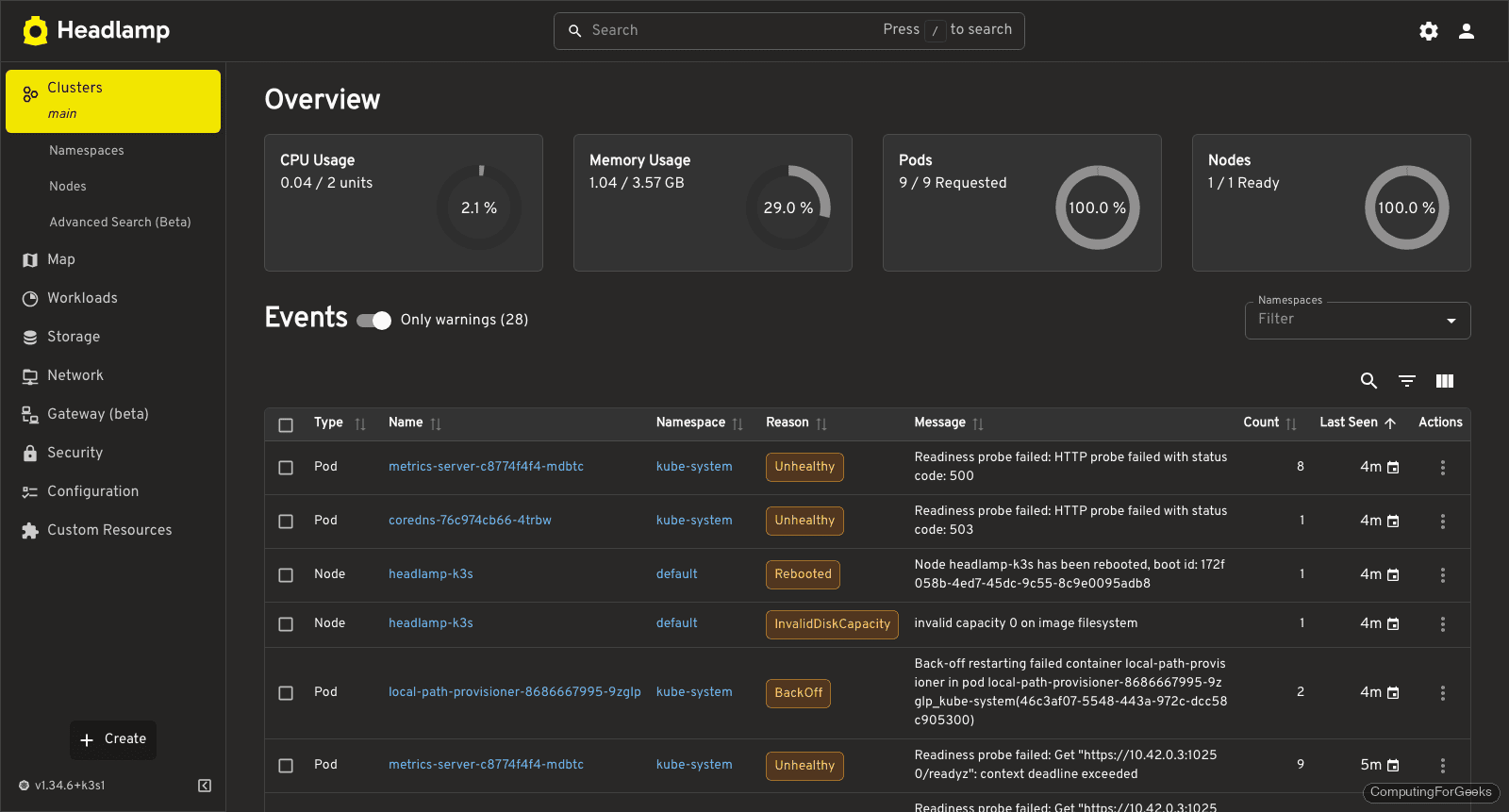
The first screen after login is the Cluster Overview. It shows CPU and memory usage, pod and node counts, and the most recent cluster events. This is where you land every time you open Headlamp, so take a moment to check it actually matches what kubectl top would tell you.
Walking through the Headlamp interface
The left sidebar is organized by resource type, not by namespace. This is the right call: if you live in one namespace you will filter globally and forget the rest. If you manage dozens, you switch namespaces from the top bar per-page. Every list view has the same pattern: filter, sort, inline actions.
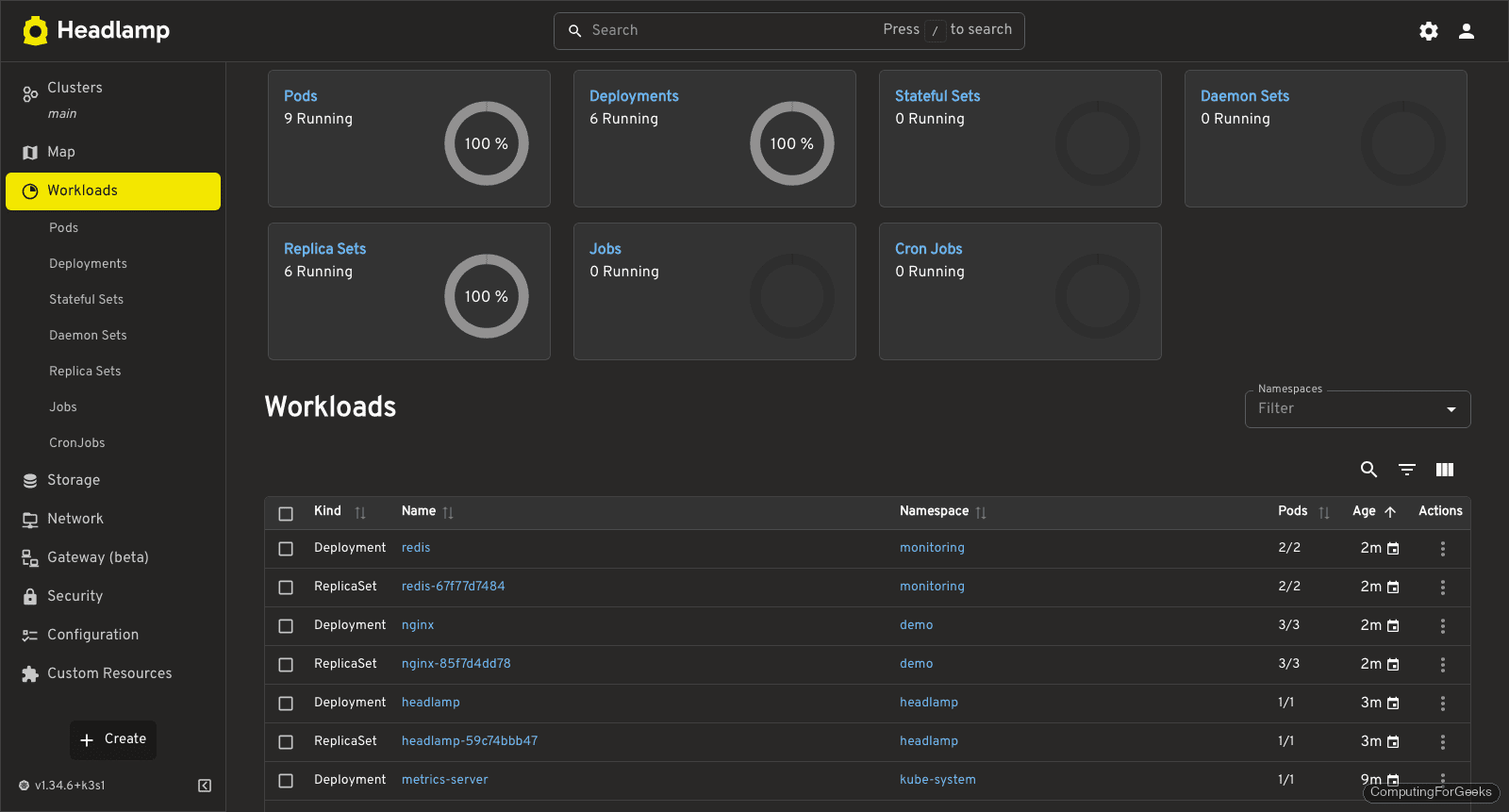
Workloads aggregates Deployments, ReplicaSets, StatefulSets, DaemonSets, Jobs, and CronJobs on one screen. Click any row and you get manifest YAML, events, pod list, and logs without a context switch.
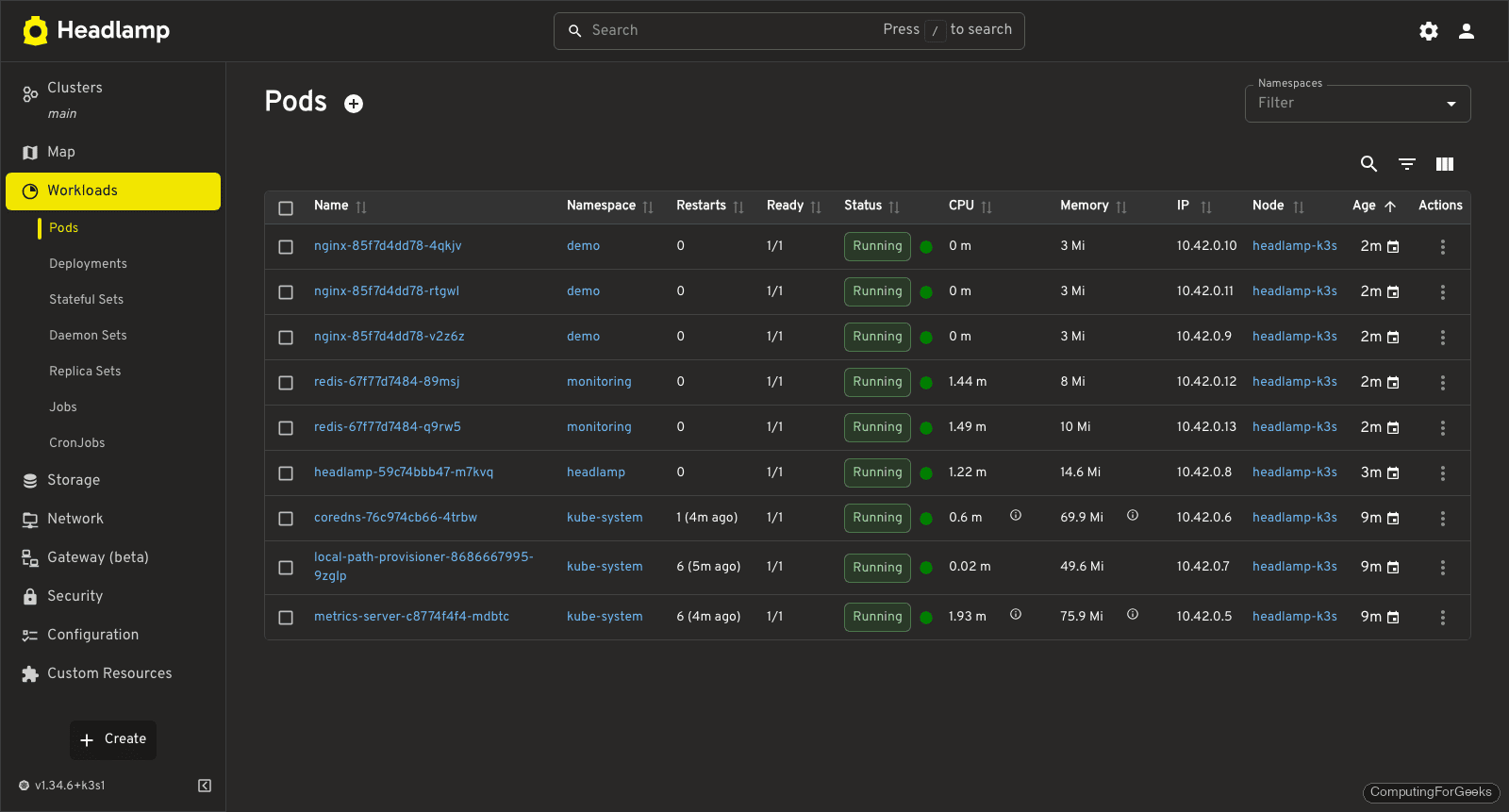
The Pods view is the one you will keep pinned. Sortable by age, status, restarts, CPU, and memory. The node column links to the node page, which is nice for finding noisy neighbors.
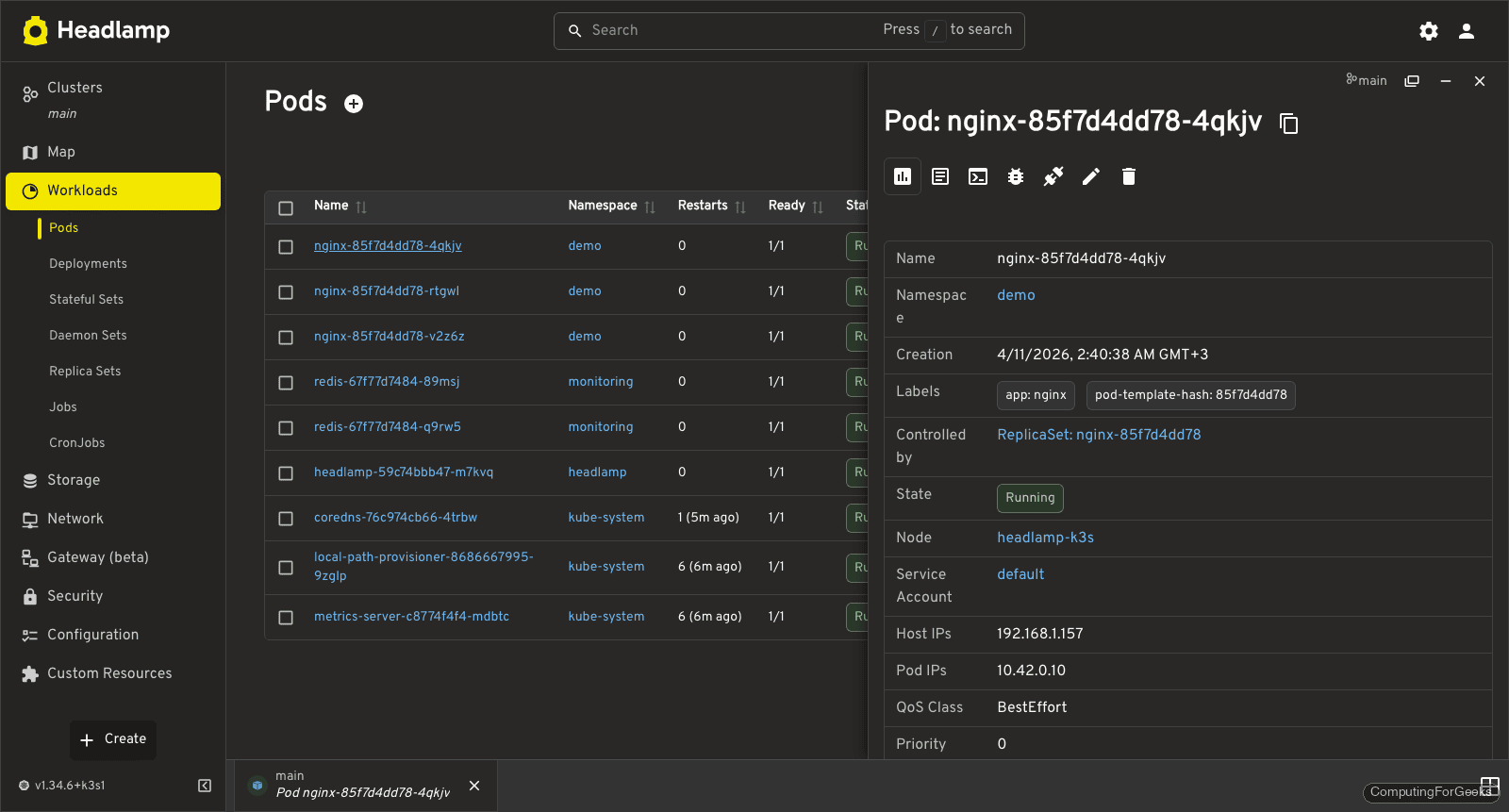
Click into a pod and you get the details page with the container status, environment variables (new in v0.41), events, and a logs tab that tails in real time. This is where the read-write philosophy pays off: you can restart, delete, or exec into a container directly from this page.
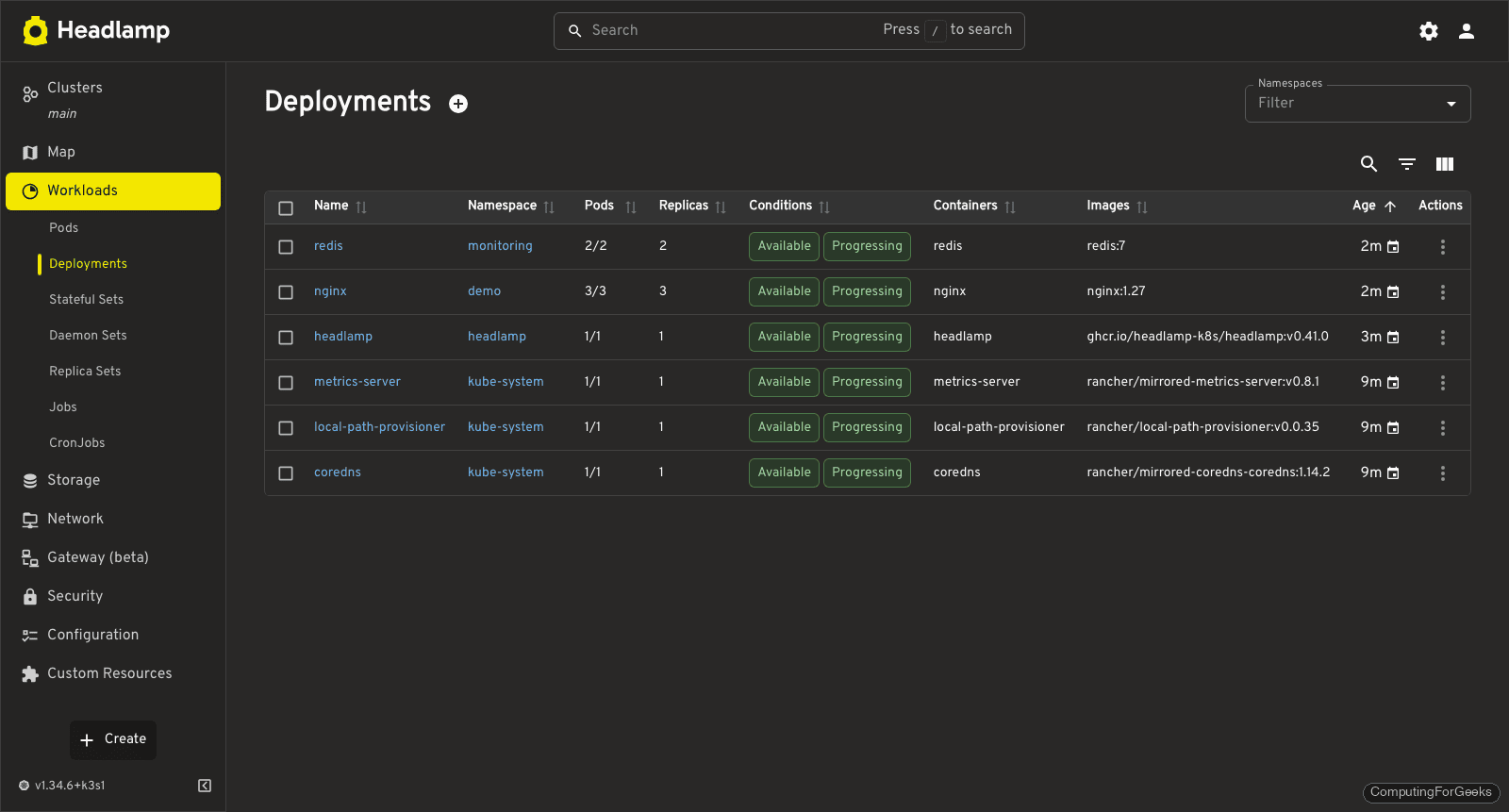
Deployments get their own page with revision history. Starting in v0.41.0, the rollback button opens the revision list and lets you roll back to any specific revision, not just the previous one. That single change makes Headlamp a better rollback tool than kubectl rollout undo for most teams.
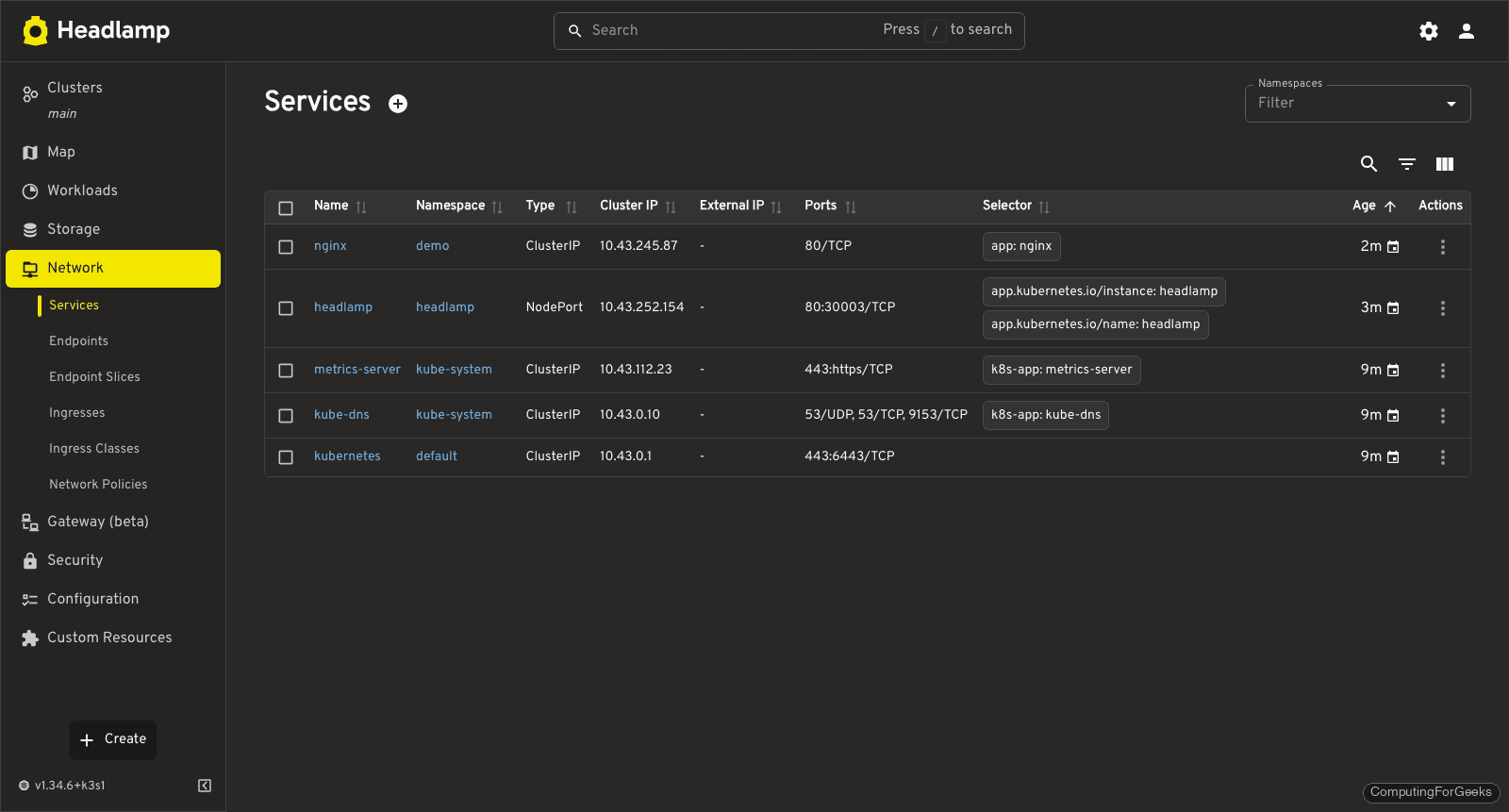
Services show ClusterIP, NodePort, and LoadBalancer entries together with their selectors and endpoints. When a Service is not matching anything you expect, this is the quickest place to catch the typo.
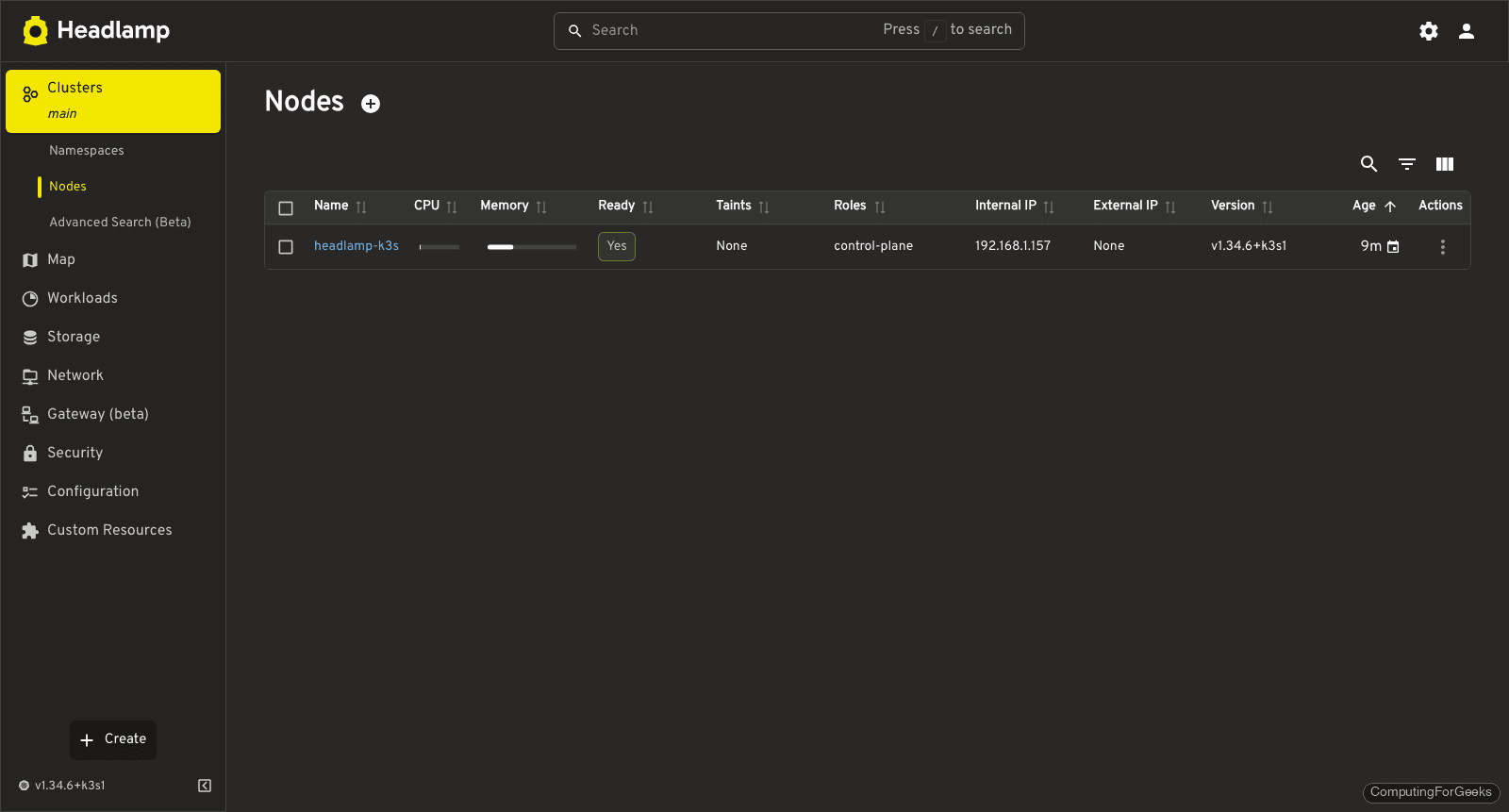
The Nodes view gives you allocated vs allocatable CPU and memory, taints, labels, and status conditions at a glance. Click a node to drain it, cordon it, or read its kubelet logs.
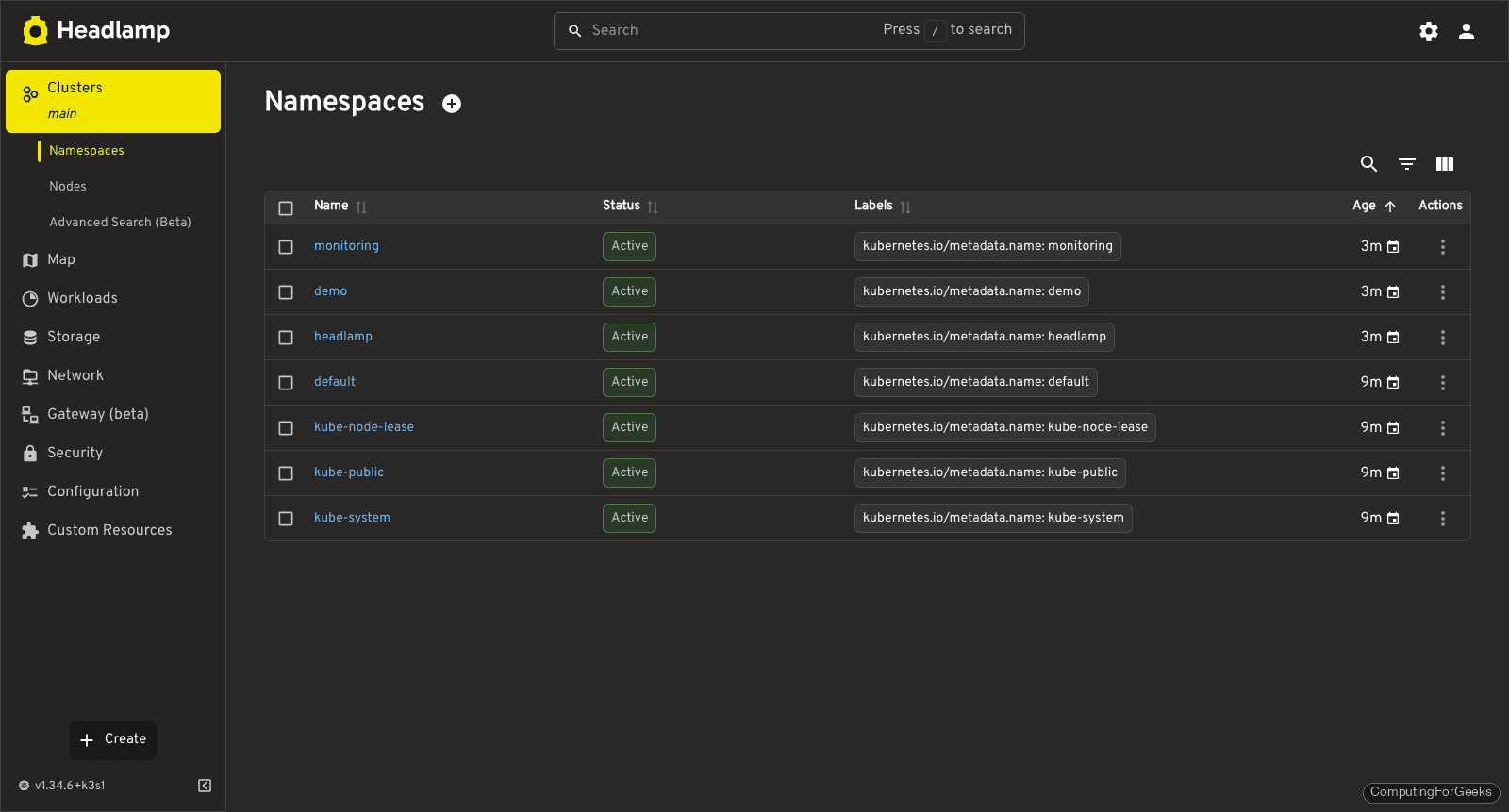
Namespaces list and let you create or delete from the UI. Handy for multi-tenant clusters where you are constantly spinning up test envs.
The standout view is Map. It renders a graph of namespaces and the workloads inside them, which is a much better mental model than a long list of YAMLs. On bigger clusters you can filter to specific namespaces.
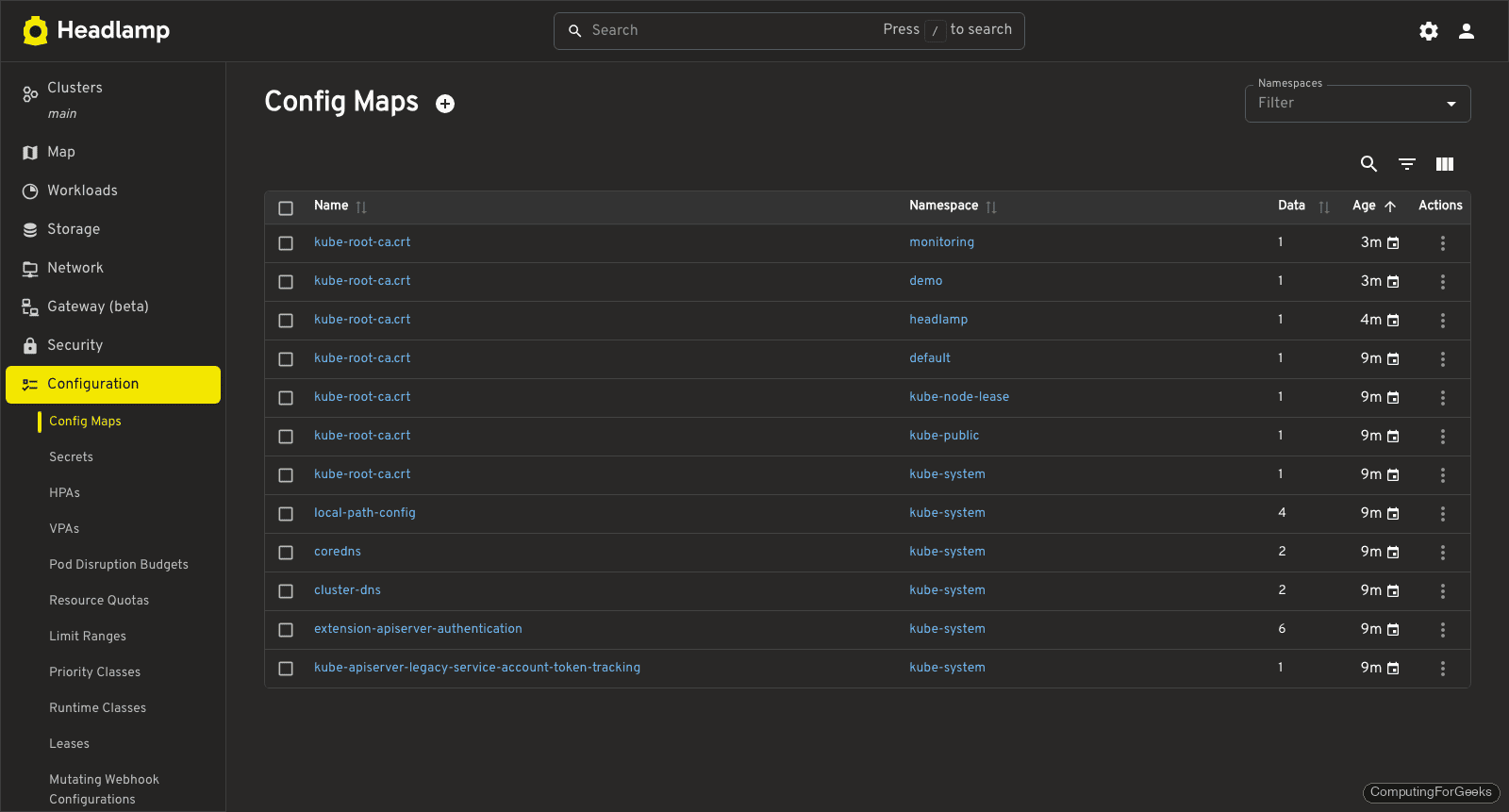
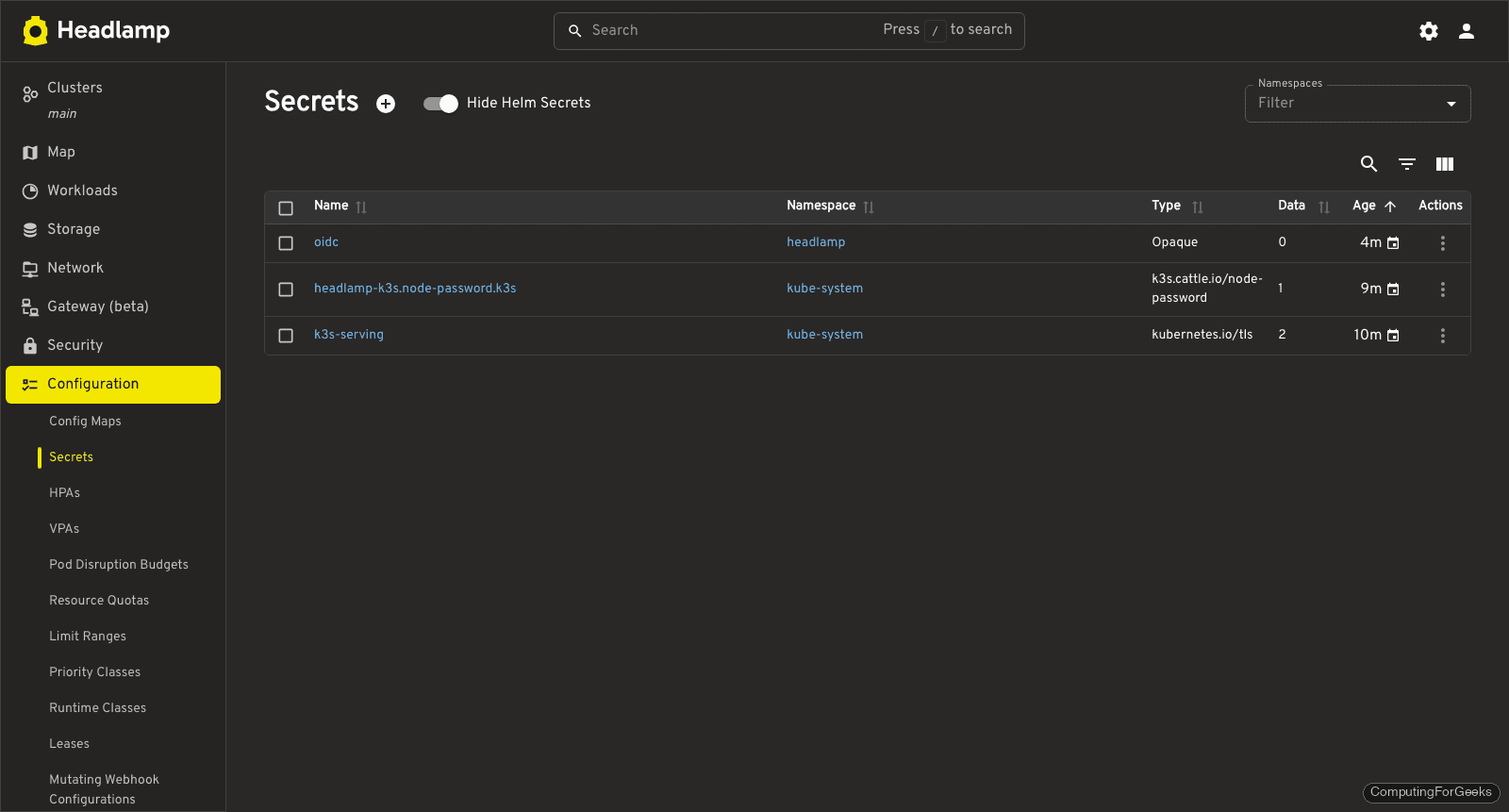
ConfigMaps and Secrets are under Configuration. Secrets are redacted by default and you need to click the eye icon to reveal. Rotation happens inline through the YAML editor.
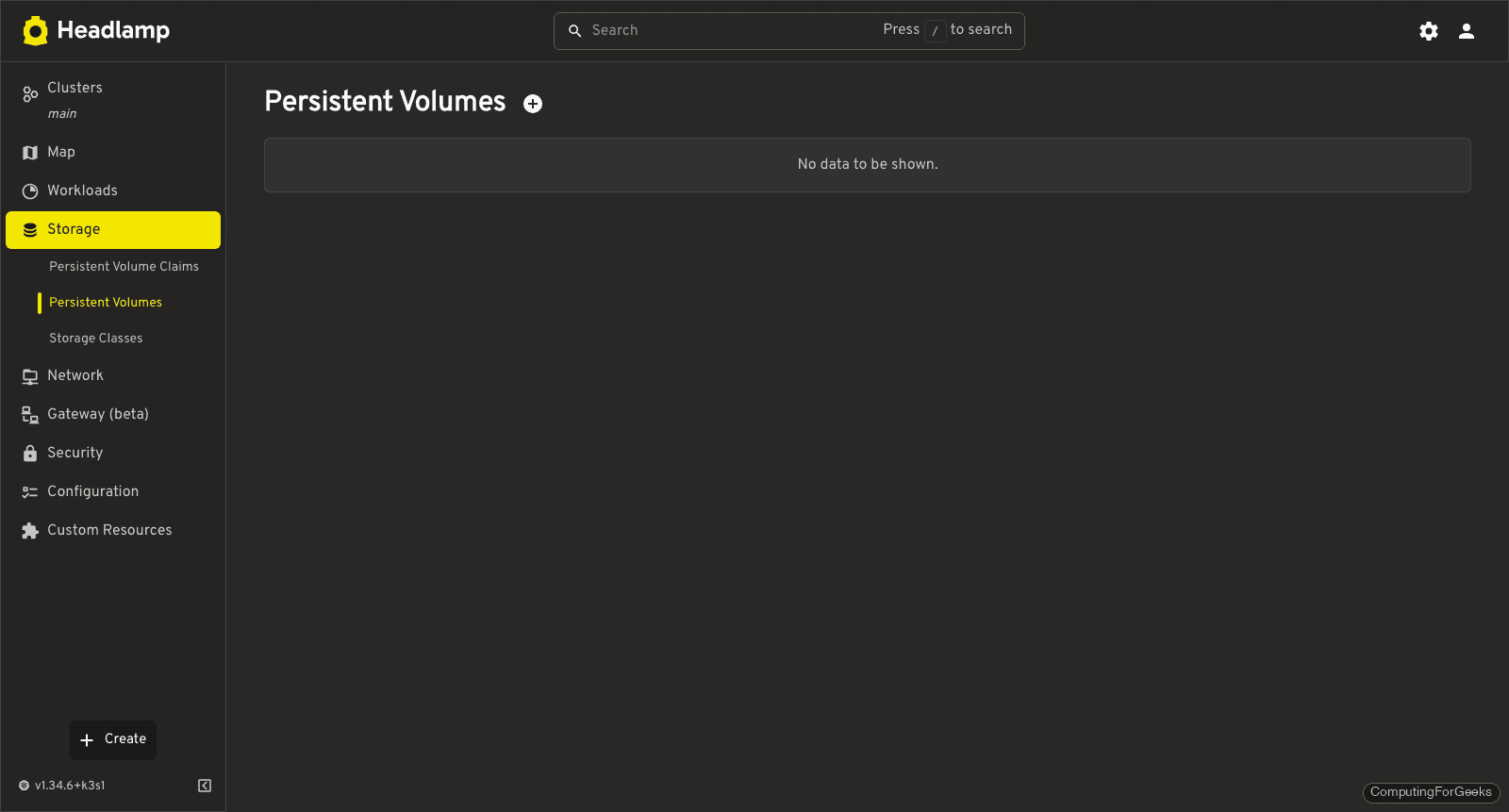
Storage covers PersistentVolumes, PersistentVolumeClaims, and StorageClasses together. This is the fastest way to hunt down a PVC that is stuck in Pending.
Expose Headlamp with Nginx Ingress and Let’s Encrypt
NodePort is fine for the first 15 minutes. For anything past that, put Headlamp behind an Ingress with TLS. The chart supports ingress as a values block, so you do not need to write it by hand.
Create a values.yaml that turns on the ingress and points it at your domain. This example assumes you already run Nginx Ingress Controller and cert-manager with a letsencrypt-prod ClusterIssuer:
ingress:
  enabled: true
  ingressClassName: nginx
  hosts:
    - host: headlamp.example.com
      paths:
        - path: /
          type: Prefix
  tls:
    - secretName: headlamp-tls
      hosts:
        - headlamp.example.com
  annotations:
    cert-manager.io/cluster-issuer: letsencrypt-prod
    nginx.ingress.kubernetes.io/backend-protocol: HTTP

service:
  type: ClusterIP

config:
  baseURL: ""
  sessionTTL: 3600
Upgrade the release with those values. Helm preserves the existing install and rolls the new config in place:
helm upgrade headlamp headlamp/headlamp \
  --namespace headlamp \
  -f values.yaml
cert-manager issues the certificate within about 60 seconds. Check that the Ingress landed and the TLS secret was created:
kubectl -n headlamp get ingress,certificate,secretPoint your DNS at the ingress controller and open https://headlamp.example.com in the browser. The login screen should now load over HTTPS with a valid certificate.
Wire up OIDC so your team stops sharing tokens
Bearer tokens are painful at team scale. Nobody wants to rotate a JWT every morning, and sharing a long-lived token defeats the point of RBAC. Headlamp supports OIDC out of the box, so you plug it into whatever identity provider you already run: Keycloak, Dex, Auth0, Okta, Entra ID, Google.
Add the OIDC block to your values.yaml:
config:
  oidc:
    clientID: headlamp
    clientSecret: "REPLACE_ME"
    issuerURL: https://sso.example.com/realms/platform
    scopes: "openid,profile,email,groups"
Apply the upgrade and refresh the browser. The login screen now forwards to your IdP, and once you are back, Headlamp impersonates you using the groups and claims from the ID token. Pair this with a cluster-side RBAC policy that grants permissions to those groups and you have proper team access without anyone handling raw tokens.
Enable the AI Assistant plugin
The AI Assistant is the biggest addition in the 2025-2026 cycle and it is worth turning on if you spend your day answering “is this pod healthy” questions. Under the hood it is a Headlamp plugin that speaks MCP (Model Context Protocol), so the UI ships the prompt and your model talks back with structured cluster data.
Open Settings → Plugins in Headlamp, search for ai-assistant, click install, then set your model credentials (Anthropic, OpenAI, or a local Ollama endpoint) in the plugin settings panel. After that, a chat icon appears in the top bar. Ask it things like:
- “Which pods in the demo namespace are not ready?”
- “Show the last 50 lines of logs for the nginx deployment”
- “Why is the metrics-server restarting?”
It works best on clusters where events and logs are not overwhelming. Large prod clusters will want to pair it with a log backend to keep the context window under control.
Troubleshooting
Error: “Extension conntrack revision 0 not supported, missing kernel module?”
This one hit us installing k3s on a fresh Rocky Linux 10.1 host. k3s comes up, the node goes Ready, but every pod gets stuck with CrashLoopBackOff. The giveaway is in journalctl -u k3s:
proxier.go:805 "Failed to ensure chain jumps" err=
  error appending rule: exit status 4: Warning: Extension conntrack revision 0 not supported, missing kernel module?
  iptables v1.8.11 (nf_tables):  RULE_INSERT failed (No such file or directory): rule in chain INPUT
The running kernel (shipped with the cloud image) did not include xt_conntrack in its modules. Installing the kernel-modules package pulls in a newer kernel, but until you reboot into it, the running kernel is still the old one without the module. The fix is to install the updated kernel modules and reboot:
sudo dnf install -y kernel-modules
sudo reboot
# after reboot:
sudo systemctl restart k3s
kubectl get pods -A
Headlamp has nothing to do with this error, but any in-cluster dashboard that depends on service networking will fail the same way, so it is worth documenting where the fix lives.
Error: “clusterrolebindings.rbac.authorization.k8s.io ‘headlamp-admin’ already exists”
You hit this when reinstalling Headlamp without cleaning the previous RBAC binding. ClusterRoleBindings are cluster-scoped, they do not get removed when you delete the Helm release. Delete and recreate:
kubectl delete clusterrolebinding headlamp-admin
kubectl create clusterrolebinding headlamp-admin \
  --serviceaccount=headlamp:headlamp-admin \
  --clusterrole=cluster-admin
Login succeeds, then the UI is stuck on “Loading”
Almost always a RBAC issue. The ServiceAccount you generated the token for does not have permission to list the resources Headlamp is trying to fetch. Run kubectl auth can-i --list --as=system:serviceaccount:headlamp:headlamp-admin and compare against the expected set. In a lab, the fastest fix is to bind cluster-admin. In production, give the account a custom role with read on all core resources and read-write on the namespaces it should manage.
Desktop app rejects kubeconfig on Apple Silicon
Older releases shipped an x86_64 build that Rosetta loaded, and the kubeconfig parser tripped on paths under /opt/homebrew. v0.41.0 auto-detects the arm64 build, so updating to the latest version fixes this outright. If you cannot update, run the app from Homebrew (brew install --cask headlamp) instead of dragging the downloaded .dmg in manually.
Hardening for production use
If Headlamp is going to live on a production cluster, there are a few defaults to revisit before you hand the URL to anyone else.
- Scope the RBAC. Do not bind
cluster-adminto the Headlamp ServiceAccount in prod. Create a ClusterRole that matches what your operators actually do (typically read on everything, write on a few namespaces) and bind the OIDC group to it. - Drop the session TTL. The chart default is 24 hours. For production, drop
config.sessionTTLto 3600 so an abandoned laptop does not stay logged in all day. - Put it behind your ingress and TLS. No HTTP, no NodePort. Let cert-manager handle the certificate. The earlier Helm values block is enough.
- Restrict source IPs if possible. An
nginx.ingress.kubernetes.io/whitelist-source-rangeannotation on the Ingress is a cheap, high-value lock. - Pin the chart version in GitOps. Do not chase
lateston a production dashboard. Pin the chart version in Argo/Flux and upgrade on a cadence you control. - Enable audit logs on the cluster. Headlamp is read-write. Every click that mutates state should show up in your cluster audit log so you can tie a UI action back to a user.
Uninstall Headlamp cleanly
Helm removes the Deployment, Service, and Ingress in one shot. The namespace and the RBAC binding are left behind on purpose so Helm does not clobber anything you created alongside the release. Remove them explicitly:
helm uninstall headlamp -n headlamp
kubectl delete clusterrolebinding headlamp-admin
kubectl delete namespace headlamp
For the manifest install, point kubectl delete at the same URL you used to install:
kubectl delete -f https://raw.githubusercontent.com/kubernetes-sigs/headlamp/main/kubernetes-headlamp.yaml
kubectl delete clusterrolebinding headlamp-admin
That leaves the cluster in the exact state it was before the install. Worth doing before you try one of the alternatives we compared earlier, if only to keep the namespace list clean.
