

Deploying kube-prometheus-stack gives you Grafana with 20+ pre-built Kubernetes dashboards out of the box. That’s a solid starting point, but production monitoring demands more. You need custom dashboards tailored to your actual workloads, PromQL queries that surface the metrics your team cares about, and alert rules that wake up the right person at 3 AM when a pod starts crash-looping.
This guide walks through building custom Grafana dashboards with template variables and PromQL, configuring Grafana Unified Alerting with Slack and PagerDuty contact points, and setting up production-grade alert rules for Kubernetes. Everything here was tested on a live k3s cluster running kube-prometheus-stack 82.14.1 with real workloads across multiple namespaces. If you haven’t deployed the monitoring stack yet, start with our Prometheus and Grafana installation guide for Kubernetes.
Tested March 2026 | kube-prometheus-stack 82.14.1, Grafana 11.x, Prometheus 3.x, k3s v1.34.5
Explore the Built-in Dashboards
kube-prometheus-stack ships with over 20 dashboards provisioned automatically via ConfigMaps. These cover cluster resources, node metrics, Kubernetes internals, and the monitoring stack itself. Open Grafana (port 30080 in this setup), click Dashboards in the left sidebar, and you’ll see the full list organized by folder.
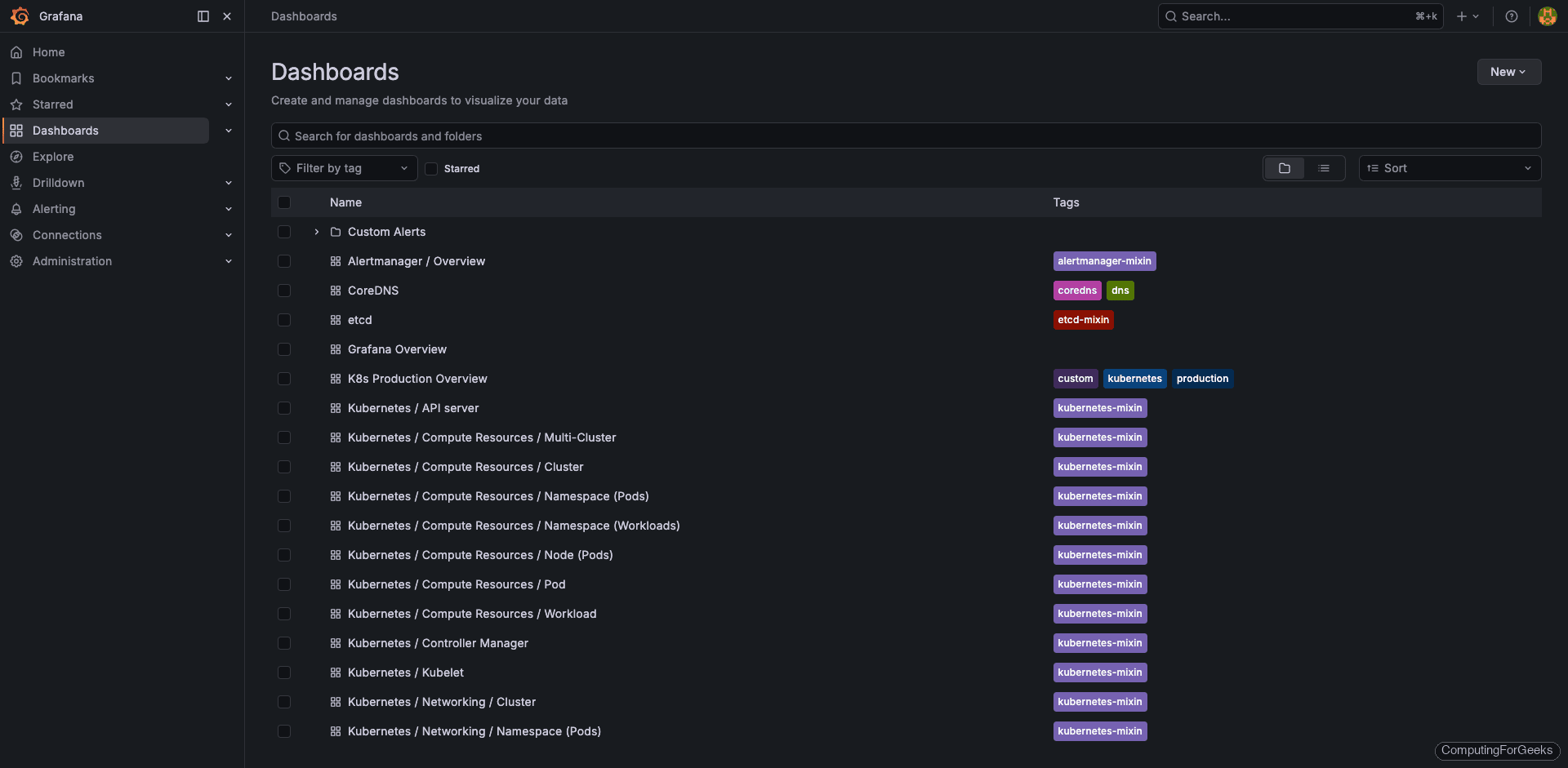
The most useful built-in dashboards for day-to-day operations:
- Kubernetes / Compute Resources / Cluster: CPU and memory usage aggregated across all nodes and namespaces
- Kubernetes / Compute Resources / Namespace (Pods): per-pod resource consumption filtered by namespace
- Kubernetes / Compute Resources / Node (Pods): resource usage broken down by node with pod-level detail
- Node Exporter Full: deep host-level metrics (disk I/O, network, filesystem, CPU per core)
- CoreDNS: DNS query rates, latency, and cache hit ratios
- etcd: leader elections, proposal rates, WAL sync duration
- Kubelet: pod lifecycle operations, runtime latency, volume manager stats
- API Server: request rates, latency percentiles, admission webhook duration
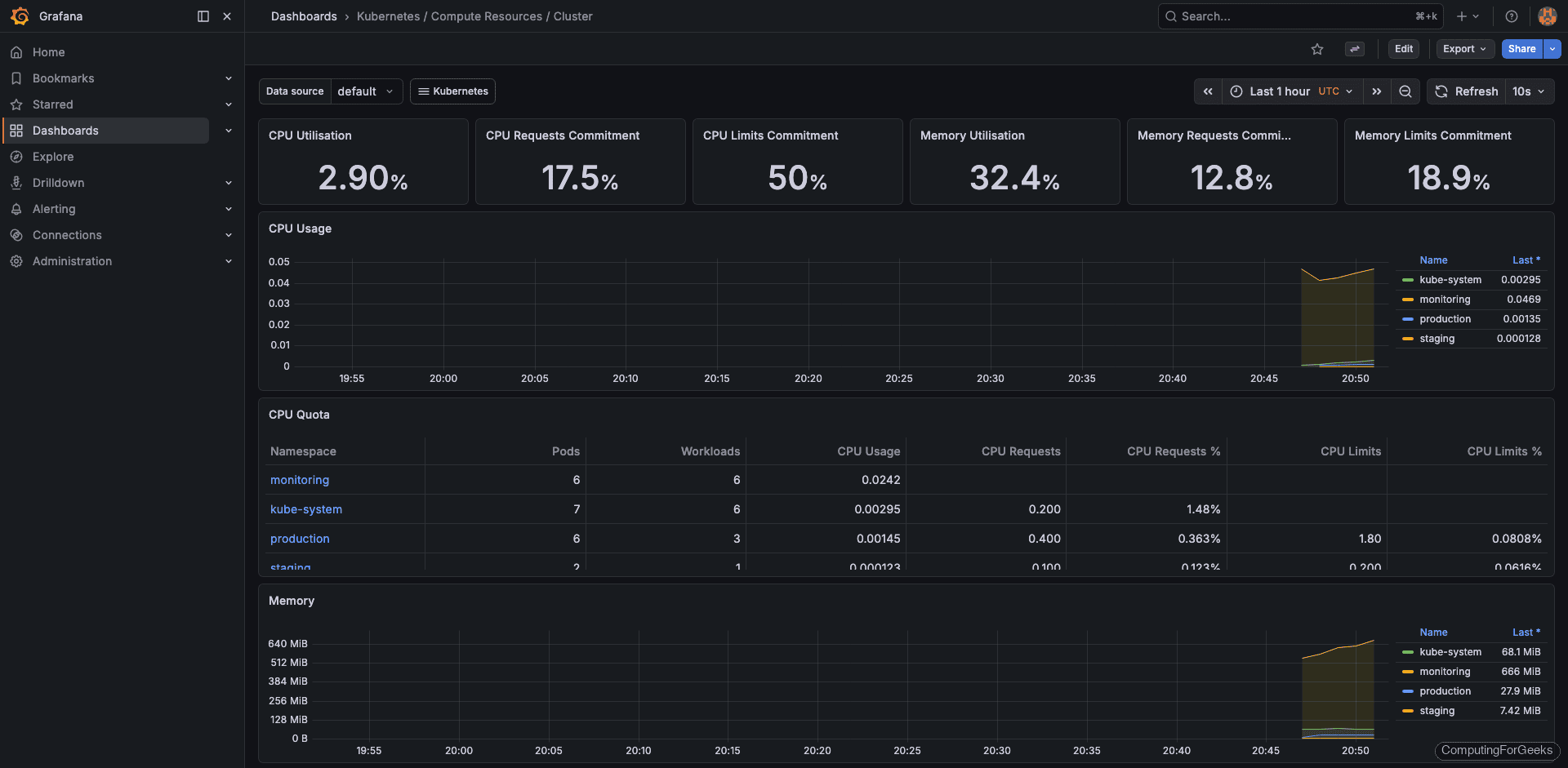
The cluster compute resources dashboard is the one most teams open first. It gives a bird’s-eye view of CPU and memory across every namespace.
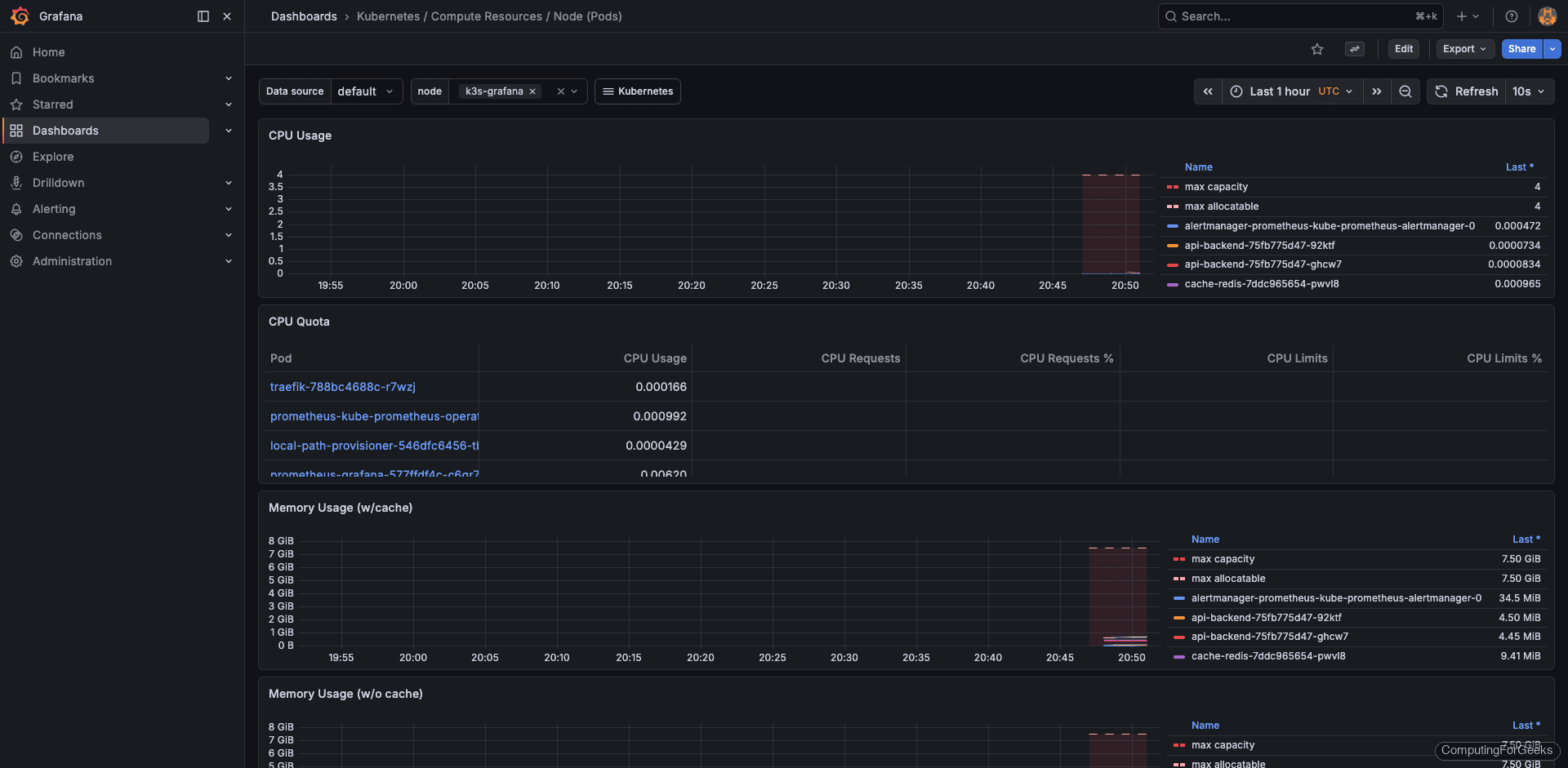
The node-level dashboard breaks resource usage down per pod on each node, which is useful for spotting noisy neighbors or imbalanced scheduling.
These dashboards are read-only by default because they are provisioned from ConfigMaps. To customize one, use the dashboard’s Save As option to create an editable copy, then modify the copy.
Import Community Dashboards
The Grafana dashboard marketplace has thousands of community-built dashboards. Rather than building everything from scratch, import proven dashboards for common use cases and customize from there.
| Dashboard ID | Name | Use Case |
|---|---|---|
| 1860 | Node Exporter Full | Detailed host-level metrics with CPU, memory, disk, network panels |
| 315 | Kubernetes Cluster | Cluster-wide overview with namespace and pod breakdowns |
| 12708 | Nginx Ingress Controller | Ingress traffic rates, latency percentiles, error rates |
| 14981 | K8s Pod Resources | Per-pod CPU and memory usage with resource limits comparison |
To import a community dashboard, navigate to Dashboards > New > Import in the Grafana sidebar. Enter the dashboard ID (for example, 1860) and click Load. Select Prometheus as the data source and click Import. The dashboard appears immediately with live data from your cluster.
Imported dashboards are fully editable, unlike the provisioned ones. You can rearrange panels, change PromQL queries, and save changes directly.
Build a Custom Dashboard from Scratch
Built-in dashboards are great for general Kubernetes health, but they don’t know anything about your application topology. A custom dashboard lets you focus on the namespaces, pods, and metrics that matter to your team. Here’s how to build a production overview dashboard with template variables, stat panels, time series graphs, and a pod status table.
Create the Dashboard and Add a Namespace Variable
Click Dashboards > New Dashboard in the Grafana sidebar. Before adding any panels, set up a template variable so every panel can be filtered by namespace. Click the gear icon (Dashboard Settings) at the top, then go to Variables > Add variable.
Configure the variable with these settings:
- Name:
namespace - Type: Query
- Data source: Prometheus
- Query:
label_values(kube_pod_info, namespace) - Include All option: Enabled
- Custom all value:
.*
This creates a dropdown at the top of the dashboard populated with every namespace in the cluster. Selecting a namespace filters all panels that reference $namespace in their queries. The “All” option uses a regex wildcard to show data from every namespace combined.
Add Stat Panels for Key Metrics
Stat panels are single-value displays that sit across the top row and give an instant health snapshot. Add four of them by clicking Add > Visualization and selecting Stat as the visualization type for each.
Running Pods count:
count(kube_pod_status_phase{namespace=~"$namespace",phase="Running"})CPU Usage (percentage across all containers in the namespace):
sum(rate(container_cpu_usage_seconds_total{namespace=~"$namespace",container!=""}[5m])) * 100Memory Usage (working set in MiB):
sum(container_memory_working_set_bytes{namespace=~"$namespace",container!=""}) / 1024 / 1024Pod Restarts (total across namespace):
sum(kube_pod_container_status_restarts_total{namespace=~"$namespace"})Set the unit to Percent (0-100) for CPU, mebibytes for memory, and short for the pod count and restart panels. Configure color thresholds on the restart panel (green at 0, red above 0) so restarts are immediately visible.
Add Time Series Panels
Below the stat row, add two time series panels for CPU and memory trends over time. These show which pods are consuming the most resources and whether usage is trending upward.
CPU by Pod (percentage per pod over time):
sum by(pod)(rate(container_cpu_usage_seconds_total{namespace=~"$namespace",container!=""}[5m])) * 100Memory by Pod (MiB per pod over time):
sum by(pod)(container_memory_working_set_bytes{namespace=~"$namespace",container!=""}) / 1024 / 1024Set the legend to {{pod}} on both panels so each line is labeled with the pod name. The time series visualization is the default in Grafana 11.x, so just paste the query and it renders correctly.
Add a Pod Status Table
A table panel showing current pod status across namespaces is useful for spotting pods stuck in Pending or Failed states. Use the Table visualization with this query:
kube_pod_status_phase{namespace=~"$namespace"} == 1Set the format to Table in the query options. Configure column transformations to show only the namespace, pod, and phase labels, hiding the value and other internal labels.
The Finished Dashboard
With the production namespace selected, the dashboard shows 6 running pods (3 web-frontend, 2 api-backend, 1 cache-redis), 0.135% CPU usage, 32.7 MiB memory, and 0 restarts. These numbers are from a real k3s cluster with lightweight test workloads.
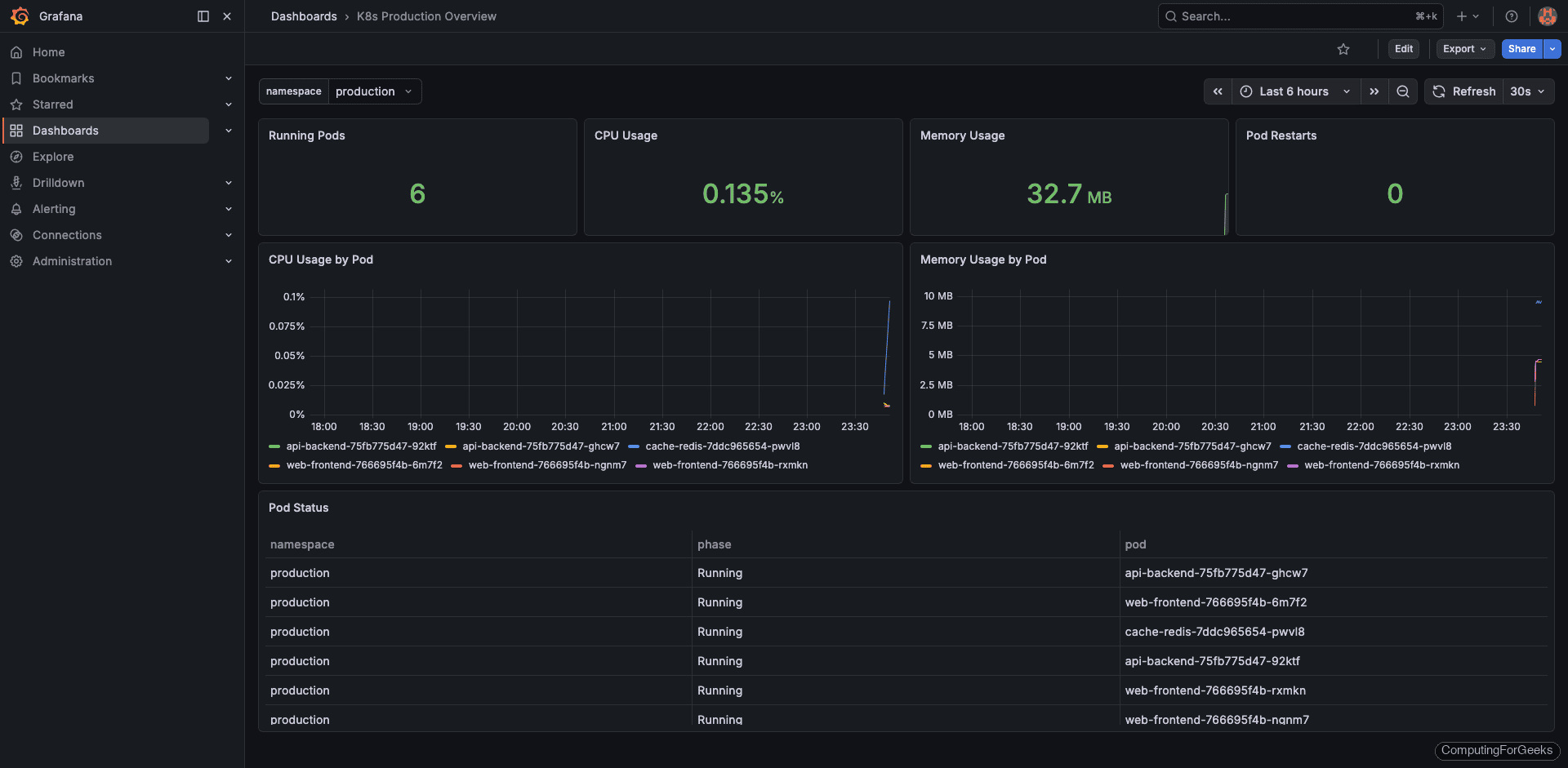
Switching the namespace dropdown to “All” aggregates metrics across production and staging, showing 8 total pods.
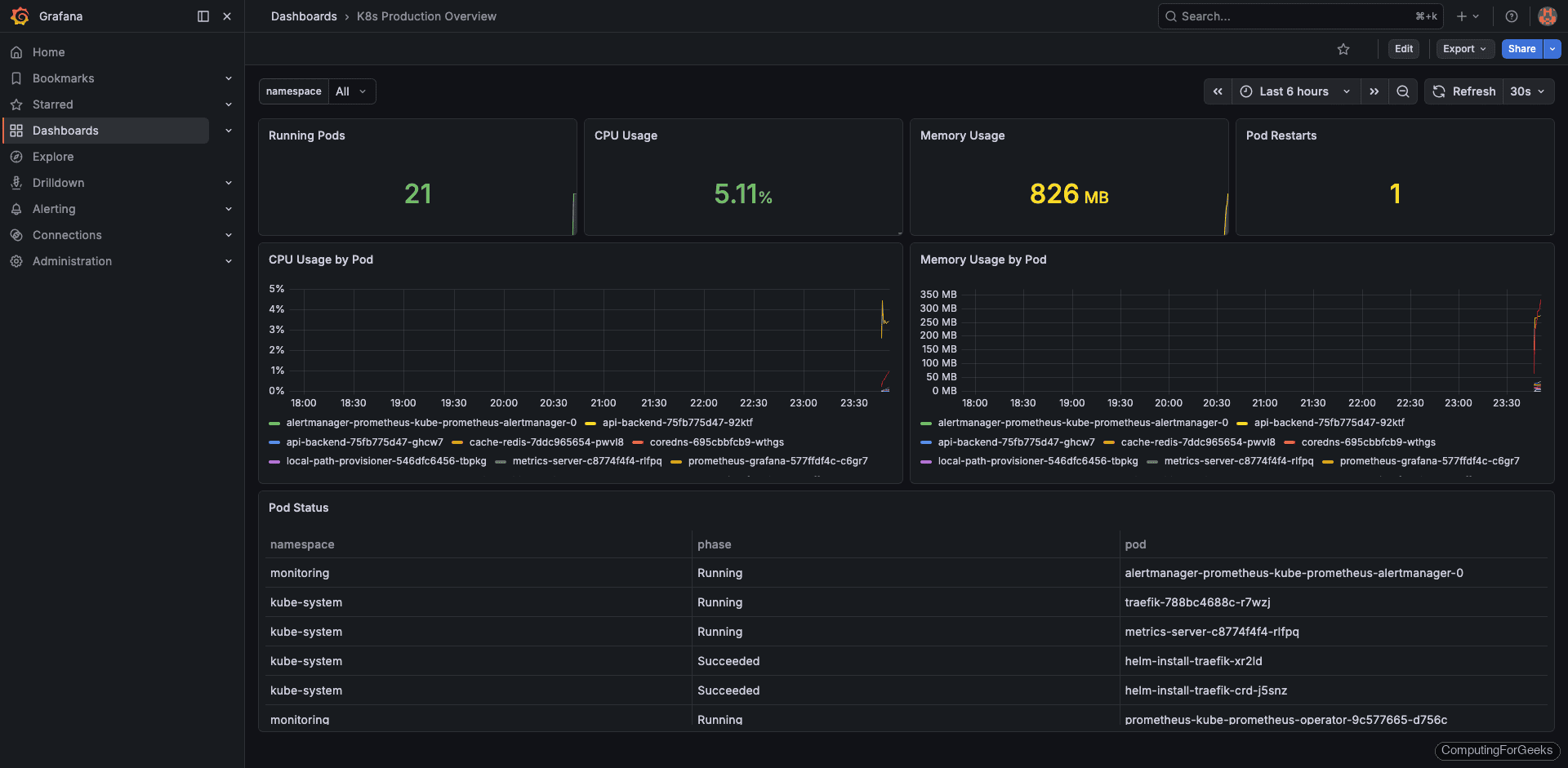
Save the dashboard with a descriptive name like “K8s Production Overview” and optionally tag it with kubernetes and custom for easier searching.
PromQL Quick Reference for Kubernetes
PromQL is where most teams get stuck. The official PromQL documentation covers the language in full, but here are the queries you’ll use most often when monitoring Kubernetes workloads.
| Metric | PromQL | What It Shows |
|---|---|---|
| CPU per pod | sum by(pod)(rate(container_cpu_usage_seconds_total{namespace="prod",container!=""}[5m])) | CPU cores used per pod |
| Memory per namespace | sum by(namespace)(container_memory_working_set_bytes{container!=""}) | Total working memory by namespace |
| Pod restart count | kube_pod_container_status_restarts_total | Cumulative restarts per container |
| Pods not ready | kube_pod_status_ready{condition="false"} | Pods failing readiness probes |
| PVC usage % | kubelet_volume_stats_used_bytes / kubelet_volume_stats_capacity_bytes * 100 | Disk usage per PersistentVolumeClaim |
| Node CPU % | 100 - (avg by(instance)(rate(node_cpu_seconds_total{mode="idle"}[5m])) * 100) | Node CPU utilization |
| Node memory % | (1 - node_memory_MemAvailable_bytes / node_memory_MemTotal_bytes) * 100 | Node memory utilization |
| Container OOMKilled | kube_pod_container_status_last_terminated_reason{reason="OOMKilled"} | Containers killed by OOM |
| Deployment replica mismatch | kube_deployment_spec_replicas != kube_deployment_status_available_replicas | Deployments not at desired replica count |
| HTTP request rate | sum(rate(http_requests_total[5m])) | Requests per second (requires app-level exporter) |
A few PromQL patterns worth internalizing: rate() must always wrap a counter metric and requires a range selector like [5m]. Use sum by(label) to aggregate across dimensions. The container!="" filter excludes the pause container that Kubernetes creates for every pod, which would otherwise skew your numbers.
Configure Grafana Unified Alerting
Grafana Unified Alerting (enabled by default since Grafana 11) lets you create alert rules, define notification routing, and manage silences entirely from the Grafana UI. It works with any Grafana data source, not just Prometheus, making it more flexible than Alertmanager for teams that consolidate on Grafana as their single monitoring interface.
Create a Contact Point (Slack)
Contact points define where alert notifications get delivered. Navigate to Alerting > Contact points in the Grafana sidebar, then click Add contact point.
Configure the Slack integration:
- Name:
slack-ops - Integration: Slack
- Webhook URL: paste your Slack incoming webhook URL
- Channel:
#ops-alerts(optional override)
Click Test to send a test notification to the channel, then Save contact point.
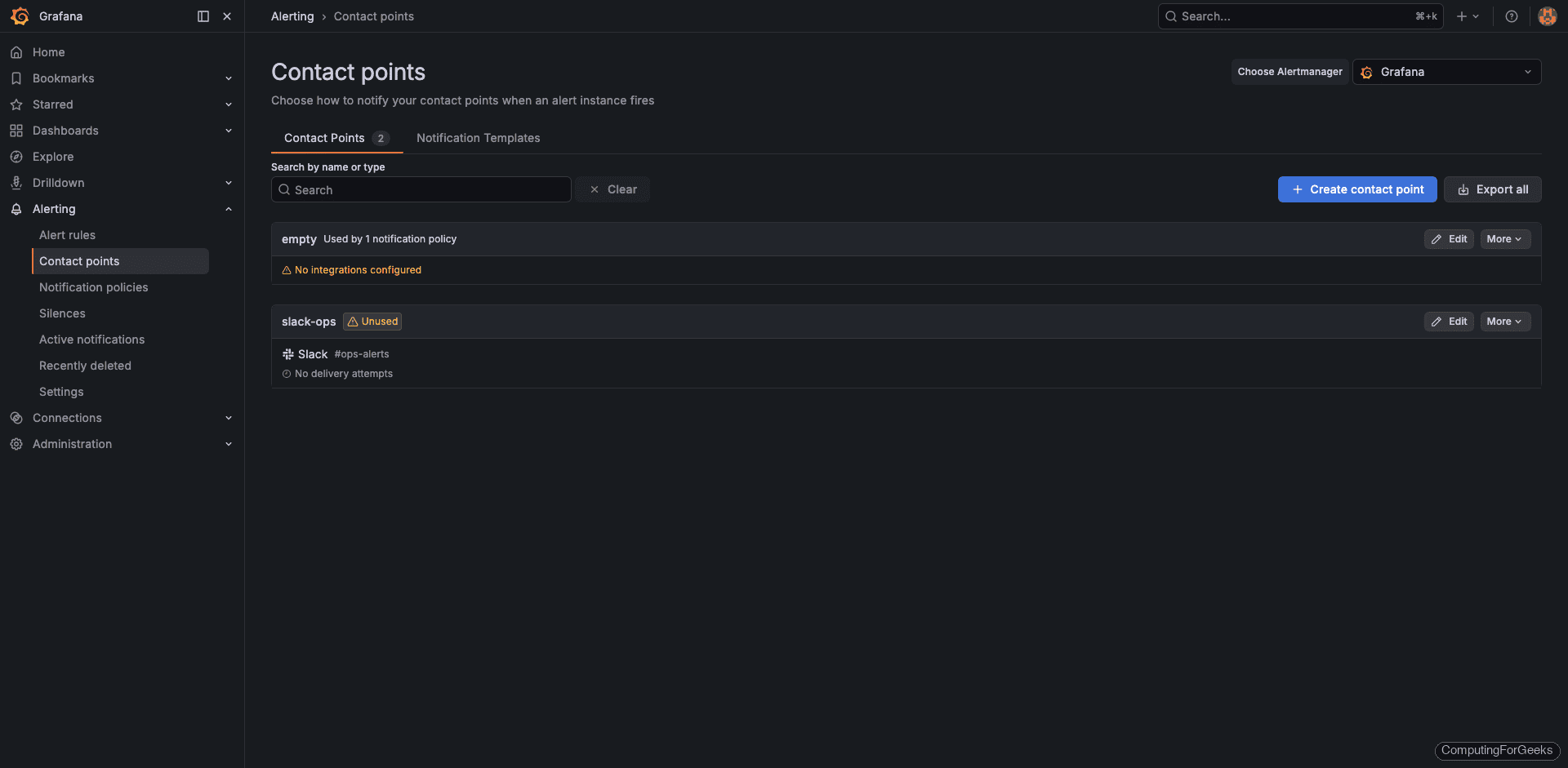
To get a Slack webhook URL: go to api.slack.com, create a new app (or use an existing one), enable Incoming Webhooks, click Add New Webhook to Workspace, select the target channel, and copy the generated URL.
For PagerDuty, use the same flow but select PagerDuty as the integration type and paste your routing key from the PagerDuty service integration settings. For Email, select the Email integration and configure SMTP either in grafana.ini or via Helm values under grafana.smtp.
Set Up Notification Policies
Notification policies control the routing logic: which alerts go to which contact point, how they’re grouped, and how often repeat notifications fire. Navigate to Alerting > Notification policies.
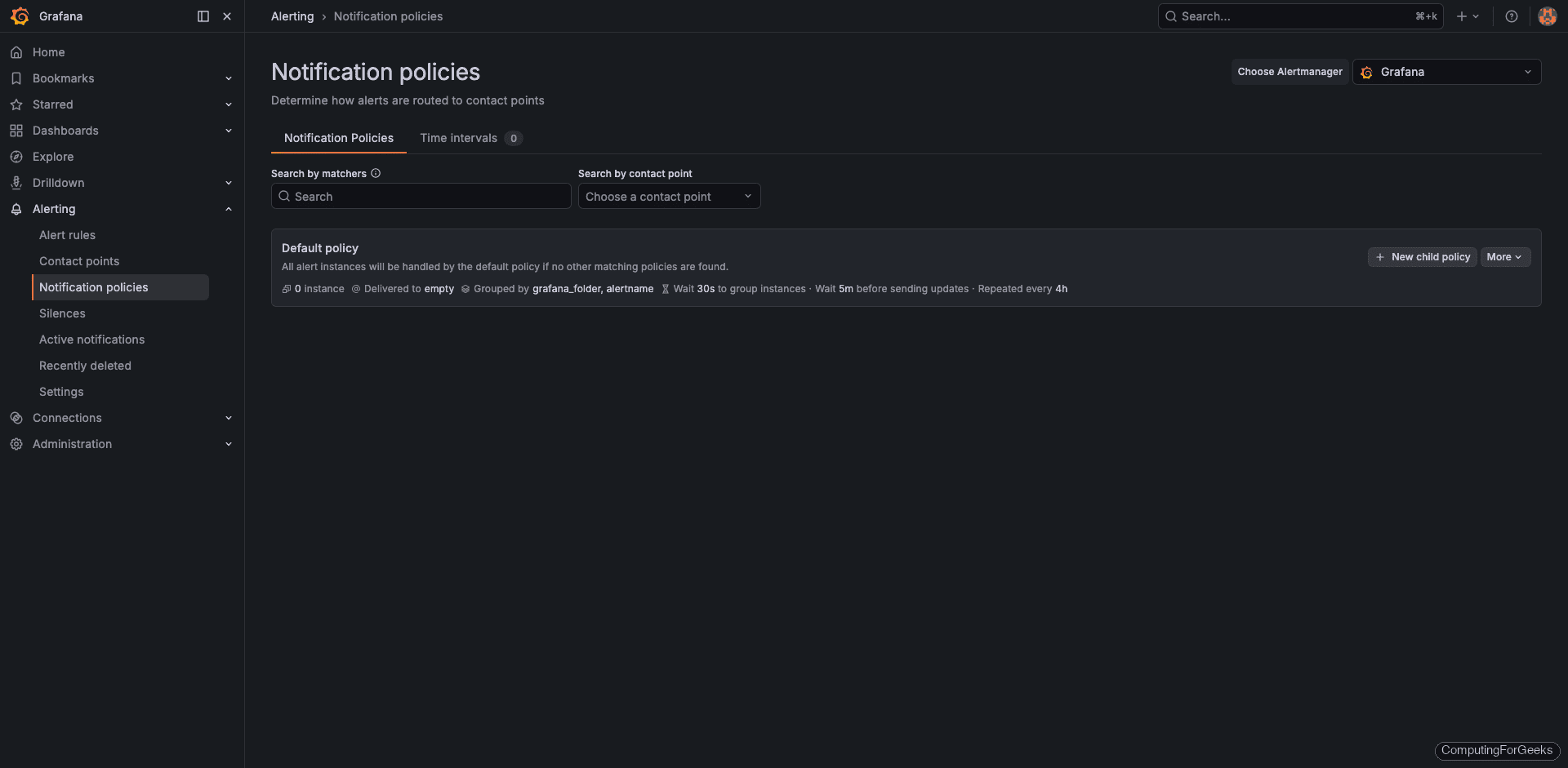
The default policy sends all alerts to whatever contact point is set as default. To route specific alerts differently, add nested policies that match on labels:
severity=criticalroutes to PagerDuty (pages on-call)severity=warningroutes to Slack (informational)team=platformroutes to#platform-alertschannel
Group alerts by namespace and alertname to avoid notification floods. Set the group wait to 30 seconds, group interval to 5 minutes, and repeat interval to 4 hours. These values work well for most teams because they batch related alerts together without delaying critical notifications too long.
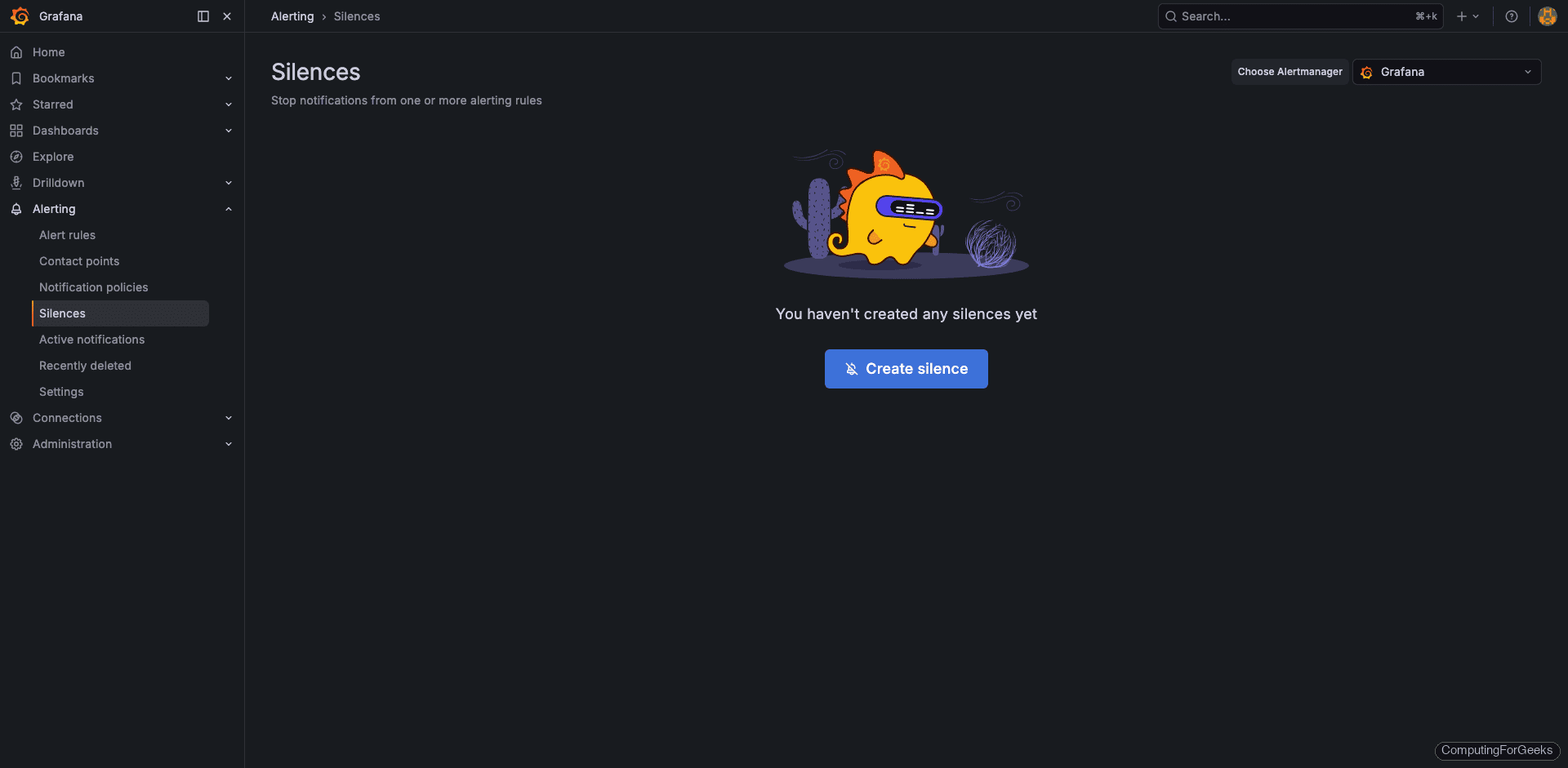
For planned maintenance, use Alerting > Silences to temporarily suppress notifications by matching label selectors.
Create Custom Alert Rules
Navigate to Alerting > Alert rules and click New alert rule. Each rule needs a PromQL query, a condition threshold, and a pending period (how long the condition must be true before firing). Here are three production-relevant rules tested on our k3s cluster.
Rule 1: High Pod Memory Usage (>80%)
This fires when any container in the production namespace uses more than 80% of its memory limit for 5 consecutive minutes. Catching memory pressure early prevents OOMKills.
(container_memory_working_set_bytes{namespace="production",container!=""} / container_spec_memory_limit_bytes{namespace="production",container!=""}) * 100- Condition: when last() of query is above 80
- Pending period: 5 minutes
- Labels:
severity=warning,team=platform - Summary annotation: Pod {{ $labels.pod }} memory usage is above 80% of its limit
Rule 2: Pod Restarting Frequently
More than 2 restarts in 15 minutes usually indicates a crash loop. This catches flapping pods that Kubernetes keeps restarting without human intervention.
increase(kube_pod_container_status_restarts_total{namespace="production"}[15m])- Condition: when last() of query is above 2
- Pending period: 5 minutes
- Labels:
severity=critical,team=platform - Summary annotation: Pod {{ $labels.pod }} has restarted {{ $value }} times in 15 minutes
Rule 3: Node CPU Above 80%
Sustained high CPU on a node means workloads may get throttled or new pods can’t be scheduled. The 10-minute pending period filters out short bursts that resolve on their own.
100 - (avg by(instance)(rate(node_cpu_seconds_total{mode="idle"}[5m])) * 100)- Condition: when last() of query is above 80
- Pending period: 10 minutes
- Labels:
severity=critical,team=infra - Summary annotation: Node {{ $labels.instance }} CPU usage above 80% for 10 minutes
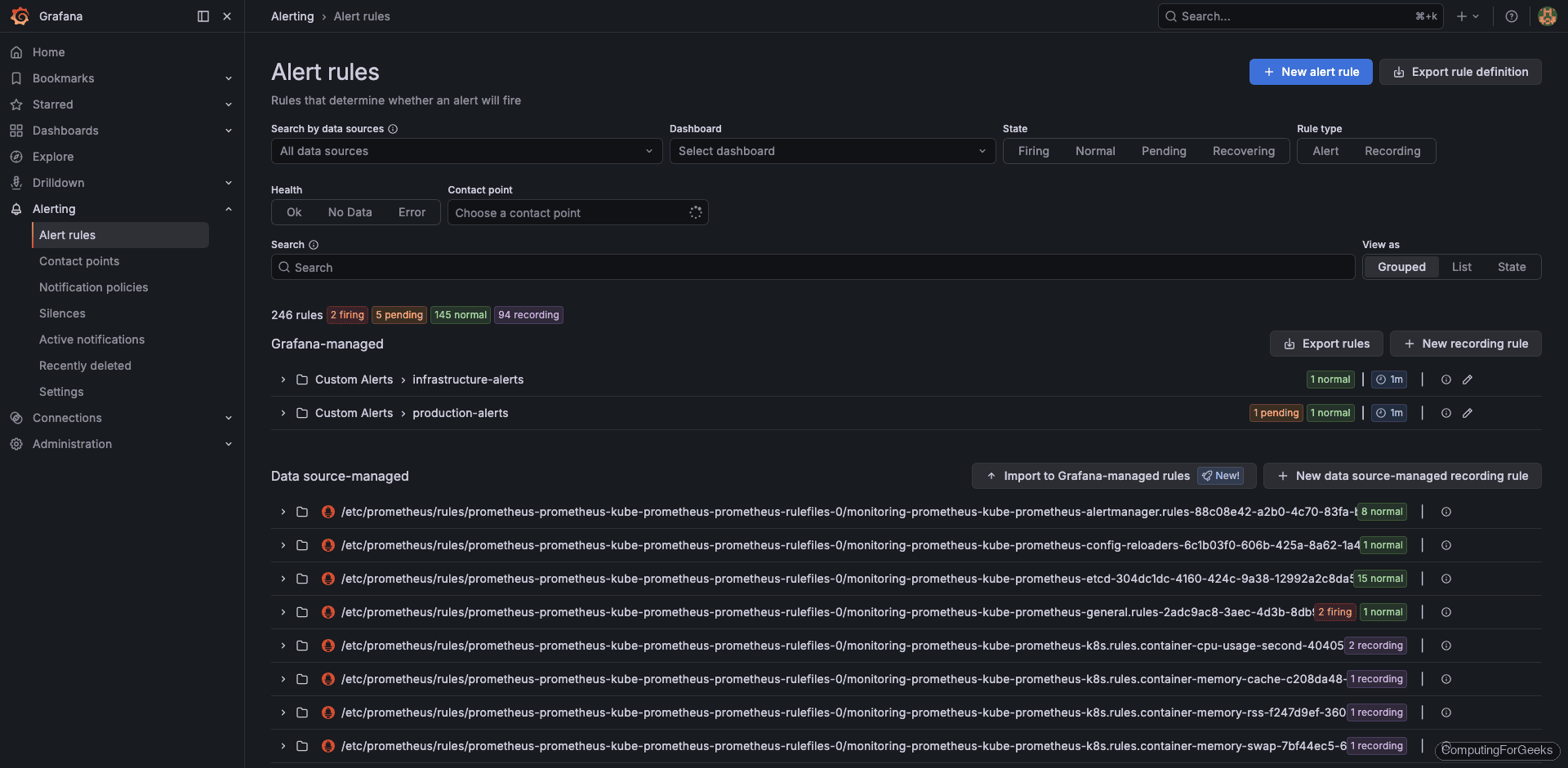
After creating all three rules, the alert rules page shows them alongside the 245 built-in rules from kube-prometheus-stack. The built-in rules cover Kubernetes internals, Prometheus health, and node_exporter metrics, so you only need to add rules specific to your application workloads.
Alertmanager vs Grafana Unified Alerting
kube-prometheus-stack deploys both Alertmanager and Grafana with Unified Alerting enabled. This creates some overlap, so understanding when to use each matters.
| Feature | Grafana Unified Alerting | Alertmanager |
|---|---|---|
| Configuration method | Grafana UI or provisioning API | ConfigMap YAML (alertmanager.yaml) |
| Data sources | Any Grafana data source (Prometheus, Loki, PostgreSQL, etc.) | Prometheus only |
| Alert routing | Notification policies in the Grafana UI | Route tree in alertmanager.yaml |
| Silencing | Grafana Silences UI | Alertmanager UI or amtool CLI |
| Grouping | By labels via notification policies | By labels via route config |
| Best for | Teams using Grafana as the primary monitoring UI | GitOps and YAML-first teams managing config in Git |
Most teams pick one and stick with it. If you manage everything through Grafana and prefer clicking through a UI, Grafana Unified Alerting is the simpler path. If your team follows GitOps practices and wants alert configuration versioned in a Git repository alongside Helm values, Alertmanager with PrometheusRule CRDs is the better fit. Running both simultaneously works but creates confusion about which system owns which alerts.
Dashboard Provisioning via ConfigMaps (GitOps)
Dashboards created through the Grafana UI are stored in its internal database, which means they’re lost if the Grafana pod is recreated without persistent storage. The production-safe approach is to store dashboard JSON in Kubernetes ConfigMaps. The Grafana sidecar container (enabled by default in kube-prometheus-stack) watches for ConfigMaps labeled grafana_dashboard: "1" and automatically loads them into Grafana.
Export your custom dashboard JSON from Grafana (Dashboard Settings > JSON Model > Copy), then wrap it in a ConfigMap:
apiVersion: v1
kind: ConfigMap
metadata:
  name: custom-production-overview
  namespace: monitoring
  labels:
    grafana_dashboard: "1"
data:
  production-overview.json: |
    {
      "title": "K8s Production Overview",
      "uid": "e2a2945f-ce98-4eb1-b060-472f6f45f7ed",
      "panels": [ ... ],
      "templating": {
        "list": [
          {
            "name": "namespace",
            "type": "query",
            "query": "label_values(kube_pod_info, namespace)"
          }
        ]
      }
    }
Apply it to the cluster:
kubectl apply -f production-overview-configmap.yamlThe sidecar picks up the ConfigMap within a few seconds and the dashboard appears in Grafana. Because ConfigMaps are Kubernetes resources, you can version them in Git, deploy them with Helm or ArgoCD, and they persist across pod restarts without needing a separate PVC for Grafana.
For larger teams, store all custom dashboards in a dedicated Git repository and use a CI pipeline to apply the ConfigMaps. This gives you version history, pull request reviews on dashboard changes, and easy rollback if someone breaks a panel.
Production Alert Rules to Start With
The three custom rules created earlier cover application-level concerns. Here’s a broader set of alert rules that every Kubernetes cluster should have from day one. These catch the most common failure modes before they impact users.
| Alert | PromQL | Severity | Pending |
|---|---|---|---|
| Pod CrashLooping | increase(kube_pod_container_status_restarts_total[1h]) > 5 | critical | 15m |
| Node Not Ready | kube_node_status_condition{condition="Ready",status="true"} == 0 | critical | 5m |
| PVC >90% Full | kubelet_volume_stats_used_bytes / kubelet_volume_stats_capacity_bytes > 0.9 | warning | 10m |
| Deployment Replica Mismatch | kube_deployment_spec_replicas != kube_deployment_status_available_replicas | warning | 15m |
| High Memory (>85%) | container_memory_working_set_bytes / container_spec_memory_limit_bytes > 0.85 | warning | 5m |
| Node Disk >85% | (1 - node_filesystem_avail_bytes / node_filesystem_size_bytes) > 0.85 | warning | 10m |
| API Server Error Rate >3% | sum(rate(apiserver_request_total{code=~"5.."}[5m])) / sum(rate(apiserver_request_total[5m])) > 0.03 | critical | 5m |
Set the pending period long enough to avoid alert noise from transient spikes but short enough to catch real problems before they cascade. The values above are reasonable starting points. Tune them based on your cluster’s baseline behavior after a few weeks of observation.
You can create these as Grafana alert rules through the UI (as shown earlier) or as PrometheusRule CRDs if you prefer the Alertmanager path:
apiVersion: monitoring.coreos.com/v1
kind: PrometheusRule
metadata:
  name: custom-k8s-alerts
  namespace: monitoring
  labels:
    release: kube-prometheus-stack
spec:
  groups:
    - name: custom.rules
      rules:
        - alert: PodCrashLooping
          expr: increase(kube_pod_container_status_restarts_total[1h]) > 5
          for: 15m
          labels:
            severity: critical
          annotations:
            summary: "Pod {{ $labels.pod }} is crash looping"
        - alert: NodeNotReady
          expr: kube_node_status_condition{condition="Ready",status="true"} == 0
          for: 5m
          labels:
            severity: critical
          annotations:
            summary: "Node {{ $labels.node }} is not ready"
The release: kube-prometheus-stack label is important. Without it, the Prometheus Operator won’t pick up the PrometheusRule resource. This label must match the Helm release name used during installation.
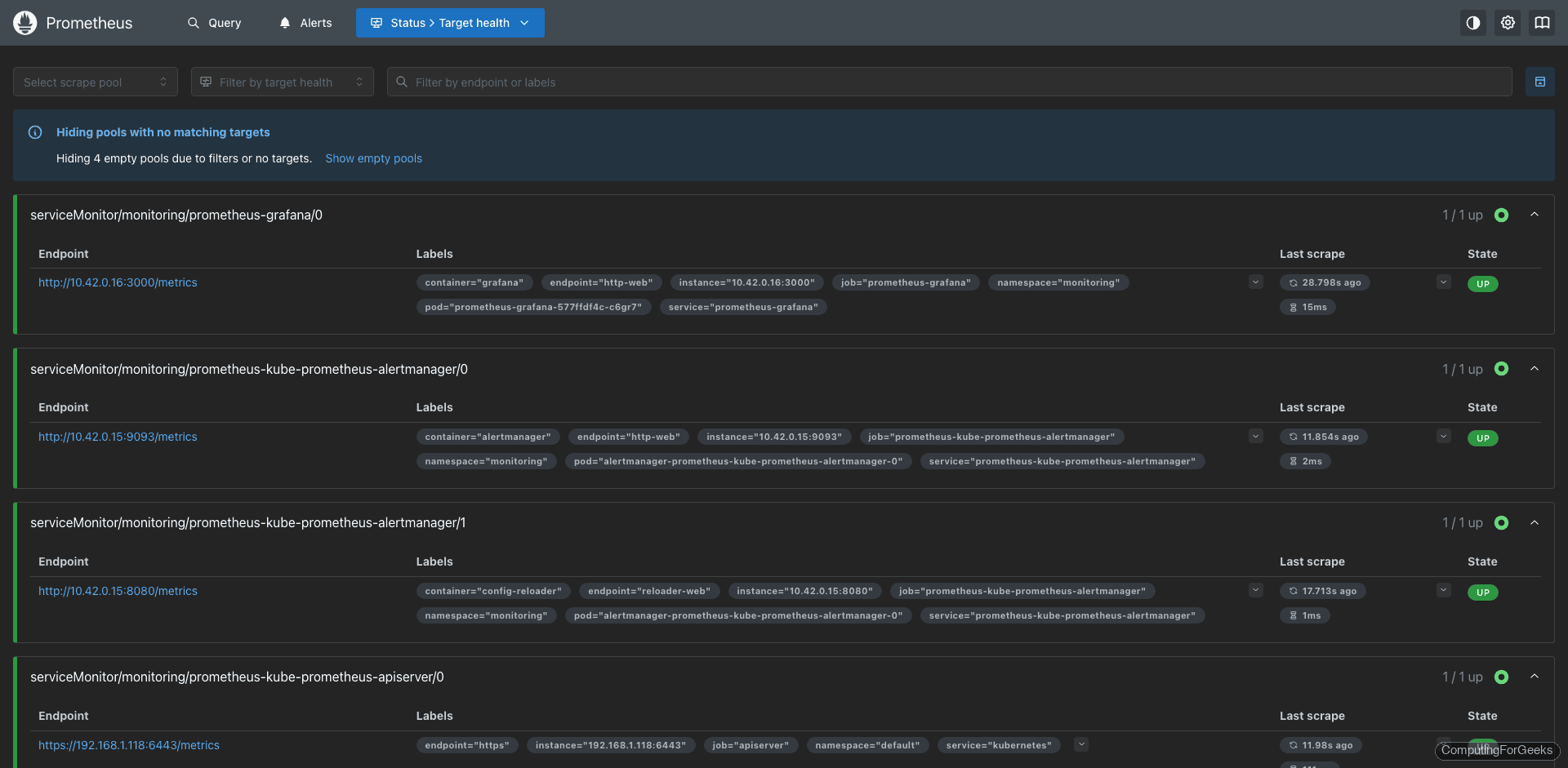
Prometheus targets (port 30090 in our setup) confirms all exporters are healthy and scraping correctly. Verify this page after deploying new ServiceMonitors or if alerts stop firing unexpectedly.
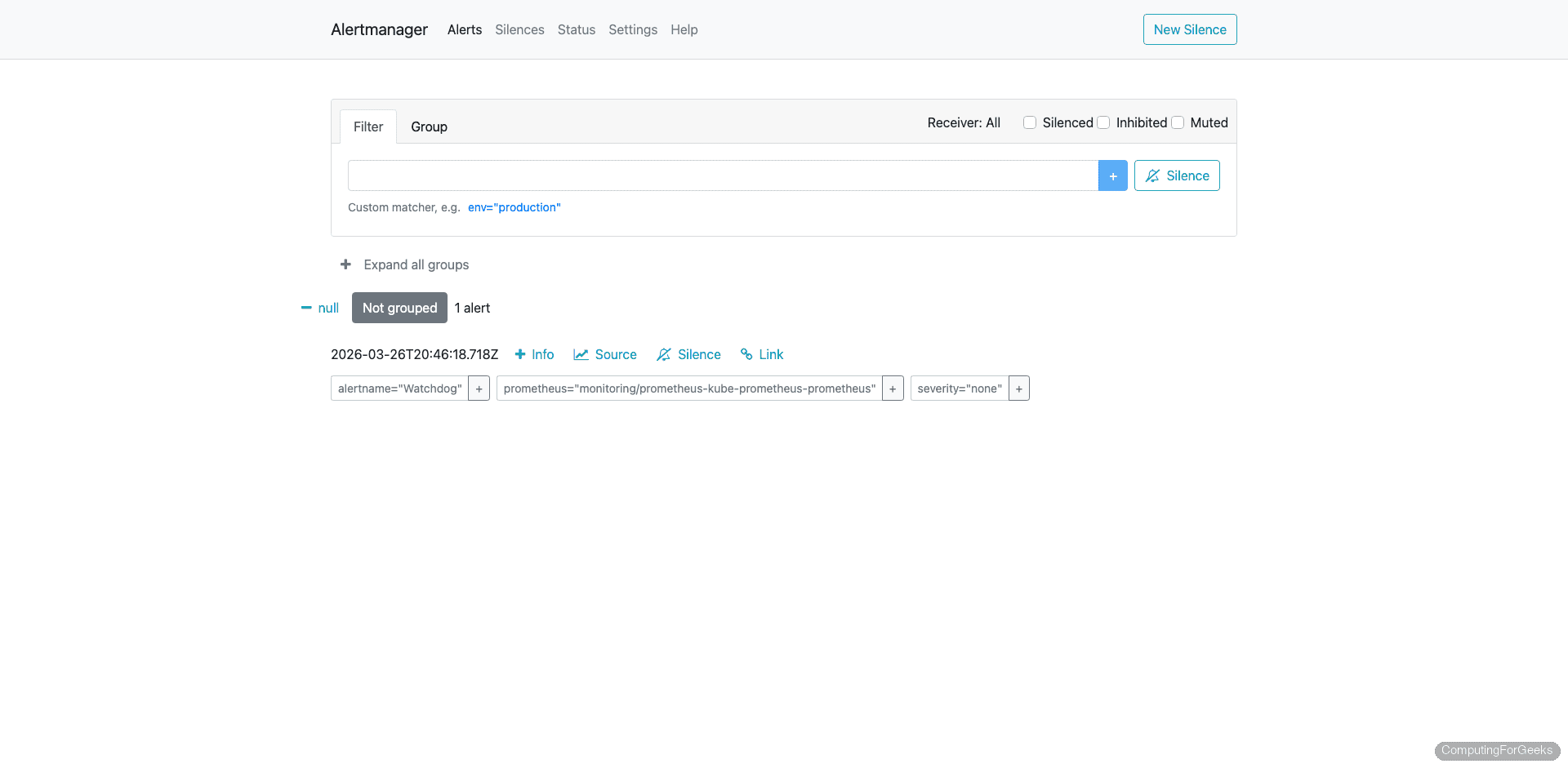
The Alertmanager UI (port 30093) shows currently firing and silenced alerts. Even if you primarily use Grafana for alert management, checking Alertmanager directly is useful for debugging routing issues.
What’s Next
With dashboards and alerting in place, the monitoring stack covers the core observability needs for most Kubernetes clusters. A few directions to explore from here:
- Long-term metrics storage with Grafana Mimir or Thanos. Prometheus retains data for 15 days by default, which isn’t enough for capacity planning or trend analysis over months
- Log-based alerting with Grafana Loki. Alert on application log patterns (error rates, specific exception strings) alongside metric-based alerts
- Distributed tracing with Grafana Tempo for request-level visibility across microservices
- SLO tracking using the Pyrra or Sloth projects, which generate recording and alerting rules from SLO definitions
- Custom application metrics by instrumenting your code with Prometheus client libraries and creating ServiceMonitor resources to scrape them
For the full Grafana Alerting documentation, including advanced features like multi-dimensional alerting and recording rules, refer to the official docs.
