

GitLab CI/CD variables control how pipelines behave. They inject configuration, credentials, and runtime data into your jobs without hardcoding values in .gitlab-ci.yml. The problem is that GitLab has multiple variable types, scopes, and precedence rules, and the documentation scatters them across eight different pages. This guide consolidates everything into one practical reference with working examples from a real GitLab 18 server.
Tested March 2026 | GitLab CE 18.10.1 on Ubuntu 24.04 LTS, GitLab Runner 18.10.0, shell executor
Every example in this article ran on a live GitLab instance. The pipeline outputs, screenshots, and job logs are real, not fabricated. If you want to follow along, you’ll need a GitLab instance with at least one registered runner. Our guides cover installing GitLab on Ubuntu/Debian and Rocky Linux/AlmaLinux.
How GitLab Variables Work
Every CI/CD job runs in an environment where variables are injected as standard environment variables. There are three sources:
- Predefined variables: GitLab injects 150+ variables automatically (commit SHA, branch name, pipeline ID, project path, runner info, and more)
- Custom variables: you define them in
.gitlab-ci.yml, the project/group settings UI, or via the API - Dotenv variables: jobs create them at runtime and pass them to downstream jobs through artifacts
GitLab 17+ also introduced inputs, which are typed parameters resolved at pipeline creation time. Unlike variables (which can change during execution), inputs are immutable once the pipeline starts. They use a different syntax ($[[ inputs.name ]] vs $VARIABLE) and serve a different purpose: making reusable pipeline templates.
Predefined Variables
GitLab automatically sets variables for every pipeline and job. You don’t need to define them. Here’s a pipeline job that prints the most useful ones:
show-predefined-vars:
  stage: info
  script:
    - echo "Commit SHA   - $CI_COMMIT_SHA"
    - echo "Short SHA    - $CI_COMMIT_SHORT_SHA"
    - echo "Branch       - $CI_COMMIT_REF_NAME"
    - echo "Pipeline ID  - $CI_PIPELINE_ID"
    - echo "Source        - $CI_PIPELINE_SOURCE"
    - echo "Project      - $CI_PROJECT_NAME"
    - echo "Job ID       - $CI_JOB_ID"
    - echo "Runner       - $CI_RUNNER_DESCRIPTION"
    - echo "Triggered by - $GITLAB_USER_LOGIN"
The actual output from our GitLab server:
Commit SHA   - f46a0e647fbd830b2c10c4b10ec4d9988a63d3f6
Short SHA    - f46a0e64
Branch       - main
Pipeline ID  - 2
Source        - push
Project      - ci-variables-demo
Job ID       - 17
Runner       - Shell runner on GitLab server
Triggered by - root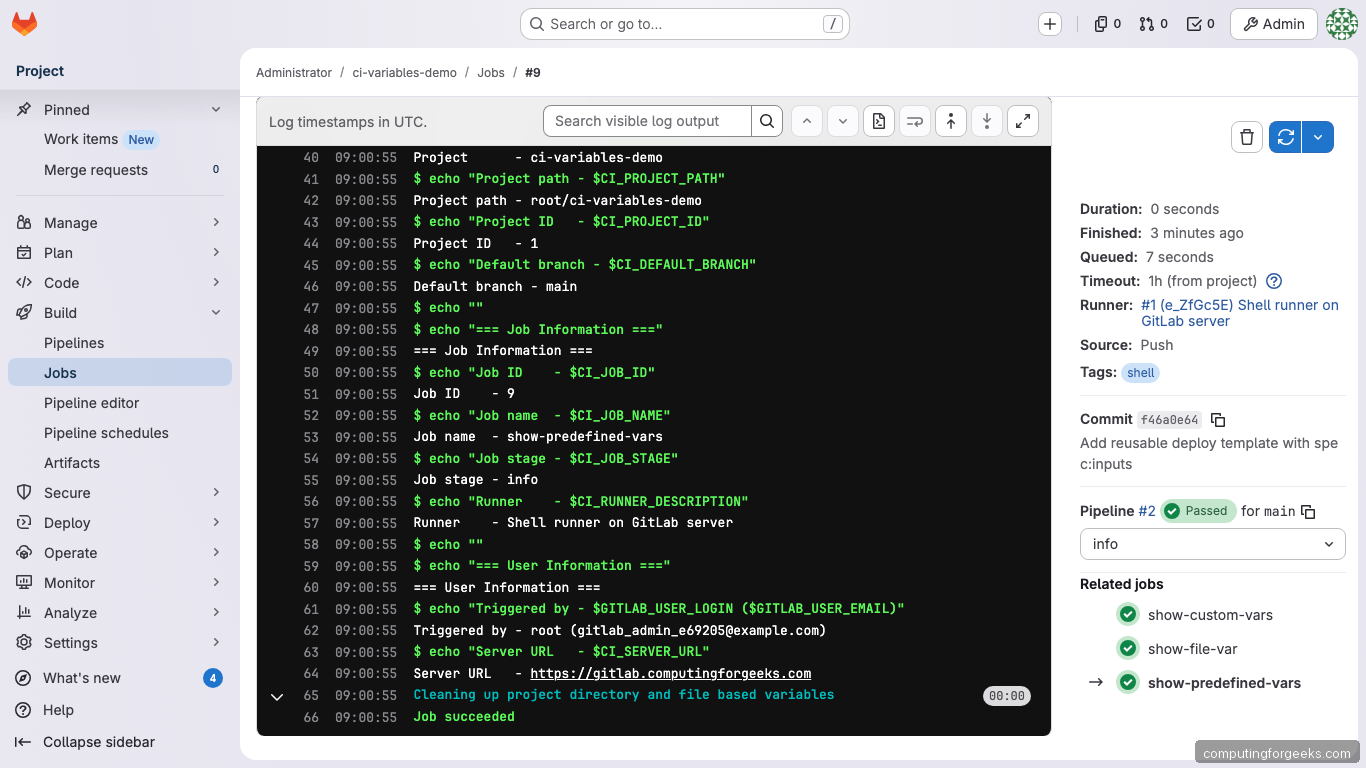
The most commonly used predefined variables:
| Variable | Contains | Available in rules:if? |
|---|---|---|
CI_COMMIT_SHA |
Full 40-character commit hash | Yes |
CI_COMMIT_SHORT_SHA |
First 8 characters of the commit hash | Yes |
CI_COMMIT_REF_NAME |
Branch or tag name | Yes |
CI_COMMIT_BRANCH |
Branch name (empty in MR pipelines) | Yes |
CI_PIPELINE_SOURCE |
How the pipeline was triggered (push, web, schedule, api, trigger, merge_request_event) | Yes |
CI_PIPELINE_ID |
Unique pipeline ID across the instance | No (persisted) |
CI_JOB_ID |
Unique job ID | No (persisted) |
CI_JOB_TOKEN |
Token for authenticating API calls within the job | No (persisted) |
CI_PROJECT_ID |
Numeric project ID | Yes |
CI_DEFAULT_BRANCH |
Default branch name (usually main) | Yes |
CI_REGISTRY_IMAGE |
Container registry address for the project | Yes |
GITLAB_USER_LOGIN |
Username of who triggered the pipeline | Yes |
Variables marked “No” under rules:if are persisted variables. They contain tokens or sensitive data and are only available inside running jobs, not during pipeline creation. Trying to use CI_JOB_ID in a rules:if expression will always evaluate to empty.
Custom Variables in .gitlab-ci.yml
Define variables at two levels: globally (available to all jobs) or per-job (scoped to that job only).
variables:
  APP_NAME: "my-web-app"
  APP_VERSION: "2.1.0"
  DEPLOY_ENV:
    value: "staging"
    description: "Target environment (staging or production)"

show-custom-vars:
  variables:
    JOB_SPECIFIC_VAR: "only-in-this-job"
    APP_VERSION: "3.0.0-override"
  script:
    - echo "APP_NAME    - $APP_NAME"
    - echo "APP_VERSION - $APP_VERSION"
    - echo "JOB_VAR     - $JOB_SPECIFIC_VAR"
    - echo "DEPLOY_ENV  - $DEPLOY_ENV"
Output from our test pipeline:
=== Global Variables ===
APP_NAME    - my-web-app
DEPLOY_ENV  - staging

=== Job-Level Override ===
APP_VERSION - 3.0.0-override  (was 2.1.0 globally, overridden to 3.0.0)
JOB_VAR     - only-in-this-job
The value: and description: syntax for DEPLOY_ENV creates a prefilled variable when someone triggers the pipeline manually from the GitLab UI. The description appears as a label next to the input field.
Project Variables in the GitLab UI
Go to Settings > CI/CD > Variables in your project to add variables through the web interface. This is where you store credentials, API keys, and environment-specific configuration that should never appear in your repository.
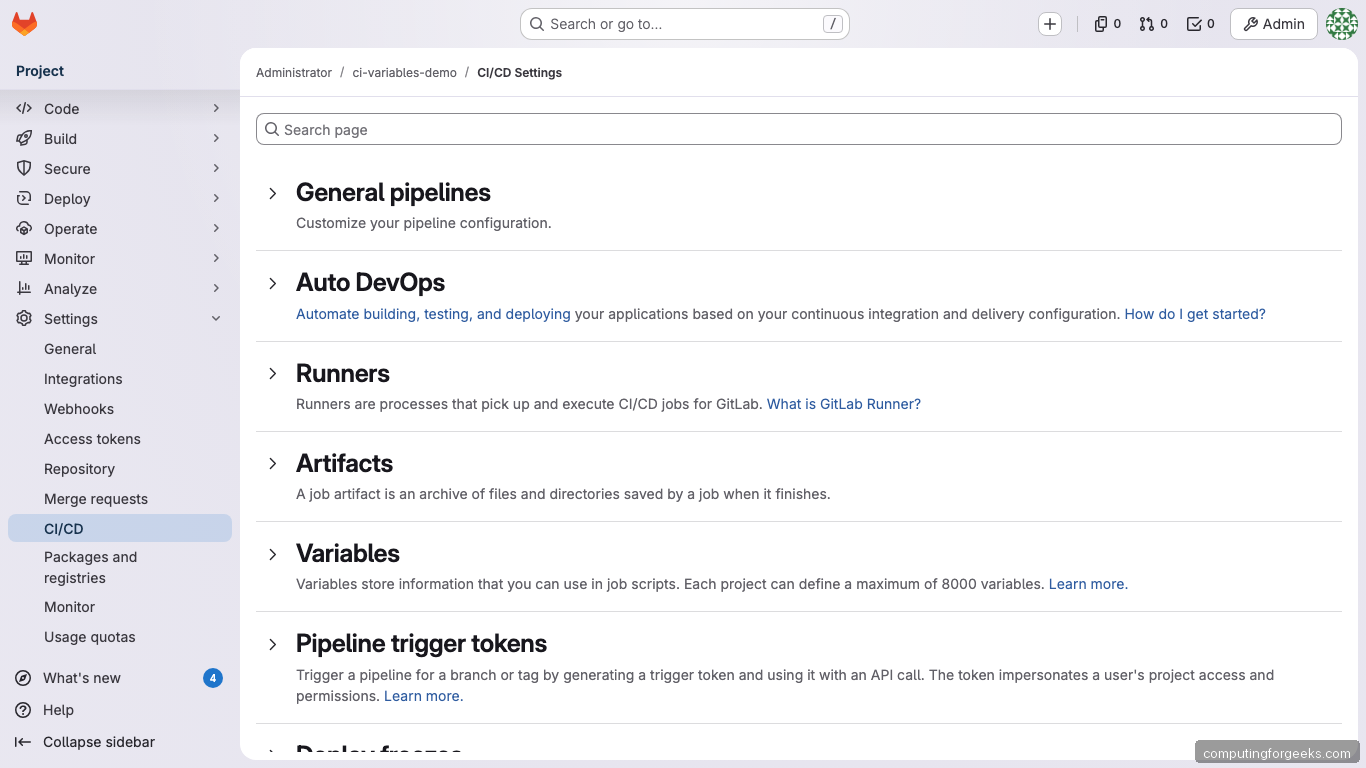
Each UI variable has these properties:
- Type:
Variable(standard env var) orFile(value written to a temp file, variable holds the file path) - Protected: only available on protected branches and tags
- Masked: value replaced with
[MASKED]in job logs. Requires 8+ characters, no spaces - Masked and hidden (GitLab 17.6+): also hidden from the Settings UI itself
- Environment scope (Premium): restrict to specific environments like
stagingorproduction/*
In our demo, we created a masked API_SECRET_KEY variable. The job log shows exactly how masking works:
=== UI-Defined Variables ===
DEPLOY_SERVER  - 192.168.1.100
API_SECRET_KEY - [MASKED]  (should show [MASKED])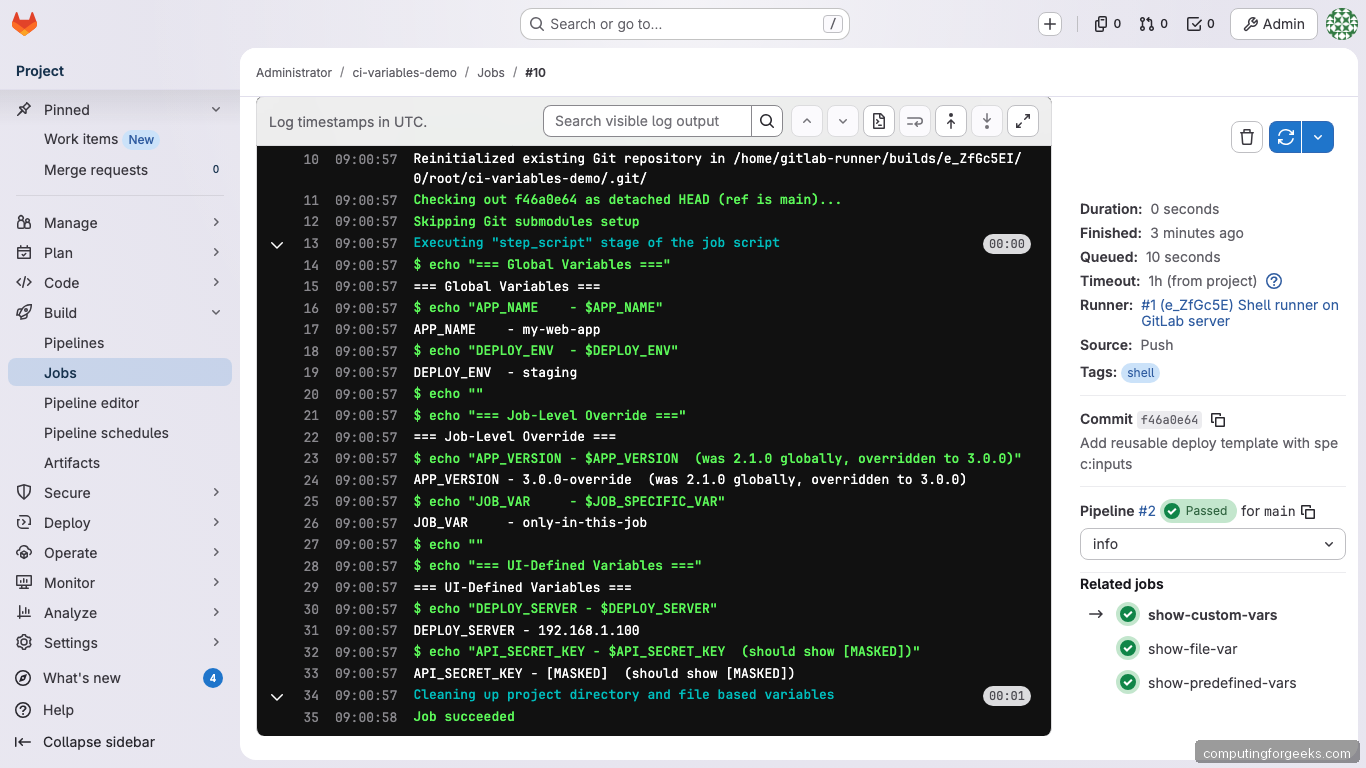
The actual value (sk-prod-a8f3e2d1c4b5a697) is injected into the job’s environment but never appears in the log output.
File-Type Variables
File-type variables are commonly misunderstood. When you create a file-type variable, GitLab writes the value to a temporary file and sets the environment variable to the file path, not the contents. This is essential for SSH keys, TLS certificates, and kubeconfig files.
show-file-var:
  script:
    - echo "Path: $SSH_PRIVATE_KEY"
    - head -3 "$SSH_PRIVATE_KEY"
Output from our test:
=== File-Type Variable ===
SSH_PRIVATE_KEY variable contains a file path:
Path - /home/gitlab-runner/builds/e_ZfGc5EI/0/root/ci-variables-demo.tmp/SSH_PRIVATE_KEY

File contents (first 3 lines):
-----BEGIN OPENSSH PRIVATE KEY-----
b3BlbnNzaC1rZXktdjEAAAAACmFlczI1Ni1jdHIAAAAGYmNyeXB0
demo-key-content-for-article-purposes-only
The runner creates the temp file before the job starts and deletes it after. To use it with SSH:
deploy:
  script:
    - chmod 600 "$SSH_PRIVATE_KEY"
    - ssh -i "$SSH_PRIVATE_KEY" user@server "echo connected"
Passing Variables Between Jobs with dotenv
Jobs run in isolation. If a build job generates a version number or artifact path, the next job doesn’t automatically know about it. Dotenv artifacts solve this by letting one job write key-value pairs to a file that later jobs can read as environment variables.
build-app:
  stage: build
  script:
    - BUILD_ID="build-$(date +%s)"
    - BUILD_ARTIFACT="$APP_NAME-$APP_VERSION.tar.gz"
    - COMMIT_SHORT=$(echo $CI_COMMIT_SHA | cut -c1-8)
    - echo "BUILD_ID=$BUILD_ID" >> build.env
    - echo "BUILD_ARTIFACT=$BUILD_ARTIFACT" >> build.env
    - echo "BUILD_COMMIT=$COMMIT_SHORT" >> build.env
  artifacts:
    reports:
      dotenv: build.env

test-with-build-vars:
  stage: test
  needs: [build-app]
  script:
    - echo "BUILD_ID       - $BUILD_ID"
    - echo "BUILD_ARTIFACT - $BUILD_ARTIFACT"
    - echo "BUILD_COMMIT   - $BUILD_COMMIT"
The build job writes three variables to build.env and declares it as a dotenv artifact. The test job receives them automatically:
=== Variables received from build-app via dotenv ===
BUILD_ID       - build-1774688488
BUILD_ARTIFACT - my-web-app-2.1.0.tar.gz
BUILD_COMMIT   - f46a0e64

These were NOT defined in this job.
They came from the build-app job's dotenv artifact.

=== Global vars still available too ===
APP_NAME    - my-web-app
APP_VERSION - 2.1.0  (global value, not overridden)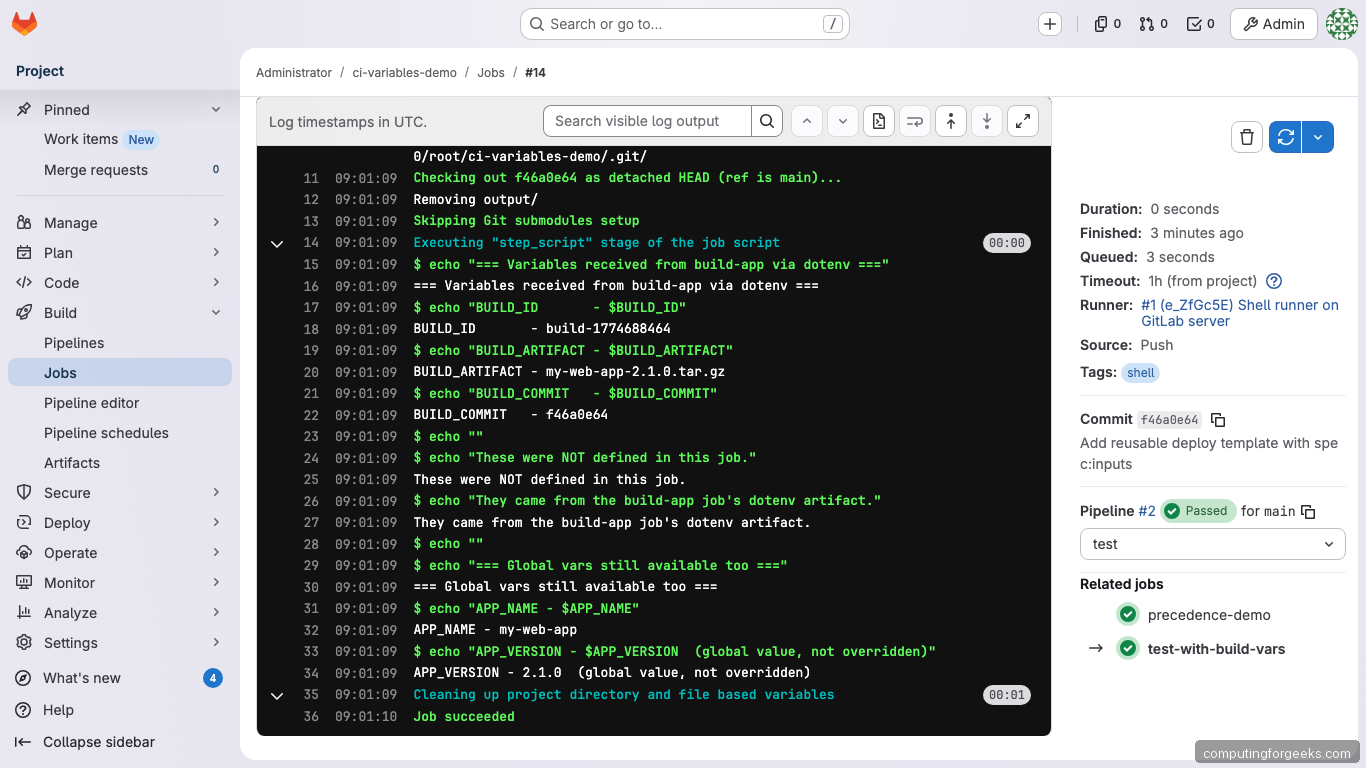
Dotenv files must follow strict formatting rules: UTF-8 encoding, no empty lines, no comments, no multiline values, max 5 KB. Variable names can only contain ASCII letters, digits, and underscores.
Control which dotenv artifacts a job inherits with dependencies: or needs::
# Inherit dotenv from specific jobs only
test-job:
  needs: [build-app]
  script: echo "$BUILD_ID"

# Block all dotenv inheritance
independent-job:
  needs:
    - job: build-app
      artifacts: false
  script: echo "No dotenv vars here"
Variable Precedence
When the same variable name is defined at multiple levels, GitLab uses a strict precedence order. This catches people off guard because UI variables beat YAML definitions. We tested this by defining DEPLOY_SERVER in both the project UI (value: 192.168.1.100) and the job-level YAML (value: job-level-server.local).
=== Variable Precedence Demo ===
DEPLOY_SERVER is defined in THREE places:
  1. Project UI variable  = 192.168.1.100
  2. Job-level .gitlab-ci.yml = job-level-server.local

Actual value - 192.168.1.100

The UI project variable WINS over the job-level YAML variable.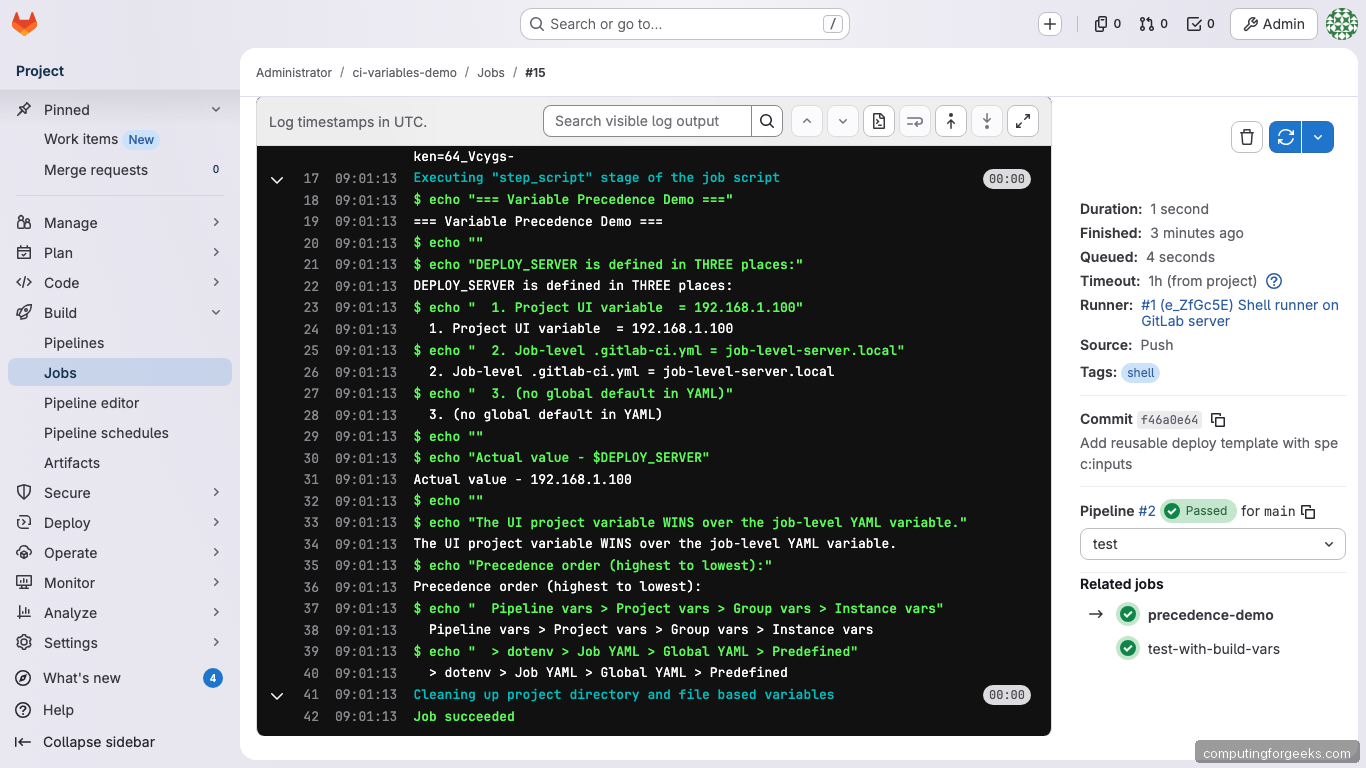
The full precedence order (highest wins):
- Pipeline variables (manual trigger, API, schedule, downstream)
- Project variables (Settings > CI/CD > Variables)
- Group variables (inherited from parent groups)
- Instance variables (self-managed only, set by admins)
- Dotenv report variables
- Job-level
.gitlab-ci.ymlvariables - Global
.gitlab-ci.ymlvariables - Predefined variables
This means a project-level UI variable will always override the same key defined in your YAML. If your pipeline ignores a YAML variable and you can’t figure out why, check whether a UI variable with the same name exists.
Using Variables in rules:
The rules:if keyword evaluates variables to decide whether a job runs. This is how you create conditional pipelines:
deploy-staging:
  rules:
    - if: $DEPLOY_ENV == "staging"
      when: always
    - when: never
  script:
    - echo "Deploying to staging..."

deploy-production:
  rules:
    - if: $DEPLOY_ENV == "production"
      when: manual
    - when: never
  script:
    - echo "Deploying to production..."

only-on-tags:
  rules:
    - if: $CI_COMMIT_TAG
  script:
    - echo "This runs only when a tag is pushed"

only-merge-requests:
  rules:
    - if: $CI_PIPELINE_SOURCE == "merge_request_event"
  script:
    - echo "This runs only in MR pipelines"
Two important gotchas with rules:if:
- Persisted variables don’t work:
CI_JOB_ID,CI_JOB_TOKEN,CI_PIPELINE_ID, and similar variables are not available during pipeline creation. Using them inrules:ifalways evaluates to empty - No variable expansion in
rules:changesorrules:exists: these keywords don’t support$variablesyntax at all
Reusable Templates with spec:inputs
Inputs (introduced in GitLab 17) are typed parameters for pipeline templates. Unlike variables, inputs are resolved at pipeline creation time and cannot change during execution. They use the $[[ inputs.name ]] interpolation syntax.
Create a reusable template file (templates/deploy-service.yml):
spec:
  inputs:
    service_name:
      type: string
      description: "Name of the service to deploy"
    target_port:
      type: number
      default: 8080
    run_tests:
      type: boolean
      default: true
    environment:
      type: string
      options: ["dev", "staging", "production"]
      default: "dev"
---

test-$[[ inputs.service_name ]]:
  stage: test
  rules:
    - if: $[[ inputs.run_tests ]] == true
  script:
    - echo "Testing $[[ inputs.service_name ]] on port $[[ inputs.target_port ]]"
    - echo "Environment: $[[ inputs.environment ]]"

deploy-$[[ inputs.service_name ]]:
  stage: deploy
  script:
    - echo "Deploying $[[ inputs.service_name ]] to $[[ inputs.environment ]]"
    - echo "Branch: $CI_COMMIT_REF_NAME"
The --- YAML document separator is required between the spec: block and the job definitions. Input types can be string, number, boolean, or array. Use options: to restrict values and regex: for pattern validation.
Include the template multiple times with different parameters in your main .gitlab-ci.yml:
include:
  - local: templates/deploy-service.yml
    inputs:
      service_name: "api-gateway"
      target_port: 3000
      environment: "staging"

  - local: templates/deploy-service.yml
    inputs:
      service_name: "frontend"
      target_port: 8080
      run_tests: false
      environment: "production"

stages:
  - test
  - deploy
This generates four jobs from one template: test-api-gateway, deploy-api-gateway, test-frontend (skipped because run_tests: false), and deploy-frontend. Each job has its inputs baked in at pipeline creation time.
Variables vs Inputs: when to use which
| Aspect | Variables ($VAR) |
Inputs ($[[ inputs.name ]]) |
|---|---|---|
| Resolved when | During job execution (dynamic) | At pipeline creation (static) |
| Can change at runtime | Yes | No |
| Type validation | None (all strings) | String, number, boolean, array |
| Scope | Global, job, project, group | Only the file where defined |
| Best for | Credentials, runtime config, environment-specific values | Reusable templates, pipeline parameters |
The Full Demo Pipeline
Here’s the complete pipeline we ran on our GitLab 18 server. It demonstrates all variable types in a single .gitlab-ci.yml:
stages:
  - info
  - build
  - test
  - deploy

variables:
  APP_NAME: "my-web-app"
  APP_VERSION: "2.1.0"
  DEPLOY_ENV:
    value: "staging"
    description: "Target environment (staging or production)"

show-predefined-vars:
  stage: info
  script:
    - echo "Commit SHA   - $CI_COMMIT_SHA"
    - echo "Branch       - $CI_COMMIT_REF_NAME"
    - echo "Pipeline ID  - $CI_PIPELINE_ID"
    - echo "Source        - $CI_PIPELINE_SOURCE"
    - echo "Project      - $CI_PROJECT_NAME"
    - echo "Triggered by - $GITLAB_USER_LOGIN"

show-custom-vars:
  stage: info
  variables:
    JOB_SPECIFIC_VAR: "only-in-this-job"
    APP_VERSION: "3.0.0-override"
  script:
    - echo "APP_NAME    - $APP_NAME"
    - echo "APP_VERSION - $APP_VERSION"
    - echo "JOB_VAR     - $JOB_SPECIFIC_VAR"
    - echo "DEPLOY_SERVER - $DEPLOY_SERVER"
    - echo "API_SECRET_KEY - $API_SECRET_KEY"

show-file-var:
  stage: info
  script:
    - echo "Path - $SSH_PRIVATE_KEY"
    - head -3 "$SSH_PRIVATE_KEY"

build-app:
  stage: build
  script:
    - BUILD_ID="build-$(date +%s)"
    - BUILD_ARTIFACT="$APP_NAME-$APP_VERSION.tar.gz"
    - COMMIT_SHORT=$(echo $CI_COMMIT_SHA | cut -c1-8)
    - echo "BUILD_ID=$BUILD_ID" >> build.env
    - echo "BUILD_ARTIFACT=$BUILD_ARTIFACT" >> build.env
    - echo "BUILD_COMMIT=$COMMIT_SHORT" >> build.env
  artifacts:
    reports:
      dotenv: build.env

test-with-build-vars:
  stage: test
  needs: [build-app]
  script:
    - echo "BUILD_ID       - $BUILD_ID"
    - echo "BUILD_ARTIFACT - $BUILD_ARTIFACT"
    - echo "BUILD_COMMIT   - $BUILD_COMMIT"

precedence-demo:
  stage: test
  variables:
    DEPLOY_SERVER: "job-level-server.local"
  script:
    - echo "Actual value - $DEPLOY_SERVER"
    - echo "UI project variable WINS over job-level YAML"

deploy-staging:
  stage: deploy
  rules:
    - if: $DEPLOY_ENV == "staging"
      when: always
    - when: never
  script:
    - echo "Deploying $APP_NAME v$APP_VERSION to staging"
    - echo "Server - $DEPLOY_SERVER"

deploy-production:
  stage: deploy
  rules:
    - if: $DEPLOY_ENV == "production"
      when: manual
    - when: never
  script:
    - echo "Deploying to production"

dynamic-artifacts:
  stage: build
  script:
    - mkdir -p "output/$CI_COMMIT_REF_NAME"
    - echo "Built from $CI_COMMIT_SHORT_SHA" > "output/$CI_COMMIT_REF_NAME/build-info.txt"
  artifacts:
    paths:
      - output/$CI_COMMIT_REF_NAME/
    expire_in: 1 hour
This single file produced the pipeline below with 8 jobs across 4 stages, all passing:
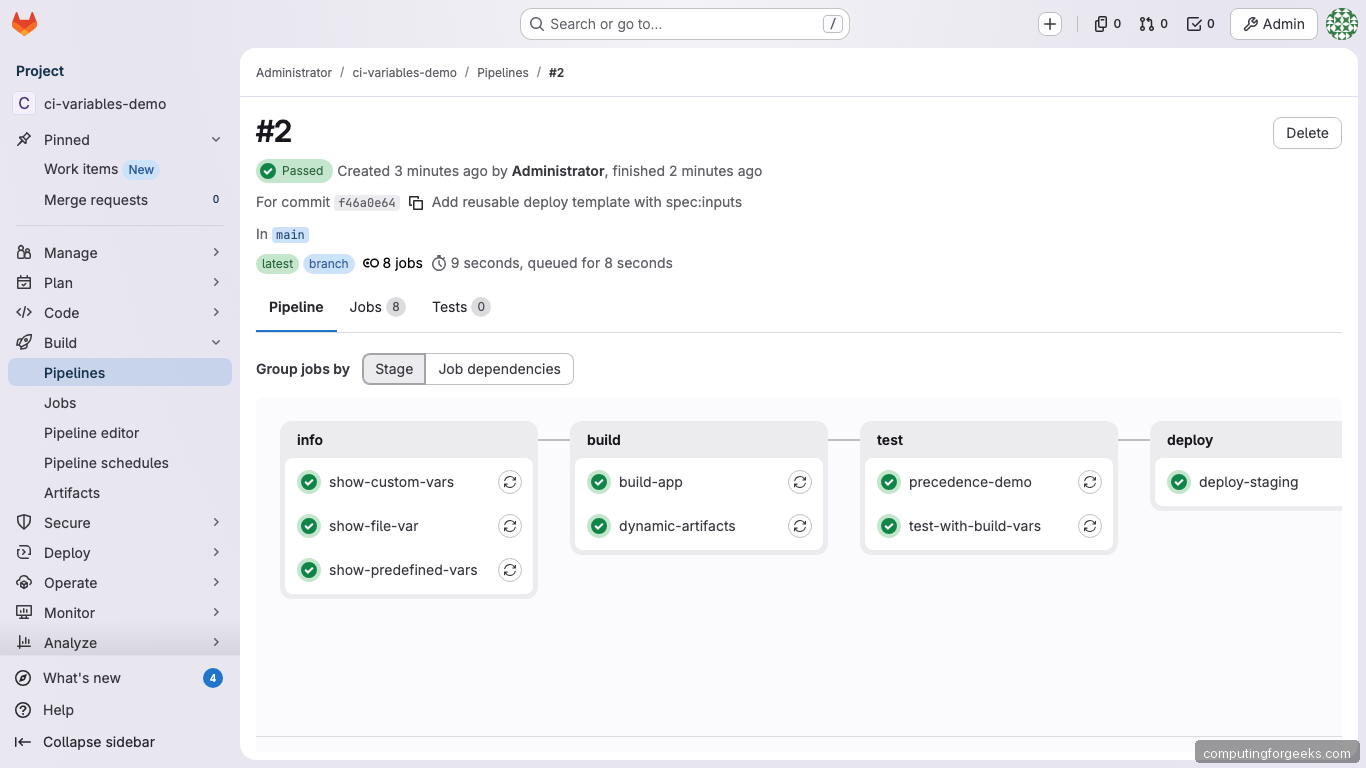
The pipeline ran 8 jobs across 4 stages (info, build, test, deploy), all passing. The deploy-production job was correctly skipped because DEPLOY_ENV was set to “staging” (the default). To trigger it, you’d run the pipeline manually and change DEPLOY_ENV to “production”.
Where Variables Can and Cannot Be Used
Variables expand through three mechanisms: GitLab internal expansion (before the runner gets the job), runner expansion (when the runner processes job config), and shell expansion (during script execution). Not all keywords support all expansion types.
| Keyword | Variables work? | Expanded by |
|---|---|---|
script, before_script, after_script |
Yes | Shell |
image, services:name |
Yes | Runner |
variables |
Yes | GitLab, then Runner |
rules:if |
Partial | GitLab (no persisted vars) |
rules:changes, rules:exists |
No | N/A |
include |
Yes (limited) | GitLab |
environment:name, environment:url |
Yes | GitLab |
artifacts:name/paths |
Yes | Runner |
cache:key |
Yes | Runner |
tags |
Yes | GitLab |
One subtle trap: after_script runs in a completely separate shell context. Variables exported in script or before_script are not available in after_script.
Troubleshooting
Variable is empty when it shouldn’t be
Check the precedence order. A project-level UI variable with the same name overrides your YAML definition. Also check if the variable is protected (only available on protected branches) and you’re running on an unprotected branch.
Masked value not masked in logs
Masking only catches exact matches. If your script URL-encodes, base64-encodes, or otherwise transforms the value, the modified form won’t be masked. Also, masking requires the value to be at least 8 characters with no spaces.
YAML parses numbers incorrectly
YAML interprets unquoted numbers. VAR: 012345 becomes octal 5349. Always quote variable values: VAR: "012345".
Debug mode for variable inspection
Set CI_DEBUG_TRACE: "true" as a pipeline variable to see all variable values in job logs. This is a security risk because it exposes every variable including secrets. Only use it temporarily and restrict log access.
variables:
  CI_DEBUG_TRACE: "true"
“argument list too long” error
This happens when the total size of all variables exceeds the shell’s ARG_MAX limit. Move large values (certificates, JSON blobs) to file-type variables instead of standard env vars.
For the full list of predefined variables, the official CI/CD variables reference, and the inputs documentation, see the GitLab docs. To get started with GitLab itself, follow our installation guide for Ubuntu/Debian.
