

Most teams get GitLab installed and never touch the CI/CD side because the docs dump too much theory before showing a working pipeline. This guide skips that. We install GitLab CE 18.10 on Ubuntu 24.04, register a shell runner, and build a real multi-stage pipeline that goes from code push to verified deployment. Every command was tested, every pipeline ran successfully, and every screenshot is from a live instance.
The pipeline we build here uses a Flask application with three stages: build (virtual environment + dependencies), test (linting with flake8 and unit tests with pytest), and deploy (staging deployment with a health check). By the end, you will have a working GitLab CI/CD setup that you can adapt for your own projects. If you need a standalone GitLab installation first, see our guide on installing GitLab CE on Ubuntu 24.04 with SSL.
Tested March 2026 on Ubuntu 24.04 LTS with GitLab CE 18.10.1, GitLab Runner 18.10.0, Python 3.12.3, Flask 3.1.1
What You Need
- A server running Ubuntu 24.04 LTS with at least 8 GB RAM and 4 vCPUs. GitLab is resource-heavy: anything below 8 GB will result in slow reconfigures and 502 errors during startup.
- A domain or subdomain pointing to the server (we use
gitlab.computingforgeeks.com). SSL certificates via Let’s Encrypt. - Root or sudo access.
- Ports 80 (HTTP redirect), 443 (HTTPS), and 22 (SSH for git) open in the firewall.
Install GitLab CE 18.10 on Ubuntu 24.04
Install the prerequisite packages first:
sudo apt-get update
sudo apt-get install -y curl openssh-server ca-certificates tzdata perl postfix
When the postfix configuration prompt appears, select Internet Site and use your server’s FQDN. Postfix handles notification emails from GitLab.
Add the official GitLab CE repository:
curl -s https://packages.gitlab.com/install/repositories/gitlab/gitlab-ce/script.deb.sh | sudo bashInstall GitLab CE with your external URL. Replace the domain with your own:
sudo EXTERNAL_URL="https://gitlab.yourdomain.com" apt-get install -y gitlab-ceThe installation takes 3 to 5 minutes depending on your server specs. GitLab bundles its own Nginx, PostgreSQL, Redis, and Puma, so you do not need to install them separately. When it finishes, you will see:
Default admin account has been configured with following details:
Username: root
Password stored to /etc/gitlab/initial_root_password. This file will be cleaned up in first reconfigure run after 24 hours.
Retrieve the initial root password before it gets auto-deleted:
sudo cat /etc/gitlab/initial_root_password | grep Password:Save this password somewhere safe. You will use it for the first login.
Configure SSL with Let’s Encrypt
If GitLab’s built-in Let’s Encrypt integration fails (common with fresh DNS records and DNSSEC propagation delays), you can use certbot directly. Stop GitLab’s Nginx temporarily and run the standalone challenge:
sudo apt-get install -y certbot
sudo gitlab-ctl stop nginx
sudo certbot certonly --standalone -d gitlab.yourdomain.com --non-interactive --agree-tos -m [email protected]
Point GitLab’s Nginx to the Let’s Encrypt certificates by adding these lines to /etc/gitlab/gitlab.rb:
sudo vi /etc/gitlab/gitlab.rbAdd the following at the end of the file:
letsencrypt['enable'] = false
nginx['ssl_certificate'] = "/etc/letsencrypt/live/gitlab.yourdomain.com/fullchain.pem"
nginx['ssl_certificate_key'] = "/etc/letsencrypt/live/gitlab.yourdomain.com/privkey.pem"
Apply the configuration:
sudo gitlab-ctl reconfigureVerify all services are running:
sudo gitlab-ctl statusEvery service should show run status. The key ones are puma (web), sidekiq (background jobs), gitaly (git operations), postgresql, and redis:
run: gitaly: (pid 19606) 323s; run: log: (pid 18562) 507s
run: gitlab-workhorse: (pid 37089) 120s; run: log: (pid 19237) 386s
run: nginx: (pid 42280) 1s
run: postgresql: (pid 18620) 504s; run: log: (pid 18637) 501s
run: puma: (pid 38802) 23s; run: log: (pid 19140) 398s
run: redis: (pid 18473) 516s; run: log: (pid 18488) 515s
run: sidekiq: (pid 38690) 47s; run: log: (pid 19184) 391s
Open your browser and navigate to your GitLab URL. Log in with username root and the initial password you retrieved earlier.

Install and Register GitLab Runner
The runner is what actually executes your CI/CD jobs. GitLab itself just orchestrates. Without a registered runner, pipelines sit in “pending” forever.
Add the GitLab Runner repository and install it:
curl -s https://packages.gitlab.com/install/repositories/runner/gitlab-runner/script.deb.sh | sudo bash
sudo apt-get install -y gitlab-runner
Confirm the installation:
gitlab-runner --versionYou should see the version and build information:
Version:      18.10.0
Git revision: ac71f4d8
Git branch:   18-10-stable
GO version:   go1.25.7
Built:        2026-03-16T14:23:19Z
OS/Arch:      linux/amd64
Create a Runner Token
GitLab 18.x uses the new runner registration flow. Create a runner token via the API (you need a personal access token with api scope, which you can create in User Settings > Access Tokens):
curl -sk --header "PRIVATE-TOKEN: YOUR_ACCESS_TOKEN" \
  --request POST "https://gitlab.yourdomain.com/api/v4/user/runners" \
  --data "runner_type=instance_type&description=shell-runner&tag_list=shell,ubuntu&run_untagged=true"
The response includes a token field. Use it to register the runner with the shell executor:
sudo gitlab-runner register \
  --non-interactive \
  --url "https://gitlab.yourdomain.com/" \
  --token "glrt-YOUR_RUNNER_TOKEN" \
  --executor "shell" \
  --description "shell-runner"
The output confirms successful registration:
Verifying runner... is valid                        runner=Vof6vwBgD
Runner registered successfully. Feel free to start it, but if it's running already the config should be automatically reloaded!
Configuration (with the authentication token) was saved in "/etc/gitlab-runner/config.toml"
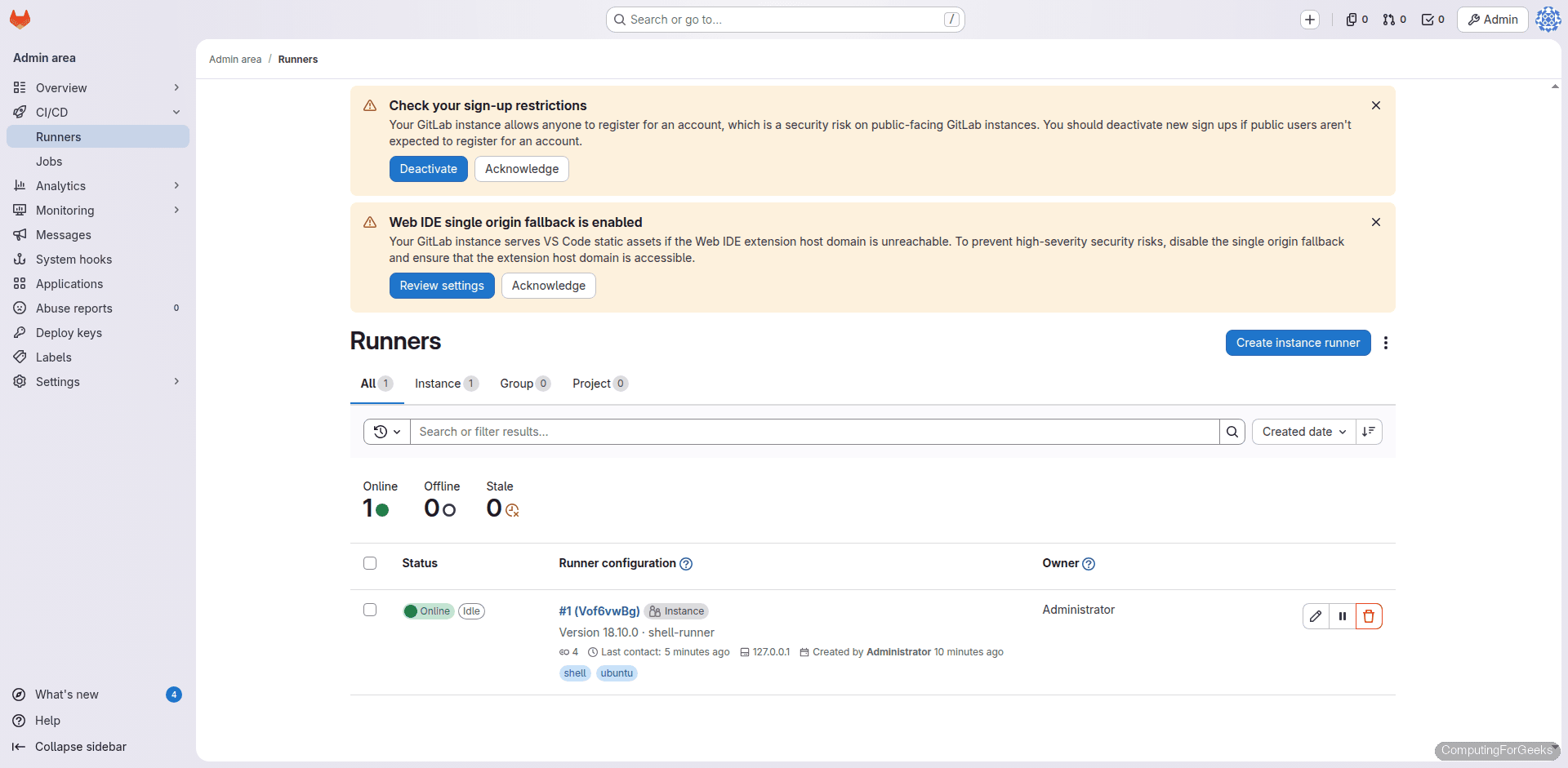
Verify the runner is online:
sudo gitlab-runner status
sudo gitlab-runner verify
The runner should show “Service is running” and “is valid” respectively.
Create a Project with a Flask Application
We need a real codebase to build pipelines against. Create a new project in GitLab (either through the web UI or API), then clone it locally and add a simple Flask app with tests.
Create app.py with two endpoints:
from flask import Flask, jsonify

app = Flask(__name__)


@app.route("/")
def home():
    return jsonify({"status": "running", "app": "flask-demo", "version": "1.0.0"})


@app.route("/health")
def health():
    return jsonify({"healthy": True})


if __name__ == "__main__":
    app.run(host="0.0.0.0", port=5000)
Create requirements.txt with pinned versions:
flask==3.1.1
pytest==8.3.5
Create test_app.py with two unit tests:
import pytest
from app import app


@pytest.fixture
def client():
    app.config["TESTING"] = True
    with app.test_client() as client:
        yield client


def test_home(client):
    response = client.get("/")
    data = response.get_json()
    assert response.status_code == 200
    assert data["status"] == "running"
    assert data["version"] == "1.0.0"


def test_health(client):
    response = client.get("/health")
    data = response.get_json()
    assert response.status_code == 200
    assert data["healthy"] is True
The tests use Flask’s built-in test client. No external services, no database, no mocking. Both tests validate response codes and JSON payloads.
Write the CI/CD Pipeline
GitLab pipelines are defined in a .gitlab-ci.yml file at the root of your repository. Every push to any branch triggers the pipeline automatically. Create the file:
stages:
  - build
  - test
  - deploy

variables:
  PIP_CACHE_DIR: "$CI_PROJECT_DIR/.pip-cache"

cache:
  paths:
    - .pip-cache/
    - venv/

build:
  stage: build
  script:
    - python3 -m venv venv
    - source venv/bin/activate
    - pip install -r requirements.txt
    - pip list
  artifacts:
    paths:
      - venv/
    expire_in: 1 hour

lint:
  stage: test
  script:
    - source venv/bin/activate
    - pip install flake8
    - flake8 app.py --max-line-length=120 --statistics
  dependencies:
    - build

test:
  stage: test
  script:
    - source venv/bin/activate
    - pytest test_app.py -v --tb=short --junitxml=report.xml
  artifacts:
    when: always
    reports:
      junit: report.xml
    paths:
      - report.xml
    expire_in: 1 week
  dependencies:
    - build

deploy_staging:
  stage: deploy
  script:
    - source venv/bin/activate
    - echo "Deploying flask-demo v1.0.0 to staging..."
    - nohup python3 app.py > /tmp/flask-staging.log 2>&1 &
    - sleep 3
    - curl -sf http://localhost:5000/health | python3 -m json.tool
    - echo "Staging deployment verified successfully"
    - kill %1 2>/dev/null || true
  environment:
    name: staging
    url: http://localhost:5000
  dependencies:
    - build
  only:
    - main
How This Pipeline Works
The pipeline has three stages that run sequentially. Jobs within the same stage run in parallel when multiple runners are available.
Build stage: Creates a Python virtual environment, installs dependencies from requirements.txt, and saves the venv/ directory as an artifact. Downstream jobs receive this artifact automatically without reinstalling packages. The cache block persists .pip-cache/ across pipeline runs, so pip downloads are cached between pushes.
Test stage: Two jobs run here. The lint job runs flake8 to catch style violations and syntax errors. The test job runs pytest with verbose output and generates a JUnit XML report. GitLab parses this report and displays test results directly in the merge request UI. Both jobs use dependencies: [build] to pull the venv artifact.
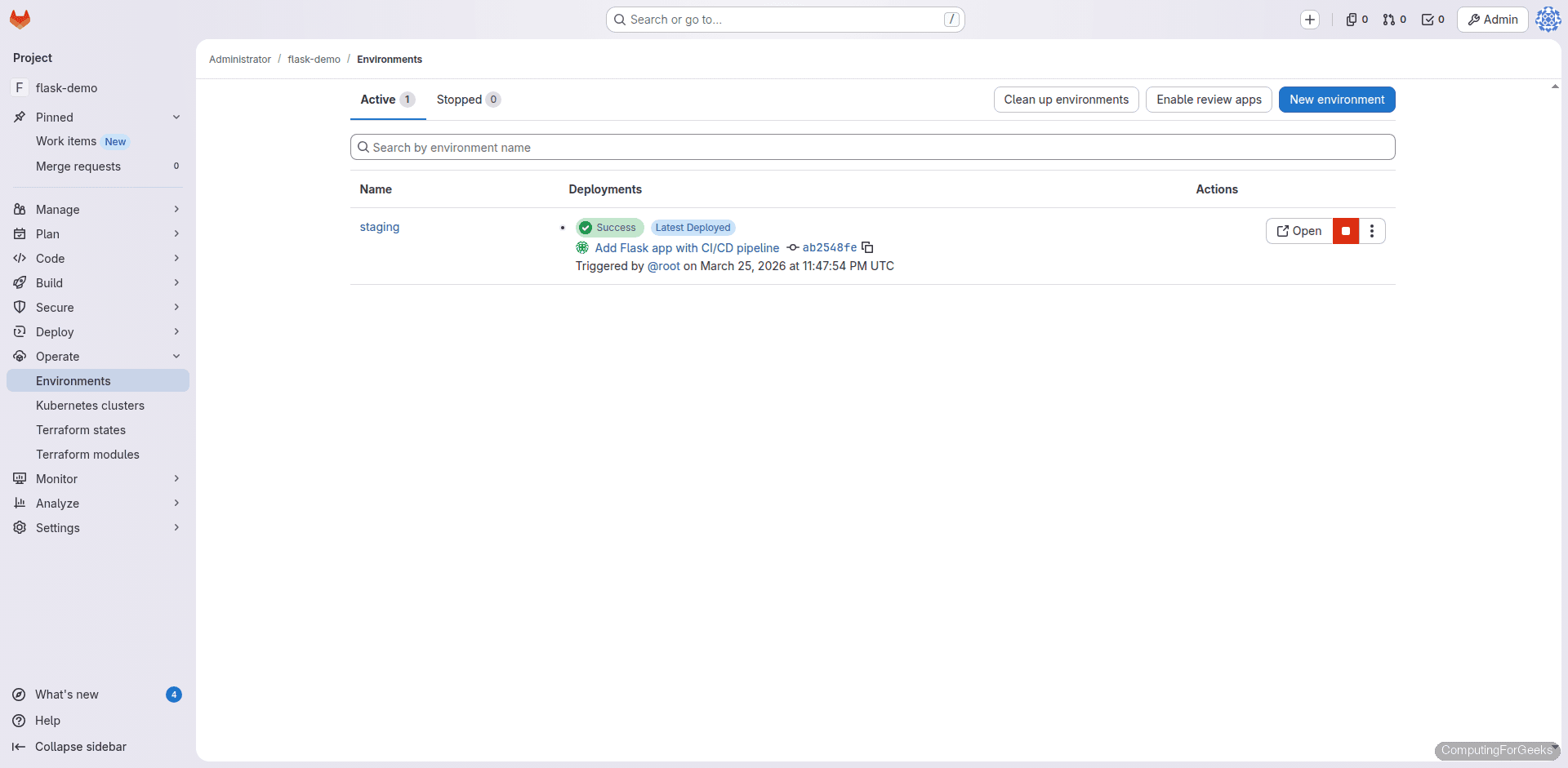
Deploy stage: Only triggers on the main branch. Starts the Flask app in the background, waits 3 seconds for it to initialize, then validates it with a health check via curl. The environment block tells GitLab to track this as a “staging” deployment, which shows up in the Environments page. In production you would replace this with an SSH deploy, Ansible playbook, or container push to a Docker registry.
Push and Watch the Pipeline Run
Commit all files and push to the main branch:
git add -A
git commit -m "Add Flask app with CI/CD pipeline"
git push origin main
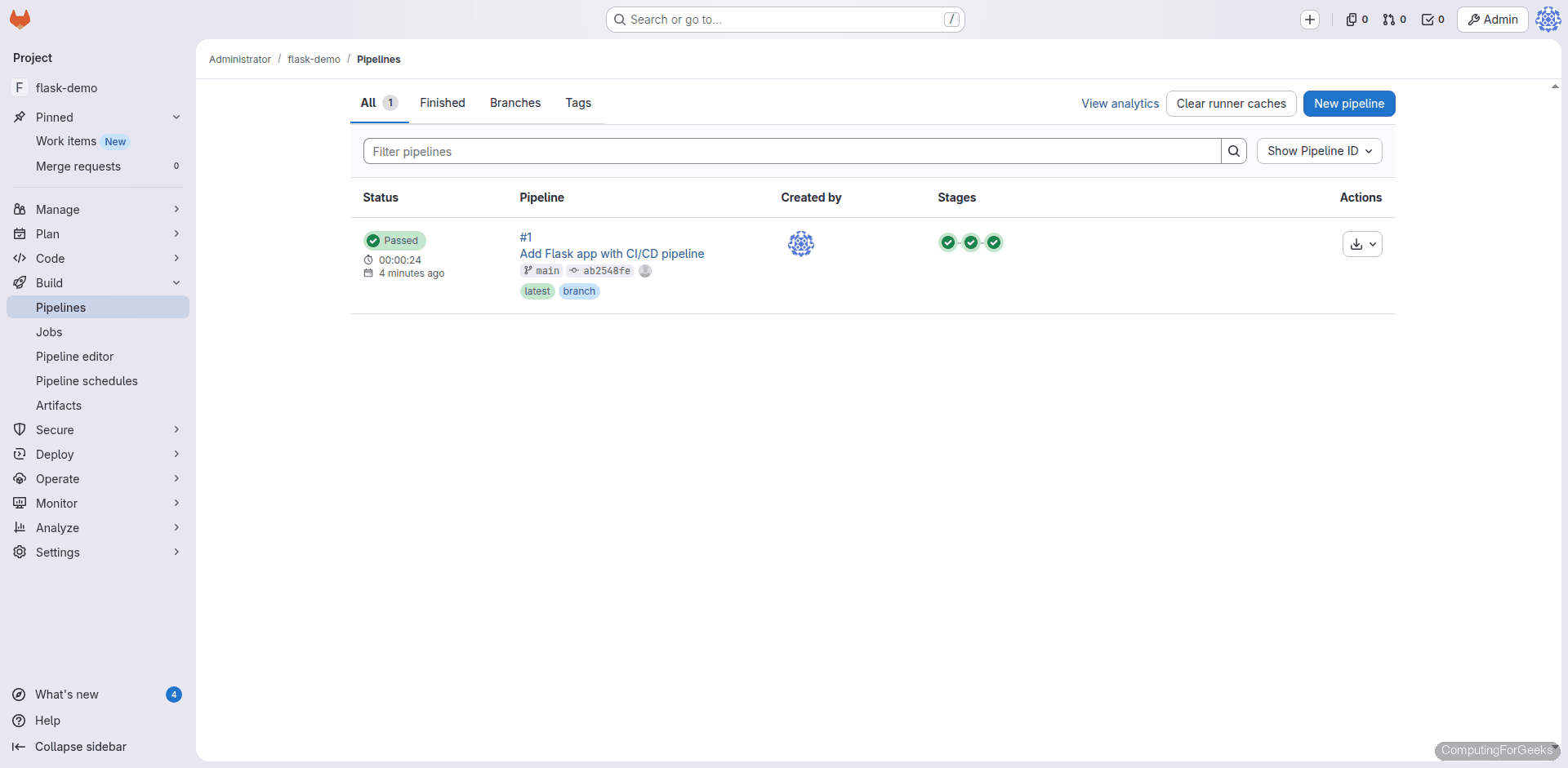
Navigate to your project’s Build > Pipelines page. The pipeline starts immediately after the push:
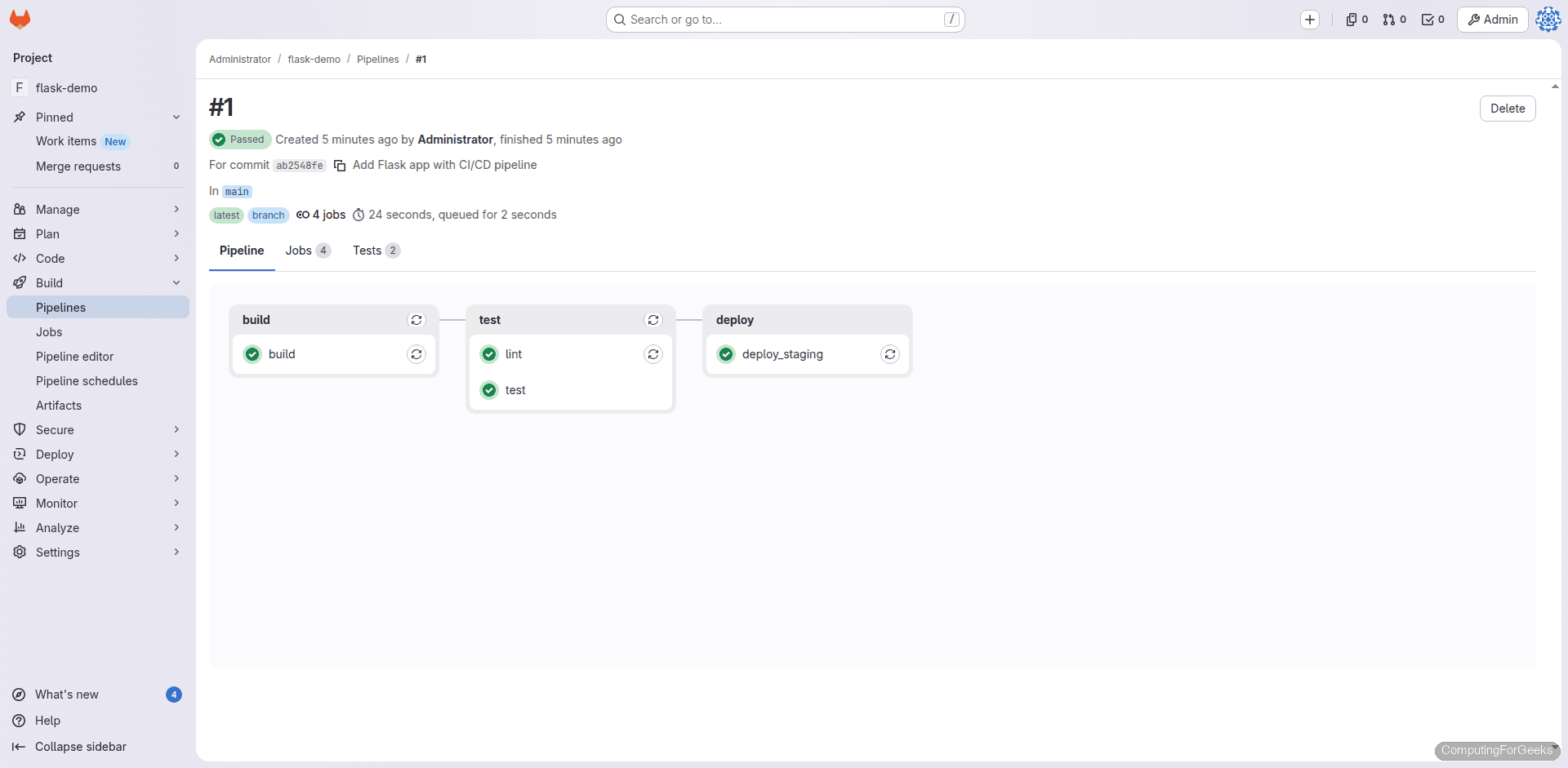
Click on the pipeline to see the stage graph. Build runs first, then lint and test run in parallel, and finally deploy_staging runs:
Build Job Output
The build job creates the virtual environment and installs Flask 3.1.1 and pytest 8.3.5 with all their dependencies:
$ python3 -m venv venv
$ source venv/bin/activate
$ pip install -r requirements.txt
Collecting flask==3.1.1 (from -r requirements.txt (line 1))
  Downloading flask-3.1.1-py3-none-any.whl.metadata (3.0 kB)
Collecting pytest==8.3.5 (from -r requirements.txt (line 2))
  Downloading pytest-8.3.5-py3-none-any.whl.metadata (7.6 kB)
Successfully installed flask-3.1.1 pytest-8.3.5 ...
Test Job Output
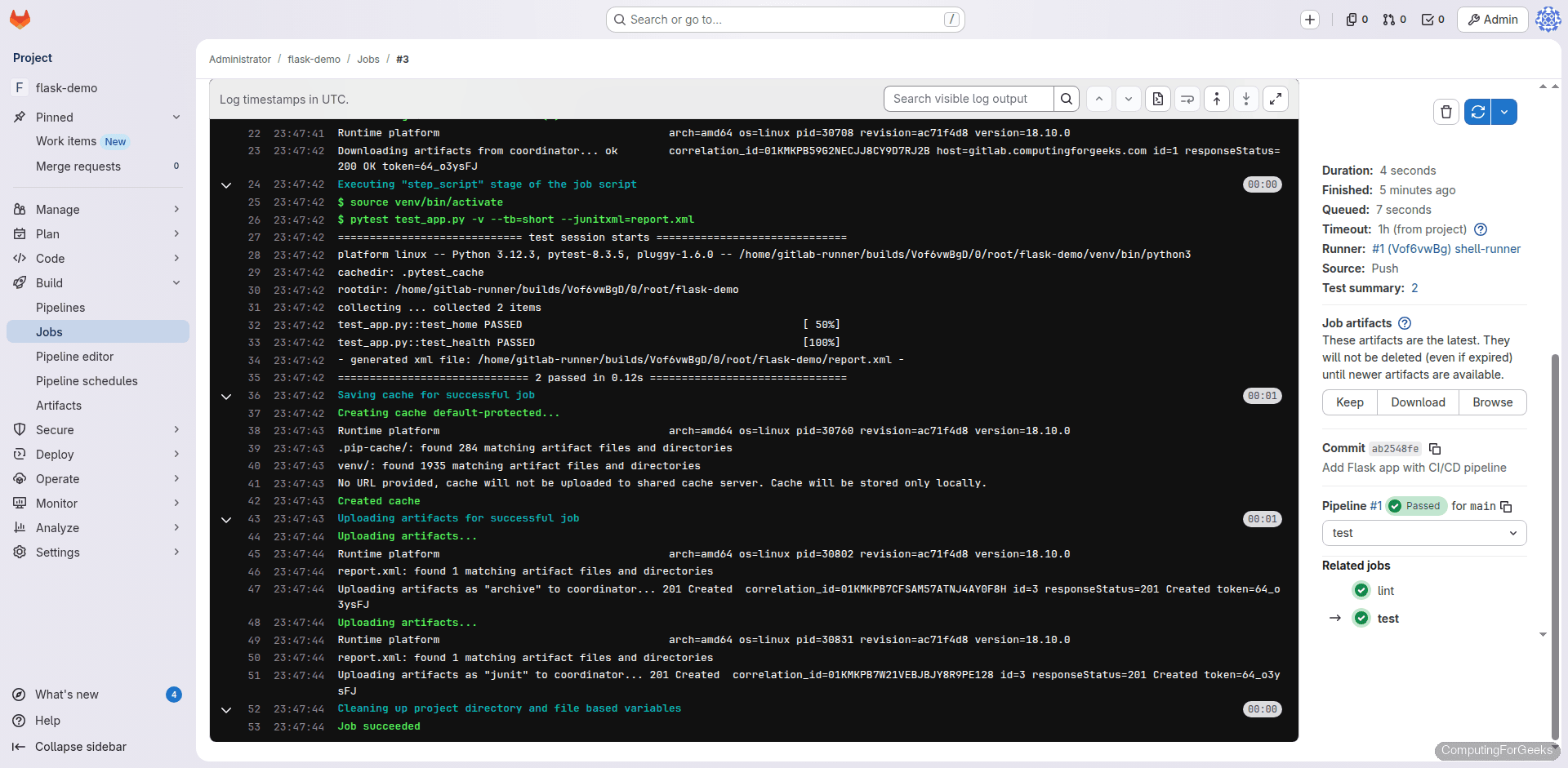
Both unit tests pass, confirming the Flask endpoints return the expected JSON responses:
$ pytest test_app.py -v --tb=short --junitxml=report.xml
platform linux -- Python 3.12.3, pytest-8.3.5, pluggy-1.6.0
test_app.py::test_home PASSED                                            [ 50%]
test_app.py::test_health PASSED                                          [100%]
============================== 2 passed in 0.12s ===============================
Click on any test job to see the full log with timing and artifact details:
Deploy Job Output
The deploy stage starts the Flask app and validates it with a health check. The curl -sf flag makes curl fail silently on HTTP errors, so the job fails if the app does not start correctly:
$ echo "Deploying flask-demo v1.0.0 to staging..."
Deploying flask-demo v1.0.0 to staging...
$ curl -sf http://localhost:5000/health | python3 -m json.tool
{
    "healthy": true
}
$ echo "Staging deployment verified successfully"
Staging deployment verified successfully
GitLab tracks the deployment in the Operate > Environments page, showing the deployment history and status:
Key CI/CD Concepts Explained
Artifacts vs Cache
These two get confused constantly. Artifacts are files produced by a job that get passed to downstream jobs within the same pipeline. They are uploaded to GitLab and can be downloaded from the UI. Cache persists across pipelines. It is a best-effort optimization (might be cleared at any time) used for things like pip/npm package caches. In our pipeline, the venv/ directory is an artifact (guaranteed to reach the test and deploy jobs), while .pip-cache/ is cache (speeds up pip downloads on subsequent runs).
dependencies vs needs
The dependencies keyword controls which artifacts a job downloads. Without it, a job downloads artifacts from all previous jobs. The needs keyword (not used here) allows a job to start as soon as its listed dependencies finish, even if other jobs in the same stage are still running. Use needs when you have a complex pipeline graph and want to skip waiting for unrelated parallel jobs.
JUnit Test Reports
The --junitxml=report.xml flag in pytest generates a JUnit XML file. When declared under artifacts.reports.junit, GitLab parses this file and shows test results inline in merge requests. Failed tests appear with their error messages directly in the diff view, so reviewers do not need to dig through job logs.
Shell Executor vs Docker Executor
We used the shell executor because it runs commands directly on the runner’s host, with zero container overhead. This is perfect for getting started and for servers where Docker is not installed. The trade-off is that jobs share the host filesystem and can interfere with each other. For production CI/CD with multiple teams, the Docker executor provides isolation by running each job in a fresh container. Switch by changing --executor "docker" during registration and specifying a default image.
Pipeline Configuration Reference
| Keyword | Purpose | Example |
|---|---|---|
stages | Define pipeline stage order | stages: [build, test, deploy] |
variables | Set environment variables | PIP_CACHE_DIR: ".pip-cache" |
cache | Persist files across pipelines | paths: [.pip-cache/] |
artifacts | Pass files between jobs | paths: [venv/] |
dependencies | Control artifact downloads | dependencies: [build] |
only/except | Branch/tag filtering | only: [main] |
environment | Track deployments | name: staging |
when | Control job execution | when: manual or when: always |
needs | DAG ordering (skip stage wait) | needs: [build] |
rules | Conditional job inclusion | rules: [{if: '$CI_COMMIT_BRANCH == "main"'}] |
Extending the Pipeline for Real Projects
The pipeline above is a working foundation. Here are practical patterns to add based on your project needs.
SSH Deploy to a Remote Server
Replace the staging deploy script with an actual SSH deployment. Store the private key as a CI/CD variable (Settings > CI/CD > Variables, type “File”, key SSH_PRIVATE_KEY):
deploy_production:
  stage: deploy
  script:
    - chmod 600 "$SSH_PRIVATE_KEY"
    - ssh -o StrictHostKeyChecking=no -i "$SSH_PRIVATE_KEY" [email protected] "
        cd /var/www/flask-demo &&
        git pull origin main &&
        source venv/bin/activate &&
        pip install -r requirements.txt &&
        sudo systemctl restart flask-demo
      "
    - curl -sf https://app.yourdomain.com/health
  environment:
    name: production
    url: https://app.yourdomain.com
  only:
    - main
  when: manual
The when: manual flag means this job appears as a play button in the pipeline. A team member must click it to deploy. This prevents accidental production deployments.
Branch-Specific Rules
The rules keyword (preferred over only/except in newer GitLab versions) gives you fine-grained control over when jobs run:
deploy_staging:
  stage: deploy
  rules:
    - if: '$CI_COMMIT_BRANCH == "develop"'
      when: always
    - if: '$CI_COMMIT_BRANCH == "main"'
      when: manual
    - when: never
  script:
    - echo "Deploying to staging..."
This runs the deploy automatically on the develop branch, requires manual approval on main, and skips it on all other branches.
Security Scanning with SAST
GitLab includes built-in Static Application Security Testing. Add it with a single line using the include keyword:
include:
  - template: Security/SAST.gitlab-ci.yml
This adds a SAST job that scans your code for common vulnerabilities. Results appear in the Security tab of merge requests. Note that some SAST analyzers require the Docker executor.
Troubleshooting
Pipeline stuck on “pending”
This means no runner is available to pick up the job. Check that the runner is online with sudo gitlab-runner verify. If the job has tags (like docker), the runner must also have those tags. For untagged jobs, the runner must be configured with run_untagged=true.
Error: “bash: python3: command not found”
The shell executor runs as the gitlab-runner user. Install Python system-wide with sudo apt-get install -y python3 python3-venv python3-pip so the runner user can access it. You can verify by running sudo -u gitlab-runner python3 --version.
Error: “Permission denied” writing to project directory
The runner’s build directory lives under /home/gitlab-runner/builds/. If you see permission errors, check that the gitlab-runner user owns its home directory: sudo chown -R gitlab-runner:gitlab-runner /home/gitlab-runner.
What to Do Next
- Set up Jenkins as a secondary CI system if you need multi-tool CI/CD
- Add Docker image builds by switching to the Docker executor and using
docker buildin your pipeline - Configure merge request pipelines that only run on MR branches using
rules: [{if: '$CI_PIPELINE_SOURCE == "merge_request_event"'}] - Set up Kubernetes cluster integration for container deployments
- Enable the GitLab Container Registry (built into GitLab CE) for storing Docker images alongside your code
