

GitLab’s built-in Container Registry means you can build Docker images in CI/CD pipelines and push them to a registry without any third-party service. One Git push triggers the build, tags the image with the commit SHA, pushes it to the registry, and optionally deploys it to staging. This guide sets up that entire workflow from scratch on Ubuntu 24.04 with GitLab CE 18.10, a Docker-based runner, and a real Flask application.
By the end, you will have a working pipeline that tests your application, builds a multi-stage Docker image, pushes it to GitLab Container Registry with multiple tagging strategies (commit SHA, latest, semantic version), and deploys it to a staging environment automatically. Everything here was tested on a live server, and every pipeline ran successfully before writing this article. If you need GitLab installed first, see our guide on installing GitLab CE on Ubuntu 24.04.
Tested March 2026 on Ubuntu 24.04 LTS with GitLab CE 18.10.1, GitLab Runner 18.10.0, Docker 29.3.1
Prerequisites
- Ubuntu 24.04 server with at least 4 CPU cores and 8 GB RAM (GitLab is resource-hungry)
- Root or sudo access
- Ports 80, 443, and 5050 open (5050 for the Container Registry)
- Docker installed. If not, follow our guide on installing Docker on Ubuntu/Debian
Install GitLab CE
Add the GitLab repository and install the package. The EXTERNAL_URL variable tells GitLab which URL to configure for itself:
curl -sS https://packages.gitlab.com/install/repositories/gitlab/gitlab-ce/script.deb.sh | sudo bashInstall GitLab CE with your server’s IP or domain:
sudo EXTERNAL_URL="http://192.168.1.50" apt install -y gitlab-ceReplace 192.168.1.50 with your server’s actual IP address or FQDN. Installation takes 3-5 minutes depending on hardware. Grab the initial root password once it finishes:
sudo cat /etc/gitlab/initial_root_password | grep 'Password:'Save this password. It expires after 24 hours.
Enable the Container Registry
GitLab ships with a built-in Docker registry, but it is disabled by default. Open the configuration file:
sudo vi /etc/gitlab/gitlab.rbAdd these lines at the bottom (replace the IP with your server’s address):
registry_external_url "http://192.168.1.50:5050"
gitlab_rails['registry_enabled'] = true
gitlab_rails['registry_host'] = "192.168.1.50"
gitlab_rails['registry_port'] = 5050
Reconfigure GitLab to apply the changes:
sudo gitlab-ctl reconfigureSince we are using HTTP (not HTTPS), Docker needs to be told this registry is intentionally insecure. Create or edit the Docker daemon configuration:
echo '{"insecure-registries":["192.168.1.50:5050"]}' | sudo tee /etc/docker/daemon.json
sudo systemctl restart docker
This step is required on every machine that will push or pull images from this registry, including the GitLab Runner host. For production environments, use HTTPS with a valid TLS certificate instead.
Install and Register GitLab Runner
The GitLab Runner executes your CI/CD jobs. Install it on the same server (or a separate one for better isolation):
curl -L https://packages.gitlab.com/install/repositories/runner/gitlab-runner/script.deb.sh | sudo bash
sudo apt install -y gitlab-runner
Verify the installation:
gitlab-runner --versionConfirmed version 18.10.0:
Version:      18.10.0
Git revision: ac71f4d8
Git branch:   18-10-stable
GO version:   go1.25.7
Built:        2026-03-16T14:23:09Z
OS/Arch:      linux/amd64
Now register the runner with Docker executor. Get the registration token from your project’s Settings > CI/CD > Runners section, then run:
sudo gitlab-runner register \
  --non-interactive \
  --url "http://192.168.1.50" \
  --registration-token "YOUR_TOKEN" \
  --executor "docker" \
  --docker-image "docker:27" \
  --docker-privileged \
  --docker-volumes "/var/run/docker.sock:/var/run/docker.sock" \
  --description "docker-runner" \
  --tag-list "docker,build"
The key flags here: --docker-privileged allows Docker-in-Docker operations, and --docker-volumes mounts the host Docker socket so the runner can build and push images using the host’s Docker daemon. The runner confirms registration:
Registering runner... succeeded                     runner=sqVfNeDqo
Runner registered successfully. Feel free to start it, but if it's running already the config should be automatically reloaded!
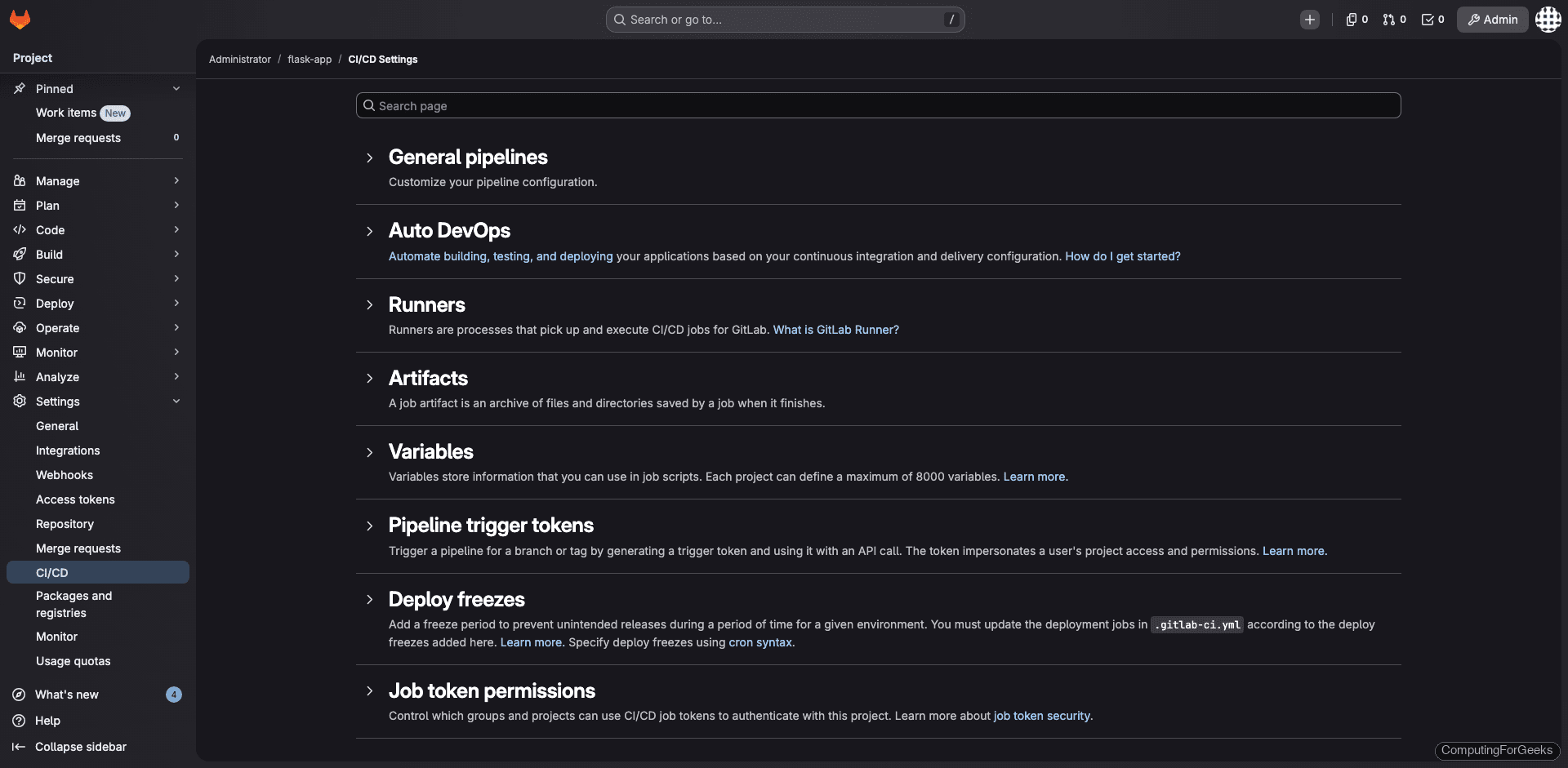
The runner appears in GitLab under Settings > CI/CD > Runners:
Create the Application
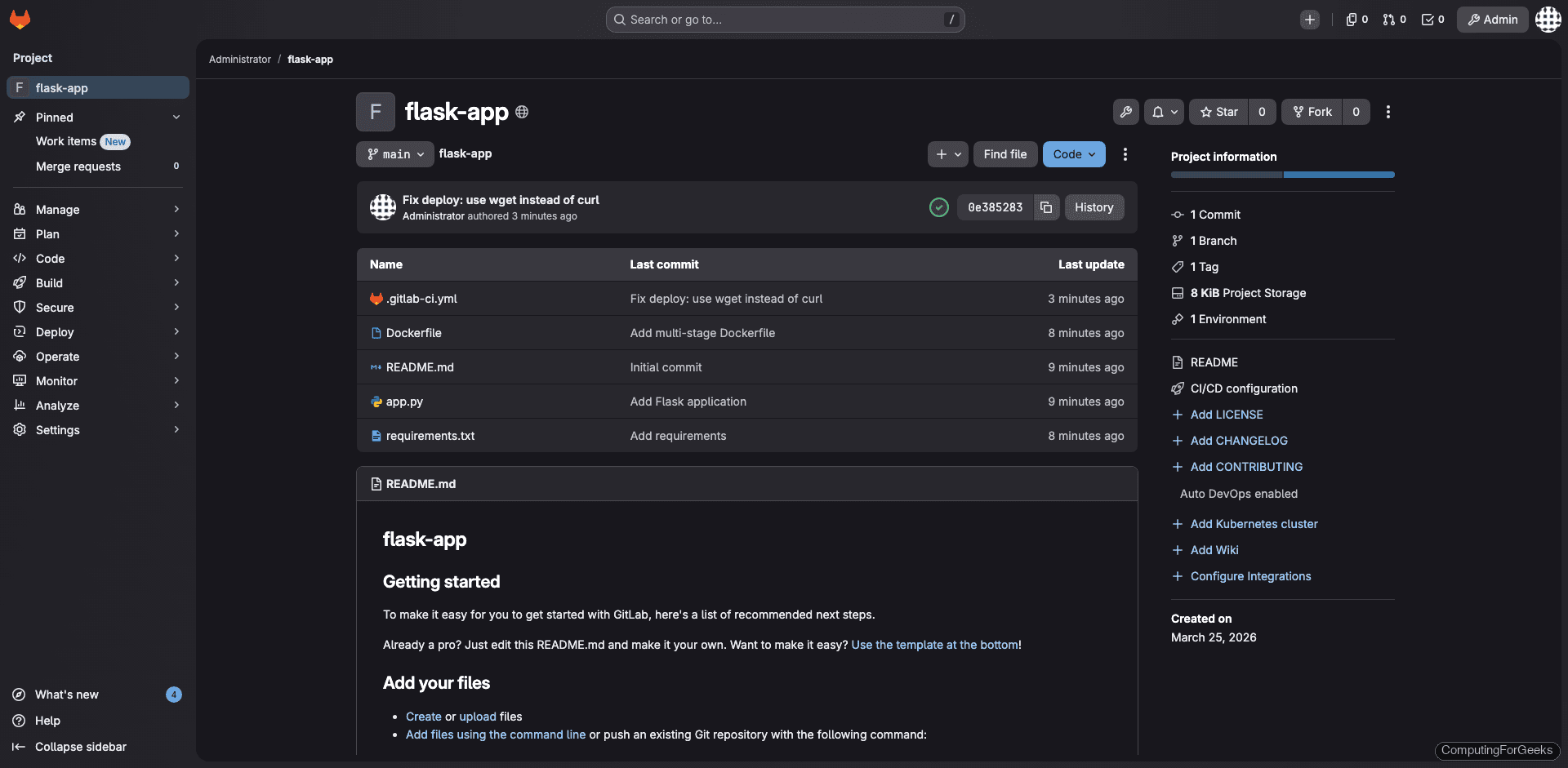
Create a new project in GitLab (through the web UI or API). We will use a simple Flask application as our example. The project needs three files: the application code, a requirements file, and a multi-stage Dockerfile.
app.py
from flask import Flask, jsonify
import os

app = Flask(__name__)

@app.route("/")
def home():
    return jsonify({
        "app": "flask-demo",
        "version": os.getenv("APP_VERSION", "dev"),
        "status": "running"
    })

@app.route("/health")
def health():
    return jsonify({"status": "healthy"}), 200

if __name__ == "__main__":
    app.run(host="0.0.0.0", port=5000)
requirements.txt
flask==3.1.1
gunicorn==23.0.0
Dockerfile (multi-stage)
Multi-stage builds keep the final image small by separating the dependency installation from the runtime. The builder stage installs Python packages, and the production stage copies only the installed packages without the build tools:
# Stage 1: Build dependencies
FROM python:3.12-slim AS builder
WORKDIR /build
COPY requirements.txt .
RUN pip install --no-cache-dir --prefix=/install -r requirements.txt

# Stage 2: Production image
FROM python:3.12-slim
WORKDIR /app
COPY --from=builder /install /usr/local
COPY app.py .
EXPOSE 5000
USER nobody
CMD ["gunicorn", "--bind", "0.0.0.0:5000", "--workers", "2", "app:app"]
The production image runs as nobody (not root) and uses Gunicorn instead of Flask’s development server.
Write the CI/CD Pipeline
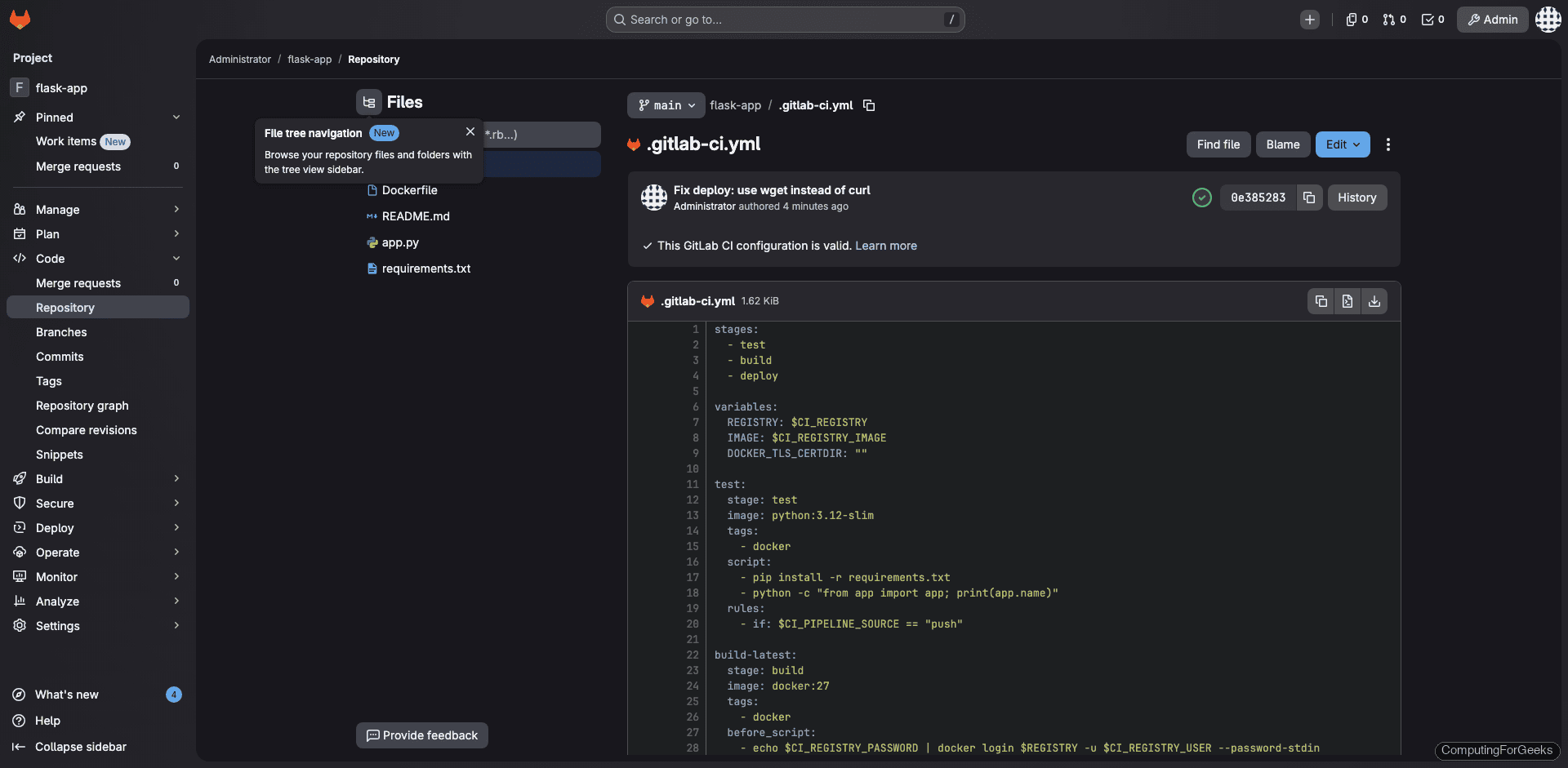
Create .gitlab-ci.yml in the repository root. This pipeline has three stages: test the application, build and push the Docker image, and deploy to staging.
stages:
  - test
  - build
  - deploy

variables:
  REGISTRY: $CI_REGISTRY
  IMAGE: $CI_REGISTRY_IMAGE
  DOCKER_TLS_CERTDIR: ""

test:
  stage: test
  image: python:3.12-slim
  tags:
    - docker
  script:
    - pip install -r requirements.txt
    - python -c "from app import app; print(app.name)"
  rules:
    - if: $CI_PIPELINE_SOURCE == "push"

build-latest:
  stage: build
  image: docker:27
  tags:
    - docker
  before_script:
    - echo $CI_REGISTRY_PASSWORD | docker login $REGISTRY -u $CI_REGISTRY_USER --password-stdin
  script:
    - docker build --pull -t $IMAGE:$CI_COMMIT_SHORT_SHA -t $IMAGE:latest .
    - docker push $IMAGE:$CI_COMMIT_SHORT_SHA
    - docker push $IMAGE:latest
  rules:
    - if: $CI_COMMIT_BRANCH == "main"

build-release:
  stage: build
  image: docker:27
  tags:
    - docker
  before_script:
    - echo $CI_REGISTRY_PASSWORD | docker login $REGISTRY -u $CI_REGISTRY_USER --password-stdin
  script:
    - docker build --pull -t $IMAGE:$CI_COMMIT_TAG -t $IMAGE:latest .
    - docker push $IMAGE:$CI_COMMIT_TAG
    - docker push $IMAGE:latest
  rules:
    - if: $CI_COMMIT_TAG =~ /^v[0-9]+\.[0-9]+\.[0-9]+$/

deploy-staging:
  stage: deploy
  image: docker:27
  tags:
    - docker
  script:
    - echo "Pulling $IMAGE:$CI_COMMIT_SHORT_SHA"
    - docker pull $IMAGE:$CI_COMMIT_SHORT_SHA
    - docker rm -f flask-staging 2>/dev/null || true
    - docker run -d --name flask-staging -p 8888:5000 -e APP_VERSION=$CI_COMMIT_SHORT_SHA $IMAGE:$CI_COMMIT_SHORT_SHA
    - sleep 3
    - wget -qO- http://172.17.0.1:8888/health && echo "Deploy successful"
  rules:
    - if: $CI_COMMIT_BRANCH == "main"
  environment:
    name: staging
Key details in this pipeline:
- $CI_REGISTRY, $CI_REGISTRY_USER, $CI_REGISTRY_PASSWORD are predefined GitLab CI variables. You do not need to configure them manually. GitLab injects them automatically when the Container Registry is enabled
- $CI_COMMIT_SHORT_SHA gives you an 8-character commit hash for unique image tagging
- build-latest triggers on pushes to the main branch. It tags images with both the commit SHA and
latest - build-release triggers only when you push a semantic version tag (v1.0.0, v2.1.3, etc.)
- deploy-staging pulls the freshly built image and runs it as a container, then verifies the health endpoint responds
Run the Pipeline
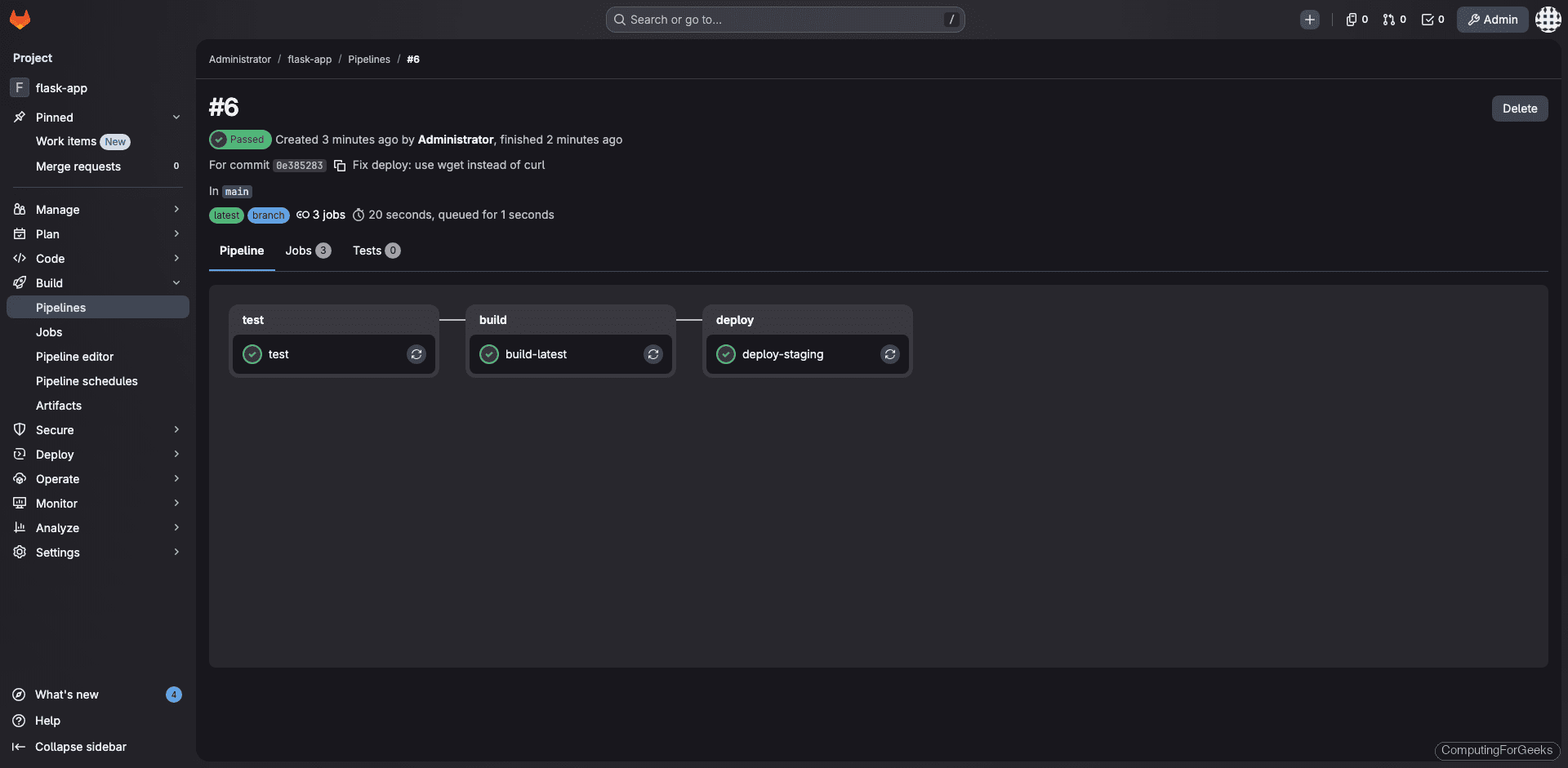
Pushing the .gitlab-ci.yml file triggers the pipeline automatically. Navigate to Build > Pipelines to watch it run:
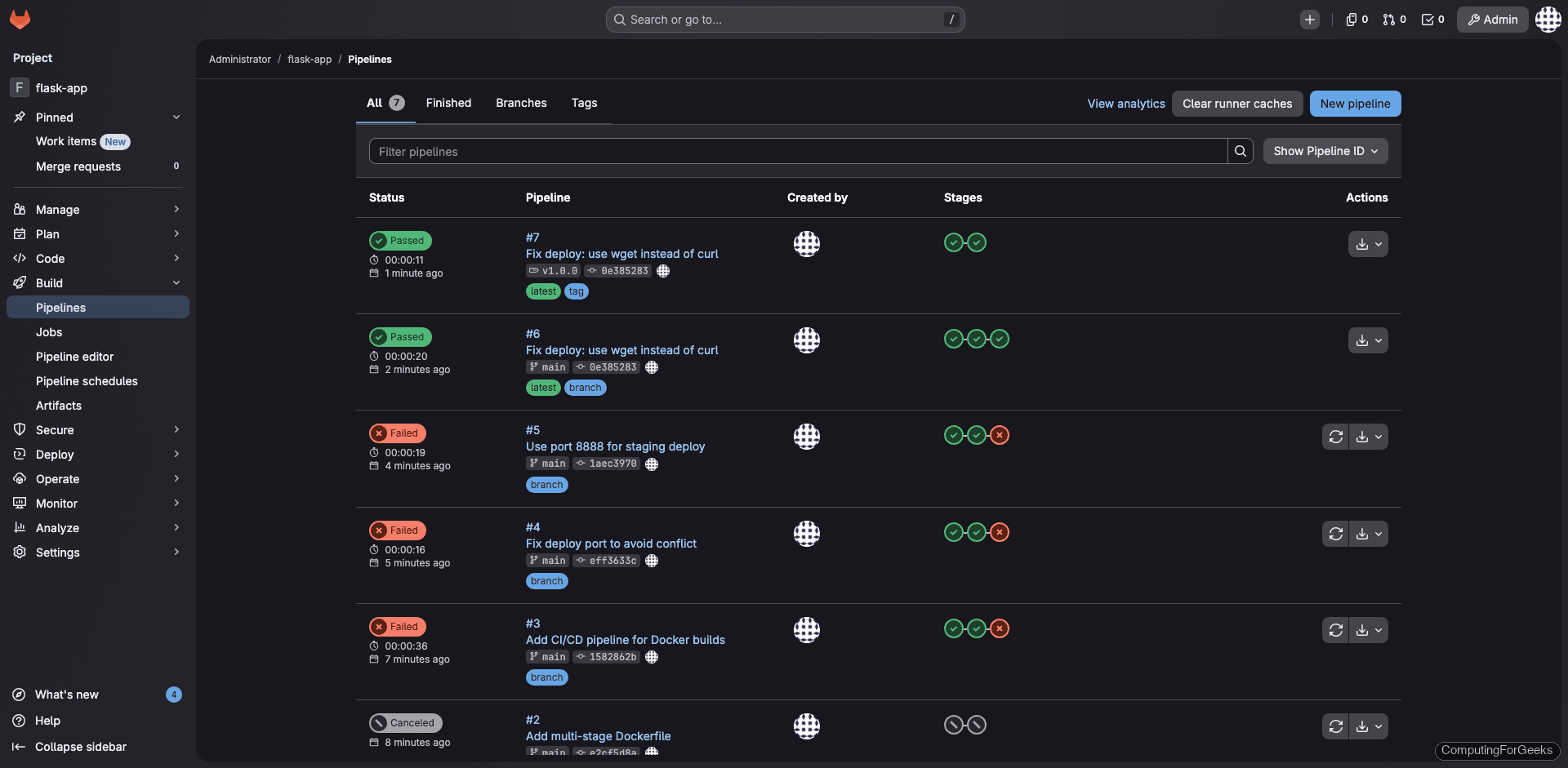
Click on a pipeline to see all three stages. When everything passes, you get green checkmarks across test, build, and deploy:
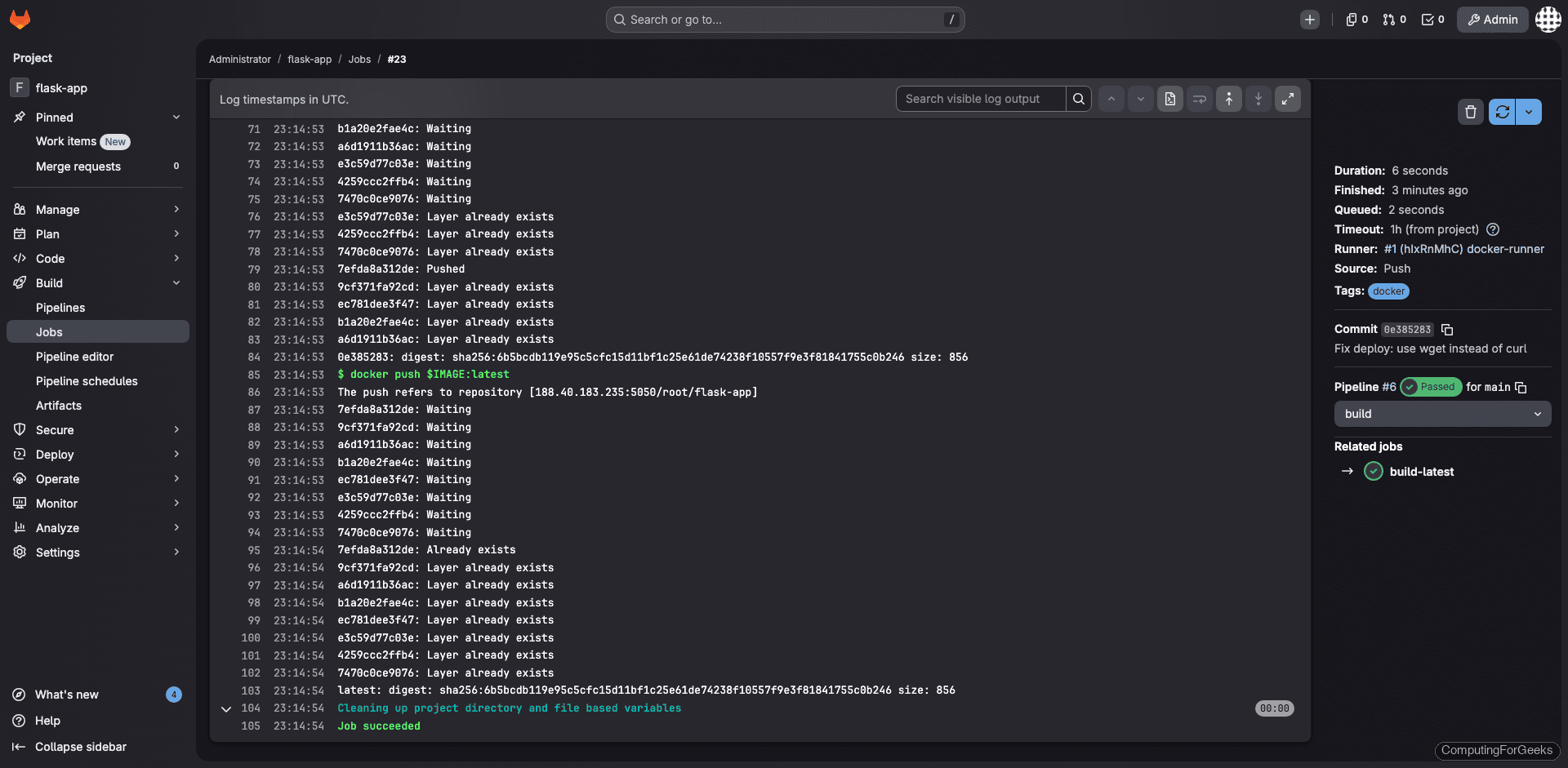
The build job log shows Docker building the multi-stage image, tagging it with the commit SHA and latest, then pushing both tags to the Container Registry:
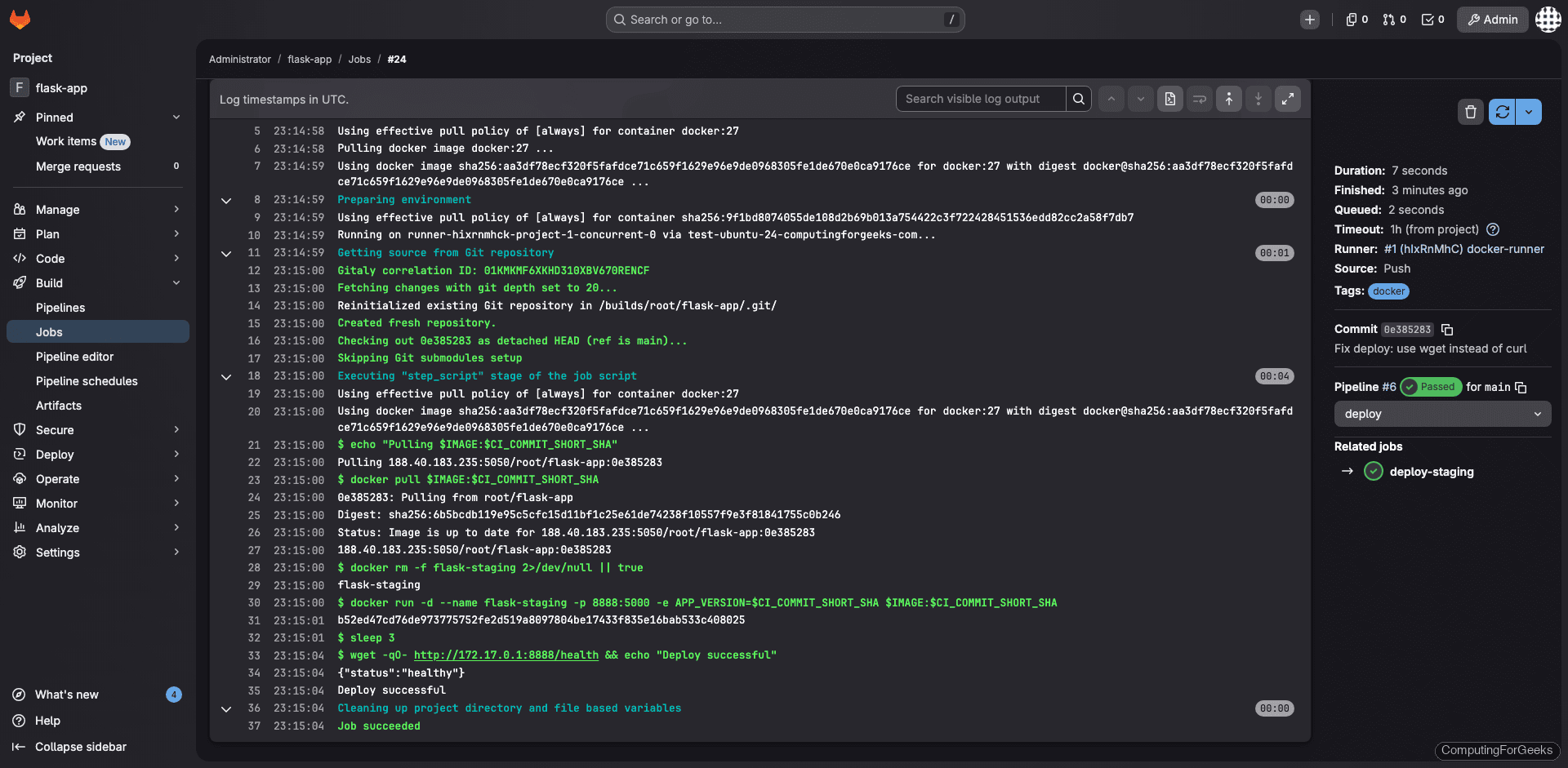
The deploy job pulls the image, starts a container, and confirms the health endpoint returns a successful response:
Verify the Container Registry
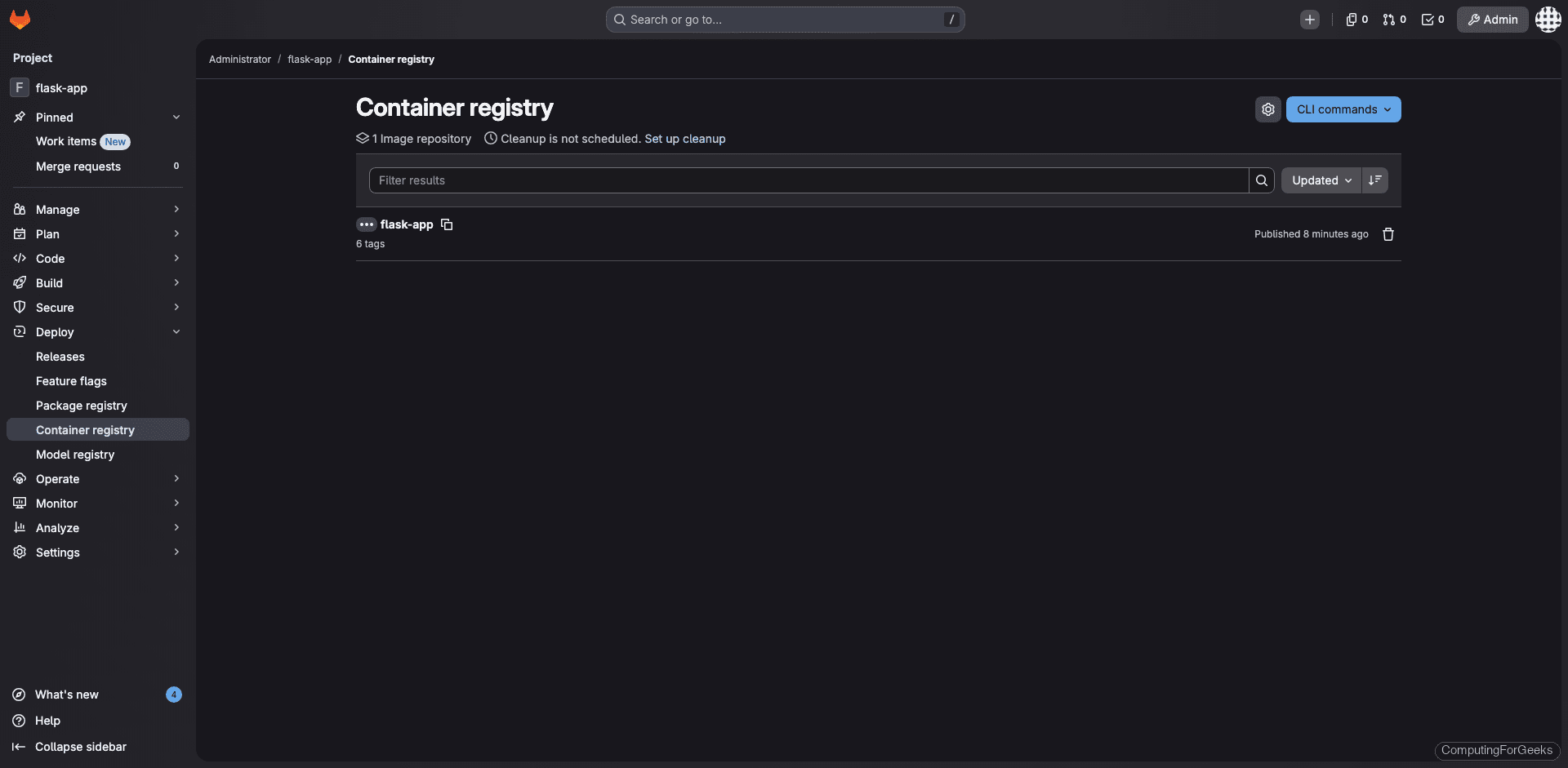
Navigate to Deploy > Container Registry in your project. You should see the pushed images with their tags:
You can also list tags from the command line:
docker login 192.168.1.50:5050
docker pull 192.168.1.50:5050/root/flask-app:latest
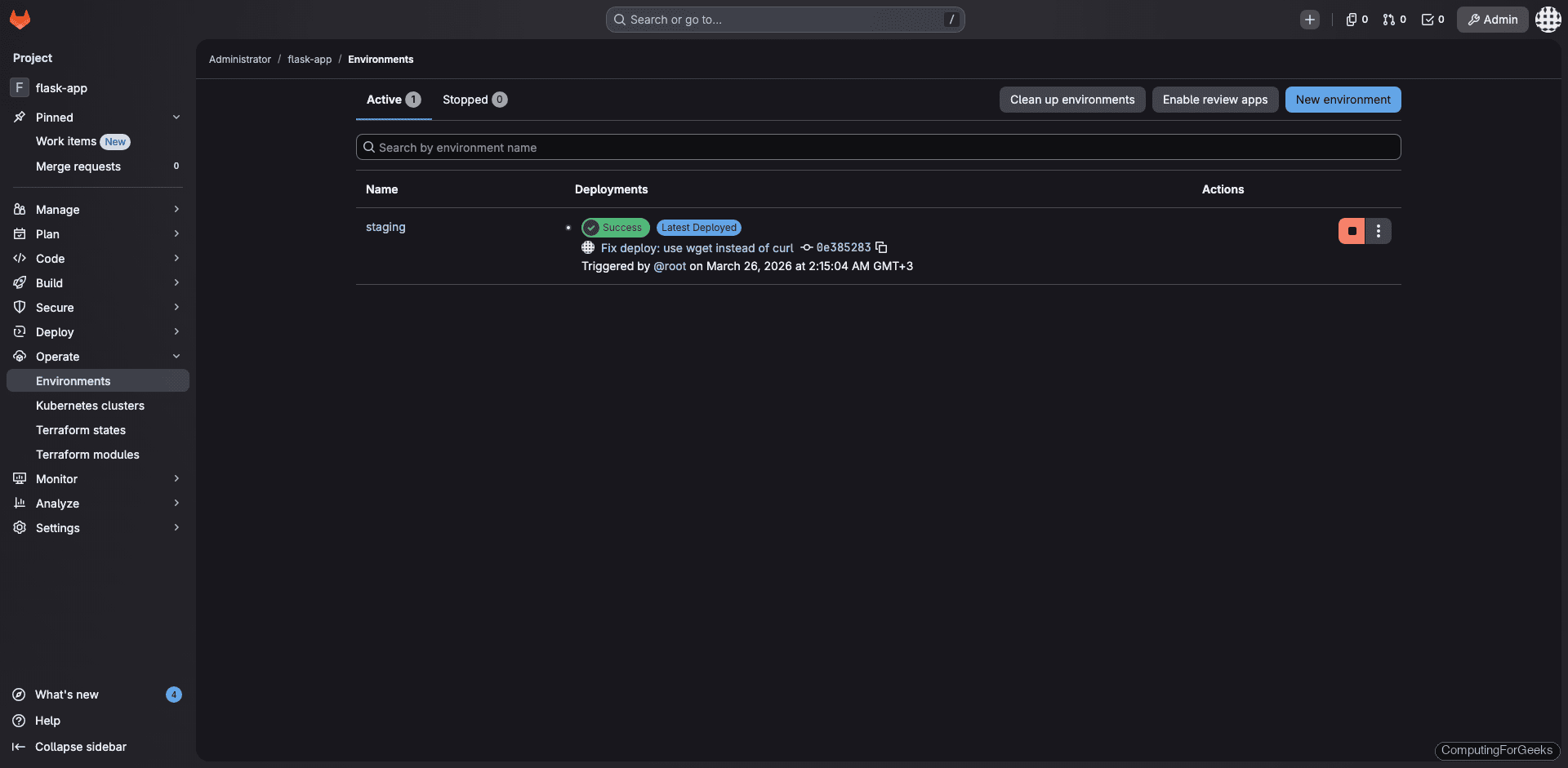
GitLab tracks environments too. The staging deployment appears under Operate > Environments:
Tag-Based Releases (Semantic Versioning)
The build-release job triggers when you push a Git tag matching the pattern v*.*.*. Create a release tag:
git tag -a v1.0.0 -m "First production release"
git push origin v1.0.0
This triggers a separate pipeline that builds and pushes the image tagged with v1.0.0:
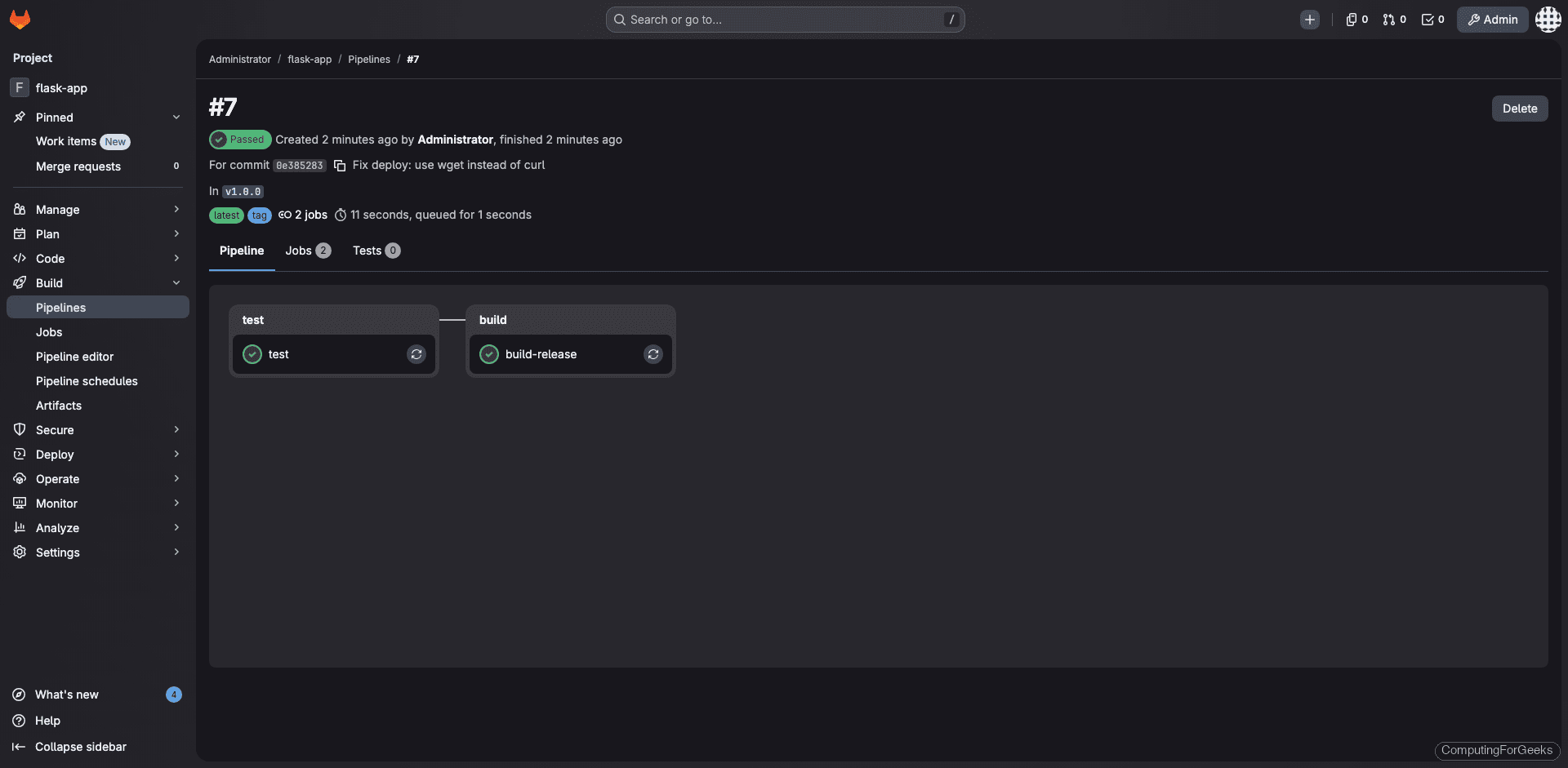
After both the commit-based and tag-based pipelines run, the Container Registry holds multiple tags. On our test server, the registry shows commit SHA tags from each pipeline plus the v1.0.0 release and latest:
Tag: 0e385283
Tag: 1582862b
Tag: 1aec3970
Tag: eff3633c
Tag: latest
Tag: v1.0.0
In production, you would deploy specific version tags rather than latest so you can roll back to any previous version if something breaks.
Image Tagging Strategies
Which tagging strategy you use depends on your deployment workflow:
| Strategy | Tag Example | When to Use |
|---|---|---|
| Commit SHA | $CI_COMMIT_SHORT_SHA | Every build. Provides exact traceability back to source code |
| Branch name | $CI_COMMIT_BRANCH | Feature branches. Useful for testing specific branches |
| Semantic version | v1.2.3 from $CI_COMMIT_TAG | Releases. Maps to Git tags for production deployments |
| Latest | latest | Always points to the most recent build. Convenient but risky in production |
The pipeline in this guide uses commit SHA for every build (traceability) and semantic version for releases (production deployments). The latest tag is updated by both for convenience, but production systems should always reference a specific version.
Predefined CI Variables Reference
GitLab injects these variables automatically into every CI job. No manual configuration needed:
| Variable | Value | Used For |
|---|---|---|
$CI_REGISTRY | 192.168.1.50:5050 | Docker login URL |
$CI_REGISTRY_USER | gitlab-ci-token | Registry authentication username |
$CI_REGISTRY_PASSWORD | (auto-generated token) | Registry authentication password |
$CI_REGISTRY_IMAGE | 192.168.1.50:5050/root/flask-app | Full image path in registry |
$CI_COMMIT_SHORT_SHA | 0e385283 | 8-char commit hash for tagging |
$CI_COMMIT_TAG | v1.0.0 | Git tag name (only set on tag pipelines) |
$CI_COMMIT_BRANCH | main | Branch name (not set on tag pipelines) |
Troubleshooting
Error: “Get http://registry:5050/v2/: dial tcp: lookup registry: no such host”
The runner cannot resolve the registry hostname. Make sure registry_external_url in /etc/gitlab/gitlab.rb uses an IP address or resolvable hostname, not localhost. After changing it, run sudo gitlab-ctl reconfigure.
Error: “http: server gave HTTP response to HTTPS client”
Docker defaults to HTTPS for registry communication. If your registry uses HTTP, you must add it to /etc/docker/daemon.json as an insecure registry and restart Docker. This must be done on every machine that interacts with the registry, including the GitLab Runner host.
Error: “curl: not found” in docker:27 image
The docker:27 image is Alpine-based and does not include curl. Use wget -qO- instead, or install curl with apk add --no-cache curl in the before_script.
Port conflicts in deploy jobs
When the runner mounts the host Docker socket, containers from previous pipeline runs persist on the host. Always docker rm -f the container name before starting a new one. Also avoid ports used by GitLab itself: 8080 (Puma), 9090 (Prometheus), and 9168 (GitLab Exporter).
Going Further
- Add HTTPS to both GitLab and the Container Registry with Let’s Encrypt for production use
- Use
docker buildxfor multi-architecture builds (amd64 + arm64) in the same pipeline - Add image scanning with Trivy or GitLab’s built-in container scanning before pushing to the registry
- Integrate with Kubernetes deployments using GitLab’s Kubernetes agent. See our guide on deploying Kubernetes clusters with Kubespray
- Set up cleanup policies to automatically delete old images and reclaim registry storage
