

Static site hosting used to mean provisioning a server, configuring Nginx, wrangling SSL certificates, and hoping your site survives a traffic spike. Cloudflare Pages removes all of that. You get a global CDN with automatic HTTPS, unlimited bandwidth on the free tier, and deployments that take seconds. No server to manage, no bandwidth bills, no certificate renewals.
This guide covers the full deployment workflow: building a site locally, deploying with the Wrangler CLI, adding a framework like Hugo, mapping a custom domain with SSL, and automating everything with GitHub Actions. Every command was tested with real output, and the GitHub Actions workflow deploys a live site you can verify right now.
Tested March 2026 with Node.js 24.14.1 LTS, Wrangler 4.78.0, Hugo 0.159.1, GitHub Actions on Ubuntu 24.04
Cloudflare Pages vs Netlify vs Vercel (Free Tier)
Before diving into the setup, here is how Cloudflare Pages compares to the other major static hosting platforms on the free tier:
| Feature | Cloudflare Pages | Netlify | Vercel |
|---|---|---|---|
| Bandwidth | Unlimited | 100 GB/month | 100 GB/month |
| Builds per month | 500 | 300 minutes | 6,000 minutes |
| Sites/projects | 100 | 500 | 200 |
| Custom domains | 100 per project | Custom (varies) | 50 per project |
| Preview deployments | Unlimited | Yes | Yes |
| Global CDN | 330+ cities | ~20 PoPs | ~20 PoPs |
| Max file size | 25 MiB | No limit | No limit |
| Files per deployment | 20,000 (free), 100,000 (paid) | No hard limit | No hard limit |
The unlimited bandwidth on Cloudflare’s free tier is the standout feature. A viral blog post on Netlify or Vercel could trigger overage charges. On Cloudflare Pages, it costs nothing.
Prerequisites
- Cloudflare account (free at dash.cloudflare.com)
- Node.js 24 LTS and npm (for Wrangler CLI)
- Git and a GitHub account (for the CI/CD section)
- A domain managed in Cloudflare DNS (for the custom domain section, optional)
Install Node.js 24 LTS if you don’t have it. Check your current version first:
node --versionIf you need to install or upgrade, use your system package manager or NVM to manage Node.js versions:
nvm install 24
nvm use 24
Verify the installation:
node --version && npm --versionYou should see Node.js v24.x and npm 11.x:
v24.14.1
11.11.0
Install and Configure Wrangler CLI
Wrangler is Cloudflare’s CLI tool for managing Workers and Pages projects. Install it globally:
npm install -g wranglerConfirm the version:
wrangler --versionThis should return Wrangler 4.x:
4.78.0Authenticate with your Cloudflare account:
wrangler loginThis opens a browser window where you authorize Wrangler. After approval, the CLI stores the credentials locally. You can also use an API token by setting the CLOUDFLARE_API_TOKEN environment variable, which is the method used in CI/CD pipelines.
Deploy a Plain HTML Site
Starting with plain HTML keeps the focus on what Cloudflare Pages does, without any framework getting in the way. No build step, no dependencies.
Create a project directory with a few pages:
mkdir -p my-site/public && cd my-site/publicCreate index.html:
<!DOCTYPE html>
<html lang="en">
<head>
    <meta charset="UTF-8">
    <meta name="viewport" content="width=device-width, initial-scale=1.0">
    <title>My Static Site</title>
    <link rel="stylesheet" href="style.css">
</head>
<body>
    <nav>
        <a href="/">Home</a>
        <a href="/about.html">About</a>
    </nav>
    <main>
        <h1>Welcome to My Static Site</h1>
        <p>Deployed to Cloudflare Pages with Wrangler CLI.</p>
    </main>
</body>
</html>
Create about.html and style.css with your own content (any valid HTML/CSS works). Then create a Cloudflare Pages project:
wrangler pages project create my-site --production-branch mainWrangler creates the project and assigns a *.pages.dev subdomain:
✨ Successfully created the 'my-site' project.
It will be available at https://my-site.pages.dev/ once you create your first deployment.
To deploy a folder of assets, run 'wrangler pages deploy [directory]'.
Deploy the site:
wrangler pages deploy ./public --project-name=my-site --commit-message="Initial deployment"The files upload to Cloudflare’s network and the site goes live within seconds:
Uploading... (4/4)
✨ Success! Uploaded 4 files (1.67 sec)

✨ Uploading _headers
✨ Uploading _redirects
🌎 Deploying...
✨ Deployment complete! Take a peek over at https://6ddbe885.my-site.pages.dev
The URL with the hash prefix (like 6ddbe885.) is a deployment-specific URL. The production URL at my-site.pages.dev also points to this latest deployment. Every deployment gets its own permanent URL, which makes rollbacks trivial.
The site is live worldwide with automatic HTTPS:
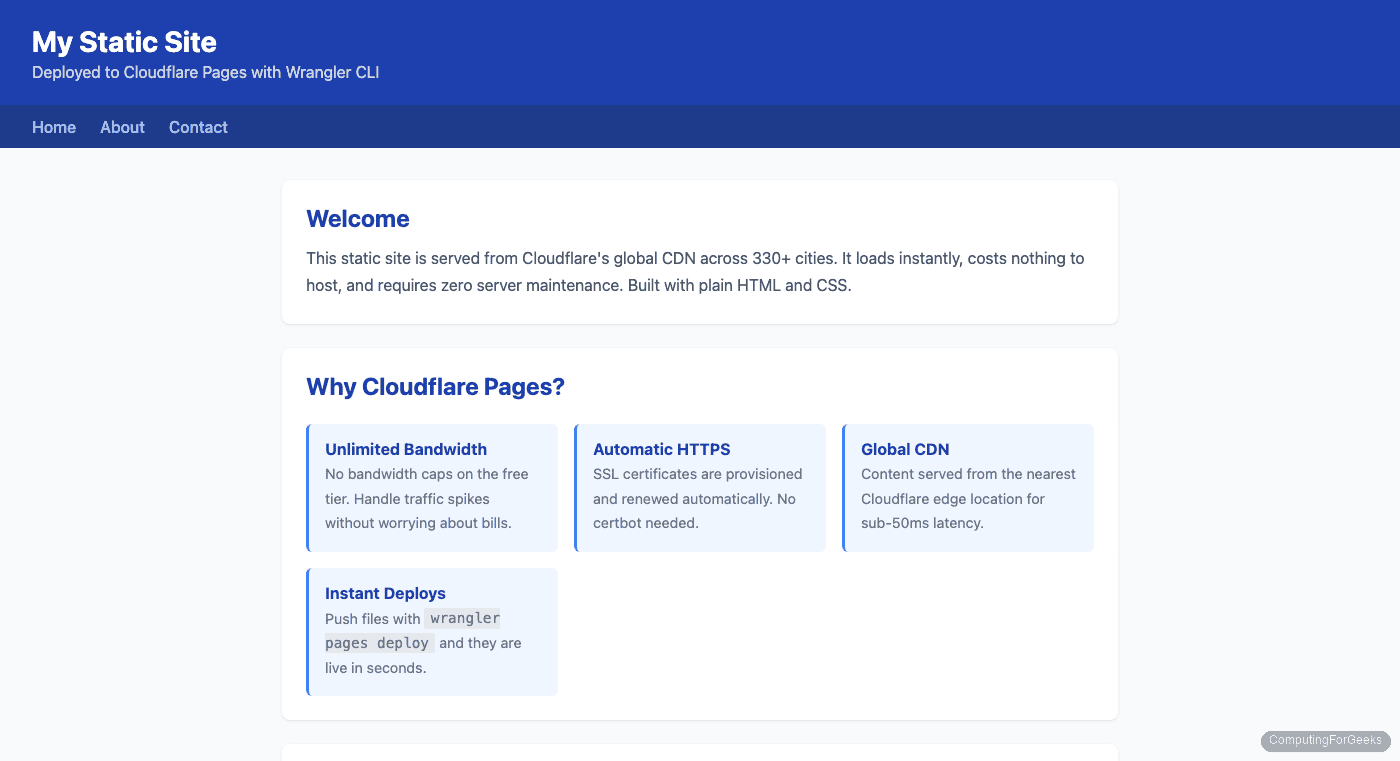
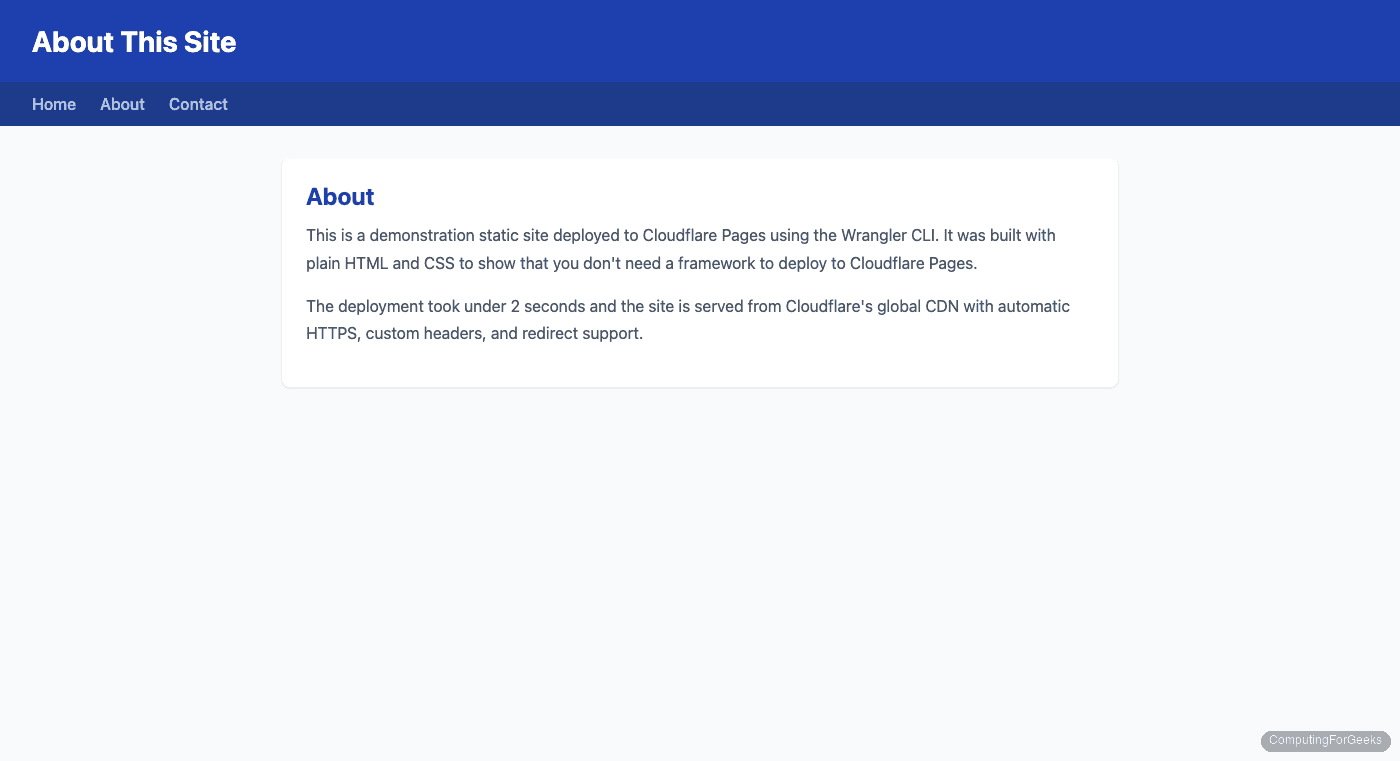
Each page in the site works with clean URLs and navigation:
Add _redirects and _headers Files
Two special files give you control over HTTP behavior without a server. Most tutorials skip these, but they are essential for production sites.
Create public/_redirects for URL redirects:
/home /  301
/blog https://example.com 301
/old-page /new-page  301
Each line follows the format: source destination status_code. Cloudflare Pages supports up to 2,000 static redirects and 100 dynamic redirects.
Create public/_headers for custom HTTP response headers:
/*
  X-Frame-Options: DENY
  X-Content-Type-Options: nosniff
  Referrer-Policy: strict-origin-when-cross-origin
  Permissions-Policy: camera=(), microphone=(), geolocation=()

/style.css
  Cache-Control: public, max-age=31536000, immutable
The /* block applies to all pages (security headers), while the /style.css block sets aggressive caching for static assets. After redeploying, verify the headers are applied:
curl -sI https://my-site.pages.dev | grep -E 'x-frame|x-content|referrer|permissions'All four security headers should appear in the response:
permissions-policy: camera=(), microphone=(), geolocation=()
referrer-policy: strict-origin-when-cross-origin
x-content-type-options: nosniff
x-frame-options: DENY
Deploy a Hugo Site
Plain HTML works for small sites. For blogs and documentation, a static site generator like Hugo builds hundreds of pages in milliseconds. The workflow is the same: build locally, deploy the output directory with Wrangler.
Install Hugo (see the official installation guide for your OS) and create a new site:
hugo new site my-hugo-site && cd my-hugo-site
git init
Add a theme. PaperMod is lightweight and popular:
git submodule add https://github.com/adityatelange/hugo-PaperMod.git themes/PaperModConfigure Hugo by editing hugo.toml:
baseURL = "https://my-site.pages.dev/"
languageCode = "en-us"
title = "My Hugo Site"
theme = "PaperMod"

[params]
  description = "A Hugo site on Cloudflare Pages"
  ShowReadingTime = true

[menu]
  [[menu.main]]
    name = "Home"
    url = "/"
    weight = 1
  [[menu.main]]
    name = "Posts"
    url = "/posts/"
    weight = 2
Create a post:
hugo new content posts/getting-started.mdEdit content/posts/getting-started.md, set draft: false, and add your content. Build the site:
hugoHugo builds the entire site in under 100ms:
Start building sites …
hugo v0.159.1+extended darwin/arm64 BuildDate=2026-03-26T09:54:15Z

                   │ EN
───────────────────┼────
  Pages            │ 23
  Paginator pages  │  0
  Non-page files   │  0
  Static files     │  0
  Processed images │  0
  Aliases          │  7
  Cleaned          │  0

Total in 55 ms
Deploy the public/ directory:
wrangler pages deploy public --project-name=my-site --commit-message="Deploy Hugo site"Wrangler uploads only the changed files (it caches previous uploads):
Uploading... (31/31)
✨ Success! Uploaded 31 files (1.95 sec)

🌎 Deploying...
✨ Deployment complete! Take a peek over at https://3ed88c7f.my-site.pages.dev
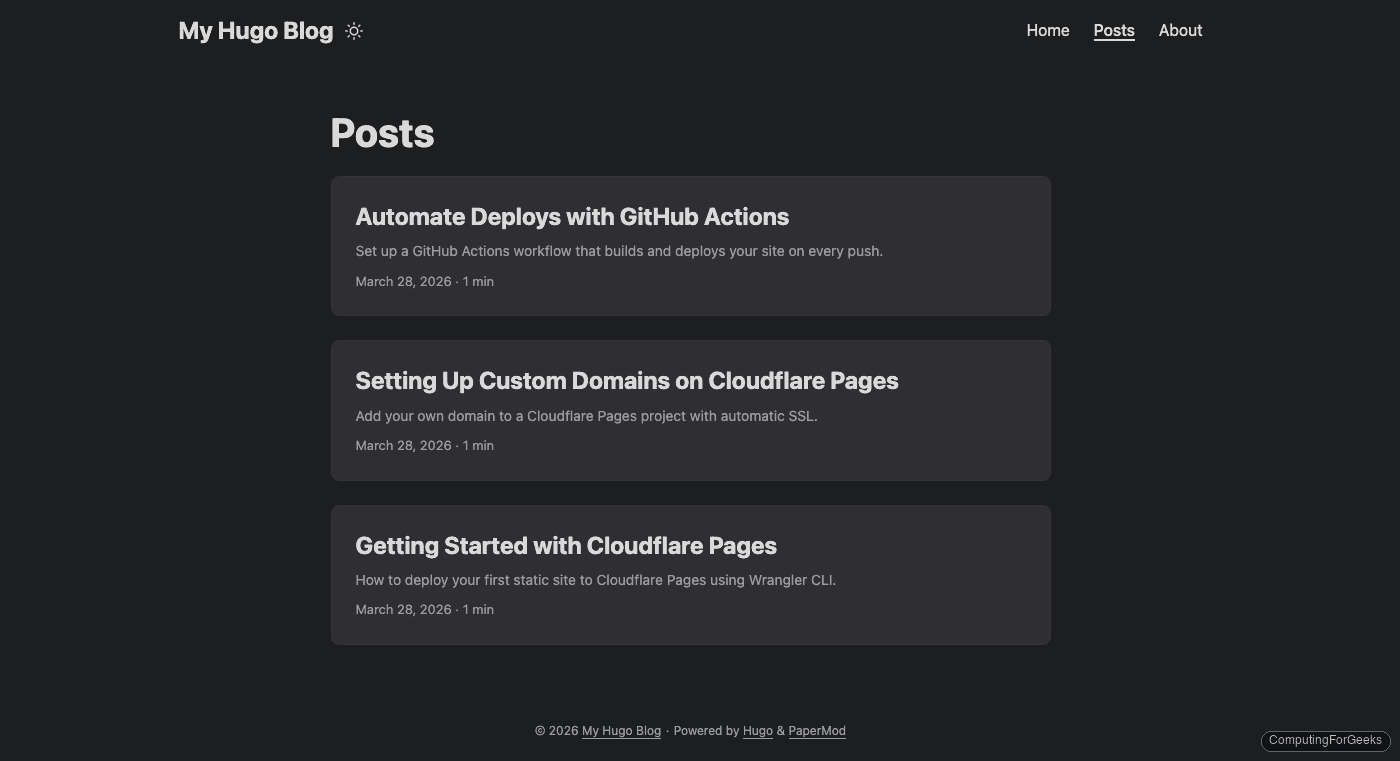
The Hugo site is now live with the PaperMod theme, showing all three blog posts:
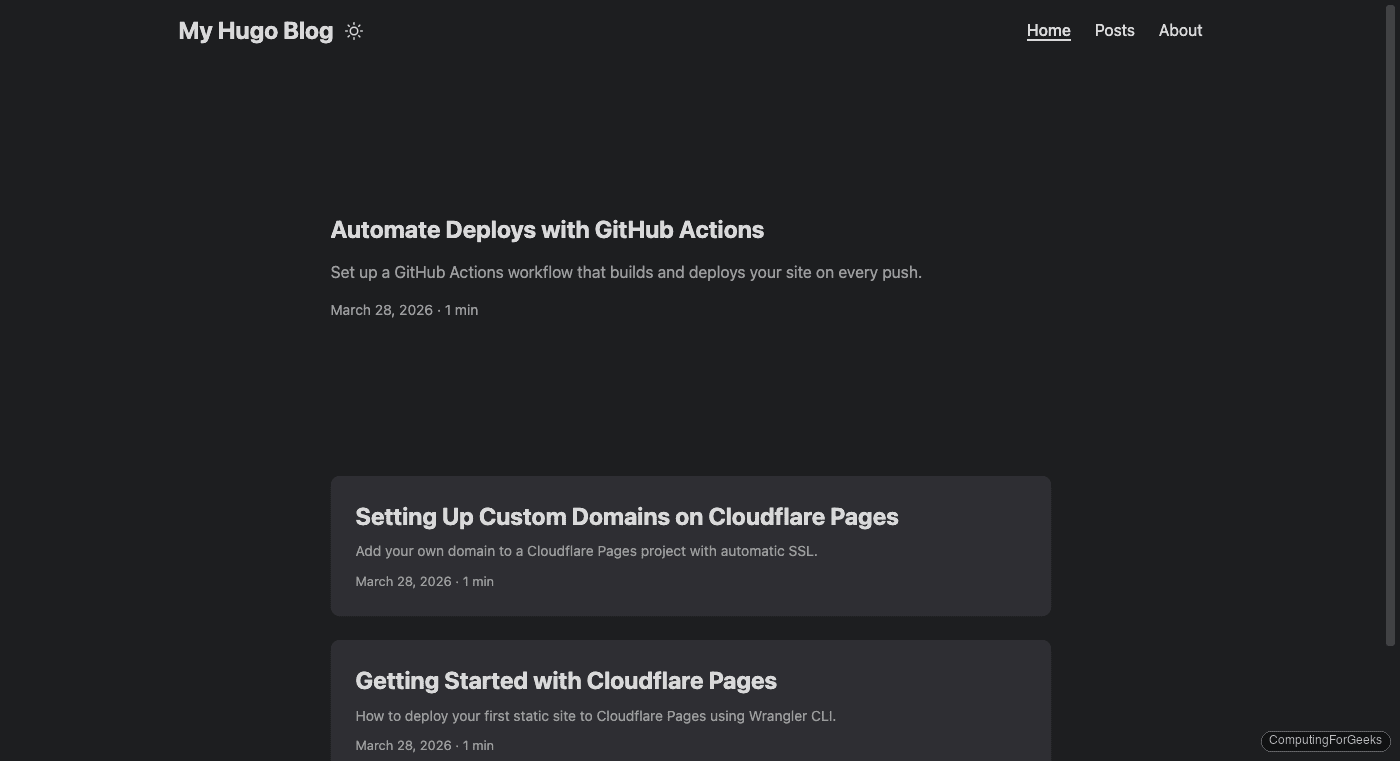
Clicking into a post shows the full article with reading time, tags, and navigation:
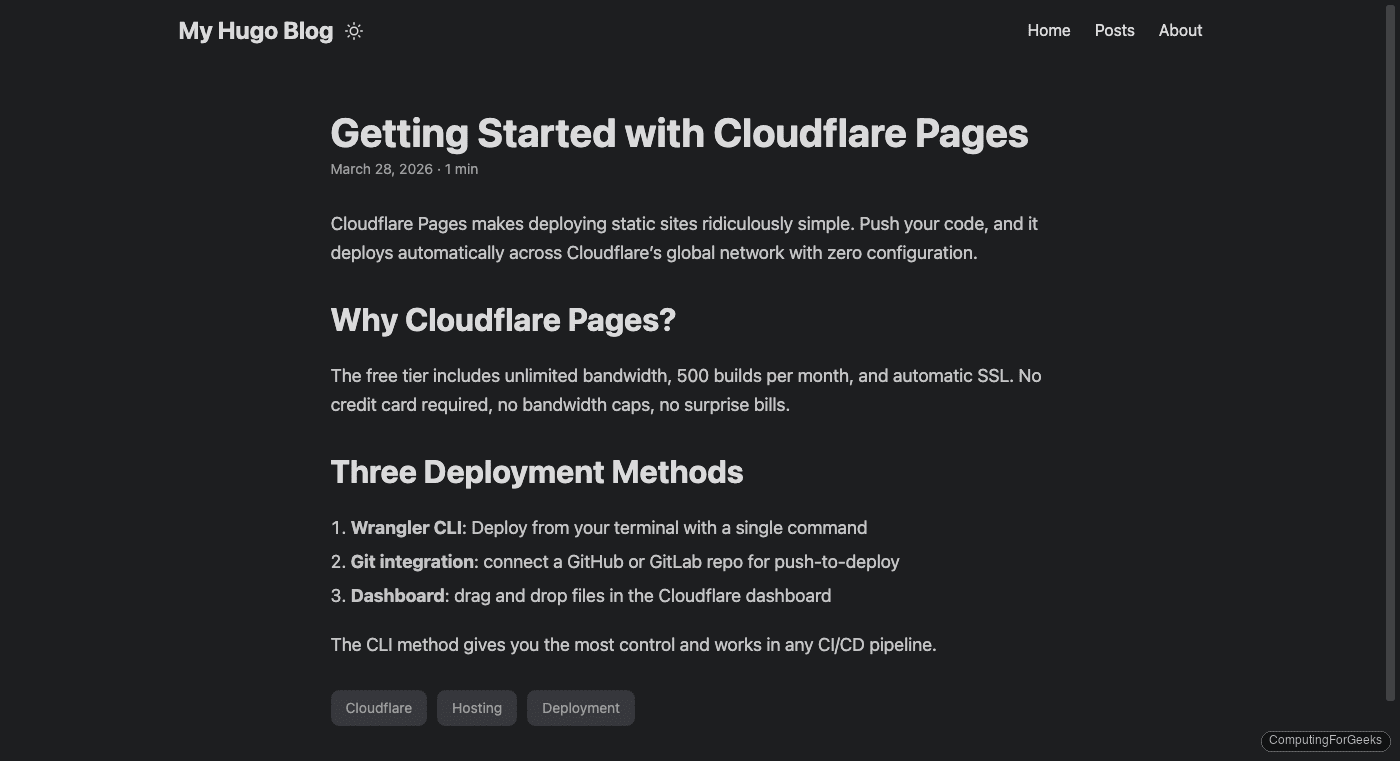
The posts archive page lists all content with summaries and dates:
Map a Custom Domain
Every Pages project gets a free *.pages.dev subdomain, but you will want your own domain for anything public-facing. If your domain already uses Cloudflare DNS, this takes under two minutes.
Add a CNAME record in your Cloudflare DNS settings pointing your subdomain to the Pages project domain:
| Type | Name | Target | Proxy |
|---|---|---|---|
| CNAME | demo | my-site.pages.dev | Proxied |
Then add the custom domain to your Pages project. In the Cloudflare dashboard, go to Workers & Pages → select your project → Custom domains → Set up a domain. Enter your domain (e.g., demo.example.com) and click Continue.
SSL certificates are provisioned automatically. In our test, the domain went from “initializing” to “active” with a valid SSL certificate in under 30 seconds:
curl -sI https://demo.example.com | head -3The response confirms HTTPS is working:
HTTP/2 200
date: Sat, 28 Mar 2026 19:47:19 GMT
content-type: text/html; charset=utf-8
For apex domains (like example.com without a subdomain), the domain must use Cloudflare nameservers. Cloudflare automatically creates the required DNS records. For subdomains, a CNAME record is sufficient.
Automate Deployments with GitHub Actions
Manual wrangler pages deploy works, but automating it means every push to main triggers a build and deployment. This section sets up a complete GitHub Actions pipeline that builds a Hugo site and deploys it to Cloudflare Pages.
Prepare the Repository
Initialize a Git repository in your Hugo project (if you haven’t already) and push it to GitHub:
cd my-hugo-site
git add -A
git commit -m "Initial Hugo site"
git remote add origin https://github.com/YOUR_USERNAME/hugo-cloudflare-pages.git
git push -u origin main
Add Cloudflare Secrets to GitHub
The workflow needs two secrets to authenticate with Cloudflare. Create an API token at dash.cloudflare.com/profile/api-tokens with the Cloudflare Pages: Edit permission. Then find your Account ID at the top of your Cloudflare dashboard’s overview page.
Add both as repository secrets in GitHub (Settings → Secrets and variables → Actions):
gh secret set CLOUDFLARE_API_TOKEN --body "your-api-token-here" --repo YOUR_USERNAME/hugo-cloudflare-pages
gh secret set CLOUDFLARE_ACCOUNT_ID --body "your-account-id-here" --repo YOUR_USERNAME/hugo-cloudflare-pages
Create the Workflow
Create .github/workflows/deploy.yml:
name: Deploy to Cloudflare Pages

on:
  push:
    branches: [main]
  pull_request:
    branches: [main]

jobs:
  deploy:
    runs-on: ubuntu-latest
    permissions:
      contents: read
      deployments: write
    steps:
      - name: Checkout code
        uses: actions/checkout@v4
        with:
          submodules: true

      - name: Setup Hugo
        uses: peaceiris/actions-hugo@v3
        with:
          hugo-version: 'latest'
          extended: true

      - name: Build site
        run: hugo --minify

      - name: Deploy to Cloudflare Pages
        uses: cloudflare/wrangler-action@v3
        with:
          apiToken: ${{ secrets.CLOUDFLARE_API_TOKEN }}
          accountId: ${{ secrets.CLOUDFLARE_ACCOUNT_ID }}
          command: pages deploy public --project-name=my-site --commit-hash=${{ github.sha }}
Commit and push the workflow file. GitHub Actions triggers immediately on push to main.
Verify the Deployment
Check the workflow status from the terminal:
gh run list --repo YOUR_USERNAME/hugo-cloudflare-pages --limit 1The run completes in about 30 seconds:
completed success Initial Hugo site Deploy to Cloudflare Pages main push 33sThe build log shows Hugo compiling the site and Wrangler deploying it, with smart caching for files that haven’t changed:
Build site:
  Start building sites …
  hugo v0.159.1+extended linux/amd64

                    │ EN
  ──────────────────┼────
   Pages            │ 23
   Total in 56 ms

Deploy to Cloudflare Pages:
  ✅ Wrangler installed
  Uploading... (31/31)
  ✨ Success! Uploaded 30 files (1 already uploaded) (1.54 sec)
  🌎 Deploying...
  ✨ Deployment complete! Take a peek over at https://5c35db20.my-site.pages.dev
  🏁 Wrangler Action completed
Wrangler detected that 1 file was already uploaded from a previous deployment and skipped it. On subsequent deploys, this caching becomes more significant as most files remain unchanged.
For pull requests, the workflow creates a preview deployment at a unique URL. This lets reviewers see exactly what the site will look like before merging.
Manage Deployments
Wrangler gives you full control over your deployment history from the command line.
List all deployments:
wrangler pages deployment list --project-name=my-siteEach deployment shows its environment, branch, and a permanent URL:
┌──────────────┬─────────────┬────────┬──────────────────────────────────┬────────────────┐
│ Id           │ Environment │ Branch │ Deployment                       │ Status         │
├──────────────┼─────────────┼────────┼──────────────────────────────────┼────────────────┤
│ 5c35db20-... │ Production  │ main   │ https://5c35db20.my-site....dev  │ 2 minutes ago  │
├──────────────┼─────────────┼────────┼──────────────────────────────────┼────────────────┤
│ 3ed88c7f-... │ Production  │ main   │ https://3ed88c7f.my-site....dev  │ 10 minutes ago │
├──────────────┼─────────────┼────────┼──────────────────────────────────┼────────────────┤
│ 6ddbe885-... │ Production  │ main   │ https://6ddbe885.my-site....dev  │ 15 minutes ago │
└──────────────┴─────────────┴────────┴──────────────────────────────────┴────────────────┘
To roll back to a previous deployment, open the Cloudflare dashboard, navigate to your project’s deployments, and click the three-dot menu on any previous deployment. Select “Rollback to this deploy.” The rollback is instant because all files are already stored on Cloudflare’s edge.
Delete a specific deployment:
wrangler pages deployment delete DEPLOYMENT_ID --project-name=my-siteEnvironment Variables
Cloudflare Pages supports environment variables for both build-time and runtime configuration. Set them per environment (production vs preview) to use different values for staging and production.
Common use cases:
NODE_VERSION: override the default Node.js version (Cloudflare defaults to Node.js 22 on the v3 build system)HUGO_VERSION: pin the Hugo version for buildsAPI_URL: point to different API endpoints per environment
Set environment variables through the Cloudflare dashboard (Workers & Pages → project → Settings → Environment variables) or with Wrangler:
wrangler pages secret put API_KEY --project-name=my-siteYou can also place a .node-version file in your project root to control the Node.js version used during builds:
echo "24" > .node-versionCloudflare Pages Free Tier Limits
The free tier is generous, but knowing the limits prevents surprises:
| Resource | Limit |
|---|---|
| Builds per month | 500 |
| Concurrent builds | 1 |
| Files per deployment | 20,000 |
| Max file size | 25 MiB |
| Projects per account | 100 |
| Custom domains per project | 100 |
| Preview deployments | Unlimited |
| Bandwidth | Unlimited |
| Build timeout | 20 minutes |
Header rules (_headers) | 100 rules, 2,000 chars each |
Redirect rules (_redirects) | 2,000 static + 100 dynamic |
The 20,000 file limit is the most likely constraint for large sites. Paid plans raise this to 100,000 files. The 500 builds per month limit is rarely an issue unless you’re pushing to production dozens of times daily.
Supported Frameworks
Cloudflare Pages supports 29 frameworks with preconfigured build presets. When using the dashboard’s Git integration, it auto-detects your framework and sets the correct build command and output directory. Here are the most popular ones:
| Framework | Build Command | Output Directory |
|---|---|---|
| Hugo | hugo | public |
| Astro | npm run build | dist |
| Next.js (static) | npx next build | out |
| React (Vite) | npm run build | dist |
| Vue | npm run build | dist |
| Eleventy | npx @11ty/eleventy | _site |
| Zola | zola build | public |
| Jekyll | jekyll build | _site |
| Gatsby | npx gatsby build | public |
| MkDocs | mkdocs build | site |
With Wrangler CLI (the approach in this guide), the framework doesn’t matter. Build your site with whatever tool you prefer, then deploy the output directory.
Cleanup
To delete a Pages project and all its deployments:
wrangler pages project delete my-siteIf you added a custom domain, remove the DNS record first (in Cloudflare dashboard or via API), then remove the custom domain from the project settings, and finally delete the project.
Going Further
- Pages Functions: add serverless API routes alongside your static site by placing JavaScript/TypeScript files in a
functions/directory - Bindings: connect your Pages project to Cloudflare KV, D1 (SQLite), R2 (object storage), or AI services directly from Functions
- Branch previews: every branch pushed to your connected Git repository automatically gets a preview deployment at a unique URL
- Web analytics: Cloudflare offers free, privacy-first web analytics that integrates with Pages with a single toggle
- Monorepo support: deploy from a subdirectory by setting the root directory in project settings or passing the correct path to
wrangler pages deploy
