

The Hetzner Cloud is a reliable, consistent, and cost-effective platform that provides web hosting, dedicated servers, colocation, and custom hosting solutions. It offers incredible performance from as low as € 3.49 per month. With this fee, you get AMD EPYC™ 2nd Gen, Intel® Xeon® Gold processors with speedy NVMe SSDs. The Hetzner Cloud servers are located in Germany, Finland in the Hetzner state-of-the-art data centers, and in the USA at a partner data centre.
In the past decade, many organizations worldwide have adopted the concept of containerization, with Kubernetes playing a considerable role. Containerization can be defined as the packaging of software code required to run a lightweight executable referred to as a container.
Kubernetes abbreviated as K8s is an open-source tool that plays a significant role in orchestrating containerized workloads to run on a cluster of hosts. This helps organizations modernize the existing applications for cloud use.
There are a number of tools one can use to deploy a Kubernetes cluster. These include Minikube, Kubeadm, Kubernetes on AWS (Kube-AWS), Amazon EKS etc. This guide aims to demonstrate how to deploy HA Kubernetes Cluster in Hetzner Cloud Using Kubermatic KubeOne.
1. What is Kubermatic KubeOne?
Kubermatic KubeOne is an open-source tool that can be used to automate cluster operations on IoT, edge, on-premise, and cloud environments. It can be used to install both HA master clusters and single master clusters in the shortest time possible. This tool allows developers and DevOps engineers to spin a cluster on any provider in less than 3 minutes. They also have the ability to manage workloads from a dashboard which offers a consistent experience from the cloud to on-premise to edge.
Below is a simple diagram showing the Kubermatic KubeOne architecture:

The features associated with Kubermatic KubeOne are:
- Native for support for almost all providers: KubeOne supports several cloud providers that include AWS, Azure, GCP, Hetzner Cloud, DigitalOcean, Nutanix, OpenStack, VMware Cloud Director, and VMware vSphere. There is also an additional integration with Terraform and Kubermatic machine-controller
- Kubernetes Conformance Certified: it is a certified installer for all the upstream-supported Kubernetes versions
- Integration With Terraform: it offers a built-in integration with Terraform that makes it easy to provision the infrastructure and lets KubeOne take all the needed information from the Terraform state.
- Declarative Cluster Definition: the clusters can be defined declaratively in a YAML manifest. You only define the features you want and KubeOne takes care of the rest.
- Integration With Cluster-API, Kubermatic machine-controller, and operating-system-manager: you can easily manage the worker nodes using the Cluster-API and Kubermatic machine-controller. You can use kubectl to create, delete, upgrade and scale the applications.
2. Install Kubermatic KubeOne on your WorkStation
There are many ways to get Kubermatic KubeOne installed. In this guide, I will demonstrate some of the methods. Please choose one that best works for you.
Method 1: Using the Installer Script
This is the easiest and fastest method to get Kubermatic KubeOne installed. First, ensure that cURL is installed on your system
curl -sfL https://get.kubeone.io | shSample Output:
...
  inflating: kubeone_1.7.0_linux_amd64/examples/terraform/vsphere_centos/keepalived.sh
  inflating: kubeone_1.7.0_linux_amd64/examples/terraform/vsphere_centos/main.tf
  inflating: kubeone_1.7.0_linux_amd64/examples/terraform/vsphere_centos/outputs.tf
  inflating: kubeone_1.7.0_linux_amd64/examples/terraform/vsphere_centos/variables.tf
  inflating: kubeone_1.7.0_linux_amd64/examples/terraform/vsphere_centos/versions.tf
  inflating: kubeone_1.7.0_linux_amd64/examples/terraform/vsphere_flatcar/README.md
  inflating: kubeone_1.7.0_linux_amd64/examples/terraform/vsphere_flatcar/README.md.in
  inflating: kubeone_1.7.0_linux_amd64/examples/terraform/vsphere_flatcar/main.tf
  inflating: kubeone_1.7.0_linux_amd64/examples/terraform/vsphere_flatcar/outputs.tf
  inflating: kubeone_1.7.0_linux_amd64/examples/terraform/vsphere_flatcar/variables.tf
  inflating: kubeone_1.7.0_linux_amd64/examples/terraform/vsphere_flatcar/versions.tf
  inflating: kubeone_1.7.0_linux_amd64/hack/image-loader.sh
  inflating: kubeone_1.7.0_linux_amd64/kubeone
Kubermatic KubeOne has been installed into /usr/local/bin/kubeone
Terraform example configs, addons, and helper scripts have been downloaded into the ./kubeone_1.7.0_linux_amd64 directory
Method 2: Install Using Binaries
This is another method to have Kubermatic KubeOne installed on your system. In this method, we will download the correct binary from the GitHub Releases.
On the downloads page, select the version and operating system. To make that easier, we can export the variables with the commands:
OS=$(uname)
VERSION=$(curl -w '%{url_effective}' -I -L -s -S https://github.com/kubermatic/kubeone/releases/latest -o /dev/null | sed -e 's|.*/v||')
Now download the binary:
curl -LO "https://github.com/kubermatic/kubeone/releases/download/v${VERSION}/kubeone_${VERSION}_${OS}_amd64.zip"Extract the file:
unzip kubeone_${VERSION}_${OS}_amd64.zip -d kubeone_${VERSION}_${OS}_amd64Copy the binary to your $PATH
sudo mv kubeone_${VERSION}_${OS}_amd64/kubeone /usr/local/binMethod 3: Using Package Managers
You can also install Kubermatic KubeOne using package managers. It is found in the official Arch Linux repositories and can be installed using pacman as shown
pacman -S kubeoneConfigure KubeOne Shell Completion
After installing it, KubeOne provides commands to generate scripts for shell completion and documentation. To configure shell completion, use the commands below:
- Bash
source <(kubeone completion bash)
echo "source <(kubeone completion bash)" >> ~/.bashrc- ZSH
source <(kubeone completion zsh)
echo "source <(kubeone completion zsh)" >> ~/.zshrc
Generate documentation with the command:
kubeone document man -o /tmp/manCheck the version:
$ kubeone version
{
  "kubeone": {
    "major": "1",
    "minor": "7",
    "gitVersion": "1.7.0",
    "gitCommit": "1195366fd0cf11f314d194a3b29b6a782afde9a8",
    "gitTreeState": "",
    "buildDate": "2023-09-08T14:02:33Z",
    "goVersion": "go1.20.5",
    "compiler": "gc",
    "platform": "linux/amd64"
  },
  "machine_controller": {
    "major": "1",
    "minor": "57",
    "gitVersion": "v1.57.3",
    "gitCommit": "",
    "gitTreeState": "",
    "buildDate": "",
    "goVersion": "",
    "compiler": "",
    "platform": "linux/amd64"
  }
}
3. Install Terraform on Your WorkStation
To make it even simpler to configure your environment on Hetzner, we need to have Terraform installed. Luckily, we have dedicated guides on our page to help you achieve that.
Click on this link to install Terraform:
Verify the installation with the command:
$ terraform --version
Terraform v1.5.7
on linux_amd64

Your version of Terraform is out of date! The latest version
is 1.6.2. You can update by downloading from https://www.terraform.io/downloads.html
4. Configure and Provision Hetzner Infrastructure
Once all the required tools have been installed, we need to configure the Hetzner environment. You need to export a few variables for Hetzner.
Export the Hetzner API Token and context to be used by Terraform when provisioning the infra
export HCLOUD_TOKEN="TOKEN_ID"
export HCLOUD_CONTEXT=my-context
Now proceed and create the infra. Switch to the directory that is automatically created when installing KubeOne:
cd ./kubeone_*/examples/terraformIn the directory, you can get examples of various providers. For this case, we will use the Hetzner one:
cd hetznerYou can modify the main.tf file to match your desired configs and preferences. Here, we will proceed with the default configs. Initialize Terraform and install all the required plugins:
terraform initIn this directory, we will create another file:
vim terraform.tfvarsThis file will have the variable used to customize the creation process for the infra. We can set the two variables below:
cluster_name = "kubeone-cluster"
ssh_public_key_file = "~/.ssh/id_rsa.pub"
Ensure that you have an SSH key in the specified path. You can use ssh-keygen to generate one if you don’t have one. For more customization, check the Terraform Configs document
You can also use an existing key in your Hetzner cloud by running this command:
terraform import hcloud_ssh_key.kubeone <existing_ssh_key_id>Once saved, create the infra with the command:
terraform applyAccept the infra to be provisioned:
Do you want to perform these actions?
  Terraform will perform the actions described above.
  Only 'yes' will be accepted to approve.

  Enter a value:  yes
...
Once complete, save the state of the in a format that can be parsed by KubeOne:
terraform output -json > tf.json5. Provision the KubeOne Kubernetes Cluster
Next, need to configure our environment by defining how the cluster will be provisioned like the Kubernetes version to be used etc.
We will create a file:
vim kubeone.yamlIn the file, add these lines:
apiVersion: kubeone.k8c.io/v1beta2
kind: KubeOneCluster
versions:
  kubernetes: '1.27.7'
cloudProvider:
  hetzner: {}
  external: true
The line external: truetells KubeOne to provision the Hetzner Cloud Controller Manager. Remember to set the Kubernetes version you want to use. Choose a supported version depending on the installed KubeOne version.
We will now provision the cluster using the Terraform state file saved in the previous step:
kubeone apply -m kubeone.yaml -t tf.jsonSample Output:
Run with --verbose flag for more information.
	+ initialize control plane node "kubeone-cluster-control-plane-1" (*.*.*.*) using 1.27.7
	+ join control plane node "kubeone-cluster-control-plane-2" (*.*.*.*) using 1.27.7
	+ join control plane node "kubeone-cluster-control-plane-3" (*.*.*.*) using 1.27.7
	+ ensure machinedeployment "kubeone-cluster-pool1" with 2 replica(s) exists

Do you want to proceed (yes/no): yes
.......
The script will analyze your environment to determine if a cluster exists. Thereafter, it will take about 5-10 mins to provision the cluster.
If all goes well, you will see this:
INFO[14:43:38 EAT] Restarting Kubelet on control plane nodes to force Kubelet to generate correct CSRs...
INFO[14:43:39 EAT] Waiting 40s to give Kubelet time to regenerate CSRs...
INFO[14:44:19 EAT] Waiting 20s for CSRs to approve...            node=*.*.*.*
INFO[14:44:19 EAT] Waiting 20s for CSRs to approve...            node=*.*.*.*
INFO[14:44:19 EAT] Waiting 20s for CSRs to approve...            node=*.*.*.*
INFO[14:44:40 EAT] Approve pending CSR "csr-2pd4x" for username "system:node:kubeone-cluster-control-plane-1"  node=*.*.*.*
INFO[14:44:40 EAT] Approve pending CSR "csr-bkhd2" for username "system:node:kubeone-cluster-control-plane-3"  node=*.*.*.*
INFO[14:44:40 EAT] Approve pending CSR "csr-gsbl4" for username "system:node:kubeone-cluster-control-plane-2"  node=*.*.*.*
INFO[14:44:40 EAT] Approve pending CSR "csr-svt79" for username "system:node:kubeone-cluster-control-plane-1"  node=*.*.*.*
INFO[14:44:41 EAT] Approve pending CSR "csr-w2rv4" for username "system:node:kubeone-cluster-control-plane-2"  node=*.*.*.*
INFO[14:44:41 EAT] Approve pending CSR "csr-mccdz" for username "system:node:kubeone-cluster-control-plane-3"  node=*.*.*.*
INFO[14:44:41 EAT] Creating worker machines...
WARN[14:44:41 EAT] KubeOne will not manage MachineDeployments objects besides initially creating them and optionally upgrading them...
WARN[14:44:41 EAT] For more info about MachineDeployments see: https://docs.kubermatic.com/kubeone/v1.7/guides/machine-controller/
6. Access the KubeOne Kubernetes Cluster
KubeOne will automatically download the Kubeconfig file which can be used to access the cluster. The file will be named with the cluster name as configured.
Verify if kubectl is installed by running the command:
kubectl versionIf not, install it with the commands below:
curl -LO "https://storage.googleapis.com/kubernetes-release/release/$(curl -s https://storage.googleapis.com/kubernetes-release/release/stable.txt)/bin/linux/amd64/kubectl"
chmod +x kubectl
sudo mv kubectl /usr/local/bin/ /bin
You can export the cluster config:
export cluster_name=kubeone-cluster
export KUBECONFIG=$PWD/${cluster_name}-kubeconfig
Or copy it in the default config path:
mkdir ~/.kube
export cluster_name=kubeone-cluster
sudo cp $PWD/${cluster_name}-kubeconfig ~/.kube/config
sudo chown $USER:$USER ~/.kube/config
Now get the available nodes:
$ kubectl get nodes
NAME                                   STATUS   ROLES           AGE     VERSION
kubeone-cluster-control-plane-1        Ready    control-plane   13m     v1.27.7
kubeone-cluster-control-plane-2        Ready    control-plane   12m     v1.27.7
kubeone-cluster-control-plane-3        Ready    control-plane   11m     v1.27.7
kubeone-cluster-pool1-f8f5cd5f-7z2tc   Ready    <none>          5m50s   v1.27.7
kubeone-cluster-pool1-f8f5cd5f-cqs9f   Ready    <none>          5m51s   v1.27.7
From the output, you can see there are 3 worker nodes and 2 worker nodes provisioned.
7. Deploy Applications in the Cluster
To test if all is okay, we need to deploy a test app to the cluster. For this case, we will do the Nginx app.
kubectl apply -f - <<EOF
apiVersion: apps/v1
kind: Deployment
metadata:
  name: nginx-deployment
spec:
  selector:
    matchLabels:
      app: nginx
  replicas: 2
  template:
    metadata:
      labels:
        app: nginx
    spec:
      containers:
      - name: nginx
        image: nginx:latest
        ports:
        - containerPort: 80
EOF
Verify if the pod is running:
$ kubectl get pods
NAME                                READY   STATUS    RESTARTS   AGE
nginx-deployment-57d84f57dc-5t4vt   1/1     Running   0          29s
nginx-deployment-57d84f57dc-sbpnn   1/1     Running   0          29s
We can expose the app using NodePort:
$ kubectl expose deployment nginx-deployment --type=NodePort --port=80
service/nginx-deployment exposed
Get the port to which the service has been exposed:
$ kubectl get svc
NAME               TYPE        CLUSTER-IP    EXTERNAL-IP   PORT(S)        AGE
kubernetes         ClusterIP   10.96.0.1     <none>        443/TCP        19m
nginx-deployment   NodePort    10.99.89.47   <none>        80:32005/TCP   6s
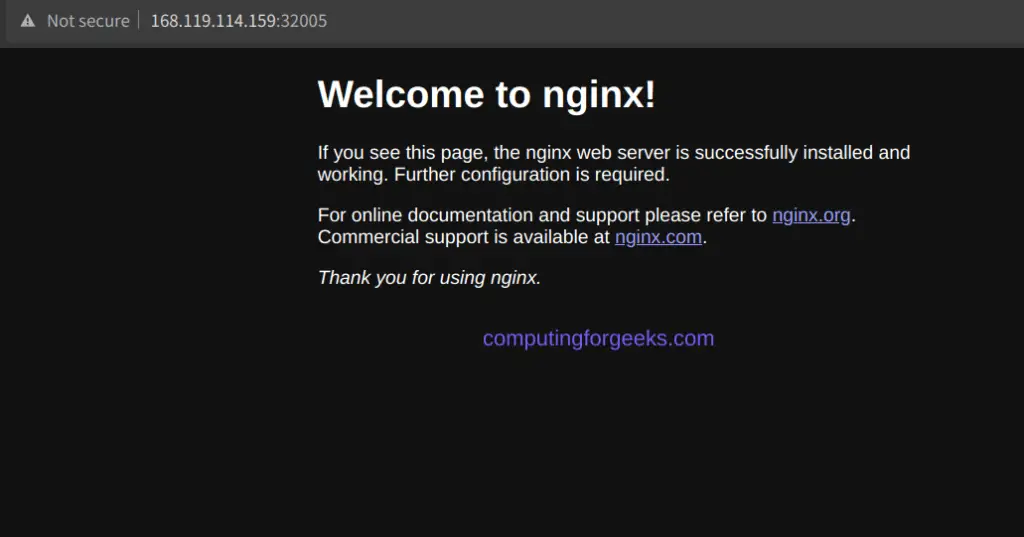
Verify if you can access the app on your browser using the worker node IP and port:
8. Upgrade/Destroy KubeOne Kubernetes Cluster
At some point, you may want to upgrade or delete the Kubernetes cluster. To upgrade the cluster, you need to modify your manifest. This includes changing the version in the versions.Kubernetes field. It is possible to upgrade to the next minor release or to patch versions as long as the minor version is the same.
I. Upgrade the KubeOne Kubernetes Cluster
After your kubeone.yaml manifest has been modified, you can run the upgrade command:
kubeone apply --manifest kubeone.yaml -t tf.json --upgrade-machine-deploymentsBy default, the command will not upgrade the MachineDeployment objects. If you want to upgrade them as well, consider adding the --upgrade-machine-deployments flag.
You can also force the upgrade if there is an issue by running:
kubeone upgrade --manifest kubeone.yaml -t tf.jsonII. Unprovision the KubeOne Kubernetes Cluster
To unprovision the cluster, we use the resetcommand. For example:
kubeone reset --manifest kubeone.yaml -t tf.jsonThe above command will remove all the worker nodes and the runs kubeadm reset on all the control plane nodes to uninstall Kubernetes.
Sample Output:
WARN[15:12:07 EAT] This command will PERMANENTLY destroy the Kubernetes cluster running on the following nodes:
	- reset control plane node "kubeone-cluster-control-plane-1" (*.*.*.*)
	- reset control plane node "kubeone-cluster-control-plane-2" (*.*.*.*)
	- reset control plane node "kubeone-cluster-control-plane-3" (*.*.*.*)


The following machine-controller managed worker nodes will be destroyed:
	- kube-system/kubeone-cluster-pool1-f8f5cd5f-7z2tc
	- kube-system/kubeone-cluster-pool1-f8f5cd5f-cqs9f

After the command is complete, there's NO way to recover the cluster or its data!
Do you want to proceed (yes/no): yes
You can also skip removing the worker nodes with the command:
kubeone reset --manifest kubeone.yaml -t tf.json --destroy-workers=falseOnce the cluster has been reset as above, you can proceed and remove the entire infrastructure using Terraform.
terraform destroyProceed as shown:
Do you really want to destroy all resources?
  Terraform will destroy all your managed infrastructure, as shown above.
  There is no undo. Only 'yes' will be accepted to confirm.

  Enter a value: yes
Voila!
You can learn Kubernetes by reading this book:
Wrap up
We have concluded this detailed guide on how to deploy the HA Kubernetes Cluster in Hetzner Cloud Using Kubermatic KubeOne. I hope you have seen how fast KubeOne can be used to set up a cluster on Hetzner.
There are more guides on this page:
