

MinIO is a high-performance S3 compliant distributed object storage. It is the only 100% open-source storage tool available on every public and private cloud, Kubernetes distribution, and the edge. The MinIO storage system is able to run on minimal CPU and memory resources as well as give maximum performance.
The MinIO storage is dominant in traditional object storage with several use cases like secondary storage, archiving, and data recovery. One of the main features that make it suitable for this use is its ability to overcome challenges associated with machine learning, native cloud applications workloads, and analytics.
Other amazing features associated with MinIO are:
- Identity Management– it supports most advanced standards in identity management, with the ability to integrate with the OpenID connect compatible providers as well as key external IDP vendors.
- Monitoring – It offers detailed performance analysis with metrics and per-operation logging.
- Encryption – It supports multiple, sophisticated server-side encryption schemes to protect data ensuring integrity, confidentiality, and authenticity with a negligible performance overhead
- High performance – it is the fastest object storage with the GET/PUT throughput of 325 and 165 GiB/sec respectively on just 32 nodes of NVMe.
- Architecture – MinIO is cloud native and light weight and can also run as containers managed by external orchestration services such as Kubernetes. It is efficient to run on low CPU and memory resources and therefore allowing one to co-host a large number of tenants on shared hardware.
- Data life cycle management and Tiering – this protects the data within and accross both public and private clouds.
- Continuous Replication – It is designed for large scale, cross data center deployments thus curbing the challenge with traditional replication approaches that do not scale effectively beyond a few hundred TiB
By following this guide, you should be able to deploy and manage MinIO Storage clusters on Kubernetes.
This guide requires one to have a Kubernetes cluster set up. Below are dedicated guides to help you set up a Kubernetes cluster.
- Install Kubernetes Cluster on Ubuntu with kubeadm
- Deploy Kubernetes Cluster on Linux With k0s
- Install Kubernetes Cluster on Rocky Linux 8 with Kubeadm & CRI-O
- Run Kubernetes on Debian with Minikube
- Install Kubernetes Cluster on Ubuntu using K3s
For this guide, I have configured 3 worker nodes and a single control plane in my cluster.
# kubectl get nodes
NAME                    STATUS   ROLES           AGE   VERSION
master1   Ready    control-plane   3m    v1.26.5
node1     Ready    <none>          60s   v1.26.5
node2     Ready    <none>          60s   v1.26.5
node3     Ready    <none>          60s   v1.26.5
1. Create a StorageClass with WaitForFirstConsumer
The WaitForFirstConsumer Binding Mode will be used to assign the volumeBindingMode to a persistent volume. Create the storage class as below.
vim storageClass.ymlIn the file, add the below lines.
kind: StorageClass
apiVersion: storage.k8s.io/v1
metadata:
  name: my-local-storage
provisioner: kubernetes.io/no-provisioner
volumeBindingMode: WaitForFirstConsumer
Create the pod.
$ kubectl create -f storageClass.yml
storageclass.storage.k8s.io/my-local-storage created
2. Create Local Persistent Volume
For this guide, we will create persistent volume on the local machines(nodes) using the storage class above.
The persistent volume will be created as below:
vim minio-pv.ymlAdd the lines below to the file
apiVersion: v1
kind: PersistentVolume
metadata:
  name: my-local-pv
spec:
  capacity:
    storage: 10Gi
  accessModes:
  - ReadWriteMany
  persistentVolumeReclaimPolicy: Retain
  storageClassName: my-local-storage
  local:
    path: /mnt/disk/vol1
  nodeAffinity:
    required:
      nodeSelectorTerms:
      - matchExpressions:
        - key: kubernetes.io/hostname
          operator: In
          values:
          - node1
Here I have created a persistent volume on node1. Go to node1 and create the volume as below.
DIRNAME="vol1"
sudo mkdir -p /mnt/disk/$DIRNAME
sudo chcon -Rt svirt_sandbox_file_t /mnt/disk/$DIRNAME
sudo chmod 777 /mnt/disk/$DIRNAME
Now on the master node, create the pod as below.
kubectl create -f minio-pv.yml3. Create Persistent Volume Claim
Now we will create a persistent volume claim and reference it to the created storageClass.
vim minio-pvc.ymlThe file will contain the below information.
apiVersion: v1
kind: PersistentVolumeClaim
metadata:
  # This name uniquely identifies the PVC. This is used in deployment.
  name: minio-pvc-claim
spec:
  # Read more about access modes here: http://kubernetes.io/docs/user-guide/persistent-volumes/#access-modes
  storageClassName: my-local-storage
  accessModes:
    # The volume is mounted as read-write by Multiple nodes
    - ReadWriteMany
  resources:
    # This is the request for storage. Should be available in the cluster.
    requests:
      storage: 10Gi
Create the PVC.
kubectl create -f minio-pvc.ymlAt this point, the PV should be available as below:
# kubectl get pv
NAME              CAPACITY   ACCESS MODES   RECLAIM POLICY   STATUS        CLAIM                     STORAGECLASS       REASON   AGE
my-local-pv      4Gi        RWX            Retain           Available                               my-local-storage            96s
4. Create the MinIO Pod
This is the main deployment, we will use the Minio Image and PVC created. Create the file as below:
vim Minio-Dep.ymlThe file will have the below content:
apiVersion: apps/v1
kind: Deployment
metadata:
  # This name uniquely identifies the Deployment
  name: minio
spec:
  selector:
    matchLabels:
      app: minio # has to match .spec.template.metadata.labels
  strategy:
    # Specifies the strategy used to replace old Pods by new ones
    # Refer: https://kubernetes.io/docs/concepts/workloads/controllers/deployment/#strategy
    type: Recreate
  template:
    metadata:
      labels:
        # This label is used as a selector in Service definition
        app: minio
    spec:
      # Volumes used by this deployment
      volumes:
      - name: data
        # This volume is based on PVC
        persistentVolumeClaim:
          # Name of the PVC created earlier
          claimName: minio-pvc-claim
      containers:
      - name: minio
        # Volume mounts for this container
        volumeMounts:
        # Volume 'data' is mounted to path '/data'
        - name: data
          mountPath: /data
        # Pulls the latest Minio image from Docker Hub
        image: minio/minio
        args:
        - server
        - /data
        env:
        # MinIO access key and secret key
        - name: MINIO_ACCESS_KEY
          value: "minio"
        - name: MINIO_SECRET_KEY
          value: "minio123"
        ports:
        - containerPort: 9000
        # Readiness probe detects situations when MinIO server instance
        # is not ready to accept traffic. Kubernetes doesn't forward
        # traffic to the pod while readiness checks fail.
        readinessProbe:
          httpGet:
            path: /minio/health/ready
            port: 9000
          initialDelaySeconds: 120
          periodSeconds: 20
        # Liveness probe detects situations where MinIO server instance
        # is not working properly and needs restart. Kubernetes automatically
        # restarts the pods if liveness checks fail.
        livenessProbe:
          httpGet:
            path: /minio/health/live
            port: 9000
          initialDelaySeconds: 120
          periodSeconds: 20
Apply the configuration file.
kubectl create -f Minio-Dep.ymlVerify if the pod is running:
# kubectl get pods
NAME                    READY   STATUS    RESTARTS   AGE
minio-7b555749d4-cdj47   1/1     Running   0          22s
Furthermore, the PV should be bound at this moment.
# kubectl get pv
NAME              CAPACITY   ACCESS MODES   RECLAIM POLICY   STATUS        CLAIM                      STORAGECLASS       REASON   AGE
my-local-pv   4Gi        RWX            Retain           Bound    default/minio-pvc-claim   my-local-storage            4m42s
5. Deploy the MinIO Service
We will create a service to expose port 9000. The service can be deployed as NodePort, ClusterIP, or load balancer.
Create the service file as below:
vim Minio-svc.ymlAdd the lines below to the file.
apiVersion: v1
kind: Service
metadata:
  # This name uniquely identifies the service
  name: minio-service
spec:
  type: LoadBalancer
  ports:
    - name: http
      port: 9000
      targetPort: 9000
      protocol: TCP
  selector:
    # Looks for labels `app:minio` in the namespace and applies the spec
    app: minio
Apply the settings:
kubectl create -f Minio-svc.ymlVerify if the service is running:
# kubectl get svc
NAME            TYPE        CLUSTER-IP       EXTERNAL-IP   PORT(S)          AGE
kubernetes      ClusterIP      10.96.0.1        <none>        443/TCP          15m
minio-service   LoadBalancer   10.103.101.128   <pending>     9000:32278/TCP   27s
6. Access the MinIO Web UI
At this point, the MinIO service has been exposed on port 32278, proceed and access the web UI using the URL http://Node_IP:32278

Ente the set MinIO access and secret key to log in. On successful authentication, you should see the MinIO web console as below.

Create a bucket say test bucket.
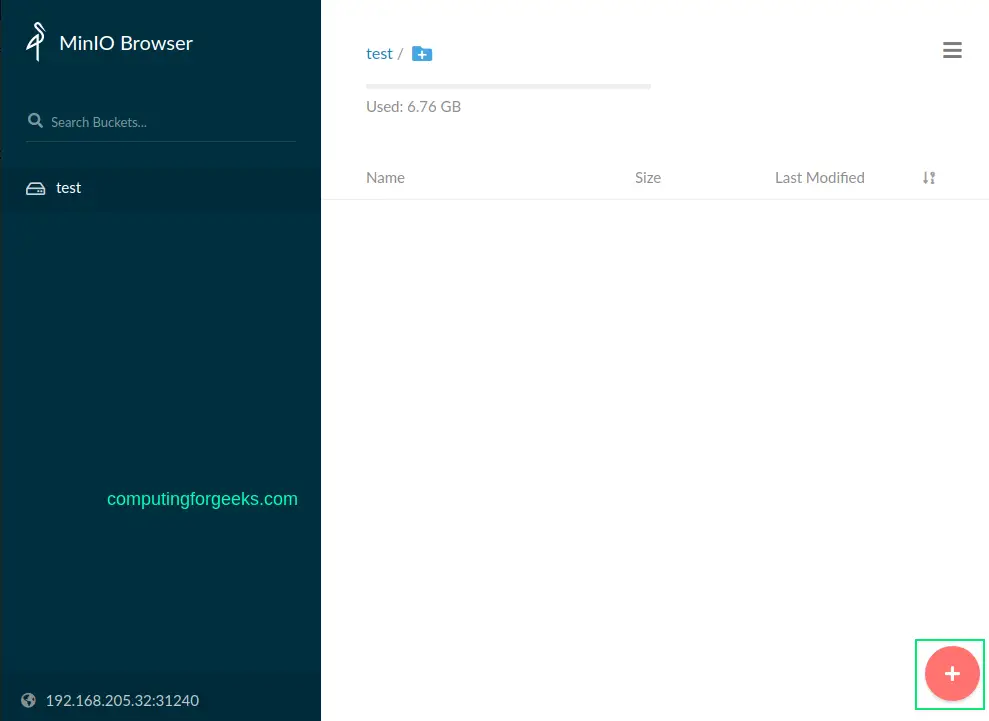
Upload files to the created bucket.
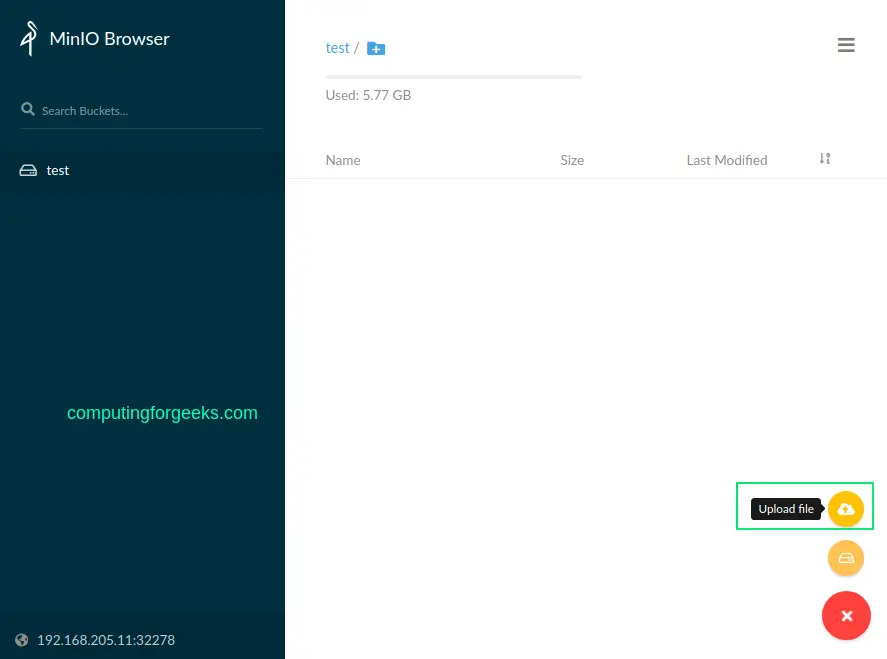
The uploaded file will appear in the bucket as below.

You can as well set the bucket policy.

7. Manage MinIO using MC client
MinIO Client is a tool used to manage the MinIO Server by providing UNIX commands such as ls, rm, cat, mv, mirror, cp e.t.c. The MinIO Client is installed using binaries as below.
##For amd64
wget https://dl.min.io/client/mc/release/linux-amd64/mc

##For ppc64
wget https://dl.min.io/client/mc/release/linux-ppc64le/mc
Move the file to your path and make it executable:
sudo cp mc /usr/local/bin/
sudo chmod +x /usr/local/bin/mc
Verify the installation.
$ mc --version
mc version RELEASE.2022-02-16T05-54-01Z
Once installed, connect to the MinIO server with the syntax.
mc alias set <ALIAS> <YOUR-S3-ENDPOINT> [YOUR-ACCESS-KEY] [YOUR-SECRET-KEY] [--api API-SIGNATURE]For this guide, the command will be:
mc alias set minio http://192.168.205.11:32278 minio minio123 --api S3v4Sample Output:

Remember to specify the right port for the MinIO server. You can use the IP_address of any node on the cluster.
Once connected, list all the buckets using the command:
mc ls play minioSample Output:

You can list files in a bucket say test bucket with the command:
$ mc ls play minio/test
[2022-03-16 04:07:15 EDT]     0B 00000qweqwe/
[2022-03-16 05:31:53 EDT]     0B 000tut/
[2022-03-18 07:50:35 EDT]     0B 001267test/
[2022-03-16 21:03:34 EDT]     0B 3f66b017508b449781b927e876bbf640/
[2022-03-16 03:20:13 EDT]     0B 6210d9e5011632646d9b2abb/
[2022-03-16 07:05:02 EDT]     0B 622f997eb0a7c5ce72f6d199/
[2022-03-17 08:46:05 EDT]     0B 85x8nbntobfws58ue03fam8o5cowbfd3/
[2022-03-16 14:59:37 EDT]     0B 8b437f27dbac021c07d9af47b0b58290/
[2022-03-17 21:29:33 EDT]     0B abc/
.....
[2022-03-16 11:55:55 EDT]     0B zips/
[2022-03-17 11:05:01 EDT]     0B zips202203/
[2022-03-18 09:18:36 EDT] 262KiB STANDARD Install cPanel|WHM on AlmaLinux with Let's Encrypt 7.png
Create a new bucket using the syntax:
mc mb minio/<your-bucket-name>For example, creating a bucket with the name testbucket1
$ mc mb minio/testbucket1
Bucket created successfully `minio/testbucket1`.
The bucket will be available in the console.
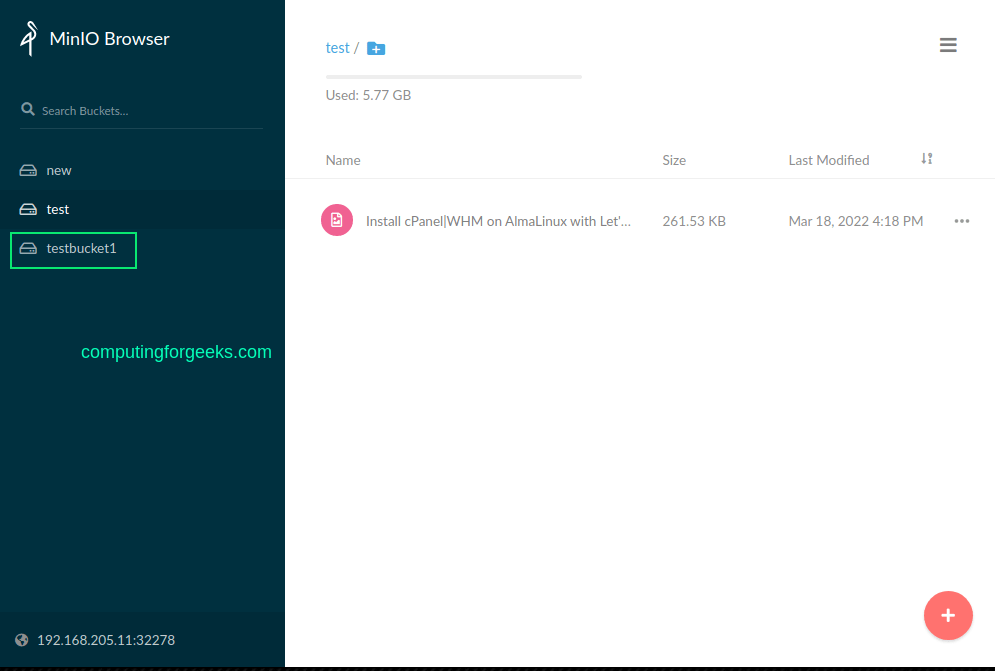
In case you need help when using the MinIO client, get help using the command:
$ mc --help
NAME:
  mc - MinIO Client for cloud storage and filesystems.

USAGE:
  mc [FLAGS] COMMAND [COMMAND FLAGS | -h] [ARGUMENTS...]

COMMANDS:
  alias      manage server credentials in configuration file
  ls         list buckets and objects
  mb         make a bucket
  rb         remove a bucket
  cp         copy objects
  mv         move objects
  rm         remove object(s)
  mirror     synchronize object(s) to a remote site
  cat        display object contents
  head       display first 'n' lines of an object
  pipe       stream STDIN to an object
  find       search for objects
  sql        run sql queries on objects
  stat       show object metadata
  tree       list buckets and objects in a tree format
  du         summarize disk usage recursively
  retention  set retention for object(s)
  legalhold  manage legal hold for object(s)
  support    support related commands
  share      generate URL for temporary access to an object
  version    manage bucket versioning
  ilm        manage bucket lifecycle
  encrypt    manage bucket encryption config
  event      manage object notifications
  watch      listen for object notification events
  undo       undo PUT/DELETE operations
  anonymous  manage anonymous access to buckets and objects
  tag        manage tags for bucket and object(s)
  diff       list differences in object name, size, and date between two buckets
  replicate  configure server side bucket replication
  admin      manage MinIO servers
  update     update mc to latest release
Conclusion.
Tha marks the end of this guide.
We have gone through how to deploy and manage MinIO Storage clusters on Kubernetes. We have created a persistent volume, persistent volume claim, and a MinIO storage cluster. I hope this was significant.
Books For Learning Kubernetes Administration:
See more:

Really cool! Will you do a follow up to show some possible actions to create reduncancy and sync. As far as I can tell, just looking at the configuration it seems only node1 will be used. We should be able to create a 10GiB on your node2 also right as a follow up?
Thanks we shall consider this.
So there will probably be a few issues if you do this straight up side down.
Looking at the logs for the pod gives me this:
“`
WARNING: MINIO_ACCESS_KEY and MINIO_SECRET_KEY are deprecated.
Please use MINIO_ROOT_USER and MINIO_ROOT_PASSWORD
MinIO Object Storage Server
Copyright: 2015-2023 MinIO, Inc.
License: GNU AGPLv3
Version: RELEASE.2023-11-11T08-14-41Z (go1.21.4 linux/arm64)
Status: 1 Online, 0 Offline.
S3-API: http://10.42.2.130:9000 http://127.0.0.1:9000
Console: http://10.42.2.130:36547 http://127.0.0.1:36547
Documentation: https://min.io/docs/minio/linux/index.html
Warning: The standard parity is set to 0. This can lead to data loss.
“`
When I try to access on the port given by the k8s service it goes to the api and gives access denied and then seems to redirect me to the Console port so node_ip: redirects me to node_ip:36547(The Minio Consoleport) so for this to work you likely need to also open 36547:36547 on the nodeport for it to work.
If you use minikube or something like that you might be able to reach the container directly(I don’t know how that work) and that is why you are able to get to the console…
Or I am doing something wrong…