

Setting the correct system time and timezone is a fundamental skill for administering any Linux server, especially on enterprise versions like RHEL 9 and CentOS Stream 9. Time synchronizing is needed for capabilities like log correlation, scheduled cron job execution, verification of SSL certificates, auditing, and clustering coordination. Incorrect time settings create ripple effect issues on applications highly reliant on authentication methods like Kerberos, distributed applications, or encrypted API calls. Slight time skew can result in service downtime or get out of audit compliance standards like PCI-DSS or HIPAA on production machines.
This tutorial guides you step by step for configuring timezone and date on RHEL 9 and CentOS Stream 9 using timedatectl, the command for configuring systemd-based time settings. Proper time configuration is one of the initial steps to stability and continuity of operation when deploying a new server or hardening an existing server.
Configure Timezone on RHEL 9 / CentOS Stream 9
To set the timezone on RHEL 9, use the timedatectl command to configure the correct timezone. First, list available timezones:
timedatectl list-timezonesThen set your desired timezone, (e.g Africa/Nairobi)
sudo timedatectl set-timezone Africa/NairobiTo confirm that the timezone settings have been applied, run timedatectl:
[cloudspinx@RHEL9 ~]$ timedatectl
               Local time: Thu 2025-05-08 16:35:29 EAT
           Universal time: Thu 2025-05-08 13:35:29 UTC
                 RTC time: Thu 2025-05-08 13:35:29
                Time zone: Africa/Nairobi (EAT, +0300)
System clock synchronized: yes
              NTP service: active
          RTC in local TZ: no
Configure Date on RHEL 9 / CentOS Stream 9
For time synchronization, RHEL 9 uses Chrony by default instead of NTP. Let’s install and configure NTP server using Chrony.
Install the package by running the command below:
sudo dnf -y install chronyEdit the Chrony configuration file to specify NTP servers closest to your location:
sudo vi /etc/chrony.confAdd or modify the following lines:
server 0.centos.pool.ntp.org iburst
server 1.centos.pool.ntp.org iburst
Start and enable the chrony daemon:
sudo systemctl start chronyd
sudo systemctl enable chronyd
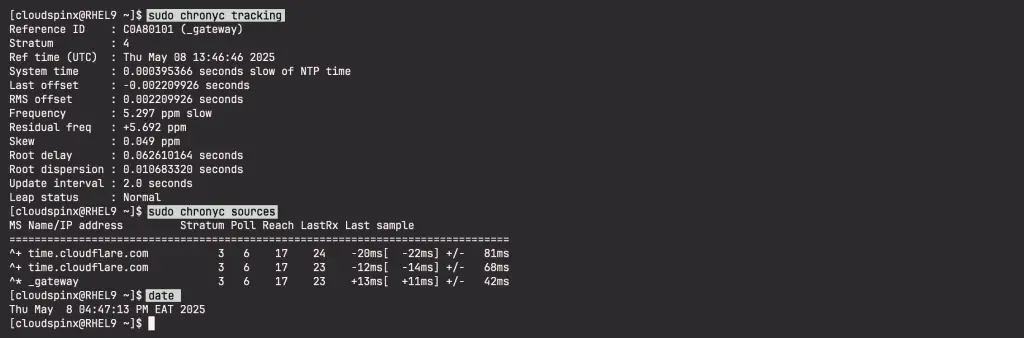
After starting the service, you can check the status of the time synchronization:
sudo chronyc trackingVerify NTP server is working correctly.
sudo chronyc sources
# Also check date and time
date
See screenshot from my configurations below.
If using this system as NTP server and would like to enable iptables firewall use the commands below.
sudo iptables -I INPUT 5 -p udp -m state --state NEW -m udp --dport 123 -j ACCEPTFor more informative tutorials check below articles.
