

oVirt is an open-source virtualization management platform that uses KVM hypervisors to run enterprise workloads. By default, oVirt authenticates users against a local internal domain, but production environments need centralized identity management. FreeIPA provides LDAP-based directory services with Kerberos authentication, making it a natural fit for oVirt user authentication on RHEL-based systems.
This guide walks through configuring oVirt 4.5+ on Rocky Linux 10 / RHEL 10 to authenticate users against a FreeIPA LDAP directory. We cover enrolling the oVirt Engine server as a FreeIPA client, installing and configuring the AAA LDAP extension, mapping FreeIPA groups to oVirt roles, enabling Kerberos SSO, and troubleshooting common authentication issues.
Prerequisites
Before starting, confirm the following are in place:
- A working oVirt Engine 4.5+ instance on Rocky Linux 10 or RHEL 10 with admin access to the web portal and SSH access to the engine server. If you need to set up oVirt Engine, follow the guide on installing oVirt Engine on Rocky Linux.
- A deployed and running FreeIPA server (version 4.10+) with DNS properly configured. The FreeIPA server FQDN must be resolvable from the oVirt Engine host.
- Root or sudo access on the oVirt Engine server
- FreeIPA admin credentials for creating service accounts and groups
- Network connectivity between oVirt Engine and FreeIPA on ports 389 (LDAP), 636 (LDAPS), 88 (Kerberos), and 443 (HTTPS)
- Firewall rules allowing traffic on the ports listed above
The example environment used throughout this guide:
| Component | FQDN / Detail | IP Address |
|---|---|---|
| FreeIPA Server | ipa.example.com | 10.0.1.10 |
| oVirt Engine | engine.example.com | 10.0.1.20 |
| Domain | example.com | – |
| Base DN | dc=example,dc=com | – |
Step 1: Create a Service Account on FreeIPA for oVirt
oVirt needs a dedicated LDAP service account to search the FreeIPA directory for users and groups. This account performs bind operations against the LDAP server on behalf of the oVirt Engine. Create this account on the FreeIPA server first.
SSH into the FreeIPA server and obtain a Kerberos ticket for the admin user.
$ kinit admin
Password for [email protected]:
Verify the ticket was issued successfully.
$ klist
Ticket cache: KCM:1000
Default principal: [email protected]

Valid starting     Expires            Service principal
03/19/26 08:00:01  03/20/26 08:00:01  krbtgt/[email protected]
Create the service account user. We name it ovirtadmin and set a strong password.
$ ipa user-add ovirtadmin --first=oVirt --last=Service --password
Password:
Enter Password again to verify:
--------------------
Added user "ovirtadmin"
--------------------
  User login: ovirtadmin
  First name: oVirt
  Last name: Service
  Full name: oVirt Service
  Home directory: /home/ovirtadmin
  Login shell: /bin/bash
  Principal name: [email protected]
  UID: 1827000003
  GID: 1827000003
  Account disabled: False
  Password: True
  Member of groups: ipausers
Since this is a service account, extend the password expiration date far into the future. A new FreeIPA user normally requires a password reset on first login. Extending the expiry prevents authentication failures caused by expired credentials.
$ ipa user-mod ovirtadmin --setattr=krbPasswordExpiration=20361231235959Z
--------------------------
Modified user "ovirtadmin"
--------------------------
  User login: ovirtadmin
  First name: oVirt
  Last name: Service
  Principal name: [email protected]
  User password expiration: 20361231235959Z
  Account disabled: False
  Password: True
  Member of groups: ipausers
Confirm the password expiration date is set correctly by checking the user details.
$ ipa user-show ovirtadmin --all | grep -i expir
  Kerberos principal expiration [UTC]: 20361231235959Z
  Password expiration: 20361231235959Z
Step 2: Create FreeIPA Groups for oVirt Role Mapping
Before connecting oVirt to FreeIPA, set up groups in FreeIPA that will map to oVirt roles. This approach is cleaner than assigning roles to individual users. When someone joins or leaves a team, you manage group membership in FreeIPA and oVirt permissions follow automatically.
Create groups for common oVirt role assignments.
$ ipa group-add ovirt-admins --desc="oVirt SuperUser role members"
--------------------------
Added group "ovirt-admins"
--------------------------
  Group name: ovirt-admins
  Description: oVirt SuperUser role members
  GID: 1827000010
Create a group for power users who can create and manage their own VMs.
$ ipa group-add ovirt-powerusers --desc="oVirt PowerUserRole members"
-------------------------------
Added group "ovirt-powerusers"
-------------------------------
  Group name: ovirt-powerusers
  Description: oVirt PowerUserRole members
  GID: 1827000011
Create a group for standard users who only access assigned VMs.
$ ipa group-add ovirt-users --desc="oVirt UserRole members"
--------------------------
Added group "ovirt-users"
--------------------------
  Group name: ovirt-users
  Description: oVirt UserRole members
  GID: 1827000012
Add a test user to the ovirt-admins group for verifying authentication later.
$ ipa user-add testadmin --first=Test --last=Admin --password
$ ipa group-add-member ovirt-admins --users=testadmin
  Group name: ovirt-admins
  Description: oVirt SuperUser role members
  Member users: testadmin
--------------------------
Number of members added 1
--------------------------
Step 3: Enroll oVirt Engine as a FreeIPA Client
Enrolling the oVirt Engine server as a FreeIPA client configures Kerberos, SSSD, and DNS resolution against the FreeIPA directory. This step is required for Kerberos SSO to work and simplifies LDAP certificate trust. If you already have the oVirt Engine enrolled as a FreeIPA client, skip to Step 4.
SSH into the oVirt Engine server and install the FreeIPA client packages.
sudo dnf install -y freeipa-clientRun the enrollment command. Replace the domain, realm, and server FQDN with your actual values.
$ sudo ipa-client-install \
  --domain=example.com \
  --realm=EXAMPLE.COM \
  --server=ipa.example.com \
  --mkhomedir \
  --enable-dns-updates
The installer will prompt for the FreeIPA admin credentials and ask to confirm the settings. Accept the defaults when prompted.
Discovery was successful!
Client hostname: engine.example.com
Realm: EXAMPLE.COM
DNS Domain: example.com
IPA Server: ipa.example.com
BaseDN: dc=example,dc=com

Continue to configure the system with these values? [no]: yes
Synchronizing time with KDC...
Successfully retrieved CA cert
    Subject:     CN=Certificate Authority,O=EXAMPLE.COM
Configured /etc/sssd/sssd.conf
Configured /etc/krb5.conf
Client configuration complete.
Verify enrollment by testing Kerberos authentication from the oVirt Engine server.
$ kinit admin
Password for [email protected]:

$ klist
Ticket cache: KCM:1000
Default principal: [email protected]

Valid starting     Expires            Service principal
03/19/26 09:00:01  03/20/26 09:00:01  krbtgt/[email protected]
Also confirm that SSSD can resolve FreeIPA users.
$ id testadmin
uid=1827000004(testadmin) gid=1827000004(testadmin) groups=1827000004(testadmin),1827000010(ovirt-admins)
Step 4: Install the oVirt AAA LDAP Extension
The ovirt-engine-extension-aaa-ldap package provides LDAP directory integration for oVirt Engine. It allows the engine to query FreeIPA for user authentication and group membership. Install it on the oVirt Engine server.
sudo dnf install -y ovirt-engine-extension-aaa-ldap ovirt-engine-extension-aaa-ldap-setupVerify the setup tool is available.
$ which ovirt-engine-extension-aaa-ldap-setup
/usr/bin/ovirt-engine-extension-aaa-ldap-setup
This package installs an interactive setup wizard that creates the necessary configuration files for LDAP integration. We run it in the next step.
Step 5: Configure the oVirt LDAP Profile for FreeIPA Authentication
Run the interactive LDAP setup wizard to create the FreeIPA authentication profile. Before starting, have these details ready:
- FreeIPA server FQDN:
ipa.example.com - CA certificate URL:
http://ipa.example.com/ipa/config/ca.crt - Search user DN:
uid=ovirtadmin,cn=users,cn=accounts,dc=example,dc=com - Base DN:
dc=example,dc=com - Profile name (visible on login screen):
FreeIPA
Start the setup wizard with root privileges.
sudo ovirt-engine-extension-aaa-ldap-setupSelect IPA from the list of LDAP implementations by entering 6.
[ INFO  ] Stage: Initializing
[ INFO  ] Stage: Environment setup
         Configuration files: /etc/ovirt-engine-extension-aaa-ldap-setup.conf.d/10-packaging.conf
         Log file: /tmp/ovirt-engine-extension-aaa-ldap-setup-20260319-qkjrka.log
         Version: otopi-1.10.4 (otopi-1.10.4-1.el10)
[ INFO  ] Stage: Environment packages setup
[ INFO  ] Stage: Programs detection
[ INFO  ] Stage: Environment customization
         Welcome to LDAP extension configuration program
         Available LDAP implementations:
          1 - 389ds
          2 - 389ds RFC-2307 Schema
          3 - Active Directory
          4 - IBM Security Directory Server
          5 - IBM Security Directory Server RFC-2307 Schema
          6 - IPA
          7 - Novell eDirectory RFC-2307 Schema
          8 - OpenLDAP RFC-2307 Schema
          9 - OpenLDAP Standard Schema
         10 - Oracle Unified Directory RFC-2307 Schema
         11 - RFC-2307 Schema (Generic)
         12 - RHDS
         13 - RHDS RFC-2307 Schema
         14 - iPlanet
         Please select: 6
Enable DNS resolution for the FreeIPA server. This ensures the engine resolves the LDAP server hostname through DNS rather than hardcoded addresses.
NOTE:
         It is highly recommended to use DNS resolution for LDAP server.
         If for some reason you intend to use hosts or plain address disable DNS usage.

         Use DNS (Yes, No) [Yes]: Yes
Select the server discovery policy. Choose 1 for a single FreeIPA server, or 2 if you have DNS SRV records configured for LDAP failover.
Available policy method:
          1 - Single server
          2 - DNS domain LDAP SRV record
          3 - Round-robin between multiple hosts
          4 - Failover between multiple hosts
         Please select: 1
Enter the FreeIPA server FQDN.
Please enter host address: ipa.example.comSelect the connection protocol. Use startTLS for encrypted LDAP communication. FreeIPA includes a CA certificate by default, so startTLS works out of the box.
[ INFO  ] Trying to resolve host 'ipa.example.com'

         NOTE:
         It is highly recommended to use secure protocol to access the LDAP server.
         Protocol startTLS is the standard recommended method to do so.
         Only in cases in which the startTLS is not supported, fallback to non standard ldaps protocol.
         Use plain for test environments only.

         Please select protocol to use (startTLS, ldaps, plain) [startTLS]: startTLS
Select URL as the method to obtain the PEM CA certificate, then provide the FreeIPA CA URL.
Please select method to obtain PEM encoded CA certificate (File, URL, Inline, System, Insecure): URL
         URL: http://ipa.example.com/ipa/config/ca.crt
[ INFO  ] Connecting to LDAP using 'ldap://ipa.example.com:389'
[ INFO  ] Executing startTLS
[ INFO  ] Connection succeeded
Provide the search user DN and password for the ovirtadmin service account created in Step 1.
Enter search user DN: uid=ovirtadmin,cn=users,cn=accounts,dc=example,dc=com
Enter search user password: <ovirtadmin-password>
[ INFO  ] Attempting to bind using 'uid=ovirtadmin,cn=users,cn=accounts,dc=example,dc=com'
         Please enter base DN (dc=example,dc=com) [dc=example,dc=com]:
Accept the auto-detected base DN by pressing Enter. Enable Single Sign-On for virtual machines.
Are you going to use Single Sign-On for Virtual Machines (Yes, No) [Yes]: YesSet the profile name that will appear on the oVirt login screen.
Please specify profile name that will be visible to users [ipa.example.com]: FreeIPA
[ INFO  ] Stage: Setup validation
The wizard runs a test login sequence. Use the testadmin user created in Step 2 to validate the configuration.
NOTE:
         It is highly recommended to test drive the configuration before applying it into engine.
         Login sequence is executed automatically, but it is recommended to also execute Search
         sequence manually after successful Login sequence.

         Please provide credentials to test login flow:
         Enter user name: testadmin
         Enter user password: <testadmin-password>
[ INFO  ] Executing login sequence...
         Login output: ...
[ INFO  ] Login sequence executed successfully
Select Done to finalize the configuration.
Select test sequence to execute (Done, Abort, Login, Search) [Done]: Done
[ INFO  ] Stage: Transaction setup
[ INFO  ] Stage: Misc configuration (early)
[ INFO  ] Stage: Package installation
[ INFO  ] Stage: Misc configuration
[ INFO  ] Stage: Transaction commit
[ INFO  ] Stage: Closing up
         CONFIGURATION SUMMARY
         Profile name is: FreeIPA
         The following files were created:
             /etc/ovirt-engine/aaa/FreeIPA.jks
             /etc/ovirt-engine/aaa/FreeIPA.properties
             /etc/ovirt-engine/extensions.d/FreeIPA.properties
             /etc/ovirt-engine/extensions.d/FreeIPA-authn.properties
[ INFO  ] Stage: Clean up
[ INFO  ] Stage: Pre-termination
[ INFO  ] Stage: Termination
The wizard creates four configuration files that define the LDAP connection, search parameters, and authentication profile. Restart the oVirt Engine service to load the new configuration.
sudo systemctl restart ovirt-engineVerify the engine service is running.
$ systemctl status ovirt-engine
● ovirt-engine.service - oVirt Engine
     Loaded: loaded (/usr/lib/systemd/system/ovirt-engine.service; enabled; preset: disabled)
     Active: active (running) since Thu 2026-03-19 09:15:22 UTC; 8s ago
   Main PID: 10155 (ovirt-engine.py)
      Tasks: 120 (limit: 100455)
     Memory: 1016.4M
        CPU: 21.983s
     CGroup: /system.slice/ovirt-engine.service
Step 6: Map FreeIPA Groups to oVirt Roles
With FreeIPA attached as an external authentication domain, the next step is mapping FreeIPA groups to oVirt roles. oVirt uses role-based access control (RBAC) where roles define what actions users can perform on objects like data centers, clusters, hosts, networks, and virtual machines. Understanding oVirt user account management helps when planning role assignments.
The key oVirt roles to know:
| Role | Access Level | Description |
|---|---|---|
| SuperUser | System-wide | Full administrative control over the entire oVirt environment |
| PowerUserRole | System-wide | Create and manage VMs and templates, access user portal |
| UserRole | System-wide | Access and use assigned VMs through the user portal |
| ClusterAdmin | Cluster | Administrative access to a specific cluster |
| DataCenterAdmin | Data Center | Administrative access to a specific data center |
| NetworkAdmin | Network | Configure and manage network resources |
Assign the SuperUser Role to the ovirt-admins Group
Open the oVirt Administration Portal at https://engine.example.com/ovirt-engine and log in with the admin@internal account. Navigate to Administration > Configure > System Permissions > Add.

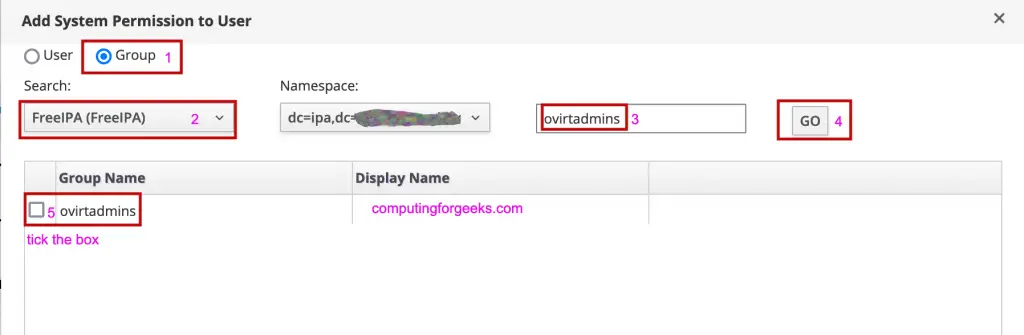
In the Add System Permission dialog, set the Permission Type to Group, select FreeIPA from the Search dropdown, type ovirt-admins in the search box, and click Go.
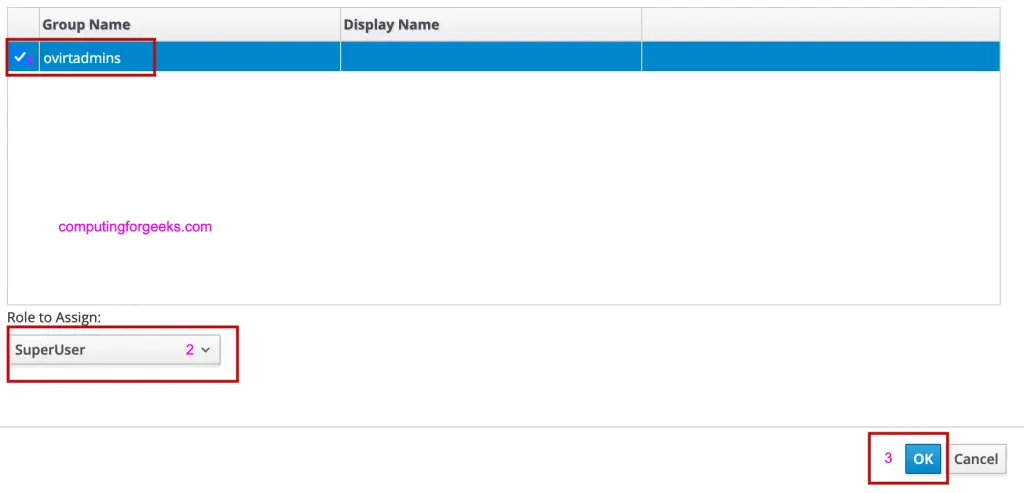
Select the ovirt-admins group from the results, then set the Role to Assign to SuperUser. Click OK to save.
Assign PowerUserRole and UserRole to Other Groups
Repeat the same process for the other FreeIPA groups:
- Search for
ovirt-powerusersin the FreeIPA domain and assign the PowerUserRole - Search for
ovirt-usersin the FreeIPA domain and assign the UserRole
Assign Individual User Permissions
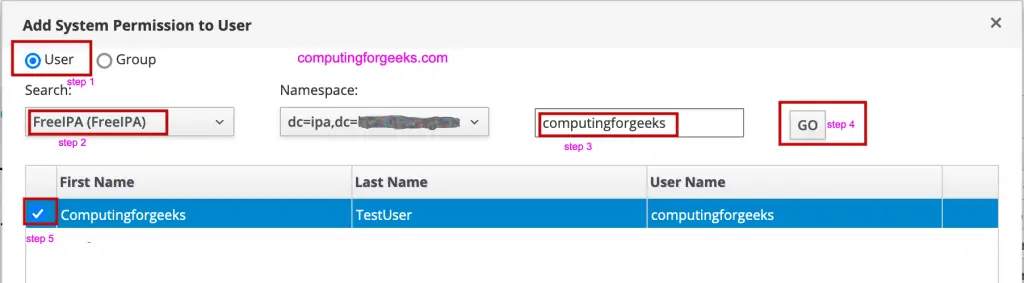
You can also assign roles directly to individual FreeIPA users. In the Add System Permission dialog, set Permission Type to User, select FreeIPA from the Search dropdown, enter the username, and click Go.
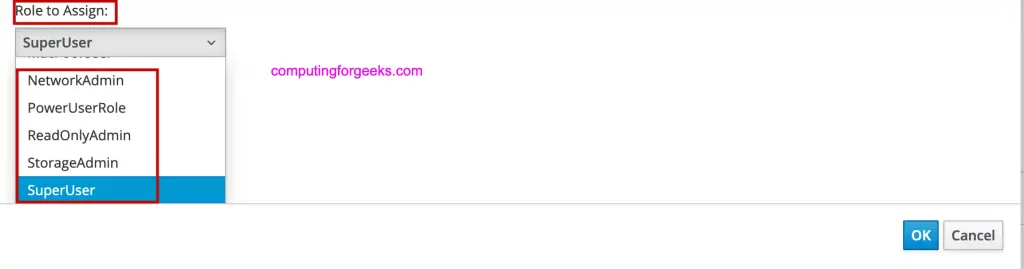
Select the user, choose the appropriate role, and click OK.
Assign Resource-Specific Roles
For granular access control, assign roles at the resource level instead of system-wide. Navigate to the specific resource (Data Center, Cluster, or Network) and add permissions there.
Data Center resource permissions:

Cluster resource permissions:

Network resource permissions:

Step 7: Test FreeIPA Authentication on oVirt Portal
Open the oVirt Administration Portal login page. The FreeIPA profile should now appear in the domain dropdown alongside the default internal domain.
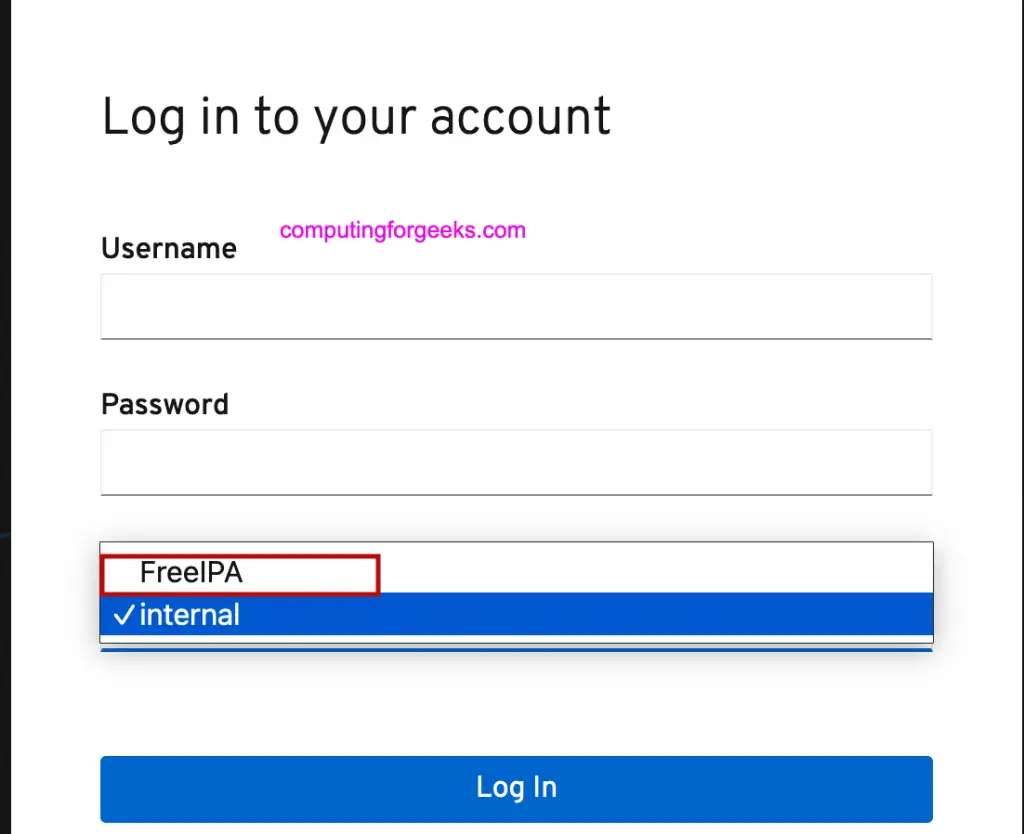
Select FreeIPA from the dropdown and log in with the testadmin credentials. This user is a member of the ovirt-admins group which was assigned the SuperUser role.
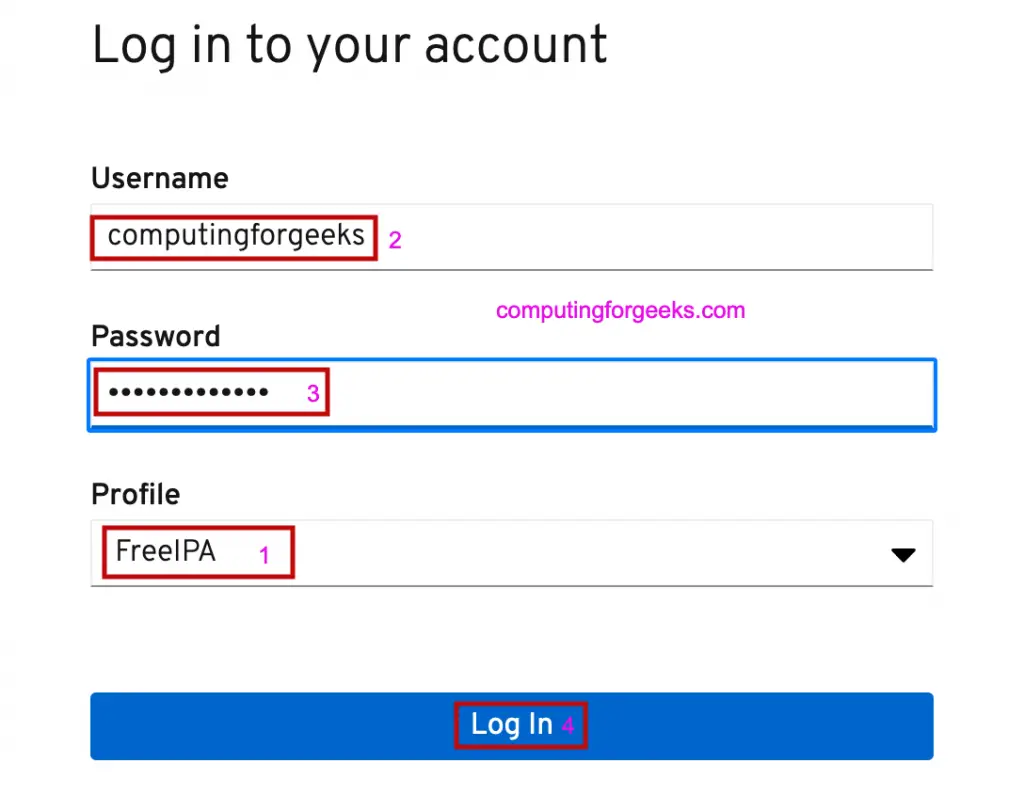
After successful authentication, the oVirt dashboard loads with full administrative access.

If you see an authorization error after logging in, it means the user or their group has not been assigned a role with the required permissions. Go back to Step 6 and verify the role mapping.

Step 8: Enable Kerberos SSO for oVirt
With the oVirt Engine enrolled as a FreeIPA client (Step 3), you can enable Kerberos-based Single Sign-On. SSO allows users who already have a valid Kerberos ticket to access the oVirt portal without entering credentials again.
Create a Kerberos Service Principal for oVirt
On the FreeIPA server, create an HTTP service principal for the oVirt Engine.
$ ipa service-add HTTP/engine.example.com
----------------------------------------------
Added service "HTTP/[email protected]"
----------------------------------------------
  Principal name: HTTP/[email protected]
  Principal alias: HTTP/[email protected]
  Managed by: engine.example.com
Retrieve the Keytab on the oVirt Engine Server
On the oVirt Engine server, retrieve the keytab file for the HTTP service principal.
$ sudo ipa-getkeytab -s ipa.example.com -p HTTP/engine.example.com -k /etc/httpd/http.keytab
Keytab successfully retrieved and stored in: /etc/httpd/http.keytab
Set the correct ownership and permissions on the keytab file.
sudo chown apache:apache /etc/httpd/http.keytab
sudo chmod 600 /etc/httpd/http.keytab
Configure Apache for Kerberos Authentication
Install the Apache Kerberos module if not already present.
sudo dnf install -y mod_auth_gssapiCreate an Apache configuration file for Kerberos SSO.
sudo vi /etc/httpd/conf.d/ovirt-sso.confAdd the following configuration.
<LocationMatch ^/ovirt-engine/sso/(interactive-login-negotiate/ovirt-sso/login|interactive-login-negotiate/ovirt-sso/login/)$>
    AuthType GSSAPI
    AuthName "Kerberos Login"
    GssapiCredStore keytab:/etc/httpd/http.keytab
    GssapiUseSessions On
    Session On
    SessionCookieName ovirt_gssapi_session path=/private;httponly;secure
    Require valid-user
    ErrorDocument 401 ""
</LocationMatch>
Restart both Apache and the oVirt Engine to apply the changes.
sudo systemctl restart httpd
sudo systemctl restart ovirt-engine
Verify both services are running.
$ systemctl is-active httpd ovirt-engine
active
active
Test Kerberos SSO
From a workstation enrolled in the same FreeIPA domain, obtain a Kerberos ticket and open the oVirt portal in a browser configured for SPNEGO/Kerberos authentication.
$ kinit testadmin
Password for [email protected]:
Open https://engine.example.com/ovirt-engine in Firefox. Firefox supports Kerberos authentication natively. Navigate to about:config and set network.negotiate-auth.trusted-uris to .example.com to enable automatic Kerberos ticket negotiation for your domain.
With a valid Kerberos ticket and browser configuration in place, the oVirt portal should log you in automatically without prompting for credentials.
Step 9: Verify the LDAP Configuration Files
The setup wizard from Step 5 creates configuration files that control how oVirt communicates with FreeIPA. Understanding these files helps with troubleshooting and advanced customization.
Check the LDAP properties file.
sudo cat /etc/ovirt-engine/aaa/FreeIPA.propertiesKey settings in this file:
# LDAP connection settings
pool.default.serverset.single.server = ipa.example.com
pool.default.ssl.startTLS = true
pool.default.ssl.truststore.file = /etc/ovirt-engine/aaa/FreeIPA.jks

# Search user credentials
pool.default.auth.simple.bindDN = uid=ovirtadmin,cn=users,cn=accounts,dc=example,dc=com
pool.default.auth.simple.password = {password}

# Search base and scope
search.default.baseDN = dc=example,dc=com
search.default.scope = sub
Check the authentication extension configuration.
$ sudo cat /etc/ovirt-engine/extensions.d/FreeIPA-authn.properties
ovirt.engine.extension.name = FreeIPA-authn
ovirt.engine.extension.bindings.method = jbossmodule
ovirt.engine.extension.binding.jbossmodule.module = org.ovirt.engine-extensions.aaa.ldap
ovirt.engine.extension.binding.jbossmodule.class = org.ovirt.engineextensions.aaa.ldap.AuthnExtension
ovirt.engine.extension.provides = org.ovirt.engine.api.extensions.aaa.Authn
ovirt.engine.aaa.authn.profile.name = FreeIPA
ovirt.engine.aaa.authn.authz.plugin = FreeIPA
config.profile.file.1 = ../aaa/FreeIPA.properties
Check the authorization extension configuration.
$ sudo cat /etc/ovirt-engine/extensions.d/FreeIPA.properties
ovirt.engine.extension.name = FreeIPA
ovirt.engine.extension.bindings.method = jbossmodule
ovirt.engine.extension.binding.jbossmodule.module = org.ovirt.engine-extensions.aaa.ldap
ovirt.engine.extension.binding.jbossmodule.class = org.ovirt.engineextensions.aaa.ldap.AuthzExtension
ovirt.engine.extension.provides = org.ovirt.engine.api.extensions.aaa.Authz
config.profile.file.1 = ../aaa/FreeIPA.properties
Troubleshooting oVirt FreeIPA LDAP Authentication
Authentication issues between oVirt and FreeIPA usually fall into a few categories. Here are the most common problems and how to resolve them.
FreeIPA Domain Not Showing on Login Page
If the FreeIPA profile does not appear in the login dropdown after restarting ovirt-engine, check the engine log for extension loading errors.
sudo grep -i "aaa\|ldap\|FreeIPA" /var/log/ovirt-engine/engine.log | tail -30Common causes include missing or misnamed configuration files in /etc/ovirt-engine/extensions.d/. Verify all four files exist.
ls -la /etc/ovirt-engine/extensions.d/FreeIPA*
ls -la /etc/ovirt-engine/aaa/FreeIPA*
LDAP Connection Failures
If users cannot authenticate, test LDAP connectivity from the oVirt Engine server.
ldapsearch -x -H ldap://ipa.example.com -D "uid=ovirtadmin,cn=users,cn=accounts,dc=example,dc=com" -W -b "dc=example,dc=com" "(uid=testadmin)"If the connection times out, verify firewall rules allow LDAP traffic on port 389.
sudo firewall-cmd --list-all | grep -E "389|636"On the FreeIPA server, confirm the LDAP service is running.
sudo systemctl status dirsrv@EXAMPLE-COMTLS/SSL Certificate Issues
startTLS failures typically indicate a certificate trust problem. Verify the Java keystore contains the FreeIPA CA certificate.
sudo keytool -list -keystore /etc/ovirt-engine/aaa/FreeIPA.jks -storepass changeitIf the keystore is empty or the certificate is expired, re-download the CA certificate and reimport it.
curl -o /tmp/ca.crt http://ipa.example.com/ipa/config/ca.crt
sudo keytool -importcert -keystore /etc/ovirt-engine/aaa/FreeIPA.jks -storepass changeit -alias freeipa-ca -file /tmp/ca.crt -noprompt
sudo systemctl restart ovirt-engine
Service Account Password Expired
If the ovirtadmin service account password expires, all LDAP queries from oVirt will fail silently. Check the password expiration date from the FreeIPA server.
$ ipa user-show ovirtadmin --all | grep -i expir
  Password expiration: 20361231235959Z
If the expiration date has passed, reset the password and extend the expiry as shown in Step 1.
User Authenticated but Gets “Not Authorized” Error
This means the user’s FreeIPA credentials are valid, but they have not been assigned an oVirt role. Either assign the user a role directly or add them to a FreeIPA group that already has an oVirt role mapped (Step 6).
Verify group membership from the FreeIPA server.
$ ipa group-show ovirt-admins
  Group name: ovirt-admins
  Description: oVirt SuperUser role members
  Member users: testadmin
Kerberos SSO Not Working
If SSO fails, verify the keytab file is valid and readable by Apache.
$ sudo klist -kt /etc/httpd/http.keytab
Keytab name: FILE:/etc/httpd/http.keytab
KVNO Timestamp           Principal
---- ------------------- -------------------------------------------------
   1 03/19/2026 09:30:00 HTTP/[email protected]
Check that SELinux is not blocking Apache from reading the keytab.
sudo ausearch -m avc -ts recent | grep httpdIf SELinux denials appear, set the correct context on the keytab file.
sudo restorecon -v /etc/httpd/http.keytabConclusion
oVirt is now configured to authenticate users against the FreeIPA LDAP directory with group-based role mapping and optional Kerberos SSO. FreeIPA groups control access levels in oVirt, so managing user permissions is handled centrally in the directory service. Keep the admin@internal account as an emergency backdoor in case the FreeIPA server becomes unreachable.
For production hardening, enable LDAPS (port 636) instead of startTLS, set up FreeIPA replication for high availability, and configure the oVirt LDAP extension with failover between multiple FreeIPA servers using the “Failover between multiple hosts” policy option during setup.
