

Asterisk PBX supports several methods for transferring and forwarding calls – blind transfers, attended transfers, call forwarding, follow-me, and call parking. These features let users move active calls between extensions, forward calls to external numbers, and park calls for pickup from any phone. This guide covers how to configure each of these call handling features in Asterisk 22 LTS on Ubuntu 24.04 and Rocky Linux 10 using PJSIP endpoints and the native dialplan.
We will walk through blind and attended transfers using features.conf, call forwarding with dialplan logic and feature codes, follow-me sequential ringing with followme.conf, call parking with res_parking, and Do Not Disturb toggling. Each section includes working configuration examples and CLI verification steps. If you need to install Asterisk on Ubuntu first, handle that before proceeding.
Prerequisites
- Ubuntu 24.04 LTS or Rocky Linux 10 server with root or sudo access
- Asterisk 22 LTS installed and running with PJSIP configured
- At least 3 PJSIP endpoints registered (extensions 1001, 1002, 1003 used in examples)
- SIP softphones or IP phones for testing (Zoiper, Linphone, or similar)
- Ports 5060/UDP (SIP) and 10000-20000/UDP (RTP) open in firewall
Understanding Call Transfer Types in Asterisk
Before configuring anything, here is a quick breakdown of the transfer types available in Asterisk:
| Transfer Type | Description | Feature Key |
|---|---|---|
| Blind Transfer | Transfers the call immediately without announcing it to the destination | ## (default) |
| Attended Transfer | Places caller on hold, calls the destination first, then completes the transfer | *2 (default) |
| Call Forwarding | Automatically redirects incoming calls to another number based on conditions | Feature codes (*72/*73) |
| Follow-Me | Rings multiple destinations sequentially until someone answers | FollowMe() app |
| Call Parking | Places a call in a parking lot for pickup from any extension | Park() app |
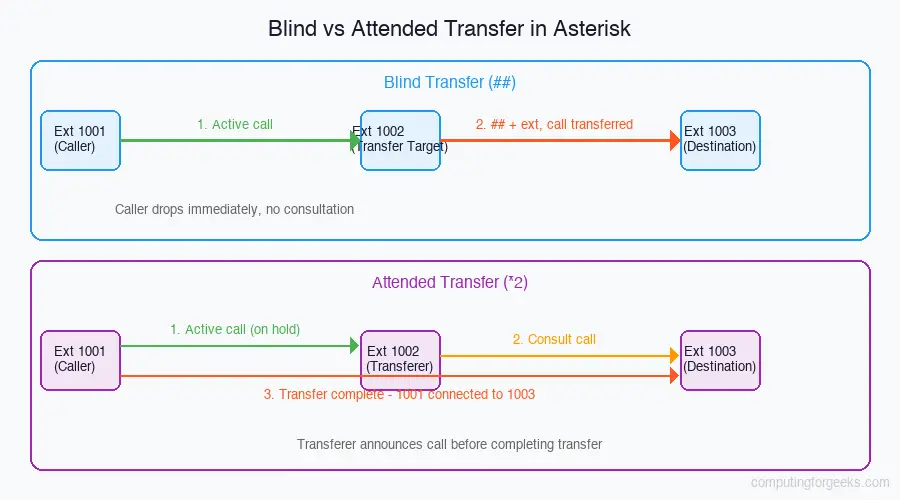
Step 1: Configure Blind Transfer in Asterisk
A blind transfer (also called an unattended transfer) sends the active call to another extension immediately. The person initiating the transfer hangs up as soon as they dial the destination extension. The caller hears ringing while the new destination is contacted.
Configure features.conf for Blind Transfer
Open the features configuration file.
sudo vim /etc/asterisk/features.confAdd or verify these settings under the [featuremap] section:
[featuremap]
blindxfer => ##        ; Press ## during a call to initiate blind transfer
atxfer => *2           ; Press *2 for attended transfer (covered next)
disconnect => *0       ; Press *0 to disconnect the call
parkcall => #72        ; Press #72 to park a call

[general]
transferdigittimeout => 5    ; Seconds to wait for transfer destination digits
xfersound => beep            ; Sound played when transfer starts
xferfailsound => beeperr     ; Sound played when transfer fails
Update Dialplan with Transfer Flags
For transfers to work, the Dial() application must include the T and t flags. The uppercase T allows the calling party to transfer, and lowercase t allows the called party to transfer. Edit your dialplan.
sudo vim /etc/asterisk/extensions.confUpdate the dial commands in your internal context:
[internal]
exten => 1001,1,NoOp(Dialing extension 1001)
 same => n,Dial(PJSIP/1001,30,Tt)
 same => n,Hangup()

exten => 1002,1,NoOp(Dialing extension 1002)
 same => n,Dial(PJSIP/1002,30,Tt)
 same => n,Hangup()

exten => 1003,1,NoOp(Dialing extension 1003)
 same => n,Dial(PJSIP/1003,30,Tt)
 same => n,Hangup()
Reload the dialplan and features module.
sudo asterisk -rx "dialplan reload"
sudo asterisk -rx "module reload features"
Test Blind Transfer
Here is the step-by-step flow for testing a blind transfer from extension 1001 to 1003:
- Extension 1001 calls extension 1002. Both parties are connected
- Extension 1002 presses
##on the dialpad, then dials1003 - Extension 1002 is immediately disconnected from the call
- Extension 1003 rings. When 1003 answers, they are connected directly to 1001
Verify the transfer in the Asterisk CLI.
sudo asterisk -rvvvDuring the transfer you will see output similar to this:
-- Executing [1002@internal:1] NoOp("PJSIP/1001-00000001", "Dialing extension 1002")
-- Executing [1002@internal:2] Dial("PJSIP/1001-00000001", "PJSIP/1002,30,Tt")
-- PJSIP/1002-00000002 answered PJSIP/1001-00000001
-- PJSIP/1002-00000002 initiated blind transfer to 1003@internal
-- Blind transfer target 1003@internal
-- Executing [1003@internal:1] NoOp("PJSIP/1001-00000001", "Dialing extension 1003")
-- PJSIP/1003-00000003 is ringing
-- PJSIP/1003-00000003 answered PJSIP/1001-00000001
Step 2: Configure Attended Transfer in Asterisk
An attended transfer (also called a supervised or consultative transfer) lets you talk to the destination party before completing the transfer. The original caller is placed on hold while you consult with the transfer target. This is the preferred method when you need to announce who is calling.
Attended Transfer Settings in features.conf
The atxfer key was already set in the previous section. Additional settings control the attended transfer behavior. Open the features configuration.
sudo vim /etc/asterisk/features.confAdd these settings under [general]:
[general]
transferdigittimeout => 5
atxfernoanswertimeout => 15    ; Seconds to ring transfer target before giving up
atxferloopdelay => 10          ; Seconds before retrying if transfer target is busy
atxferdropcall => no           ; If 'yes', drops the call when transfer target doesn't answer
                               ; If 'no', returns the caller to the transferer
atxfercallbackretries => 2     ; Number of times to retry calling the transferer back
Reload the features module.
sudo asterisk -rx "module reload features"Test Attended Transfer
The three-party flow works as follows:
- Extension 1001 calls extension 1002. Both parties are connected
- Extension 1002 presses
*2on the dialpad, then dials1003 - Extension 1001 is placed on hold and hears music on hold
- Extension 1003 rings. When 1003 answers, extension 1002 can announce the call
- Extension 1002 hangs up to complete the transfer. Now 1001 and 1003 are connected
If extension 1003 does not answer within the atxfernoanswertimeout period and atxferdropcall is set to no, the call returns to extension 1002. The CLI output during an attended transfer looks like this:
-- PJSIP/1002-00000002 answered PJSIP/1001-00000001
-- PJSIP/1002-00000002 initiated attended transfer to 1003@internal
-- Started music on hold, class 'default', on channel 'PJSIP/1001-00000001'
-- Executing [1003@internal:1] NoOp("PJSIP/1002-00000002", "Dialing extension 1003")
-- PJSIP/1003-00000003 is ringing
-- PJSIP/1003-00000003 answered PJSIP/1002-00000002
   > Consulting with 1003 before transfer...
-- Stopped music on hold on PJSIP/1001-00000001
-- Attended transfer complete: PJSIP/1001-00000001 bridged to PJSIP/1003-00000003
Step 3: Configure Call Forwarding in Asterisk Dialplan
Call forwarding redirects incoming calls to another number automatically. Asterisk supports three standard forwarding conditions – unconditional (always forward), busy (forward when the line is busy), and no-answer (forward after a timeout). We implement these using the Asterisk database (AstDB) and dialplan logic so users can enable and disable forwarding with feature codes from their phones.
Dialplan Logic for Call Forwarding
Open the extensions configuration file.
sudo vim /etc/asterisk/extensions.confAdd the forwarding logic to your internal context. This checks the AstDB for forwarding settings before routing calls:
[internal]
; Main extension handler with call forwarding support
exten => _10XX,1,NoOp(Incoming call for ${EXTEN})
 same => n,Set(DEST=${EXTEN})

 ; Check Do Not Disturb first
 same => n,Set(DND=${DB(DND/${DEST})})
 same => n,GotoIf($["${DND}" = "yes"]?dnd)

 ; Check unconditional forwarding (CFU)
 same => n,Set(CFU=${DB(CFU/${DEST})})
 same => n,GotoIf($[${LEN(${CFU})} > 0]?forward)

 ; Ring the extension
 same => n,Dial(PJSIP/${DEST},25,Tt)

 ; If busy, check busy forwarding (CFB)
 same => n,GotoIf($["${DIALSTATUS}" = "BUSY"]?cfb)

 ; If no answer, check no-answer forwarding (CFNA)
 same => n,GotoIf($["${DIALSTATUS}" = "NOANSWER"]?cfna)

 same => n,Hangup()

 ; Unconditional forward
 same => n(forward),NoOp(Forwarding ${DEST} to ${CFU})
 same => n,Dial(PJSIP/${CFU},30,Tt)
 same => n,Hangup()

 ; Busy forward
 same => n(cfb),Set(CFB=${DB(CFB/${DEST})})
 same => n,GotoIf($[${LEN(${CFB})} > 0]?cfb_dial)
 same => n,VoiceMail(${DEST}@default,u)
 same => n,Hangup()
 same => n(cfb_dial),Dial(PJSIP/${CFB},30,Tt)
 same => n,Hangup()

 ; No-answer forward
 same => n(cfna),Set(CFNA=${DB(CFNA/${DEST})})
 same => n,GotoIf($[${LEN(${CFNA})} > 0]?cfna_dial)
 same => n,VoiceMail(${DEST}@default,u)
 same => n,Hangup()
 same => n(cfna_dial),Dial(PJSIP/${CFNA},30,Tt)
 same => n,Hangup()

 ; DND active
 same => n(dnd),Playback(do-not-disturb)
 same => n,Hangup()
Feature Codes for User-Controlled Forwarding
Users dial feature codes from their phone to enable or disable forwarding without needing admin access. Add these to the same context in extensions.conf:
; *72 - Enable unconditional call forwarding
; User dials *72 followed by the destination extension (e.g., *721003)
exten => _*72.,1,NoOp(Enable CFU for ${CALLERID(num)} to ${EXTEN:3})
 same => n,Set(DB(CFU/${CALLERID(num)})=${EXTEN:3})
 same => n,Playback(call-fwd-unconditional&activated)
 same => n,Hangup()

; *73 - Disable unconditional call forwarding
exten => *73,1,NoOp(Disable CFU for ${CALLERID(num)})
 same => n,Set(DB_DELETE(CFU/${CALLERID(num)})=)
 same => n,Playback(call-fwd-unconditional&de-activated)
 same => n,Hangup()

; *90 - Enable busy forwarding
exten => _*90.,1,NoOp(Enable CFB for ${CALLERID(num)} to ${EXTEN:3})
 same => n,Set(DB(CFB/${CALLERID(num)})=${EXTEN:3})
 same => n,Playback(call-fwd-on-busy&activated)
 same => n,Hangup()

; *91 - Disable busy forwarding
exten => *91,1,NoOp(Disable CFB for ${CALLERID(num)})
 same => n,Set(DB_DELETE(CFB/${CALLERID(num)})=)
 same => n,Playback(call-fwd-on-busy&de-activated)
 same => n,Hangup()

; *92 - Enable no-answer forwarding
exten => _*92.,1,NoOp(Enable CFNA for ${CALLERID(num)} to ${EXTEN:3})
 same => n,Set(DB(CFNA/${CALLERID(num)})=${EXTEN:3})
 same => n,Playback(call-fwd-no-answer&activated)
 same => n,Hangup()

; *93 - Disable no-answer forwarding
exten => *93,1,NoOp(Disable CFNA for ${CALLERID(num)})
 same => n,Set(DB_DELETE(CFNA/${CALLERID(num)})=)
 same => n,Playback(call-fwd-no-answer&de-activated)
 same => n,Hangup()
Verify Call Forwarding
Reload the dialplan and test from a registered phone.
sudo asterisk -rx "dialplan reload"From extension 1001, dial *721003 to forward all calls to extension 1003. Then verify the database entry in the Asterisk CLI:
$ sudo asterisk -rx "database show CFU"
/CFU/1001                                         : 1003
1 result found.
Now any call to extension 1001 will be redirected to 1003. To disable it, dial *73 from extension 1001.
Step 4: Set Up Follow-Me / Find-Me in Asterisk
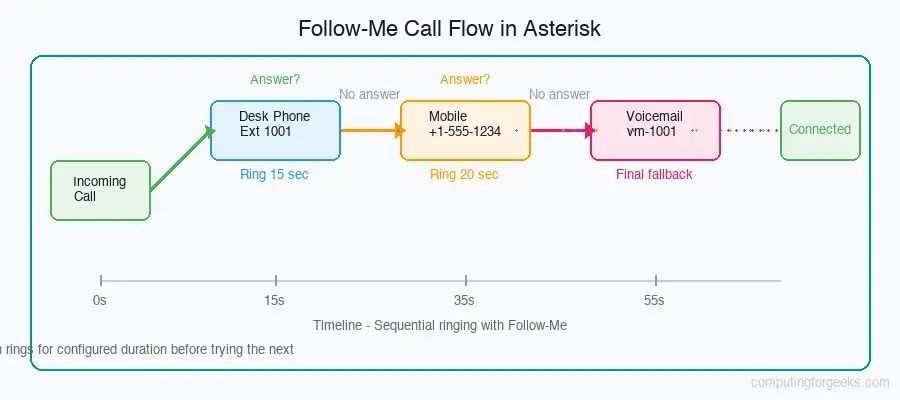
Follow-Me rings multiple destinations in sequence until someone answers or all options are exhausted. A typical use case is ringing the desk phone first, then the user’s mobile, then falling back to voicemail. This is configured through followme.conf and the FollowMe() dialplan application.
Configure followme.conf
Open the Follow-Me configuration file.
sudo vim /etc/asterisk/followme.confAdd a general section and a profile for extension 1001:
[general]
featuredigittimeout => 5000    ; Milliseconds to wait for feature digit input
enable_callee_prompt => yes    ; Ask callee to press 1 to accept the call
takecall => 1                  ; Digit to press to accept the call
declinecall => 2               ; Digit to press to decline the call

[1001]
musicclass => default          ; Music on hold class for the caller
context => internal            ; Dialplan context for followme
number => PJSIP/1001,15       ; Ring desk phone for 15 seconds
number => PJSIP/1001&Local/+15551234567@outbound,20  ; Ring desk + mobile for 20 sec
number => PJSIP/1001&Local/+15559876543@outbound,20  ; Ring desk + alternate for 20 sec
Each number line defines a step in the sequence. The second parameter is the ring timeout in seconds. You can ring multiple channels simultaneously by separating them with &.
Add FollowMe() to the Dialplan
Update extensions.conf to use FollowMe() instead of a direct Dial() for the extension. You can integrate it as a fallback after the desk phone does not answer:
[internal]
; Extension 1001 with Follow-Me enabled
exten => 1001,1,NoOp(Calling 1001 with Follow-Me)
 same => n,FollowMe(1001,ds)
 same => n,GotoIf($["${FOLLOWME_STATUS}" = "SUCCESS"]?done)
 same => n,VoiceMail(1001@default,u)
 same => n(done),Hangup()
The d flag in FollowMe(1001,ds) disables the screening announcement (no “press 1 to accept”). The s flag plays a status message to the caller. If none of the follow-me destinations answer, the call goes to voicemail as a final fallback.
Reload the configuration.
sudo asterisk -rx "dialplan reload"
sudo asterisk -rx "module reload app_followme"
Verify Follow-Me
Call extension 1001 from another phone. The Asterisk CLI shows the sequential ringing:
-- Executing [1001@internal:1] NoOp("PJSIP/1002-00000001", "Calling 1001 with Follow-Me")
-- Executing [1001@internal:2] FollowMe("PJSIP/1002-00000001", "1001,ds")
-- Trying step 1: PJSIP/1001 with timeout 15
-- PJSIP/1001-00000002 is ringing
-- No answer from step 1, moving to step 2
-- Trying step 2: PJSIP/1001&Local/+15551234567@outbound with timeout 20
-- PJSIP/1001-00000003 is ringing
-- Local/+15551234567@outbound is ringing
Step 5: Configure Call Parking in Asterisk
Call parking places an active call into a “parking lot” where it can be picked up from any other extension. This is useful in office environments where someone needs to take a call from a different room. The parked call gets assigned a parking slot number (like 701, 702) that anyone can dial to retrieve the call.
Configure res_parking
Asterisk 22 uses the res_parking module for call parking. Open the parking configuration.
sudo vim /etc/asterisk/res_parking.confSet up a parking lot:
[general]

[default]
parkext => 700              ; Extension to dial to park a call
parkpos => 701-720          ; Parking slot range (701 through 720)
context => parkedcalls      ; Context where parked calls live
parkinghints => yes         ; Enable BLF hints for parking slots
parkingtime => 45           ; Seconds before parked call times out and returns
comebackcontext => internal ; Context to return timed-out calls to
comebacktoorigin => yes     ; Return call to the person who parked it
courtesytone => beep        ; Tone played when call is picked up
parkedmusicclass => default ; Music on hold for parked callers
announcement => yes         ; Announce the parking slot number
Add Parking to the Dialplan
Add the parked call retrieval context to your dialplan. Refer to the Asterisk call parking documentation for additional options.
sudo vim /etc/asterisk/extensions.confAdd the parking extensions:
; Park a call by transferring to 700
[internal]
exten => 700,1,NoOp(Parking call)
 same => n,Park(default,t(45)r(internal)c(internal)s)
 same => n,Hangup()

; Include the parked calls context so users can retrieve parked calls
; by dialing the slot number (701-720)
#include "res_parking.conf"

[parkedcalls]
; This context is managed by res_parking automatically
Reload the parking module.
sudo asterisk -rx "module reload res_parking"
sudo asterisk -rx "dialplan reload"
Test Call Parking
To park a call:
- During an active call, transfer the call to extension 700 (blind transfer with ##700)
- Asterisk announces the parking slot number (e.g., “parked on 701”)
- Anyone can retrieve the call by dialing 701 from any phone
Verify parked calls in the CLI:
$ sudo asterisk -rx "parkedcalls show"
Parking Lot: default
--- Parking Lot ---
Slot  Channel                Timeout  CallerID
701   PJSIP/1001-00000001   35       "User 1001" <1001>

1 parked call in lot 'default'
If no one picks up the parked call within the parkingtime (45 seconds), the call returns to the person who parked it.
Step 6: Configure Do Not Disturb (DND)
Do Not Disturb lets users temporarily reject all incoming calls. We use the AstDB to store the DND flag and check it before routing calls. The DND check was already included in the call forwarding dialplan from Step 3.
DND Feature Codes
Add these feature codes to extensions.conf so users can toggle DND from their phone:
; *78 - Enable Do Not Disturb
exten => *78,1,NoOp(Enable DND for ${CALLERID(num)})
 same => n,Set(DB(DND/${CALLERID(num)})=yes)
 same => n,Playback(do-not-disturb&activated)
 same => n,Hangup()

; *79 - Disable Do Not Disturb
exten => *79,1,NoOp(Disable DND for ${CALLERID(num)})
 same => n,Set(DB_DELETE(DND/${CALLERID(num)})=)
 same => n,Playback(do-not-disturb&de-activated)
 same => n,Hangup()
DND Check in the Dialplan
The full extension handler with DND checking was shown in the call forwarding section. The key lines are:
; Check DND status before routing
same => n,Set(DND=${DB(DND/${DEST})})
same => n,GotoIf($["${DND}" = "yes"]?dnd)

; ... at the end of the extension
same => n(dnd),Playback(do-not-disturb)
same => n,Hangup()
Verify DND status from the CLI:
$ sudo asterisk -rx "database show DND"
/DND/1001                                         : yes
1 result found.
When DND is active, callers hear the “do not disturb” prompt and the call ends. Extension 1001 does not ring at all.
Step 7: Configure Transfers and Forwarding in FreePBX
If you are running FreePBX on top of Asterisk, all of the above features can be configured through the web GUI instead of editing config files manually.
Call Transfer Settings
Blind and attended transfer keys are managed under Admin > Feature Code Admin. The default codes are:
- Blind Transfer:
## - Attended Transfer:
*2 - Disconnect:
**
You can change these codes in the Feature Code Admin module. Go to Admin > Feature Code Admin > Call Transfer and modify the DTMF sequences as needed.
Call Forwarding in FreePBX
Per-extension forwarding is configured under Applications > Extensions. Edit an extension and navigate to the Follow Me tab. The settings include:
- Follow Me List – add extension numbers and external numbers to ring
- Ring Strategy – ringallv2 (ring all, then hunt), hunt, memoryhunt, firstnotonphone
- Ring Time – seconds to ring before moving to the next destination
- Destination if no answer – voicemail, another extension, ring group, or IVR
Users can also control forwarding from their phone using the default FreePBX feature codes:
*72– Call Forward All: Activate*73– Call Forward All: Deactivate*90– Call Forward Busy: Activate*91– Call Forward Busy: Deactivate
Call Parking in FreePBX
Parking is configured under Applications > Parking. The default parking lot uses extension 70 with slots 71-79. You can create additional parking lots for different departments. Each parking lot can have its own timeout, music on hold class, and return destination.
After making changes in FreePBX, always click Apply Config in the top bar to write the changes to the Asterisk configuration files and reload.
Feature Code Reference Table
Here is a summary of all feature codes configured in this guide:
| Feature Code | Function | Config File |
|---|---|---|
| ## | Blind transfer | features.conf |
| *2 | Attended transfer | features.conf |
| *0 | Disconnect call | features.conf |
| #72 | Park a call | features.conf |
| *72 + ext | Enable unconditional forwarding | extensions.conf |
| *73 | Disable unconditional forwarding | extensions.conf |
| *90 + ext | Enable busy forwarding | extensions.conf |
| *91 | Disable busy forwarding | extensions.conf |
| *92 + ext | Enable no-answer forwarding | extensions.conf |
| *93 | Disable no-answer forwarding | extensions.conf |
| *78 | Enable Do Not Disturb | extensions.conf |
| *79 | Disable Do Not Disturb | extensions.conf |
Troubleshooting Asterisk Call Transfers
If transfers are not working, check these common issues:
Transfer key does nothing during a call – Make sure the Dial() application includes T and/or t flags. Without these flags, Asterisk does not listen for DTMF feature codes during the call. Verify with:
sudo asterisk -rx "dialplan show internal"DTMF not detected – If using PJSIP, check that DTMF mode is set correctly in your endpoint configuration. RFC 4733 (also called RFC 2833) is the most reliable method:
$ sudo asterisk -rx "pjsip show endpoint 1001" | grep dtmf
 dtmf_mode : rfc4733
If DTMF mode is set to inband, transfer detection may fail. Change it to rfc4733 in pjsip.conf:
[1001]
type = endpoint
dtmf_mode = rfc4733
Features module not loaded – Verify the features module is loaded:
$ sudo asterisk -rx "module show like features"
Module                         Description                              Use Count  Status
features                       Call Features                            0          Running
1 modules loaded
Follow-Me not ringing external numbers – Make sure your outbound context allows external dialing and that the trunk is configured for outbound calls. Check the context setting in followme.conf matches a context that includes outbound routes.
Conclusion
We configured blind transfers, attended transfers, call forwarding with user-controlled feature codes, follow-me sequential ringing, call parking, and do-not-disturb in Asterisk 22. All features use the native Asterisk dialplan and AstDB, so they work with any SIP phone that supports DTMF. For production systems, add monitoring for parked call timeouts, test all feature codes after Asterisk upgrades, and document the feature codes for end users so they can manage their own forwarding rules.

How to restrict the call transfer to be internally only ? so no one can transfer calls to outside