

Monitoring a Kubernetes cluster without the kube-prometheus-stack is like running a data center with the lights off. The kube-prometheus-stack Helm chart bundles Prometheus, Grafana, Alertmanager, node-exporter, kube-state-metrics, and the Prometheus Operator into a single deployment. One Helm install gives you metrics collection, visualization, and alerting across every namespace.
This guide deploys the full monitoring stack on Kubernetes with persistent storage, walks through the built-in Grafana dashboards, and sets up custom alerting rules with PrometheusRule resources. We also cover ServiceMonitor configuration so you can scrape metrics from your own applications. Whether you’re running k3s on a single node, a kubeadm cluster, or a managed service like EKS or GKE, the steps are nearly identical.
Tested March 2026 | k3s v1.34.5+k3s1 on Rocky Linux 10.1, kube-prometheus-stack 82.14.1 (app v0.89.0), Helm 3.20.1, Grafana 11.x, Prometheus v3.x
What kube-prometheus-stack Includes
The chart deploys six core components, each handling a different piece of the monitoring pipeline:
| Component | Purpose |
|---|---|
| Prometheus | Metrics collection and storage, PromQL query engine |
| Grafana | Visualization dashboards and alerting UI |
| Alertmanager | Alert routing, grouping, and deduplication |
| Prometheus Operator | Custom resources (ServiceMonitor, PrometheusRule) for declarative config |
| Node Exporter | Host-level metrics: CPU, memory, disk, network |
| kube-state-metrics | Kubernetes object metrics: pod status, deployment replicas, job completions |
The Prometheus Operator is what makes this stack powerful. Instead of editing Prometheus config files, you create Kubernetes custom resources. A ServiceMonitor tells Prometheus what to scrape. A PrometheusRule defines alerting rules. The operator watches these resources and reconfigures Prometheus automatically.
Prerequisites
- A running Kubernetes cluster (k3s, kubeadm HA, EKS, GKE, AKS)
kubectlconfigured and able to reach the cluster- Helm 3 installed (tested with v3.20.1)
- A StorageClass for persistent volumes. k3s includes
local-pathby default. Cloud providers supply their own (gp3, standard, default) - Tested on: k3s v1.34.5+k3s1 on Rocky Linux 10.1
Add the Helm Repository
Register the prometheus-community chart repository and refresh the index:
helm repo add prometheus-community https://prometheus-community.github.io/helm-charts
helm repo update
Check the latest available chart versions:
helm search repo prometheus-community/kube-prometheus-stack --versions | head -5The output shows chart version 82.14.1 mapping to app version v0.89.0:
NAME                                        CHART VERSION   APP VERSION   DESCRIPTION
prometheus-community/kube-prometheus-stack   82.14.1         v0.89.0       kube-prometheus-stack collects Kubernetes manif...
Create the Helm Values File
The values file controls everything: storage sizes, service types, retention policies, and which components are enabled. Create prom-values.yaml with the following configuration:
vi prom-values.yamlAdd the following content:
grafana:
  adminPassword: YourStrongPassword
  persistence:
    enabled: true
    storageClassName: local-path
    size: 5Gi
  service:
    type: NodePort
    nodePort: 30080

prometheus:
  prometheusSpec:
    retention: 15d
    storageSpec:
      volumeClaimTemplate:
        spec:
          storageClassName: local-path
          accessModes: ["ReadWriteOnce"]
          resources:
            requests:
              storage: 10Gi
    serviceMonitorSelectorNilUsesHelmValues: false
    podMonitorSelectorNilUsesHelmValues: false
  service:
    type: NodePort
    nodePort: 30090

alertmanager:
  alertmanagerSpec:
    storage:
      volumeClaimTemplate:
        spec:
          storageClassName: local-path
          accessModes: ["ReadWriteOnce"]
          resources:
            requests:
              storage: 2Gi
  service:
    type: NodePort
    nodePort: 30093

nodeExporter:
  enabled: true

kubeStateMetrics:
  enabled: true
A few things worth noting about these settings:
- serviceMonitorSelectorNilUsesHelmValues: false tells Prometheus to scrape ALL ServiceMonitors across all namespaces, not just the ones created by this Helm release. Without this, custom ServiceMonitors in other namespaces get ignored
- retention: 15d keeps metric data for 15 days before automatic deletion. Increase this if you need longer historical data, but size your storage accordingly
- NodePort services expose Grafana, Prometheus, and Alertmanager on fixed ports. For cloud clusters (EKS, GKE, AKS), change
type: NodePorttotype: LoadBalancerand remove thenodePortlines - StorageClass:
local-pathis the default provisioner in k3s. Replace it with your cluster’s StorageClass (see the reference table at the end of this article)
Deploy the Stack
Create a dedicated namespace and install the chart:
kubectl create namespace monitoring
helm install prometheus prometheus-community/kube-prometheus-stack \
  --namespace monitoring \
  --values prom-values.yaml \
  --wait --timeout 10m
The --wait flag holds the terminal until all pods are running. On a single-node k3s cluster, this typically takes about 90 seconds:
NAME: prometheus
LAST DEPLOYED: Thu Mar 26 19:37:02 2026
NAMESPACE: monitoring
STATUS: deployed
REVISION: 1
Verify the Deployment
Confirm all six pods are running in the monitoring namespace:
kubectl get pods -n monitoringAll pods should show Running status with full readiness:
NAME                                                     READY   STATUS    RESTARTS   AGE
alertmanager-prometheus-kube-prometheus-alertmanager-0   2/2     Running   0          79s
prometheus-grafana-577ffdf4c-722hc                       3/3     Running   0          87s
prometheus-kube-prometheus-operator-9c577665-4g74w       1/1     Running   0          87s
prometheus-kube-state-metrics-f47d8dd47-jkktg            1/1     Running   0          87s
prometheus-prometheus-kube-prometheus-prometheus-0       2/2     Running   0          78s
prometheus-prometheus-node-exporter-mhz9n                1/1     Running   0          87s
Check that the persistent volume claims are bound:
kubectl get pvc -n monitoringThree PVCs should show Bound status: Prometheus (10Gi), Grafana (5Gi), and Alertmanager (2Gi). This confirms persistent storage is working and your metrics will survive pod restarts.
Verify the NodePort services are exposed on the expected ports:
kubectl get svc -n monitoringLook for Grafana on port 30080, Prometheus on 30090, and Alertmanager on 30093.
Access Grafana
Open http://<node-ip>:30080 in your browser. The login page prompts for a username and password. Use admin as the username and the password you set in prom-values.yaml.
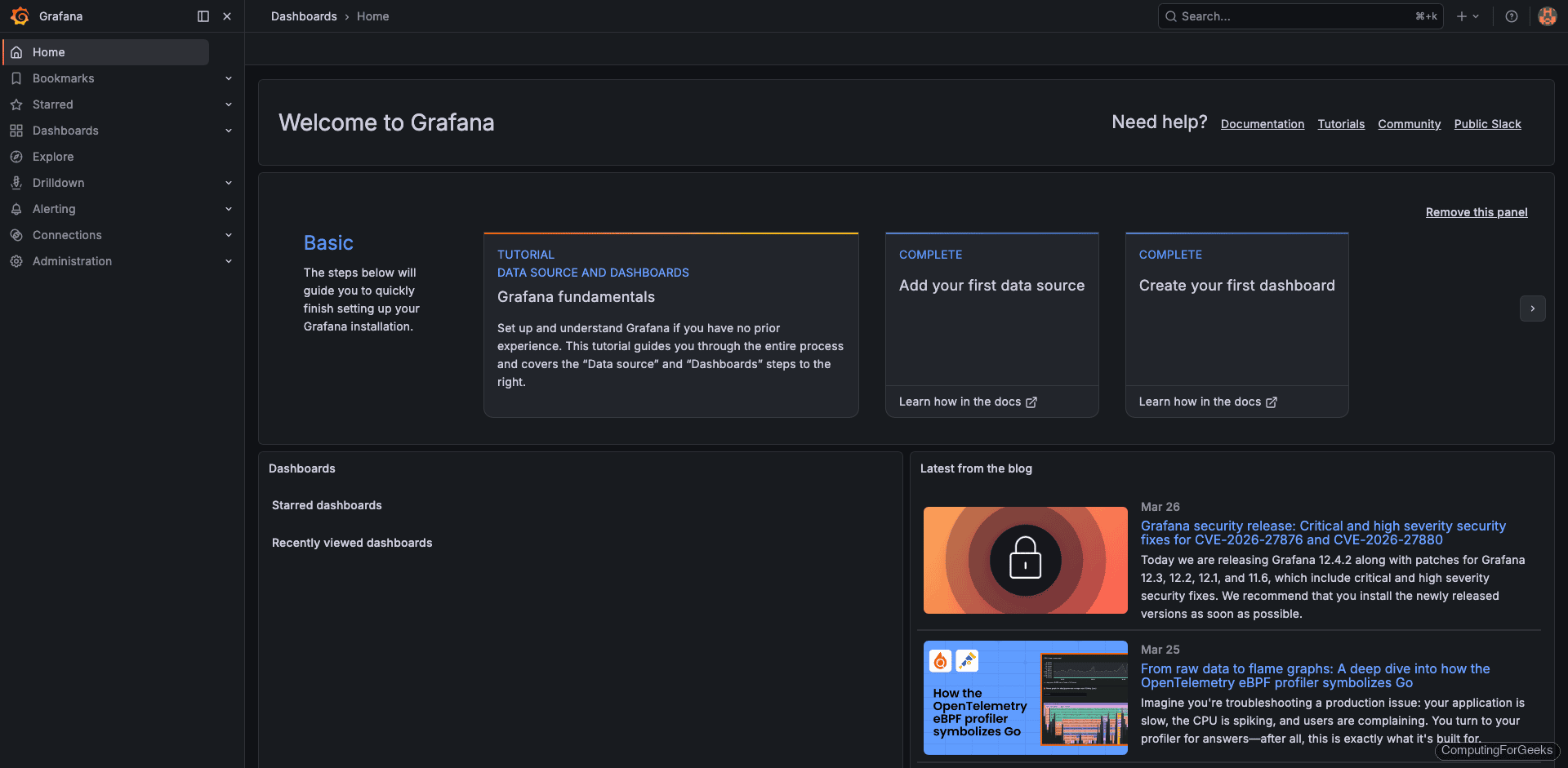
After logging in, the Grafana home page shows the default dashboard with quick links:
If you forgot the password or want to retrieve it programmatically:
kubectl get secret --namespace monitoring prometheus-grafana -o jsonpath="{.data.admin-password}" | base64 -d; echoExplore the Built-in Dashboards
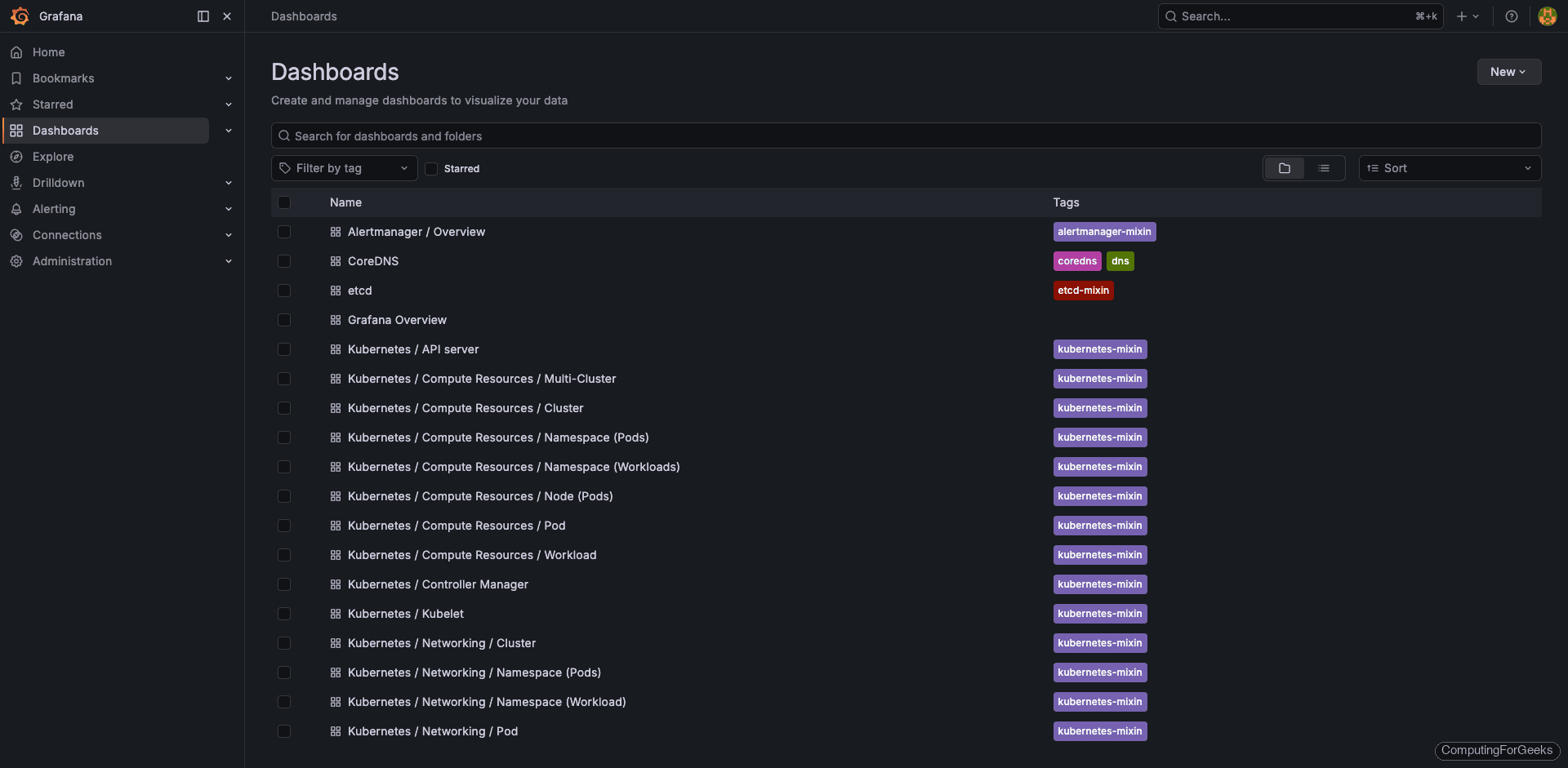
The kube-prometheus-stack ships with over 20 pre-configured Grafana dashboards. Navigate to Dashboards in the left sidebar to see the full list:
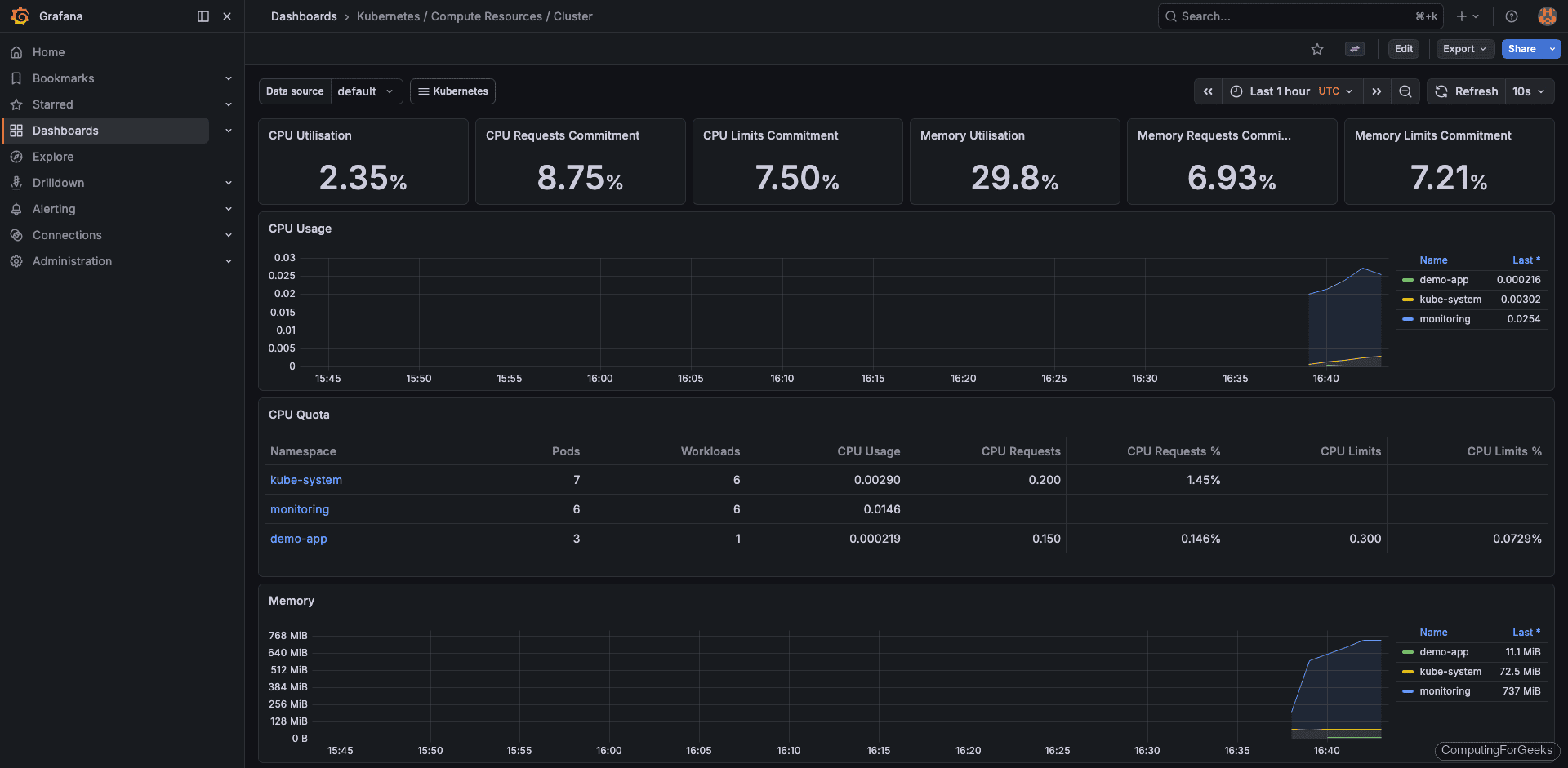
The Kubernetes / Compute Resources / Cluster dashboard gives a high-level view of CPU and memory usage across the entire cluster, broken down by namespace:
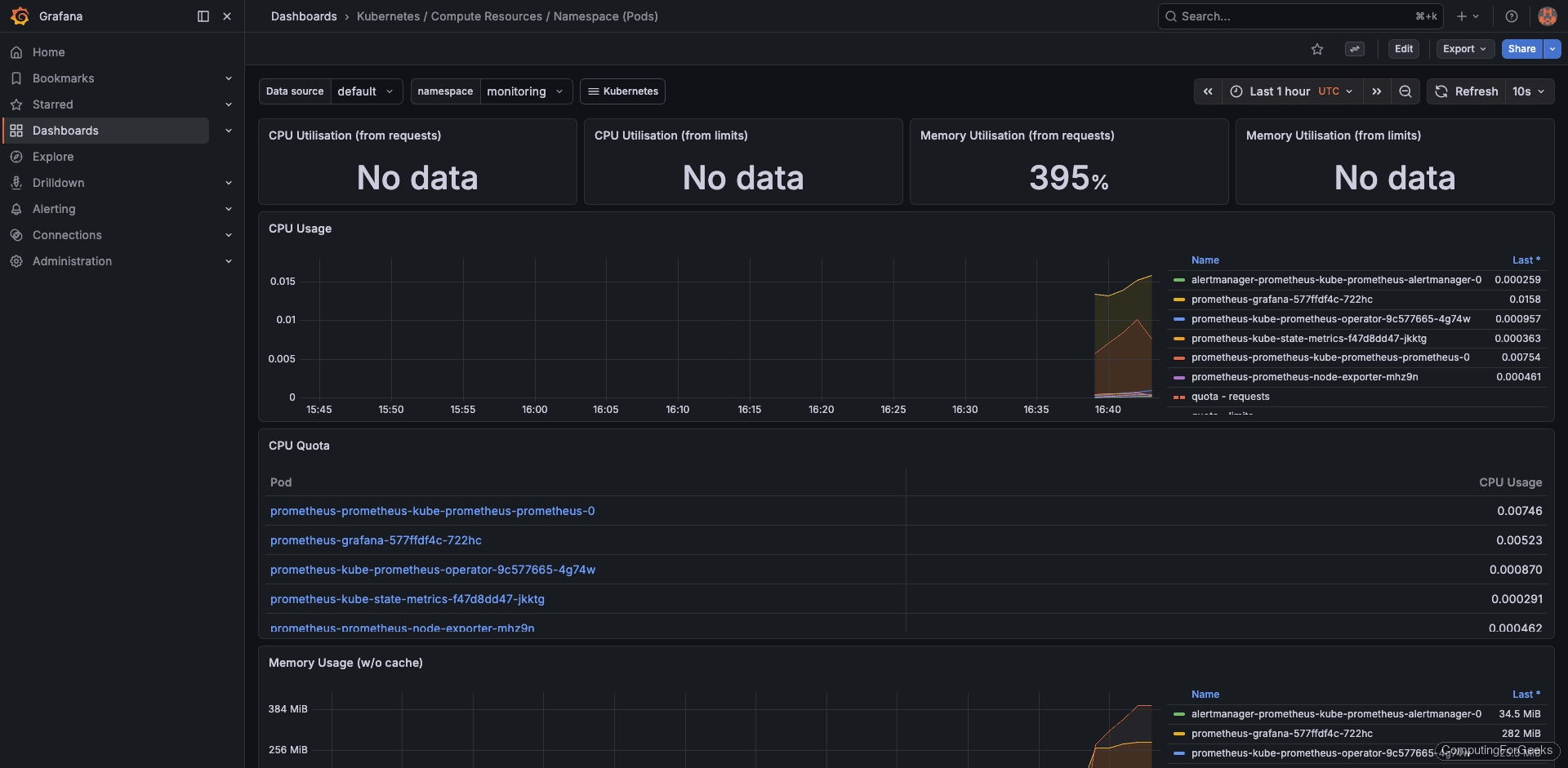
Drill into a specific namespace with the Kubernetes / Compute Resources / Namespace (Pods) dashboard. This shows per-pod CPU and memory consumption, which is invaluable for spotting resource hogs:
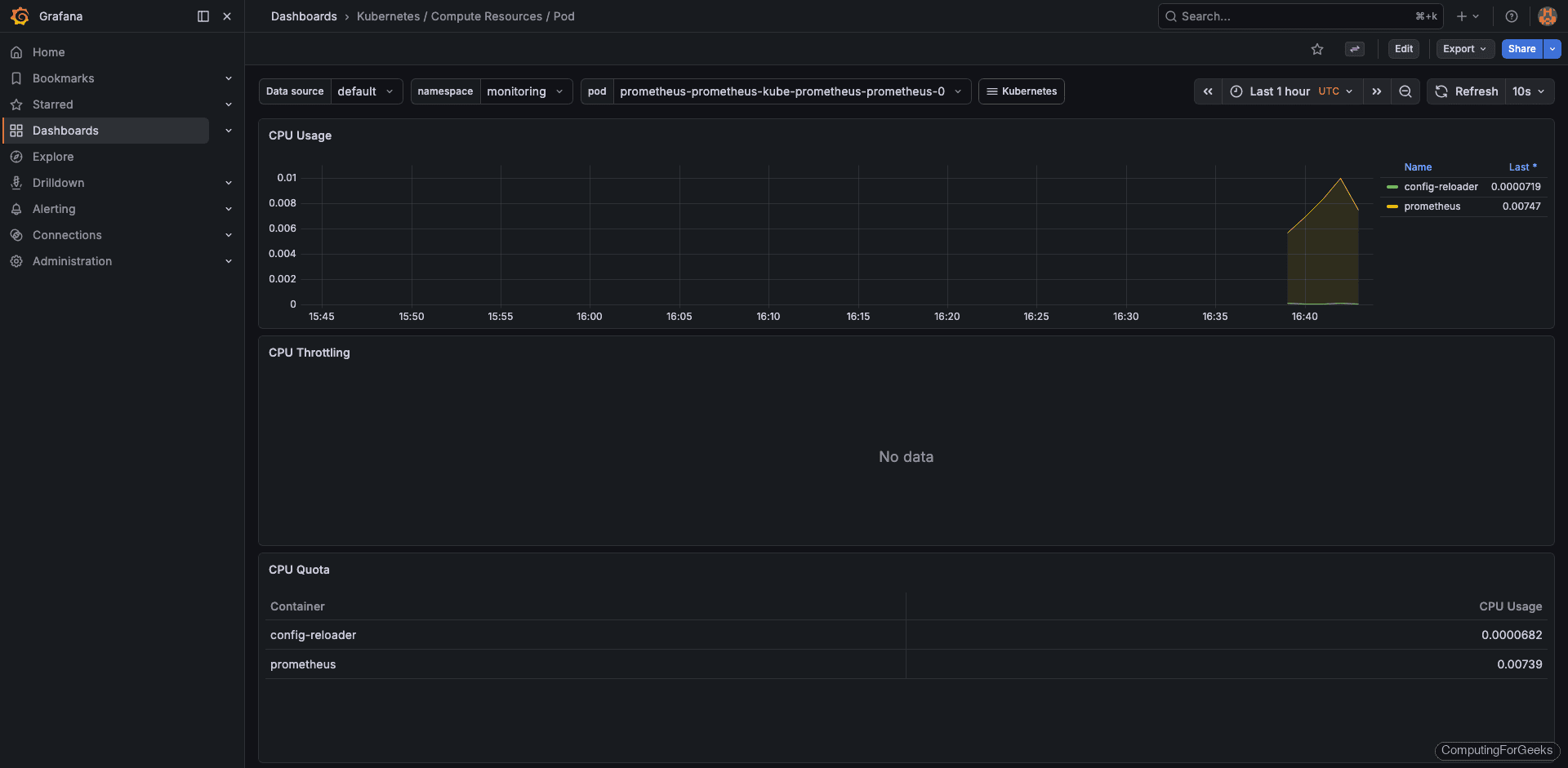
The pod-level resource dashboard breaks down CPU and memory for individual containers within a pod:
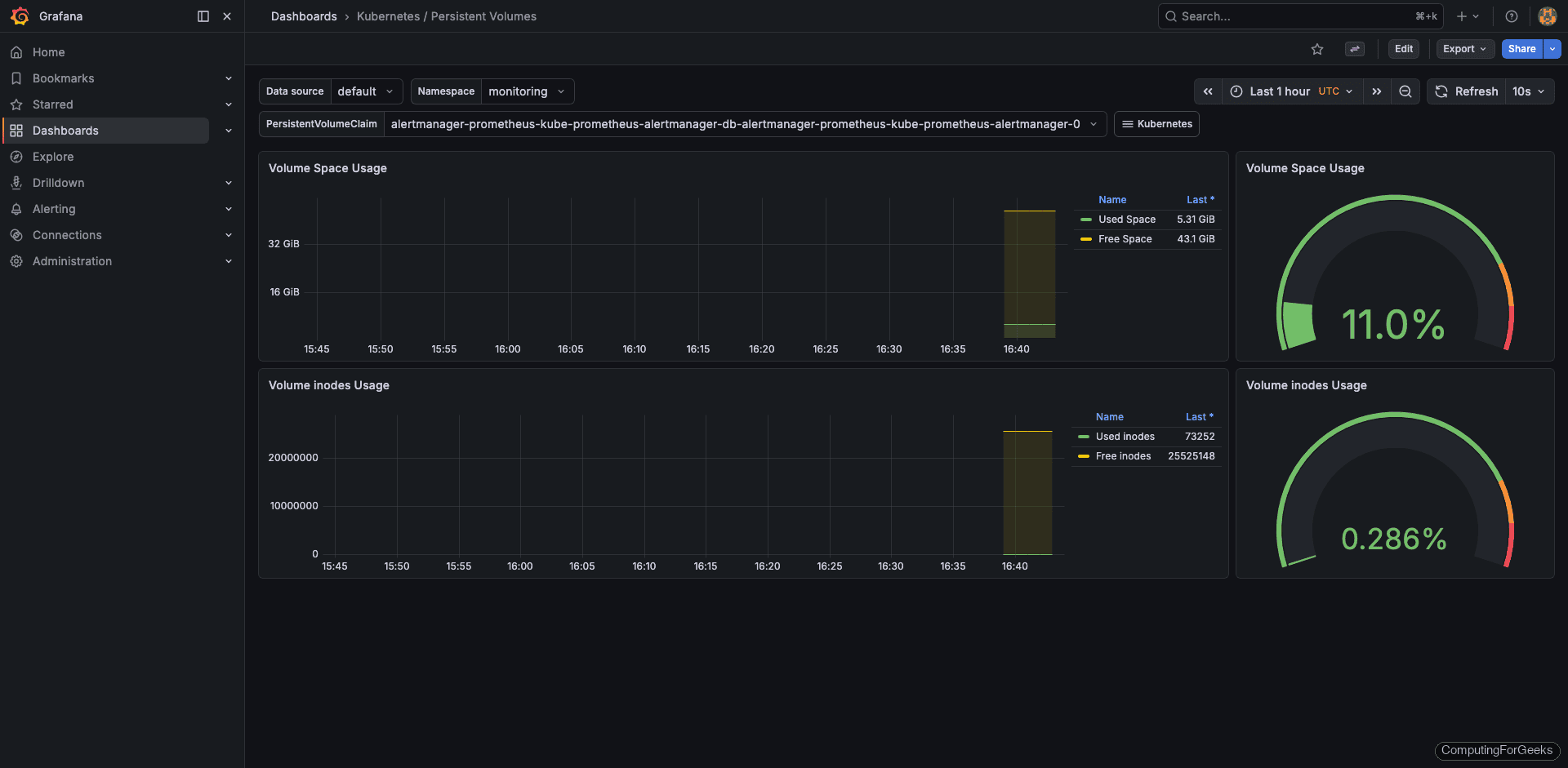
For storage monitoring, the Kubernetes / Persistent Volumes dashboard tracks PVC usage and remaining capacity:
Three dashboards worth bookmarking from day one:
- Kubernetes / Compute Resources / Cluster: overall CPU, memory, and namespace breakdown
- Kubernetes / Compute Resources / Namespace (Pods): per-pod resource usage within a namespace
- Kubernetes / Persistent Volumes: PVC usage and remaining capacity
Access the Prometheus UI
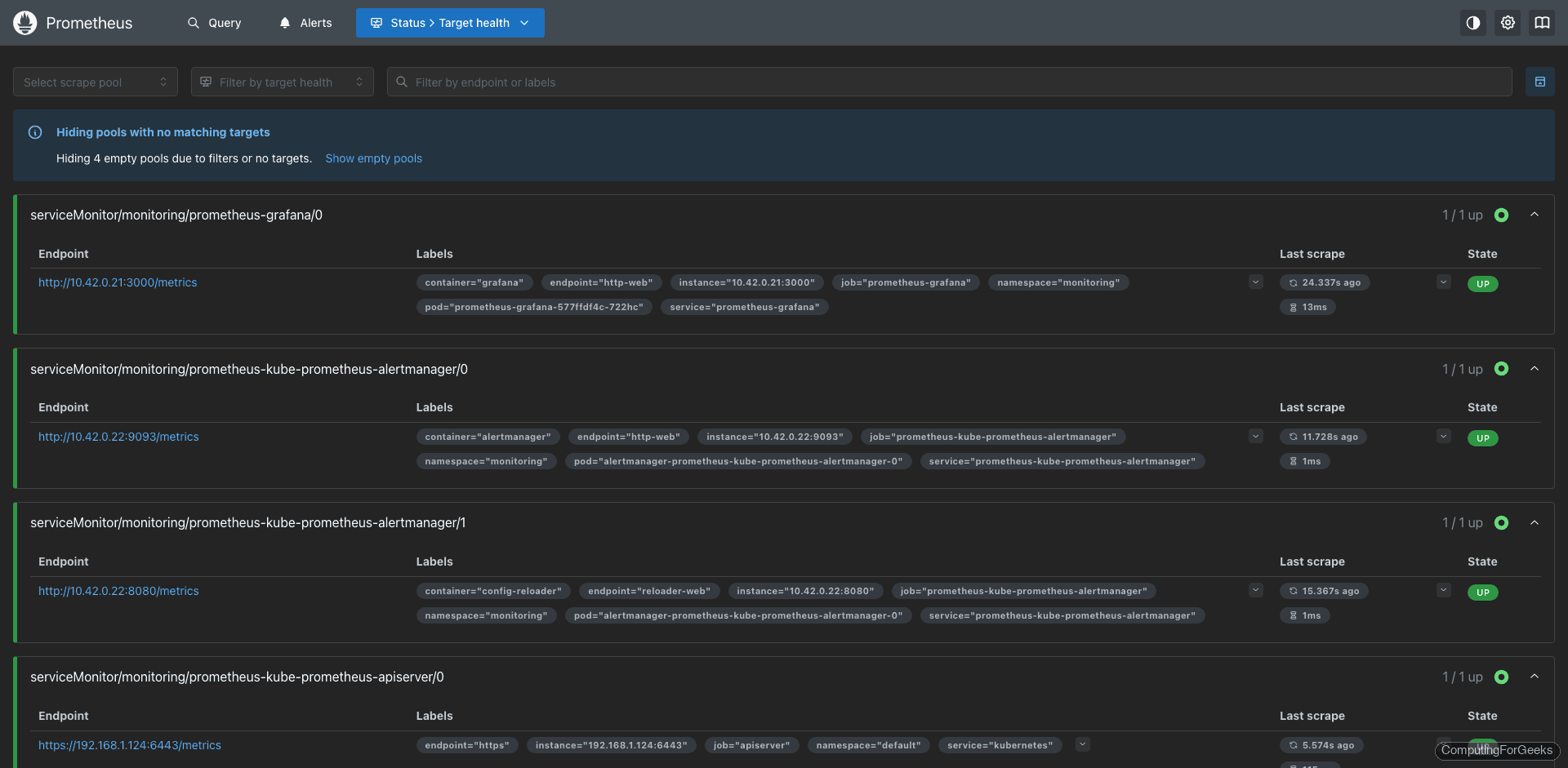
Open http://<node-ip>:30090 to reach the Prometheus web interface. The Targets page (Status > Targets) is the first place to check. All 13 scrape targets should show an “Up” state:
The Graph tab lets you run PromQL queries directly. Try a basic query like node_memory_MemAvailable_bytes to see available memory over time:
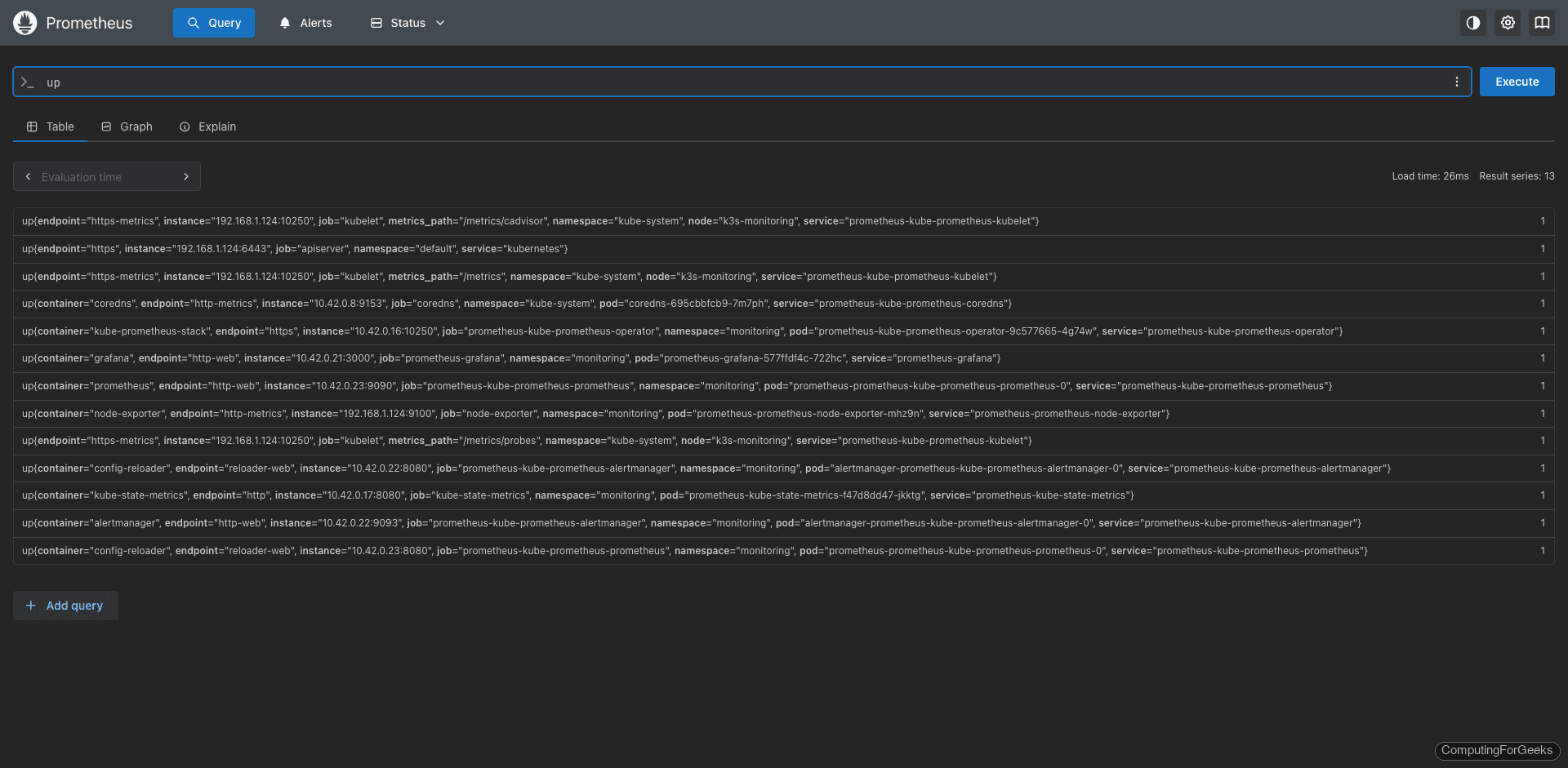
If any target shows “Down” on the targets page, check the error column for details. Common causes include network policies blocking scrape traffic or a misconfigured ServiceMonitor selector.
Deploy a Sample Application
To see the monitoring stack in action with real workloads, deploy a simple nginx application. Create the namespace and deployment manifest:
kubectl create namespace demo-appCreate the deployment file:
vi nginx-demo.yamlAdd the following manifest:
apiVersion: apps/v1
kind: Deployment
metadata:
  name: nginx-demo
  namespace: demo-app
spec:
  replicas: 3
  selector:
    matchLabels:
      app: nginx-demo
  template:
    metadata:
      labels:
        app: nginx-demo
    spec:
      containers:
      - name: nginx
        image: nginx:alpine
        ports:
        - containerPort: 80
        resources:
          requests:
            cpu: 50m
            memory: 64Mi
          limits:
            cpu: 100m
            memory: 128Mi
Apply the manifest:
kubectl apply -f nginx-demo.yamlConfirm the three replicas are running:
kubectl get pods -n demo-appWithin a minute or two, the new pods appear in the Grafana dashboards automatically. kube-state-metrics tracks pod status and cAdvisor collects container resource usage, so no additional configuration is needed to monitor standard workloads.
Configure Alertmanager
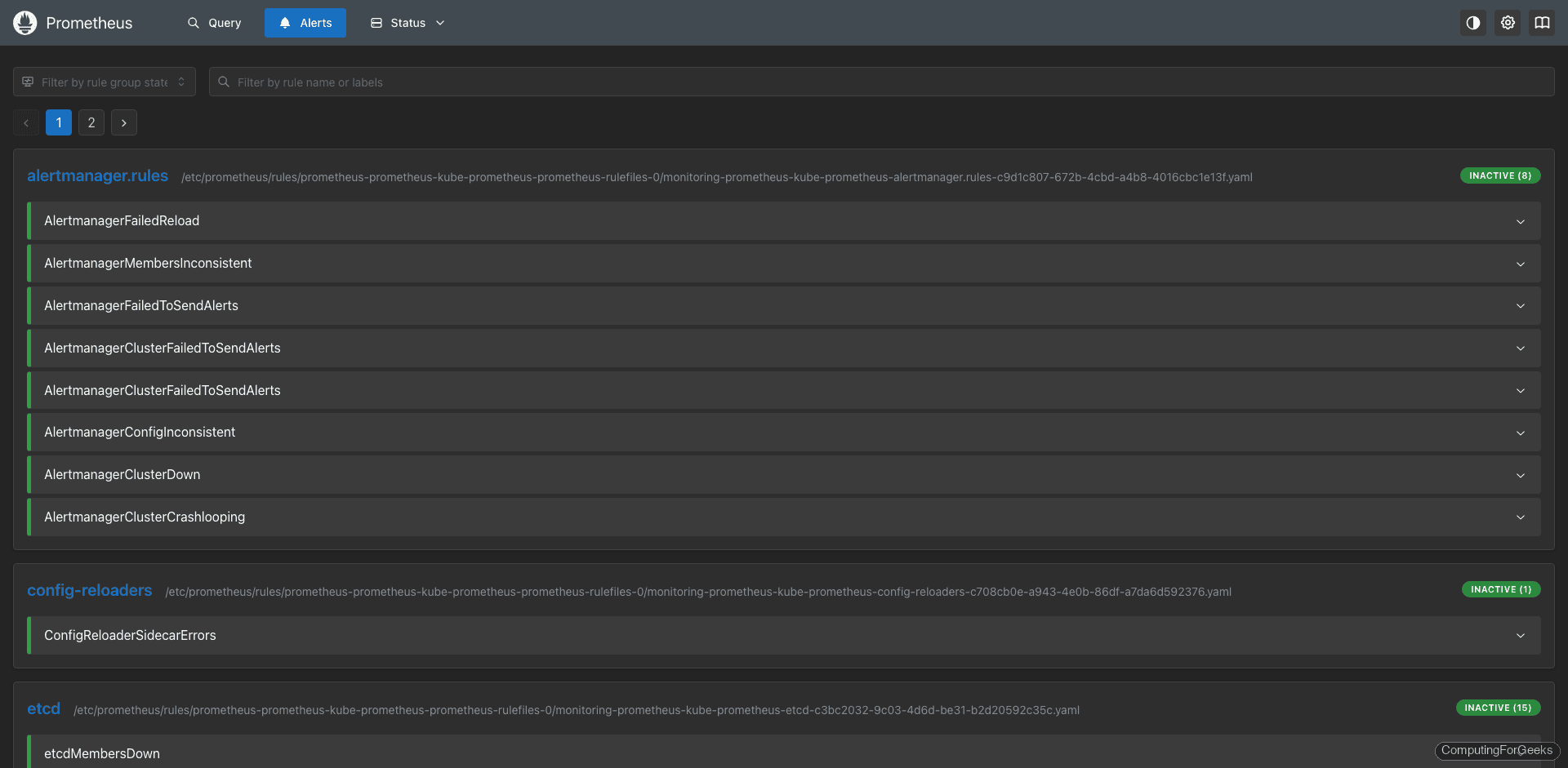
The kube-prometheus-stack comes with dozens of pre-configured alerting rules covering common failure scenarios: node down, high memory pressure, PVC nearly full, pod crash loops, and more. View them in the Prometheus UI under Alerts:
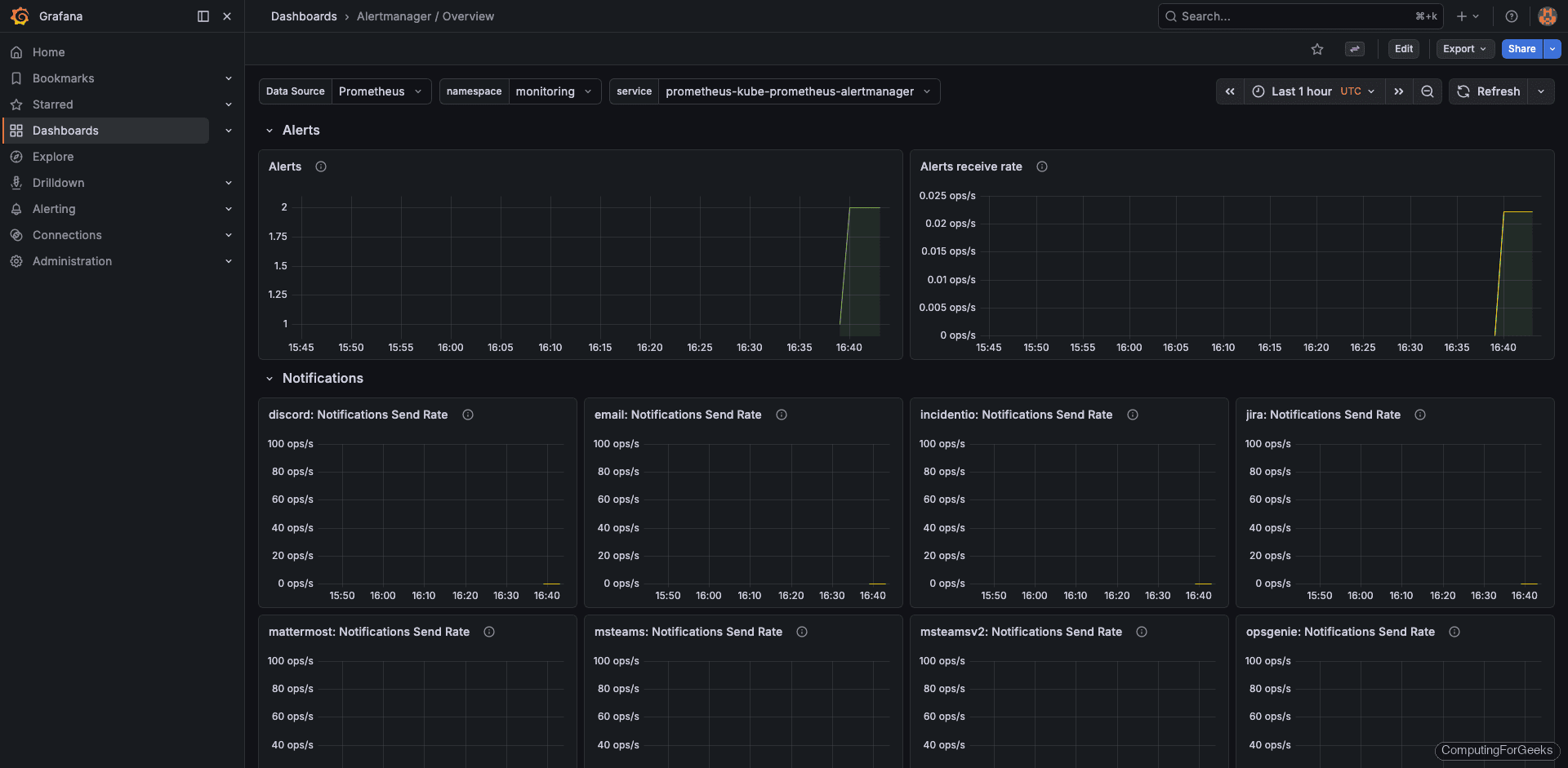
Grafana also includes an Alertmanager overview dashboard that shows active alerts, silences, and notification history:
To add your own alerting rules, create a PrometheusRule custom resource. The example below fires a warning when any pod exceeds 90% of its memory limit for 5 minutes:
vi custom-alerts.yamlAdd the rule definition:
apiVersion: monitoring.coreos.com/v1
kind: PrometheusRule
metadata:
  name: custom-alerts
  namespace: monitoring
  labels:
    release: prometheus
spec:
  groups:
  - name: custom.rules
    rules:
    - alert: HighPodMemoryUsage
      expr: container_memory_usage_bytes{namespace!=""} / container_spec_memory_limit_bytes{namespace!=""} > 0.9
      for: 5m
      labels:
        severity: warning
      annotations:
        summary: "Pod {{ $labels.pod }} memory usage above 90%"
        description: "Pod {{ $labels.pod }} in namespace {{ $labels.namespace }} is using {{ $value | humanizePercentage }} of its memory limit."
Apply the custom alert rule:
kubectl apply -f custom-alerts.yamlThe release: prometheus label is critical. The Prometheus Operator uses this label to discover PrometheusRule resources. Without it, your rule gets ignored silently. After applying, verify it appears in the Prometheus UI under Alerts within a couple of minutes.
Create a ServiceMonitor for Custom Applications
If your application exposes a /metrics endpoint (as most Go, Java, and Python apps do with Prometheus client libraries), a ServiceMonitor tells Prometheus to scrape it. Create the manifest:
vi app-servicemonitor.yamlAdd the ServiceMonitor definition:
apiVersion: monitoring.coreos.com/v1
kind: ServiceMonitor
metadata:
  name: my-app-monitor
  namespace: monitoring
  labels:
    release: prometheus
spec:
  selector:
    matchLabels:
      app: my-app
  namespaceSelector:
    matchNames:
    - my-app-namespace
  endpoints:
  - port: metrics
    interval: 30s
    path: /metrics
Apply it:
kubectl apply -f app-servicemonitor.yamlBecause we set serviceMonitorSelectorNilUsesHelmValues: false in our Helm values, Prometheus picks up this ServiceMonitor automatically. No Helm upgrade needed. Check the Prometheus Targets page to confirm the new scrape target appears and shows “Up” status.
Replace my-app, my-app-namespace, and metrics with your actual application label, namespace, and port name. The interval: 30s controls how often Prometheus scrapes the endpoint.
Upgrade the Stack
When a new chart version is released, upgrading is a two-command operation:
helm repo updateThen run the upgrade with the same values file:
helm upgrade prometheus prometheus-community/kube-prometheus-stack \
  --namespace monitoring \
  --values prom-values.yaml
Helm performs a rolling update, so existing metrics data and Grafana dashboards are preserved. Always review the chart changelog before upgrading, especially for major version bumps that may include breaking CRD changes.
StorageClass Reference for Cloud Providers
The storageClassName in your Helm values depends on where your cluster runs. Here’s a quick reference:
| Provider | StorageClass | Notes |
|---|---|---|
| k3s | local-path | Default, data stored on node disk |
| kubeadm (bare metal) | Create manually or use OpenEBS/Longhorn | No default StorageClass |
| AWS EKS | gp3 or gp2 | EBS-backed, auto-provisioned |
| Google GKE | standard or premium-rwo | Persistent Disk |
| Azure AKS | default or managed-premium | Azure Disk |
| DigitalOcean | do-block-storage | Block storage volumes |
For production bare metal clusters, consider deploying Longhorn or Rook-Ceph as a distributed storage layer. The local-path provisioner ties your data to a single node, which means losing that node loses your metrics history.
What’s Next
With the monitoring stack running, here are some natural next steps to expand your observability platform:
- Grafana Loki for log aggregation. Correlate logs with metrics in the same Grafana interface
- Grafana Tempo for distributed tracing. Trace requests across microservices and link traces to metrics and logs
- Grafana Mimir or Thanos for long-term metric storage beyond the 15-day retention window
- Alertmanager receivers for Slack, PagerDuty, or email notifications. Configure these in the Helm values under
alertmanager.config - etcd backup and restore for disaster recovery. Monitoring alone won’t save you if etcd data is lost
- Custom Grafana dashboards and alerting tailored to your application metrics. Import community dashboards from grafana.com/dashboards



Hi,
With that deployment, can I use grafana and prometheus for production scale monitoring?
Thanks.
Yes you can.
Thank you!
Hi
I just followed above steps and done my monitoring setup… thank you verymuch ..
i want to where can i define my alert email setup
Thankyou
Kapil
Hi
I am new to k8s cluster and monitoring using your blog i configured successfully.
I have doubts.. If I configure prometheus grafana standalone monitoring server outside k8s cluster. Can I pull all the metrics and alerts from k8s cluster ..? Can we run a node exporter pod on a cluster ?
Thankyou
Great tutorial, do you think that this combination of Grafana and Prometheus could be used (as is) to do some extra monitoring beyond just k8s cluster monitoring?
Yes it can be used beyond k8s monitoring.
Thank you
nice article, man.
one typo:
“time internal” -> “time interval”
near beginning of article.
Thanks for the positive comment. I’ve fixed internal typo issue.
Josphat, Thank you very much for your tutorial.
I successfully deployed it on my Lab,
I would like to ask about persistent volume, how can i set this environment to use my PV and PVC.
Thank you
Thanks @Michael,
Persistent storage has been captured in step 5.
I have tried a few other guides. This is the guide that works.
Thanks for the article.
Hi, I am facing a problem when try to access local host it says connection refused.
I check all my local machine firewall but nothing is helping me out.
What did you mean by access local host?
same problem
Hi, after patch svc with LB type i couldn’t acess with LB ip.
For example i patched the grafana svc and when i make curl to grafana svc lb adress
curl http://10.10.10.97:3000
curl: (52) Empty reply from server
returning.
Port forwarding is fine. I couldn’t fix this. Do you know how can i fix it?
Thanks.
You need an LB implementation in your kubernetes to use LoadBalancer services. Check out our guide on this:
https://computingforgeeks.com/deploy-metallb-load-balancer-on-kubernetes/
Hi, I am running it on GCP and getting the error local host unable to connect on browser.
Forwarding from 127.0.0.1:3000 -> 3000
Forwarding from [::1]:3000 -> 3000
But when I use http://localhost:3000 its unable to connect. I
Hi. Thanks for all your guides.
I would be curious to understand the access with nginx ingress instead of metalLB.
Hello @Abe,
Nginx ingress is used to expose your Kubernetes services outside the cluster. It is a preferred way to expose services over NodePort and LoadBalancer. MetalLB on the other hand is used to provide an addressable IP on your network to be used by Kubernetes.
To understand better, follow these guides:
https://computingforgeeks.com/deploy-metallb-load-balancer-on-kubernetes/
https://computingforgeeks.com/deploy-nginx-ingress-controller-on-kubernetes-using-helm-chart/