Outline is an open-source wiki and knowledge base built for teams. It supports real-time collaborative editing, Markdown, nested document collections, full-text search, and an API for integrations. Running it in Docker keeps the deployment simple because PostgreSQL, Redis, and the Node.js application are all containerized.
This guide deploys Outline v1.6.x with Docker Compose on Ubuntu 24.04, using local file storage (no S3 or MinIO required), Nginx as a reverse proxy, and Let’s Encrypt for SSL. Everything was tested on a fresh server and the output below is from the actual deployment.
Prerequisites
- Ubuntu 24.04 or 22.04 server (also works on Debian 12/13)
- A domain name pointing to the server (for SSL)
- At least 2 GB RAM and 10 GB disk
- Root or sudo access
Install Docker
Install Docker Engine using the official convenience script:
curl -fsSL https://get.docker.com | sudo sh
sudo usermod -aG docker $USER
newgrp docker
Confirm Docker and Compose are available:
docker --version
docker compose version
Both should return version numbers (Docker 29.x and Compose v5.x on Ubuntu 24.04).
Create the Project Directory
Create a directory for the Outline deployment and generate the required secrets:
mkdir ~/outline && cd ~/outline
SECRET_KEY=$(openssl rand -hex 32)
UTILS_SECRET=$(openssl rand -hex 32)
POSTGRES_PASSWORD=$(openssl rand -base64 24 | tr -d '=/+' | head -c 24)
echo "Secrets generated"
Configure the Environment File
Outline reads its configuration from environment variables. Create the .env file with your domain, secrets, and database credentials:
cat > .env << EOF
NODE_ENV=production
SECRET_KEY=$SECRET_KEY
UTILS_SECRET=$UTILS_SECRET
DATABASE_URL=postgres://outline:${POSTGRES_PASSWORD}@postgres:5432/outline
DATABASE_CONNECTION_POOL_MIN=1
DATABASE_CONNECTION_POOL_MAX=5
REDIS_URL=redis://redis:6379
URL=https://your-domain.com
PORT=3000
FILE_STORAGE=local
FILE_STORAGE_LOCAL_ROOT_DIR=/var/lib/outline/data
FILE_STORAGE_UPLOAD_MAX_SIZE=26214400
FORCE_HTTPS=false
LOG_LEVEL=info
DEFAULT_LANGUAGE=en_US

POSTGRES_USER=outline
POSTGRES_PASSWORD=$POSTGRES_PASSWORD
POSTGRES_DB=outline
EOF
Replace your-domain.com with your actual domain. The FILE_STORAGE=local setting stores uploaded files on the server's filesystem instead of requiring S3 or MinIO (available since Outline 0.72.0).
Create the Docker Compose File
The stack has three services: Outline (the application), PostgreSQL (database), and Redis (caching and realtime collaboration):
cat > docker-compose.yml << 'EOF'
services:
  outline:
    image: outlinewiki/outline:latest
    ports:
      - "3000:3000"
    volumes:
      - outline-data:/var/lib/outline/data
    depends_on:
      postgres:
        condition: service_healthy
      redis:
        condition: service_started
    env_file: .env
    environment:
      PGSSLMODE: disable
    restart: unless-stopped

  postgres:
    image: postgres:17-alpine
    volumes:
      - postgres-data:/var/lib/postgresql/data
    environment:
      POSTGRES_USER: ${POSTGRES_USER}
      POSTGRES_PASSWORD: ${POSTGRES_PASSWORD}
      POSTGRES_DB: ${POSTGRES_DB}
    healthcheck:
      test: ["CMD-SHELL", "pg_isready -U outline -d outline"]
      interval: 5s
      timeout: 3s
      retries: 5
    restart: unless-stopped

  redis:
    image: redis:7-alpine
    restart: unless-stopped

volumes:
  outline-data:
  postgres-data:
EOF
The PostgreSQL health check ensures Outline waits for the database to be ready before starting. The outline-data volume persists uploaded files across container restarts.
Start the Stack
Pull the images and start all services:
docker compose up -dThe first run takes a few minutes to pull images and run database migrations. Check the status:
docker compose psAll three containers should show as running with PostgreSQL healthy:
NAME                 IMAGE                        STATUS                   PORTS
outline-outline-1    outlinewiki/outline:latest    Up 52 seconds (healthy)  0.0.0.0:3000->3000/tcp
outline-postgres-1   postgres:17-alpine            Up 58 seconds (healthy)  5432/tcp
outline-redis-1      redis:7-alpine                Up 58 seconds            6379/tcp
If Outline fails to start, check the logs for configuration errors:
docker compose logs outlineConfigure Nginx with SSL
Outline listens on port 3000 over HTTP. Put Nginx in front of it with Let's Encrypt SSL. Install Nginx and Certbot:
sudo apt install -y nginx certbot python3-certbot-nginxObtain the SSL certificate (stop Nginx temporarily for the standalone challenge):
sudo systemctl stop nginx
sudo certbot certonly --standalone -d your-domain.com --non-interactive --agree-tos -m [email protected]
sudo systemctl start nginx
Create the Nginx reverse proxy configuration:
sudo vi /etc/nginx/sites-available/outlineAdd the server block with WebSocket support (required for real-time collaboration):
server {
    listen 443 ssl;
    server_name your-domain.com;

    ssl_certificate /etc/letsencrypt/live/your-domain.com/fullchain.pem;
    ssl_certificate_key /etc/letsencrypt/live/your-domain.com/privkey.pem;

    client_max_body_size 25M;

    location / {
        proxy_pass http://127.0.0.1:3000;
        proxy_http_version 1.1;
        proxy_set_header Host $host;
        proxy_set_header X-Real-IP $remote_addr;
        proxy_set_header X-Forwarded-For $proxy_add_x_forwarded_for;
        proxy_set_header X-Forwarded-Proto $scheme;
        proxy_set_header Upgrade $http_upgrade;
        proxy_set_header Connection "upgrade";
        proxy_read_timeout 86400;
    }
}

server {
    listen 80;
    server_name your-domain.com;
    return 301 https://$host$request_uri;
}
Enable the site and reload Nginx:
sudo ln -sf /etc/nginx/sites-available/outline /etc/nginx/sites-enabled/
sudo rm -f /etc/nginx/sites-enabled/default
sudo nginx -t && sudo systemctl reload nginx
The proxy_http_version 1.1 and Upgrade/Connection headers are required for WebSocket connections that power Outline's real-time collaborative editing.
Access Outline and Create the Workspace
Open https://your-domain.com in your browser. Outline shows the workspace creation form on first access:
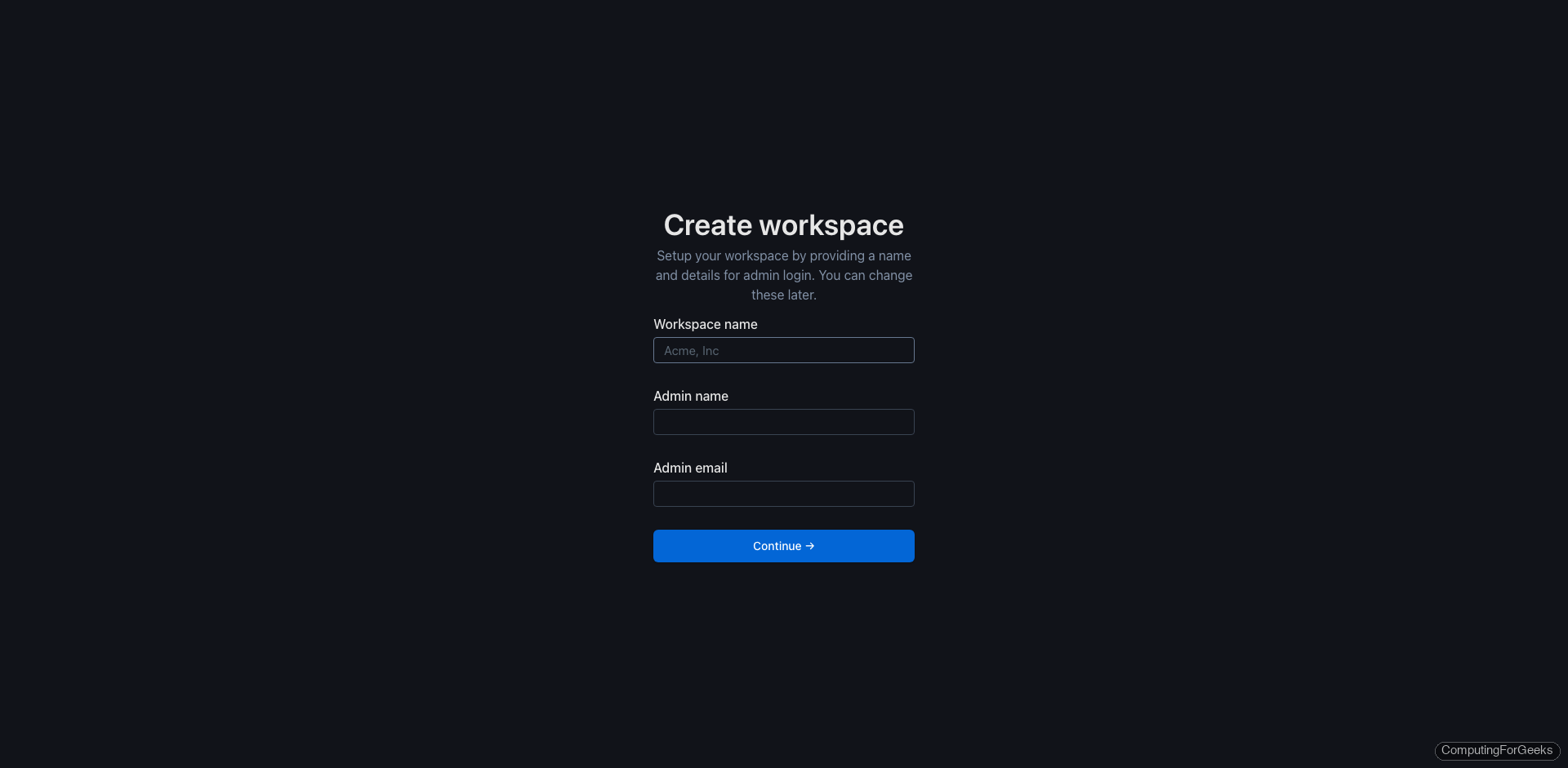
Enter your workspace name, admin name, and admin email, then click Continue. Outline creates the workspace and drops you into the dashboard:
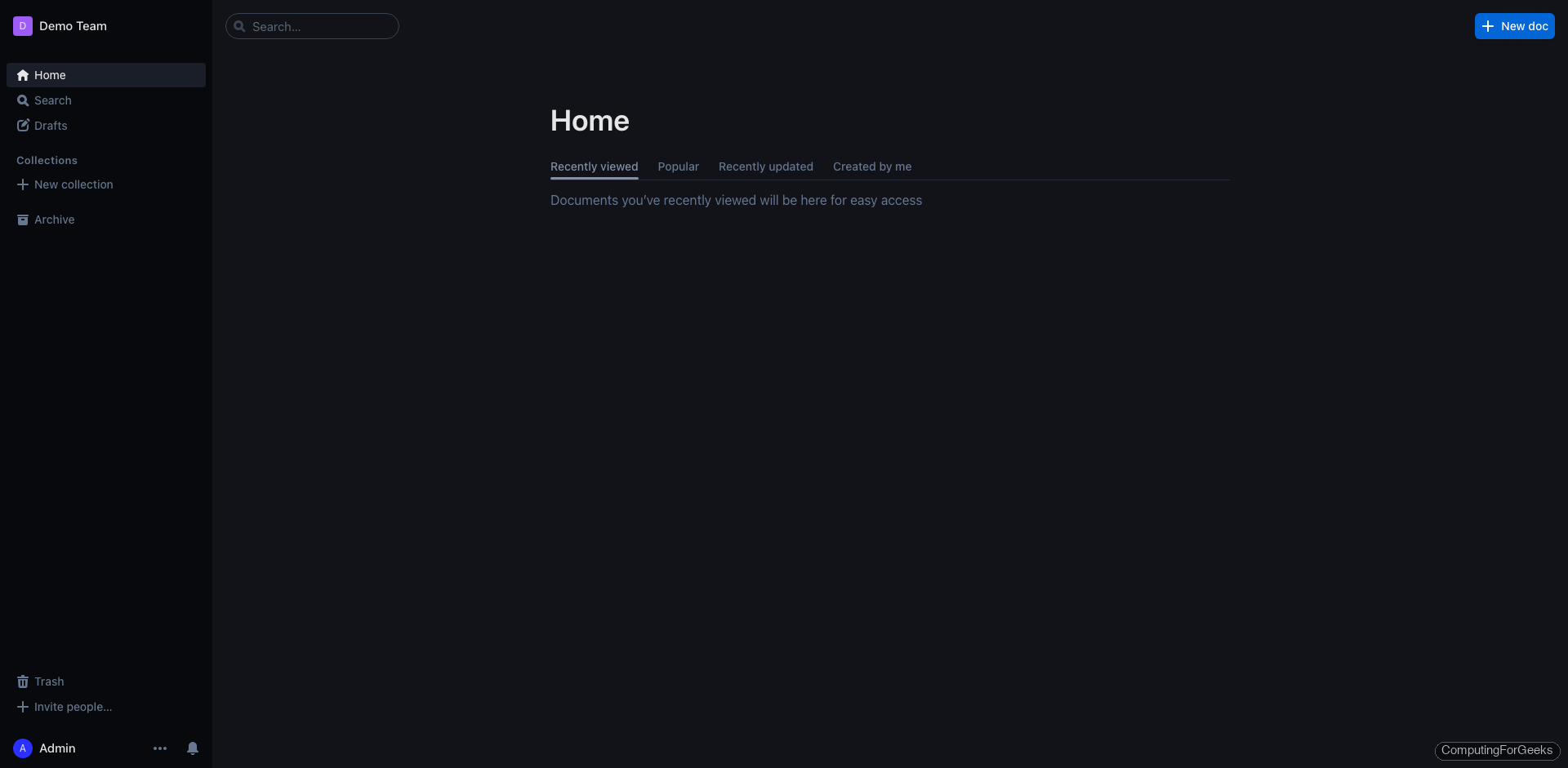
From here you can create documents, organize them into collections, invite team members, and configure authentication providers under Settings > Authentication.
Authentication Options
Outline supports several authentication methods. The workspace creation form handles initial admin access. For ongoing team authentication, configure one of these in your .env file:
| Method | Environment Variables | Use Case |
|---|---|---|
| Email magic links | Built-in (no extra config) | Small teams, simplest setup |
| OIDC | OIDC_CLIENT_ID, OIDC_CLIENT_SECRET, OIDC_AUTH_URI, OIDC_TOKEN_URI, OIDC_USERINFO_URI | Keycloak, Authentik, Dex |
| Slack | SLACK_CLIENT_ID, SLACK_CLIENT_SECRET | Teams already using Slack |
GOOGLE_CLIENT_ID, GOOGLE_CLIENT_SECRET | Google Workspace orgs | |
| SAML | SAML_ENTRY_POINT, SAML_CERT | Enterprise SSO |
For self-hosted OIDC, Keycloak is the most common choice. See the Outline authentication documentation for provider-specific setup instructions.
Manage the Outline Stack
Common operations for day-to-day management:
| Task | Command |
|---|---|
| View container status | docker compose ps |
| View Outline logs | docker compose logs -f outline |
| Restart the stack | docker compose restart |
| Stop all services | docker compose down |
| Update to latest version | docker compose pull && docker compose up -d |
| Backup PostgreSQL | docker compose exec postgres pg_dump -U outline outline > backup.sql |
| Restore PostgreSQL | cat backup.sql | docker compose exec -T postgres psql -U outline outline |
For automated backups, add a cron job that runs the pg_dump command daily and stores the output in a secure location. The uploaded files live in the outline-data Docker volume, which you can back up with docker volume inspect outline_outline-data to find the mount path.
For Docker installation guides on other distributions, see Docker on Rocky Linux 10 or Docker on Debian. If you need a container management UI, Portainer provides a web dashboard for managing Docker stacks.