

Grafana Loki is a tool that gives you a panel for indexing of your systems’ logs and visualizing them on a dashboard. Grafana Loki does not index the contents of the logs but only indexes the labels of the logs. This reduces the efforts involved in processing and storing logs.
Promtail, just like Prometheus, is a log collector for Loki that sends the log labels to Grafana Loki for indexing.
In this post, we shall cover the following:
- Installation of Grafana
- How to install Loki
- How to install Promtail
- How to configure Loki Data source and Explore
Quickly let’s start the installation steps:
1) Install Grafana Monitoring Tool
In this section we will cover installation of Grafana on Ubuntu. Use the links below that will guide you on how to install Grafana on different systems:
- How To Install Grafana 7 on CentOS 7
- How To Install Grafana on CentOS 8 / RHEL 8
- Install Grafana on Kubernetes for Cluster Monitoring
Quick installation on Ubuntu
Update your Ubuntu system and reboot:
sudo apt update && sudo apt upgrade -y
[ -e /var/run/reboot-required ] && sudo reboot
Add Grafana GPG key then install Grafana APT repository:
## Add gpg key
sudo apt-get install -y gnupg2 curl
curl -fsSL https://packages.grafana.com/gpg.key|sudo gpg --dearmor -o /etc/apt/trusted.gpg.d/grafana.gpg

## Add Grafana APT repository
sudo add-apt-repository "deb https://packages.grafana.com/oss/deb stable main"
Install Grafana
sudo apt update && sudo apt -y install grafanaStart Grafana-service
sudo systemctl start grafana-server && sudo systemctl enable grafana-serverGrafana is now installed and can be accessible via the server’s IP and port 3000. (http://server_IP:3000)
You need to allow port 3000 through the firewall.
For Ubuntu:
sudo ufw allow proto tcp from any to any port 3000You can then access Grafana web dashboard,

2) Install Grafana Loki Log aggregation
We now proceed to installing Loki with the steps below:
- Go to Loki’s Release Page and choose the latest version of Loki
- Navigate to Assets and download the Loki binary zip file to your server. During the release of this article, v2.0.0 is the latest.
curl -s https://api.github.com/repos/grafana/loki/releases/latest | grep browser_download_url | cut -d '"' -f 4 | grep loki-linux-amd64.zip | wget -i -Install unzip
# Ubuntu / Debian
sudo apt install unzip

# CentOS / Fedora / RHEL
sudo yum -y install unzip
3. Unzip the binary file to /usr/local/bin
unzip loki-linux-amd64.zip
sudo mv loki-linux-amd64 /usr/local/bin/loki
Confirm installed version:
$ loki --version
loki, version 2.9.2 (branch: HEAD, revision: a17308db6)
  build user:       root@eee92863de73
  build date:       2023-10-16T14:20:36Z
  go version:       go1.21.3
  platform:         linux/amd64
  tags:             netgo
4. Create a YAML file for Loki under /usr/local/bin
Create required data directories:
sudo mkdir -p /data/lokiDownload template configuration for Loki.
sudo wget -O /etc/loki-local-config.yaml https://raw.githubusercontent.com/grafana/loki/main/cmd/loki/loki-local-config.yamlEdit the file and set your values accordingly.
sudo vim /etc/loki-local-config.yamlModify the configurations on the file:
auth_enabled: false

server:
  http_listen_port: 3100
  grpc_listen_port: 9096

common:
  instance_addr: 127.0.0.1
  path_prefix: /data/loki
  storage:
    filesystem:
      chunks_directory: /data/loki/chunks
      rules_directory: /data/loki/rules
  replication_factor: 1
  ring:
    kvstore:
      store: inmemory

query_range:
  results_cache:
    cache:
      embedded_cache:
        enabled: true
        max_size_mb: 100

schema_config:
  configs:
    - from: 2020-10-24
      store: tsdb
      object_store: filesystem
      schema: v12
      index:
        prefix: index_
        period: 24h

ruler:
  alertmanager_url: http://localhost:9093
5. Create Loki service:
Create the following file under /etc/systemd/system to daemonize the Loki service:
sudo tee /etc/systemd/system/loki.service<<EOF
[Unit]
Description=Loki service
After=network.target

[Service]
Type=simple
User=root
ExecStart=/usr/local/bin/loki -config.file /etc/loki-local-config.yaml

[Install]
WantedBy=multi-user.target
EOF
6. Reload system daemon then start Loki service:
sudo systemctl daemon-reload
sudo systemctl start loki.service
You can check and see if the service has started successfully:
$ systemctl status loki
● loki.service - Loki service
   Loaded: loaded (/etc/systemd/system/loki.service; disabled; vendor preset: enabled)
   Active: active (running) since Sun 2023-11-26 23:15:35 EAT; 6s ago
 Main PID: 21473 (loki)
    Tasks: 7 (limit: 1073)
   CGroup: /system.slice/loki.service
           └─21473 /usr/local/bin/loki -config.file /etc/loki-local-config.yaml

Nov 26 23:15:35 Ubuntu-Bionic loki[21473]: level=info ts=2023-11-26T20:15:35.574982168Z caller=ringmanager.go:218 msg="scheduler is ACTIVE in the ring"
Nov 26 23:15:35 Ubuntu-Bionic loki[21473]: level=info ts=2023-11-26T20:15:35.575063157Z caller=module_service.go:82 msg=initialising module=query-scheduler
Nov 26 23:15:35 Ubuntu-Bionic loki[21473]: level=info ts=2023-11-26T20:15:35.575183751Z caller=module_service.go:82 msg=initialising module=querier
Nov 26 23:15:35 Ubuntu-Bionic loki[21473]: level=info ts=2023-11-26T20:15:35.575230222Z caller=module_service.go:82 msg=initialising module=query-frontend
Nov 26 23:15:35 Ubuntu-Bionic loki[21473]: level=info ts=2023-11-26T20:15:35.629359076Z caller=compactor.go:413 msg="compactor is ACTIVE in the ring"
Nov 26 23:15:35 Ubuntu-Bionic loki[21473]: level=info ts=2023-11-26T20:15:35.629405883Z caller=loki.go:505 msg="Loki started"
Nov 26 23:15:38 Ubuntu-Bionic loki[21473]: level=info ts=2023-11-26T20:15:38.575485828Z caller=scheduler.go:615 msg="this scheduler is in the ReplicationSet, will now accept requests."
Nov 26 23:15:38 Ubuntu-Bionic loki[21473]: level=info ts=2023-11-26T20:15:38.575505076Z caller=worker.go:209 msg="adding connection" addr=127.0.0.1:9096
Nov 26 23:15:40 Ubuntu-Bionic loki[21473]: level=info ts=2023-11-26T20:15:40.630091232Z caller=compactor.go:474 msg="this instance has been chosen to run the compactor, starting compactor"
Nov 26 23:15:40 Ubuntu-Bionic loki[21473]: level=info ts=2023-11-26T20:15:40.630170624Z caller=compactor.go:503 msg="waiting 10m0s for ring to stay stable and previous compactions to finish before s
You can now access Loki metrics via http://server-IP:3100/metrics
3) Install Promtail Agent
Promtail is an agent which ships the contents of local logs to a private Loki instance or Grafana Cloud.
- Download Promtail binary zip from the release page
curl -s https://api.github.com/repos/grafana/loki/releases/latest | grep browser_download_url | cut -d '"' -f 4 | grep promtail-linux-amd64.zip | wget -i -Once the file is downloaded extract it to /usr/local/bin
unzip promtail-linux-amd64.zip
sudo mv promtail-linux-amd64 /usr/local/bin/promtail
Check version:
$ promtail --version
promtail, version 2.9.2 (branch: HEAD, revision: a17308db6)
  build user:       root@eee92863de73
  build date:       2023-10-16T14:20:36Z
  go version:       go1.21.3
  platform:         linux/amd64
  tags:             promtail_journal_enabled
2. Create a YAML configuration file for Promtail in the /usr/local/bin directory:
sudo vim /etc/promtail-local-config.yaml3. Add the following content to the file, or Download template.
server:
  http_listen_port: 9080
  grpc_listen_port: 0

positions:
  filename: /data/loki/positions.yaml

clients:
  - url: http://localhost:3100/loki/api/v1/push

scrape_configs:
- job_name: system
  static_configs:
  - targets:
      - localhost
    labels:
      job: varlogs
      __path__: /var/log/*log
4. Create a service for Promtail:
sudo tee /etc/systemd/system/promtail.service<<EOF
[Unit]
Description=Promtail service
After=network.target

[Service]
Type=simple
User=root
ExecStart=/usr/local/bin/promtail -config.file /etc/promtail-local-config.yaml

[Install]
WantedBy=multi-user.target
EOF
5. Reload and start Promtail service
sudo systemctl daemon-reload
sudo systemctl start promtail.service
Confirm if service is in running state:
$ systemctl status promtail.service
● promtail.service - Promtail service
   Loaded: loaded (/etc/systemd/system/promtail.service; disabled; vendor preset: enabled)
   Active: active (running) since Sun 2023-11-26 23:20:29 EAT; 9s ago
 Main PID: 21612 (promtail)
    Tasks: 8 (limit: 1073)
   CGroup: /system.slice/promtail.service
           └─21612 /usr/local/bin/promtail -config.file /etc/promtail-local-config.yaml

Nov 26 23:20:34 Ubuntu-Bionic promtail[21612]: ts=2023-11-26T20:20:34.257692398Z caller=log.go:168 level=info msg="Seeked /var/log/dpkg.log - &{Offset:0 Whence:0}"
Nov 26 23:20:34 Ubuntu-Bionic promtail[21612]: level=info ts=2023-11-26T20:20:34.257997218Z caller=tailer.go:145 component=tailer msg="tail routine: started" path=/var/log/dpkg.log
Nov 26 23:20:34 Ubuntu-Bionic promtail[21612]: ts=2023-11-26T20:20:34.258057117Z caller=log.go:168 level=info msg="Seeked /var/log/kern.log - &{Offset:0 Whence:0}"
Nov 26 23:20:34 Ubuntu-Bionic promtail[21612]: level=info ts=2023-11-26T20:20:34.258382205Z caller=tailer.go:145 component=tailer msg="tail routine: started" path=/var/log/lastlog
Nov 26 23:20:34 Ubuntu-Bionic promtail[21612]: ts=2023-11-26T20:20:34.258432258Z caller=log.go:168 level=info msg="Seeked /var/log/syslog - &{Offset:0 Whence:0}"
Nov 26 23:20:34 Ubuntu-Bionic promtail[21612]: level=info ts=2023-11-26T20:20:34.25851633Z caller=tailer.go:145 component=tailer msg="tail routine: started" path=/var/log/syslog
Nov 26 23:20:34 Ubuntu-Bionic promtail[21612]: ts=2023-11-26T20:20:34.258560955Z caller=log.go:168 level=info msg="Seeked /var/log/tallylog - &{Offset:0 Whence:0}"
Nov 26 23:20:34 Ubuntu-Bionic promtail[21612]: level=info ts=2023-11-26T20:20:34.258926128Z caller=tailer.go:145 component=tailer msg="tail routine: started" path=/var/log/tallylog
Nov 26 23:20:34 Ubuntu-Bionic promtail[21612]: level=info ts=2023-11-26T20:20:34.258938803Z caller=tailer.go:145 component=tailer msg="tail routine: started" path=/var/log/ubuntu-advantage.log
Nov 26 23:20:34 Ubuntu-Bionic promtail[21612]: ts=2023-11-26T20:20:34.258967413Z caller=log.go:168 level=info msg="Seeked /var/log/ubuntu-advantage.log - &{Offset:0 Whence:0}"
At this point, we have installed Grafana, Loki and Promtail.
The next step is to configure Grafana Dashboard and visualize the logs using Loki.
4) Configure Loki Data Source
- Login to Grafana web interface and select ‘Explore’. You will be prompted to create a data source.
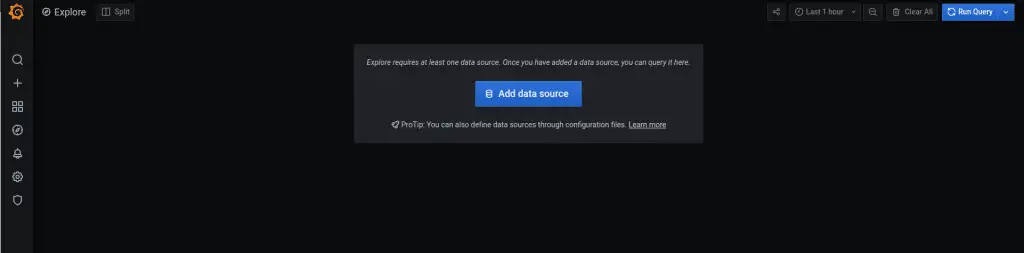
2. Click on Add data source then select Loki from the available options:

4. Input the following values for Loki:
Name: Loki
URL: http://127.0.0.1:3100
See below screenshot.

5. Click Save&Test. You should see a notification that the data source was added successfully.
Step 5 – Visualize Logs on Grafana with Loki
We can now visualize logs using Loki.
Click on Explore then select Loki at the Data source
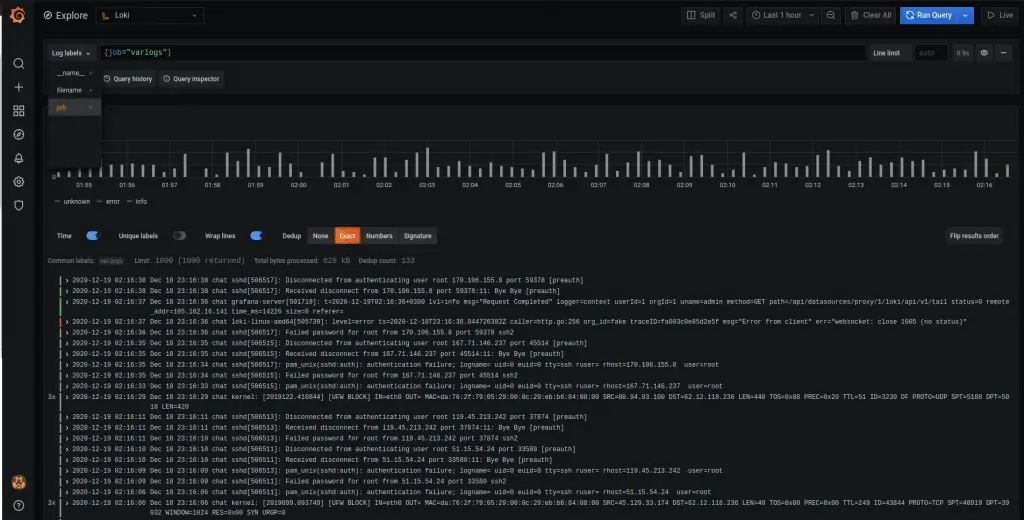
You can now easily visualize the logs by selecting the Log labels options.
Conclusion
We have successfully installed Grafana Loki with Promtail and have been able to visualize the logs on a Grafana dashboard.
Grafana Loki can use many more log forwarding tools other than Promtail, e.g FluentBit. You can also use Grafana Loki to monitor your Kubernetes cluster. Enjoy!

Thank you so much very well document..
We highly appreciate. Thank you!