

Apache Guacamole gives you browser-based access to your servers through RDP, VNC, SSH, Telnet, and even Kubernetes pods, all without installing a client on your local machine. It’s one of those tools that, once set up, makes you wonder why you ever bothered with standalone remote desktop apps.
Version 1.6.0 brings several improvements to the platform. This guide walks through a full production setup on Ubuntu 24.04 LTS: building guacamole-server from source with all five protocol backends, deploying the web application on Tomcat 10, wiring up MariaDB for authentication, and fronting it all with Nginx and a valid SSL certificate. If you need Debian instead, there’s a separate guide for installing Guacamole on Debian 13/12 (which handles the FreeRDP 3 differences).
Tested March 2026 on Ubuntu 24.04.4 LTS with Apache Guacamole 1.6.0, Tomcat 10.1.16, MariaDB 10.11.14, Nginx 1.24.0, FreeRDP 2.11.5
Prerequisites
Before starting, confirm you have the following ready:
- Ubuntu 24.04 LTS server with at least 2 GB of RAM
- Root or sudo access
- A domain or subdomain pointed to the server’s public IP (for SSL)
- Ports 80 and 443 open in the firewall
- Tested on: Ubuntu 24.04.4 LTS, Guacamole 1.6.0, Tomcat 10.1.16, MariaDB 10.11.14
Update the system packages first:
sudo apt update && sudo apt upgrade -yInstall Build Dependencies
Guacamole-server compiles from source and needs development libraries for each protocol it supports. Ubuntu 24.04 ships freerdp2-dev (FreeRDP 2.11.5), which is fully compatible with Guacamole 1.6.0. This is a real advantage over Debian 13, which ships FreeRDP 3 and requires extra work for RDP support.
Install everything in one shot:
sudo apt-get install -y build-essential libcairo2-dev libjpeg-turbo8-dev libpng-dev libtool-bin uuid-dev libossp-uuid-dev \
  libvncserver-dev freerdp2-dev libssh2-1-dev libssl-dev libtelnet-dev libpango1.0-dev libwebsockets-dev \
  libavcodec-dev libavformat-dev libavutil-dev libswscale-dev libvorbis-dev libwebp-dev libpulse-dev \
  tomcat10 mariadb-server nginx certbot tomcat-jakartaee-migration wget curl
This pulls in the build toolchain, protocol libraries (VNC, RDP, SSH, Telnet, Kubernetes), Tomcat 10 as the servlet container, MariaDB for database-backed authentication, Nginx for reverse proxying, and the Jakarta migration tool (needed because Tomcat 10 uses Jakarta EE instead of javax).
Build and Install guacamole-server
Download the 1.6.0 source tarball and extract it:
cd /tmp
wget https://downloads.apache.org/guacamole/1.6.0/source/guacamole-server-1.6.0.tar.gz
tar -xzf guacamole-server-1.6.0.tar.gz
cd guacamole-server-1.6.0
Run the configure script to detect available protocol support:
./configure --with-systemd-dir=/etc/systemd/system/At the end of the configure output, you should see all five protocols enabled:
   Protocol support:

      Kubernetes .... yes
      RDP ........... yes
      SSH ........... yes
      Telnet ........ yes
      VNC ........... yes
If any protocol shows “no,” you’re missing a development library. Go back and check the dependency list. With all five confirmed, compile and install:
make -j$(nproc)
sudo make install
Update the shared library cache so the system can find the newly installed libraries:
sudo ldconfigReload systemd and start the guacd daemon:
sudo systemctl daemon-reload
sudo systemctl enable --now guacd
Verify guacd is running on port 4822:
sudo systemctl status guacdThe output should show active (running) with guacd listening on its default port. If it fails to start, check /var/log/syslog for missing library errors.
Deploy the Guacamole Web Application
The web application is a single WAR file that runs inside Tomcat. Download it:
cd /tmp
wget https://downloads.apache.org/guacamole/1.6.0/binary/guacamole-1.6.0.war
Tomcat 10 on Ubuntu 24.04 uses the Jakarta EE namespace instead of the older javax namespace. The Guacamole WAR still uses javax internally, so it needs conversion. Without this step, you’ll get a blank page after login. The tomcat-jakartaee-migration package you installed earlier provides the conversion tool:
sudo javax2jakarta /tmp/guacamole-1.6.0.war /var/lib/tomcat10/webapps/guacamole.warRestart Tomcat to deploy the converted WAR:
sudo systemctl restart tomcat10Tomcat should unpack the WAR into /var/lib/tomcat10/webapps/guacamole/ within a few seconds.
Set Up MariaDB Database
While Guacamole can use a simple XML file for user management, a database backend is the way to go for production. It gives you user management through the web UI, connection grouping, and session history. MariaDB 10.11.14 ships with Ubuntu 24.04.
Start by creating the database and user:
sudo mysql -e "CREATE DATABASE guacamole_db CHARACTER SET utf8mb4;"
sudo mysql -e "CREATE USER 'guacamole_user'@'localhost' IDENTIFIED BY 'StrongPassword123!';"
sudo mysql -e "GRANT SELECT,INSERT,UPDATE,DELETE ON guacamole_db.* TO 'guacamole_user'@'localhost';"
sudo mysql -e "FLUSH PRIVILEGES;"
Replace StrongPassword123! with a real password. Next, download the JDBC authentication extension:
cd /tmp
wget https://downloads.apache.org/guacamole/1.6.0/binary/guacamole-auth-jdbc-1.6.0.tar.gz
tar -xzf guacamole-auth-jdbc-1.6.0.tar.gz
Import the MySQL schema into the database:
cat /tmp/guacamole-auth-jdbc-1.6.0/mysql/schema/*.sql | sudo mysql guacamole_dbCreate the Guacamole extensions directory and convert the JDBC JAR to Jakarta namespace:
sudo mkdir -p /etc/guacamole/extensions
sudo javax2jakarta /tmp/guacamole-auth-jdbc-1.6.0/mysql/guacamole-auth-jdbc-mysql-1.6.0.jar /etc/guacamole/extensions/guacamole-auth-jdbc-mysql-1.6.0.jar
The JDBC JAR also needs the javax-to-jakarta conversion because it runs inside Tomcat 10. Skipping this causes authentication failures.
Now download the MySQL Connector/J driver so Guacamole can talk to MariaDB:
sudo mkdir -p /etc/guacamole/lib
cd /tmp
wget https://dev.mysql.com/get/Downloads/Connector-J/mysql-connector-j-9.2.0.tar.gz
tar -xzf mysql-connector-j-9.2.0.tar.gz
sudo cp mysql-connector-j-9.2.0/mysql-connector-j-9.2.0.jar /etc/guacamole/lib/
MySQL Connector/J 9.2.0 works with both MySQL and MariaDB.
Configure guacamole.properties
Guacamole reads its main configuration from /etc/guacamole/guacamole.properties. This file tells the web application where to find guacd and which database to authenticate against.
echo "guacd-hostname: localhost
guacd-port: 4822
mysql-hostname: localhost
mysql-port: 3306
mysql-database: guacamole_db
mysql-username: guacamole_user
mysql-password: StrongPassword123!
mysql-auto-create-accounts: true" | sudo tee /etc/guacamole/guacamole.properties
Use the same password you set when creating the MariaDB user. Lock down the file permissions since it contains a database password:
sudo chmod 600 /etc/guacamole/guacamole.properties
sudo chown tomcat:tomcat /etc/guacamole/guacamole.properties
Link the Guacamole home directory so Tomcat can find it:
sudo ln -sf /etc/guacamole /var/lib/tomcat10/.guacamoleRestart Tomcat to pick up the new configuration:
sudo systemctl restart tomcat10At this point, Guacamole should be accessible on port 8080 via Tomcat directly. The next step adds Nginx with SSL in front of it.
Set Up Nginx Reverse Proxy with SSL
Running Guacamole behind Nginx with SSL gives you encrypted connections and lets you serve it on a clean URL without the /guacamole path suffix. Obtain a Let’s Encrypt certificate first:
sudo certbot certonly --standalone -d guacamole.computingforgeeks.com --non-interactive --agree-tos -m [email protected]Replace guacamole.computingforgeeks.com with your actual domain. Certbot needs port 80 free, so stop Nginx temporarily if it’s already running (sudo systemctl stop nginx) before running certbot.
Create the Nginx virtual host configuration:
sudo vi /etc/nginx/sites-available/guacamoleAdd the following configuration. The WebSocket headers are critical because Guacamole uses WebSocket for the remote desktop tunnel:
server {
    listen 443 ssl http2;
    server_name guacamole.computingforgeeks.com;

    ssl_certificate /etc/letsencrypt/live/guacamole.computingforgeeks.com/fullchain.pem;
    ssl_certificate_key /etc/letsencrypt/live/guacamole.computingforgeeks.com/privkey.pem;

    location / {
        proxy_pass http://127.0.0.1:8080/guacamole/;
        proxy_buffering off;
        proxy_http_version 1.1;
        proxy_set_header Host $host;
        proxy_set_header X-Real-IP $remote_addr;
        proxy_set_header X-Forwarded-For $proxy_add_x_forwarded_for;
        proxy_set_header X-Forwarded-Proto $scheme;
        proxy_set_header Upgrade $http_upgrade;
        proxy_set_header Connection $http_connection;
        proxy_cookie_path /guacamole/ /;
    }
}

server {
    listen 80;
    server_name guacamole.computingforgeeks.com;
    return 301 https://$host$request_uri;
}
Enable the site and test the configuration:
sudo ln -sf /etc/nginx/sites-available/guacamole /etc/nginx/sites-enabled/
sudo rm -f /etc/nginx/sites-enabled/default
sudo nginx -t
If the syntax test passes, start Nginx:
sudo systemctl enable --now nginxOpen the firewall for HTTPS traffic:
sudo ufw allow 80/tcp
sudo ufw allow 443/tcp
sudo ufw reload
Verify certificate auto-renewal is working:
sudo certbot renew --dry-runGuacamole is now accessible at https://guacamole.computingforgeeks.com.
Access the Web UI
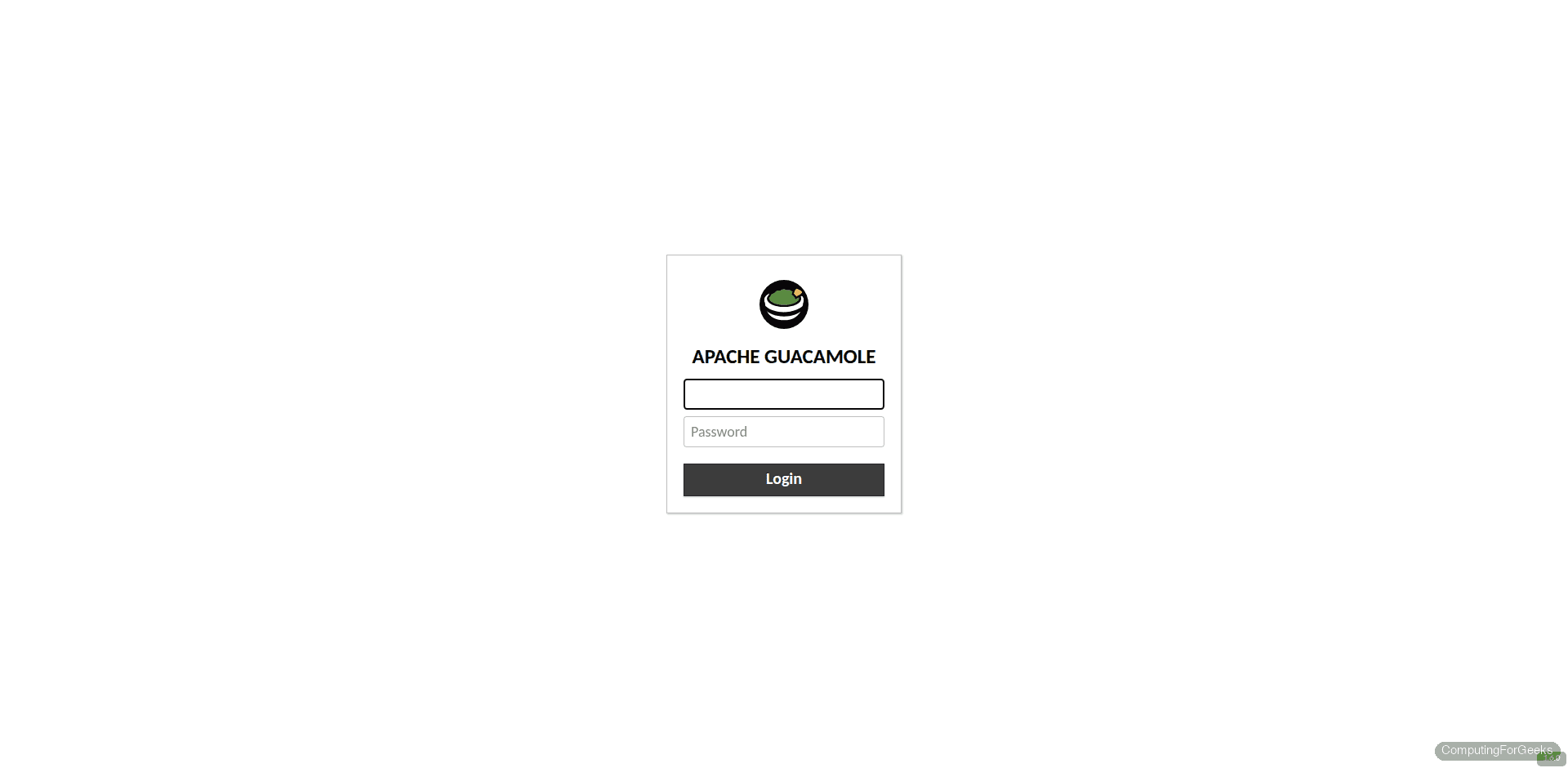
Open your browser and navigate to your domain. The default credentials are guacadmin for both username and password.
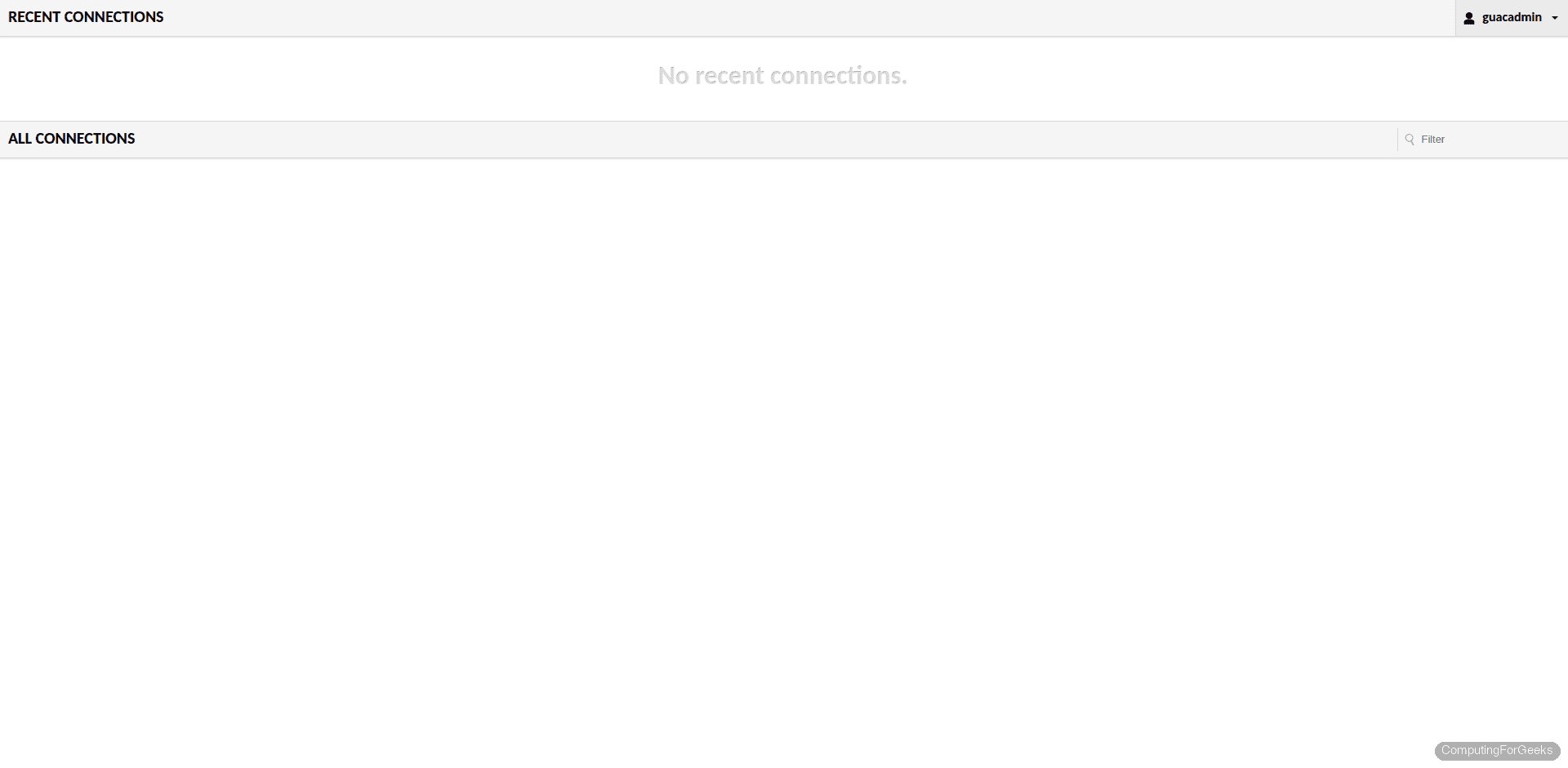
After logging in, you’ll land on the home dashboard. Since this is a fresh installation, the recent connections list will be empty:
Manage Connections and Users
Click the guacadmin username in the top-right corner, then select Settings to reach the administration panel:
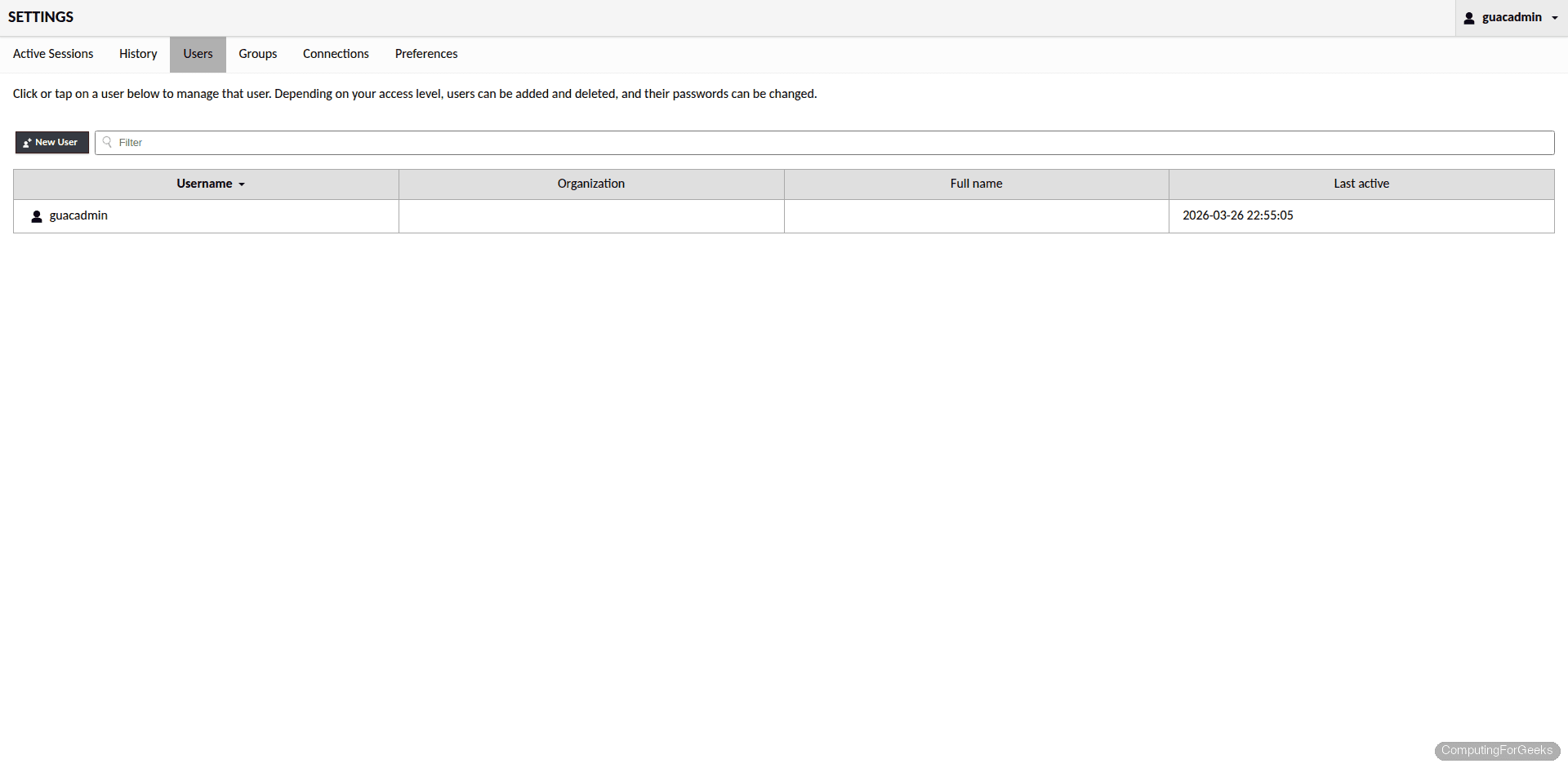
The Users tab shows all accounts in the system. From here you can create new users, assign them to connection groups, and control permissions:
To add a remote connection, go to Settings → Connections → New Connection. Select the protocol (RDP, VNC, SSH, Telnet, or Kubernetes), enter the target hostname and port, and provide credentials. All five protocols are fully functional on Ubuntu 24.04 since FreeRDP 2.11.5 is compatible with Guacamole 1.6.0. For SSH connections, you can paste your private key directly into the connection settings. For RDP, specify the target host’s IP, port 3389, and the Windows username and password.
Production Hardening
The default guacadmin account is a well-known target. Change its password immediately after your first login through Settings → Users → guacadmin → Change Password. Better yet, create a new admin user with a unique username and disable the default account entirely.
Restrict access to the administration panel by creating regular (non-admin) accounts for daily use. Only grant admin privileges to accounts that genuinely need to manage connections and users.
For two-factor authentication, download the TOTP extension and convert it to Jakarta namespace, same as the JDBC extension:
cd /tmp
wget https://downloads.apache.org/guacamole/1.6.0/binary/guacamole-auth-totp-1.6.0.tar.gz
tar -xzf guacamole-auth-totp-1.6.0.tar.gz
sudo javax2jakarta /tmp/guacamole-auth-totp-1.6.0/guacamole-auth-totp-1.6.0.jar /etc/guacamole/extensions/guacamole-auth-totp-1.6.0.jar
sudo systemctl restart tomcat10
After restarting Tomcat, the next login will prompt each user to scan a QR code with an authenticator app like Google Authenticator or Authy. This adds a significant layer of protection, especially if you’re exposing Guacamole to the internet.
Troubleshooting
Blank page after login on Tomcat 10
This is the most common issue. Tomcat 10 uses the Jakarta EE namespace (jakarta.servlet) while the Guacamole WAR and JDBC extension use the older javax.servlet namespace. If you deployed the WAR without running javax2jakarta on it, the application loads but every servlet call fails silently, resulting in a blank page. The fix is to convert both the WAR file and the JDBC extension JAR using the javax2jakarta tool, then restart Tomcat.
guacd fails to start
Check the logs for missing library errors:
sudo journalctl -u guacd -n 50 --no-pagerThe most common cause is a missing ldconfig run after make install. The guacd binary links against shared libraries installed to /usr/local/lib, and without updating the library cache, the dynamic linker can’t find them. Run sudo ldconfig and try starting guacd again.
WebSocket connection errors behind Nginx
If remote desktop connections fail with tunnel errors in the browser, the Nginx configuration is likely missing the WebSocket upgrade headers. Guacamole uses WebSocket for the display tunnel, and without the Upgrade and Connection headers being passed through, the connection falls back to HTTP polling (which is slower) or fails entirely. Confirm your Nginx config includes these lines in the location block:
proxy_set_header Upgrade $http_upgrade;
proxy_set_header Connection $http_connection;
The proxy_cookie_path /guacamole/ /; directive is equally important. Without it, session cookies won’t match the proxied path and you’ll be kicked back to the login page repeatedly. Reload Nginx after any configuration change with sudo systemctl reload nginx.
For additional configuration options including recording sessions, connecting to Kubernetes pods, and setting up failover, refer to the official Guacamole documentation.




Hi Admin
Thanks for this post.
In the case i want create more user (more than 2), how to do this.
Many Thanks
Hi Van
I think you can add another authorize block in user-mapping.xml file:
ssh
172.25.169.26
22
rdp
10.10.10.5
3389
tech
true
remmina-ppa-team is dead
Thanks this has been updated to remmina-next-daily
make command errors out. I am getting a VerifyCertificate is deprecated error. Looks like it has to do with freerdp2
I kept hitting this as well, it only worked when I DIDN’T use the custom remmina PPA and just installed freerdp2-dev freerdp2-x11 via apt.
Excellent write up!
Got me going in no time at all.
Awesome!
Thanks Man. Well documented than the Original Guacamole Docs. Am up and running
Awesome!
I Agree.
Josphat should submit this to the official documentation.
Thanks a bunch, great guide that actually works! Even an old swede got it right!
Grant:
The verify certicate error I solved iby adding the ignore errors option. 😀 lol but its working so far.
Thanks for the detailed one. How to make it SSL enabled?
We will try it out and update.
I get this error after doing this:
sudo chmod +x /opt/tomcat/tomcatapp/bin/*.sh
chmod: cannot access ‘/opt/tomcat/tomcatapp/bin/*.sh’: No such file or directory
nevermind, i logged in as root and worked.
Hey badteddy, this has been sorted out in the newly updated guide. Check it out.
Hi when I am at this step:
sudo systemctl start guacd
I get this:
Failed to start guacd.service: Unit guacd.service not found.
Hi, a little late to the post for which I apologise.
Regarding to guacd.service; try setting /etc/guacamole/guacamole.properties to guacd-hostname: 127.0.0.1
and creating a file in /etc/guacamole/guacd.conf
#
# guacd configuration file
#
[daemon]
pid_file = /var/run/guacd.pid
log_level = info
[server]
bind_host = 127.0.0.1
bind_port = 4822
Please also close the firewall to port 4822 in UFW (i.e. IGNORE the request above where it says “sudo ufw allow 4822/tcp”)
Same here :
sudo systemctl start guacd
sudo systemctl enable guacd
doesn’t work. When I do a “ls” command in /etc/init.d there is no guacd file.
Same thing in /guacamole-server-1.3.0/ folder.
I try the full install two times from sratch. Same issues…
Any suggestions please ?
Hey Mick, I can imagine your frustration. Check the updated guide and thanks for the feedback
No matter what, always ending here:
Failed to start guacd.service: Unit guacd.service not found.
Anyway great intro.
Check updated guide Emil. And we appreciate your feedback.
How come this version doesnt allow you to add connections via the web ui?
Username and password do not enter
Make sure the passwords you are keying in are the ones in the echo statement Eu e.g “echo -n StrongPassword | openssl md5”. Password is StrongPassword.
Solution:
In guacamole.properties file, replace user-mapping with basic-user-mapping.
Steps:
1- Open terminal, and run the following command:
sudo vim /etc/guacamole/guacamole.properties
2- Press A on your keyboard, to enter in Edit or Insertion mode.
3- Search user-mapping and replace with basic-user-mapping. Then it will look as follows, for example:
guacd-hostname: localhost
guacd-port: 4822
authprovider: net.sourceforge.guacamole.net.basic.BasicFileAuthenticationProvider
basic-user-mapping: /etc/guacamole/user-mapping.xml
4- Press Escape on your keyboard and write “:wq” (without quotes).
5- Press Enter to save and then exit.
6- Restart Tomcat and Guacamole, with the following command :
sudo systemctl restart tomcat guacd
Now try to login with your user and password !
http://127.0.0.1:8080/guacamole
Note here is an example of user-mapping.xml, (not for copy just for help you) :
ssh
127.0.0.1
22
Solution:
In guacamole.properties file, replace user-mapping with basic-user-mapping.
Steps:
1- Open terminal, and run the following command:
sudo vim /etc/guacamole/guacamole.properties
2- Press A on your keyboard, to enter in Edit or Insertion mode.
3- Search user-mapping and replace with basic-user-mapping. Then it will look as follows, for example:
guacd-hostname: localhost
guacd-port: 4822
authprovider: net.sourceforge.guacamole.net.basic.BasicFileAuthenticationProvider
basic-user-mapping: /etc/guacamole/user-mapping.xml
4- Press Escape on your keyboard and write “:wq” (without quotes).
5- Press Enter to save and then exit.
6- Restart Tomcat and Guacamole, with the following command :
sudo systemctl restart tomcat guacd
Now try to login with your user and password !
http://127.0.0.1:8080/guacamole
Note here is an example of user-mapping.xml, (not for copy just for help you) :
ssh
127.0.0.1
22
Solution, open guacamole.properties (located in /etc/guacamole) with any Text editor (vim, nano, gedit etc). Then replace user-mapping with basic-user-mapping . Save and close the file, then restart tomcat and guacamole with:
sudo systemctl restart tomcat guacd
Now you can login.
God bless you.
Open guacamole.properties file, then replace :
user-mapping to basic-user-mapping
Save the file, restart tomcat and guacd and now you will be able to login.
As of 2/28/2022, Tomcat 9.0.53 is no longer available at the location given in the instructions. The current version is 9.0.59. I made the changes in the commands to load this version, but now Tomcat will not run when I enter:
sudo systemctl enable –now tomcat
I get this error:
Job for tomcat.service failed because the control process exited with error code.
running systemctl status tomcat yields this result:
● tomcat.service – Tomcat 9 servlet container
Loaded: loaded (/etc/systemd/system/tomcat.service; enabled; vendor preset: enabled)
Active: failed (Result: exit-code) since Mon 2022-02-28 21:18:44 UTC; 5min ago
Process: 17443 ExecStart=/opt/tomcat/tomcatapp/bin/startup.sh (code=exited, status=0/SUCCESS)
Process: 17452 ExecStop=/opt/tomcat/tomcatapp/bin/shutdown.sh (code=exited, status=1/FAILURE)
Feb 28 21:18:44 ubuntu systemd[1]: Starting Tomcat 9 servlet container…
Feb 28 21:18:44 ubuntu startup.sh[17443]: Tomcat started.
Feb 28 21:18:44 ubuntu systemd[1]: tomcat.service: Control process exited, code=exited, status=1/FAILURE
Feb 28 21:18:44 ubuntu systemd[1]: tomcat.service: Failed with result ‘exit-code’.
Feb 28 21:18:44 ubuntu shutdown.sh[17452]: PID file found but either no matching process was found or the current user does not have>
Feb 28 21:18:44 ubuntu systemd[1]: Failed to start Tomcat 9 servlet container.
Since the version has changed, is there a change in dependencies that need to be addressed?
Check out updated guide Mark. We hope it will help you set it up now.
Hi, thanks for this.
You should never expose Port 4822 using UFW. You shouldn’t need to firewall rule at all.
“Keep in mind that port 4822 only needs to be accessible by the web application. You should not expose it publicly”
Thank You Bobby. This has been rectified..
How do I create or access the “Super User” that can add new users and groups etc in the GUI like the default “guacadmin” user in their documents. Seems like I cannot login with the guacadmin username if I follow these steps?
User mapping is done in /etc/guacamole/user-mapping.xml file
I think you need to use a different auth method like SQL, the default user-mapping doesn’t do it.
Hi Vexctor, we will look into covering this with Postgres soon. Thank you!
This is a great doc, nice and easy to follow with just enough meat (how, why, and where) in the middle to satisfy my need to understand, thanks!
Need an LDAP auth guide like this!
Thanks for the comment Vextor.
I followed this guide and everything looks alright. Services are running.
But, after logging in and trying to connect to a server i get
“An internal error has occurred within the Guacamole server, and the connection has been terminated. If the problem persists, please notify your system administrator, or check your system logs.”
There are no errors in syslog.
+1 any solution to this?
See updated article
/etc/guacamole/guacd.confsection. The restart the service.+1; appart from this – thanks for the well structured tutorial 🙂
See updated article
/etc/guacamole/guacd.confsection. The restart the service.The make pert is failing:
CCLD libguac_common.la
make[3]: Leaving directory ‘/home/chris/guacamole-server-1.4.0/src/common’
Making all in tests
make[3]: Entering directory ‘/home/chris/guacamole-server-1.4.0/src/common/tests’
make[3]: Nothing to be done for ‘all’.
make[3]: Leaving directory ‘/home/chris/guacamole-server-1.4.0/src/common/tests’
make[2]: Leaving directory ‘/home/chris/guacamole-server-1.4.0/src/common’
Making all in src/common-ssh
make[2]: Entering directory ‘/home/chris/guacamole-server-1.4.0/src/common-ssh’
Making all in .
make[3]: Entering directory ‘/home/chris/guacamole-server-1.4.0/src/common-ssh’
CC libguac_common_ssh_la-buffer.lo
CC libguac_common_ssh_la-dsa-compat.lo
CC libguac_common_ssh_la-rsa-compat.lo
CC libguac_common_ssh_la-sftp.lo
CC libguac_common_ssh_la-ssh.lo
CC libguac_common_ssh_la-key.lo
key.c: In function ‘guac_common_ssh_key_alloc’:
key.c:63:9: error: ‘PEM_read_bio_RSAPrivateKey’ is deprecated: Since OpenSSL 3.0 [-Werror=deprecated-declarations]
63 | rsa_key = PEM_read_bio_RSAPrivateKey(key_bio, NULL, NULL, passphrase);
| ^~~~~~~
In file included from key.c:33:
/usr/include/openssl/pem.h:447:1: note: declared here
447 | DECLARE_PEM_rw_cb_attr(OSSL_DEPRECATEDIN_3_0, RSAPrivateKey, RSA)
| ^~~~~~~~~~~~~~~~~~~~~~
key.c:79:9: error: ‘RSA_get0_key’ is deprecated: Since OpenSSL 3.0 [-Werror=deprecated-declarations]
79 | RSA_get0_key(rsa_key, &key_n, &key_e, NULL);
| ^~~~~~~~~~~~
In file included from common-ssh/rsa-compat.h:26,
from key.c:25:
/usr/include/openssl/rsa.h:217:28: note: declared here
217 | OSSL_DEPRECATEDIN_3_0 void RSA_get0_key(const RSA *r,
| ^~~~~~~~~~~~
key.c:105:9: error: ‘PEM_read_bio_DSAPrivateKey’ is deprecated: Since OpenSSL 3.0 [-Werror=deprecated-declarations]
105 | dsa_key = PEM_read_bio_DSAPrivateKey(key_bio, NULL, NULL, passphrase);
| ^~~~~~~
In file included from key.c:33:
/usr/include/openssl/pem.h:453:1: note: declared here
453 | DECLARE_PEM_rw_cb_attr(OSSL_DEPRECATEDIN_3_0, DSAPrivateKey, DSA)
| ^~~~~~~~~~~~~~~~~~~~~~
key.c:121:9: error: ‘DSA_get0_pqg’ is deprecated: Since OpenSSL 3.0 [-Werror=deprecated-declarations]
121 | DSA_get0_pqg(dsa_key, &key_p, &key_q, &key_g);
| ^~~~~~~~~~~~
In file included from common-ssh/dsa-compat.h:26,
from key.c:23:
/usr/include/openssl/dsa.h:201:28: note: declared here
201 | OSSL_DEPRECATEDIN_3_0 void DSA_get0_pqg(const DSA *d, const BIGNUM **p,
| ^~~~~~~~~~~~
key.c:122:9: error: ‘DSA_get0_key’ is deprecated: Since OpenSSL 3.0 [-Werror=deprecated-declarations]
122 | DSA_get0_key(dsa_key, &pub_key, NULL);
| ^~~~~~~~~~~~
In file included from common-ssh/dsa-compat.h:26,
from key.c:23:
/usr/include/openssl/dsa.h:204:28: note: declared here
204 | OSSL_DEPRECATEDIN_3_0 void DSA_get0_key(const DSA *d, const BIGNUM **pub_key,
| ^~~~~~~~~~~~
key.c: In function ‘guac_common_ssh_key_free’:
key.c:164:9: error: ‘RSA_free’ is deprecated: Since OpenSSL 3.0 [-Werror=deprecated-declarations]
164 | RSA_free(key->rsa);
| ^~~~~~~~
In file included from common-ssh/rsa-compat.h:26,
from key.c:25:
/usr/include/openssl/rsa.h:293:28: note: declared here
293 | OSSL_DEPRECATEDIN_3_0 void RSA_free(RSA *r);
| ^~~~~~~~
key.c:166:9: error: ‘DSA_free’ is deprecated: Since OpenSSL 3.0 [-Werror=deprecated-declarations]
166 | DSA_free(key->dsa);
| ^~~~~~~~
In file included from common-ssh/dsa-compat.h:26,
from key.c:23:
/usr/include/openssl/dsa.h:127:28: note: declared here
127 | OSSL_DEPRECATEDIN_3_0 void DSA_free(DSA *r);
| ^~~~~~~~
key.c: In function ‘guac_common_ssh_key_sign’:
key.c:202:13: error: ‘RSA_sign’ is deprecated: Since OpenSSL 3.0 [-Werror=deprecated-declarations]
202 | if (RSA_sign(NID_sha1, digest, dlen, sig, &len, key->rsa) == 1)
| ^~
In file included from common-ssh/rsa-compat.h:26,
from key.c:25:
/usr/include/openssl/rsa.h:348:27: note: declared here
348 | OSSL_DEPRECATEDIN_3_0 int RSA_sign(int type, const unsigned char *m,
| ^~~~~~~~
key.c:208:13: error: ‘DSA_do_sign’ is deprecated: Since OpenSSL 3.0 [-Werror=deprecated-declarations]
208 | DSA_SIG* dsa_sig = DSA_do_sign(digest, dlen, key->dsa);
| ^~~~~~~
In file included from common-ssh/dsa-compat.h:26,
from key.c:23:
/usr/include/openssl/dsa.h:113:32: note: declared here
113 | OSSL_DEPRECATEDIN_3_0 DSA_SIG *DSA_do_sign(const unsigned char *dgst, int dlen,
| ^~~~~~~~~~~
cc1: all warnings being treated as errors
make[3]: *** [Makefile:590: libguac_common_ssh_la-key.lo] Error 1
make[3]: Leaving directory ‘/home/chris/guacamole-server-1.4.0/src/common-ssh’
make[2]: *** [Makefile:616: all-recursive] Error 1
make[2]: Leaving directory ‘/home/chris/guacamole-server-1.4.0/src/common-ssh’
make[1]: *** [Makefile:536: all-recursive] Error 1
make[1]: Leaving directory ‘/home/chris/guacamole-server-1.4.0’
make: *** [Makefile:458: all] Error 2
We are checking this out Christian. Thanks for your awesome feedback..
Hi John
I get the following error after….
$sudo systemctl enable –now tomcat
Failed to enable unit: “multi-user.targetWantedBy=multi-user.target” is not a valid unit name.
can you please tell me what im doing wrong? new to vim, prefer nano.
Hi John
got past the systemd file problem,was a typo in VIM… now not able to start guacd after $make
see these errors after executing $make
cc1: all warnings being treated as errors
make[3]: *** [Makefile:590: libguac_common_ssh_la-key.lo] Error 1
make[3]: Leaving directory ‘/home/pauls/guacamole-server-1.4.0/src/common-ssh’
make[2]: *** [Makefile:616: all-recursive] Error 1
make[2]: Leaving directory ‘/home/pauls/guacamole-server-1.4.0/src/common-ssh’
make[1]: *** [Makefile:536: all-recursive] Error 1
make[1]: Leaving directory ‘/home/pauls/guacamole-server-1.4.0’
make: *** [Makefile:458: all] Error 2
help pl;ease
Hi Kibet
guacamole directory not found (404)
root@$:/opt/tomcat/tomcatapp# ls /opt/tomcat/tomcatapp/.guacamole
guacamole.properties guacamole.war user-mapping.xml
root@$:/opt/tomcat/tomcatapp#
Any idea?
Check if you missed a step in the guide.
thanks for an article, it helped me a lot
Glad to hear. Thanks!
Guide works perfect for the installation (I just changed Guacamole server and client versions in the guide from 1.4.0 to 1.5.0.)
However, when i log in with one of the users from the xml file, they are not admins. Is there an option to specify admin users? How am I supposed to use the GUI to add more servers with these read-only users?
Great thanks for updates on new release we updated the guide as well to reflect the same.
Does this support websocket connection, I noticed libwebsocket was omitted (“No”). Otherwise Guacamole will fall back to http polling which is slower/more traffic.
Works well with a connection to a Linux box, but not so much with Windows
I get the following error :
RDP server closed/refused connection: Security negotiation failed (wrong security type?
I read this article: https://kifarunix.com/install-guacamole-on-debian-11/#fix-rdp-security-negotiation-failed
But this step : sed -i ‘s/daemon/guacd/’ /etc/systemd/system/guacd.service
Doesn’t work, as it can’t find the service.
Any suggestion ?
Tks
Works well with a connection to a Linux box, but not so much with Windows
I get the following error :
server closed/refused connection: Security negotiation failed (wrong security type?
I read this article: https://kifarunix.com/install-guacamole-on-debian-11/#fix-rdp-security-negotiation-failed
But this step : sed -i ‘s/daemon/guacd/’ /etc/systemd/system/guacd.service
Doesn’t work, as it can’t find the service.
Any suggestion ?
Tks
Save days of pain and drama and check out this new automated menu driven Gucamole installer recently released that suppports the latest 1.5.1.
It also allows you to add an Nginx proxy layer in front as well as adding self signed SSL or Lets Encrypt SSL for a public facing deployment. Database backups, email alerts and Active Directory, OTP, Duo 2FA , even remote SQL database are all install options too.
There is also an upgrade script for earier versions.
https://github.com/itiligent/Guacamole-Setup
Thanks for your insights.
Thanks for the guide, works well. But how do i get the admin panel ?this doesnt show the full menu , which you can see in https://hub.docker.com/r/jwetzell/guacamole
Hey Sam, you need to use a different authentication method, either mysql or mariadb. You can follow the steps in this article for basic instructions, although the article uses old versions of guacamole and sql connector, so you will need to modify the instructions to use the latest versions
https://www.linode.com/docs/guides/installing-apache-guacamole-on-ubuntu-and-debian/
A FAR easier way is to use this up to date menu driven installer project:
https://github.com/itiligent/Guacamole-Setup
In 3 minutes you’ll have Guacamole, a front end Nginx proxy with SSL (public with LetsEncrypt or private self signed) , mutli-factor auth and even Active Directory intergration with database backup tasks and MSO365 email alerting all built from latest source.
Great article Kibet! Really simplified my installation. I’d recommend changing the user authentication in the article to use mysql or mariadb to allow superuser access. You can copy inspiration from this article
https://www.linode.com/docs/guides/installing-apache-guacamole-on-ubuntu-and-debian/