

Pritunl is an open-source VPN server that gives you a clean web interface for managing OpenVPN and WireGuard connections. It replaces expensive commercial VPN products like Pulse Secure or Aviatrix with a self-hosted solution that supports multi-cloud peering, two-factor authentication, and scales to thousands of concurrent users. Pritunl stores its configuration in MongoDB, making replication and high availability straightforward.
This guide walks through installing Pritunl VPN server on Ubuntu 24.04 and Ubuntu 22.04, configuring the web UI, creating organizations and users, setting up a VPN server, and connecting clients. All commands have been verified against the official Pritunl documentation.
Prerequisites
- A server running Ubuntu 24.04 LTS or Ubuntu 22.04 LTS with at least 1GB RAM and 1 vCPU
- Root or sudo access
- A public IP address or domain name pointing to the server
- Ports 443 (TCP) and 80 (TCP) open for the web interface
- A UDP port for VPN traffic (default: random, configurable during server creation)
Step 1: Update the System
Start by updating the package index and upgrading installed packages.
sudo apt update && sudo apt -y full-upgradeReboot if a kernel update was applied.
[ -f /var/run/reboot-required ] && sudo reboot -fStep 2: Add MongoDB and Pritunl Repositories
Pritunl uses MongoDB as its backend database. Both MongoDB and Pritunl have their own APT repositories that need to be added. The commands below use $(lsb_release -cs) to automatically detect your Ubuntu release codename (noble for 24.04, jammy for 22.04).
Add the MongoDB 8.0 repository.
echo "deb [ signed-by=/usr/share/keyrings/mongodb-server-8.0.gpg ] https://repo.mongodb.org/apt/ubuntu $(lsb_release -cs)/mongodb-org/8.0 multiverse" | sudo tee /etc/apt/sources.list.d/mongodb-org.listAdd the OpenVPN repository for the latest stable OpenVPN builds.
echo "deb [ signed-by=/usr/share/keyrings/openvpn-repo.gpg ] https://build.openvpn.net/debian/openvpn/stable $(lsb_release -cs) main" | sudo tee /etc/apt/sources.list.d/openvpn.listAdd the Pritunl repository.
echo "deb [ signed-by=/usr/share/keyrings/pritunl.gpg ] https://repo.pritunl.com/stable/apt $(lsb_release -cs) main" | sudo tee /etc/apt/sources.list.d/pritunl.listImport GPG Keys
Import the signing keys for all three repositories so APT can verify package integrity.
sudo apt --assume-yes install gnupgcurl -fsSL https://www.mongodb.org/static/pgp/server-8.0.asc | sudo gpg -o /usr/share/keyrings/mongodb-server-8.0.gpg --dearmor --yes
curl -fsSL https://swupdate.openvpn.net/repos/repo-public.gpg | sudo gpg -o /usr/share/keyrings/openvpn-repo.gpg --dearmor --yes
curl -fsSL https://raw.githubusercontent.com/pritunl/pgp/master/pritunl_repo_pub.asc | sudo gpg -o /usr/share/keyrings/pritunl.gpg --dearmor --yesUpdate the package index to pull metadata from the newly added repositories.
sudo apt updateStep 3: Install Pritunl VPN and MongoDB
Install Pritunl, OpenVPN, MongoDB, and WireGuard tools in a single command.
sudo apt --assume-yes install pritunl openvpn mongodb-org wireguard wireguard-toolsThis installs the Pritunl server daemon, OpenVPN for traditional VPN tunnels, MongoDB for configuration storage, and WireGuard for faster VPN connections.
Step 4: Enable and Start Services
Enable both MongoDB and Pritunl to start on boot, then start them immediately.
sudo systemctl enable --now mongod pritunlVerify that both services are running.
systemctl status mongod --no-pagerMongoDB should show active (running) in the output:
● mongod.service - MongoDB Database Server
     Loaded: loaded (/usr/lib/systemd/system/mongod.service; enabled; preset: enabled)
     Active: active (running)
Check the Pritunl service status.
systemctl status pritunl --no-pagerPritunl should also show active (running):
● pritunl.service - Pritunl Daemon
     Loaded: loaded (/usr/lib/systemd/system/pritunl.service; enabled; preset: enabled)
     Active: active (running)
Step 5: Get the Setup Key
Pritunl requires a one-time setup key to link the web UI to the server. Generate it with this command.
sudo pritunl setup-keyThe command outputs a key string that you will paste into the web interface:
c76683c87efe4774887a9a223a2f1fd6Copy this key – you will need it in the next step.
Step 6: Configure Pritunl via Web UI
Open your browser and navigate to https://your-server-ip. You will see a certificate warning since Pritunl uses a self-signed certificate by default – accept it to proceed. The initial setup page asks for two things: the setup key and the MongoDB URI.

Paste the setup key you generated earlier. Leave the MongoDB URI as the default mongodb://localhost:27017/pritunl unless you are using a remote MongoDB instance. Click Save.
Get Default Login Credentials
After saving the setup key, you will see a login page. The default username is pritunl. Get the default password by running this command on the server.
sudo pritunl default-passwordThe output shows the default credentials:
[undefined][INFO] Getting default administrator password
Administrator default password:
  username: "pritunl"
  password: "xGupSTJtdiJ8"
Log in with these credentials. You will immediately see a dialog to change your password and set the server’s public address. Enter a strong password and your server’s public IP or domain name, then click Save.

Step 7: Create an Organization and Users
Pritunl organizes VPN users into organizations. You need at least one organization before you can add users.
Click on the Users tab. You will be prompted to create an organization first.

Click Add Organization, give it a name (for example, “Engineering” or your company name), and click Add.

With the organization created, click Add User. Enter a name and optionally an email address, then click Add.

The user now appears under the organization. You can add more users as needed, or use Bulk Add User to add multiple users at once.

Step 8: Create a VPN Server and Attach Organization
Click on the Servers tab, then click Add Server. Provide a name for the VPN server. The default settings work for most deployments – Pritunl picks a random port and assigns a VPN subnet automatically. You can customize the port, protocol (UDP or TCP), and network range as needed.
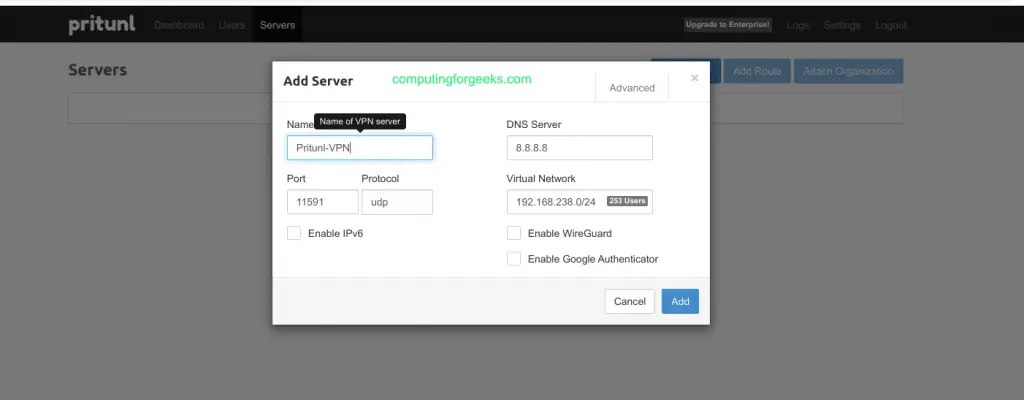
After the server is created, you need to attach at least one organization to it. Click Attach Organization, select the organization you created earlier, and confirm.

Start the VPN Server
Click the Start Server button. Pritunl generates the certificates, configures OpenVPN/WireGuard, and starts listening for client connections. The server status changes to Online when ready. Note the port number shown – you will need it for the firewall configuration.
Step 9: Configure UFW Firewall for Pritunl
If UFW is active on your server, you need to allow the Pritunl web interface and VPN traffic through. The web UI runs on port 443 (HTTPS), and the VPN server uses a UDP port that you configured (or that Pritunl assigned randomly).
sudo ufw allow 443/tcp comment 'Pritunl Web UI'
sudo ufw allow 80/tcp comment 'HTTP redirect / LetsEncrypt'
Allow the VPN port. Replace 18443 with the actual port your Pritunl server uses (check the Servers tab in the web UI for the assigned port).
sudo ufw allow 18443/udp comment 'Pritunl VPN'If UFW is not yet enabled, enable it now.
sudo ufw enableVerify the firewall rules are in place.
sudo ufw status verboseThe output should list your allowed ports:
Status: active

To                         Action      From
--                         ------      ----
443/tcp                    ALLOW       Anywhere          # Pritunl Web UI
80/tcp                     ALLOW       Anywhere          # HTTP redirect / LetsEncrypt
18443/udp                  ALLOW       Anywhere          # Pritunl VPN
If you use a cloud provider (AWS, GCP, Azure), also open these ports in the cloud security group or network firewall rules.
Step 10: Download Client Profile and Connect
Go back to the Users tab in the Pritunl web interface. Next to each user, there is a download icon. Click it to download the user’s profile (.ovpn file for OpenVPN or a profile URI for WireGuard).

Pritunl provides official clients for all major platforms. Download the client for your operating system from the Pritunl client download page.
Connect from a Linux Client
On Ubuntu or Debian clients, install the Pritunl client.
echo "deb [ signed-by=/usr/share/keyrings/pritunl.gpg ] https://repo.pritunl.com/stable/apt $(lsb_release -cs) main" | sudo tee /etc/apt/sources.list.d/pritunl.list
curl -fsSL https://raw.githubusercontent.com/pritunl/pgp/master/pritunl_repo_pub.asc | sudo gpg -o /usr/share/keyrings/pritunl.gpg --dearmor --yes
sudo apt update
sudo apt install pritunl-client-electron
Open the Pritunl client application, click Import Profile, and select the .ovpn file you downloaded. Click Connect to establish the VPN tunnel.
You can also connect from the command line using OpenVPN directly. Transfer the .ovpn profile to your client machine and run this command.
sudo openvpn --config user_profile.ovpnVerify the VPN Connection
Once connected, verify that traffic is routed through the VPN tunnel by checking your public IP.
curl -s ifconfig.meThe returned IP should match your Pritunl server’s public IP, confirming the VPN tunnel is active.
You can also check the tunnel interface on the client.
ip addr show tun0The tun0 interface should have an IP address from the VPN subnet you configured on the server (default is 10.x.x.x range).
Step 11: Optional – Set Up Let’s Encrypt SSL
Pritunl has built-in Let’s Encrypt support. To enable it, go to Settings in the web UI, enter your domain name in the Lets Encrypt Domain field, and click Save. Pritunl automatically requests and renews the certificate. Port 80 must be open and reachable for the ACME challenge to work.
Alternatively, set the Let’s Encrypt domain from the command line.
sudo pritunl set app.acme_domain vpn.example.comPritunl VPN Ports Reference
| Port | Protocol | Purpose |
|---|---|---|
| 443 | TCP | Pritunl web interface (HTTPS) |
| 80 | TCP | HTTP redirect and Let’s Encrypt ACME |
| VPN port | UDP (default) | OpenVPN/WireGuard client connections |
Conclusion
You now have a working Pritunl VPN server on Ubuntu 24.04 or 22.04 with MongoDB, OpenVPN, and WireGuard support. Users can connect using the Pritunl client or any standard OpenVPN client with the downloaded profile. For production deployments, consider enabling Pritunl on additional servers for high availability, setting up Let’s Encrypt for proper SSL, enabling two-factor authentication, and running MongoDB as a replica set for database redundancy.






Hi!
Thank you for the article. I try it to do in my Ubuntu 20.04.4 LTS (Focal Fossa) and have some trouble. So first of all – now mongoDb used version 5.x and I found correct key
My commands for install
sudo apt update
sudo apt-get -y upgrade
echo “deb http://repo.pritunl.com/stable/apt focal main” | sudo tee /etc/apt/sources.list.d/pritunl.list
echo “deb [ arch=amd64,arm64 ] https://repo.mongodb.org/apt/ubuntu focal/mongodb-org/5.0 multiverse” | sudo tee /etc/apt/sources.list.d/mongodb-org-5.0.list
sudo apt-get install curl
curl -fsSL https://www.mongodb.org/static/pgp/server-5.0.asc | sudo apt-key add –
sudo apt-key adv –keyserver hkp://keyserver.ubuntu.com –recv B00A0BD1E2C63C11
sudo apt-key adv –keyserver keyserver.ubuntu.com –recv-keys 7AE645C0CF8E292A
sudo apt update
sudo apt install mongodb-org
sudo apt install pritunl
sudo systemctl start mongod
sudo systemctl start pritunl
sudo pritunl setup-key
sudo pritunl default-password
Thanks Alex we’ve updated the guide with correct APT key and MongoDB 5.0 repo.