

Setting up your own mail server gives you full control over email privacy, storage, and delivery. iRedMail bundles Postfix, Dovecot, SpamAssassin, ClamAV, Roundcube, SOGo, and iRedAdmin into a single installer that configures everything in about 15 minutes. This guide walks through a tested, end-to-end deployment on Ubuntu with PostgreSQL as the backend, DKIM/SPF/DMARC for authentication, and Let’s Encrypt SSL.
Tested March 2026 on Ubuntu 24.04 LTS (PostgreSQL 16.13, Postfix 3.8.6, Dovecot 2.3.21, Nginx 1.24.0, PHP 8.3.6) and Ubuntu 22.04 LTS (PostgreSQL 14.22, Postfix 3.6.4, Dovecot 2.3.16, Nginx 1.18.0, PHP 8.1.2). iRedMail 1.7.4.
iRedMail works on both Ubuntu 24.04 and 22.04 with identical steps. The main difference is the package versions shipped with each release. Ubuntu 24.04 includes PostgreSQL 16, PHP 8.3, and Nginx 1.24, while 22.04 ships with PostgreSQL 14, PHP 8.1, and Nginx 1.18. The installer handles these differences automatically. If you need iRedMail on RHEL-based systems, see our Rocky Linux / AlmaLinux guide or the Debian installation guide.
Prerequisites
- A fresh Ubuntu 24.04 or 22.04 server (no existing mail services installed)
- Minimum 4 GB RAM (ClamAV and SpamAssassin are memory-hungry)
- A domain name with DNS control (for MX, SPF, DKIM, DMARC records)
- Port 25 open outbound (many cloud providers block this by default, check with your provider)
- UIDs 2000, 2001, 2002 must be available (the installer creates system users with these IDs)
- A PTR (reverse DNS) record for your server IP pointing to your mail hostname. Without this, most email providers will reject or flag your messages
Update the System and Set the Hostname
iRedMail requires a fully qualified domain name (FQDN) as the hostname. This must be set before running the installer.
Update packages first:
sudo apt update && sudo apt upgrade -ySet the hostname to your mail server’s FQDN:
sudo hostnamectl set-hostname mail.example.comAdd the hostname mapping to /etc/hosts. Replace 192.168.1.50 with your server’s actual IP:
echo "192.168.1.50 mail.example.com mail" | sudo tee -a /etc/hostsVerify the hostname resolves correctly:
hostname -fThe output should return your FQDN:
mail.example.comInstall the required prerequisites:
sudo apt install -y gzip dialog wgetDownload and Extract iRedMail
Grab the latest release from GitHub. The version detection command below pulls the latest tag automatically:
VER=$(curl -sL https://api.github.com/repos/iredmail/iRedMail/releases/latest | grep tag_name | head -1 | sed 's/.*"\([^"]*\)".*/\1/')
echo "Latest iRedMail version: $VER"
You should see the current version number confirmed:
Latest iRedMail version: 1.7.4Download and extract it:
cd /root
wget -q "https://github.com/iredmail/iRedMail/archive/refs/tags/${VER}.tar.gz" -O iredmail-${VER}.tar.gz
tar xzf iredmail-${VER}.tar.gz
cd iRedMail-${VER}
Run the iRedMail Installer
Launch the interactive installer as root:
sudo bash iRedMail.shThe installer uses a text-based wizard that walks you through each configuration step. Here’s what to select at each screen:
Mail storage path
Accept the default /var/vmail. All mailboxes, sieve filters, and backup files go here. Make sure this partition has enough space for your expected mail volume.
Web server selection
Choose Nginx. It handles Roundcube, SOGo, iRedAdmin, and netdata through reverse proxy and uwsgi.
Database backend
Pick whichever you’re most comfortable maintaining. All three options (OpenLDAP, MariaDB, PostgreSQL) deliver the same mail features. This guide uses PostgreSQL.
First mail domain
Enter your domain name (for example, example.com). This is the domain portion of email addresses, not the server hostname. If your hostname is mail.example.com, your first mail domain is example.com.
Admin password
Set a strong password for the [email protected] account. This account serves as both the admin login and the first mailbox.
Optional components
The installer presents a checklist of optional components. For a full-featured setup, enable all of them:
- Roundcube: Lightweight webmail client with a clean interface
- SOGo: Groupware with calendar, contacts, and ActiveSync support for mobile devices
- netdata: Real-time server monitoring dashboard
- iRedAdmin: Web-based admin panel for managing domains and mailboxes
- Fail2ban: Intrusion prevention that blocks brute-force login attempts
After confirming your choices, the installer downloads all packages, configures the database, sets up Postfix, Dovecot, Amavisd, ClamAV, SpamAssassin, Nginx, and every other component. This takes 10 to 15 minutes depending on your server speed and network bandwidth.
When prompted about firewall rules, accept the defaults. The installer generates an nftables ruleset that opens only the required ports (SSH, HTTP, HTTPS, SMTP, IMAP, POP3, submission).
Reboot when the installer finishes:
sudo rebootVerify Services After Reboot
After the server comes back up, check that all critical services are running:
sudo systemctl is-active postfix dovecot nginx postgresql clamav-daemon amavis sogo fail2banEvery line should show active:
active
active
active
active
active
active
active
active
Confirm the mail-related ports are listening:
sudo ss -tlnp | grep -E ':25|:587|:993|:995|:443|:80|:143|:110'You should see Postfix listening on ports 25 and 587, Dovecot on 993/995/143/110, and Nginx on 80/443.
Configure SSL with Let’s Encrypt
iRedMail generates a self-signed certificate during installation. Replace it with a trusted Let’s Encrypt certificate so email clients and web browsers don’t complain about certificate errors.
Install certbot:
sudo apt install -y certbotStop Nginx temporarily so certbot can use port 80 for the HTTP-01 challenge:
sudo systemctl stop nginx
sudo certbot certonly --standalone -d mail.example.com --non-interactive --agree-tos -m [email protected]
Certbot confirms the certificate was issued:
Successfully received certificate.
Certificate is saved at: /etc/letsencrypt/live/mail.example.com/fullchain.pem
Key is saved at:         /etc/letsencrypt/live/mail.example.com/privkey.pem
Replace the self-signed certificates with symlinks to the Let’s Encrypt files. iRedMail’s Nginx, Postfix, and Dovecot configs all reference /etc/ssl/certs/iRedMail.crt and /etc/ssl/private/iRedMail.key, so this single change updates everything:
sudo ln -sf /etc/letsencrypt/live/mail.example.com/fullchain.pem /etc/ssl/certs/iRedMail.crt
sudo ln -sf /etc/letsencrypt/live/mail.example.com/privkey.pem /etc/ssl/private/iRedMail.key
Restart the services to load the new certificate:
sudo systemctl restart nginx postfix dovecotVerify the certificate auto-renewal is configured:
sudo certbot renew --dry-runSet Up DNS Records
Email authentication relies on several DNS records. Without these, receiving mail servers will reject or spam-folder your messages. Configure all of these in your domain’s DNS management panel.
A record
Point your mail hostname to the server IP:
mail.example.com. IN A 192.168.1.50MX record
Tell the world where to deliver email for your domain:
example.com. IN MX 10 mail.example.com.SPF record
Declare which servers are authorized to send email for your domain:
example.com. IN TXT "v=spf1 mx ip4:192.168.1.50 -all"DKIM record
iRedMail generates a DKIM signing key automatically. Retrieve it with:
sudo amavisd showkeysThe output shows the DNS TXT record you need to create. It looks like this:
; key#1 2048 bits, s=dkim, d=example.com, /var/lib/dkim/example.com.pem
dkim._domainkey.example.com.  3600 TXT (
  "v=DKIM1; p="
  "MIIBIjANBgkqhkiG9w0BAQEFAAOCAQ8AMIIBCgKCAQEAs4DQld+c1V4..."
  "...HQIDAQAB")
Create a TXT record for dkim._domainkey.example.com with the full key value (combine all the quoted strings into one). After adding the DNS record, verify DKIM works:
sudo amavisd testkeysA passing test looks like this:
TESTING#1 example.com: dkim._domainkey.example.com => passDMARC record
DMARC tells receiving servers what to do when SPF or DKIM checks fail:
_dmarc.example.com. IN TXT "v=DMARC1; p=reject; rua=mailto:[email protected]"Start with p=none while testing, then switch to p=reject once you’ve confirmed deliverability.
PTR record (reverse DNS)
The PTR record for your server’s IP must point back to mail.example.com. This is configured at your hosting provider’s control panel (not in your domain’s DNS). Gmail, Outlook, and most enterprise mail servers check the PTR record and will reject mail from servers without one.
Access the Web Interfaces
iRedMail installs three web applications, all accessible over HTTPS. Log in with the [email protected] account and the admin password you set during installation.
iRedAdmin (admin panel)
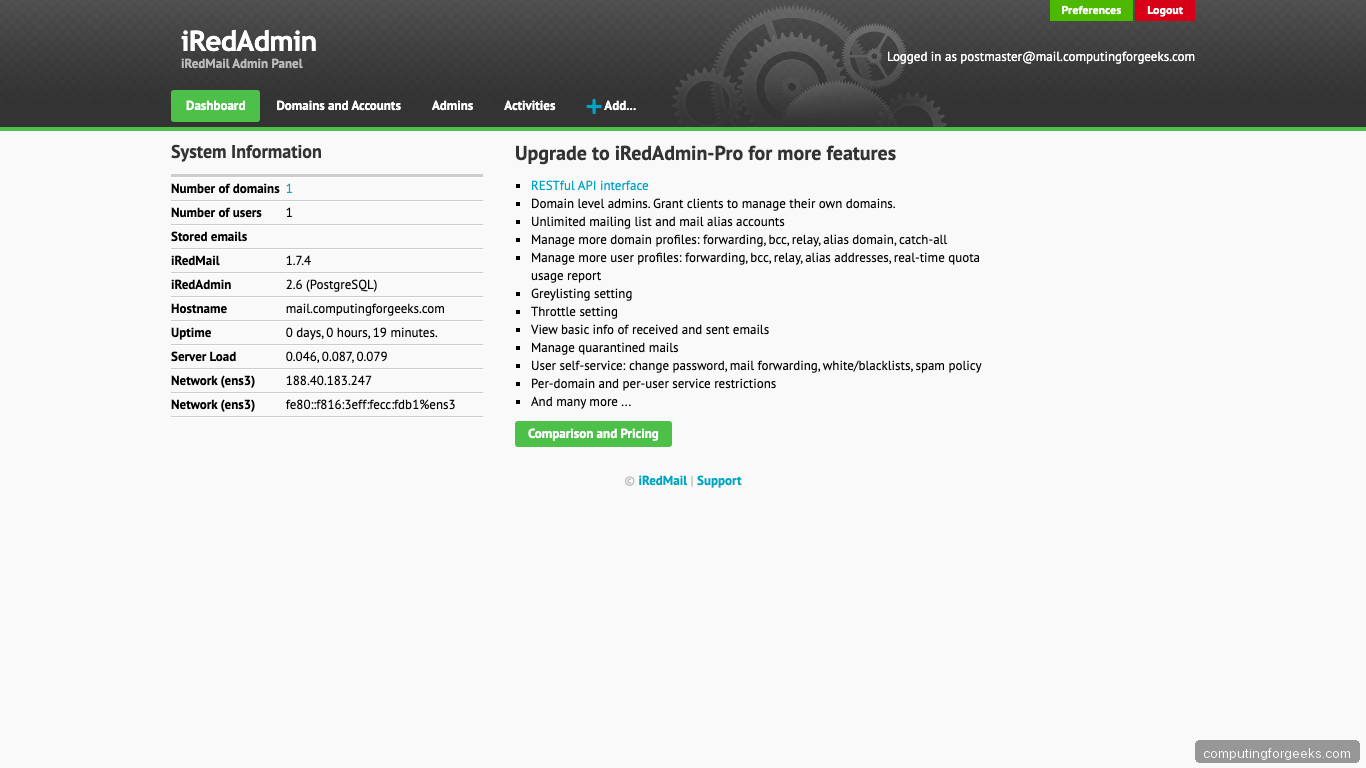
Access the admin panel at https://mail.example.com/iredadmin/. From here you can manage domains, create mailboxes, set aliases, and view server system information.
Roundcube (webmail)
Roundcube webmail is at https://mail.example.com/mail/. It provides a fast, lightweight interface for reading and composing email.
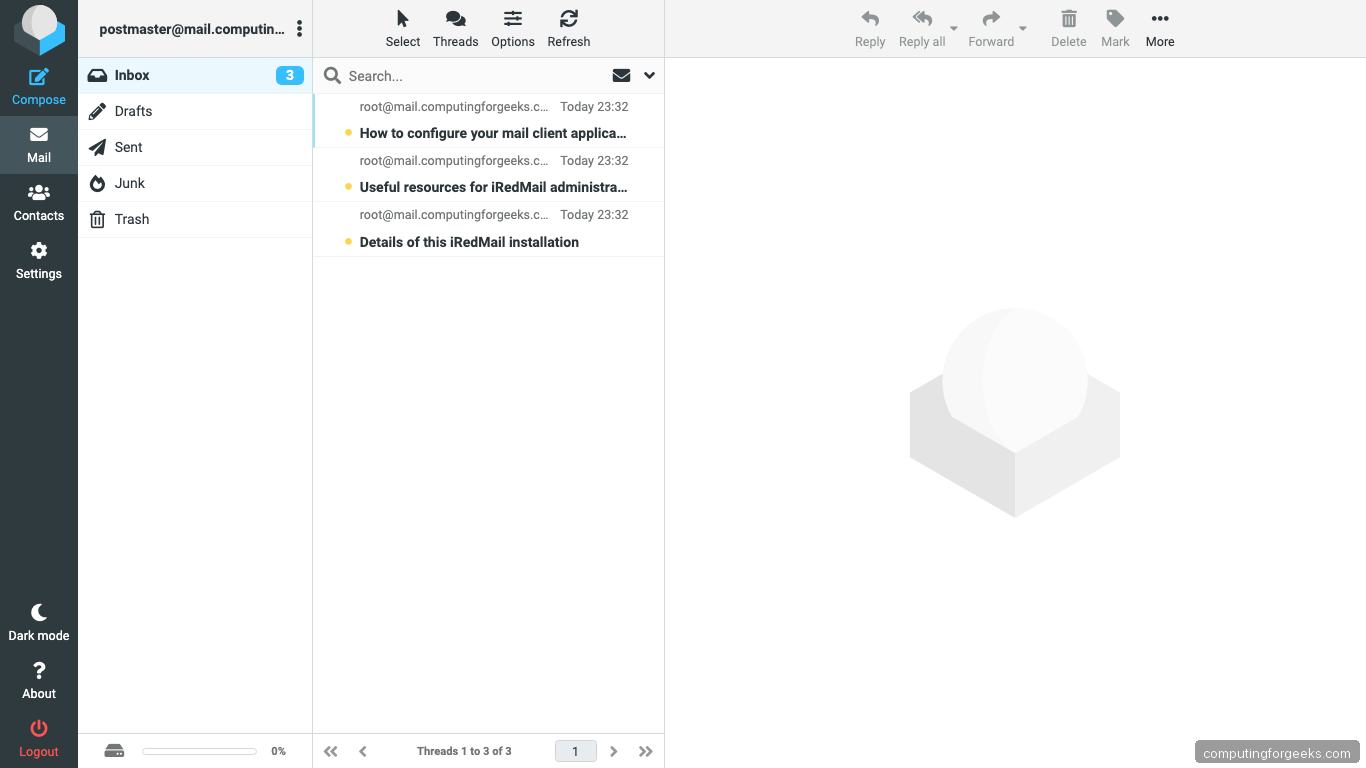
After logging in, you’ll see the inbox with any system emails from the iRedMail installation:
SOGo (groupware)
SOGo is available at https://mail.example.com/SOGo/. It includes a calendar, address book, and ActiveSync support for syncing with mobile devices. If you only need basic webmail, Roundcube is sufficient and lighter on resources.
Open Firewall Ports
The iRedMail installer configures nftables with the correct rules. If you’re using ufw instead, open the required ports manually:
sudo ufw allow 25/tcp
sudo ufw allow 587/tcp
sudo ufw allow 993/tcp
sudo ufw allow 995/tcp
sudo ufw allow 143/tcp
sudo ufw allow 110/tcp
sudo ufw allow 80/tcp
sudo ufw allow 443/tcp
Here’s what each port does:
- 25: SMTP (server-to-server mail delivery)
- 587: Submission (authenticated client mail sending, STARTTLS)
- 993: IMAPS (encrypted IMAP for email clients)
- 995: POP3S (encrypted POP3)
- 143/110: IMAP/POP3 (unencrypted, STARTTLS available)
- 80/443: HTTP/HTTPS (webmail and admin panel)
Ubuntu 24.04 vs 22.04 Differences
Both Ubuntu LTS releases install and run iRedMail 1.7.4 identically. The only differences are the underlying package versions:
| Component | Ubuntu 24.04 | Ubuntu 22.04 |
|---|---|---|
| PostgreSQL | 16.13 | 14.22 |
| Postfix | 3.8.6 | 3.6.4 |
| Dovecot | 2.3.21 | 2.3.16 |
| Nginx | 1.24.0 | 1.18.0 |
| PHP | 8.3.6 | 8.1.2 |
| Roundcube | 1.6.11 | 1.6.11 |
| Kernel | 6.8.x | 5.15.x |
Roundcube is the same version on both because iRedMail bundles its own copy rather than using the distro package. For new deployments, Ubuntu 24.04 is the better choice since it receives security updates until 2029.
Credentials and Important File Locations
After installation, all credentials and configuration paths are saved to a tips file:
sudo cat /root/iRedMail-1.7.4/iRedMail.tipsKey file locations to know:
- Postfix config:
/etc/postfix/main.cf,/etc/postfix/master.cf - Dovecot config:
/etc/dovecot/dovecot.conf - Nginx SSL config:
/etc/nginx/sites-available/00-default-ssl.conf - Amavisd config:
/etc/amavis/conf.d/50-user - PostgreSQL config:
/etc/postgresql/16/main/postgresql.conf(24.04) or/etc/postgresql/14/main/postgresql.conf(22.04) - Mail storage:
/var/vmail/vmail1/ - DKIM key:
/var/lib/dkim/example.com.pem - iRedMail release:
/etc/iredmail-release
Move the tips file to a secure location after reviewing it, since it contains database passwords in plain text.
Troubleshooting
Error: “do not list domain in BOTH mydestination and virtual_mailbox_domains”
This Postfix warning appears when your mail domain matches the server hostname. For example, if hostname is mail.example.com and you set the first mail domain to mail.example.com instead of example.com. The fix is to use the bare domain (example.com) as your first mail domain, not the FQDN hostname.
Error: “FATAL: Peer authentication failed for user postgres”
This means pg_hba.conf is set to peer authentication but you’re trying to connect with a password. Check the PostgreSQL authentication config:
sudo cat /etc/postgresql/16/main/pg_hba.conf | grep -v '^#' | grep -v '^$'The iRedMail configuration uses md5 for TCP connections and peer for local socket connections. Use sudo -u postgres psql for local access.
Email rejected by Gmail or Outlook
The most common causes, in order of likelihood:
- Missing PTR record: check with
dig -x YOUR_IP. Must return your mail hostname - SPF/DKIM/DMARC not set up: verify with
dig TXT example.comandsudo amavisd testkeys - IP on a blocklist: check at MXToolbox Blacklist Check
- Port 25 blocked by hosting provider: contact your provider to request port 25 be opened
ClamAV freshclam “Resource temporarily unavailable”
This error during installation is harmless. The freshclam daemon is already running in the background and holds a lock on the log file. After reboot, both freshclam and clamd start cleanly and update virus definitions automatically.
Production Hardening
The iRedMail defaults are reasonable for a fresh install, but for production use consider these additional steps:
- Enable automatic security updates:
sudo apt install unattended-upgrades && sudo dpkg-reconfigure -plow unattended-upgrades - Set up regular backups: iRedMail creates daily database backups in
/var/vmail/backup/, but also back up/var/vmail/vmail1/(mailboxes) and/etc/letsencrypt/ - Monitor disk space: ClamAV databases and mail storage can grow quickly. Set up alerts when disk usage exceeds 80%
- Review Fail2ban jails: check active jails with
sudo fail2ban-client statusand adjust ban times if needed - Restrict iRedAdmin access: uncomment the
allowanddenydirectives in/etc/nginx/templates/iredadmin.tmplto limit admin panel access to specific IPs
For managing domains and user accounts after initial setup, see our guide on adding domains and users to iRedMail.
