

Proxmox is a powerful open-source and enterprise-grade virtualization platform that uses a modified Debian kernel to deploy and manage multiple virtualized environments on bare metal server hardware. Proxmox Virtualization environment exists to help businesses run and manage virtual machines, containers, and physical hypervisors.
In this short article we shall look at how you can prevent accidental Virtual Machine deletion on Proxmox Virtualization Environment. We’ll use a setting on Web interface to protect a VM on Proxmox from accidental deletion until flag is turned off.
VM > Options > Protection: <boolean> (default = 0)Prevent VM accidental deletion on Proxmox VE
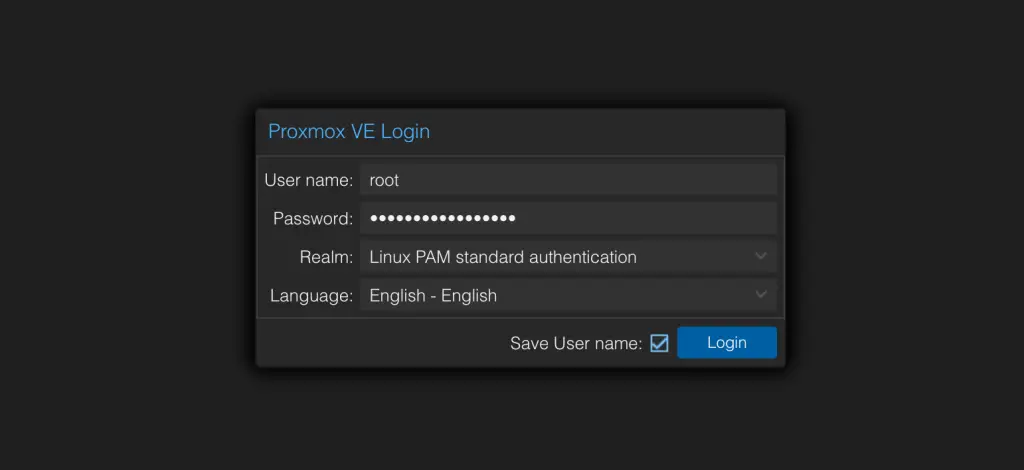
Login to your Proxmox VE through the web dashboard.
Click on the Virtual Machine you’ll like to protect from accidental deletion and go to Options > Protection
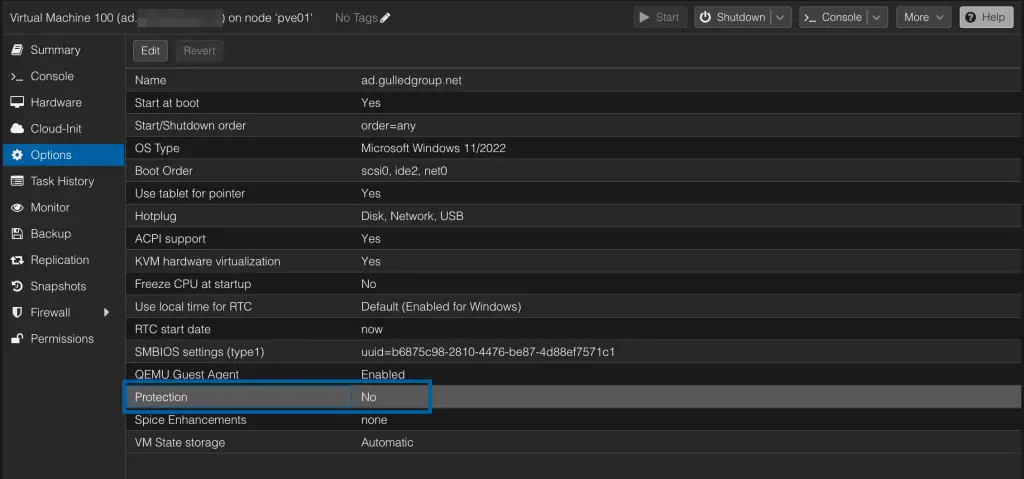
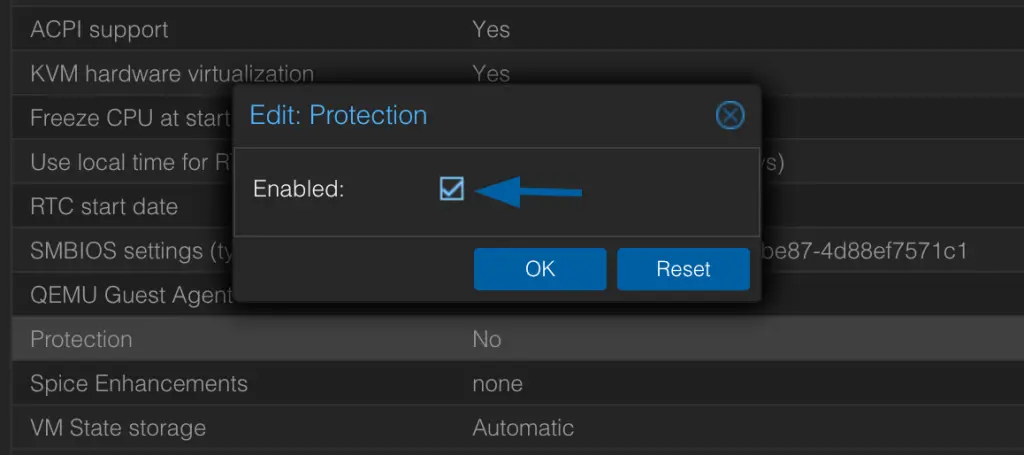
Change the setting flag/boolean from No (0) to Yes(1)
The setting should look like below after the change.
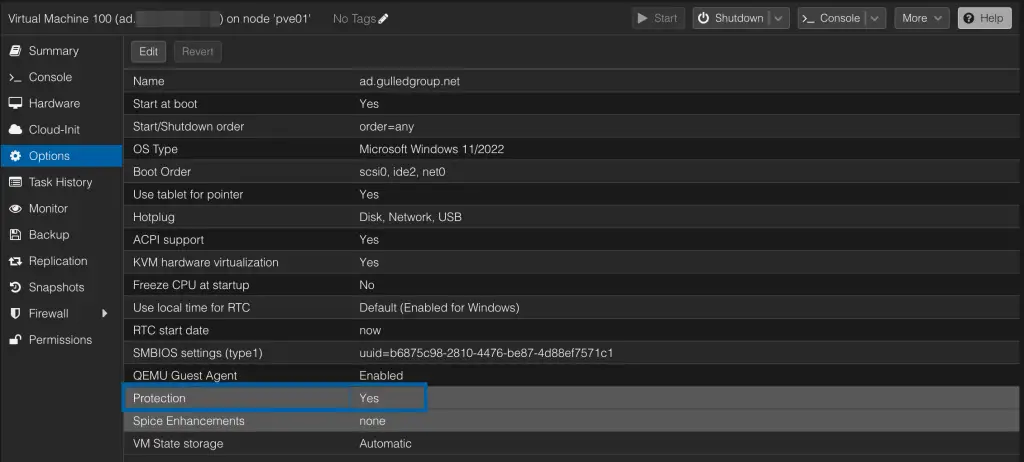
From this point you won’t be able to delete the Virtual Machine while the setting is on. Let’s demonstrate this with the Virtual Machine we just enabled delete protect on.
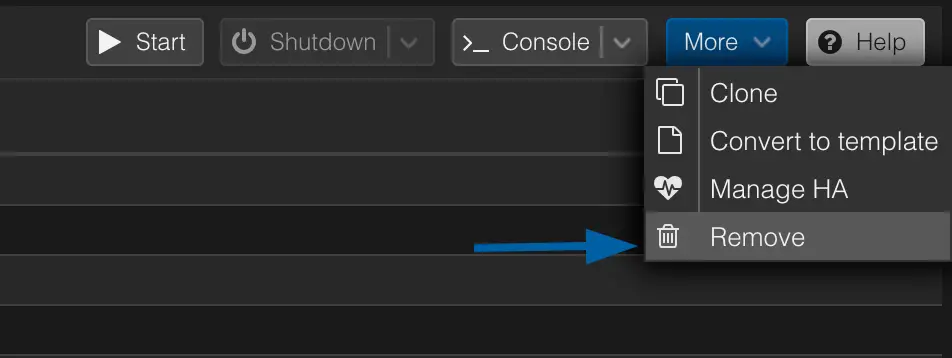
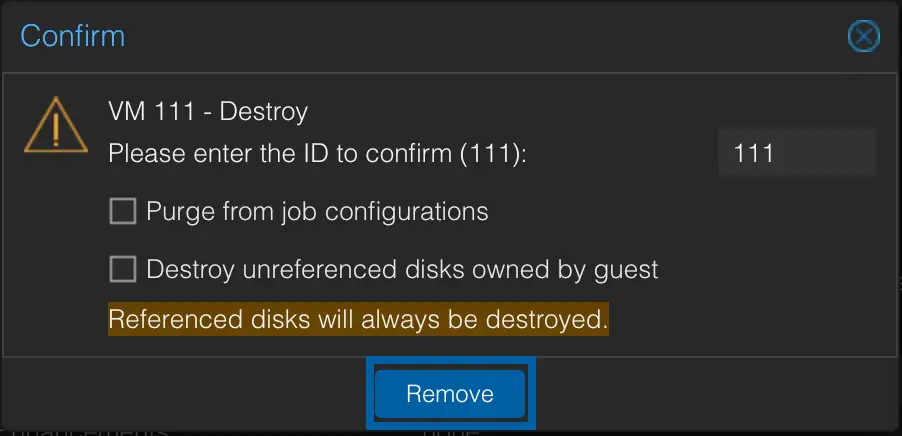
We can input VM ID and attempt the deletion.
Here is the error message encountered.
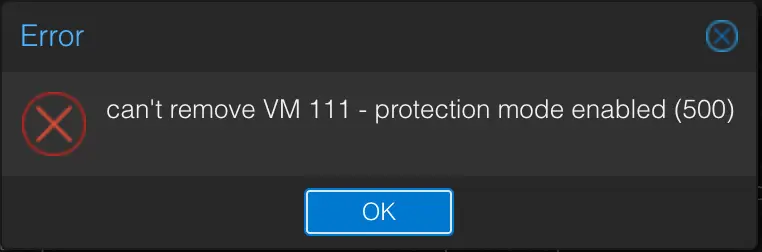
From the message we can conclude our Virtual Machine is now protected from accidental deletion. Until you manually disable the setting you won’t be able to remove the Virtual Machine from Proxmox Virtual Environment.
Similar guides on Proxmox:
