Snapshots in Proxmox VE save the entire state of a VM (disk, configuration, optionally RAM) at a single point in time. One click to take, one click to roll back. They’re the fastest undo button you have when a kernel update bricks a VM or a config change takes a service offline.
This covers creating, managing, and restoring VM snapshots through both the Proxmox web interface and the qm command line. Snapshots are not backups (they live on the same storage as the VM), but they complement a Proxmox Backup Server setup nicely for quick rollbacks between full backups.
Current as of March 2026. Verified on Proxmox VE 8.4.9, QEMU 9.2.0, kernel 6.8.12-13-pve
Before You Start
- Proxmox VE 8.x or 9.x with at least one running VM
- Enough free space on the VM’s storage for snapshot data (thin-provisioned LVM or ZFS work best)
- Root access to the PVE host (for CLI operations)
- QEMU Guest Agent installed in the VM for filesystem-consistent snapshots (recommended but not required)
Create a Snapshot from the Web UI
Select a VM in the left tree, then click Snapshots in the submenu. The panel shows all existing snapshots in a tree view, with “current” marking the live state.
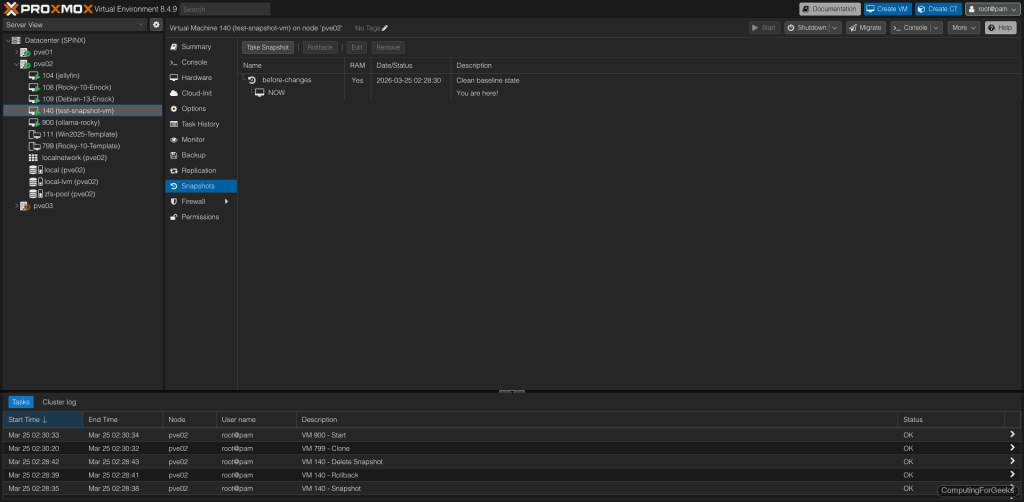
Click Take Snapshot. The dialog has three fields:
- Name: A short label (no spaces). Use something meaningful like
before-kernel-updateorworking-state-march - Include RAM: Captures the VM’s memory state. Enables exact restore to the running state (process memory, open connections, everything). Uses more storage and takes longer
- Description: Free text explaining why you took the snapshot
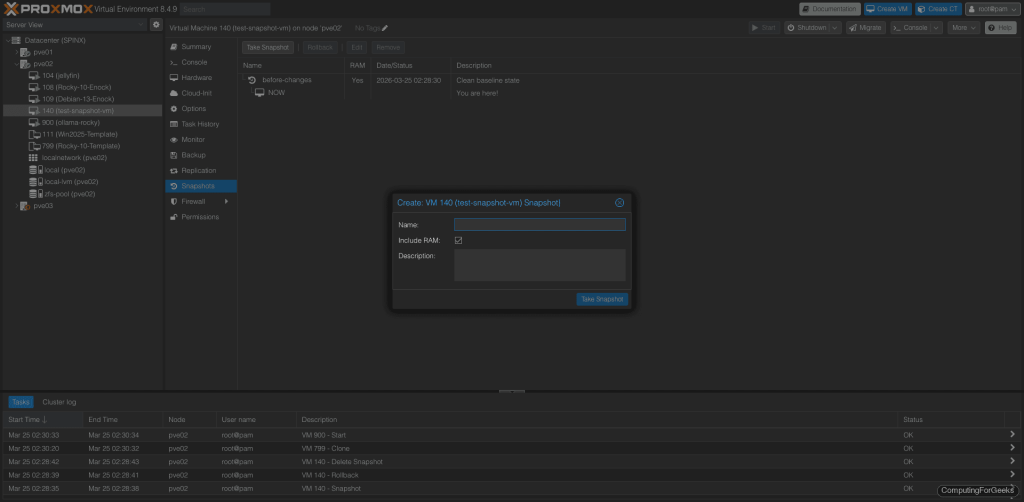
After clicking Take Snapshot, PVE creates LVM or ZFS snapshot layers underneath. The operation completes in seconds for disk-only snapshots. Including RAM adds time proportional to the VM’s memory size.
Create a Snapshot from the Command Line
The qm snapshot command does the same thing without the web UI. SSH into your PVE host and run:
qm snapshot 140 before-changes --description "Clean baseline state" --vmstateThe --vmstate flag includes RAM (equivalent to the “Include RAM” checkbox in the UI). Without it, only disk state is captured. PVE confirms the operation:
saving VM state and RAM using storage 'local-lvm'
completed saving the VM state in 0s, saved 633.59 MiB
snapshotting 'drive-virtio0' (local-lvm:vm-140-disk-0)
For a disk-only snapshot (faster, no RAM overhead):
qm snapshot 140 after-update --description "After package update"List Snapshots
View the snapshot tree for any VM:
qm listsnapshot 140The tree shows the parent-child relationship between snapshots. “You are here!” marks the current running state:
`-> before-changes              2026-03-25 02:28:30     Clean baseline state
 `-> after-update               2026-03-25 02:28:35     After package update
  `-> current                                           You are here!
Each snapshot branches from its parent. Rolling back to before-changes discards everything after that point.
Roll Back to a Snapshot
This is where snapshots prove their worth. A bad update, a broken config, a failed migration step: roll back in seconds.
From the Web UI
In the Snapshots panel, select the snapshot you want to restore and click Rollback. PVE asks for confirmation because rollback discards all changes made after that snapshot. The VM stops, reverts, and restarts in the snapshot’s state.
From the CLI
The qm rollback command does the same thing:
qm rollback 140 before-changesPVE stops the VM, replaces the current disk with the snapshot state, and starts it again. If the snapshot included RAM (--vmstate), the VM resumes exactly where it was, with all processes and network connections intact. Without RAM state, the VM boots fresh from the snapshot’s disk state.
After rolling back, the snapshot tree updates to show your new position:
`-> before-changes              2026-03-25 02:28:30     Clean baseline state
 `-> after-update               2026-03-25 02:28:35     After package update
 `-> current                                            You are here!
Notice “current” now branches directly from before-changes, not from after-update.
Delete a Snapshot
Old snapshots consume storage. Proxmox merges the snapshot data back into the base image when you delete it, so the changes aren’t lost; they just become part of the permanent state.
From the web UI, select the snapshot and click Remove. From the CLI:
qm delsnapshot 140 after-updateThe merge process can take a moment for large snapshots. Avoid deleting snapshots while the VM is under heavy I/O because the merge competes for disk bandwidth.
Snapshot Configuration Details
Each snapshot captures the VM configuration (hardware settings, boot order, network interfaces) alongside the disk state. View a snapshot’s config with:
qm config 140 --snapshot before-changesThis shows the exact hardware configuration at the time the snapshot was taken, including memory size, CPU count, disk layout, and network settings. Useful when you need to verify what configuration a snapshot will restore.
Snapshots vs Backups
This catches people off guard: snapshots are not a substitute for backups. They serve different purposes.
| Feature | Snapshots | Backups (PBS/vzdump) |
|---|---|---|
| Storage location | Same disk as the VM | Separate storage target |
| Survives disk failure | No | Yes |
| Speed to create | Seconds | Minutes (depends on VM size) |
| Speed to restore | Seconds | Minutes |
| Deduplication | No | Yes (PBS) |
| Best for | Quick rollback before risky changes | Disaster recovery, off-site protection |
| Keep long-term? | No (degrades I/O performance) | Yes |
The ideal workflow: take a snapshot before a risky change, verify the change works, then delete the snapshot. Use Proxmox Backup Server for nightly automated backups with retention and deduplication.
CLI Quick Reference
| Command | What it does |
|---|---|
qm snapshot VMID name | Create a disk-only snapshot |
qm snapshot VMID name --vmstate | Create snapshot including RAM state |
qm snapshot VMID name --description "text" | Add a description to the snapshot |
qm listsnapshot VMID | List all snapshots as a tree |
qm config VMID --snapshot name | View snapshot’s VM configuration |
qm rollback VMID name | Roll back to a snapshot (stops VM first) |
qm delsnapshot VMID name | Delete a snapshot and merge data |
Production Tips
- Install the QEMU Guest Agent in every VM (
apt install qemu-guest-agenton Debian/Ubuntu,dnf install qemu-guest-agenton Rocky/RHEL). Without it, Proxmox can’t freeze the filesystem before snapshotting, which risks inconsistent disk state on write-heavy VMs - Don’t keep snapshots for days. Every write to the VM goes through the snapshot overlay, adding latency. Take the snapshot, do your work, then either rollback or delete the snapshot within hours
- Name snapshots descriptively. A week from now,
before-kernel-6.12-updatetells you exactly what happened.snap1tells you nothing - Include RAM only when you need it. RAM snapshots on a 32 GB VM add 32 GB to storage and take noticeably longer to create and restore. Skip it for routine disk-only rollbacks
- Automate pre-change snapshots with a simple script that snapshots before
apt upgradeor config changes. Something likeqm snapshot $VMID pre-$(date +%Y%m%d) --description "Before maintenance window"in your runbook saves the one time you forget