phpMyAdmin is a free, open-source web application written in PHP that provides a graphical interface for managing MySQL and MariaDB databases. It handles common database tasks – creating and dropping databases, managing tables, running SQL queries, importing and exporting data, and managing user privileges – all through a browser instead of the command line.
This guide covers installing phpMyAdmin 5.2.3 on Rocky Linux 10 and AlmaLinux 10 with Nginx as the web server and MariaDB as the database backend. The same steps work on RHEL 10 and CentOS Stream 10. We also cover securing the installation by restricting access, changing the default URL alias, and configuring SELinux.
Prerequisites
- A server running Rocky Linux 10 or AlmaLinux 10 with root or sudo access
- MariaDB or MySQL server installed and running
- Nginx web server with PHP-FPM configured
- Firewall access to TCP port 80 (or 443 if using HTTPS)
- A domain name or server IP address for accessing phpMyAdmin
Step 1: Update the System
Start by updating all packages to the latest available versions.
sudo dnf -y updateStep 2: Install MariaDB Server
Rocky Linux 10 and AlmaLinux 10 ship with MariaDB 10.11 in the default repositories. Install the server and client packages. If you need a more detailed walkthrough, see installing MariaDB or MySQL on Rocky Linux / AlmaLinux.
sudo dnf -y install mariadb-server mariadbStart and enable MariaDB so it survives reboots.
sudo systemctl enable --now mariadbVerify the service is running.
$ sudo systemctl status mariadb
● mariadb.service - MariaDB 10.11 database server
     Loaded: loaded (/usr/lib/systemd/system/mariadb.service; enabled; preset: disabled)
     Active: active (running)
Harden the database installation by setting a root password and removing test databases.
sudo mysql_secure_installationAnswer Y to all prompts: set root password, remove anonymous users, disallow remote root login, remove the test database, and reload privilege tables.
Create a phpMyAdmin Database User
Log in to MariaDB and create a dedicated user for phpMyAdmin. Replace StrongPassword123 with your own password.
sudo mysql -u root -pRun the following SQL statements inside the MariaDB shell.
CREATE DATABASE phpmyadmin CHARACTER SET utf8mb4 COLLATE utf8mb4_unicode_ci;
CREATE USER 'pmauser'@'localhost' IDENTIFIED BY 'StrongPassword123';
GRANT ALL PRIVILEGES ON *.* TO 'pmauser'@'localhost' WITH GRANT OPTION;
FLUSH PRIVILEGES;
EXIT;
Step 3: Install Nginx and PHP-FPM
Rocky Linux 10 / AlmaLinux 10 include PHP 8.4 and Nginx in the default AppStream repository. No third-party repos are needed. For a complete LAMP/LEMP stack setup on RHEL 10, see our dedicated guide.
sudo dnf -y install nginx php-fpm php-mysqlnd php-json php-mbstring php-xml php-gd php-curl php-zip php-intl php-opcacheConfigure PHP-FPM for Nginx
Edit the PHP-FPM pool configuration to run under the nginx user and use a Unix socket.
sudo vi /etc/php-fpm.d/www.confSet these values (some may already be correct):
user = nginx
group = nginx
listen = /run/php-fpm/www.sock
listen.owner = nginx
listen.group = nginx
listen.mode = 0660
Set your timezone in the PHP configuration.
sudo vi /etc/php.iniFind and update the date.timezone directive:
date.timezone = UTCEnable and start both services.
sudo systemctl enable --now nginx php-fpmVerify PHP is working.
$ php -v
PHP 8.4.6 (cli) (built: Mar 12 2026 00:00:00) (NTS gcc x86_64)
Copyright (c) The PHP Group
Zend Engine v4.4.6, Copyright (c) Zend Technologies
    with Zend OPcache v8.4.6, Copyright (c), by Zend Technologies
Step 4: Install phpMyAdmin on Rocky Linux 10 / AlmaLinux 10
phpMyAdmin is not available in the default Rocky Linux 10 / AlmaLinux 10 repositories. Download the latest release directly from the official phpMyAdmin downloads page.
cd /tmp
wget https://files.phpmyadmin.net/phpMyAdmin/5.2.3/phpMyAdmin-5.2.3-all-languages.tar.gz
Create a directory for phpMyAdmin and extract the archive into it.
sudo mkdir -p /usr/share/nginx/phpmyadmin
sudo tar xzf phpMyAdmin-5.2.3-all-languages.tar.gz -C /usr/share/nginx/phpmyadmin --strip-components=1
Create a temporary directory for phpMyAdmin and set proper ownership.
sudo mkdir -p /usr/share/nginx/phpmyadmin/tmp
sudo chown -R nginx:nginx /usr/share/nginx/phpmyadmin
sudo chown -R nginx:nginx /var/lib/php/session/
Step 5: Configure phpMyAdmin
Copy the sample configuration file.
sudo cp /usr/share/nginx/phpmyadmin/config.sample.inc.php /usr/share/nginx/phpmyadmin/config.inc.phpGenerate a random 32-character blowfish secret for cookie-based authentication.
$ openssl rand -base64 32
k8Yg3rV5mN2pQ9xL1wA7zB4cD6eF0hJ=
Edit the configuration file.
sudo vi /usr/share/nginx/phpmyadmin/config.inc.phpSet the blowfish secret to the value you generated, and configure the temp directory:
$cfg['blowfish_secret'] = 'k8Yg3rV5mN2pQ9xL1wA7zB4cD6eF0hJ=';

/* phpMyAdmin temp directory */
$cfg['TempDir'] = '/usr/share/nginx/phpmyadmin/tmp';
Step 6: Configure Nginx for phpMyAdmin
Create a dedicated Nginx server block for phpMyAdmin.
sudo vi /etc/nginx/conf.d/phpmyadmin.confAdd the following configuration. Replace phpmyadmin.example.com with your domain name or server IP.
server {
    listen 80;
    server_name phpmyadmin.example.com;
    root /usr/share/nginx/phpmyadmin;

    index index.php index.html;

    access_log /var/log/nginx/phpmyadmin_access.log;
    error_log /var/log/nginx/phpmyadmin_error.log;

    location / {
        try_files $uri $uri/ /index.php?$args;
    }

    location ~ \.php$ {
        try_files $uri =404;
        fastcgi_intercept_errors on;
        include fastcgi_params;
        fastcgi_param SCRIPT_FILENAME $document_root$fastcgi_script_name;
        fastcgi_pass unix:/run/php-fpm/www.sock;
    }

    # Deny access to sensitive files
    location ~ /\.ht {
        deny all;
    }
}
Test the Nginx configuration for syntax errors.
$ sudo nginx -t
nginx: the configuration file /etc/nginx/nginx.conf syntax is ok
nginx: configuration file /etc/nginx/nginx.conf test is successful
Restart Nginx and PHP-FPM to apply changes.
sudo systemctl restart nginx php-fpmStep 7: Configure Firewall
Open HTTP (TCP port 80) in the firewall. If you plan to use HTTPS, also open port 443. For a deeper look at firewalld on RHEL/CentOS/Rocky, see our configuration guide.
sudo firewall-cmd --permanent --add-service=http
sudo firewall-cmd --permanent --add-service=https
sudo firewall-cmd --reload
Verify the rules were added.
$ sudo firewall-cmd --list-services
cockpit dhcpv6-client http https ssh
Step 8: Configure SELinux for phpMyAdmin
Rocky Linux 10 and AlmaLinux 10 run SELinux in enforcing mode by default. You need to set the correct file context so Nginx can serve phpMyAdmin files. For more on SELinux configuration for web applications, check our dedicated article.
sudo dnf -y install policycoreutils-python-utilsSet the httpd_sys_rw_content_t context on the phpMyAdmin directory so PHP can read and write files (session data, temp directory).
sudo semanage fcontext -a -t httpd_sys_rw_content_t "/usr/share/nginx/phpmyadmin(/.*)?"
sudo restorecon -Rv /usr/share/nginx/phpmyadmin
Allow Nginx to make network connections to the database socket.
sudo setsebool -P httpd_can_network_connect_db 1Verify the SELinux boolean is set.
$ getsebool httpd_can_network_connect_db
httpd_can_network_connect_db --> on
Step 9: Access phpMyAdmin Web Interface
If you are not using a DNS record for your domain, add an entry in your local machine’s hosts file.
sudo vi /etc/hostsAdd a line mapping your server IP to the hostname:
192.168.1.50 phpmyadmin.example.comOpen your browser and navigate to http://phpmyadmin.example.com. You should see the phpMyAdmin login page.
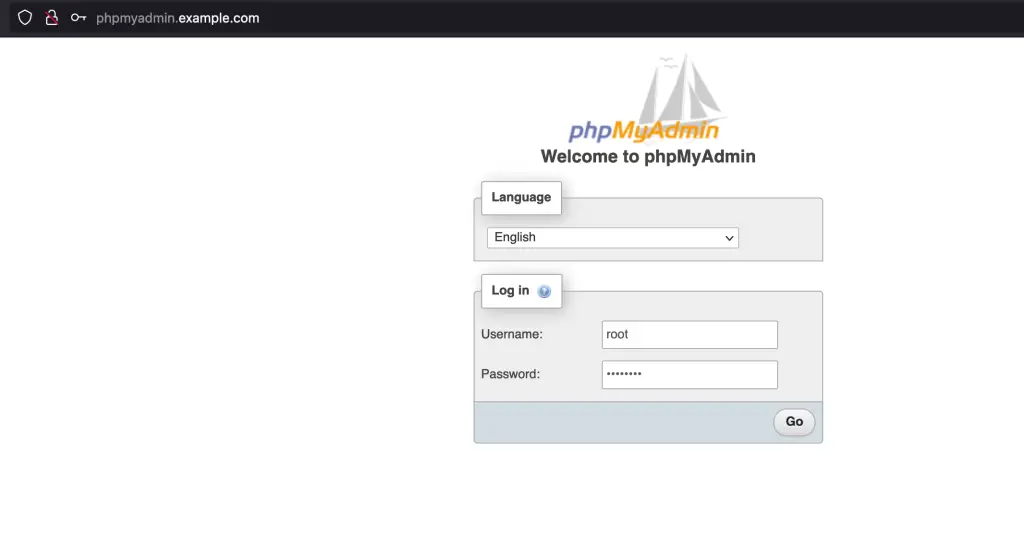
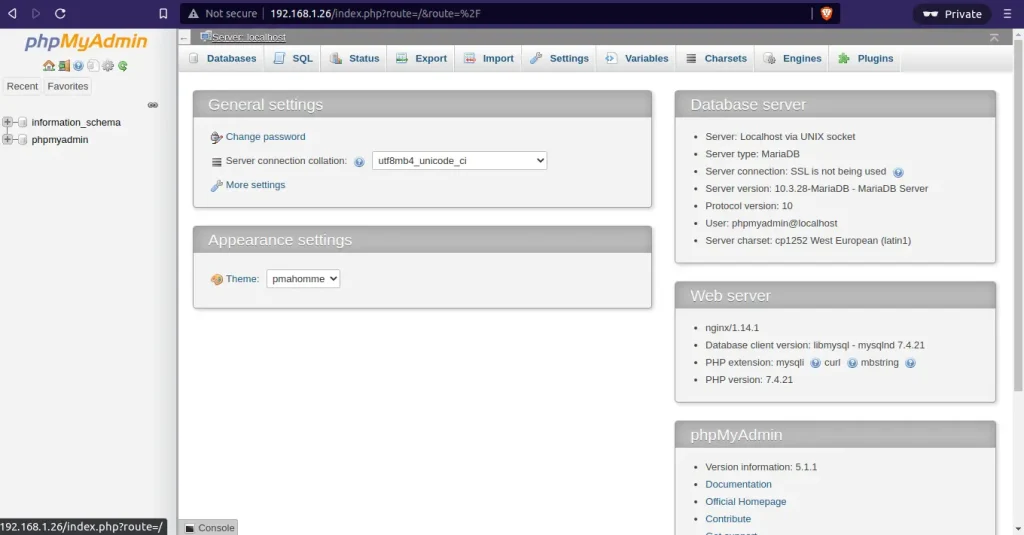
Log in with the database user you created earlier (in this example, pmauser) or the MariaDB root user. After successful login, you will see the phpMyAdmin dashboard.
Step 10: Secure phpMyAdmin Installation
A default phpMyAdmin installation is a target for brute-force attacks. Apply these hardening measures before exposing it to the network.
Change the Default URL Alias
Rename the phpMyAdmin directory or use a non-obvious URL alias to make it harder for automated scanners to find. Update the Nginx server block root directive to use a custom path.
sudo mv /usr/share/nginx/phpmyadmin /usr/share/nginx/dbadminUpdate the Nginx configuration to match the new path.
sudo vi /etc/nginx/conf.d/phpmyadmin.confChange the root directive:
root /usr/share/nginx/dbadmin;Restrict Access by IP Address
Limit phpMyAdmin access to trusted IP addresses only. Add allow/deny directives to the Nginx server block.
sudo vi /etc/nginx/conf.d/phpmyadmin.confAdd these lines inside the server block, before the location directives. Replace the example IPs with your actual office or VPN addresses.
    # Restrict access to trusted IPs only
    allow 10.0.1.100;       # Office workstation
    allow 192.168.1.0/24;   # Internal network
    deny all;
Enable HTTP Basic Authentication
Add an extra layer of authentication before reaching the phpMyAdmin login page. Install the httpd-tools package to get the htpasswd utility.
sudo dnf -y install httpd-tools
sudo htpasswd -c /etc/nginx/.htpasswd pmaadmin
You will be prompted to set a password. Then add the auth directives to your Nginx server block.
sudo vi /etc/nginx/conf.d/phpmyadmin.confAdd these lines inside the server block:
    auth_basic "Restricted Access";
    auth_basic_user_file /etc/nginx/.htpasswd;
After applying any security changes, test and restart Nginx.
sudo nginx -t && sudo systemctl restart nginxAlso update the SELinux context if you renamed the directory.
sudo semanage fcontext -a -t httpd_sys_rw_content_t "/usr/share/nginx/dbadmin(/.*)?"
sudo restorecon -Rv /usr/share/nginx/dbadmin
Conclusion
phpMyAdmin is now installed and running on Rocky Linux 10 / AlmaLinux 10 with Nginx, PHP 8.4, and MariaDB. The installation is secured with IP restrictions, a custom URL alias, and optional HTTP basic authentication on top of phpMyAdmin’s own login.
For production deployments, add a TLS certificate (Let’s Encrypt works well with Nginx) so all traffic to phpMyAdmin is encrypted. Consider setting up automated database backups and monitoring MariaDB performance with a tool like Prometheus or Zabbix.