

Vagrant is a command line tool that creates and destroys reproducible virtual machine environments from a single text file. You define the box, network, provisioner, and resources in a Vagrantfile, then a single vagrant up spins everything up on VirtualBox, KVM/libvirt, Hyper-V, VMware, or Docker. This guide walks through how to install Vagrant on Ubuntu 24.04, 22.04, and 20.04 with VirtualBox 7.1 as the provider, then shows real Vagrantfile examples that build a working multi-node lab.
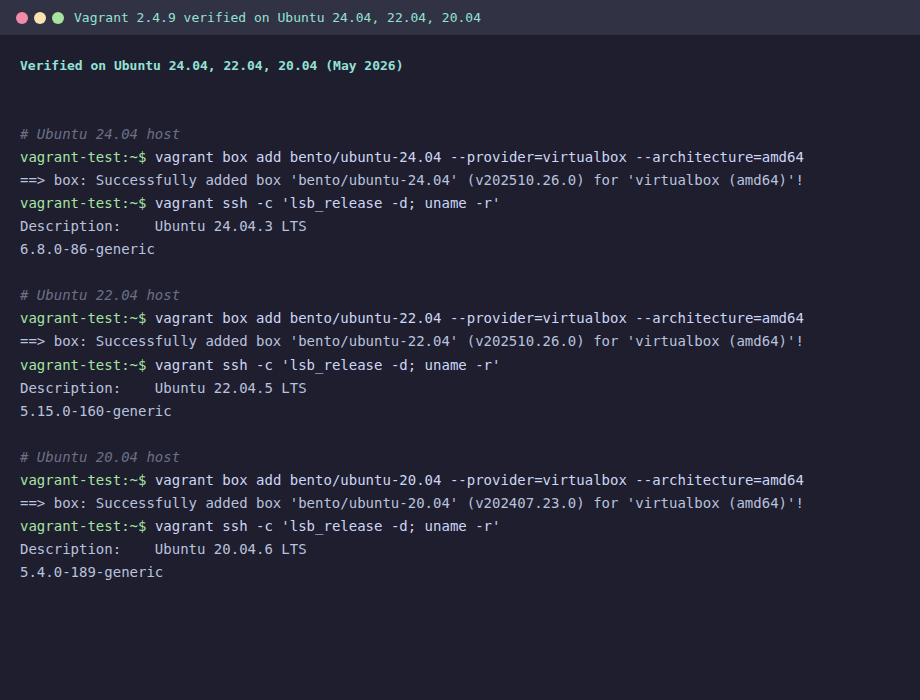
Every command in this guide was tested on freshly installed Ubuntu 24.04.4, 22.04.5, and 20.04.6 hosts in May 2026 using VirtualBox 7.1.18 and Vagrant 2.4.9.
What changed since the old “generic” Vagrant boxes
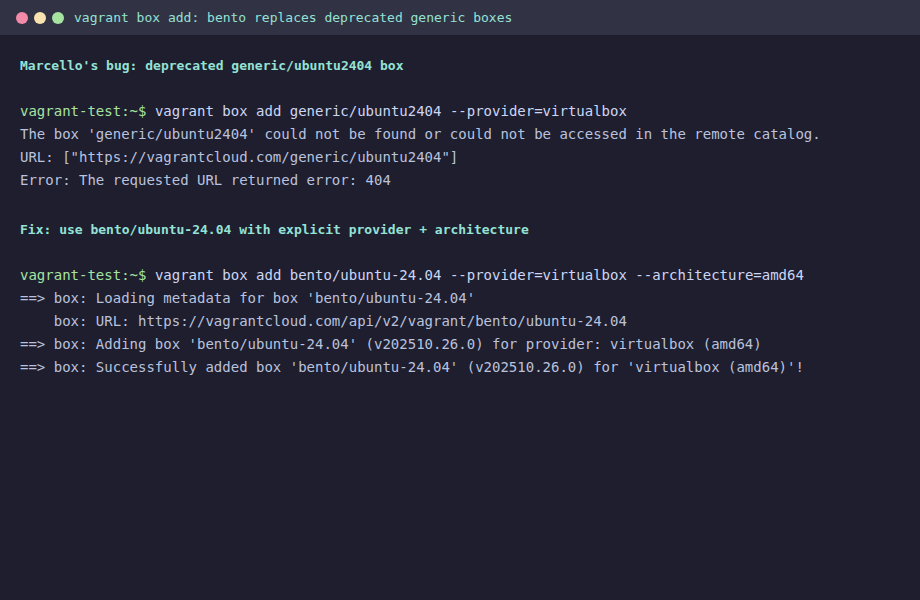
If you previously used boxes like generic/ubuntu2404 from Vagrant Cloud, those URLs now return 404. HashiCorp completed the Vagrant Cloud migration to HCP, and the community maintained generic/* namespace (Roboxes) is no longer authoritative for new releases. Canonical also stopped publishing first party Vagrant images from Ubuntu 24.04 onward.
The current working default for Ubuntu is the Chef bento box family. It is open source, signed, kept current, and ships images for VirtualBox, VMware, Parallels, and libvirt. The box names are bento/ubuntu-24.04, bento/ubuntu-22.04, and bento/ubuntu-20.04.
System requirements
- Ubuntu 24.04, 22.04, or 20.04 (x86_64)
- CPU with VT-x or AMD-V enabled in BIOS/UEFI
- At least 4 GB RAM (8 GB recommended for multi-VM labs)
- 20 GB free disk for boxes and VM disks
- sudo privileges and outbound HTTPS
Running Vagrant inside WSL2 or inside another VM works only if the host exposes nested virtualization. On Proxmox set the guest CPU type to host. On VMware Workstation/Fusion enable “Virtualize Intel VT-x/EPT or AMD-V/RVI” on the VM. Without nested virtualization, VirtualBox will refuse to start the inner VM.
Step 1: Update the system
Refresh package metadata and apply pending security updates before adding new repositories.
sudo apt update && sudo apt -y upgrade
[ -f /var/run/reboot-required ] && sudo reboot
Reconnect after the reboot before continuing.
Step 2: Install VirtualBox 7.1 on Ubuntu
VirtualBox is the default hypervisor for Vagrant on Linux. Use Oracle’s official APT repository, which keeps the package current across point releases. The same steps work on all three Ubuntu versions because lsb_release -cs picks the right codename automatically.
Install the prerequisites and import the Oracle signing key:
sudo apt install -y curl wget gnupg lsb-release software-properties-common ca-certificates

curl -fsSL https://www.virtualbox.org/download/oracle_vbox_2016.asc \
  | sudo gpg --dearmor -o /etc/apt/trusted.gpg.d/oracle-virtualbox-2016.gpg
Add the Oracle VirtualBox APT repository:
echo "deb [arch=amd64 signed-by=/etc/apt/trusted.gpg.d/oracle-virtualbox-2016.gpg] \
https://download.virtualbox.org/virtualbox/debian $(lsb_release -cs) contrib" \
  | sudo tee /etc/apt/sources.list.d/virtualbox.list
Install the matching kernel headers, DKMS, and VirtualBox 7.1:
sudo apt update
sudo apt install -y linux-headers-$(uname -r) dkms build-essential
sudo apt install -y virtualbox-7.1
Confirm VirtualBox is on PATH:
VBoxManage --versionThe version string should look like this:
7.1.18r173720Step 3: Install Vagrant 2.4 on Ubuntu
The path here splits by Ubuntu version because HashiCorp dropped focal from the APT repository in Vagrant 2.4.x. Ubuntu 24.04 and 22.04 use the APT repo. Ubuntu 20.04 needs the deb downloaded directly.
Install Vagrant on Ubuntu 24.04 and 22.04
Import the HashiCorp signing key and add the APT repository:
wget -qO- https://apt.releases.hashicorp.com/gpg \
  | sudo gpg --dearmor -o /usr/share/keyrings/hashicorp-archive-keyring.gpg

echo "deb [signed-by=/usr/share/keyrings/hashicorp-archive-keyring.gpg] \
https://apt.releases.hashicorp.com $(lsb_release -cs) main" \
  | sudo tee /etc/apt/sources.list.d/hashicorp.list

sudo apt update
sudo apt install -y vagrant
Install Vagrant on Ubuntu 20.04
The HashiCorp APT repo no longer ships Vagrant for focal. The Ubuntu universe repo only has Vagrant 2.2.6, which fails on modern Bento boxes because the metadata format changed. Install the official 2.4.9 deb directly:
cd /tmp
wget https://releases.hashicorp.com/vagrant/2.4.9/vagrant_2.4.9-1_amd64.deb
sudo apt install -y ./vagrant_2.4.9-1_amd64.deb
Verify the Vagrant install
The same check works on all three Ubuntu versions:
vagrant --versionYou should see Vagrant 2.4.9 reported:
Vagrant 2.4.9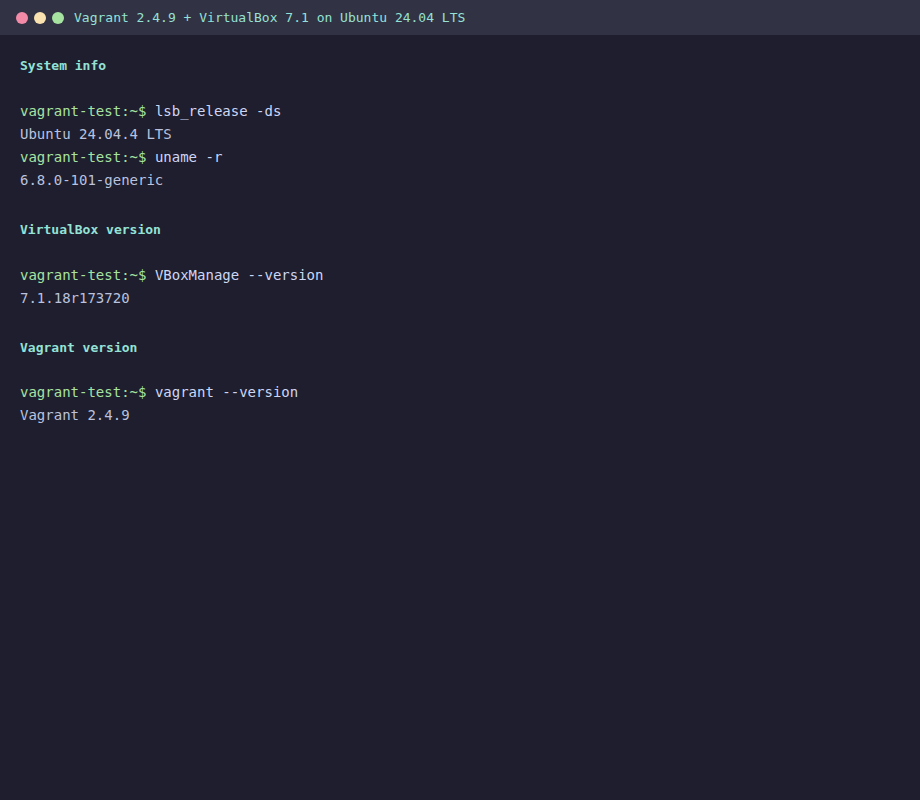
Step 4: Add a Vagrant box on Ubuntu
Pick the Bento box that matches the guest OS you want inside the VM (this is independent of the Ubuntu host version). Pass both the provider and the architecture explicitly because the new metadata format requires them. Without these flags, you will see “doesn’t support requested provider” even though the image exists.
For an Ubuntu 24.04 guest:
vagrant box add bento/ubuntu-24.04 --provider=virtualbox --architecture=amd64For an Ubuntu 22.04 guest:
vagrant box add bento/ubuntu-22.04 --provider=virtualbox --architecture=amd64For an Ubuntu 20.04 guest:
vagrant box add bento/ubuntu-20.04 --provider=virtualbox --architecture=amd64List the boxes Vagrant has cached locally:
vagrant box listThe output reports each box, its provider, and the architecture:
bento/ubuntu-20.04 (virtualbox, 202407.23.0, amd64)
bento/ubuntu-22.04 (virtualbox, 202510.26.0, amd64)
bento/ubuntu-24.04 (virtualbox, 202510.26.0, amd64)
Step 5: Create your first Vagrant VM
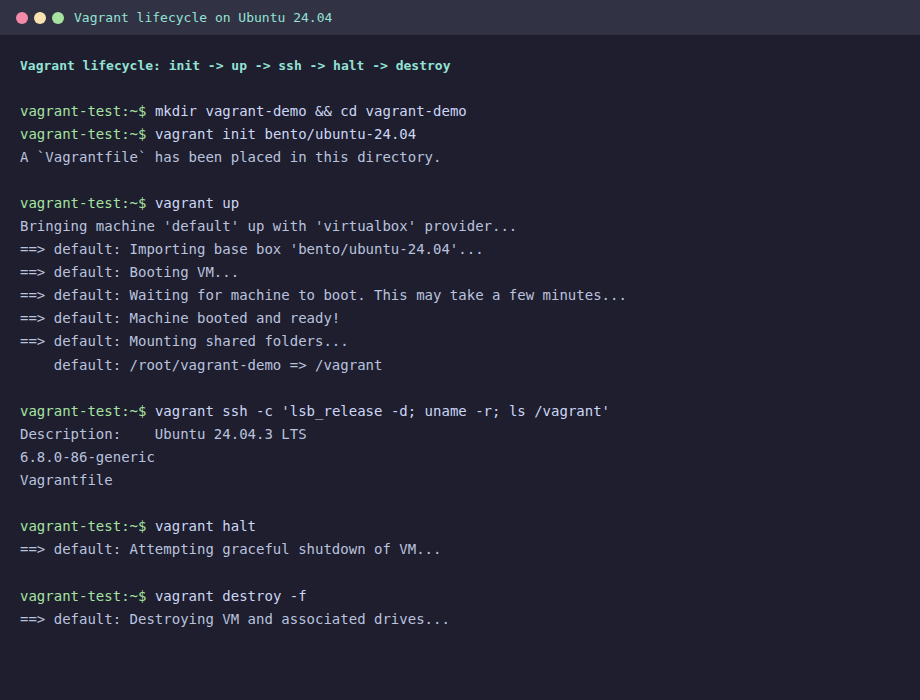
Initialize a working directory and create a default Vagrantfile pointing at the Ubuntu 24.04 box:
mkdir -p ~/vagrant-demo
cd ~/vagrant-demo
vagrant init bento/ubuntu-24.04
Bring the VM up. The first vagrant up imports the box, configures the NAT adapter, forwards SSH to host port 2222, and rotates the insecure default key:
vagrant upSSH into the VM with the auto generated key:
vagrant sshConfirm the guest is the expected release and that the shared folder is mounted:
vagrant@vagrant:~$ lsb_release -d
Description:    Ubuntu 24.04.3 LTS
vagrant@vagrant:~$ ls /vagrant
Vagrantfile
The current working directory on the host is auto mounted at /vagrant in the guest. Any file you drop in ~/vagrant-demo appears in the VM immediately, which is the fastest way to share code or test scripts.
Vagrant lifecycle commands you will actually use
These are the commands worth memorizing. Run them inside the directory that owns the Vagrantfile:
vagrant statusshows which machines are running, halted, or not created.vagrant reloadreboots the VM after changing the Vagrantfile (memory, CPU, networking).vagrant suspendsaves RAM to disk (fast resume).vagrant resumebrings it back.vagrant haltshuts down the VM gracefully.vagrant provisionreruns provisioners on a running VM.vagrant destroy -fdeletes the VM disk and frees space.vagrant global-status --prunelists every VM across every project on the host.
Real world example: 2 node web + database lab with Vagrant
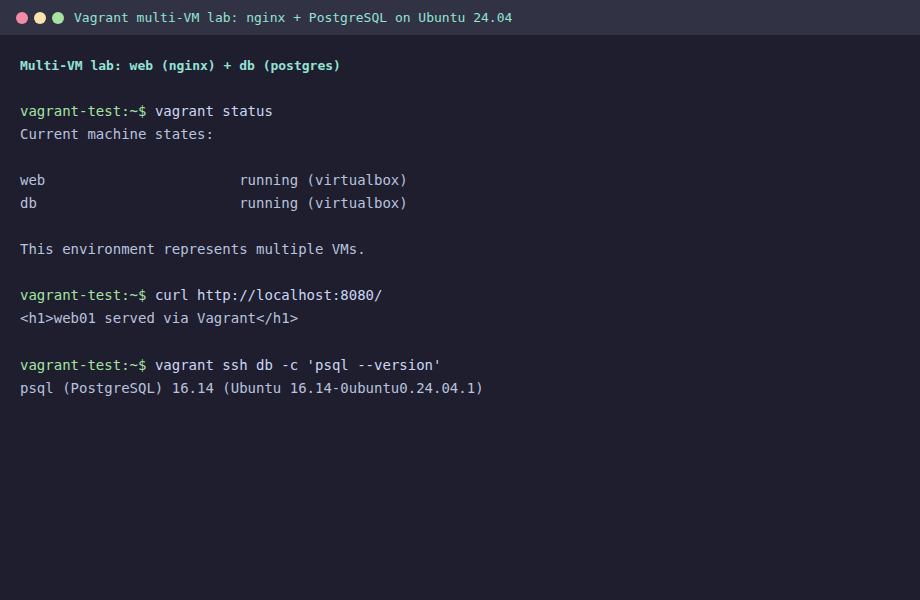
The single VM walkthrough proves the install works. The multi node Vagrantfile below is closer to what you actually use Vagrant for: a reproducible local lab. It defines two Ubuntu 24.04 machines on a private network. The web VM runs nginx on port 80 (forwarded to host port 8080), and the db VM runs PostgreSQL 16.
Create a new directory and Vagrantfile:
mkdir -p ~/vagrant-lab && cd ~/vagrant-lab
nano Vagrantfile
Paste the following:
Vagrant.configure("2") do |config|
  config.vm.box = "bento/ubuntu-24.04"
  config.vm.box_check_update = false

  config.vm.define "web" do |web|
    web.vm.hostname = "web01"
    web.vm.network "private_network", ip: "192.168.56.10"
    web.vm.network "forwarded_port", guest: 80, host: 8080
    web.vm.provider "virtualbox" do |v|
      v.memory = 1024
      v.cpus   = 1
    end
    web.vm.provision "shell", inline: <<-SHELL
      apt-get update -qq
      apt-get install -y -qq nginx
      echo "<h1>web01 served via Vagrant</h1>" > /var/www/html/index.html
      systemctl enable --now nginx
    SHELL
  end

  config.vm.define "db" do |db|
    db.vm.hostname = "db01"
    db.vm.network "private_network", ip: "192.168.56.11"
    db.vm.provider "virtualbox" do |v|
      v.memory = 1024
      v.cpus   = 1
    end
    db.vm.provision "shell", inline: <<-SHELL
      apt-get update -qq
      apt-get install -y -qq postgresql
      systemctl enable --now postgresql
    SHELL
  end
end
Bring up both VMs at once:
vagrant upThe first run installs nginx on web and PostgreSQL on db via the shell provisioner. After it finishes, confirm both VMs are running:
vagrant statusOutput:
Current machine states:

web                       running (virtualbox)
db                        running (virtualbox)
Curl the forwarded port from the host to prove nginx is reachable through the port forward:
curl http://localhost:8080/The response confirms the provisioner ran and nginx is serving the custom page:
<h1>web01 served via Vagrant</h1>SSH into db to confirm PostgreSQL is up:
vagrant ssh db -c 'psql --version'You should see something close to this:
psql (PostgreSQL) 16.14 (Ubuntu 16.14-0ubuntu0.24.04.1)The two VMs can talk to each other over the private network because Vagrant added matching host only adapters. From inside web you can curl the database host or run psql -h 192.168.56.11 after opening PostgreSQL to remote connections.
Useful Vagrantfile customizations
Custom memory and CPU per VM
config.vm.provider "virtualbox" do |v|
  v.memory = 4096
  v.cpus   = 2
  v.name   = "lab-web01"
end
Extra synced folders
config.vm.synced_folder "./code", "/srv/code",
  owner: "vagrant", group: "vagrant",
  mount_options: ["dmode=775,fmode=664"]
Ansible provisioner
config.vm.provision "ansible" do |ansible|
  ansible.playbook = "site.yml"
  ansible.inventory_path = "inventory.ini"
  ansible.limit = "all"
end
Static IP plus DHCP NAT
config.vm.network "private_network", ip: "10.20.30.40"
config.vm.network "public_network", bridge: "eno1"
Troubleshooting common Vagrant errors on Ubuntu
“The box could not be found” or HTTP 404
This is the error reported in a recent reader comment for generic/ubuntu2404. The fix is to switch to a Bento box and add explicit flags:
vagrant box add bento/ubuntu-24.04 --provider=virtualbox --architecture=amd64“VT-x is not available” when running vagrant up
The host CPU does not have virtualization extensions enabled. Reboot into BIOS/UEFI and turn on Intel VT-x or AMD-V. If Ubuntu itself is inside a VM, also enable nested virtualization on the outer hypervisor. Check with:
grep -E 'vmx|svm' /proc/cpuinfo | head -1No output means virtualization is off.
“Guest Additions version mismatch” warning
Safe to ignore for most workloads. Bento ships Guest Additions a minor version behind the host VirtualBox release. Shared folders, port forwarding, and SSH still work. To silence the warning, install the vagrant-vbguest plugin:
vagrant plugin install vagrant-vbguestVagrant 2.2.6 from Ubuntu 20.04 universe repo
If apt install vagrant on Ubuntu 20.04 pulled in 2.2.6, that version cannot parse the new Bento metadata. Remove it and install the deb directly:
sudo apt remove -y vagrant
cd /tmp
wget https://releases.hashicorp.com/vagrant/2.4.9/vagrant_2.4.9-1_amd64.deb
sudo apt install -y ./vagrant_2.4.9-1_amd64.deb
vagrant --version
Uninstall Vagrant and VirtualBox
If you want to clean everything off the host:
sudo apt remove --purge -y vagrant virtualbox-7.1
sudo rm -f /etc/apt/sources.list.d/virtualbox.list /etc/apt/sources.list.d/hashicorp.list
sudo rm -f /etc/apt/trusted.gpg.d/oracle-virtualbox-2016.gpg /usr/share/keyrings/hashicorp-archive-keyring.gpg
rm -rf ~/.vagrant.d ~/VirtualBox\ VMs
sudo apt update
Conclusion
You now have VirtualBox 7.1, Vagrant 2.4.9, and a working Bento box on Ubuntu 24.04, 22.04, or 20.04, plus a multi node Vagrantfile that proves the install with a real port forward and a real database. The same Vagrantfile pattern scales to 5, 10, or 20 VM labs for Kubernetes, Ansible, or replication testing. For the next step, look at running Docker containers inside Vagrant or using Vagrant on Oracle Linux.




https://vagrantcloud.com/generic/ubuntu2404 NOT FOUND
Thanks for flagging this, Marcello. You are right that vagrantcloud.com/generic/ubuntu2404 returns 404. The generic/* namespace (Roboxes) is no longer authoritative after HashiCorp completed the Vagrant Cloud migration to HCP, and Canonical stopped publishing first-party Vagrant images from Ubuntu 24.04 onward.
The article has been updated. The working box now is bento/ubuntu-24.04 (and bento/ubuntu-22.04, bento/ubuntu-20.04), passed with explicit –provider and –architecture flags:
vagrant box add bento/ubuntu-24.04 –provider=virtualbox –architecture=amd64
Verified end-to-end on Ubuntu 24.04, 22.04, and 20.04 with VirtualBox 7.1.18 and Vagrant 2.4.9 in May 2026.