Apache NetBeans is a free, open-source integrated development environment (IDE) for building Java, PHP, C/C++, HTML5, and JavaScript applications. It provides a modular framework with built-in support for Maven, Gradle, and Git – making it a solid choice for professional software development on Linux workstations.
This guide covers two methods to install Apache NetBeans 29 on Rocky Linux 10 and AlmaLinux 10 – using the RPM package (with bundled JDK) or the official binary ZIP with a manual Java setup. We also cover launching NetBeans and creating your first project.
Prerequisites
- A Rocky Linux 10 or AlmaLinux 10 desktop system with GNOME or another graphical environment
- sudo or root access
- At least 4 GB of RAM (8 GB recommended for large projects)
- Internet connection to download packages
Step 1: Install Java JDK on Rocky Linux 10 / AlmaLinux 10
Apache NetBeans 29 requires JDK 17 or newer, with official support for JDK 17, 21, and 25. If you plan to use the RPM package from Codelerity (Method 1), it bundles JDK 25 so you can skip this step. For the manual ZIP install (Method 2), install OpenJDK from the default repositories.
Install OpenJDK 21 (LTS):
sudo dnf install java-21-openjdk java-21-openjdk-devel -yIf you have multiple Java versions installed, set the default:
sudo alternatives --config javaVerify the Java version:
$ java -version
openjdk version "21.0.7" 2025-04-15 LTS
OpenJDK Runtime Environment (Red_Hat-21.0.7.0.6-1) (build 21.0.7+6-LTS)
OpenJDK 64-Bit Server VM (Red_Hat-21.0.7.0.6-1) (build 21.0.7+6-LTS, mixed mode, sharing)
Set the JAVA_HOME environment variable so NetBeans and other tools can locate the JDK:
echo 'export JAVA_HOME=/usr/lib/jvm/java-21-openjdk' | sudo tee /etc/profile.d/java_home.sh
source /etc/profile.d/java_home.sh
Step 2: Install Apache NetBeans 29 on Rocky Linux 10 / AlmaLinux 10
There are two ways to install NetBeans – choose whichever suits your workflow.
Method 1: Install NetBeans RPM Package (Recommended)
Codelerity provides an RPM package that bundles NetBeans 29 with JDK 25. This is the easiest method – one package, no separate Java install needed.
Download the RPM:
wget https://github.com/codelerity/netbeans-packages/releases/download/v29-build1/apache-netbeans-29-0.x86_64.rpmVerify the checksum:
sha256sum apache-netbeans-29-0.x86_64.rpmExpected checksum: f7b305c31be3e4adb604e040e75a248ae44bcfa6de3193c8948bdcbda36e269b
Install the package using dnf:
sudo dnf install ./apache-netbeans-29-0.x86_64.rpm -yVerify the installation:
rpm -qi apache-netbeansMethod 2: Install NetBeans from Binary ZIP
The official Apache release is a platform-independent ZIP archive. This method requires Java to be installed separately (Step 1 above).
Download the official binary ZIP from the Apache NetBeans download page:
wget https://archive.apache.org/dist/netbeans/netbeans/29/netbeans-29-bin.zipInstall the unzip utility if not already present:
sudo dnf install unzip -yExtract NetBeans to /opt:
sudo unzip netbeans-29-bin.zip -d /opt/Create a symbolic link so the netbeans command is available system-wide:
sudo ln -sf /opt/netbeans/bin/netbeans /usr/local/bin/netbeansVerify NetBeans is accessible:
netbeans --helpCreate a Desktop Entry (Method 2 Only)
If you installed from the ZIP archive, create a desktop entry so NetBeans appears in the application menu.
Open the desktop entry file:
sudo vi /usr/share/applications/netbeans.desktopAdd the following content:
[Desktop Entry]
Name=Apache NetBeans 29
Comment=Apache NetBeans IDE
Type=Application
Exec=/opt/netbeans/bin/netbeans
Icon=/opt/netbeans/nb/netbeans.png
Categories=Development;IDE;Java;
Terminal=false
StartupNotify=true
StartupWMClass=NetBeans IDE
Step 3: Launch Apache NetBeans IDE
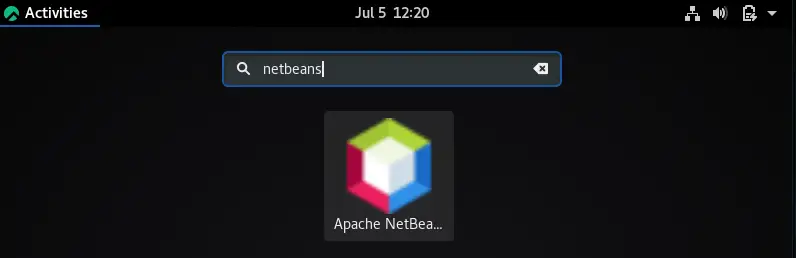
Launch NetBeans from the application menu by searching for “NetBeans” in GNOME Activities, or run it from the terminal:
netbeans &On first launch, NetBeans scans your installed JDK and sets up the default platform. This takes a few seconds.
Step 4: Create Your First Java Project
To verify everything works, create a simple Java application:
- Go to File > New Project
- Select Java with Maven > Java Application and click Next
- Enter a project name (e.g., “HelloWorld”) and choose a project location
- Click Finish
NetBeans generates a Maven project structure with a main class. Open the generated App.java file and replace the contents with:
package com.mycompany.helloworld;

public class App {
    public static void main(String[] args) {
        System.out.println("Hello from NetBeans on Rocky Linux 10!");
    }
}
Press F6 or click the green Run button to build and run the project. The output appears in the NetBeans Output window at the bottom.
Install NetBeans Plugins
NetBeans supports additional languages and frameworks through plugins. To install plugins, go to Tools > Plugins > Available Plugins. Popular plugins include support for PHP, C/C++, and additional Java frameworks.
Uninstall NetBeans
To remove NetBeans installed via RPM:
sudo dnf remove apache-netbeans -yTo remove a ZIP-based installation:
sudo rm -rf /opt/netbeans
sudo rm -f /usr/local/bin/netbeans
sudo rm -f /usr/share/applications/netbeans.desktop
Remove user-level configuration and cache files:
rm -rf ~/.netbeans ~/.cache/netbeansConclusion
Apache NetBeans 29 is now installed and running on your Rocky Linux 10 or AlmaLinux 10 workstation. The RPM method with bundled JDK is the fastest path, while the ZIP method gives more control over Java versions and install locations. For production development workflows, consider also setting up Visual Studio Code as a lightweight editor alongside NetBeans for quick file edits.