

Pacman is the package manager you reach for every day on Arch Linux, and yay is how you reach the thousands of packages that live in the Arch User Repository. This cheat sheet collects every pacman and yay command worth knowing, from a one-line system upgrade to fixing a broken keyring, downgrading a bad release, ranking mirrors, and building from the AUR.
Keep it open in a second terminal. Every command here was run on a live Arch Linux install in June 2026 (Pacman 7.1.0, yay 12.6.0, kernel 7.0.12), so the output you see is real, not invented. If you are setting the system up from scratch, start with the archinstall walkthrough and the post-install steps, then come back here for the package management you do daily.
A one-page PDF with every pacman and yay command on this page, grouped by task. Free to print and pin above your desk.
Download the PDF cheat sheetPacman groups its work under single-letter operations. Once these click, the flags stop feeling random:
| Operation | Meaning |
|---|---|
-S | Sync: install or upgrade from the remote repositories |
-R | Remove installed packages |
-Q | Query the local database (what is installed) |
-F | Query the files database (which package ships a file) |
-U | Upgrade or install from a local or remote package file |
-D | Database operations such as changing the install reason |
Lowercase letters modify an operation. The most common are -y (refresh databases), -u (upgrade), -s (recursive or search), and -i (info). That is why a full upgrade is -Syu: sync, refresh, upgrade.
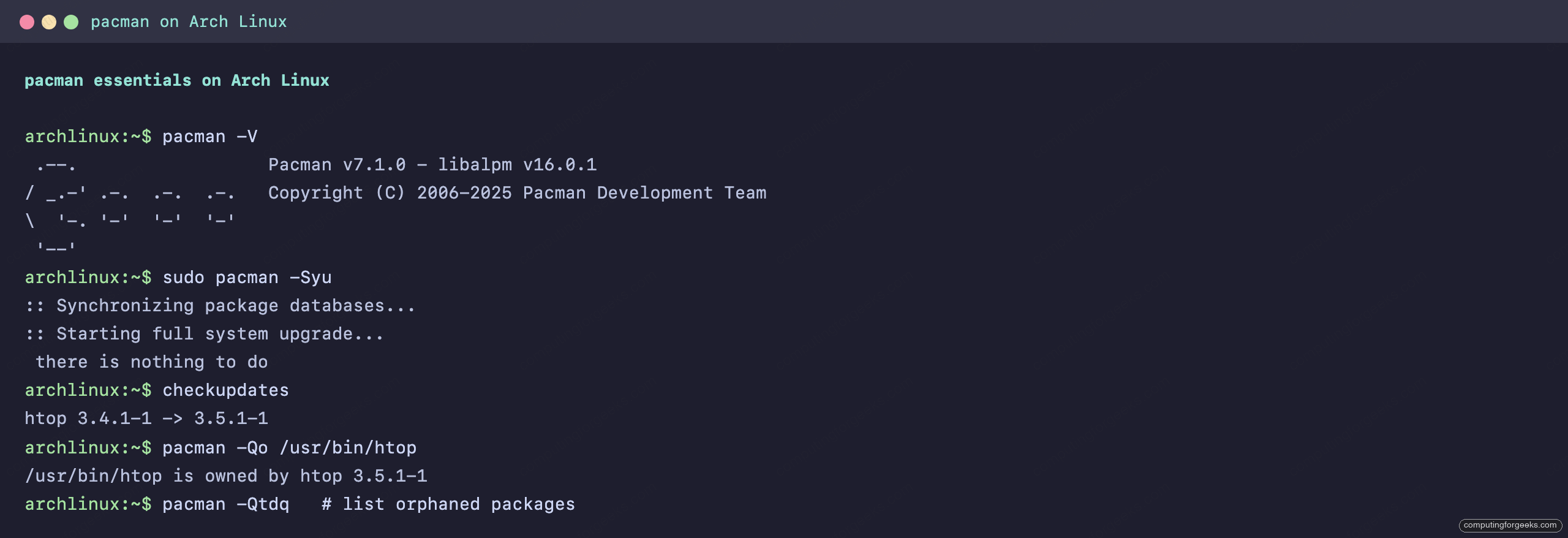
Here are several of those operations running on the live Arch system used to test this guide:
Update the System the Right Way
Arch is a rolling release. A full system upgrade is the single most important maintenance task, and there is exactly one correct command for it:
sudo pacman -SyuThat refreshes the package databases and upgrades everything in one transaction. When the system is already current, pacman says so:
:: Synchronizing package databases...
 core downloading...
 extra downloading...
:: Starting full system upgrade...
 there is nothing to do
If a mirror switch left your databases stale, force a full re-download with a doubled -yy:
sudo pacman -SyyuWhy “sudo pacman -Sy” alone breaks Arch
This is the mistake that wrecks more Arch installs than any other. pacman -Sy refreshes the database without upgrading installed packages. Arch keeps no old library versions, so when a shared library gets an ABI bump, every package that links against it is rebuilt and pushed together. Run -Sy and then pacman -S somepackage, and you pull in a package built against the new library while your system still has the old one. The result is a partial upgrade that breaks at runtime.
The rule is simple: never run -Sy on its own. Always upgrade with -Syu, and install new packages as part of that upgrade:
sudo pacman -Syu --needed package-nameCheck for updates without touching the system
To see what is pending without modifying the real sync databases (and without root), use checkupdates from the pacman-contrib package. It is the safe way to answer “what would update?”:
checkupdatesEach pending package prints with its current and new version:
htop 3.4.1-1 -> 3.5.1-1The related pacman -Qu lists the same thing, but it reads the database from your last sync, so it can under-report if you have not synced recently. For an accurate check, checkupdates wins because it works against a temporary copy of the databases.
Install Packages
Install a single package from the official repositories:
sudo pacman -S htopPacman resolves dependencies, downloads, and runs the post-transaction hooks:
resolving dependencies...
looking for conflicting packages...

Packages (1) htop-3.5.1-1

Total Download Size:   0.17 MiB
Total Installed Size:  0.39 MiB

:: Proceed with installation? [Y/n]
:: Processing package changes...
installing htop...
Optional dependencies for htop
    lm_sensors: show cpu temperatures
    lsof: show files opened by a process
    strace: attach to a running process
Several common install variations live in one place here. Each line is its own command:
# Install several packages at once
sudo pacman -S vim git curl wget

# Install only if not already current (no needless reinstall)
sudo pacman -S --needed vim

# Disambiguate when a name exists in more than one repo
sudo pacman -S extra/nginx

# Download to the cache without installing
sudo pacman -Sw firefox

# Reinstall a package to repair a corrupted install
sudo pacman -S htop
To install a package file you built or downloaded yourself, use -U. Arch packages have used zstd compression since 2020, so they end in .pkg.tar.zst:
sudo pacman -U ./mypackage-1.0-1-x86_64.pkg.tar.zstThe same operation accepts a URL, which is how you install a specific build straight from a mirror or archive:
sudo pacman -U https://archive.archlinux.org/packages/h/htop/htop-3.4.1-1-x86_64.pkg.tar.zstOne install flag is worth knowing before you need it. When two packages ship the same file, pacman refuses with a file-conflict error. If you have confirmed the conflict is safe, install with a narrow --overwrite glob rather than the dangerous --overwrite '*':
sudo pacman -S --overwrite '/usr/lib/somefile' package-nameInstall Package Groups
A group is a named bundle of packages, like xfce4 or plasma. List every available group:
pacman -SgShow what a group contains before you commit to it:
pacman -Sg xfce4The members print one per line:
xfce4 exo
xfce4 garcon
xfce4 thunar
xfce4 thunar-volman
xfce4 tumbler
xfce4 xfce4-appfinder
Install the whole group with a normal -S, deselecting members by number at the prompt if you want a subset:
sudo pacman -S xfce4One thing trips people up: base-devel used to be a group and is now a regular meta-package, so install it with plain -S base-devel, not as a group. To see which members of a group you already have installed, query the local database with pacman -Qg xfce4.
Remove Packages and Clean Orphans
Removal has three levels of thoroughness. The everyday one removes a package and the dependencies nothing else needs:
# Remove just the package, keep its deps and config
sudo pacman -R htop

# Remove the package plus unused dependencies
sudo pacman -Rs htop

# Remove package, unused deps, and skip config backups (.pacsave)
sudo pacman -Rns htop
The -Rns form is the clean uninstall most people want. Two heavier hammers exist for special cases. A cascade removal takes the package and everything that depends on it, while skipping dependency checks entirely lets you swap a provider by force:
# Cascade: remove the package and all its dependents (review the list!)
sudo pacman -Rsc package-name

# Skip dependency checks entirely (dangerous, can break the system)
sudo pacman -Rdd package-name
Over time, packages that were pulled in as dependencies stick around after nothing needs them. These orphans are easy to find and remove in one line:
sudo pacman -Rns $(pacman -Qtdq)If there are no orphans, pacman -Qtdq prints nothing and the outer command exits harmlessly. Removing one batch of orphans can create more (their own dependencies become unneeded), so it is worth running again until it reports nothing left.
Search Repositories and Show Package Info
Search the remote repositories by name or description:
pacman -Ss nginxResults show the repository, name, version, and description:
extra/nginx 1.30.2-1
    Lightweight HTTP server and IMAP/POP3 proxy server
extra/nginx-mainline 1.31.1-1
    Lightweight HTTP server and IMAP/POP3 proxy server, mainline release
Inspect a package in the repos before installing with -Si. Add a second i (-Sii) to also list what requires it:
pacman -Si nginxYou get the repository, version, dependencies, optional deps, and sizes:
Repository      : extra
Name            : nginx
Version         : 1.30.2-1
Depends On      : glibc  pcre2  zlib  openssl  mailcap  libxcrypt
Optional Deps   : nginx-mod-geoip: GeoIP support
                  nginx-mod-mail: proxy IMAP, POP and SMTP protocols
                  nginx-mod-stream: proxy TCP/UDP data streams
Download Size   : 655.30 KiB
Installed Size  : 1715.35 KiB
For packages already on the system, swap -S for -Q. Search installed packages with pacman -Qs htop, and show full details, including the install date and reason, with -Qi:
pacman -Qi htopThe install reason at the bottom is what orphan cleanup keys off:
Name            : htop
Version         : 3.5.1-1
Depends On      : libcap  libcap.so=2-64  libnl  ncurses  libncursesw.so=6-64
Installed Size  : 403.98 KiB
Packager        : T.J. Townsend
Install Date    : Mon Jun 15 14:27:50 2026
Install Reason  : Explicitly installed
To list every package in a repository, use pacman -Sl extra. Drop the repo name to list packages across all of them.
Find Which Package Owns a File
List every file a package installed:
pacman -Ql htopGo the other way and find which package owns a file on disk:
pacman -Qo /usr/bin/htopPacman names the owning package and version:
/usr/bin/htop is owned by htop 3.5.1-1Those two only work for installed packages. To search files in packages you have not installed, use the files database. Sync it once (and after big updates), then query it:
sudo pacman -Fy
pacman -Fx 'bin/nginx$'
The -Fx form takes a regex, which keeps the result tight to the file you actually mean:
usr/bin/nginx is owned by extra/nginx 1.30.2-1
usr/bin/nginx is owned by extra/nginx-mainline 1.31.1-1
This is the command to remember when something runs command not found and you need to know which package to install to get it.
List and Filter Installed Packages
The -Q operation has a set of filter flags that answer almost any “what is installed?” question. Each line below is a standalone command:
# Everything installed
pacman -Q

# Only packages you installed on purpose (not pulled as deps)
pacman -Qe

# Foreign packages: from the AUR or installed by hand
pacman -Qm

# Native packages: present in the official repos
pacman -Qn

# Explicit AND not required by anything: your real "top level" list
pacman -Qet

# Orphans: dependencies nothing needs anymore
pacman -Qtdq

# Count installed packages
pacman -Qq | wc -l
The foreign list is the one AUR users want most often. On a fresh install with only yay added, it is short:
yay-bin 12.6.0-1
yay-bin-debug 12.6.0-1
To see what is eating your disk, the expac tool sorts installed packages by size far more cleanly than parsing -Qi. List the biggest packages:
expac -H M '%m\t%n' $(pacman -Qq) | sort -rh | headThe result is an instant view of where space goes:
218.35 MiB	gcc
147.43 MiB	linux
 73.34 MiB	python
 70.11 MiB	perl
 54.49 MiB	guile
 50.35 MiB	glibc
Change a Package’s Install Reason
Every package is marked as either explicitly installed or installed as a dependency, and that mark is what makes orphan cleanup work. A dependency that nothing requires becomes an orphan; an explicit package never does. Sometimes the mark is wrong, for example a library you installed directly that you now want auto-removed once nothing uses it. Fix it with -D:
# Re-mark as a dependency (eligible for orphan cleanup)
sudo pacman -D --asdeps package-name

# Re-mark as explicitly installed (protected from orphan cleanup)
sudo pacman -D --asexplicit package-name
A common case: you built something from the AUR that pulled in a library as a make-time dependency, then later you want that library kept. Promote it to explicit so the next orphan sweep leaves it alone.
Check Integrity and Dependencies
If a package misbehaves, verify its files are intact. A single -Qk checks that every file exists; doubling it to -Qkk also checks file sizes, permissions, and modification times:
pacman -Qkk htopA clean package reports no altered files:
htop: 16 total files, 0 altered filesBefore removing something, it pays to know what depends on it. The pactree tool (from pacman-contrib) draws the dependency tree, and the reverse tree answers “what breaks if this goes away?”:
pactree -r ncursesThe output walks up the chain of packages that need it:
ncurses
├─bash
│ ├─audit
│ │ ├─dbus
│ │ │ ├─dbus-broker-units
│ │ │ │ ├─dbus-units
│ │ │ │ │ └─systemd
That tree explains why pacman refuses to remove a core library: half the system sits above it.
Downgrade a Package
When a new version breaks something, you roll back. The fastest path is the local cache, because pacman keeps every version it downloaded. Point -U at the older file:
sudo pacman -U /var/cache/pacman/pkg/htop-3.4.1-1-x86_64.pkg.tar.zstIf the version you want is no longer cached, the Arch Linux Archive keeps every package ever published. The URL path uses the package’s first letter. Installing it is a normal -U from the archive:
sudo pacman -U https://archive.archlinux.org/packages/h/htop/htop-3.4.1-1-x86_64.pkg.tar.zstPacman treats the older file as an upgrade target and warns you it is going backwards:
warning: downgrading package htop (3.5.1-1 => 3.4.1-1)
downgrading htop...
For an interactive picker, the downgrade tool from the AUR lists cached and archive versions and lets you choose. Install it with yay, then run it against any package:
yay -S downgrade
sudo downgrade htop
After downgrading, the next -Syu will pull the package forward again. To make a downgrade stick, hold it (covered next), and unhold it the moment a fixed release lands.
Hold Packages Back from Upgrades
To skip a package for a single upgrade, pass --ignore (comma-separated for several):
sudo pacman -Syu --ignore linux,linux-headersTo hold something permanently, set it in the config file. Open it:
sudo vim /etc/pacman.confAdd an IgnorePkg line in the [options] section. Globs work, so this pins the whole kernel set:
IgnorePkg = linux linux-headers
IgnoreGroup = nvidia
Hold packages sparingly. A frozen package while everything else moves forward is, by definition, a partial upgrade, and if it shares a library dependency with packages that do upgrade, it can break. Pacman prints ignoring package upgrade on every run as a reminder to unhold it as soon as you can.
Manage the Package Cache
Pacman stores every package it downloads in /var/cache/pacman/pkg/, which grows to several gigabytes over months. Check the size:
du -sh /var/cache/pacman/pkg/Pacman’s built-in cleaners are blunt. The single -Sc removes cached versions of packages you no longer have installed; the double -Scc wipes the cache entirely, which means no offline reinstall and no downgrade-from-cache afterward:
# Remove cached packages you no longer have installed
sudo pacman -Sc

# Remove everything in the cache (aggressive)
sudo pacman -Scc
For control, use paccache from pacman-contrib, which keeps the most recent versions and trims the rest. Always preview with a dry run first:
# Show what would be removed, change nothing
paccache -d

# Keep the 3 most recent versions of each package
sudo paccache -r

# Keep only 1 version
sudo paccache -rk1

# Remove all cached versions of uninstalled packages
sudo paccache -ruk0
To never think about it again, enable the timer that runs paccache -r weekly:
sudo systemctl enable --now paccache.timerFix Keyring and PGP Signature Errors
Packages are signed, and an outdated keyring is the most common reason an upgrade suddenly fails with an error like invalid or corrupted package (PGP signature) or signature is unknown trust. This bites machines that have been powered off for a while. The first fix is to update the keyring package on its own, then retry the upgrade:
sudo pacman -S archlinux-keyring
sudo pacman -Syu
When even that cannot start because the keyring itself is too broken, reset it from scratch. This re-initialises the keyring and reloads the official Arch master keys:
sudo rm -r /etc/pacman.d/gnupg
sudo pacman-key --init
sudo pacman-key --populate archlinux
After repopulating, pull the current keyring package and run the upgrade again, because the master keys you just loaded can still predate the latest signing keys on a machine that sat idle: sudo pacman -S archlinux-keyring && sudo pacman -Syu.
One non-obvious cause: a wrong system clock makes valid signatures look invalid, because signature validity is time-based. If the keyring is current and signatures still fail, check that timedatectl shows the correct date before anything else.
Update and Rank Mirrors with reflector
Slow updates usually mean a slow mirror. The mirror list lives in /etc/pacman.d/mirrorlist, and reflector ranks the fastest ones for you. Install it first:
sudo pacman -S reflectorBack up the current list, then write a fresh one filtered to your region. This example takes recent HTTPS mirrors from two countries and sorts them by measured download rate:
sudo cp /etc/pacman.d/mirrorlist /etc/pacman.d/mirrorlist.bak
sudo reflector --country Germany,France --protocol https --age 12 \
  --latest 10 --sort rate --save /etc/pacman.d/mirrorlist
The written file headers record exactly how it was generated:
# With:    reflector --country Germany,France --protocol https --latest 10 --sort rate
# When:    2026-06-15 14:30:06 UTC
Server = https://de.arch.mirror.kescher.at/$repo/os/$arch
Server = https://arch.phinau.de/$repo/os/$arch
Server = https://mirror.theo546.fr/archlinux/$repo/os/$arch
After changing mirrors, force a database refresh so the new servers are actually used:
sudo pacman -SyyuTo keep the list fresh automatically, edit the options in /etc/xdg/reflector/reflector.conf and enable the timer with sudo systemctl enable --now reflector.timer. If you would rather build a list by country interactively, the country-based mirrorlist guide covers the web generator approach.
Handle .pacnew and .pacsave Files
When an upgrade ships a new default config for a file you have edited, pacman does not overwrite your version. It writes the new one beside it as file.pacnew and prints a warning. Ignore these for too long and your configs drift from upstream until something quietly breaks. Find any pending ones:
find /etc -name '*.pacnew'The clean way to review and merge them is pacdiff from pacman-contrib, which walks each one and lets you diff, merge, or remove it. Set a diff tool you like first:
sudo DIFFPROG=nvim pacdiffThe mirror image is file.pacsave, which pacman writes when you remove a package that owns a config flagged for backup. It is your old config, kept in case you reinstall.
AUR Packages with yay
The Arch User Repository holds tens of thousands of community-maintained build scripts for software the official repos do not carry, from Google Chrome to niche dev tools. yay is the most popular AUR helper. It wraps pacman and adds AUR support, so once you know pacman, yay is almost free.
yay itself lives in the AUR, so you bootstrap it once by hand. The yay-bin package installs a pre-built binary and skips the Go toolchain, which is the quickest route. For the source build and other helpers, the dedicated yay install guide covers each option:
sudo pacman -S --needed git base-devel
git clone https://aur.archlinux.org/yay-bin.git
cd yay-bin
makepkg -si
Run yay as your normal user, never with sudo. It calls sudo itself only for the pacman steps. The core commands mirror pacman exactly, with the AUR folded in:
# Upgrade everything: repos AND the AUR (bare yay does the same)
yay -Syu

# Install from repos or the AUR
yay -S google-chrome

# Search repos and the AUR together
yay -Ss spotify

# Remove cleanly, exactly like pacman
yay -Rns google-chrome
Run yay with a search term and no operation and it searches, numbers the results, and prompts you to pick which to install. Type numbers, ranges like 1-3, or ^2 to exclude. Installing an AUR package shows the build in real time:
yay -S downgradeyay clones the build files, pulls any repo dependencies through pacman, then builds and installs:
AUR Explicit (1): downgrade-12.0.2-1
  -> Downloading downgrade-12.0.2.tar.gz...
Packages (1) fzf-0.72.0-1
Total Download Size:   1.63 MiB
installing fzf...
  -> Found downgrade-12.0.2.tar.gz
  -> Extracting downgrade-12.0.2.tar.gz with bsdtar
List AUR packages that have updates (yay -Qua)
This is the question pacman cannot answer on its own. pacman -Qu only checks the official repos, because the AUR is not in the sync databases. yay extends the query with the -a (AUR) flag, so the AUR-only equivalent of pacman -Qu is:
yay -QuaIt prints each foreign package that has a newer version in the AUR, in the same oldver -> newver form as checkupdates, and installs nothing. Plain yay -Qu lists both repo and AUR updates together; adding -a narrows it to the AUR. To upgrade only the AUR packages and leave repo packages untouched, use yay -Sua.
Inspect, count, and clean up
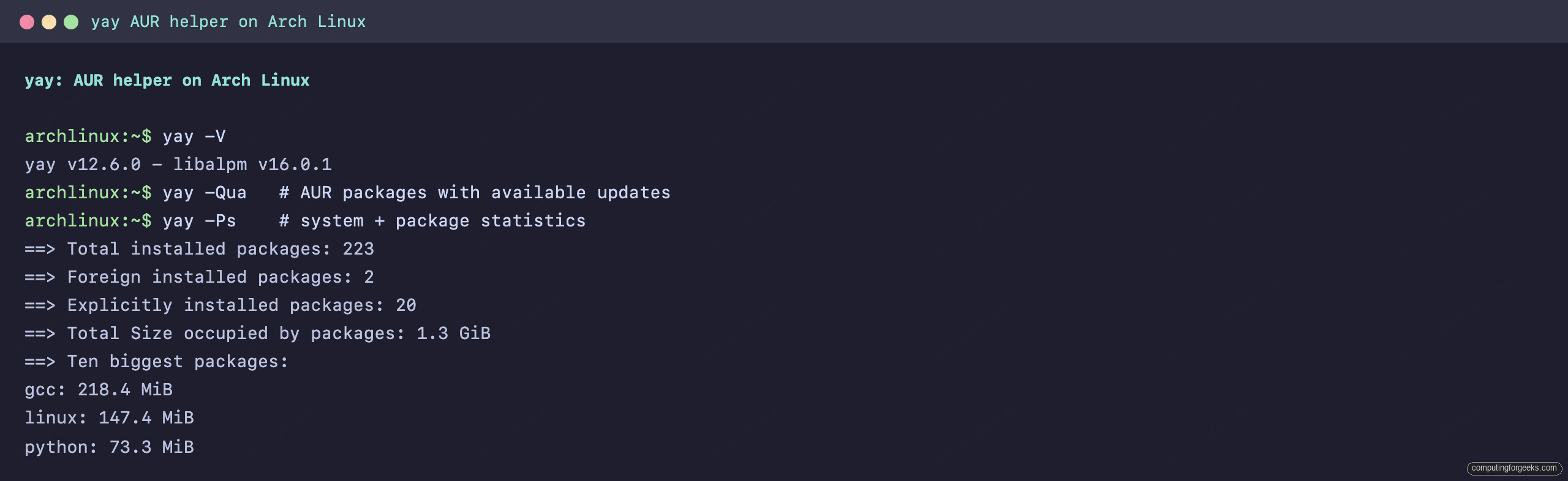
yay adds a print operation for system insight. The statistics view is a quick health snapshot:
yay -PsIt totals your packages, separates the foreign ones, and lists the biggest:
==> Yay version v12.6.0
==> Total installed packages: 223
==> Foreign installed packages: 2
==> Explicitly installed packages: 20
==> Total Size occupied by packages: 1.3 GiB
==> Ten biggest packages:
gcc: 218.4 MiB
linux: 147.4 MiB
python: 73.3 MiB
That snapshot, plus the AUR update check, is what yay adds on top of pacman:
A few more print and cleanup commands round out daily use. Each line is its own command:
# List your installed AUR packages
yay -Qm

# Print the latest Arch news (read before big upgrades)
yay -Pw

# Count pending updates (handy for a status bar)
yay -Qu | wc -l

# Remove unneeded dependencies (orphans), AUR-aware
yay -Yc

# Clean the build and package caches
yay -Sc
Read and edit PKGBUILDs before you build
The AUR is user-submitted, so reviewing a build script before running it is your main line of defense. Print any package’s PKGBUILD straight to the terminal without cloning it:
yay -Gp yay-binYou see exactly what it will do, including the source URLs and version:
# Maintainer: Jguer
pkgname=yay-bin
pkgver=12.6.0
pkgdesc="Yet another yogurt. Pacman wrapper and AUR helper written in go."
arch=('x86_64' 'aarch64' 'armv7h')
url="https://github.com/Jguer/yay"
By default yay shows a diff menu on AUR updates so you can see what changed in the PKGBUILD since you last built it. That diff is your warning system against a hijacked package, so resist the urge to disable it. To download the full build directory for hands-on editing, use yay -G package-name.
Track -git and devel packages
Packages that build from a git branch (names ending in -git) only show an update when their version field changes, which can be never. To make yay check the upstream commit instead, enable devel tracking once and generate its database:
yay -Y --gendb
yay -Syu --devel
To make devel checks and a combined upgrade menu permanent, save them to the config. yay reads ~/.config/yay/config.json, and any flag becomes the default when you append --save:
yay --devel --combinedupgrade --cleanafter --saveWith --cleanafter set, yay removes build files after a successful install, and --removemake drops make-only dependencies, which keeps an AUR-heavy system from filling up with build leftovers.
paru as an Alternative to yay
paru is the other widely used AUR helper, written in Rust by a former yay maintainer. The day-to-day commands are interchangeable: paru upgrades everything, paru -Sua upgrades AUR-only, paru -Qua lists AUR updates, and paru --gendb with paru --devel handles git packages. People pick paru for its stronger review defaults (it shows the full build diff inline) and tighter pacman-style flag parity. For most users the choice comes down to taste, Go versus Rust, rather than capability.
Build Your Own Packages with makepkg
Under every AUR install is makepkg, which turns a PKGBUILD into an installable package. You use it directly when packaging your own software or building from a PKGBUILD by hand. Install the build toolchain first:
sudo pacman -S --needed base-devel gitFrom inside a directory containing a PKGBUILD, this builds it, pulls any missing dependencies, installs the result, and cleans up afterward:
makepkg -sicNever run makepkg as root. It refuses to start, by design, because build scripts run arbitrary code. Two settings in ~/.config/pacman/makepkg.conf are worth setting: MAKEFLAGS="-j$(nproc)" compiles across all cores, and PACKAGER="Your Name stamps your identity into the packages you build.
Tune pacman.conf
A handful of settings make pacman faster and more readable. Open the config:
sudo vim /etc/pacman.confUncomment or add these in the [options] section:
# Colored output
Color

# Detailed version and size table before each transaction
VerbosePkgLists

# Download several packages at once (big speedup)
ParallelDownloads = 5

# Pac-Man animation in the progress bar
ILoveCandy
ParallelDownloads makes the most visible difference on large upgrades; 5 to 10 suits most connections. To install 32-bit packages for Steam or Wine, enable the multilib repository in the same file by uncommenting the [multilib] section header and its Include = /etc/pacman.d/mirrorlist line, then run sudo pacman -Syu to pick up the new repository. The Arch Wiki pacman page documents every option in full. One naming note for the testing repos: the old single [testing] was split into [core-testing] and [extra-testing], so enable those if you opt into testing.
Read the pacman Log
Every install, upgrade, and removal is recorded in /var/log/pacman.log. It is the first place to look when you want to know what changed and when. Filter it to just package transactions:
grep -E '\[ALPM\] (installed|upgraded|removed)' /var/log/pacman.log | tailEach line is timestamped and shows the version change:
[2026-06-15T14:27:00+0000] [ALPM] installed yay-bin (12.6.0-1)
[2026-06-15T14:27:50+0000] [ALPM] installed htop (3.5.1-1)
[2026-06-15T14:28:36+0000] [ALPM] upgraded htop (3.4.1-1 -> 3.5.1-1)
When an upgrade breaks something, this log tells you exactly which version you came from, which is what you feed to the downgrade steps above.
Troubleshoot Common pacman Errors
Four errors account for most of the pacman questions people ask. The first is a stale database lock. Pacman creates /var/lib/pacman/db.lck during a transaction and removes it when done. If pacman was killed mid-run, the lock lingers and the next run fails:
error: failed to init transaction (unable to lock database)
error: could not lock database: File exists
Confirm no pacman is actually running before you touch the lock, then remove it:
pgrep -a pacman
sudo rm /var/lib/pacman/db.lck
Deleting that lock while a pacman process is genuinely running will corrupt the database, so the pgrep check is not optional. The second error is a file conflict, where a package wants to write a file that already exists:
error: failed to commit transaction (conflicting files)
some-package: /usr/lib/somefile exists in filesystem
Check who owns the file with pacman -Qo /usr/lib/somefile. If it is a known stale leftover, reinstall with a narrow overwrite glob: sudo pacman -S --overwrite '/usr/lib/somefile' some-package. Never reach for --overwrite '*', which clobbers files owned by other packages.
The third is the signature error covered earlier, fixed by updating archlinux-keyring. The fourth shows up as repeated download failures:
error: failed retrieving file 'foo.pkg.tar.zst' from mirror : 404This means your local database points at packages a mirror has already rotated out, usually because you waited too long between syncs. Force a full database re-download, and if a mirror is simply dead, rank a fresh set with reflector first:
sudo pacman -SyyuPacman Command Reference
The full pacman quick reference, grouped by what you are doing:
| Command | What it does |
|---|---|
pacman -Syu | Refresh databases and upgrade everything (the only correct update) |
pacman -Syyu | Force a full database re-download, then upgrade |
checkupdates | List pending updates safely, without syncing the real database |
pacman -Qu | List installed packages with available updates |
pacman -S pkg | Install a package from the repos |
pacman -S --needed pkg | Install only if not already current |
pacman -Sw pkg | Download to the cache without installing |
pacman -U file.pkg.tar.zst | Install a local or remote package file |
pacman -Sg / -Sg group | List groups / list a group’s members |
pacman -R pkg | Remove a package, keep deps and config |
pacman -Rns pkg | Remove package, unused deps, and config |
pacman -Rns $(pacman -Qtdq) | Remove all orphaned packages |
pacman -Ss term | Search the repositories |
pacman -Si pkg | Show repo package details |
pacman -Qi pkg | Show installed package details |
pacman -Ql pkg | List files a package owns |
pacman -Qo /path | Find which package owns a file |
pacman -Fy / -Fx regex | Sync the file database / search it by regex |
pacman -Qe | List explicitly installed packages |
pacman -Qm | List foreign (AUR) packages |
pacman -Qtdq | List orphaned packages |
pacman -Qkk pkg | Verify a package’s files (size, perms, mtime) |
pacman -D --asdeps pkg | Mark a package as a dependency |
pacman -Sc / -Scc | Clean old cache / clean all cache |
pacman -Syu --ignore pkg | Upgrade while skipping a package |
Yay Command Reference
yay mirrors pacman’s flags and adds the AUR-aware commands:
| Command | What it does |
|---|---|
yay or yay -Syu | Upgrade repos and the AUR together |
yay -Sua | Upgrade AUR packages only |
yay -Qua | List AUR packages that have updates |
yay -S pkg | Install from the repos or the AUR |
yay term | Search and pick from a numbered menu |
yay -Ss term | Search repos and the AUR |
yay -Rns pkg | Remove a package cleanly |
yay -Qm | List installed AUR packages |
yay -Ps | Print system and package statistics |
yay -Pw | Print the latest Arch news |
yay -Yc | Remove unneeded dependencies |
yay -Gp pkg | Print a package’s PKGBUILD |
yay -G pkg | Download a package’s build files |
yay -Y --gendb | Build the devel database for -git packages |
yay -Syu --devel | Upgrade, also checking -git packages for new commits |
yay --save | Persist the given flags to the config file |
Shell Aliases That Save Keystrokes
Add these to ~/.bashrc or ~/.zshrc. They lean on yay since it covers both repo and AUR packages:
# Full system update (repos + AUR)
alias up='yay -Syu'

# Install and remove
alias get='yay -S'
alias rmv='yay -Rns'

# Search and info
alias pse='yay -Ss'
alias pin='yay -Si'

# Maintenance: list orphans and clean them with the cache
alias orphans='pacman -Qtdq'
alias clean='yay -Yc && yay -Sc'Download the one-page PDF and pin it next to your terminal. Every command above, grouped by task, free to print and share.
Download the PDF cheat sheetReload the shell with source ~/.bashrc and the aliases are live. Bookmark this page and keep it in a second terminal: the commands here cover the entire lifecycle of a package on Arch, from finding it, through installing, holding, downgrading, and cleaning up, to fixing the keyring when an upgrade refuses to run. For keeping the rest of a fresh install in shape, the Arch post-install guide picks up where package management leaves off.






This is an excellent guide to pacman and yay!
However, there is one thing that I can’t find in this cheatsheet …
I understand that “pacman -Qu” will list all pacman-accessible packages which have available updates.
But I’m also looking for a yay counterpart which will list all yay-accessible packages which have available updates.
Is there any way to get this info about yay packages with available updates?
Thank you very much in advance for any info you might be able to supply!
Use yay -Qua. The -a (–aur) flag limits the upgrade check to foreign/AUR packages, so it is the AUR-only counterpart to pacman -Qu. Plain yay -Qu lists repo and AUR updates together; adding -a narrows it to just the AUR ones. As an aside, yay -Qm lists your installed AUR packages regardless of whether an update is pending.