

A fresh Arch Linux install gives you a working kernel, a shell, and not much else. That blank canvas is the whole point, you build exactly the system you want. But there are 25+ things nearly everyone needs to configure before Arch feels like a daily driver. This guide walks through every one of them, from system updates and driver installation to gaming setup and security hardening.
Whether you followed the Arch install with LVM on UEFI guide, the archinstall guided installer, or the LUKS encrypted install, these post-install steps apply to all of them.
What You Need
- A working Arch Linux installation with a desktop environment (GNOME, KDE Plasma, or similar)
- A non-root user account with sudo privileges
- Active internet connection
1. Update the System
First things first – bring everything up to date. Arch is a rolling release, so even a day-old ISO can have dozens of pending updates.
sudo pacman -SyuIf the kernel was updated, reboot before continuing. Running on an old kernel with new packages is a recipe for weird module loading issues.
sudo reboot2. Configure Pacman for Speed
Pacman’s default configuration is conservative. Three quick tweaks make package management significantly faster and more informative.
Enable parallel downloads (10 simultaneous instead of 1), color output, and detailed package lists:
sudo sed -i 's/#ParallelDownloads = 5/ParallelDownloads = 10/' /etc/pacman.conf
sudo sed -i 's/#Color/Color/' /etc/pacman.conf
sudo sed -i 's/#VerbosePkgLists/VerbosePkgLists/' /etc/pacman.conf
Verify the changes took effect:
grep -E '^(ParallelDownloads|Color|VerbosePkgLists)' /etc/pacman.confYou should see all three options uncommented. The difference is noticeable immediately on your next pacman -Syu – downloads that used to crawl now finish in seconds.
3. Optimize the Mirror List with Reflector
The mirror list you got during installation is a snapshot in time. Mirrors go down, get slow, or fall behind on syncing. Reflector automatically finds the fastest, most up-to-date mirrors for your location.
sudo pacman -S reflectorGenerate an optimized mirror list sorted by download speed:
sudo reflector --country 'United States' --latest 10 --sort rate --save /etc/pacman.d/mirrorlistReplace United States with your own country. You can list available countries with reflector --list-countries.
To keep your mirrors fresh automatically, enable the built-in reflector timer:
sudo systemctl enable --now reflector.timerThis runs reflector weekly so you never have to think about stale mirrors again.
4. Enable the Multilib Repository
The multilib repository provides 32-bit libraries needed for Steam, Wine, and many other applications. It’s disabled by default.
Open /etc/pacman.conf in your editor:
sudo vi /etc/pacman.confFind and uncomment both lines in the multilib section so it looks like this:
[multilib]
Include = /etc/pacman.d/mirrorlist
Then sync the database:
sudo pacman -SyuSkip this step only if you’re running a pure 64-bit system with no gaming or Wine needs – but most desktop users will want multilib enabled.
5. Install an AUR Helper
The Arch User Repository (AUR) contains thousands of community-maintained packages not in the official repos. An AUR helper automates building and installing these packages. The two most popular options are yay and paru.
Make sure you have the build tools installed first:
sudo pacman -S --needed base-devel gitTo install yay (Go-based, the most widely used AUR helper):
git clone https://aur.archlinux.org/yay.git
cd yay && makepkg -si --noconfirm
Or install paru (Rust-based, newer with some extra features like review-before-build):
git clone https://aur.archlinux.org/paru.git
cd paru && makepkg -si --noconfirm
Both work well. Paru is slightly stricter about reviewing PKGBUILDs before building, which is a good security habit. Pick one and stick with it.
6. Install CPU Microcode Updates
CPU microcode patches fix hardware bugs, security vulnerabilities, and stability issues at the processor firmware level. These are applied early during boot and are essential for any production or daily-driver system.
For Intel CPUs:
sudo pacman -S intel-ucodeFor AMD CPUs:
sudo pacman -S amd-ucodeAfter installing, regenerate your bootloader configuration so the microcode gets loaded at boot:
sudo grub-mkconfig -o /boot/grub/grub.cfgIf you use systemd-boot instead of GRUB, the microcode is loaded automatically – no extra step needed.
7. Install Graphics Drivers
The right graphics driver setup depends on your GPU vendor. Getting this right affects everything from desktop compositing to gaming performance.
Intel Graphics
Intel integrated GPUs use the open-source Mesa driver stack. Install the full set:
sudo pacman -S mesa intel-media-driver vulkan-intelThe intel-media-driver package handles hardware video decoding (VA-API) for newer Intel GPUs (Broadwell and later).
AMD Graphics
AMD GPUs also use open-source Mesa drivers with excellent performance:
sudo pacman -S mesa xf86-video-amdgpu vulkan-radeon libva-mesa-driverNVIDIA Graphics (Proprietary)
NVIDIA’s proprietary driver delivers the best performance for NVIDIA GPUs:
sudo pacman -S nvidia nvidia-utils nvidia-settingsIf you run a non-standard kernel (like linux-lts or linux-zen), use nvidia-dkms instead of nvidia so the module gets rebuilt automatically on kernel updates.
For early KMS (kernel modesetting), add nvidia nvidia_modeset nvidia_uvm nvidia_drm to the MODULES array in /etc/mkinitcpio.conf and rebuild:
sudo mkinitcpio -P8. Set Up Audio with PipeWire
PipeWire is the modern audio and video server that replaces both PulseAudio and JACK. It handles everything from desktop audio to professional low-latency applications. Most desktop environments include it by default now, but if yours doesn’t:
sudo pacman -S pipewire pipewire-pulse pipewire-alsa wireplumberThe pipewire-pulse package provides PulseAudio compatibility so all existing applications work without changes. WirePlumber is the session manager that handles audio device routing.
PipeWire starts automatically through the user session on GNOME and KDE. Verify it’s running:
systemctl --user status pipewire wireplumber9. Install Essential Fonts
A fresh Arch install has minimal font coverage. Web pages, documents, and terminal applications will look rough without proper fonts installed. This set covers Latin, CJK (Chinese/Japanese/Korean), emoji, and monospace for coding:
sudo pacman -S noto-fonts noto-fonts-cjk noto-fonts-emoji ttf-liberation ttf-dejavu ttf-jetbrains-monottf-jetbrains-mono is an excellent monospace font for terminal emulators and code editors – it has programming ligatures and sharp rendering at any size. noto-fonts-emoji gives you full color emoji support across all applications.
Refresh the font cache after installing:
fc-cache -fv10. Enable Bluetooth
Bluetooth support needs two packages and a service enable. Without this, your wireless headphones, keyboards, and mice won’t connect.
sudo pacman -S bluez bluez-utils
sudo systemctl enable --now bluetooth
GNOME and KDE both have built-in Bluetooth settings panels. If you use a lightweight desktop or window manager, install blueman for a standalone GTK Bluetooth manager:
sudo pacman -S bluemanVerify the Bluetooth service is running:
systemctl status bluetooth11. Set Up Printing with CUPS
Even if you rarely print, setting up CUPS now saves you the scramble when you actually need it. The Common UNIX Printing System handles network and USB printers.
sudo pacman -S cups cups-pdf system-config-printer
sudo systemctl enable --now cups
Access the CUPS web interface at http://localhost:631 to add and manage printers. The system-config-printer package provides a GTK GUI for printer management.
For network printer auto-discovery, also install Avahi:
sudo pacman -S avahi nss-mdns
sudo systemctl enable --now avahi-daemon
12. Configure a Firewall
Arch doesn’t enable any firewall by default. If your machine is on a public network or you run any services, a firewall is non-negotiable.
UFW (Uncomplicated Firewall) is the simplest option for desktop use:
sudo pacman -S ufw
sudo ufw default deny incoming
sudo ufw default allow outgoing
sudo ufw allow ssh
sudo ufw enable
sudo systemctl enable ufw
Check the firewall status and rules:
sudo ufw status verboseIf you want a graphical interface, install gufw:
sudo pacman -S gufw13. Enable SSD TRIM
If your system drive is an SSD or NVMe, enabling periodic TRIM keeps write performance consistent over time by telling the drive which blocks are no longer in use.
sudo systemctl enable --now fstrim.timerThis runs fstrim weekly on all mounted filesystems that support discard. Verify it’s active:
systemctl status fstrim.timerThe timer-based approach is preferred over continuous TRIM (the discard mount option) because it batches operations and has less performance impact.
14. Set Up Automatic Snapshots
Arch’s rolling release model means updates can occasionally break things. Having system snapshots lets you roll back in minutes instead of hours.
For ext4 or XFS filesystems, Timeshift is the simplest option:
yay -S timeshiftFor Btrfs filesystems, snapper with snap-pac is the better choice because it integrates directly with pacman to create automatic before/after snapshots on every package operation:
sudo pacman -S snapper snap-pacCreate a snapper config for the root filesystem:
sudo snapper -c root create-config /With snap-pac installed, every pacman -Syu automatically creates a pre and post snapshot. If an update breaks your system, boot from an old snapshot and roll back. This catches most people off guard the first time they need it – the relief of having snapshots is worth the few minutes of setup.
15. Optimize Swap with zram
Traditional swap uses disk space. zram creates a compressed swap device in RAM itself, which is significantly faster. On a desktop with 16GB+ of RAM, zram eliminates the need for a swap partition entirely.
sudo pacman -S zram-generatorCreate the configuration file:
sudo vi /etc/systemd/zram-generator.confAdd the following configuration:
[zram0]
zram-size = ram / 2
compression-algorithm = zstd
Reboot to activate the zram device. After rebooting, verify it’s working:
zramctlYou should see a /dev/zram0 device with your configured size and the zstd compression algorithm.
16. Install Multimedia Codecs
Out of the box, Arch can’t play most video formats or proprietary audio codecs. Install the GStreamer plugin set and FFmpeg for full multimedia support:
sudo pacman -S gst-plugins-good gst-plugins-bad gst-plugins-ugly gst-libav ffmpegThis covers MP4, MKV, FLAC, AAC, MP3, H.264, H.265, and practically every other format you’ll encounter. Video players like GNOME Videos and media apps use GStreamer under the hood, so they start working immediately after this install.
17. Choose a Modern Terminal Emulator
The default GNOME Terminal or Konsole work fine, but if you spend serious time in the terminal, a GPU-accelerated emulator makes a real difference in responsiveness.
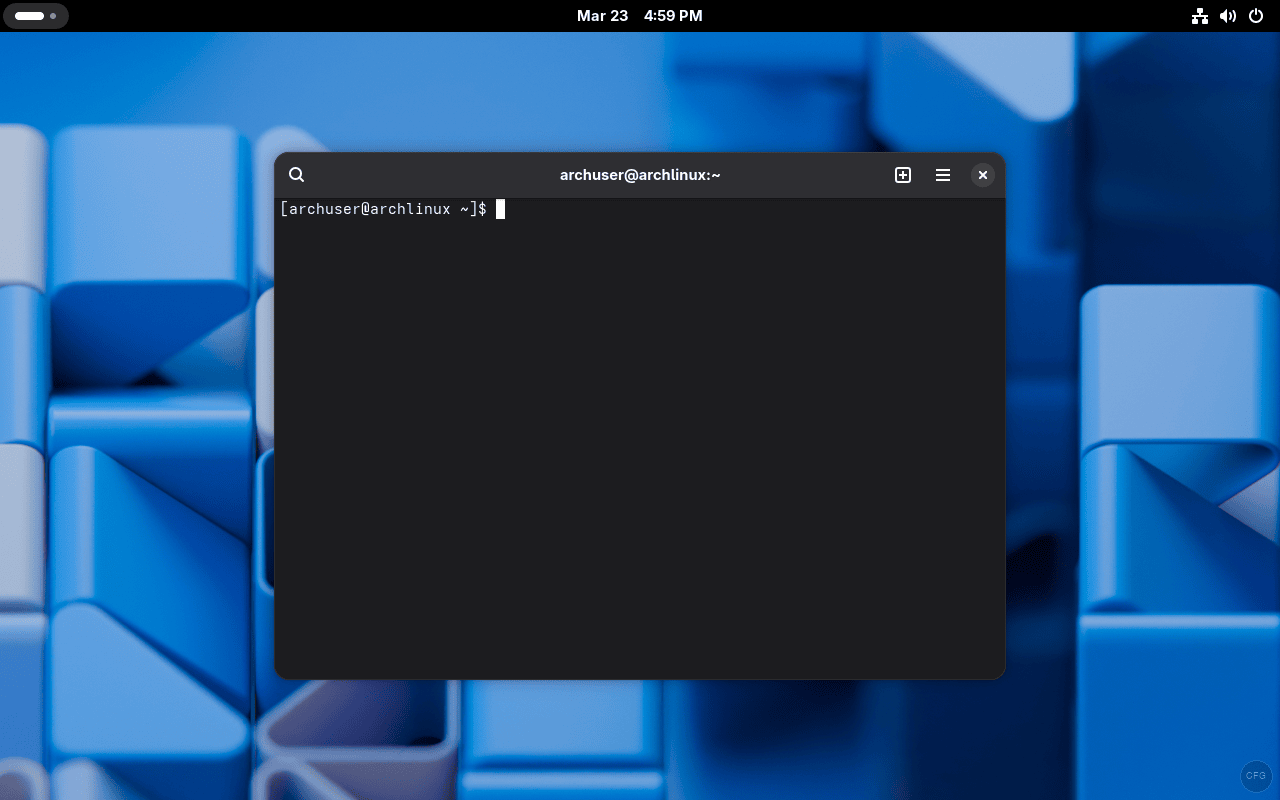
The top options:
- Kitty – GPU-accelerated, feature-rich with image display, tabs, splits, and extensive configuration:
sudo pacman -S kitty - Alacritty – Minimalist and blazing fast, configured via TOML file:
sudo pacman -S alacritty - WezTerm – Built-in multiplexer (like tmux), Lua-configurable:
yay -S wezterm
For most users, Kitty strikes the best balance between features and performance. Alacritty is the choice if you want raw speed and nothing else.
18. Customize Your Shell
Bash works, but switching to a more powerful shell transforms your terminal experience. Two popular alternatives:
Zsh with Oh My Zsh
Zsh adds tab completion, spelling correction, and plugin support. Oh My Zsh gives you a framework of themes and plugins on top:
sudo pacman -S zsh
chsh -s /usr/bin/zsh
Log out and back in, then install Oh My Zsh:
sh -c "$(curl -fsSL https://raw.githubusercontent.com/ohmyzsh/ohmyzsh/master/tools/install.sh)"Fish Shell (Beginner-Friendly)
Fish gives you autosuggestions, syntax highlighting, and a web-based configuration UI out of the box with zero setup:
sudo pacman -S fish
chsh -s /usr/bin/fish
Starship Prompt
Regardless of which shell you pick, the Starship prompt is a huge quality-of-life upgrade. It shows git status, current directory, language versions, and more in a clean single-line prompt:
sudo pacman -S starshipAdd the init script to your shell configuration. For Bash, add to ~/.bashrc:
eval "$(starship init bash)"For Zsh, add to ~/.zshrc. For Fish, add to ~/.config/fish/config.fish.
19. Install Flatpak for Sandboxed Apps
Flatpak provides sandboxed application installs from Flathub. It’s useful for apps that aren’t in the Arch repos or AUR, and for apps you want to isolate from your system (browsers, chat clients, etc.).
sudo pacman -S flatpak
flatpak remote-add --if-not-exists flathub https://dl.flathub.org/repo/flathub.flatpakrepo
Log out and back in for the Flatpak paths to take effect. Then install apps from Flathub:
flatpak install flathub com.spotify.Client
flatpak install flathub com.discordapp.Discord
Flatpak apps integrate with your application menu automatically. On GNOME, they appear alongside native packages in GNOME Software.
20. Gaming on Arch Linux
Arch is arguably the best Linux distribution for gaming thanks to its up-to-date packages. Here’s the full gaming stack.
Steam
Make sure multilib is enabled (step 4), then install Steam:
sudo pacman -S steamAfter launching Steam, go to Settings > Compatibility > Enable Steam Play for all titles. This activates Proton, Valve’s compatibility layer that runs Windows games on Linux. Most AAA titles work out of the box – check ProtonDB for game-specific compatibility reports.
Lutris and Wine
For non-Steam games (Epic, GOG, Battle.net), Lutris provides a unified launcher with automated installers:
sudo pacman -S lutris wine-stagingPerformance Tools
GameMode optimizes CPU governor and I/O scheduling while gaming. MangoHud gives you an in-game FPS overlay:
sudo pacman -S gamemode lib32-gamemode mangohud lib32-mangohudLaunch games with MangoHud enabled to see real-time FPS, GPU temp, and frame time graphs: mangohud %command% in Steam launch options.
21. Power Management for Laptops
Laptop users should install TLP for automatic power management. It optimizes CPU frequency, disk I/O, WiFi power saving, and USB autosuspend without any manual tweaking.
sudo pacman -S tlp tlp-rdw
sudo systemctl enable --now tlp
sudo systemctl mask systemd-rfkill.service systemd-rfkill.socket
The mask commands prevent conflicts between TLP and systemd’s radio device management.
For ThinkPad users, install additional packages for battery charge thresholds:
sudo pacman -S tp_smapi acpi_callCheck TLP status and battery information:
sudo tlp-stat -b22. Set Up Development Tools
If you do any development work, get the essentials installed early:
sudo pacman -S base-devel git docker docker-compose python python-pip nodejs npmEnable Docker and add your user to the docker group to run containers without sudo:
sudo systemctl enable --now docker
sudo usermod -aG docker $USER
Log out and back in for the group change to take effect. Verify Docker works:
docker run hello-worldFor KVM/QEMU virtualization on Arch, see our KVM and Virt Manager setup guide for Arch Linux.
23. Install Productivity Applications
Arch ships with nothing but the base system. Here are the productivity essentials most desktop users need:
sudo pacman -S libreoffice-fresh thunderbird firefoxA few more useful desktop applications:
- File archiver:
sudo pacman -S file-roller p7zip unrar - Image editor:
sudo pacman -S gimp - Video player:
sudo pacman -S vlcorsudo pacman -S mpv - Screenshot tool:
sudo pacman -S flameshot - Disk usage analyzer:
sudo pacman -S baobab
24. Desktop Theming and Customization
One of the biggest draws of Arch is making the desktop look and feel exactly how you want it.

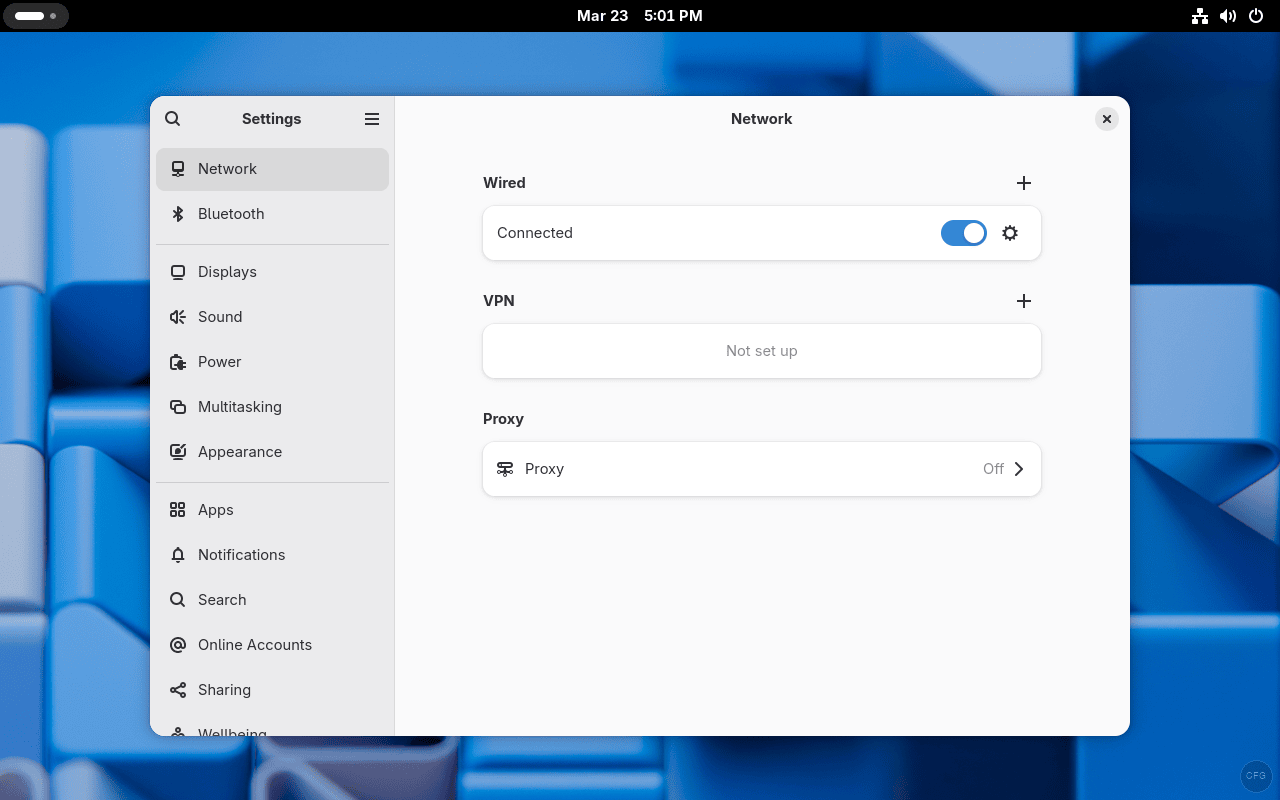
GNOME Customization
GNOME Tweaks unlocks settings not exposed in the regular Settings app – fonts, themes, titlebar buttons, startup apps, and more:
sudo pacman -S gnome-tweaksFor GNOME extensions, install the Extension Manager from the AUR:
yay -S gnome-shell-extension-managerSome must-have GNOME extensions: Dash to Dock (persistent dock), AppIndicator (system tray icons), Blur My Shell (desktop blur effects), and GSConnect (KDE Connect for GNOME).
KDE Plasma Customization
KDE Plasma has the most customization built right into System Settings. Go to Appearance > Global Theme to download and apply complete desktop themes. The KDE Store has thousands of themes, icons, and widgets.
For a macOS-like look, the Latte Dock is popular:
sudo pacman -S latte-dock25. Security Hardening
Desktop Linux systems benefit from basic kernel hardening even if you’re not running a server. These sysctl parameters reduce attack surface with no impact on daily use.
Create a security sysctl configuration:
sudo vi /etc/sysctl.d/99-security.confAdd the following parameters:
kernel.kptr_restrict = 2
net.core.bpf_jit_harden = 2
kernel.yama.ptrace_scope = 1
net.ipv4.conf.all.rp_filter = 1
net.ipv4.conf.default.rp_filter = 1
Apply the changes:
sudo sysctl --systemThese settings hide kernel pointers from non-root users, harden BPF JIT against spraying attacks, restrict ptrace to parent processes only, and enable reverse path filtering to prevent IP spoofing.
For maximum security, consider the hardened kernel:
sudo pacman -S linux-hardened linux-hardened-headers
sudo grub-mkconfig -o /boot/grub/grub.cfg
The hardened kernel adds additional exploit mitigations but may have minor performance overhead and can break some applications (notably NVIDIA proprietary drivers). Keep the standard kernel as a fallback in your bootloader.
26. System Monitoring Tools
Install a set of modern monitoring tools that replace the old standards:
sudo pacman -S btop fastfetch bandwhich- btop – A modern htop replacement with CPU, memory, disk, and network graphs in a single dashboard
- fastfetch – System information at a glance, perfect for screenshots and quick system checks
- bandwhich – Real-time network bandwidth usage per process, connection, and remote IP
Run fastfetch to see your full system configuration:
fastfetch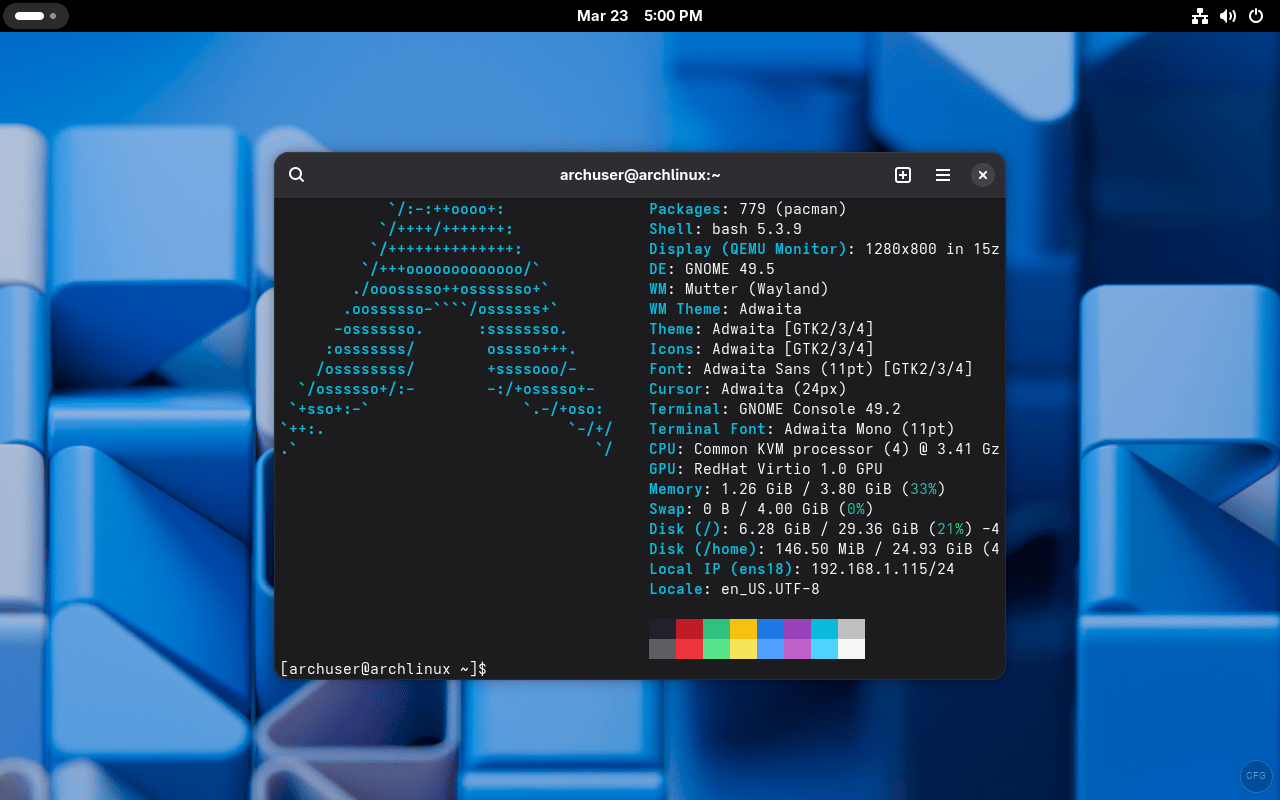
27. Keep Your System Clean
Over time, package cache and orphaned dependencies pile up. Set up regular cleanup to keep things tidy.
Remove orphaned packages (dependencies that are no longer needed):
sudo pacman -Rns $(pacman -Qdtq)If there are no orphans, the command outputs an error – that’s expected and means your system is clean.
Install pacman-contrib for the cache cleanup utility:
sudo pacman -S pacman-contribClear the package cache while keeping the last 3 versions of each package:
sudo paccache -rAutomate cache cleanup with the weekly paccache timer:
sudo systemctl enable paccache.timerThis prevents the package cache from growing indefinitely. On a system that gets regular updates, the cache can easily reach several gigabytes without cleanup.
Essential Keyboard Shortcuts to Know
Whether you’re on GNOME or KDE, knowing these shortcuts saves significant time navigating your desktop.
GNOME Shortcuts
| Shortcut | Action |
|---|---|
| Super | Open Activities overview |
| Super + A | Show all applications |
| Super + L | Lock screen |
| Ctrl + Alt + T | Open terminal |
| Super + Left/Right | Tile window to half screen |
| Super + Up | Maximize window |
| Super + Down | Restore/minimize window |
| Alt + Tab | Switch between applications |
| Alt + F2 | Run command dialog |
| Super + Page Up/Down | Switch workspaces |
KDE Plasma Shortcuts
| Shortcut | Action |
|---|---|
| Meta (Super) | Open application launcher |
| Meta + E | Open file manager (Dolphin) |
| Meta + L | Lock screen |
| Ctrl + Alt + T | Open terminal (Konsole) |
| Meta + Left/Right | Tile window to half screen |
| Ctrl + F1-F4 | Switch virtual desktops |
| Alt + Tab | Switch between windows |
| Meta + Tab | Switch between activities |
| Print Screen | Take screenshot (Spectacle) |
Troubleshooting Common Post-Install Issues
No Sound After Installation
If audio isn’t working, PipeWire or WirePlumber likely isn’t running. Check both:
systemctl --user status pipewire wireplumberIf they’re not active, start them manually:
systemctl --user enable --now pipewire wireplumberWiFi Not Working
NetworkManager needs to be enabled and running. Many minimal installs miss this:
sudo systemctl enable --now NetworkManagerScreen Tearing on NVIDIA
For NVIDIA users experiencing screen tearing, enable ForceFullCompositionPipeline:
sudo nvidia-settings --assign CurrentMetaMode="nvidia-auto-select +0+0 { ForceFullCompositionPipeline = On }"To make it persistent, add it to your Xorg configuration or use the NVIDIA settings GUI to save it to your X config file.
Pacman “unable to lock database”
This happens when a previous pacman operation was interrupted. Remove the stale lock file:
sudo rm /var/lib/pacman/db.lckOnly do this if you’re sure no other pacman process is actually running. Check first with ps aux | grep pacman.
AUR Package Build Fails
Most AUR build failures come from missing build tools. Make sure base-devel is fully installed:
sudo pacman -S --needed base-develThe --needed flag skips already-installed packages so it’s safe to run anytime.
Wrapping Up
With these 27 steps completed, your Arch Linux install has gone from a bare-bones shell to a fully configured desktop system ready for daily use, development, and gaming. Arch is what you make it – every package on the system is one you chose to install.
The Arch Wiki General Recommendations page is your long-term reference for anything not covered here. For package discovery, browse the official Arch package repository to find exactly what you need.





Yo, the Atom repo keeps saying the DB is corrupted. what gives?
Try clean the database,then update the system to synchronize database