

Zabbix 7.0 LTS is the latest long-term support release of the Zabbix monitoring platform, released in June 2024. It brings proxy load balancing, multi-factor authentication, new dashboard widgets (honeycomb, pie chart, gauge), async SNMP pollers, and browser-based monitoring. The LTS tag means five years of full support, making it a solid choice for production monitoring infrastructure.
This guide walks through a full Zabbix Server 7.0 LTS deployment on Debian 13 (Trixie) and Debian 12 (Bookworm) using PostgreSQL as the backend database and Nginx as the web server. By the end, you will have a fully working Zabbix server with the web frontend accessible over HTTPS and Zabbix Agent 2 reporting metrics from the server itself.
Prerequisites
Before starting, make sure you have the following in place:
- A Debian 13 or Debian 12 server with at least 2 GB RAM and 2 CPU cores (4 GB+ recommended for production)
- Root or sudo access
- A domain or subdomain pointed to your server (for SSL)
- Ports 80, 443, and 10051 open in your firewall
Update your system packages before proceeding.
sudo apt update && sudo apt upgrade -yStep 1: Add the Zabbix 7.0 Repository
Zabbix packages are not included in the default Debian repositories, so you need to add the official Zabbix repository first. The repo package differs between Debian versions.
On Debian 13 (Trixie):
wget https://repo.zabbix.com/zabbix/7.0/debian/pool/main/z/zabbix-release/zabbix-release_latest_7.0+debian13_all.deb
sudo dpkg -i zabbix-release_latest_7.0+debian13_all.deb
sudo apt update
On Debian 12 (Bookworm):
wget https://repo.zabbix.com/zabbix/7.0/debian/pool/main/z/zabbix-release/zabbix-release_latest_7.0+debian12_all.deb
sudo dpkg -i zabbix-release_latest_7.0+debian12_all.deb
sudo apt update
After the repository is configured, verify it was added correctly.
apt-cache policy zabbix-server-pgsqlYou should see version 7.0.x available from repo.zabbix.com.
Step 2: Install Zabbix Server, Frontend, and Agent 2
Install all the required Zabbix components in a single command. This pulls in the server daemon, the PHP-based web frontend configured for Nginx, SQL schema scripts, and Zabbix Agent 2 for local host monitoring.
sudo apt install -y zabbix-server-pgsql zabbix-frontend-php zabbix-nginx-conf zabbix-sql-scripts zabbix-agent2This also installs PHP-FPM and Nginx as dependencies if they are not already present on the system.
Step 3: Install and Configure PostgreSQL
Zabbix needs a database backend to store configuration data, collected metrics, and event history. PostgreSQL is the recommended choice for large-scale deployments due to its performance with time-series workloads. If you need a more detailed PostgreSQL setup, check our guide on installing PostgreSQL on Debian / Ubuntu.
Install PostgreSQL from the Debian repositories.
sudo apt install -y postgresqlVerify that PostgreSQL is running.
sudo systemctl status postgresqlThe service should show active (exited) since PostgreSQL uses socket activation. Now create the Zabbix database user and database.
sudo -u postgres createuser --pwprompt zabbixEnter a strong password when prompted. Remember this password because you will need it for the Zabbix server configuration and the web setup wizard.
Create the database owned by the zabbix user.
sudo -u postgres createdb -O zabbix -E Unicode -T template0 zabbixImport the Zabbix Database Schema
The zabbix-sql-scripts package includes a compressed SQL file that creates all required tables, indexes, and inserts default data (templates, media types, user groups). Import it into the database you just created.
zcat /usr/share/zabbix-sql-scripts/postgresql/server.sql.gz | sudo -u zabbix psql zabbixThis takes a minute or two depending on your hardware. You will see a stream of CREATE TABLE, INSERT, and CREATE INDEX statements scrolling by. Wait until the prompt returns with no errors.
Step 4: Configure the Zabbix Server
The main Zabbix server configuration file needs the database connection details. Open it in your preferred editor.
sudo vi /etc/zabbix/zabbix_server.confFind and set the DBPassword directive with the password you created for the zabbix PostgreSQL user.
DBPassword=your_strong_password_hereThe other database settings (DBHost, DBName, DBUser) default to localhost, zabbix, and zabbix respectively, which matches our setup. Leave them at their defaults unless you are using a remote database.
For production environments with many hosts, consider tuning these values in the same file.
StartPollers=10
StartPingers=5
CacheSize=128M
HistoryCacheSize=64M
ValueCacheSize=64M
Save and close the file.
Step 5: Configure Nginx for the Zabbix Frontend
The zabbix-nginx-conf package installs a ready-made Nginx server block at /etc/zabbix/nginx.conf. You need to uncomment and adjust the listen and server_name directives.
sudo vi /etc/zabbix/nginx.confUncomment and modify the following lines to match your setup.
server {
        listen          8080;
        server_name     zabbix.example.com;
        ...
Replace zabbix.example.com with your actual domain or subdomain. The port 8080 is the default – if you want Zabbix on port 80 directly, change it to 80 and make sure the default Nginx site is disabled.
To avoid port conflicts with the default Nginx virtual host, remove or disable it.
sudo rm -f /etc/nginx/sites-enabled/defaultIf you changed the listen port to 80 above, you can now access Zabbix directly without specifying a port number.
Step 6: Configure PHP-FPM Timezone
Zabbix requires the PHP timezone to be set explicitly. The Zabbix PHP-FPM pool configuration file is where you set this.
sudo vi /etc/zabbix/php-fpm.confFind the php_value[date.timezone] line, uncomment it, and set your timezone.
php_value[date.timezone] = Africa/NairobiUse a valid PHP timezone string that matches your server location. Common examples: America/New_York, Europe/London, Asia/Tokyo, UTC.
Step 7: Start and Enable All Services
Start the Zabbix server, Zabbix Agent 2, Nginx, and PHP-FPM. Enable them so they persist across reboots.
sudo systemctl restart zabbix-server zabbix-agent2 nginx php8.2-fpm
sudo systemctl enable zabbix-server zabbix-agent2 nginx php8.2-fpm
Note for Debian 13: Debian 13 (Trixie) ships PHP 8.4 by default. Replace php8.2-fpm with php8.4-fpm in the commands above if you are on Debian 13.
sudo systemctl restart zabbix-server zabbix-agent2 nginx php8.4-fpm
sudo systemctl enable zabbix-server zabbix-agent2 nginx php8.4-fpm
Verify all services are running correctly.
sudo systemctl status zabbix-serverThe output should show active (running). If the server fails to start, check the log at /var/log/zabbix/zabbix_server.log for database connection errors.
sudo systemctl status zabbix-agent2Agent 2 should also show active (running).
Step 8: Configure UFW Firewall
If UFW is enabled on your Debian server, allow the required ports for Zabbix and Nginx.
sudo ufw allow 80/tcp
sudo ufw allow 443/tcp
sudo ufw allow 10051/tcp
sudo ufw allow 10050/tcp
sudo ufw reload
Port 10051 is used by the Zabbix server to receive data from active agents and proxies. Port 10050 is the Zabbix agent port for passive checks. Ports 80 and 443 serve the web frontend.
Verify the firewall rules are active.
sudo ufw status verboseYou should see all four ports listed as ALLOW.
Step 9: Configure SSL with Let’s Encrypt
Running Zabbix over plain HTTP exposes your login credentials and monitoring data. Set up HTTPS with a free Let’s Encrypt certificate.
Install Certbot and the Nginx plugin.
sudo apt install -y certbot python3-certbot-nginxObtain and install the certificate. Replace the domain with your actual Zabbix subdomain.
sudo certbot --nginx -d zabbix.example.com --non-interactive --agree-tos -m [email protected]Certbot automatically modifies the Nginx configuration to serve Zabbix over HTTPS and redirects HTTP to HTTPS. Verify the auto-renewal timer is working.
sudo certbot renew --dry-runYou should see “Congratulations, all simulated renewals succeeded” confirming that certificate renewal will work automatically.
Step 10: Complete the Zabbix Web Setup Wizard
Open your browser and navigate to https://zabbix.example.com (or http://your-server-ip:8080 if you have not configured SSL yet). The Zabbix frontend setup wizard will load.
Welcome Screen
The first page shows the Zabbix version and a language selector. Select your preferred language and click Next step.
Prerequisites Check
Zabbix checks that all PHP prerequisites are met – extensions, memory limits, timezone, and other settings. Every item should show OK in green. If anything fails, go back and verify your PHP-FPM configuration. Click Next step once everything passes.
Database Configuration
Enter the database connection details:
- Database type: PostgreSQL
- Database host: localhost
- Database port: 5432 (default)
- Database name: zabbix
- User: zabbix
- Password: the password you set in Step 3
Click Next step after entering the credentials.
Zabbix Server Details
Leave the host as localhost and port as 10051 unless your Zabbix server runs on a separate machine. Set a name for this installation (e.g., “Production Monitoring”). Click Next step.
Summary and Finish
Review all settings on the summary page and click Next step to complete the setup. Zabbix writes the configuration to /etc/zabbix/web/zabbix.conf.php and shows a congratulations message.
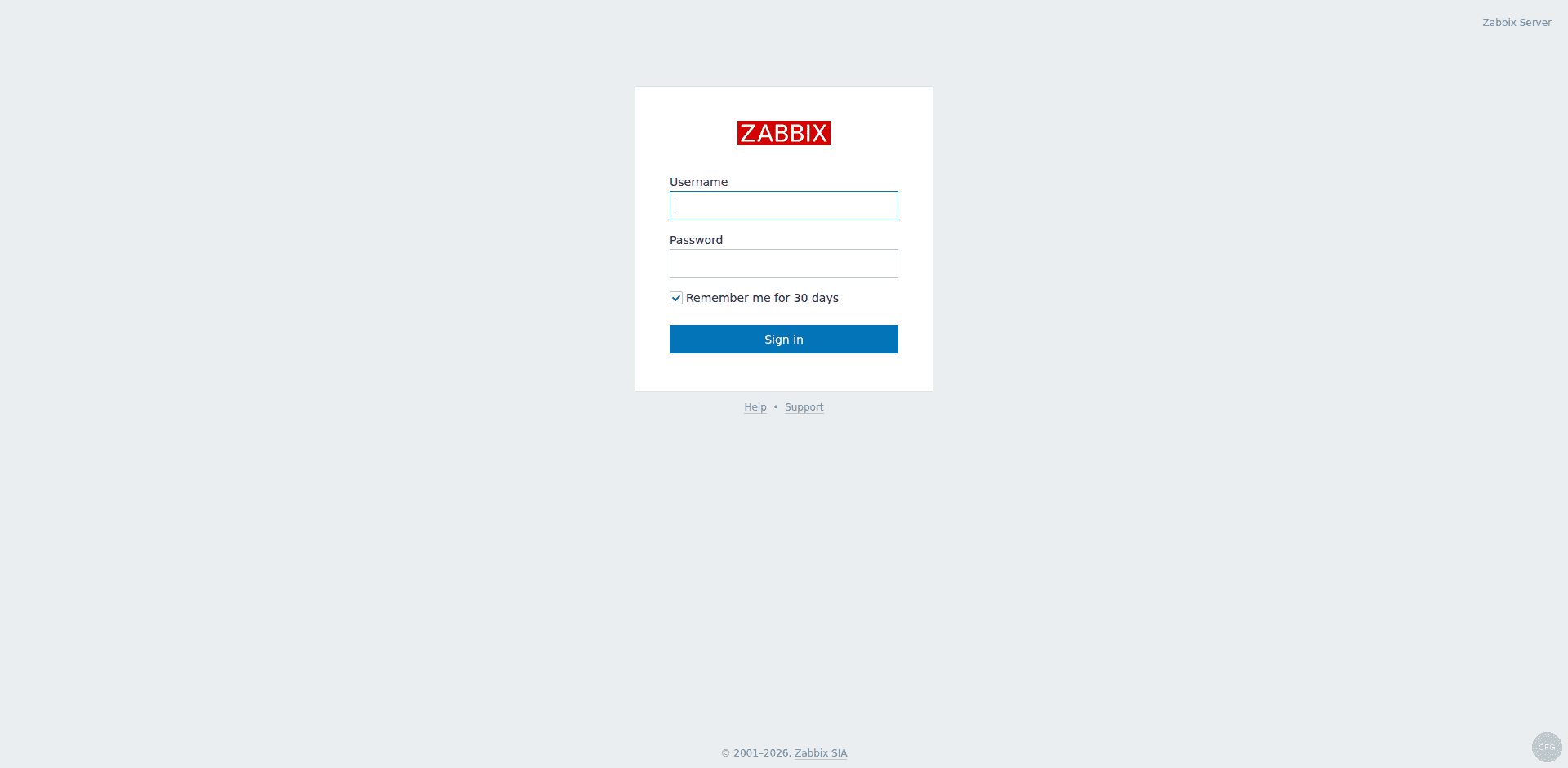
Click Finish to reach the login page. The default credentials are:
- Username: Admin
- Password: zabbix
Change the default password immediately after your first login. Go to User settings (top-right user icon) > Password and set a strong password.
The Zabbix login page loads after the wizard completes:
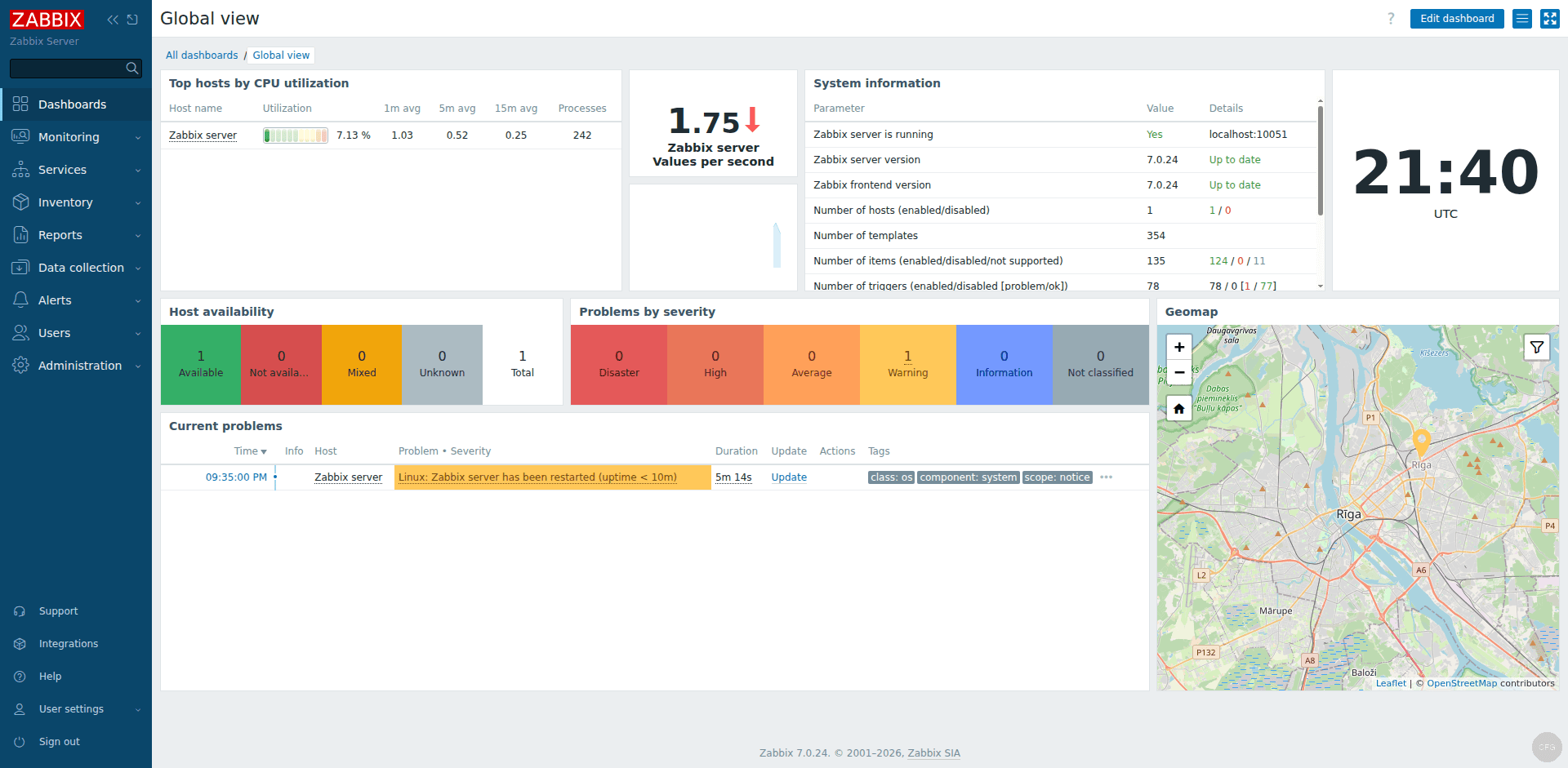
After logging in, the Global View dashboard shows host availability, problems by severity, and system information:
Step 11: Configure Zabbix Agent 2
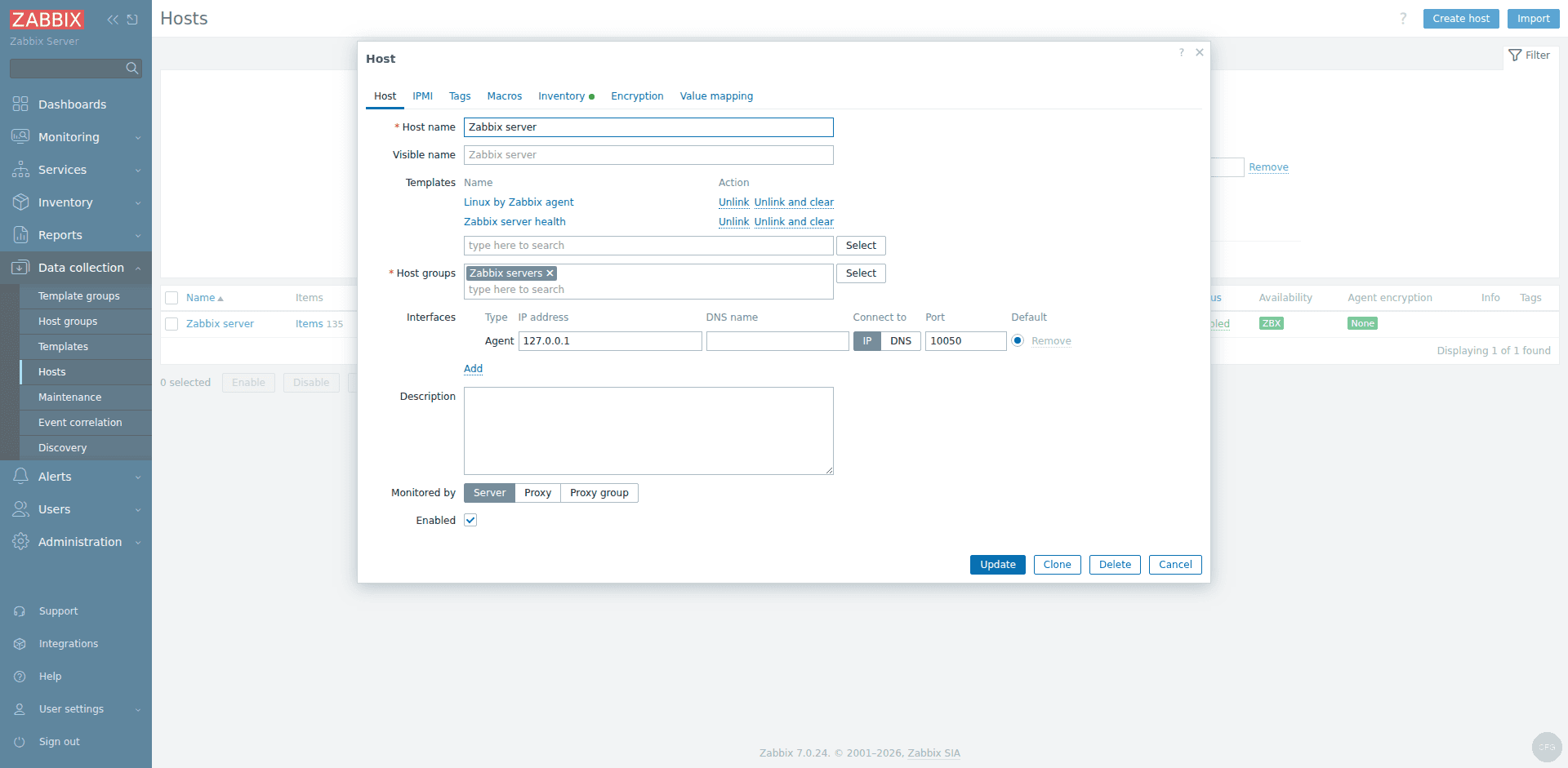
Zabbix Agent 2 was installed alongside the server. By default, it is configured to report to 127.0.0.1, which means it already monitors the Zabbix server host. Verify the configuration.
sudo vi /etc/zabbix/zabbix_agent2.confConfirm these settings are correct.
Server=127.0.0.1
ServerActive=127.0.0.1
Hostname=Zabbix server
The Hostname value must exactly match the host name configured in the Zabbix frontend. The default “Zabbix server” host is preconfigured in the database, so this works out of the box.
If you changed any settings, restart the agent.
sudo systemctl restart zabbix-agent2To monitor remote hosts, install Zabbix Agent 2 on those machines as well. Our guide on installing Zabbix Agent 2 on Debian covers the full setup for monitored hosts.
Verify Host Monitoring in the Web UI
After logging into the Zabbix frontend, go to Monitoring > Hosts. You should see the “Zabbix server” host with its agent status showing a green ZBX icon, meaning the agent is communicating with the server successfully. It may take a few minutes after the initial setup for data collection to begin.
Step 12: Post-Installation Tuning
A few adjustments make Zabbix run smoother in production.
Increase PHP Memory and Upload Limits
The default PHP settings work for small deployments, but if you plan to import large templates or handle many hosts, bump the limits.
sudo vi /etc/zabbix/php-fpm.confAdd or modify these values.
php_value[memory_limit] = 256M
php_value[upload_max_filesize] = 20M
php_value[post_max_size] = 20M
php_value[max_execution_time] = 600
Restart PHP-FPM after making changes.
sudo systemctl restart php8.2-fpmAgain, use php8.4-fpm on Debian 13.
PostgreSQL Performance Tuning
For monitoring setups with more than 100 hosts, tune PostgreSQL for better write throughput. Edit the PostgreSQL configuration.
sudo vi /etc/postgresql/*/main/postgresql.confAdjust these parameters based on your available RAM (example for a 4 GB server).
shared_buffers = 1GB
work_mem = 16MB
maintenance_work_mem = 256MB
effective_cache_size = 3GB
checkpoint_completion_target = 0.9
Restart PostgreSQL to apply changes.
sudo systemctl restart postgresqlThe host configuration page shows agent interface settings and linked templates:
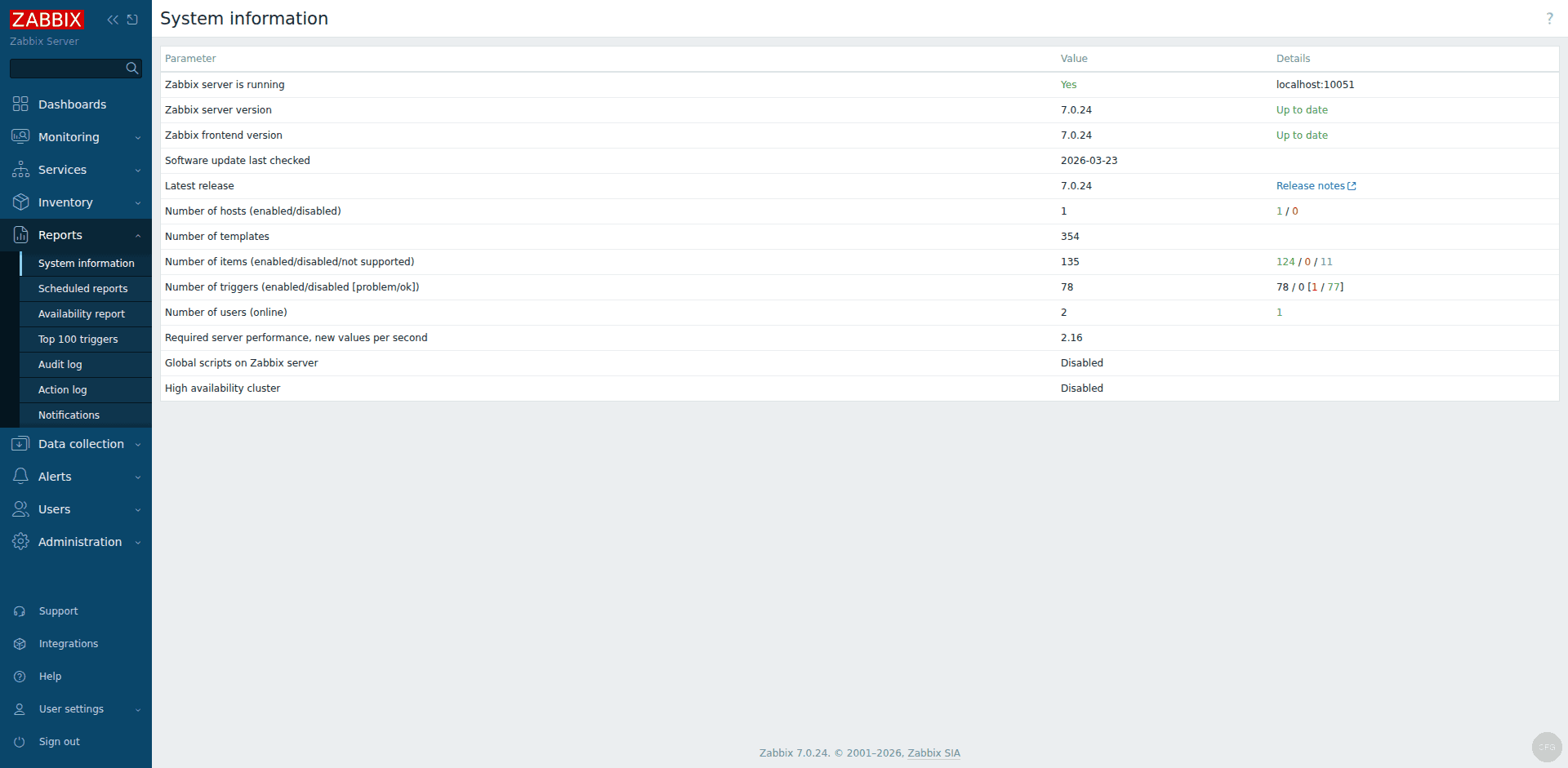
The system information page confirms server version, host count, and performance:
Troubleshooting
Here are fixes for the most common issues encountered during Zabbix installation on Debian.
Zabbix Server Fails to Start
Check the server log for specific errors.
sudo tail -50 /var/log/zabbix/zabbix_server.logThe most common cause is a wrong database password in /etc/zabbix/zabbix_server.conf. Verify the DBPassword value matches what you set during the createuser step. You can test the connection manually.
psql -h localhost -U zabbix -d zabbix -c "SELECT version();"If this fails with an authentication error, reset the password.
sudo -u postgres psql -c "ALTER USER zabbix WITH PASSWORD 'new_password_here';"Update /etc/zabbix/zabbix_server.conf with the new password and restart the server.
Web Frontend Shows “Database Error”
This usually means the web frontend configuration file has wrong credentials. Check the auto-generated config.
sudo cat /etc/zabbix/web/zabbix.conf.phpMake sure the DATABASE, USER, and PASSWORD values are correct. If this file does not exist, re-run the web setup wizard.
Nginx Returns 502 Bad Gateway
This means PHP-FPM is not running or Nginx cannot reach it. Check the PHP-FPM status.
sudo systemctl status php8.2-fpmIf it is stopped, start it and check the logs for errors.
sudo systemctl start php8.2-fpm
sudo journalctl -u php8.2-fpm --no-pager -n 30
Also verify the PHP-FPM socket path matches what Nginx expects. The Zabbix Nginx config references the socket defined in /etc/zabbix/php-fpm.conf.
Agent Shows Red ZBX Icon in the Frontend
A red icon means the server cannot reach the agent. Common causes:
- Agent is not running:
sudo systemctl status zabbix-agent2 - Hostname mismatch between
zabbix_agent2.confand the host configured in the Zabbix frontend - Firewall blocking port 10050
Check the agent log for connection errors.
sudo tail -30 /var/log/zabbix/zabbix_agent2.logPHP Prerequisites Check Fails
If the web wizard shows missing PHP modules, install them manually. The Zabbix packages should pull in all required modules, but occasionally one gets missed.
sudo apt install -y php-pgsql php-gd php-xml php-bcmath php-mbstring php-ldap php-jsonRestart PHP-FPM after installing any missing modules.
Cannot Access Web Interface After Installation
Verify Nginx is listening on the correct port.
sudo ss -tlnp | grep nginxIf Nginx shows port 8080 but you expected port 80, edit /etc/zabbix/nginx.conf and change the listen directive. Make sure the default Nginx site is disabled as shown in Step 5.
Upgrading from Zabbix 6.x
If you are running Zabbix 6.0 or 6.4 on Debian, the upgrade path to 7.0 is straightforward. Update the repository to 7.0, install the new packages, and the database schema upgrades automatically on first start.
sudo apt update
sudo apt install --only-upgrade zabbix-server-pgsql zabbix-frontend-php zabbix-nginx-conf zabbix-sql-scripts zabbix-agent2
Restart all services after the upgrade.
sudo systemctl restart zabbix-server zabbix-agent2 nginxAlways take a full database backup before upgrading. A pg_dump of the zabbix database is the minimum safety net.
sudo -u postgres pg_dump zabbix > /tmp/zabbix_backup_pre_upgrade.sqlKey Differences Between Debian 13 and Debian 12
Both Debian releases follow the same installation steps, but there are a few differences worth noting:
- PHP version: Debian 12 ships PHP 8.2, while Debian 13 ships PHP 8.4. Service names change accordingly (
php8.2-fpmvsphp8.4-fpm) - PostgreSQL version: Debian 12 includes PostgreSQL 15, Debian 13 includes PostgreSQL 16. Both work perfectly with Zabbix 7.0
- Repository package: Different .deb files for each release as shown in Step 1
All configuration file paths and Zabbix package names remain identical between the two releases.
FAQ
What is the default Zabbix login?
The default username is Admin (capital A) and the default password is zabbix. Change this immediately after your first login from User settings in the top-right corner.
Can Zabbix 7.0 use MySQL instead of PostgreSQL?
Yes. Install zabbix-server-mysql instead of zabbix-server-pgsql and follow the MySQL-specific database setup. PostgreSQL generally performs better for large monitoring deployments with millions of metrics.
How many hosts can a single Zabbix server monitor?
A properly tuned Zabbix 7.0 server with 8 GB RAM and 4 CPU cores can comfortably monitor 1,000+ hosts. For larger deployments, use Zabbix proxies to distribute the collection load. Zabbix 7.0’s new proxy load balancing feature makes this much easier to manage.
Where are the Zabbix log files?
Zabbix server logs to /var/log/zabbix/zabbix_server.log and the agent logs to /var/log/zabbix/zabbix_agent2.log. You can change log paths and verbosity in their respective configuration files.
For monitoring your broader infrastructure, the next step is deploying Zabbix Agent 2 on all the servers you want to monitor. See our guide on installing Zabbix Server on Rocky Linux / AlmaLinux if you also run RHEL-based systems in your environment.
