

The objective of this guide is to help you Install and Configure phpIPAM on Ubuntu 22.04|20.04|18.04 Linux distribution. phpIPAM is an open-source php-based web IP address management application (IPAM). Its goal is to provide light, modern and useful IP address management. phpIPAM uses MySQL database backend and jQuery libraries, Ajax and HTML5/CSS3 features.
phpIPAM has the following features:
- IPv4/IPv6 IP address management
- Section / Subnet management
- Automatic free space display for subnets
- Visual subnet display
- Automatic subnet scanning / IP status checks
- PowerDNS integration
- NAT support
- VLAN management
- VRF management
- IPv4 / IPv6 calculator
- IP database search
- E-mail notifications
- Custom fields support
- Translations
- Changelogs
- RACK management
- Domain authentication (AD, LDAP, Radius)
- Per-group section/subnet permissions
- Device/device types management
- RIPE subnets import
- XLS / CVS subnets import
- IP request module
- REST API support
- Locations module
Install phpIPAM on Ubuntu 22.04|20.04|18.04
phpIPAM has a number of dependencies that we need to install before we can install and configure phpIPAM. These are:
- MySQL / MariaDB server
- php / php-fpm for nginx
- php modules
- Apache / nginx web server
- phpIPAM domain – ipam.example.com (should be replaced with your domain)
Step 1: Install MariaDB Server
Start with the installation of MariaDB database server:
sudo apt update
sudo apt install mariadb-server mariadb-client
Ensure mariadb service is started and set to start at boot:
sudo systemctl enable mariadb
sudo systemctl start mariadb
Secure database server by setting root password:
sudo mysql_secure_installationOnce the database installation and setup is complete, create a database for phpipam user:
$ sudo mysql -u root -p
CREATE DATABASE phpipam;
GRANT ALL ON phpipam.* TO phpipam@localhost IDENTIFIED BY 'StrongDBPassword';
FLUSH PRIVILEGES;
QUIT;
Step 2: Install PHP and required modules
Next phase is the installation of php and required modules. Run the following commands:
sudo apt update
sudo apt -y install php php-{mysql,curl,gd,intl,pear,imap,memcache,pspell,tidy,xmlrpc,mbstring,gmp,json,xml,fpm}
You can adjust settings including timezone
sudo vim /etc/php/*/apache2/php.ini
sudo vim /etc/php/*/cli/php.ini
Step 3: Install phpIPAM on Ubuntu
We’ll download phpIPAM from Github. Install git first:
sudo apt -y install gitClone phpIPAM code from github
sudo git clone --recursive https://github.com/phpipam/phpipam.git /var/www/html/phpipamChange to clone directory.
cd /var/www/html/phpipamYou can also download phpipam from official Sourceforge repository and extract it to your web server directory.
wget https://tenet.dl.sourceforge.net/project/phpipam/phpipam-<VERSION>.tar
tar xvf phpipam-<VERSION>.tar
sudo mv phpipam /var/www/html
Step 4: Configure phpIPAM on Ubuntu
Change your working directory to /var/www/html/phpipam and copy config.dist.php to config.php, then edit it.
cd /var/www/html/phpipam
sudo cp config.dist.php config.php
Edit the file to configure database credentials as added on Step 1:
$ sudo vim config.php
/**
* database connection details
******************************/
$db['host'] = 'localhost';
$db['user'] = 'phpipam';
$db['pass'] = 'StrongDBPassword';
$db['name'] = 'phpipam';
$db['port'] = 3306;
Option 1: Using Apache Web Server
If you would like to use Apache web server, first install it using:
sudo systemctl stop nginx && sudo systemctl disable nginx
sudo apt -y install apache2
sudo a2dissite 000-default.conf
sudo a2enmod rewrite
sudo systemctl restart apache2
Install apache php module:
sudo apt -y install libapache2-mod-php php-curl php-xmlrpc php-intl php-gdAdd Apache phpipam configuration:
sudo vim /etc/apache2/sites-available/phpipam.confHere are the contents:
<VirtualHost *:80>
    ServerAdmin [email protected]
    DocumentRoot "/var/www/html/phpipam"
    ServerName ipam.example.com
    ServerAlias www.ipam.example.com
    <Directory "/var/www/html/phpipam">
        Options Indexes FollowSymLinks
        AllowOverride All
        Require all granted
    </Directory>
    ErrorLog "/var/log/apache2/phpipam-error_log"
    CustomLog "/var/log/apache2/phpipam-access_log" combined
</VirtualHost>
Set directory permissions:
sudo chown -R www-data:www-data /var/www/htmlEnable site:
sudo a2ensite phpipamRestart Apache server for changes to be made.
sudo systemctl restart apache2Option 2: Using Nginx Web server (Skip if you chose & configured apache in option 1)
Install nginx using the command:
sudo systemctl stop apache2 && sudo systemctl disable apache2
sudo apt -y install nginx
Configure nginx:
sudo vim /etc/nginx/conf.d/phpipam.confAdd content:
server {
    listen       80;
    # root directory
    server_name ipam.example.com  www.ipam.example.com;
    index        index.php;
    root   /var/www/html/phpipam;


    location / {
            try_files $uri $uri/ /index.php$is_args$args;
        }

    location ~ \.php$ {
            try_files $uri =404;
            fastcgi_split_path_info ^(.+\.php)(/.+)$;
             fastcgi_pass   unix:/run/php/php-fpm.sock;
            fastcgi_param SCRIPT_FILENAME $document_root$fastcgi_script_name;
            fastcgi_index index.php;
            include fastcgi_params;
        }

 }
Change ownership of the /var/www/ directory to www-data user and group.
sudo chown -R www-data:www-data /var/www/html
sudo systemctl restart nginx
Create the cron jobs that run the ping auto discover and ping check
$ sudo crontab -e
*/15 * * * * /usr/bin/php /var/www/html/phpipam/functions/scripts/pingCheck.php
*/15 * * * * /usr/bin/php /var/www/html/phpipam/functions/scripts/discoveryCheck.php
Step 5: Finish phpIPAM Installation on Ubuntu
Start the installation process by visiting http://ipam.example.com, replace ipam.example.com with your valid domain name. The URL could also be http://domain.com/phpipam or IP Address instead of DNS name depending on your configuration.
http://ipam.example.comIf the domain name used is not a valid DNS record you can modify your hosts file:
# Linux / macOS
$ sudo vim /etc/hosts
#E.g 172.21.200.10 ipam.example.com

# Windows
C:\Windows\System32\Drivers\etc\hosts
On the first page, Select “New phpipam installation“

Since we had created a database, we’ll go with “MySQL import instructions“.

This will output the command to import the SQL file.
sudo mysql -u root -p phpipam < /var/www/html/phpipam/db/SCHEMA.sqlFor Automatic database installation, set like below.

On successful installation, you should get the admin login page.
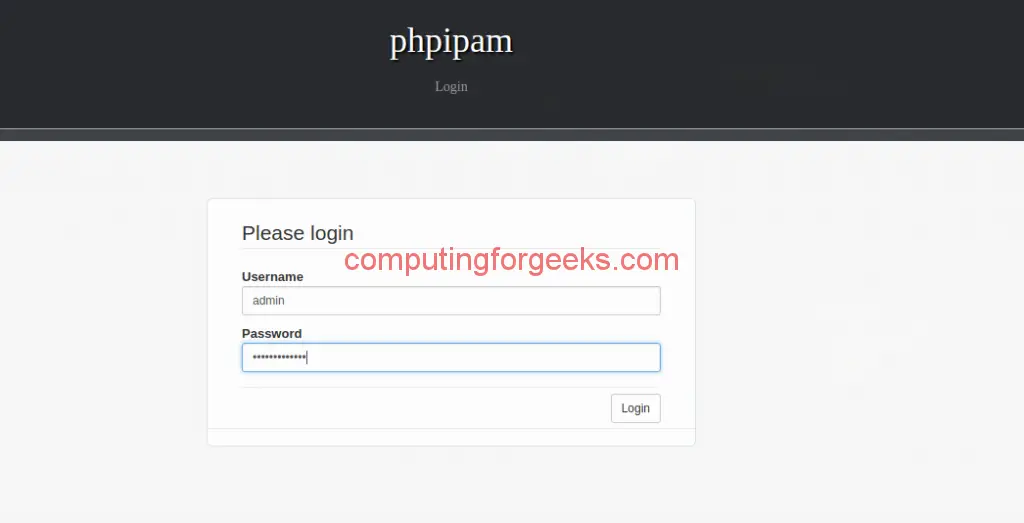
The default Login credentials are:
Username: admin
Password: ipamadmin
You’re prompted to change the admin password on the first login.

You have successfully installed phpIPAM on Ubuntu 20.04 / Ubuntu 18.04 Linux system.

Similar guides:
- How to Install NetBox on Ubuntu
- How To Install phpIPAM on CentOS 8 / RHEL 8
- How to install RackTables on Ubuntu
- How to Install Wiki.js on Ubuntu 18.04 / CentOS 7

Hey Josphat,
thank you for the guide.
I just miss the path of the folder where I have to create the Apache phpipam configuration file?
Greets
Hey Manual
vim /etc/apache2/sites-available/phpipam.conf
then
a2ensite phpipam
systemctl restart apache2
greetings from Germany 🙂
Hi Josphat!
Much appreciate your guide!
I have a couple of issues;
Installation on Ubuntu 20.04 with Apache2.
First when configuring the config.php I assume the ‘user’ and ‘name’ will be of the logged in user account or should this be root?
$ sudo vim config.php
/**
* database connection details
******************************/
$db[‘host’] = ‘localhost’;
$db[‘user’] = ‘phpipam’;
$db[‘pass’] = ‘StrongDBPassword’;
$db[‘name’] = ‘phpipam’;
$db[‘port’] = 3306;
And second, I’m seeing the following error. Unsure if it’s caused by the db user?
[Fri Jul 23 17:48:11.443770 2021] [php7:error] [pid 37606] [client 10.60.1.224:57045] script ‘/var/www/html/index.php’ not found or unable to stat
[Fri Jul 23 17:48:12.487471 2021] [php7:error] [pid 37606] [client 10.60.1.224:57045] script ‘/var/www/html/index.php’ not found or unable to stat
Thank you,
Aaron D
Hi Josphat,
I figured out my issues from my previous note. One issue remains, when accessing the site I’m seeing the following errors. Can you point me to my mistake?
[Fri Jul 23 13:15:33.980476 2021] [php7:warn] [pid 1944] [client 10.60.1.224:54042] PHP Warning: Creating default object from empty value in /var/www/html/phpipam/functions/classes/class.User.php on line 418
[Fri Jul 23 13:15:34.072573 2021] [php7:error] [pid 1944] [client 10.60.1.224:54042] script ‘/var/www/html/index.php’ not found or unable to stat
Thank you,
Aaron D
Hi,
Did you validate DocumentRoot and Directory configs in your apache settings?
I did, no issues found.
I’m wondering if Ubuntu 20.04.2 made some changes over 20.04… I’ve walked through the above instructions 4 times all with the same results.
I’ve found the issue, I needed to reload apache2 after updating the DocumentRoot… my bad!
Thank you, Josphat!
Does anyone have a simple guide to follow? I have been through these instructions 4 times now installing ubuntu 20.04 and following above and still unable to get phpipam working. Can someone point out exactly what needs to be changed for us non-linux users.
Hi,
Please try redo installation with updated article. We noticed there were some issues when using nginx as your web server.
Hello, first thing : thank you for your guide and work!!!
Second , I need your help : I tried 3 times this guide and I’m still not able to make it work.
http://192.168.1.33/index.php?page=install returns :
This page isn’t working192.168.1.33 is currently unable to handle this request.
HTTP ERROR 500
I tried and check everything written in this guide, but I don’t manage.
Can you guide me what to check or try more?
Thank you in advance
Hi Stan,
What’s your web browser?
I had to install php before running the command below, so essentially it was:
sudo apt update
sudo apt -y install php
sudo apt -y install php php-{mysql,curl,gd,intl,pear,imap,memcache,pspell,tidy,xmlrpc,mbstring,gmp,json,xml,fpm}
This was on a raspberry pi though so may have made a difference.
Thanks for the guide, this will be awesome to mess about with at home.
If anyone is installing on rasberry pi there’s a few things to note.
Rasberry pi (my installation) didn’t come with vim, so I installed it using:
sudo apt install vim
If using a 32 bit os you’ll need to use phpipam version lower than 1.4.
If you already installed a version<=1.4 you can remove it by using this command (deletes files):
cd /var/www/html
sudo rm -R -f phpipam
Then get a version lower than 1.4. In my case I used 1.3:
sudo git clone –recursive https://github.com/phpipam/phpipam.git –branch 1.3 /var/www/html/phpipam
You'll need to still setup the config file for it.
Thanks for your input Chris.
user@ubuntu:/var/www/html/phpipam$ sudo a2dissite 000-default.conf
Site 000-default disabled.
To activate the new configuration, you need to run:
systemctl reload apache2
user@ubuntu:/var/www/html/phpipam$ sudo systemctl reload apache2
user@ubuntu:/var/www/html/phpipam$ sudo a2dissite 000-default.conf
Site 000-default already disabled
user@ubuntu:/var/www/html/phpipam$
I would suggest adding “sudo systemctl reload apache2″ before ” sudo a2dissite 000-default.conf”.
Thanks.
duuuude, thx a lot, this guide are very good explained!! thx again!
Hi Josphat! I was installing this on a development server to test api integations. I worried I had to worry for hours with the installation to get it to work…
ALL thanks to your blog post I had it up and running in notime! Cant thank you enough for saving me hours of frustration!!
Keep up the good work!
integations=integrations, worry=work. Sorry for polluting the comments with typos 🙂
Thanks and welcome always!
When trying to import a subnet, I get the below error for xls file
The filename /var/www/html/phpipam/functions/classes/../../app/subnets/import-subnet/upload/import.xls is not readable
and below error when trying a csv
Cannot open upload/import.csv
have provided access to apache –
chown -R www-data:www-data /var/www/html/
chmod -R 755 /var/www/html/
I can however upload a logo.
You’re using Nginx or Apache web server?
Apache web server
$ sudo ps -ef | grep apache2
root 890 1 0 Mar02 ? 00:00:03 /usr/sbin/apache2 -k start
www-data 4475 890 0 00:00 ? 00:00:00 /usr/sbin/apache2 -k start
www-data 4477 890 0 00:00 ? 00:00:00 /usr/sbin/apache2 -k start
www-data 4478 890 0 00:00 ? 00:00:00 /usr/sbin/apache2 -k start
www-data 4479 890 0 00:00 ? 00:00:00 /usr/sbin/apache2 -k start
Found a temp workaround. If I do a manual upload of the file to the directory and adjust permissions to read/write for owner/group/others, it will allow me to upload xls. Weird because apache is the owner of the folder.
Thanks a lot sir! It was the smoothest installation ever xD
Careful folks it will not run with the default PHP version (8.x) of Ubuntu server 22.04, u can either install php v 7.4 on ubuntu server 22.04 or just do it all on a 20.04 server and be happy.
Thank you very much!
Two things left to do, though:
1. Set timezones in /etc/php/8.1/apache2/php.ini and /etc/php/8.1/cli/php.ini
2. Create the cron jobs that run the ping auto discover and ping check
sudo crontab -e
*/15 * * * * /usr/bin/php /var/www/html/phpipam/functions/scripts/pingCheck.php
*/15 * * * * /usr/bin/php /var/www/html/phpipam/functions/scripts/discoveryCheck.php
Thanks for the comments Ken. We’ve included your recommendations in the article.
After multiple attempts, I have one issue after another; I just can’t get this thing to run. I really appreciate your work, though.
What’s the issue William?