

Professional publishers who want speed and simplicity over WordPress complexity keep landing on Ghost. Built on Node.js, it ships with a modern editor, membership management, native newsletters, and a flexible theming engine who want a fast, clean writing experience. Ghost 6.22 ships with a modern editor, built-in membership and subscription management, native newsletter support, and a flexible theming engine without the bloat that comes with traditional CMS platforms like WordPress.
This guide walks through a production-ready Ghost installation on Ubuntu 24.04, covering Node.js 22 LTS, MySQL 8, Nginx reverse proxy, and Let’s Encrypt SSL. Ghost-CLI handles the heavy lifting.
Prerequisites
Before starting the installation, make sure you have the following in place:
- Ubuntu 24.04 server (a clean VPS with at least 1 GB RAM and 10 GB disk)
- A registered domain name with an A record pointing to your server’s public IP
- Root or sudo access to the server
- Node.js 22 LTS (the only version Ghost 6.x supports)
- MySQL 8.x
- Nginx (installed as part of the process)
- Ports 80 and 443 open in your firewall
Ghost-CLI refuses to run as root for security reasons, so you need a dedicated non-root user. If you are logged in as root, create one now:
adduser ghostadminGive the new user sudo privileges:
usermod -aG sudo ghostadminSwitch to the new user for the rest of this guide:
su - ghostadminUpdate the system packages before installing anything:
sudo apt update && sudo apt upgrade -yStep 1: Install Nginx
Ghost-CLI automatically generates an Nginx configuration during setup, but Nginx must already be installed on the system. Install it from the default Ubuntu repositories:
sudo apt install -y nginxConfirm Nginx is running after installation:
sudo systemctl status nginxThe service should show active (running). Allow HTTP and HTTPS traffic through the firewall:
sudo ufw allow 'Nginx Full'If UFW is not enabled yet, enable it now. Make sure to allow SSH first so you do not lock yourself out:
sudo ufw allow OpenSSH
sudo ufw enable
Step 2: Install MySQL 8
Ghost stores all its content, settings, and user data in MySQL. Ubuntu 24.04 ships MySQL 8.0 in the default repositories, which meets Ghost’s requirements perfectly.
sudo apt install -y mysql-serverVerify the MySQL service is running:
sudo systemctl status mysqlYou should see active (running) in the output. Check the installed version:
mysql --versionThe output confirms the MySQL 8.x release installed on your system.
Secure MySQL Installation
Run the security script to set a root password and remove default test databases:
sudo mysql_secure_installationFollow the prompts to set a strong root password, remove anonymous users, disable remote root login, and drop the test database. Answer Y to all questions for a production setup.
Step 3: Create Ghost Database and User
Ghost-CLI can create the database user automatically during installation if you provide MySQL root credentials. However, creating the database and user manually gives you more control. Log in to MySQL:
sudo mysql -u root -pCreate a dedicated database for Ghost:
CREATE DATABASE ghost_db;Create a MySQL user with a strong password and grant it full privileges on the Ghost database:
CREATE USER 'ghost_user'@'localhost' IDENTIFIED BY 'StrongP@ssw0rd!2026';
GRANT ALL PRIVILEGES ON ghost_db.* TO 'ghost_user'@'localhost';
FLUSH PRIVILEGES;
EXIT;
Replace StrongP@ssw0rd!2026 with your own secure password. Keep these credentials handy because you will need them during Ghost installation.
Step 4: Install Node.js 22 LTS
Ghost 6.x requires Node.js 22 LTS specifically. No other version is supported. The NodeSource repository provides the latest Node.js 22 packages for Ubuntu. Download and run the setup script:
curl -fsSL https://deb.nodesource.com/setup_22.x | sudo -E bash -Install Node.js after the repository is configured:
sudo apt install -y nodejsVerify both Node.js and npm are installed correctly:
node -v
npm -v
You should see Node.js v22.x and npm v10.x in the output.
Step 5: Install Ghost-CLI
Ghost-CLI is the official command-line tool that handles Ghost installation, configuration, and management. It automates Nginx setup, SSL provisioning, systemd service creation, and more. Install it globally via npm:
sudo npm install ghost-cli@latest -gConfirm the installation was successful:
ghost --versionYou should see Ghost-CLI version 1.28.x reported.
Step 6: Install Ghost
Ghost needs its own directory with specific ownership. Create the installation directory and set proper permissions:
sudo mkdir -p /var/www/ghost
sudo chown ghostadmin:ghostadmin /var/www/ghost
sudo chmod 775 /var/www/ghost
Change into the directory before running the installer:
cd /var/www/ghostRun the Ghost installation command. This is where the magic happens. Ghost-CLI downloads Ghost, sets up the configuration, configures Nginx, provisions an SSL certificate, and creates a systemd service:
ghost installThe installer runs a series of checks and prompts you for configuration details. Here is what to expect:
- Blog URL: Enter your full domain with HTTPS, for example
https://blog.example.com - MySQL hostname: Press Enter for the default
localhost - MySQL username: Enter
ghost_user(orrootif you skipped manual DB creation) - MySQL password: Enter the password you set earlier
- Ghost database name: Enter
ghost_db - Set up a ghost MySQL user?: Select no if you created the user manually, or yes to let Ghost-CLI create one (requires root MySQL credentials)
- Set up Nginx?: Select yes – this creates a reverse proxy config automatically
- Set up SSL?: Select yes – this provisions a free Let’s Encrypt certificate using acme.sh
- Enter your email for SSL: Provide a valid email for certificate renewal notifications
- Set up systemd?: Select yes – this creates a service for automatic startup
- Start Ghost?: Select yes
The installation takes a few minutes. When complete, Ghost-CLI reports the URL where your blog is accessible.
Step 7: Nginx Configuration (Automatic)
Ghost-CLI generates the Nginx configuration automatically when you answer “yes” to the Nginx setup prompt. It creates two server blocks: one for HTTPS on port 443 and an HTTP-to-HTTPS redirect on port 80. The config file is placed at:
/etc/nginx/sites-available/blog.example.com.confA symlink is automatically created in /etc/nginx/sites-enabled/. You can inspect the generated configuration:
sudo cat /etc/nginx/sites-available/blog.example.com.confThe generated config proxies all traffic to Ghost’s default port (2368) on localhost. Ghost-CLI also tests the Nginx configuration and reloads the service automatically. If you ever need to regenerate the Nginx config after making changes, run:
ghost setup nginxStep 8: SSL Certificate (Automatic)
When you selected “yes” for SSL during installation, Ghost-CLI provisioned a Let’s Encrypt certificate using acme.sh under the hood. This certificate covers your domain and is configured in the Nginx server block automatically.
Ghost-CLI also sets up automatic certificate renewal. Verify the renewal is working:
sudo /etc/letsencrypt/acme.sh --listIf you need to reconfigure SSL at any point (for example, after changing your domain), you can run:
ghost setup sslThis re-provisions a new certificate and updates the Nginx configuration.
Step 9: Access Ghost Admin Panel
With Ghost running, open your browser and navigate to the admin panel:
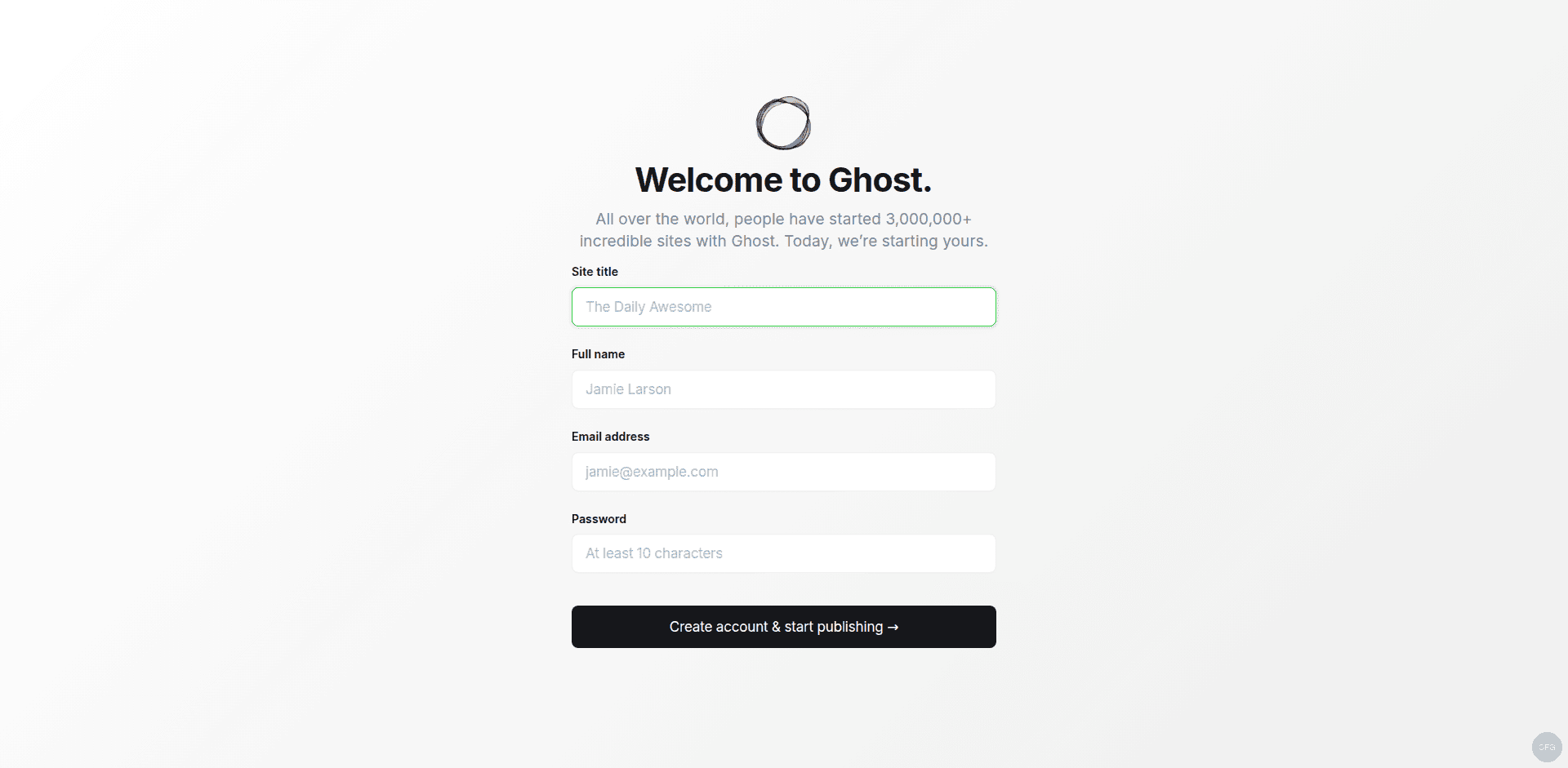
https://blog.example.com/ghostReplace blog.example.com with your actual domain. The first time you visit the admin URL, Ghost presents the setup wizard where you:
- Create the site owner account (name, email, password)
- Set the site title and description
- Optionally invite staff members
After completing the wizard, you land on the Ghost dashboard where you can start writing posts, customizing your theme, and managing members.
Managing Ghost
Ghost-CLI provides several useful commands for day-to-day management. All commands must be run from the Ghost installation directory (/var/www/ghost).
Check Ghost status and version:
ghost statusStop Ghost gracefully:
ghost stopStart Ghost again:
ghost startRestart Ghost after configuration changes:
ghost restartUpdate Ghost to the latest version:
ghost updateView Ghost logs for debugging:
ghost logThe ghost update command handles database migrations, dependency updates, and service restarts automatically. Always run it from /var/www/ghost as the non-root user who owns the installation.
Configuring Mail (SMTP)
Ghost needs a working mail configuration to send transactional emails like password resets, member signups, and newsletter deliveries. Open the Ghost configuration file:
sudo vi /var/www/ghost/config.production.jsonAdd or update the mail section. This example uses Mailgun, which Ghost recommends for production use:
{
  "mail": {
    "transport": "SMTP",
    "options": {
      "service": "Mailgun",
      "host": "smtp.mailgun.org",
      "port": 587,
      "secure": true,
      "auth": {
        "user": "[email protected]",
        "pass": "your-mailgun-smtp-password"
      }
    }
  }
}
Replace the credentials with your actual Mailgun SMTP details. After saving the file, restart Ghost to apply the changes:
cd /var/www/ghost && ghost restartTroubleshooting Ghost Installation
Here are the most common issues you will run into when installing Ghost on Ubuntu 24.04 and how to fix them.
Ghost-CLI refuses to run as root
Ghost-CLI exits with an error if you run ghost install as root. This is by design. Always run the installer as a non-root user with sudo access. If you missed the user creation step, go back to the Prerequisites section and create the ghostadmin user.
Node.js version mismatch
Ghost 6.x only supports Node.js 22 LTS. If you have a different version installed, Ghost-CLI fails during the doctor check. Remove the old version and install Node.js 22 from NodeSource as shown in Step 4. Verify the active version:
node -vThe output must show v22.x.x for Ghost to proceed.
MySQL authentication error
If Ghost-CLI reports a MySQL connection failure, verify your credentials are correct by testing them manually:
mysql -u ghost_user -p ghost_db -e "SELECT 1;"If this fails, the user or database was not created properly. Revisit Step 3 and recreate them.
Port 2368 already in use
Ghost runs on port 2368 by default. If another Ghost instance or process is using that port, the installer fails. Check what is listening on port 2368:
sudo ss -tlnp | grep 2368Kill the conflicting process or change Ghost’s port in config.production.json.
SSL certificate provisioning fails
Let’s Encrypt needs to reach your server on port 80 for HTTP-01 validation. Common causes of failure:
- DNS A record not pointing to your server’s IP – verify with
dig blog.example.com - Port 80 blocked by firewall – check with
sudo ufw status - Another web server occupying port 80 – check with
sudo ss -tlnp | grep :80
After fixing the issue, re-run the SSL setup:
cd /var/www/ghost && ghost setup sslPermission errors during installation
Ghost-CLI is strict about directory ownership. The installation directory must be owned by the non-root user running the installer, not by root. Fix ownership if needed:
sudo chown -R ghostadmin:ghostadmin /var/www/ghostThen re-run ghost install from within the directory.
Ghost is running but the site returns 502
A 502 Bad Gateway error from Nginx means Ghost’s backend process is not responding. Check the Ghost logs for errors:
cd /var/www/ghost && ghost logAlso verify that Ghost is actually running:
ghost statusIf Ghost has stopped, restart it with ghost start. Memory issues are the most frequent cause of Ghost crashing on small VPS instances. Consider upgrading to at least 2 GB RAM for production workloads.
Backing Up Ghost
Regular backups are critical for any production blog. Ghost provides a built-in export from the admin panel under Settings > Advanced > Export, but that only covers content. For a full backup including themes, images, and configuration, back up the entire Ghost directory and the MySQL database.
Export the database:
mysqldump -u ghost_user -p ghost_db > /home/ghostadmin/ghost_db_backup.sqlArchive the Ghost installation directory:
tar czf /home/ghostadmin/ghost_files_backup.tar.gz /var/www/ghost/contentStore both files offsite. Set up a cron job to automate this on a daily or weekly schedule.
The default Ghost homepage with the Casper theme loads immediately after installation:

Navigate to your-domain/ghost to access the admin setup wizard. Fill in the site name, your name, email, and password to create the admin account:
Conclusion
You now have a fully working Ghost 6.22 installation on Ubuntu 24.04, running behind Nginx with SSL encryption and managed through systemd. Ghost-CLI handles the heavy lifting for Nginx configuration, Let’s Encrypt certificates, and service management, making ongoing maintenance straightforward.
For theme customization and membership setup, head to the official Ghost documentation. To keep your installation secure, run ghost update regularly to pull in the latest security patches and features.
Frequently Asked Questions
What Node.js version does Ghost require?
Ghost 6.x requires Node.js 22 LTS exclusively. No other Node.js version is supported. Running Ghost on Node.js 18, 20, or 23+ will cause the installation to fail during the compatibility check.
Can I install Ghost on Ubuntu 22.04?
Yes, Ghost officially supports both Ubuntu 22.04 and Ubuntu 24.04. The installation steps are identical on both versions. The same Node.js 22 and MySQL 8 requirements apply regardless of Ubuntu release.
How do I update Ghost to the latest version?
Navigate to your Ghost installation directory (typically /var/www/ghost) and run ghost update as the non-root user who owns the installation. Ghost-CLI handles downloading the new version, running database migrations, and restarting the service automatically.
Does Ghost require Nginx?
Nginx is not technically required to run Ghost, but Ghost-CLI expects it for production installations. Nginx serves as a reverse proxy in front of Ghost’s Node.js process, handling SSL termination, static file serving, and connection management. For production deployments, use Nginx as recommended.
How much RAM does Ghost need?
Ghost requires a minimum of 1 GB RAM, but 2 GB or more is recommended for production sites with moderate traffic. Ghost’s Node.js process, MySQL, and Nginx all share system memory, and low-memory environments can cause Ghost to crash under load.






