You have just finished a fresh CachyOS install (or you are still on the way and following the step-by-step install guide) and you are looking at a clean KDE Plasma desktop. The install guide walked you through the Calamares wizard, but the actual work of turning that fresh disk image into a daily-driver workstation happens in the first hour after first boot. This is the comprehensive, tested walkthrough of things to do after installing CachyOS: rate mirrors, finish the first update, learn paru and the AUR, add Flatpak, set up the fish shell or swap it for zsh, install the apps you will actually use, theme KDE Plasma, lock down the firewall, and pick up the small set of CLI tools that make Linux less painful.
Every command and screenshot below was captured on a fresh CachyOS install on a UEFI machine, no exceptions. The order matters: do the update first, the AUR helper second, theming and apps after, and the firewall before you take the laptop anywhere public.
Tested May 2026 on the CachyOS 260426 desktop ISO with linux-cachyos 7.0.8 (EEVDF), KDE Plasma 6 on Wayland, fish 4.x, paru 2.x, Flatpak 1.x, and a BTRFS root using zstd compression. Hardware: 4 vCPU host CPU passthrough, 8 GB RAM, 80 GB virtual SSD.
Step 1: Rate mirrors and do the first system update
The CachyOS ISO ships a mirrorlist that was current the day the ISO was built. Days or weeks later, the fastest mirror for your network is almost certainly a different one. CachyOS includes cachyos-rate-mirrors, which benchmarks the entire mirror list against your network and rewrites /etc/pacman.d/cachyos-mirrorlist sorted by speed. Run it before any pacman command:
sudo cachyos-rate-mirrorsThe tool prints the ranked mirror list as it works and writes the new mirrorlist file. On a fresh install the run takes 30-60 seconds:
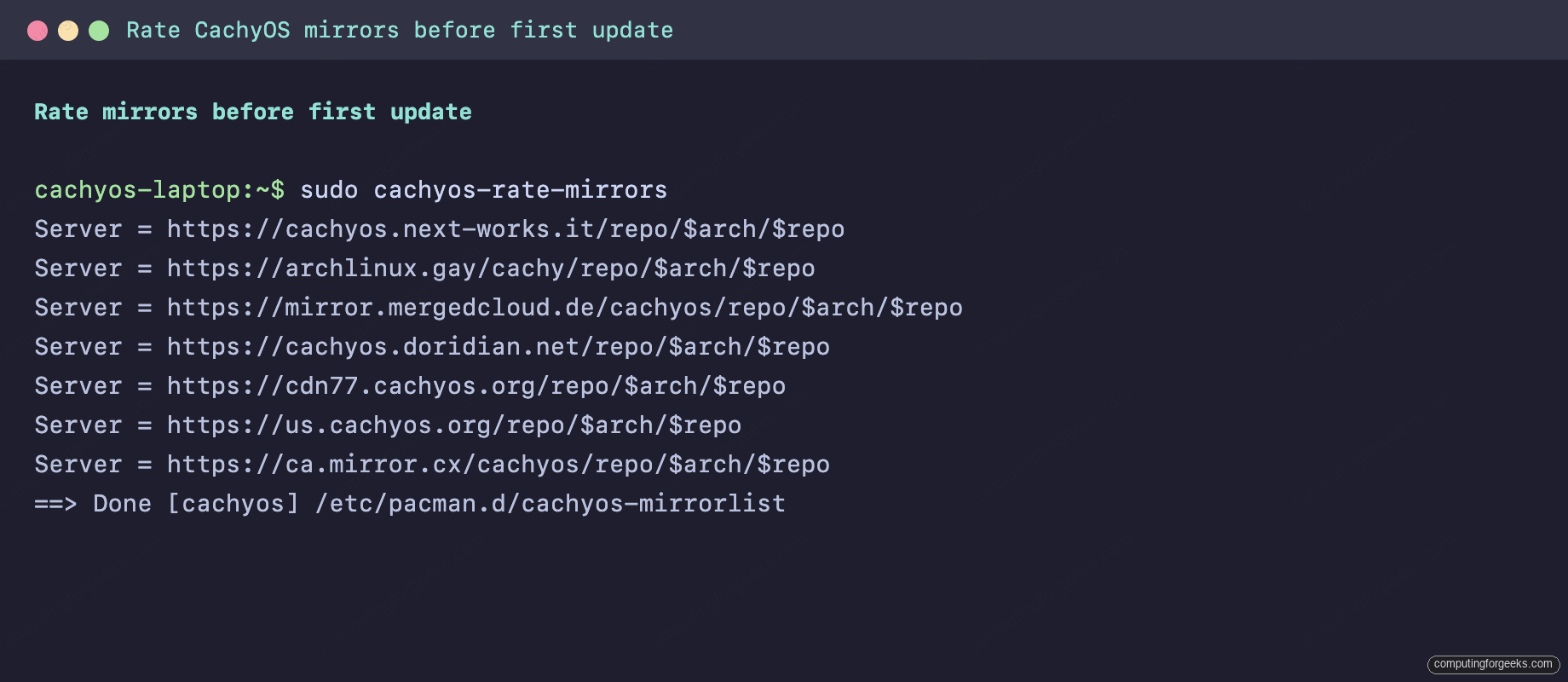
Now run the first system update. CachyOS is a rolling release, so the ISO image is always slightly behind the live repos. The first pacman -Syu will pull anywhere from a handful of packages to several hundred depending on how old the ISO is:
sudo pacman -SyuThis single command does three things: refreshes the package databases (the -y), checks for upgrades to every installed package, and applies them with confirmation. Hit Enter to accept the proposed upgrade. The output looks like this:
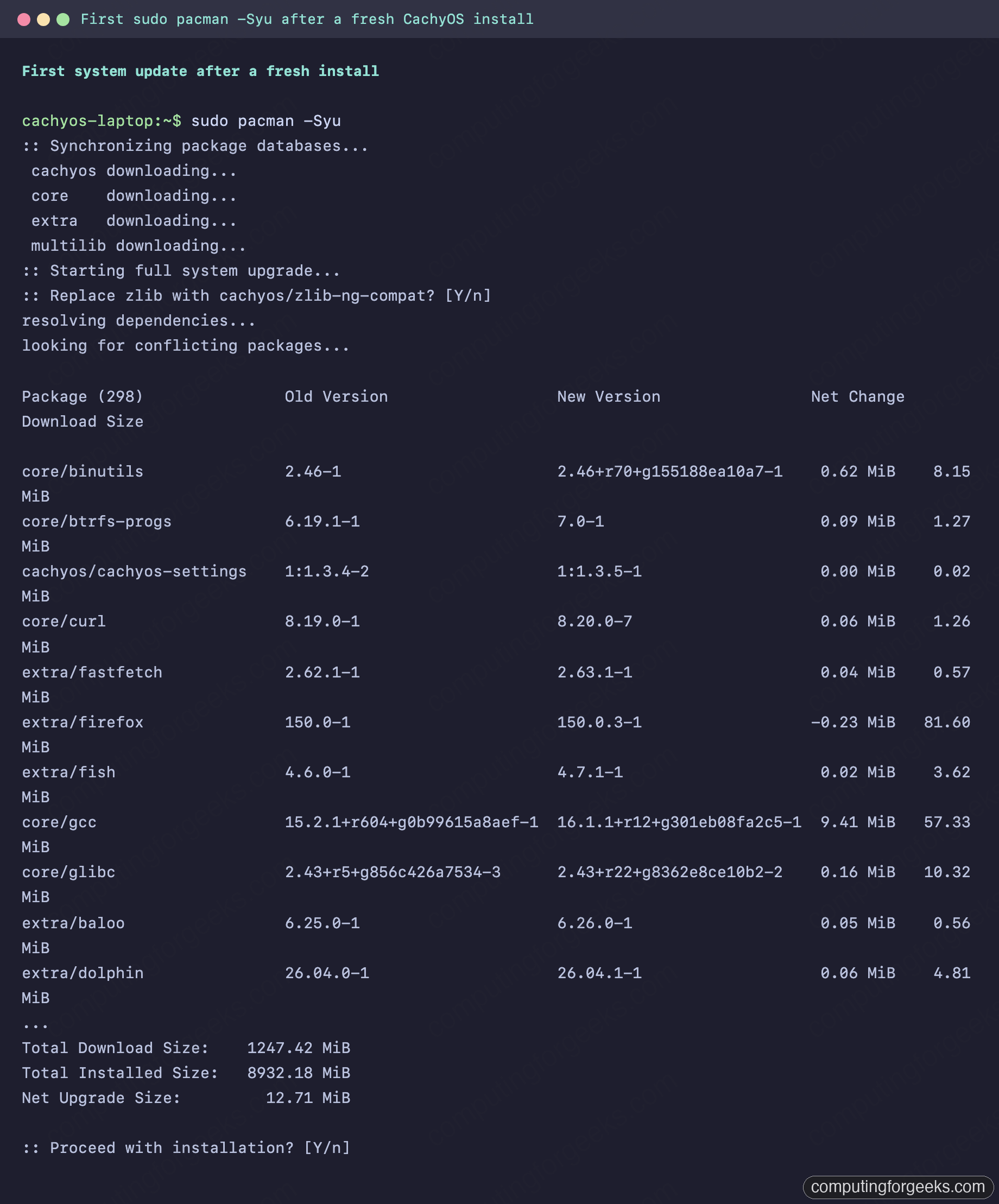
If a new kernel landed in the update, reboot. The new kernel modules are loaded only on a fresh boot, and skipping the reboot leaves the running kernel and its modules out of sync, which causes weird breakage later. After the reboot, you are on the latest CachyOS stack.
Step 2: Confirm paru is installed and learn the four commands that matter
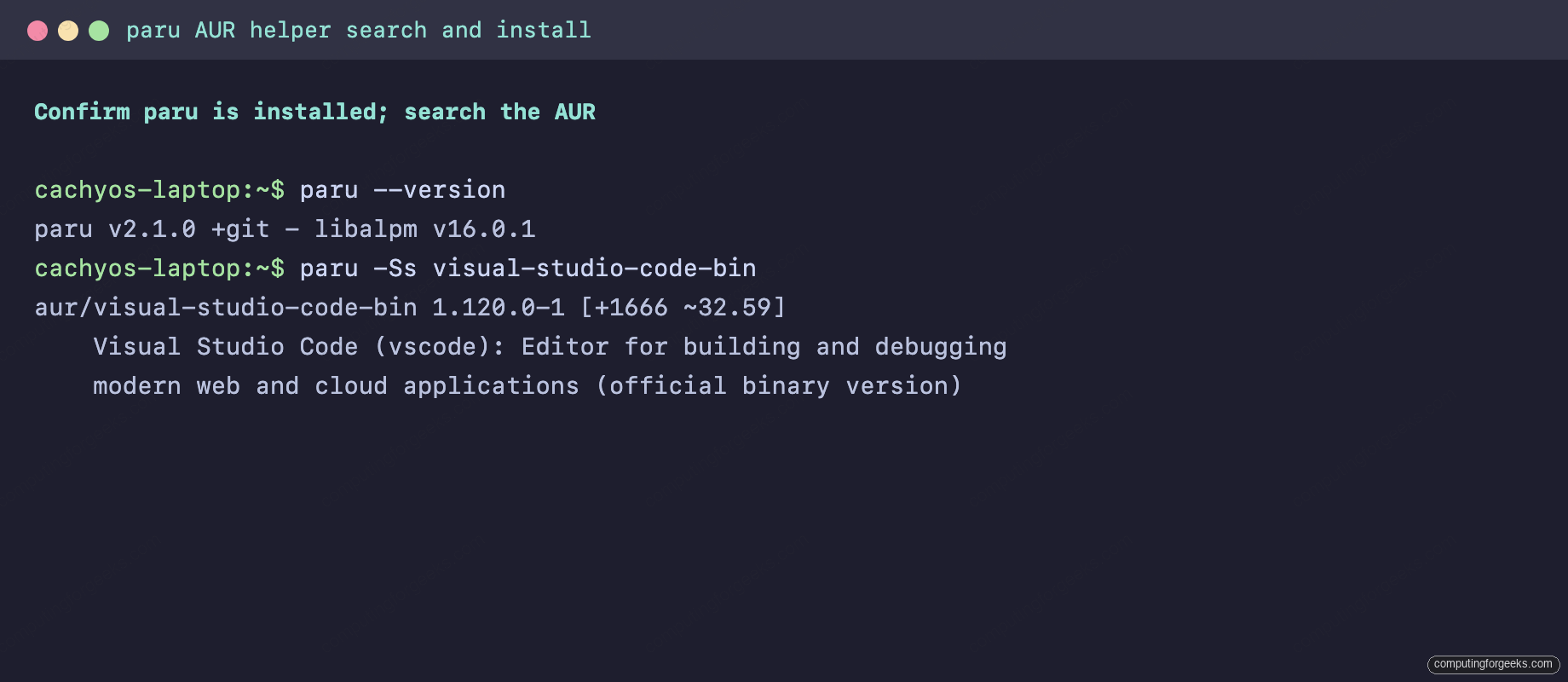
CachyOS ships paru as its default AUR helper, already installed. paru wraps pacman and adds the ability to install packages from the Arch User Repository, the community-maintained build-script repository where you find software not in the official Arch repos (proprietary apps, niche dev tools, latest pre-release versions). Confirm paru is there:
paru --version
which paru
The four paru commands that cover 95% of daily use:
| Command | What it does |
|---|---|
paru | Alias for paru -Syu. Updates official repos AND the AUR packages you have installed. |
paru -S package | Install a package from either the official repos or the AUR. |
paru -Ss query | Search both repos and AUR for a name or description match. |
paru -Rns package | Remove a package along with its unused dependencies and config files. |
A real example: search the AUR for a chat client, see what is available, install one:
paru -Ss visual-studio-code-bin
paru -S visual-studio-code-bin
paru shows you the PKGBUILD before installing, asks if you want to edit it, and only proceeds when you say yes. That review step is the single biggest reason to use paru over yay on a serious machine: the AUR is unaudited, and an AUR helper that quietly auto-builds anything is an attack surface.
Step 3: Add Flathub and use Flatpak for sandboxed apps
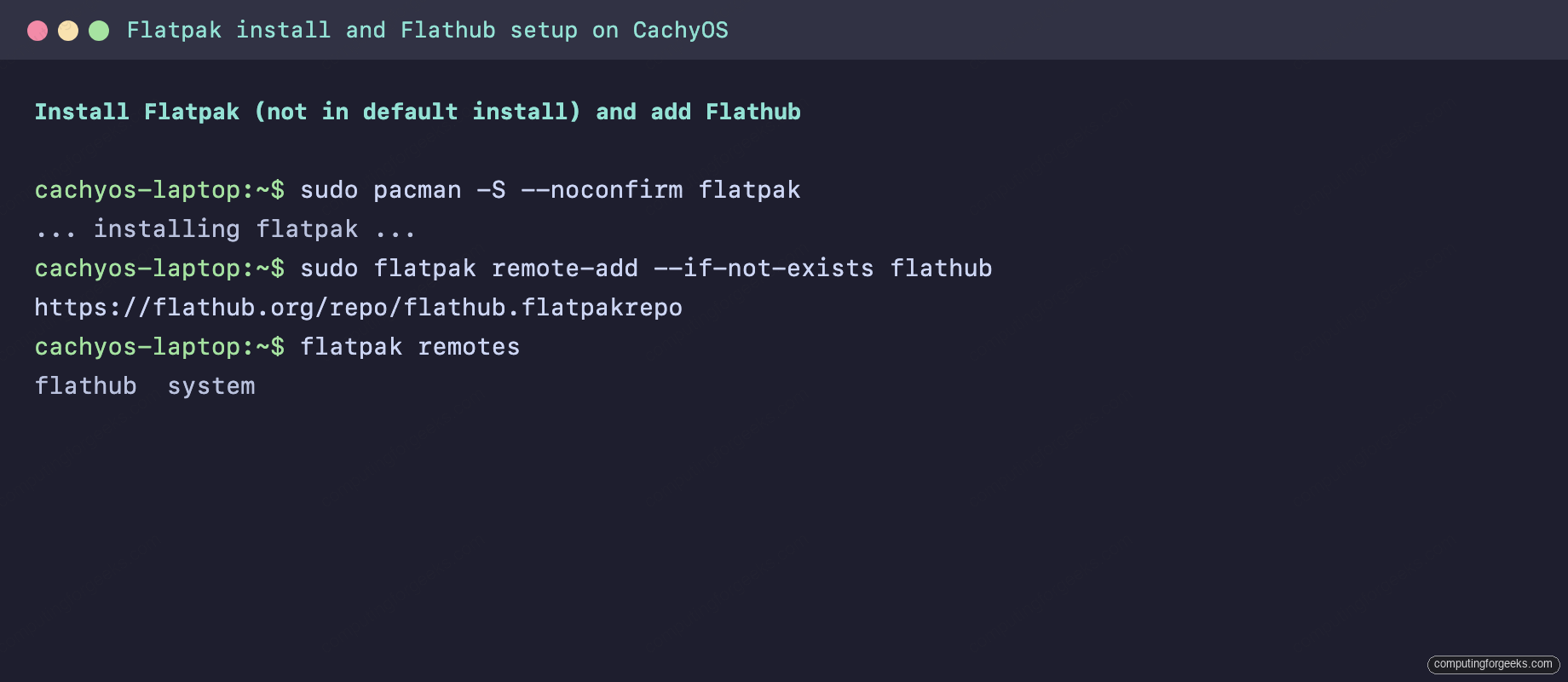
Flatpak is the third package source on a CachyOS box (alongside the official pacman repos and the AUR). It ships sandboxed apps from Flathub, the cross-distro Flatpak registry. Flatpak is not in the default install, so pull it in first. The Flathub remote needs sudo for a system-wide install:
sudo pacman -S --noconfirm flatpak
sudo flatpak remote-add --if-not-exists flathub https://flathub.org/repo/flathub.flatpakrepo
flatpak remotes
Now Discover (the KDE app store) and the flatpak CLI both pull from Flathub. Install an app from Flathub:
flatpak install flathub org.signal.Signal
flatpak run org.signal.Signal
The captured output of the Flathub setup looks like this:
The general rule for which package source to use:
- pacman for everything in the official repos. Always first choice. Native packages, lowest overhead, full pacman snapshot integration.
- AUR via paru for software not packaged in the official repos: latest pre-release dev tools, proprietary apps (Visual Studio Code, Slack, Zoom), niche utilities, anything that builds against a specific upstream.
- Flatpak from Flathub for sandboxed graphical apps, especially ones you want isolated from the rest of the system (browsers, chat, media players). Discover surfaces both pacman and Flatpak versions; pick the pacman one when both exist.
Step 4: Install the apps you will actually use
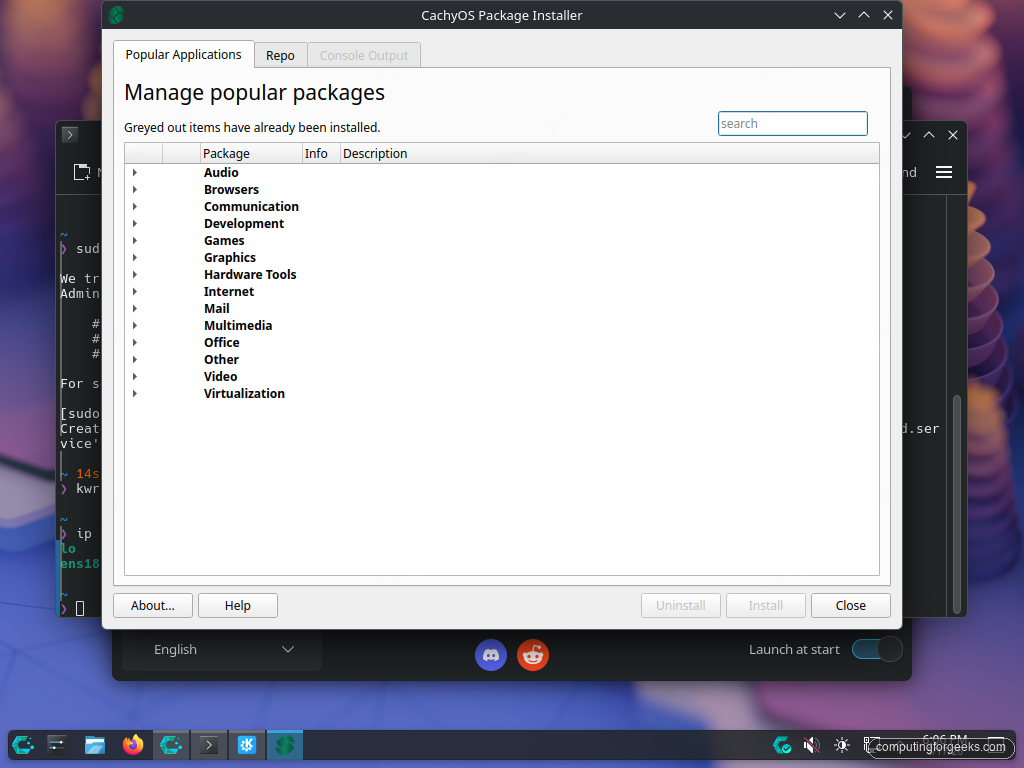
CachyOS Hello has an Apps/Tweaks button at the bottom that launches cachyos-pi, a Qt GUI that bundles categorised app picks (browsers, dev tools, multimedia, office, gaming, fonts). It is a reasonable shortcut if you do not want to learn pacman flags first. Click into it once to see what is on offer:
For everyone past their first day on Linux, the terminal is faster. Here is a curated set of native pacman packages that covers most of what a developer or power user needs on day one. Split into logical chunks so you can pick what fits your laptop:
# Browsers and chat (pick one of each)
sudo pacman -S firefox chromium thunderbird

# Office and PDF
sudo pacman -S libreoffice-fresh okular gwenview

# Dev essentials
sudo pacman -S base-devel git github-cli docker docker-compose neovim

# Languages and runtimes
sudo pacman -S python python-pip nodejs npm go rust

# Multimedia
sudo pacman -S vlc mpv obs-studio audacity gimp inkscape

# CLI quality-of-life
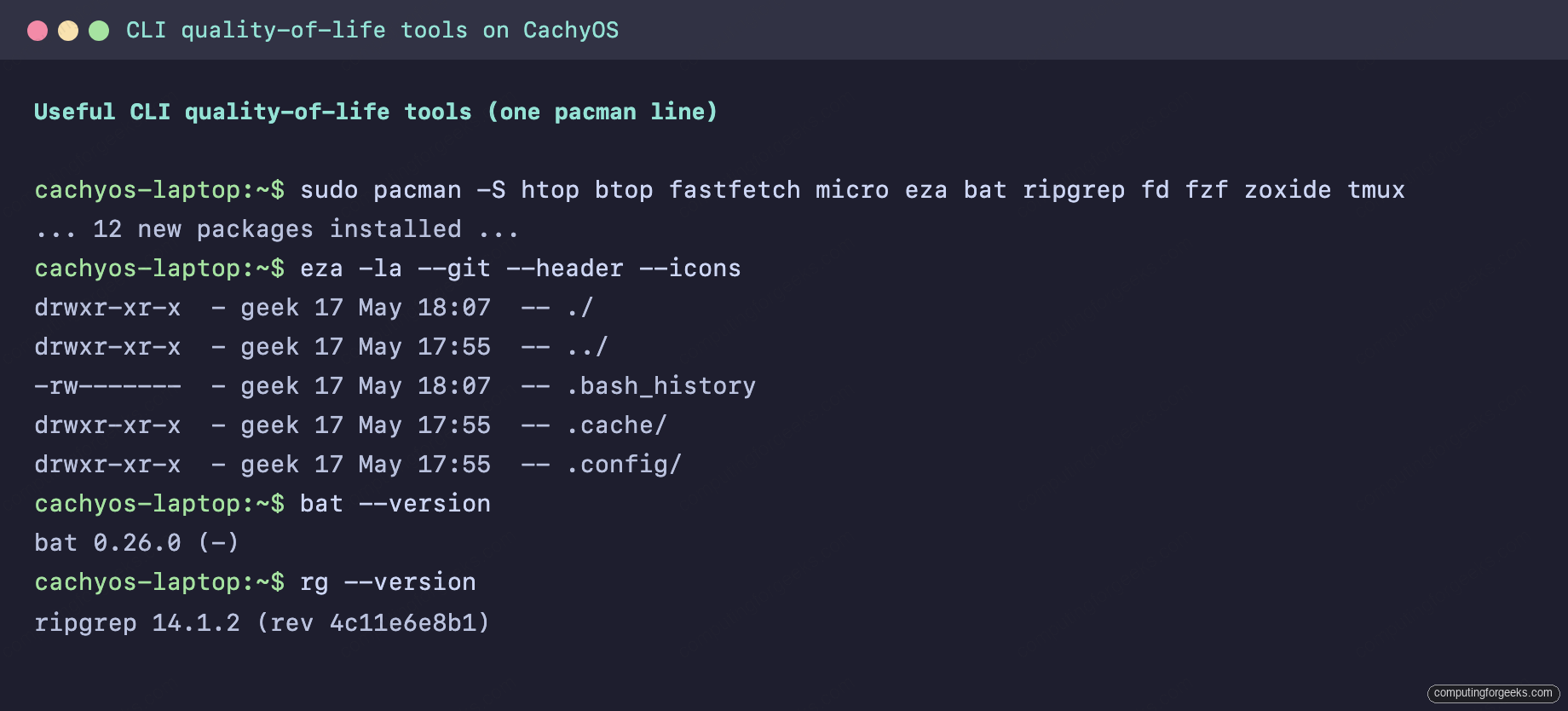
sudo pacman -S htop btop fastfetch micro eza bat ripgrep fd fzf zoxide tmux
The “CLI quality-of-life” line at the bottom is the one most users skip and then regret. eza replaces ls with a faster, prettier alternative; bat replaces cat with syntax highlighting; ripgrep replaces grep with one tool that handles every file type; fzf adds fuzzy finding everywhere; zoxide replaces cd with a directory-jumper that learns your habits. Install them now, build the muscle memory later.
Captured output of installing the CLI tools and a quick version check on a few of them:
For proprietary or AUR-only apps, paru is the path. The common ones for a fresh laptop:
paru -S visual-studio-code-bin slack-desktop zoom google-chrome 1passwordparu will show each PKGBUILD before building. Read them on first run, accept on subsequent updates. None of those packages take more than a minute or two to build.
Step 5: Get to know fish, the default shell
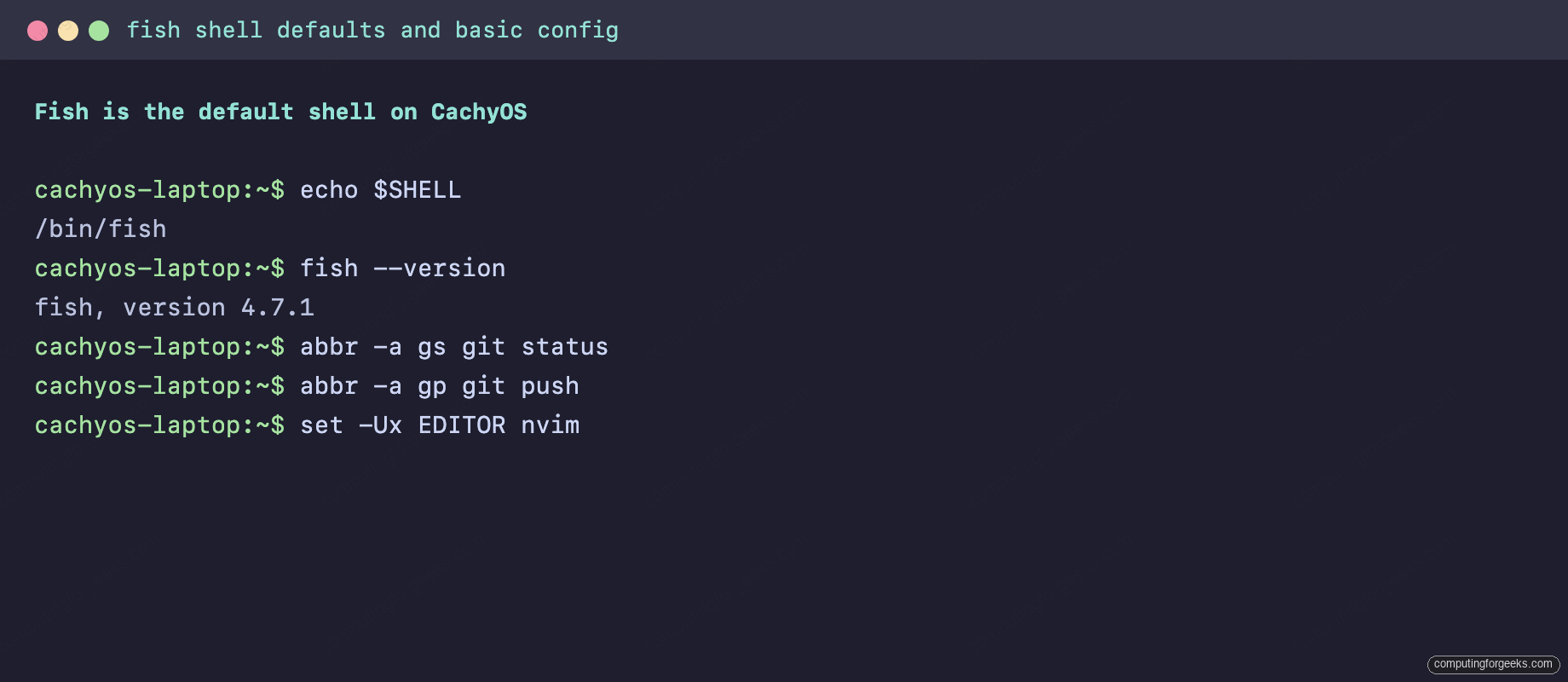
CachyOS sets fish as the default user shell, which is a meaningful departure from bash and zsh that you will hit immediately. fish gives you three things that “just work” with no config:
- Autosuggestions. As you type, the rest of a command from your history fades in greyed-out. Hit Right Arrow or Ctrl+E to accept.
- Syntax highlighting. Real-time colour: valid commands are blue, invalid ones red, files purple, options yellow. Catches typos before you press Enter.
- Smart tab completion. fish knows the man-page flags for hundreds of commands and offers them inline.
The trade-off: fish is not POSIX. Bash scripts and one-liners that work in sh may not work as-is in fish. The pragmatic split is to use fish interactively and bash for scripts (shebang #!/usr/bin/env bash at the top).
The fish commands worth learning on day one:
# Web-based config: themes, prompt, key bindings, history viewer
fish_config

# Create an abbreviation (expands when you press Space)
abbr -a gs git status
abbr -a gp git push

# Set an environment variable in a way that persists across sessions and is exported
set -Ux EDITOR nvim
set -Ux MANPAGER 'nvim +Man!'

# Define a function (saved to ~/.config/fish/functions/NAME.fish on save)
function mkcd
  mkdir -p $argv[1]; and cd $argv[1]
end
funcsave mkcd
fish_config opens a local web page where you can pick a colour theme, configure the prompt, browse your command history, and see every function and variable in scope. It is genuinely the easiest way to make fish look the way you want.
If fish ends up not fitting your brain, switch to zsh. Both are first-class on CachyOS:
sudo pacman -S zsh zsh-completions
chsh -s /usr/bin/zsh
# Log out and back in for the change to take effect
Step 6: Add Starship for a consistent prompt across shells
Starship is a Rust-built prompt that works the same in fish, zsh, and bash. It auto-detects what is in the current directory (git repo, language version, kubectl context, AWS profile, etc.) and renders a contextual prompt with no per-shell config. It is the easiest way to get a “powerline-looking” prompt without per-shell theme files.
sudo pacman -S starship
# Wire it into fish (only line you need)
echo 'starship init fish | source' >> ~/.config/fish/config.fish
# Open a new terminal to see the new prompt
The default Starship config is sensible. Configuration lives at ~/.config/starship.toml when you want to tweak it. The Starship docs catalogue every module and how to disable or restyle it.
Step 7: Make fastfetch the system info you actually run
CachyOS preinstalls fastfetch, the actively-maintained successor to neofetch (which is unmaintained). fastfetch is the screenshot-worthy “OS / kernel / DE / theme / RAM” tool you see in every Linux configuration post. Run it bare:
fastfetchCaptured output looks like this:
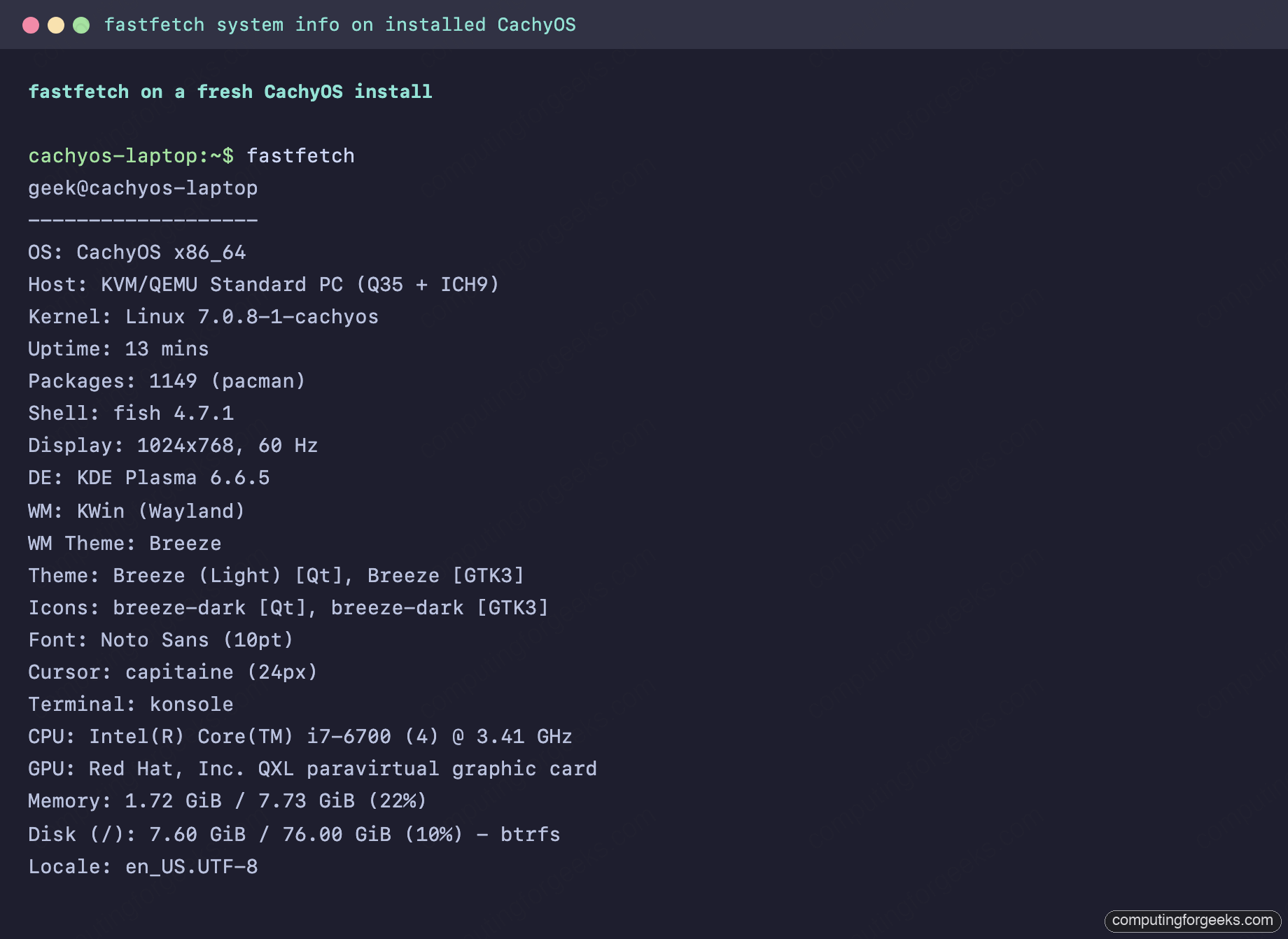
The default output is the CachyOS logo plus a sensible info column. To make it your own, generate a config and edit the JSONC file:
fastfetch --gen-config
$EDITOR ~/.config/fastfetch/config.jsonc
The config is plain JSON with comments; modules can be added, removed, or restyled. A useful trick is to set fastfetch as a Konsole start-up command so every new shell shows a small system summary.
Step 8: Theme KDE Plasma
The CachyOS default theme is fine, but the entire point of KDE Plasma is that everything is themeable. The settings live in System Settings → Appearance. The five panels that actually matter:
- Global Theme: one-click bundles that change everything at once (window decoration, plasma style, colours, fonts, icons). Browse “Get New Global Themes” for community options; the official Plasma 6 themes (Breeze Dark / Light) are solid defaults.
- Colors: independent colour schemes overlay any Global Theme. Useful when you like a theme but want a different accent or background tone.
- Icons: Papirus, Tela, Reversal, Numix are the popular alternatives to Breeze. Install via Discover or pacman:
sudo pacman -S papirus-icon-theme. - Cursors: Bibata is the de facto Linux cursor theme of the last few years.
paru -S bibata-cursor-theme. - Fonts: install a programmer font with ligatures (
sudo pacman -S ttf-jetbrains-mono ttf-jetbrains-mono-nerd ttf-fira-code) and set it for the system + monospace font.
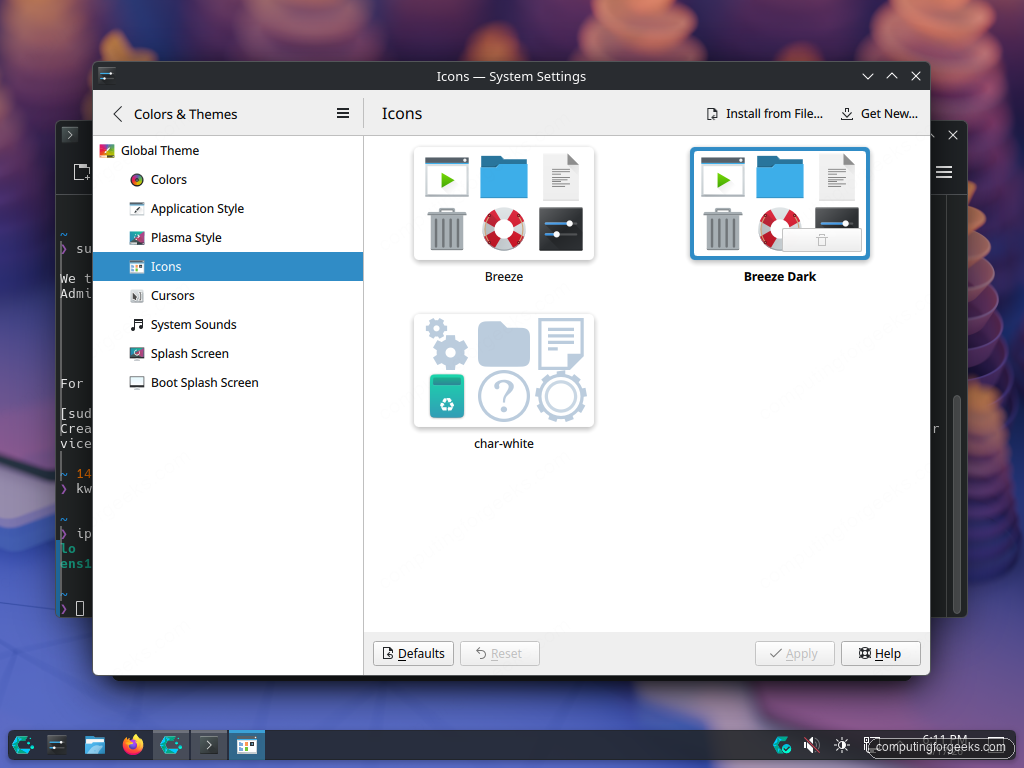
The two GUI dialogs you will spend the most time in. First, Global Theme picker (above). Second, the Application Style and Window Decorations sub-panels:
Once you have a Global Theme picked, scroll past the appearance panels to Workspace Behavior → Desktop Effects. The two effects worth knowing about are Wobbly Windows (cosmetic, optional) and Magic Lamp (minimise animation). Disable both if you want maximum performance on integrated graphics; keep them if you like the eye candy.
Step 9: Tune the panel, widgets, and shortcuts
Right-click on the taskbar panel and pick Enter Edit Mode to redesign the panel. You can move it to the top, change its height, add widgets, or rearrange existing ones. The widgets most people add on day one:
- Application Title Bar shows the current window title in the panel, great on a laptop where the panel is your main reference point.
- System Load Viewer tiny CPU / RAM / network graphs you can park next to the clock.
- Pager if you use virtual desktops, lets you click between them instead of remembering Ctrl+Alt+Arrow.
Keyboard shortcuts live under System Settings → Shortcuts. The few worth confirming or changing right away:
| Action | Default | Why |
|---|---|---|
| Launch terminal | Ctrl+Alt+T | Set this if it is not already; opening a terminal in one shortcut is the single best return on muscle memory. |
| KRunner | Alt+Space | Spotlight-like search and command runner. |
| Screenshot | PrintScreen | Plasma 6’s Spectacle is the default. Region select with Shift+PrintScreen. |
| Switch window | Alt+Tab | Alt+Tab cycles through windows; Meta+Tab is the activity switcher. |
Step 10: Tune power, display, and fonts
Three System Settings panels matter on day one for any laptop or desktop:
- Display Configuration for resolution and HiDPI scaling. On a HiDPI laptop, set Global Scale to 150% or 200% under System Settings → Display & Monitor. Plasma 6 handles per-output scaling cleanly, so an external monitor at 100% can sit alongside an internal panel at 200%.
- Energy Saving for screen and suspend timeouts on AC and battery separately. The default 5-minute screen off on battery is too aggressive for most use; 10-15 minutes is saner.
- Fonts for system and monospace fonts. After installing the JetBrains Mono package above, set monospace font to “JetBrains Mono” 11pt and watch every terminal and code editor become more readable.
Deeper laptop power tuning (TLP vs auto-cpufreq vs power-profiles-daemon, suspend-then-hibernate, thermal monitoring) is the topic of a separate Day-2 guide in this series.
Step 11: Enable the firewall
firewalld is not in the default install. Install it and enable the service in one go. On a laptop that connects to networks you do not control (coffee shop, hotel, conference), turn it on:
sudo pacman -S --noconfirm firewalld
sudo systemctl enable --now firewalld
sudo firewall-cmd --state
sudo firewall-cmd --get-default-zone
sudo firewall-cmd --list-all
The default zone is public, which blocks inbound traffic except for ssh and DHCP responses. That is correct for almost every laptop. If you need to allow a specific port (e.g., to run a local dev server reachable from another machine on the network), open it once:
sudo firewall-cmd --add-port=3000/tcp --permanent
sudo firewall-cmd --reload
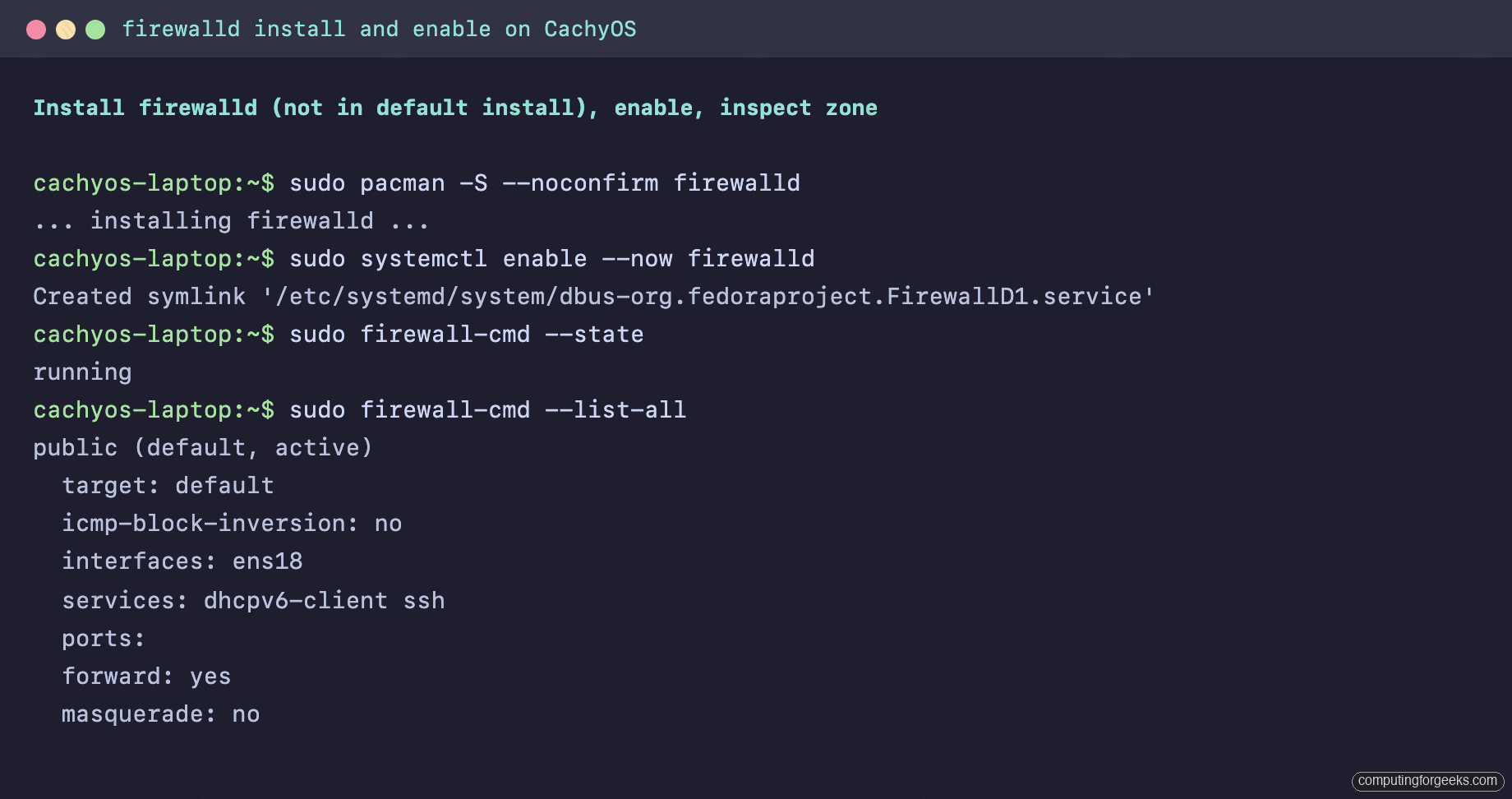
Captured firewalld state from a freshly enabled install:
Step 12: Snapper snapshots + Limine integration
The Calamares BTRFS layout you installed onto is already set up for snapper. Every pacman transaction takes pre and post snapshots automatically (the snapper post-transaction hook), and the Limine bootloader exposes those snapshots as bootable entries under the [+] Snapshots menu. When a kernel update breaks the system, you reboot, pick a pre-update snapshot from the boot menu, and you are back in a working state in under thirty seconds.
This is the single most useful Day-2 feature on a rolling release. List the current snapshots to confirm the integration is working:
sudo snapper -c root list
sudo btrfs subvolume list /
The snapshot setup, automation policy, retention, and the recovery flow itself are covered in a dedicated Day-2 guide on BTRFS snapshots and rollback.
Step 13: A handful of small quality-of-life tweaks
- Set git identity now.
git config --global user.name "Your Name"andgit config --global user.email "[email protected]". Otherwise the first commit you try in a new repo prompts you for it. - Add yourself to common groups. CachyOS picks the right defaults during install, but if you plan to use Docker, KVM, or wheel-specific tools, confirm:
sudo usermod -aG docker,libvirt,wheel $USERthen log out and back in. - Generate an SSH key.
ssh-keygen -t ed25519 -C "[email protected]"creates an Ed25519 keypair at~/.ssh/id_ed25519. Upload the.pubto GitHub, GitLab, or whatever you push to. - Pin a fallback kernel. Install
linux-cachyos-ltsso the Limine menu has a second kernel to fall back on. Coverage of this lives in the dedicated kernel manager and performance tuning guide. - Backup somewhere off the laptop. Snapshots are not backups. Pick one:
resticto a remote object store,borgover SSH, or a simplersynccron to a NAS. The choice matters less than the existence of one.
That is the realistic post-install setup on CachyOS. The list looks long the first time you read it, but the actual time spent is roughly one hour: thirty minutes for updates and apps, twenty for theming, ten for shells and prompt. After that, the laptop is a daily-driver. The Day-2 articles in this series go deeper on each of the things this post only pointed at: kernel manager and performance tuning, laptop power and battery, snapper-based rollback, gaming, and the rolling-release update survival kit.