CachyOS turns Arch Linux into something you can actually install on a laptop, desktop, or VM in fifteen minutes. The installer is graphical, the defaults are sane, the kernel is tuned for performance out of the box, and KDE Plasma ships ready to use. This guide walks through the full install CachyOS flow end to end on UEFI hardware: prep the USB, disable Secure Boot in firmware, partition with BTRFS, run the Calamares installer, and finish on a working KDE Plasma desktop ready for daily use.
What sets CachyOS apart from other Arch derivatives matters specifically for laptops. The default kernel is linux-cachyos, built with the BORE scheduler and modern toolchain optimizations. The repos serve x86-64-v3 optimized packages on any CPU from roughly the last decade, so binaries are compiled for the instructions your laptop actually has. The Calamares installer ships an offline mode, supports UEFI Secure Boot disabled flows, and lays out BTRFS subvolumes the way snapper expects, so snapshot rollback works without manual configuration later.
What you need before you start
- A laptop with UEFI firmware, an internal SSD or NVMe of at least 30 GB, and 4 GB of RAM (8 GB or more recommended for KDE Plasma)
- A USB stick of 8 GB or larger that you can wipe
- A wired or stable Wi-Fi network during install (the installer pulls packages and rates mirrors)
- An hour, most of it watching the installer copy files
- Backups of anything on the laptop disk you cannot afford to lose. This guide erases the disk
If your laptop currently dual-boots Windows or holds data you need, stop and back up first. The default flow described here erases the entire disk. Dual-boot setups are a separate workflow with their own pre-flight checks.
Download and verify the CachyOS ISO
Grab the desktop ISO from the official mirror at cachyos.org/download. The current desktop release lives under ISO/desktop/<build-date>/ on the mirror, with the ISO, a .sha256 checksum, and a .sig signature alongside it.
Pull the matching SHA256 file and verify the download before writing it. A truncated or corrupted ISO produces silent install failures that are painful to debug:
cd ~/Downloads
sha256sum -c cachyos-desktop-linux-*.iso.sha256
The output should report a single OK line for the ISO. If it reports FAILED, re-download. Do not write a bad ISO to USB.
Write the ISO to USB
On Linux or macOS, raw dd is the most reliable tool. Find your USB device with lsblk (Linux) or diskutil list (macOS) and replace sdX below with the right device name. Wrong device name here writes the ISO over a real disk. Double check.
sudo dd if=cachyos-desktop-linux-*.iso of=/dev/sdX bs=4M status=progress conv=fsyncOn Windows or for a multi-boot stick you can reuse across distros, Ventoy is a better fit: install Ventoy on the stick once, then drop ISOs onto it as files. CachyOS boots cleanly from a Ventoy USB without any special flags. Rufus and balenaEtcher work too on Windows, but Ventoy is the option you keep using after the first install.
Disable Secure Boot in laptop firmware
CachyOS does not ship signed Secure Boot shims. The installer boots cleanly on UEFI with Secure Boot disabled. Turning it off lives in firmware setup, which every laptop vendor labels slightly differently:
- Lenovo ThinkPad / IdeaPad: F1 at power-on,
Security > Secure Boot > Disabled - Dell XPS / Latitude: F2 at power-on,
Boot > Secure Boot > Disabled - HP Pavilion / EliteBook: F10 or Esc then F10,
Security > Secure Boot Configuration - Framework: F2 at power-on,
Security > Secure Boot - ASUS: F2 at power-on,
Boot > Secure Boot > OS Type: Other OS
While in firmware, also confirm the boot order puts the USB stick first, or use the one-time boot menu key (usually F12, Esc, or F9 depending on vendor). Save and exit, leaving the USB stick plugged in.
Boot into the CachyOS live environment
On boot from the USB you land in GRUB with several entries. The default CachyOS entry runs the standard linux-cachyos kernel and works on the vast majority of hardware. The CachyOS LTS Kernel entry is a fallback if the modern kernel fails to boot. CachyOS Legacy Hardware (GPU nomodeset) is for older GPUs where KMS misbehaves on the live boot.
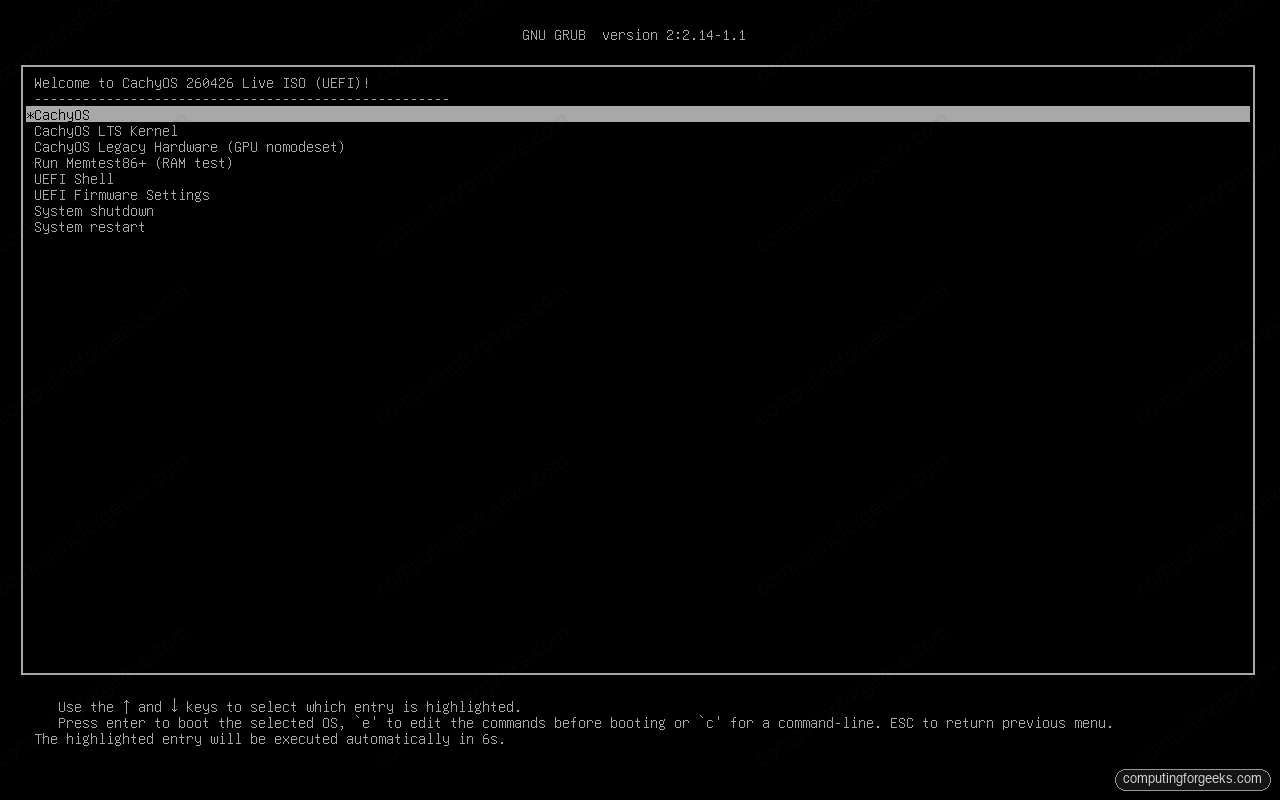
Pick CachyOS and press Enter, or wait six seconds for the auto-boot. The live system boots into KDE Plasma in under a minute on modern hardware and lands on a desktop with a CachyOS Hello window already open. From here every install step happens inside the live KDE session.
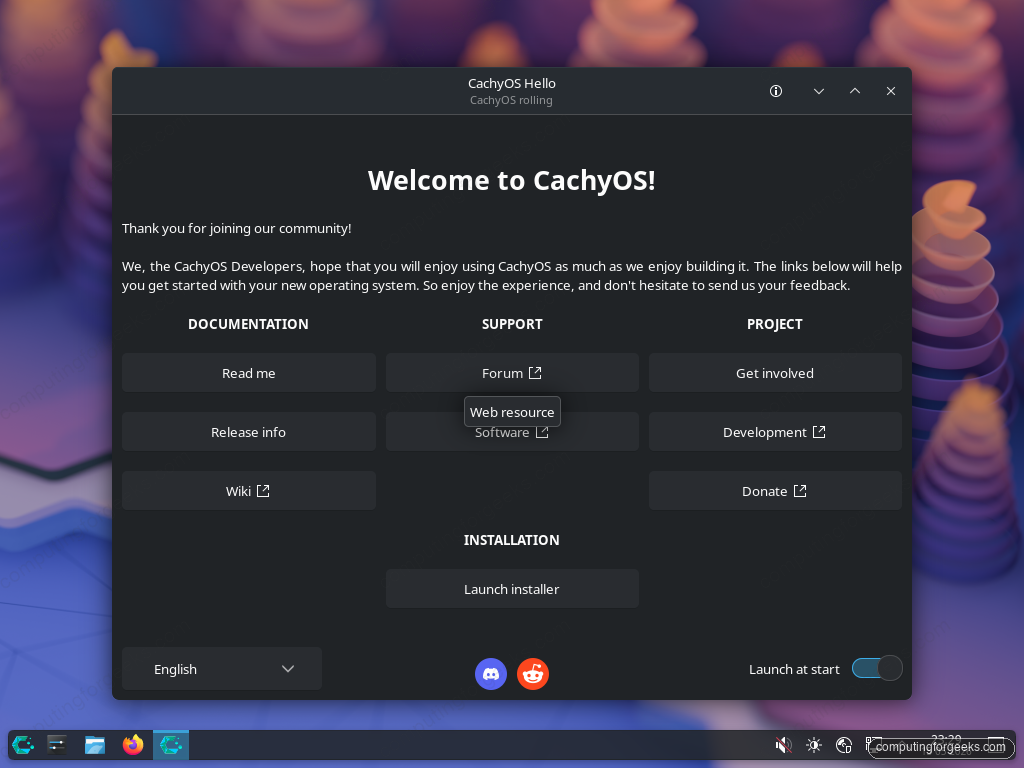
Before running the installer, double check that the laptop is on AC power and connected to a network (the Wi-Fi applet sits in the system tray on the bottom right). The installer ranks mirrors and pulls packages, so a flaky network here means a slow or failed install.
Run the Calamares installer
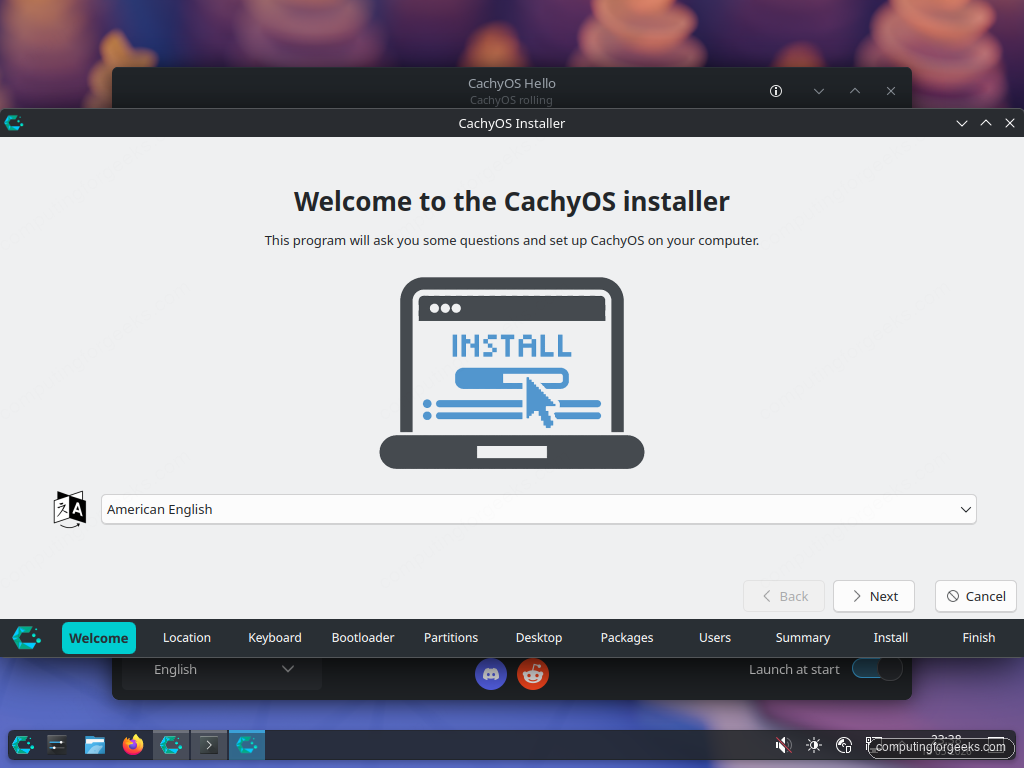
Click Launch installer in the CachyOS Hello window. Calamares is a Qt-based graphical installer used by many Arch derivatives, and it walks you through eleven steps shown along the bottom of the window: Welcome, Location, Keyboard, Bootloader, Partitions, Desktop, Packages, Users, Summary, Install, Finish. Each click of Next advances to the next step. Back returns to the previous one. Nothing is written to disk until you confirm at the Summary step.
Welcome and Location
The Welcome screen is the language picker for the installer itself and for the installed system locale. American English is the default. Pick yours and click Next.
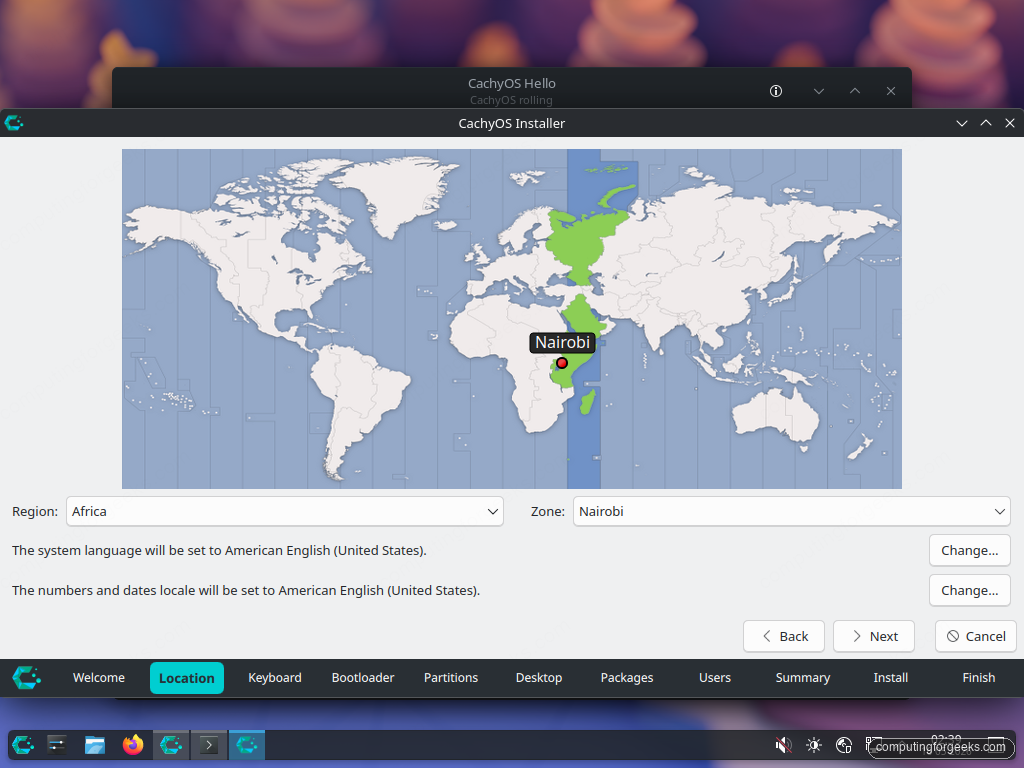
Location does geo-IP detection and drops a pin on the world map. You can override it with the Region and Zone dropdowns. The selected zone sets the system timezone and the system clock format, so pick something close enough that date reports the right time after install.
Keyboard
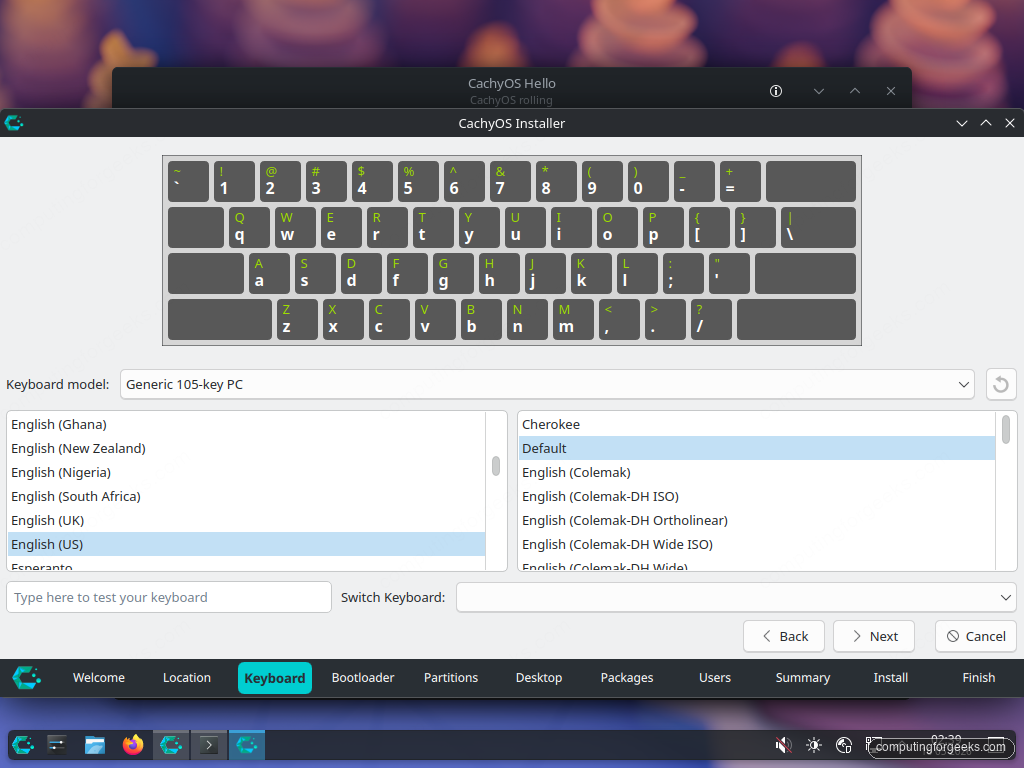
Keyboard model defaults to Generic 105-key PC, which is correct for almost every laptop sold this decade. The layout list picks up your country and pre-selects a likely match. Type a couple of characters into the test field at the bottom to confirm the layout matches your physical keys before clicking Next.
Bootloader
CachyOS gives you a choice of bootloader: GRUB, rEFInd, rEFInd + AI SDK, systemd-boot, or Limine. GRUB is the safest default. It is what nearly every other Linux guide assumes, it handles dual-boot with Windows and other distros without extra config, and snapper / grub-btrfs integrate with it for snapshot rollback.
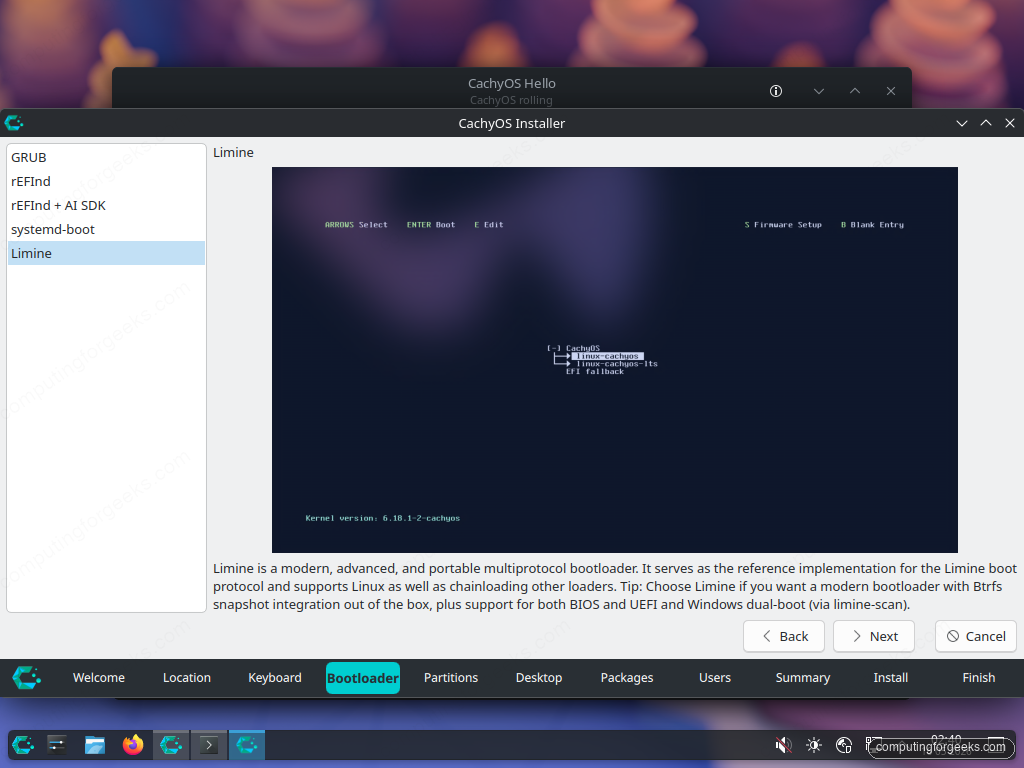
Pick systemd-boot if the laptop is single-boot, UEFI only, and you want the minimum amount of moving parts. Limine is the new direction CachyOS is leaning into (it supports BTRFS snapshot menus natively) but tooling around it is younger than GRUB. For a first install go with GRUB and revisit later.
Partitions
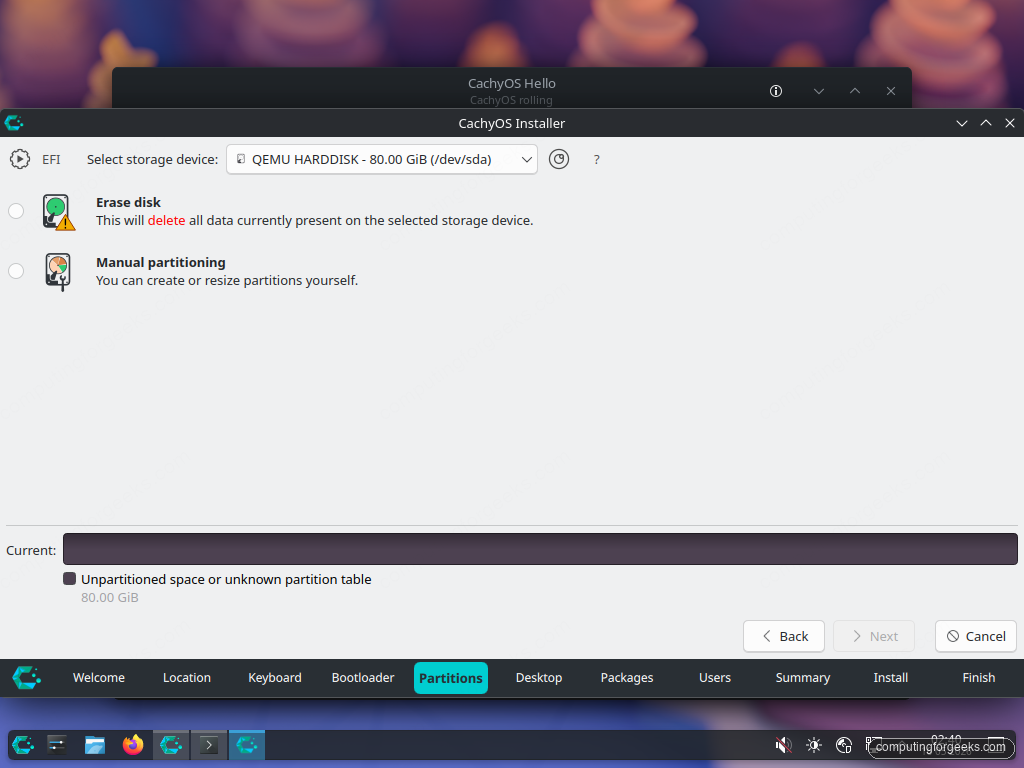
This is the screen that destroys data, so read it carefully. The top dropdown lists detected storage devices. Pick the laptop’s internal disk. The two options below it are:
- Erase disk wipes everything on the selected device and creates a clean GPT layout
- Manual partitioning opens a full partition editor for shrinking existing partitions, dual-boot, or custom layouts
Pick Erase disk. The filesystem dropdown below it defaults to btrfs, which is what you want. CachyOS lays out BTRFS with subvolumes that snapper and grub-btrfs expect, so snapshot rollback works automatically after install. The current and after bars at the bottom show the planned layout: a small FAT32 boot partition plus a Btrfs root taking the rest of the disk.
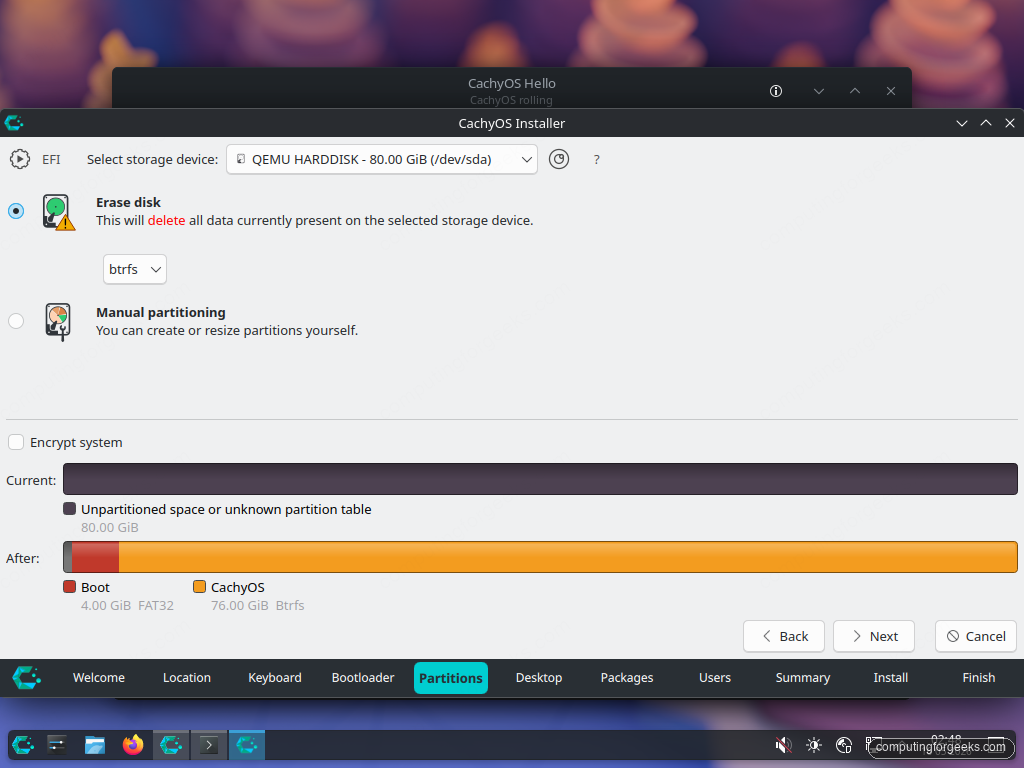
The Encrypt system checkbox enables LUKS full-disk encryption on the root partition. Tick it if the laptop ever leaves your house. You will be prompted for a passphrase later, and that passphrase is required at every boot. Skipping encryption is fine for a desktop you trust the physical security of; on a laptop, ticking it is the better default.
Desktop environment
The Desktop step lets you pick the graphical environment that will be installed on the system. KDE Plasma is the CachyOS default and the desktop that gets the most testing from the project, and it is the assumption the rest of this guide makes. The full list includes GNOME, Cosmic, Xfce, Cinnamon, Budgie, Mate, LXQt, LXDE, Hyprland, Sway, i3wm, and a No Desktop option for a CLI-only install.
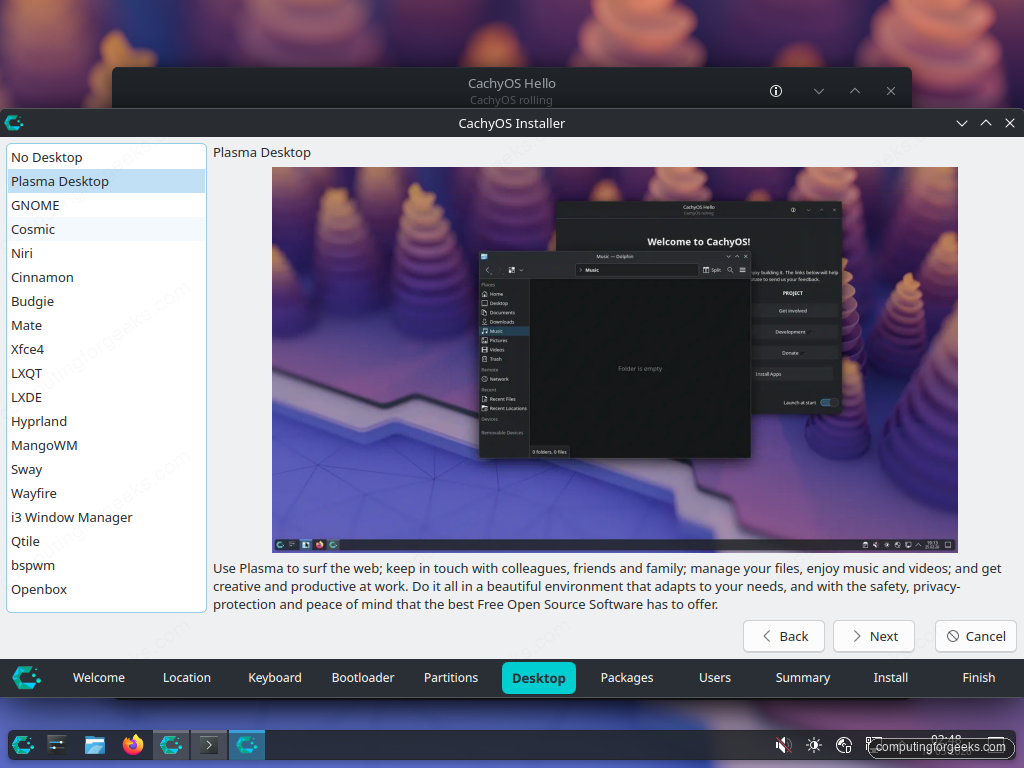
Tiling window managers like Hyprland and Sway are well supported but expect you to configure them from a config file rather than a settings GUI. Pick Plasma Desktop unless you already live in a tiling WM elsewhere.
Packages
The Packages step is a tree of optional package groups: CachyOS Packages (recommended on), Base Devel, the chosen desktop and its addons, browser, office suite, multimedia codecs, gaming, AI / ML tooling, virtualisation, and so on. Each group expands to show what is inside it.
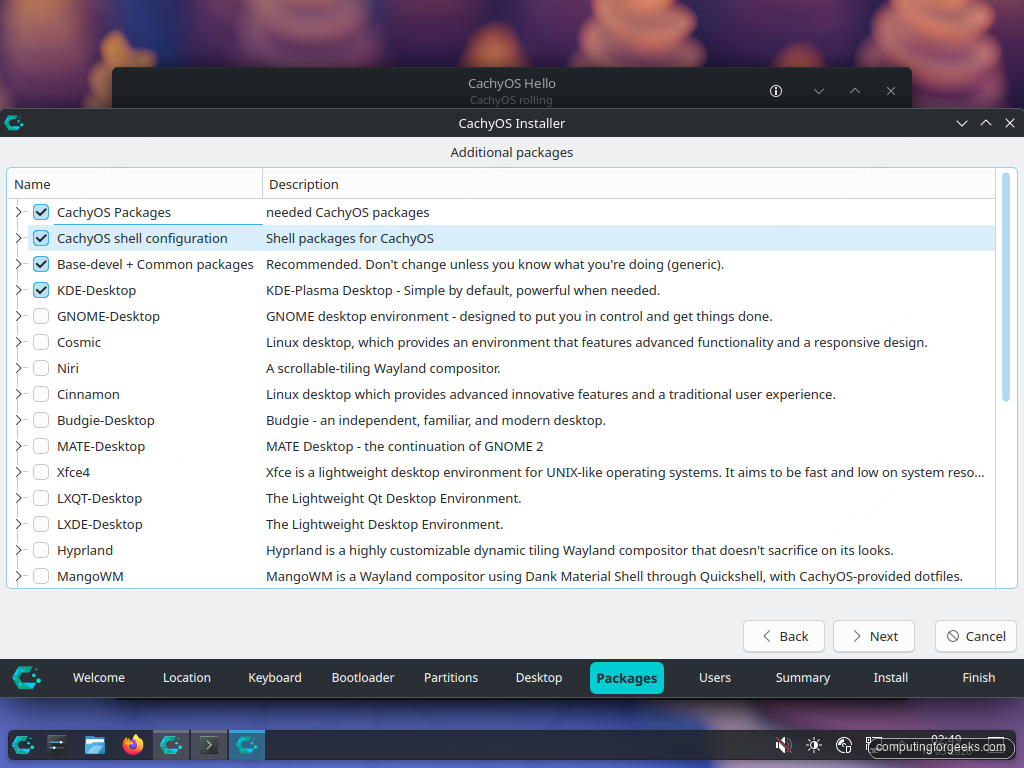
Leave the recommended boxes ticked, expand Base Devel and tick it (you will want base-devel to build AUR packages later), and pick the optional groups you actually plan to use. Office and Multimedia are useful on most laptops. Gaming is worth ticking even if you only sometimes game, because the multilib bits and Proton dependencies are tedious to add by hand later.
Users
Fill in your full name, the login name (the installer auto-suggests one from your full name), a hostname for the laptop, and a password. The Use the same password for the administrator account checkbox is ticked by default, which means your user password also becomes the root password. That is sensible on a personal laptop. Untick it if you want a separate root password.
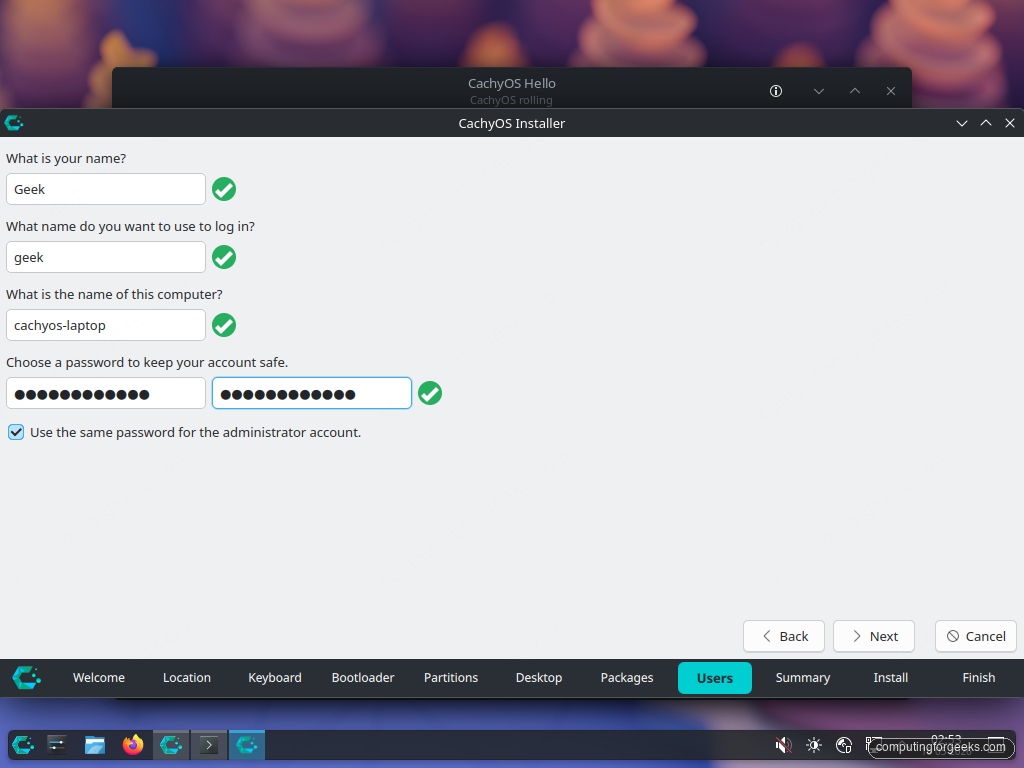
The password validator wants a mix of letters, digits, and length. The hostname field accepts only letters, numbers, underscore, and hyphen, and is what shows up on the local network and on the shell prompt later. Pick something you will recognise like thinkpad-t14 or cachyos-laptop.
Summary and Install
The Summary step is the last chance to read what is about to happen. Locale, keyboard, partitions, the planned filesystems, the mount points, and the new boot entries are all listed in plain text. Scroll through it. If anything looks wrong, click Back and fix it.
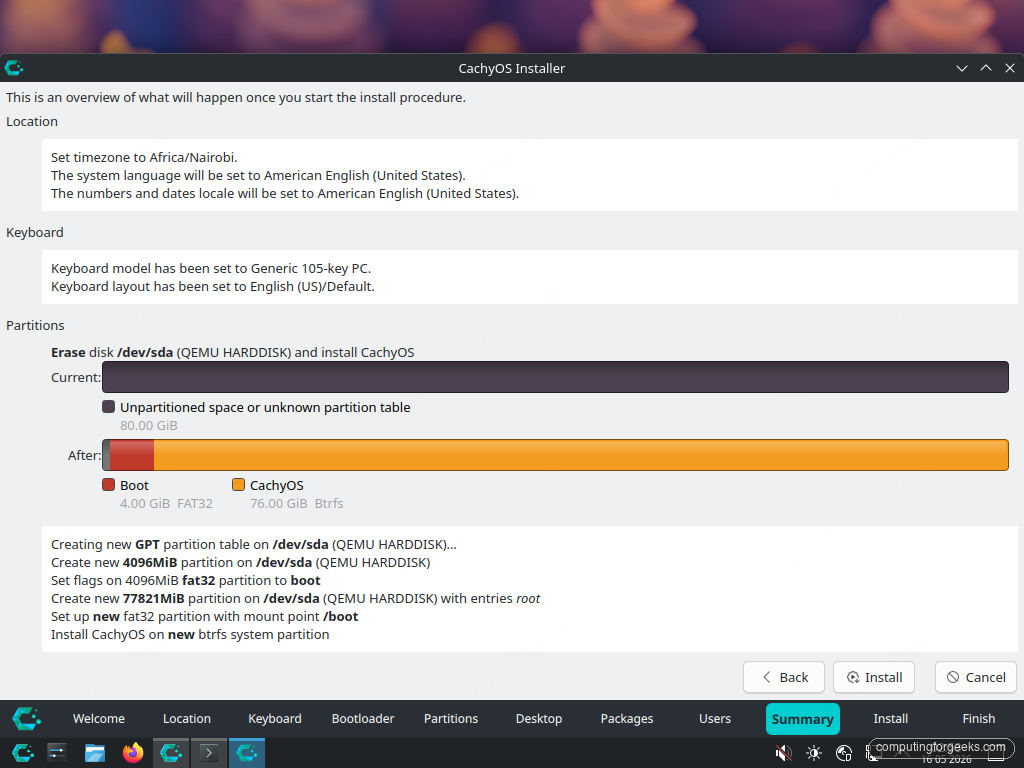
The Install button at the bottom right replaces the Next button. Click it. A confirmation dialog spells out one more time that the disk is about to be changed and the changes cannot be undone. Click Install Now.
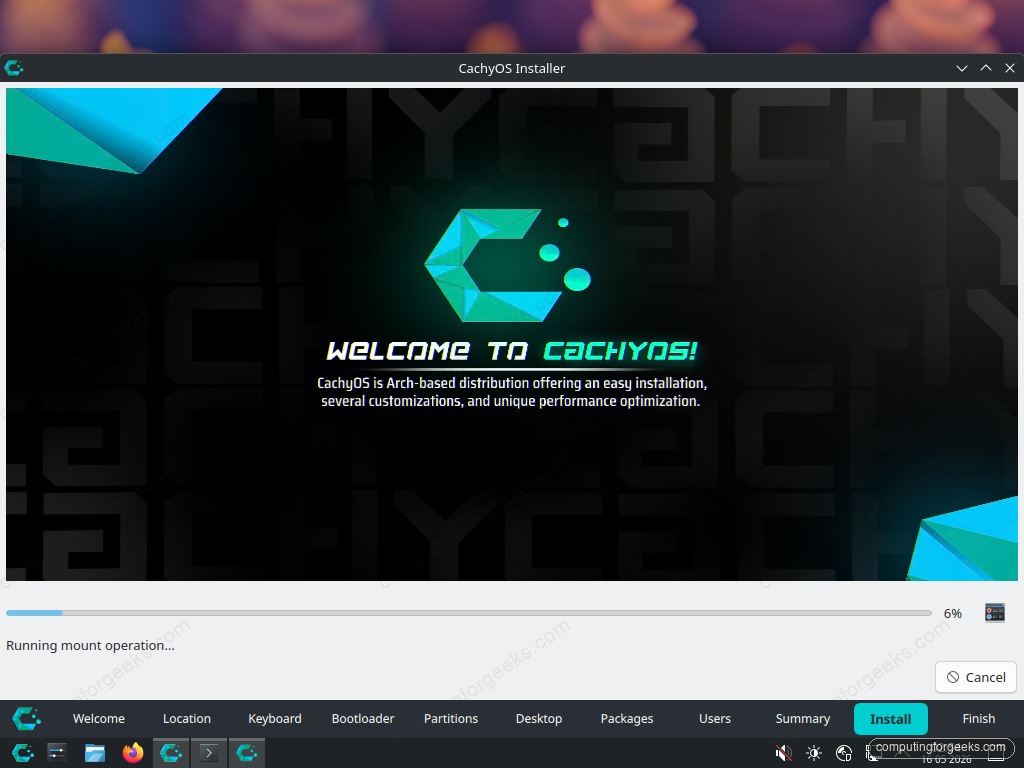
Calamares now partitions the disk, formats the filesystems, mounts them, copies the live system to the target, installs the package selection on top, configures the bootloader, and writes locale, keyboard, and user settings. The progress bar advances through stages with names like Mount partitions, Unpack filesystem, Install bootloader, and Configure. On the hardware specced in the freshness block above, the install completes in roughly 12 to 18 minutes, dominated by package copy and post-install hooks.
Slides cycle through during the install: CachyOS kernels, x86-64-v3 repos, Pacman tips, KDE Plasma overview. Read them if you are curious. Nothing in the installer needs further input during this stage.
Finish and reboot
When the progress hits 100% the Finish screen offers a Restart now checkbox and a Done button. Tick the box, click Done, and remove the USB stick when the laptop powers down. On the next boot the GRUB menu shows CachyOS on top of the laptop’s internal disk.
First boot into CachyOS
The installed system boots through GRUB, runs systemd, and lands at the SDDM login screen. Type the user password and Enter to log in. The first session takes a few extra seconds while Plasma generates per-user caches.
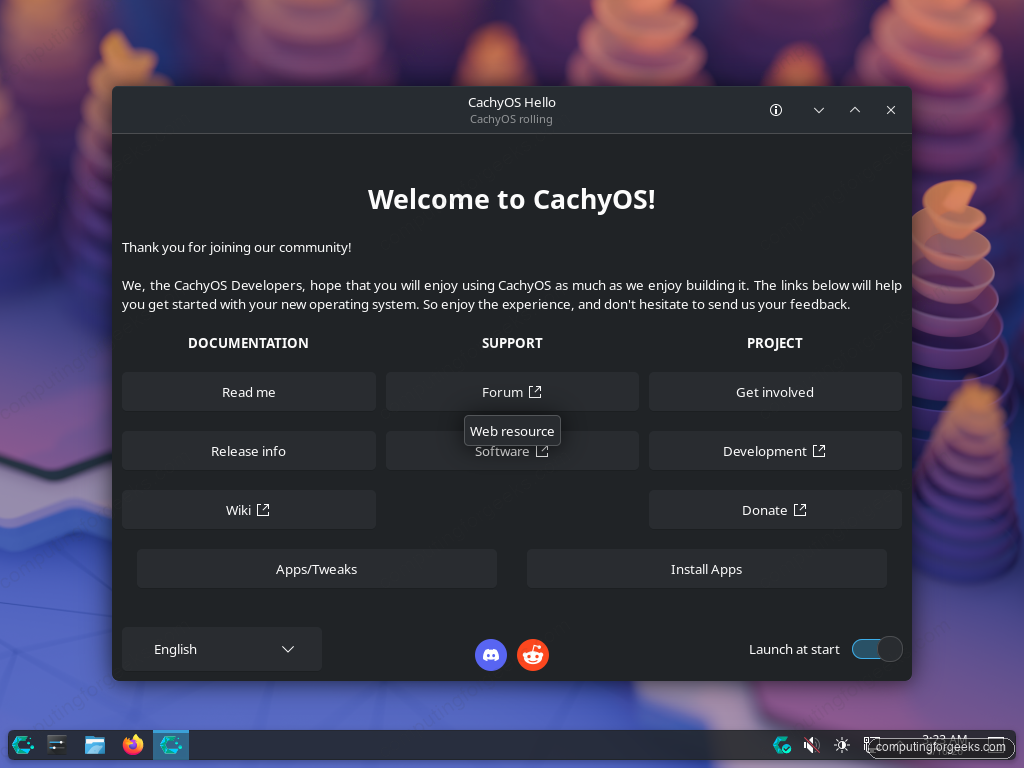
CachyOS Hello opens again on first boot, this time pointing at the documentation, forum, and Discord rather than at the installer. Confirm the kernel and distribution version in a terminal. Open Konsole from the taskbar:
uname -r
cat /etc/os-release | head -5
neofetch
The kernel string ends in -cachyos on a default install. os-release reports ID=cachyos and ID_LIKE=arch, confirmation that the base system is Arch with the CachyOS overlay on top.
First-hour essentials
The fresh install is ready to use, but a handful of steps within the first hour make the laptop substantially better. The quick version is below; for the full walkthrough with theming, shells, and the curated app list, see things to do after installing CachyOS. Walk through them in order.
Rate mirrors and run the first update
CachyOS ships a cachyos-rate-mirrors tool that benchmarks the mirror list and rewrites it ordered by speed. Run it now, because the in-installer mirror order is not necessarily the fastest for your network:
sudo cachyos-rate-mirrors
sudo pacman -Syu
The first pacman -Syu typically pulls a handful of updates because the ISO is built periodically and falls behind the rolling repos within days. Let it finish, then reboot if a kernel update came down.
Explore the CachyOS kernel manager
CachyOS ships cachyos-kernel-manager, a GUI for switching between kernel variants (linux-cachyos, BORE, EEVDF, RT, LTS, hardened, deck). Launch it from the application menu or run it from a terminal:
cachyos-kernel-managerOn a laptop, the default linux-cachyos kernel is the right pick out of the box. The variants are worth understanding but not changing on day one. Wait until you have a specific reason (a game that prefers EEVDF, an audio workflow that benefits from RT, a need for the LTS series for stability).
AUR helper and Flatpak
CachyOS ships with paru as its default AUR helper. Confirm it works:
paru --version
paru -Ss visual-studio-code-bin | head
Flatpak is also pre-installed but not always wired to Flathub. Add the remote once and Discover (the KDE app store) becomes a useful one-stop install surface for graphical apps:
flatpak remote-add --if-not-exists flathub https://flathub.org/repo/flathub.flatpakrepoSensible KDE Plasma defaults for a laptop
Two settings make Plasma on a laptop noticeably better within the first session:
- System Settings > Display Configuration > Global Scale. On a HiDPI laptop, set Plasma scaling to 150% or 200%. Plasma 6 handles per-output scaling, so an external monitor at 100% works alongside an internal panel at 200%.
- System Settings > Power Management > Energy Saving. Tune screen and suspend timeouts for AC and battery separately. The default 5-minute screen off on battery is too aggressive for most use; 10 minutes is a saner default.
For deeper battery work (picking between TLP, auto-cpufreq, and power-profiles-daemon, suspend-then-hibernate, and chasing what is actually draining the battery), see the dedicated laptop power tuning guide that comes next in this series.
Turn on the firewall
CachyOS ships firewalld in the default install but it is not enabled. On a laptop that connects to networks you do not control, turn it on:
sudo systemctl enable --now firewalld
sudo firewall-cmd --state
The state command should report running. The default zone blocks inbound traffic on public networks, which is what you want at a coffee shop or a hotel.
Snapshots are next
The BTRFS layout Calamares created supports snapper-based snapshots and grub-btrfs boot-menu rollback. They are not enabled by default. Setting them up is the single highest-value Day-2 action you can take on a rolling-release distro. When a pacman -Syu ships a regression, snapper plus grub-btrfs lets you reboot into a pre-update snapshot from the GRUB menu and roll back in one command. That setup is covered separately because it has enough moving parts to deserve its own guide.
Troubleshooting common install issues
USB stick is not in the boot menu
Re-check Secure Boot is OFF and Fast Boot / Quick Boot is also OFF in firmware. Many vendor firmwares hide non-signed boot media when Secure Boot is on. If the USB is still missing, write the ISO with a different tool. A stick written with an old dd command but interrupted mid-write looks valid to the OS but does not boot. The conv=fsync flag in the dd command earlier is what prevents that.
Internal NVMe is not visible in the partition step
Some laptop firmwares default the NVMe controller to RAID mode, which the live kernel will not see. Boot back to firmware setup and switch the SATA / NVMe mode from RAID or Intel RST to AHCI. On Lenovo this lives under Configuration > Storage. On Dell it is System Configuration > SATA Operation. Switching modes on a system that already has Windows installed will break Windows boot, so back up before you do this on a machine you also use for Windows.
Wi-Fi works in the live ISO but not after install
The most common cause is a proprietary firmware package that the live ISO carries but the installer does not pull into the target. Run an update first:
sudo pacman -Syu linux-firmwareIf Wi-Fi still misbehaves, search the Arch Wiki for the specific chipset (lspci | grep -i net and lsusb | grep -i wireless give you the IDs). Broadcom cards usually need a separate AUR or community package; Intel and Realtek usually just need linux-firmware up to date.
SDDM login loops or freezes on first boot
Hold Shift at boot to reach the GRUB menu, pick Advanced options for CachyOS, and boot with the LTS kernel. If LTS boots cleanly while the default kernel does not, the install picked up a kernel version your hardware does not yet support, and you can ride the LTS kernel until the next release. The kernel manager covered above swaps between them.
From here the laptop is a working CachyOS machine. The post-install setup walkthrough takes you through updates, the AUR helper, Flatpak, the fish shell, KDE theming, and the firewall. From there, dig into kernel manager and performance tuning, laptop power management, BTRFS snapshots, gaming setup, and a routine for surviving rolling-release updates over the long haul. Tackle them in that order and the laptop will keep up for a long time.