Local LLMs have moved from “nice demo” to “thing you actually run on a Linux box.” Ollama is the cleanest way to do it on Ubuntu 26.04 LTS. One install script, one binary, a systemd unit on port 11434, and a model registry that pulls quantised GGUFs the same way docker pull grabs an image.
This guide installs Ollama on Ubuntu 26.04 LTS (Resolute Raccoon), pulls a 1.2B parameter llama3.2 model that runs comfortably on CPU, then bolts Open WebUI on top behind Nginx and a real Let’s Encrypt certificate so you get a private ChatGPT-style web app on your own server. Everything was tested on a fresh Ubuntu 26.04 VM running kernel 7.0.0-10-generic.
Tested April 2026 on Ubuntu 26.04 LTS (Resolute Raccoon, kernel 7.0.0-10-generic) with Ollama 0.20.7, Docker 29.4.0, Open WebUI 0.8.12, Nginx 1.28.3 and Certbot 4.0.0.
What you get at the end
- Ollama 0.20.7 running as a systemd service on
127.0.0.1:11434with REST and OpenAI-compatible APIs - A working chat model (llama3.2:1b for CPU, or any larger model if you have GPU/RAM)
- Open WebUI 0.8.12 in Docker, talking to Ollama over the loopback
- Nginx as a reverse proxy on 443 with HTTP/2 and a real Let’s Encrypt certificate
- UFW firewall locked to SSH plus 80/443 only
Prerequisites
- Ubuntu 26.04 LTS server with root or sudo access. The freshly imaged Ubuntu Server cloud image is fine.
- At least 8 GB RAM and 4 vCPU for CPU inference of small (1B-3B parameter) models. Bigger models need more, see the model sizing table later.
- A subdomain you control with an A record pointing to the server, plus port 80 reachable from the internet for the Let’s Encrypt HTTP-01 challenge. Any DNS provider works (Namecheap, Google Domains, Route 53, Cloudflare, etc.). If your host has no public port 80 (private LAN, behind a corporate firewall), the article shows the DNS-01 alternative further down.
- SSH access to the server. If you have not done the basics yet, run through Initial Server Setup with Ubuntu 26.04 LTS first.
For Proxmox or other QEMU-backed virtualization hosts, set the VM CPU type to host rather than the default kvm64. The bundled numpy in the Open WebUI container needs SSE4.2 / AVX which kvm64 hides, and the container will crash with RuntimeError: NumPy was built with baseline optimizations: (X86_V2). Bare metal and most cloud providers do not hit this.
Step 1: Set reusable shell variables
Every command in this guide reuses the same domain and admin email, so export them once at the top of your SSH session and the rest of the article runs as-is:
export OLLAMA_DOMAIN="ollama.example.com"
export ADMIN_EMAIL="[email protected]"
Confirm before going further. Empty variables silently break the certbot and nginx steps later:
echo "Domain: ${OLLAMA_DOMAIN}"
echo "Email:  ${ADMIN_EMAIL}"
If you reconnect or jump into sudo -i, re-run the export block. These values do not persist across shell sessions on purpose.
Step 2: Install Ollama on Ubuntu 26.04
Ollama ships an install script that detects the OS, downloads the right binary into /usr/local/bin/, creates a system user, and registers a systemd unit. It is the same script the project documents for every Linux distribution:
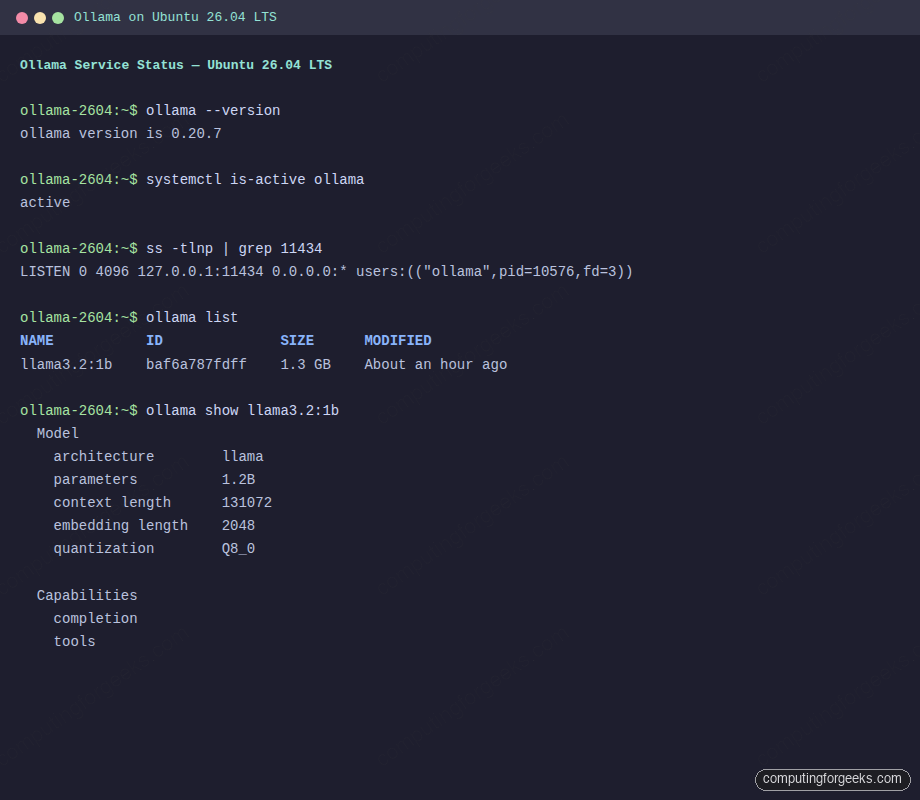
curl -fsSL https://ollama.com/install.sh | shOn a vanilla Ubuntu 26.04 VM the script downloads roughly 1.6 GB of binaries (the runtime ships with both CPU and GPU paths). It also installs an ollama system user, drops a unit file at /etc/systemd/system/ollama.service, and starts the daemon. Confirm the version and that the service is listening on the loopback:
ollama --version
systemctl is-active ollama
ss -tlnp | grep 11434
You should see something like:
ollama version is 0.20.7
active
LISTEN 0 4096 127.0.0.1:11434 0.0.0.0:* users:(("ollama",pid=10576,fd=3))
Two things worth noticing. The daemon binds to 127.0.0.1 only, so it is unreachable from outside the box until we put Open WebUI in front. And it runs as the ollama system user with model files written to /usr/share/ollama/.ollama/models/, which is where you go looking when disks fill up.
Step 3: Pull a model and run an inference test
Pick a model that fits your hardware. The Ollama library tracks parameter counts, quantisation and disk size for every model. As a rough guide:
| Model | Disk | Min RAM (CPU) | Tag |
|---|---|---|---|
| Llama 3.2 1B (quick CPU test) | 1.3 GB | 4 GB | llama3.2:1b |
| Llama 3.2 3B | 2.0 GB | 6 GB | llama3.2:3b |
| Llama 3.1 8B | 4.7 GB | 10 GB | llama3.1:8b |
| Mistral 7B Instruct | 4.1 GB | 10 GB | mistral:7b |
| Qwen 2.5 14B | 9.0 GB | 16 GB | qwen2.5:14b |
| DeepSeek-R1 Distill 8B | 4.9 GB | 10 GB | deepseek-r1:8b |
Pull the small one for now. You can always add more later:
ollama pull llama3.2:1bList installed models and inspect the architecture. ollama show is the closest thing the project has to docker inspect:
ollama list
ollama show llama3.2:1b
The output should confirm the model is on disk and report its capabilities:
NAME           ID              SIZE      MODIFIED
llama3.2:1b    baf6a787fdff    1.3 GB    11 seconds ago

  Model
    architecture        llama
    parameters          1.2B
    context length      131072
    embedding length    2048
    quantization        Q8_0

  Capabilities
    completion
    tools
Now run an inference through the REST API. This is more useful than ollama run because the JSON response includes timing fields you can use to measure tokens/sec on CPU:
curl -s http://localhost:11434/api/generate -d '{
  "model": "llama3.2:1b",
  "prompt": "What is Linux in one short sentence?",
  "stream": false
}' | python3 -m json.tool | head -20
On the test box (Intel Core i7-6700, 4 vCPU, 8 GB RAM, no GPU) the 1B model returned around 11 tokens/sec with sub-500 ms prompt evaluation. That is fast enough for a personal assistant and trivial automation. For comparison, a 3B model on the same hardware drops to ~5 tokens/sec, and 7B models become uncomfortably slow on CPU alone.
Step 4: Install Docker for Open WebUI
Open WebUI ships an official Docker image. Docker is not in the default Ubuntu 26.04 repo, so add the upstream Docker CE apt repository (the noble codename works on 26.04 until Docker publishes a resolute repo). The same steps in more detail live in Install Docker CE on Ubuntu 26.04 LTS.
sudo install -m 0755 -d /etc/apt/keyrings
sudo curl -fsSL https://download.docker.com/linux/ubuntu/gpg \
  -o /etc/apt/keyrings/docker.asc
sudo chmod a+r /etc/apt/keyrings/docker.asc

echo "deb [arch=amd64 signed-by=/etc/apt/keyrings/docker.asc] \
  https://download.docker.com/linux/ubuntu noble stable" | \
  sudo tee /etc/apt/sources.list.d/docker.list > /dev/null

sudo apt-get update
sudo apt-get install -y docker-ce docker-ce-cli containerd.io \
  docker-buildx-plugin docker-compose-plugin
Confirm Docker is up:
docker --version
systemctl is-active docker
Expected output is the daemon version (29.4.0 in this test) and active.
Step 5: Run Open WebUI in Docker
Open WebUI listens on port 8080 by default. Run it with host networking so it can reach Ollama on 127.0.0.1:11434 directly. The open-webui named volume persists chats, accounts, knowledge bases and the encryption key across container restarts:
sudo docker run -d \
  --network=host \
  -v open-webui:/app/backend/data \
  --name open-webui \
  --restart always \
  -e OLLAMA_BASE_URL=http://127.0.0.1:11434 \
  ghcr.io/open-webui/open-webui:v0.8.12
First boot pulls the image (around 4 GB) and initialises the SQLite database. Watch progress with docker logs and wait for the FastAPI server to report Application startup complete:
sudo docker logs -f open-webuiOnce it is healthy, the local health endpoint should return {"status":true}:
curl -s http://127.0.0.1:8080/healthOpen WebUI fails to start with a NumPy error
If docker logs shows the following, your CPU does not expose the SSE4.2/AVX feature flags Open WebUI’s NumPy build needs:
RuntimeError: NumPy was built with baseline optimizations:
(X86_V2) but your machine doesn't support: (X86_V2).
ImportError: cannot load module more than once per process
This usually happens on Proxmox or other QEMU-based hypervisors that default the CPU type to kvm64. Fix it on the host by switching the VM to cpu: host (or any modern Intel/AMD profile that exposes SSE4.2 and AVX):
qm set VMID --cpu host
qm stop VMID
qm start VMID
Then verify the guest sees the right flags before trying the container again:
grep -E '(sse4_2|avx)' /proc/cpuinfo | head -1Step 6: Front Open WebUI with Nginx and Let’s Encrypt
Open WebUI on plain HTTP is fine for a five minute kick of the tires, but you do not want to send chat content (or your admin password) over the wire unencrypted. Put Nginx in front and terminate TLS with a real Let’s Encrypt certificate. Background and rationale: Install Nginx on Ubuntu 26.04 with Let’s Encrypt.
Install Nginx and certbot:
sudo apt-get install -y nginx certbot python3-certbot-nginxDrop a minimal HTTP-only vhost in place first. Certbot’s nginx plugin needs to find a server_name matching your domain on port 80 before it can issue a certificate. The placeholder SITE_DOMAIN_HERE is substituted from the shell variable a couple of steps below:
sudo tee /etc/nginx/sites-available/openwebui > /dev/null <<'NGINX'
server {
    listen 80;
    server_name SITE_DOMAIN_HERE;

    location / {
        proxy_pass http://127.0.0.1:8080;
        proxy_http_version 1.1;
        proxy_set_header Upgrade $http_upgrade;
        proxy_set_header Connection "upgrade";
        proxy_set_header Host $host;
        proxy_set_header X-Real-IP $remote_addr;
        proxy_set_header X-Forwarded-For $proxy_add_x_forwarded_for;
        proxy_set_header X-Forwarded-Proto $scheme;
        proxy_read_timeout 600s;
        proxy_send_timeout 600s;
    }
}
NGINX

sudo sed -i "s/SITE_DOMAIN_HERE/${OLLAMA_DOMAIN}/g" /etc/nginx/sites-available/openwebui
sudo ln -sf /etc/nginx/sites-available/openwebui /etc/nginx/sites-enabled/
sudo rm -f /etc/nginx/sites-enabled/default
sudo nginx -t
sudo systemctl reload nginx
Make sure the domain resolves to your server’s public IP and that port 80 is open from the internet (most cloud providers and ISP routers need a port-forward or security-group rule). Then issue the certificate. Certbot’s nginx plugin handles the HTTP-01 challenge and rewrites the vhost to add the SSL block, the 80→443 redirect, and the cert paths automatically:
sudo certbot --nginx -d "${OLLAMA_DOMAIN}" \
  --non-interactive --agree-tos --redirect \
  -m "${ADMIN_EMAIL}"
Certbot writes the cert to /etc/letsencrypt/live/${OLLAMA_DOMAIN}/ and installs a systemd timer that renews it automatically once the cert is within 30 days of expiry. Confirm the renewal path works without actually fetching a new cert:
sudo certbot renew --dry-runAlternative: DNS-01 challenge if port 80 is not reachable
Skip this section if HTTP-01 worked above. Use DNS-01 when the server is on a private LAN, behind NAT with no port-forward, or otherwise unreachable on port 80 from the public internet. DNS-01 proves you own the domain by writing a TXT record, so the server itself never has to be reachable from Let’s Encrypt’s validators.
Certbot ships official DNS plugins for several providers. Pick the one that matches your DNS host:
| DNS provider | Apt package |
|---|---|
| Cloudflare | python3-certbot-dns-cloudflare |
| AWS Route 53 | python3-certbot-dns-route53 |
| DigitalOcean | python3-certbot-dns-digitalocean |
| Google Cloud DNS | python3-certbot-dns-google |
| Linode | python3-certbot-dns-linode |
| OVH | python3-certbot-dns-ovh |
| RFC2136 (BIND, PowerDNS, …) | python3-certbot-dns-rfc2136 |
Each plugin takes a credentials file with the API token or key. The example below is for Cloudflare; substitute your provider’s plugin and credentials format if you are on something else. Generate an API token in the Cloudflare dashboard with Zone:DNS:Edit permission scoped to the zone holding your domain:
sudo apt-get install -y python3-certbot-dns-cloudflare

# Replace CF_TOKEN_VALUE with your real token
sudo tee /etc/letsencrypt/cloudflare.ini > /dev/null <<'INI'
dns_cloudflare_api_token = CF_TOKEN_VALUE
INI
sudo chmod 600 /etc/letsencrypt/cloudflare.ini

sudo certbot certonly --dns-cloudflare \
  --dns-cloudflare-credentials /etc/letsencrypt/cloudflare.ini \
  -d "${OLLAMA_DOMAIN}" \
  --non-interactive --agree-tos -m "${ADMIN_EMAIL}"
Because DNS-01 does not auto-edit the nginx vhost, you have to add the SSL block by hand. Replace the HTTP-only vhost from the previous step with this version:
sudo tee /etc/nginx/sites-available/openwebui > /dev/null <<'NGINX'
server {
    listen 80;
    server_name SITE_DOMAIN_HERE;
    return 301 https://$host$request_uri;
}

server {
    listen 443 ssl;
    http2 on;
    server_name SITE_DOMAIN_HERE;

    ssl_certificate     /etc/letsencrypt/live/SITE_DOMAIN_HERE/fullchain.pem;
    ssl_certificate_key /etc/letsencrypt/live/SITE_DOMAIN_HERE/privkey.pem;

    client_max_body_size 100M;

    location / {
        proxy_pass http://127.0.0.1:8080;
        proxy_http_version 1.1;
        proxy_set_header Upgrade $http_upgrade;
        proxy_set_header Connection "upgrade";
        proxy_set_header Host $host;
        proxy_set_header X-Real-IP $remote_addr;
        proxy_set_header X-Forwarded-For $proxy_add_x_forwarded_for;
        proxy_set_header X-Forwarded-Proto $scheme;
        proxy_read_timeout 600s;
        proxy_send_timeout 600s;
    }
}
NGINX

sudo sed -i "s/SITE_DOMAIN_HERE/${OLLAMA_DOMAIN}/g" /etc/nginx/sites-available/openwebui
sudo nginx -t
sudo systemctl reload nginx
From here on the rest of the article applies regardless of which challenge method you used. The Upgrade and Connection headers in the proxy block above are what let Open WebUI stream chat tokens. Without them the UI will load but every message hangs at “Sending…”
Lock the firewall down. SSH plus 80 and 443 are the only ports that need to be open from outside (port 80 stays open so the certbot renewal timer can reuse the HTTP-01 challenge):
sudo ufw allow OpenSSH
sudo ufw allow 80,443/tcp
sudo ufw --force enable
sudo ufw status verbose
Smoke test from another machine on the network. The first request issues an HTTP 200 with the Open WebUI login bundle:
curl -sI "https://${OLLAMA_DOMAIN}/" | head -5The headers should look like this, with HTTP/2 already negotiated and Open WebUI’s static bundle served:
HTTP/2 200
server: nginx/1.28.3 (Ubuntu)
date: Thu, 16 Apr 2026 22:34:06 GMT
content-type: text/html; charset=utf-8
content-length: 7480
Step 7: Create the admin account in Open WebUI
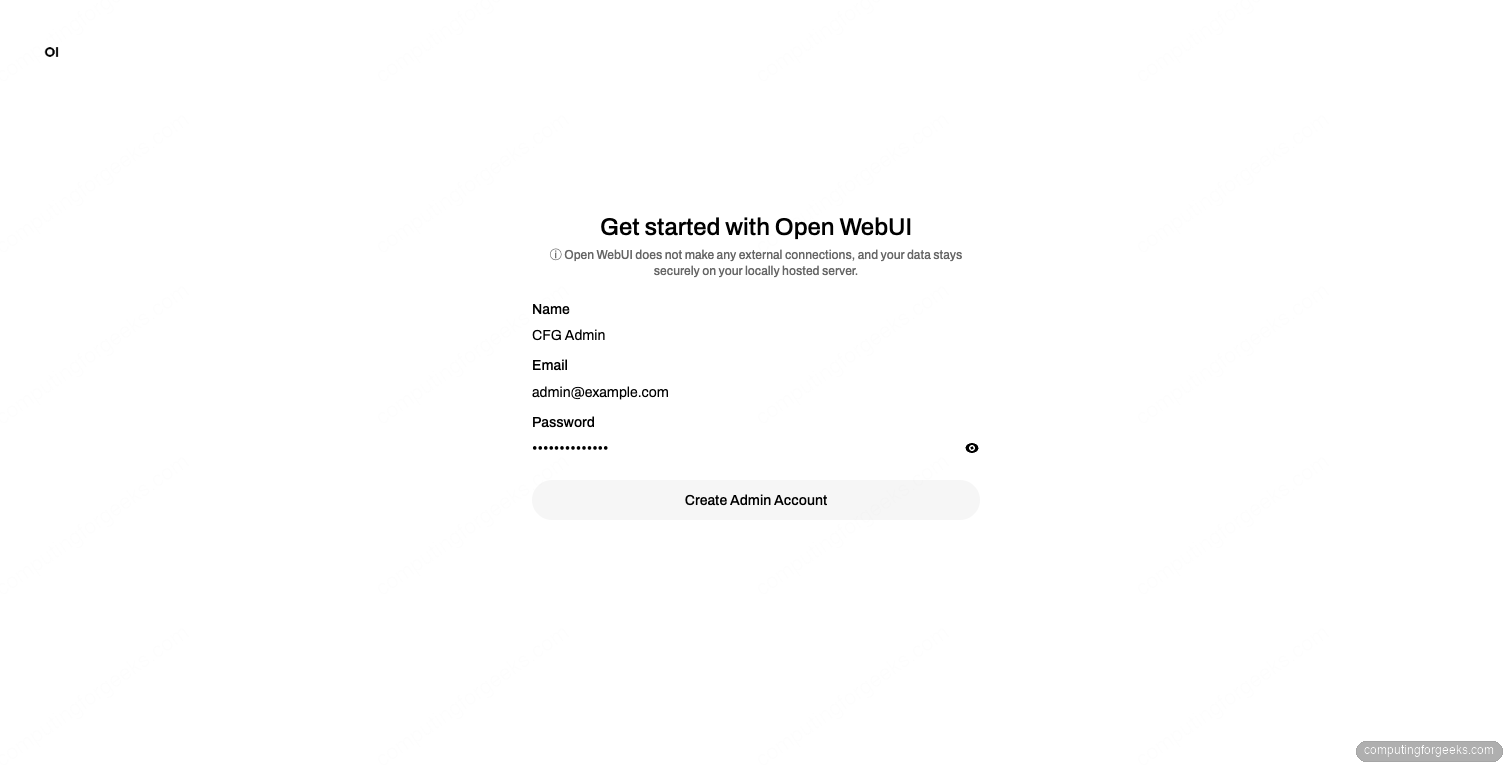
Browse to https://${OLLAMA_DOMAIN}/ and you will land on the splash page. Click Get started and the form switches to admin signup. The first account created on a fresh Open WebUI install is automatically promoted to admin, so register with the email and password you actually plan to use:
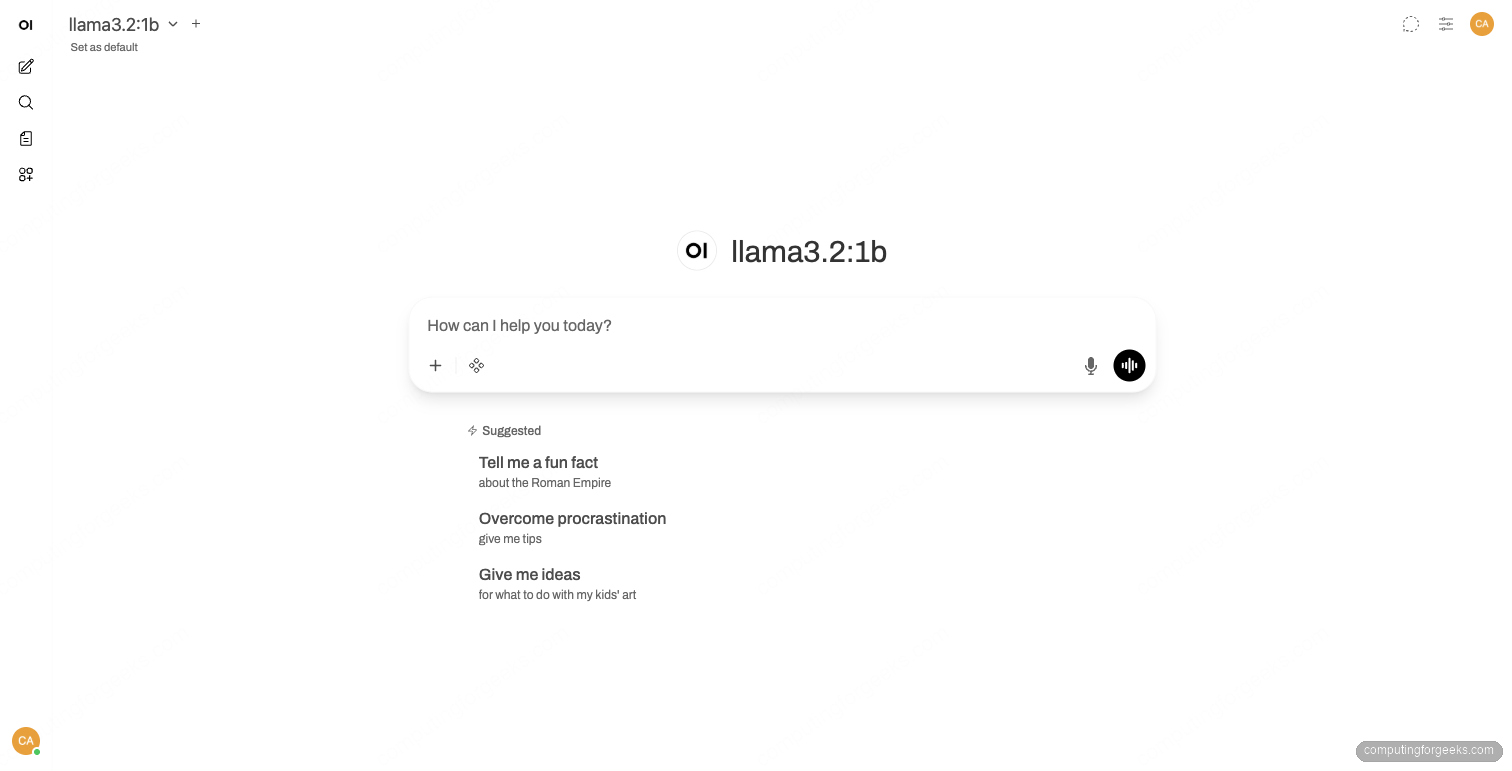
Submit the form and Open WebUI logs you in, displays the release notes modal (close it), and lands you on the chat interface. If Ollama already has models pulled, the model picker in the top-left auto-populates with what is on disk:
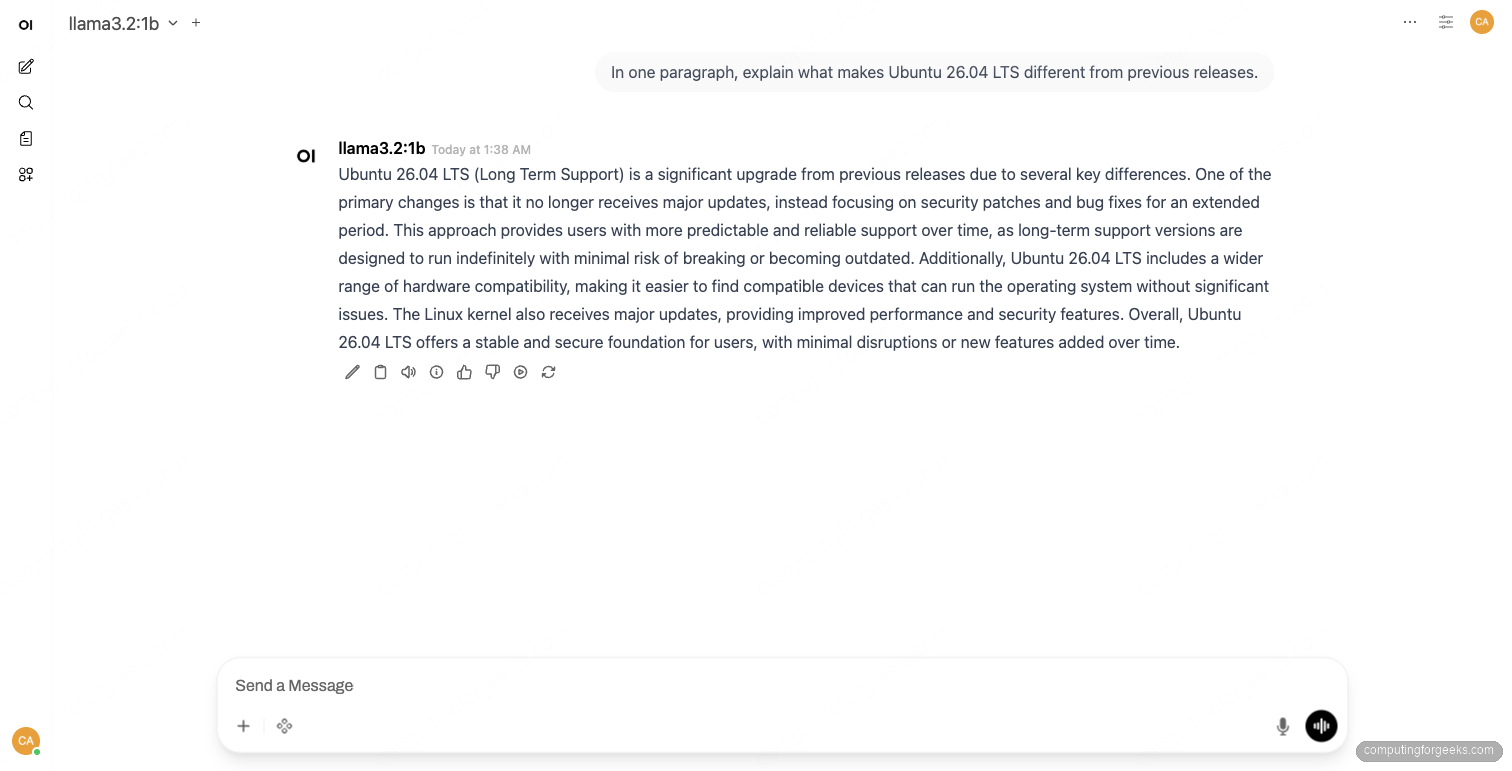
Type a prompt into the chat box at the bottom of the page and press the send arrow. The first response triggers a model load (~250 ms for the 1B model on CPU) and then streams tokens back at the rate your hardware allows. New chats appear in the sidebar on the left and persist in the SQLite database mounted on the open-webui Docker volume:
Step 8: Useful day-2 commands
Add more models any time. They land in /usr/share/ollama/.ollama/models/ and immediately appear in the Open WebUI model picker:
ollama pull mistral:7b
ollama pull qwen2.5:14b
Remove ones you no longer need. Llama3.2:3b, for example, frees 2 GB:
ollama rm llama3.2:3bUpdate Open WebUI when a new release lands. Check the latest tag on the Open WebUI releases page, then redeploy the container against the new tag. The volume preserves all chats and accounts:
sudo docker pull ghcr.io/open-webui/open-webui:v0.8.12
sudo docker stop open-webui
sudo docker rm open-webui
sudo docker run -d --network=host -v open-webui:/app/backend/data \
  --name open-webui --restart always \
  -e OLLAMA_BASE_URL=http://127.0.0.1:11434 \
  ghcr.io/open-webui/open-webui:v0.8.12
Update the Ollama daemon itself by re-running the install script. It is idempotent and only touches the binary:
curl -fsSL https://ollama.com/install.sh | shSwitch Ollama to listen on all interfaces if you want other hosts to call its API directly (skip if Open WebUI is the only consumer):
sudo systemctl edit ollamaAdd the override block, then reload and restart:
[Service]
Environment="OLLAMA_HOST=0.0.0.0:11434"
Save the editor, then reload systemd and restart Ollama so the new environment variable takes effect:
sudo systemctl daemon-reload
sudo systemctl restart ollama
If you do this, also add an explicit UFW rule restricted to your management subnet rather than the default any. The Ollama API has no built-in auth.
Hardening notes
Open WebUI has signup enabled by default. As soon as you have created your admin account, sign in, click your initials in the top right, open Admin Panel → Settings → General, and disable Enable New Sign Ups. Otherwise anyone who hits the URL can register a regular user account and start consuming model time on your hardware.
Ollama itself has no authentication on its REST API. Keep it bound to 127.0.0.1 unless you fully understand who can reach 11434/tcp. If you need remote access, put it behind something like Tailscale or restrict the UFW rule to a specific source IP or VPN subnet.
Models include vendor-specific licence terms (Llama, Gemma, etc.). Read the licence with ollama show MODEL --license before using a model in production or commercial work.
Troubleshooting
Error: “model requires more system memory”
Ollama logs this when a model needs more RAM than the host has free. Check what the daemon sees with journalctl -u ollama -n 50 and either pick a smaller quantisation (e.g. llama3.1:8b-instruct-q4_0 instead of q8_0) or pull a smaller parameter count.
Open WebUI shows “WebSocket connection failed”
Almost always a missing or stripped Upgrade/Connection header in the reverse proxy. Confirm the proxy_set_header Upgrade $http_upgrade; and proxy_set_header Connection "upgrade"; lines from the Nginx vhost above are present, run sudo nginx -T | grep -A2 'upgrade', then reload Nginx.
Error: “Ollama API is not accessible”
Open WebUI reports this on the chat screen when it cannot reach OLLAMA_BASE_URL. Confirm the env var was passed to the container with sudo docker inspect open-webui | grep OLLAMA_BASE_URL and that the daemon is up with curl -s http://127.0.0.1:11434/api/tags. With the host networking mode used here, Open WebUI talks to 127.0.0.1:11434 directly. With bridge networking, swap to http://host.docker.internal:11434 and add --add-host=host.docker.internal:host-gateway to docker run.
certbot –nginx fails the HTTP-01 challenge
Symptom: Detail: Fetching http://your-domain/.well-known/acme-challenge/...: Connection refused or Timeout during connect. The Let’s Encrypt validators could not reach your server on port 80. Check that the DNS A record points to the right public IP (dig +short ${OLLAMA_DOMAIN}), that port 80 is open in any cloud security group or router port-forward, and that nginx is running with the HTTP vhost from Step 6 above (sudo nginx -T | grep server_name). If the host genuinely has no public port 80, switch to the DNS-01 alternative.
certbot DNS-01 fails: “DNS problem: NXDOMAIN looking up TXT for _acme-challenge”
The DNS plugin could not write the validation TXT record. The credentials file is missing the right permission, or the token/key is scoped to the wrong zone. For the Cloudflare plugin specifically, the API token needs Zone:DNS:Edit on the zone holding your domain. Other providers have equivalent scopes (Route 53 needs route53:ChangeResourceRecordSets, DigitalOcean needs write on the domain, and so on). Re-issue the credential with the correct scope and update the credentials file.
Where to go next
For GPU acceleration, install the NVIDIA driver and CUDA runtime first, then re-run the Ollama install script so it links against the GPU runtime. The full GPU setup on Ubuntu 26.04 is its own article and lands later in the AI/ML series. If you have not bought a card yet, our best GPU for running LLMs guide covers what to pick by VRAM. For now, the CPU path is fully working, the model is on disk, and Open WebUI gives you a clean web app for it on your own server.