ClamAV is the open source antivirus scanner most Linux shops reach for when they need signature-based malware detection on mail gateways, file shares, web upload pipelines, and scheduled audits. It is not real-time endpoint protection in the Windows AV sense. It detects. It doesn’t automatically quarantine unless you tell it to, and it doesn’t block execution on its own. That distinction matters when you plan where to deploy it.
This guide walks through a full ClamAV install on Ubuntu 26.04 LTS: packages, signature updates with freshclam, the clamd daemon, EICAR detection, a real scan of /etc, on-access scanning with clamonacc, a systemd timer for weekly sweeps, quarantine patterns, and the memory footprint you should actually plan for. Every command and every line of output came from a clean Ubuntu 26.04 VM.
Tested April 2026 on Ubuntu 26.04 LTS (kernel 7.0.0-10-generic) with ClamAV 1.4.3, signature set version 27971 (3.6M signatures)
Prerequisites
- Ubuntu 26.04 LTS server with
sudoprivileges - At least 2 GB RAM free for the daemon. The clamd process loads all signatures into memory and sits around 1 GB RSS. On a 2 GB VM the kernel OOM killer will take it out. Plan for 4 GB minimum if you run clamd permanently
- Outbound HTTPS (443) to the ClamAV signature mirrors
- A basic firewall setup already in place (see our UFW firewall guide for Ubuntu 26.04 if you haven’t configured one yet)
If this is a fresh machine, walk through the Ubuntu 26.04 initial server setup first. You’ll want a non-root sudo user before running anything here.
Install ClamAV Packages
Ubuntu ships ClamAV in the main repository. Three packages cover the common deployment: the CLI scanner, the resident daemon, and the signature updater.
sudo apt update
sudo apt install -y clamav clamav-daemon clamav-freshclam
Confirm the installed engine version:
clamscan --versionYou should see something close to this:
ClamAV 1.4.3/27971/Tue Apr 14 06:24:44 2026The three numbers are the engine version, the daily signature database version, and the build timestamp of that signature set. If the engine is 1.4.x you’re on the current LTS branch and eligible for mirror downloads. Older engines are eventually cut off from the CDN.
Run the Initial Signature Update
The clamav-freshclam service starts automatically after install, which means the first signature download is already running in the background and holding a lock on the database directory. Running freshclam manually while that happens fails with a lock error. Stop the service first, pull signatures interactively so you can see what’s happening, then start it back up.
sudo systemctl stop clamav-freshclam
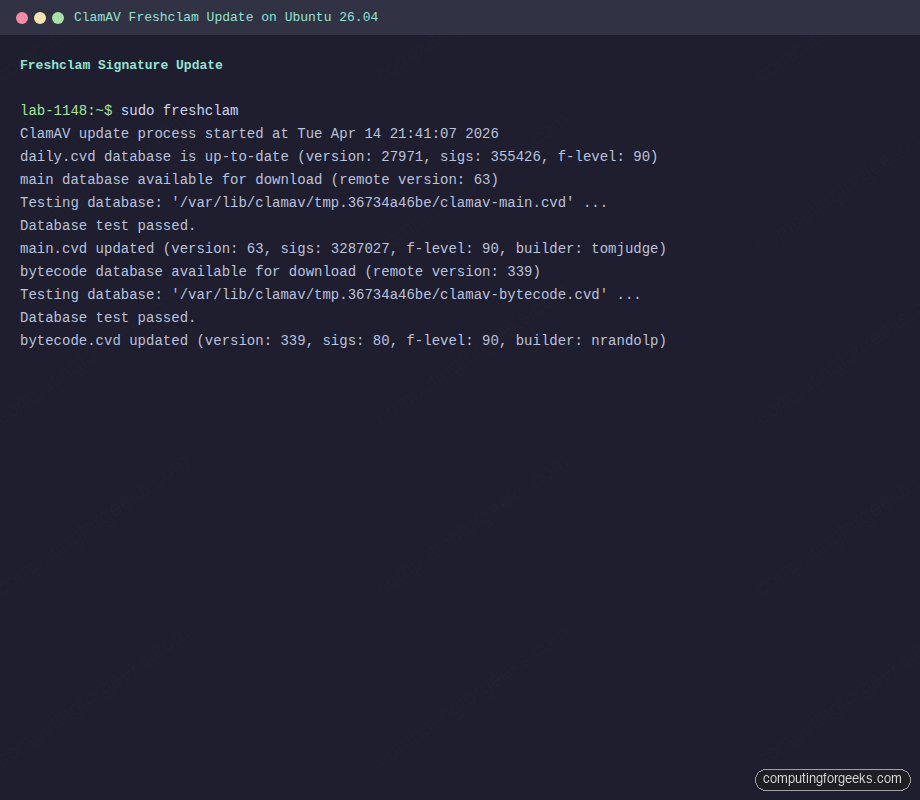
sudo freshclam
The first run downloads all three databases (daily, main, bytecode). Expect about 110 MB of traffic. Output from the test VM:
ClamAV update process started at Tue Apr 14 21:41:07 2026
daily.cvd database is up-to-date (version: 27971, sigs: 355426, f-level: 90, builder: svc.clamav-publisher)
main database available for download (remote version: 63)
Testing database: '/var/lib/clamav/tmp.36734a46be/clamav-main.cvd' ...
Database test passed.
main.cvd updated (version: 63, sigs: 3287027, f-level: 90, builder: tomjudge)
bytecode database available for download (remote version: 339)
Testing database: '/var/lib/clamav/tmp.36734a46be/clamav-bytecode.cvd' ...
Database test passed.
bytecode.cvd updated (version: 339, sigs: 80, f-level: 90, builder: nrandolp)
Three databases land in /var/lib/clamav/:
ls -lh /var/lib/clamav/The directory should look like this:
-rw-r--r-- 1 clamav clamav 276K Apr 14 21:41 bytecode.cvd
-rw-r--r-- 1 clamav clamav  23M Apr 14 21:40 daily.cvd
-rw-r--r-- 1 clamav clamav   90 Apr 14 21:40 freshclam.dat
-rw-r--r-- 1 clamav clamav  85M Apr 14 21:41 main.cvd
main.cvd is the slow-changing core set, daily.cvd rotates several times a day with emerging threats, and bytecode.cvd is the detection logic that runs inside the scanner. Signature count across all three is currently 3.6 million.
Start and Enable the Services
Two services handle the runtime. The updater runs in the background and refreshes signatures every hour, and the daemon loads them into memory so clamdscan can query an already-warm engine instead of paying the startup cost on every scan.
sudo systemctl enable --now clamav-freshclam
sudo systemctl enable --now clamav-daemon
The daemon takes around 30 seconds to start because it compiles the full signature set on boot. Check that both are up:
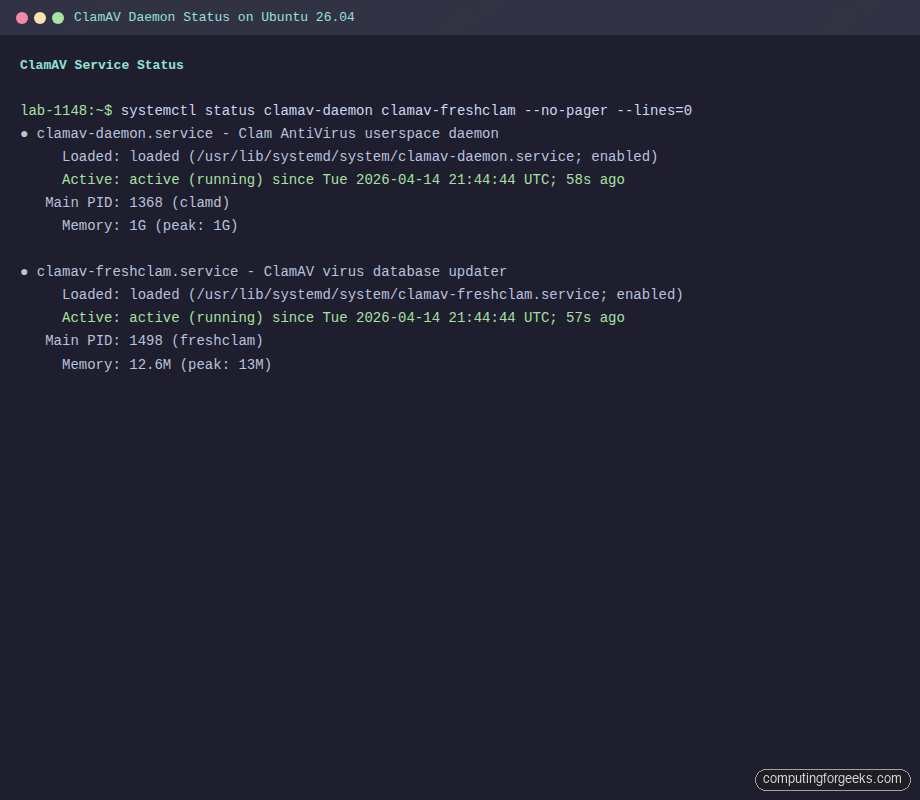
systemctl status clamav-daemon clamav-freshclam --no-pager --lines=0Both units should report active (running):
● clamav-daemon.service - Clam AntiVirus userspace daemon
     Loaded: loaded (/usr/lib/systemd/system/clamav-daemon.service; enabled)
     Active: active (running) since Tue 2026-04-14 21:44:44 UTC; 58s ago
   Main PID: 1368 (clamd)
     Memory: 1G (peak: 1G)

● clamav-freshclam.service - ClamAV virus database updater
     Loaded: loaded (/usr/lib/systemd/system/clamav-freshclam.service; enabled)
     Active: active (running) since Tue 2026-04-14 21:44:44 UTC; 57s ago
   Main PID: 1498 (freshclam)
     Memory: 12.6M (peak: 13M)
Notice the Memory line on clamav-daemon: 1 GB RSS at rest, no scans running. That is baseline. Hold that number in your head when sizing the box.
Detect the EICAR Test File
EICAR is the 68-byte reference string every antivirus vendor agrees to flag as malicious. It is not a real virus, it is a compliance canary. If ClamAV doesn’t detect EICAR, something is broken.
mkdir -p /tmp/scan-test
curl -sS -o /tmp/scan-test/eicar.com.txt https://secure.eicar.org/eicar.com.txt
cat /tmp/scan-test/eicar.com.txt
The file contents look harmless, which is the point:
X5O!P%@AP[4\PZX54(P^)7CC)7}$EICAR-STANDARD-ANTIVIRUS-TEST-FILE!$H+H*Scan it with clamscan (which loads the signature database fresh into the scanner process):
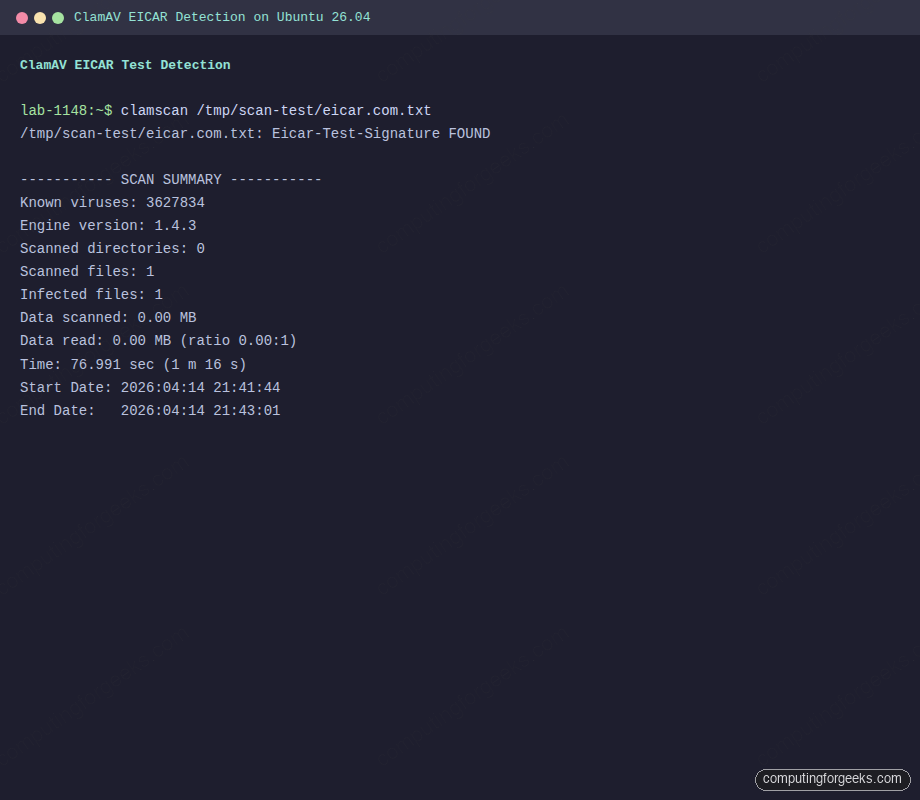
clamscan /tmp/scan-test/eicar.com.txtThe result from the test VM, verbatim:
/tmp/scan-test/eicar.com.txt: Eicar-Test-Signature FOUND

----------- SCAN SUMMARY -----------
Known viruses: 3627834
Engine version: 1.4.3
Scanned directories: 0
Scanned files: 1
Infected files: 1
Data scanned: 0.00 MB
Data read: 0.00 MB (ratio 0.00:1)
Time: 76.991 sec (1 m 16 s)
Start Date: 2026:04:14 21:41:44
End Date:   2026:04:14 21:43:01
Two things worth highlighting. The detection line reads Eicar-Test-Signature FOUND which confirms the engine is working. The elapsed time is 77 seconds for a 68-byte file, because clamscan pays the full engine startup cost on every invocation. That is why you want clamdscan for anything called more than occasionally.
clamscan vs clamdscan
Both commands scan files. They use the same engine. The difference is where the signatures live at scan time.
clamscan is a standalone binary. It reads the signature files from disk, compiles them into memory, scans your target, then exits. Each invocation pays that startup cost (roughly 60-90 seconds on modern hardware and several gigabytes of temporary RAM). Fine for a weekly cron job. Terrible for a mail server scanning every inbound message.
clamdscan is a thin client. It hands the file path to the already-running clamd daemon over a Unix socket. The daemon already has signatures loaded. A scan takes milliseconds. Run the same EICAR scan through clamdscan and you’ll see the difference:
clamdscan /tmp/scan-test/eicar.com.txtThe daemon-based scan completes in seconds, not minutes:
/tmp/scan-test/eicar.com.txt: Eicar-Test-Signature FOUND

----------- SCAN SUMMARY -----------
Infected files: 1
Time: 11.354 sec (0 m 11 s)
Start Date: 2026:04:14 21:43:06
End Date:   2026:04:14 21:43:17
Rule of thumb: use clamdscan from any script, mail filter, web upload handler, or anything invoked more than once a minute. Use clamscan for interactive spot checks where the daemon may not be running.
Run a Real Recursive Scan
A recursive scan of /etc is a reasonable first look at the system:
sudo clamscan -r /etcThe summary from the test VM:
----------- SCAN SUMMARY -----------
Known viruses: 3627834
Engine version: 1.4.3
Scanned directories: 251
Scanned files: 850
Infected files: 0
Data scanned: 3.43 MB
Data read: 1.50 MB (ratio 2.28:1)
Time: 19.345 sec (0 m 19 s)
Start Date: 2026:04:14 21:43:21
End Date:   2026:04:14 21:43:41
For a whole-system scan, the flags you’ll most commonly reach for are --infected (only print matches, skip the “OK” noise), --log=/var/log/clamscan.log, and --exclude-dir='^/(proc|sys|dev)' so the scanner doesn’t chase itself into kernel pseudo-filesystems.
Quarantine Infected Files
By default ClamAV only reports findings. Two flags change that. --move relocates hits to a directory, which is what you usually want. --remove deletes them, which is blunt and risks destroying evidence before you can investigate.
sudo mkdir -p /var/quarantine
sudo chmod 700 /var/quarantine
sudo chown root:root /var/quarantine
Now scan with automatic move:
sudo clamscan -r --infected --move=/var/quarantine /homeAny match gets moved to /var/quarantine with its original filename preserved. The scan log will record the original path so you can trace the hit back. Keep the quarantine directory locked down to 0700 root-only because the files in it are, by definition, known malicious payloads.
Schedule Weekly Scans With a systemd Timer
systemd timers are the modern replacement for cron on Ubuntu. They give you proper journald logging, dependency ordering, and the ability to hold off scans while the machine is on battery or under load. Two unit files handle it.
Create the service unit first:
sudo tee /etc/systemd/system/clamav-weekly-scan.service >/dev/null <<'UNIT'
[Unit]
Description=Weekly ClamAV scan of /home and /var/www
After=clamav-daemon.service
Requires=clamav-daemon.service

[Service]
Type=oneshot
Nice=19
IOSchedulingClass=idle
ExecStart=/usr/bin/clamdscan --fdpass --infected --move=/var/quarantine /home /var/www
UNIT
Then the timer that triggers it every Sunday at 02:15:
sudo tee /etc/systemd/system/clamav-weekly-scan.timer >/dev/null <<'UNIT'
[Unit]
Description=Weekly ClamAV scan

[Timer]
OnCalendar=Sun *-*-* 02:15:00
Persistent=true
RandomizedDelaySec=30m

[Install]
WantedBy=timers.target
UNIT
Activate it:
sudo systemctl daemon-reload
sudo systemctl enable --now clamav-weekly-scan.timer
systemctl list-timers clamav-weekly-scan.timer
The --fdpass flag is what lets clamdscan scan files outside the daemon’s default read path (which is otherwise limited by the clamav user’s permissions). Without it, scans of /var/www or /root return permission errors even though the daemon is running as root’s scanner proxy. Persistent=true means the scan runs on next boot if the machine was off at 02:15 Sunday.
On-Access Scanning With clamonacc
On-access scanning hooks the kernel’s fanotify interface so every file opened under a watched path gets scanned live. ClamAV ships it as clamonacc, a separate binary that talks to clamd. It’s optional. Turn it on when you want live scanning of user home directories, web upload folders, or SFTP drop zones.
Edit the daemon config:
sudo nano /etc/clamav/clamd.confFind or add these lines (the config has most of them commented out by default):
ScanOnAccess yes
OnAccessIncludePath /home
OnAccessIncludePath /var/www
OnAccessExcludeUname clamav
OnAccessPrevention no
OnAccessExtraScanning yes
Start with OnAccessPrevention no (log-only) the first week. Flip it to yes only after you trust the detection and have tuned the excludes. Prevention mode blocks file access on detection, which is great against malware and equally great at locking a developer out of their own project if you misconfigure a path.
Reload the daemon and bring clamonacc up:
sudo systemctl restart clamav-daemon
sudo clamonacc --fdpass --foreground=no
Verify it’s watching:
ps -ef | grep clamonacc
sudo journalctl -t clamonacc -n 20 --no-pager
Drop the EICAR file into a watched directory and tail the journal. You should see a real-time detection entry within a second or two of the write.
Integration Patterns
ClamAV rarely runs alone. Three integrations show up on almost every deployment.
Mail gateway. Postfix hands each message to Amavis (apt install amavisd-new), which calls clamd over the socket and decides whether to reject, tag, or deliver. This is the classic MTA setup, well-documented in the Amavis README. The ClamAV side is already done once you have clamav-daemon running.
Web uploads. Most languages have libclamav bindings. PHP has php-clamav and the more common pattern of shelling out to clamdscan --fdpass. Python has pyclamd which talks to the daemon socket directly. Both approaches are fast enough for upload handlers because the daemon stays warm. If you’re running an Nginx reverse-proxied upload service, pair this with our Nginx and Let’s Encrypt setup on Ubuntu 26.04 guide.
Layered defense. ClamAV catches file-based malware. It does nothing against brute-force SSH or exploit probes. Pair it with Fail2Ban for auth abuse and CrowdSec for community-shared blocklists. Full system hardening walkthrough lives in our Ubuntu 26.04 server hardening guide.
Memory and CPU Reality Check
ClamAV’s memory appetite surprises people. Numbers from the test VM (Ubuntu 26.04, signature set 27971):
| Process | Resident memory | Notes |
|---|---|---|
| clamd (idle) | ~1.0 GB | All signatures loaded, no scans running |
| clamd (scanning) | 1.0-1.3 GB | Grows while processing archives |
| clamscan | 1.2-2.0 GB | Loads full signature set on every invocation |
| freshclam | 13 MB | Negligible |
| clamonacc | 10-20 MB | Thin client, real cost is in clamd |
Practical sizing: a 1 GB VM will OOM-kill clamd during startup every time. A 2 GB VM works for clamscan one-shots but will page heavily if clamd is resident. 4 GB is the minimum for a persistent daemon, and mail gateways doing heavy archive scanning want 8 GB plus.
CPU is less of a concern at rest. A running clamd uses near-zero CPU until asked to scan. Scans are single-threaded per file but the daemon handles concurrent requests on different files, so a multi-core box scales well for parallel workloads like mail or web uploads.
Troubleshooting
clamav-daemon fails with “killed, signal=KILL”
Check journalctl -u clamav-daemon | grep oom. The most common cause on small VMs is the kernel OOM killer terminating clamd during signature load. Sample log entry from the test VM before we bumped RAM:
clamav-daemon.service: The kernel OOM killer killed some processes in this unit.
clamav-daemon.service: Main process exited, code=killed, status=9/KILL
clamav-daemon.service: Failed with result 'oom-kill'.
clamav-daemon.service: Consumed 11.377s CPU time over 21.517s wall clock time, 1G memory peak.
Fix is either more RAM (add swap as a band-aid, real RAM as the proper answer) or drop some signature databases via DatabaseCustomURL pruning in freshclam.conf.
“Clamd was NOT notified: Can’t connect to clamd through /var/run/clamav/clamd.ctl”
This is a warning, not an error, and it’s harmless on the first freshclam run because the daemon isn’t up yet. It means freshclam finished the signature download but couldn’t tell clamd to reload them. Once clamav-daemon is running, the next signature update will notify correctly.
Stale signatures after a crashed update
Symptom: clamscan --version reports a signature date from weeks ago. Cause is usually a crashed freshclam that left a lock file. Clear it and re-run:
sudo systemctl stop clamav-freshclam
sudo rm -f /var/log/clamav/freshclam.log.lock
sudo freshclam
sudo systemctl start clamav-freshclam
“LibClamAV Error: cli_loaddb: Can’t open file” on daemon start
Caused by wrong ownership on /var/lib/clamav/. The daemon runs as the clamav user and needs read access to all three .cvd files. Fix:
sudo chown -R clamav:clamav /var/lib/clamav
sudo chmod 755 /var/lib/clamav
sudo chmod 644 /var/lib/clamav/*.cvd
freshclam mirror errors
If you see WARNING: getpatch: Can't download daily-NNNNN.cdiff repeatedly, the CDN has rate-limited your IP (common on shared NAT) or your engine version is outdated. The fix for the first is patience (clears in an hour). The fix for the second is upgrading ClamAV because the mirror actively refuses downloads to engines below the minimum supported version.
Wrap Up
You now have ClamAV 1.4.3 running on Ubuntu 26.04 with signatures updating automatically, a resident daemon for fast scans, EICAR detection confirmed end-to-end, on-access scanning configured in log-only mode, a weekly systemd timer, and a quarantine pattern that doesn’t destroy evidence. That is the baseline a production file server or mail gateway should start from.
ClamAV is one piece of the picture. It will not stop an attacker who already has a shell, and it will not notice a novel payload the signature database hasn’t seen yet. Treat it as the low-cost, high-coverage layer in a defense-in-depth setup, not the whole wall. The Ubuntu 26.04 LTS features overview covers what else ships by default for security in this release, and our server hardening guide shows how to stack the layers.