Passwords on SSH are a bad idea. Brute-force bots hammer port 22 around the clock, and even a strong password leaks the moment a keylogger touches a workstation. Public key authentication skips the whole category of attacks: no secret travels over the wire, and the server never needs to know your passphrase.
This guide walks through the full workflow on Ubuntu 26.04 LTS. You will generate an Ed25519 key on your workstation, deploy it to the server with ssh-copy-id, configure ssh-agent, write a sane ~/.ssh/config, harden sshd via a drop-in file, layer 2FA on top, and verify the new post-quantum key exchange that ships by default with OpenSSH 10.2.
Tested April 2026 on Ubuntu 26.04 LTS, OpenSSH 10.2p1, Ed25519 keys
Prerequisites
- Ubuntu 26.04 LTS server with SSH already reachable (password or existing key)
- A local workstation (Linux, macOS, or WSL) with OpenSSH installed
- A non-root sudo user on the server. If you still need to create one, see our Ubuntu 26.04 initial server setup guide
- Tested on: OpenSSH 10.2p1, Ed25519 keys, server hostname
lab-web01at10.0.1.50
Why Ed25519 and not RSA?
Ed25519 keys are short (68 bytes public), fast to generate, and built on modern elliptic curve cryptography. RSA still works and stays compatible with older servers, but a 4096-bit RSA key is slower and larger with no security upside for modern Linux. ECDSA sits in the middle. Use Ed25519 by default. Only fall back to RSA-4096 if you hit an ancient appliance that does not speak it.
Generate an Ed25519 key on your workstation
Run ssh-keygen on your local machine, not the server. The private key must never leave the workstation that owns it.
ssh-keygen -t ed25519 -C "jsmith@workstation"The -C comment is metadata that gets stored in the public key. Use your email or user@host so you can identify the key later. When prompted, set a strong passphrase. The passphrase encrypts the private key on disk, which means a stolen laptop does not hand over your servers.
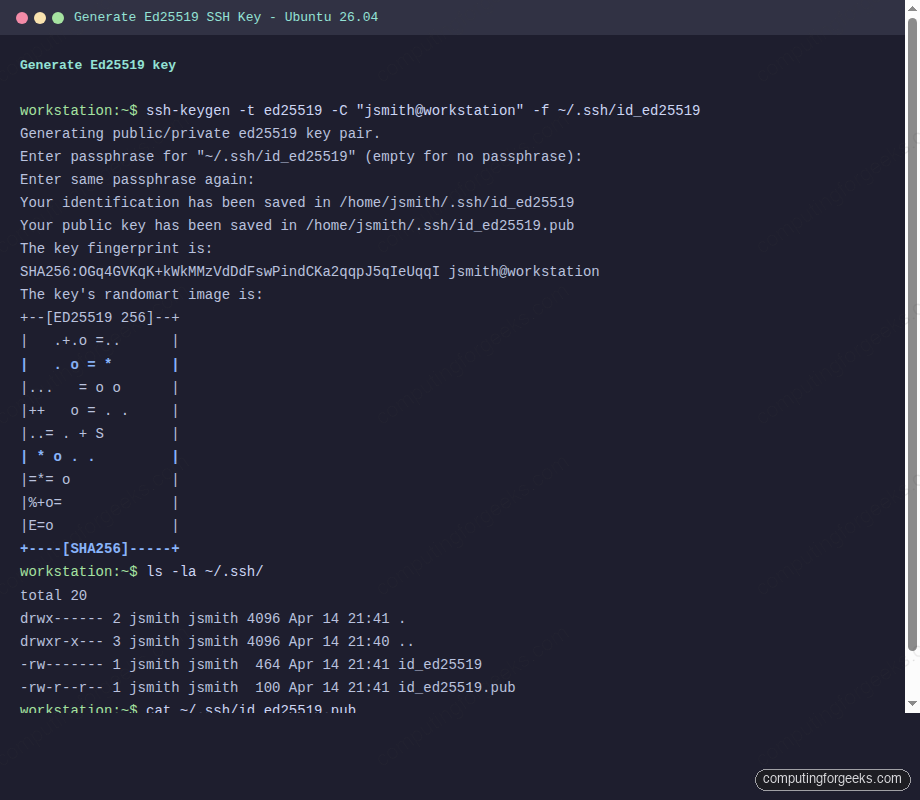
The output lands in ~/.ssh/id_ed25519 (private) and ~/.ssh/id_ed25519.pub (public). Verify the permissions:
ls -la ~/.ssh/The private key should be mode 600 and the directory mode 700. ssh-keygen sets these automatically, but if you ever copy the files around, fix permissions with chmod 700 ~/.ssh && chmod 600 ~/.ssh/id_ed25519. OpenSSH refuses to use a private key with loose permissions.
RSA and ECDSA alternatives
If you must generate RSA for compatibility with old hardware:
ssh-keygen -t rsa -b 4096 -C "jsmith@workstation"For ECDSA with the 521-bit curve, use -t ecdsa -b 521. Both still work on Ubuntu 26.04, but Ed25519 remains the preferred default.
Deploy the public key with ssh-copy-id
ssh-copy-id is the fastest and safest way to push your public key to a server. It handles directory creation, permission fixes, and deduplication.
ssh-copy-id [email protected]It logs in once with your password, appends the contents of ~/.ssh/id_ed25519.pub to ~/.ssh/authorized_keys on the server, and fixes permissions. The output ends with a confirmation and a suggestion to test the new key.
Number of key(s) added: 1

Now try logging into the machine, with:   "ssh '[email protected]'"
and check to make sure that only the key(s) you wanted were added.
Manual key deployment
When ssh-copy-id is not available (think locked-down jump hosts or appliances), append the key manually. Copy your public key first:
cat ~/.ssh/id_ed25519.pubLog into the server with your password and run these commands as the target user:
mkdir -m 700 -p ~/.ssh
echo "ssh-ed25519 AAAAC3Nza...your-pubkey-here... jsmith@workstation" >> ~/.ssh/authorized_keys
chmod 600 ~/.ssh/authorized_keys
The two things that trip people up here are permissions (directory must be 700, file must be 600) and the home directory being group-writable. If authorized_keys works from root but not from your user account, run chmod go-w ~. sshd will reject keys inside a home directory that other users can write to.
Test the key-based login
Open a fresh terminal and connect. If the key is unencrypted, you get straight in. If you set a passphrase, OpenSSH asks for it once:
ssh [email protected]To confirm the connection actually used your key and was not silently falling back to a password, add -vv for verbose output and look for the Authenticated to ... using "publickey" line:
ssh -vv -i ~/.ssh/id_ed25519 [email protected] 'whoami && hostname'The screenshot below shows the key handshake on our test box. Note the kex: algorithm, Server accepts key, and Authenticated to lines:
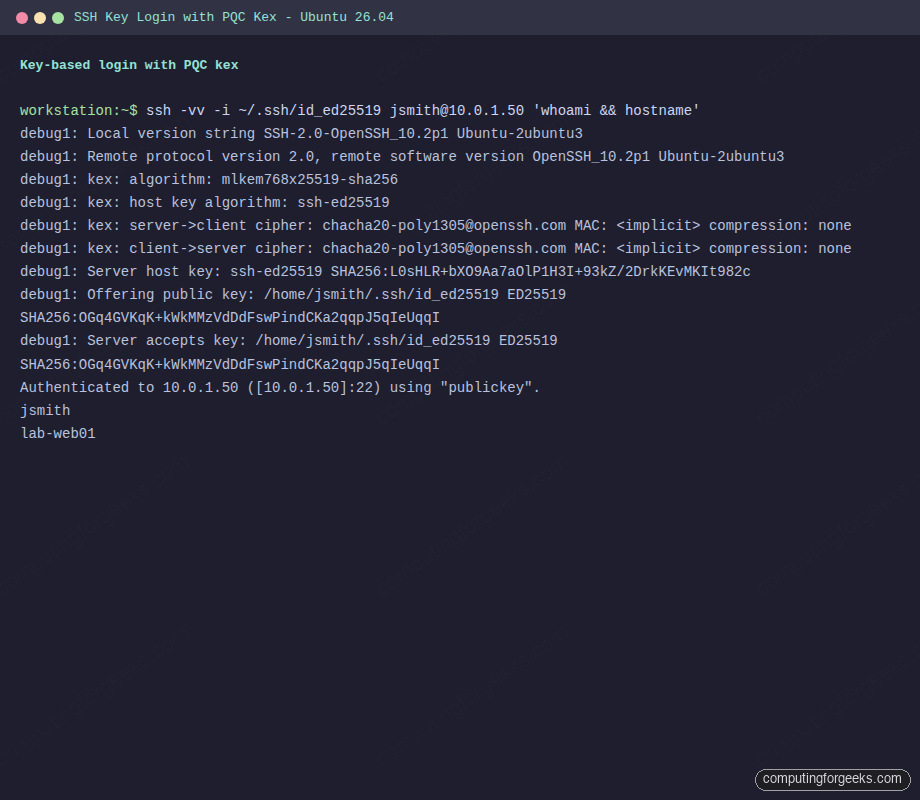
The output reveals the kex algorithm the two sides agreed on. On Ubuntu 26.04 both client and server default to mlkem768x25519-sha256, the hybrid post-quantum key exchange that OpenSSH promoted to the preferred default starting in release 10.0. More on that later in the article.
Use ssh-agent to cache the passphrase
Typing the passphrase on every single SSH connection gets old fast. ssh-agent holds the decrypted key in memory for the life of your shell session, and ssh-add loads it in.
eval "$(ssh-agent -s)"
ssh-add ~/.ssh/id_ed25519
You enter the passphrase once and subsequent connections go through without prompting. List loaded keys any time with ssh-add -l, remove a key with ssh-add -d ~/.ssh/id_ed25519, or wipe every key with ssh-add -D.
On modern Ubuntu desktops, GNOME Keyring or gnome-keyring-daemon handles agent duties automatically and unlocks your keys when you log into the graphical session. On a pure CLI workstation, add the eval line to your ~/.bashrc or ~/.zshrc so it starts with every new shell.
Agent forwarding for jump hosts
When you SSH through a bastion to a target server, agent forwarding lets the inner connection reuse the key on your laptop. Turn it on per-connection with ssh -A user@bastion or, better, only for specific hosts via the config file in the next section. Never forward the agent to servers you do not fully trust. Anyone with root on the intermediate host can impersonate you while your socket is active.
Write a sane ~/.ssh/config
The SSH config file is underrated. It turns long commands into short aliases, stores per-host settings (identity file, port, user, forwarded agent), and chains jump hosts so you never think about -J again.
vi ~/.ssh/configA minimal but useful config looks like this:
Host web01
    HostName 10.0.1.50
    User jsmith
    IdentityFile ~/.ssh/id_ed25519
    IdentitiesOnly yes

Host bastion
    HostName 203.0.113.10
    User admin
    IdentityFile ~/.ssh/id_ed25519
    ForwardAgent yes

Host db01
    HostName 10.0.2.20
    User jsmith
    IdentityFile ~/.ssh/id_ed25519
    ProxyJump bastion

Host *
    ServerAliveInterval 60
    ServerAliveCountMax 3
    HashKnownHosts yes
After saving, set permissions and connect by alias:
chmod 600 ~/.ssh/config
ssh web01
ssh db01
The IdentitiesOnly yes line matters on workstations with many keys loaded in the agent. Without it, SSH offers every key in the agent to every server, which trips MaxAuthTries limits and can lock you out. ProxyJump is the clean replacement for nested SSH commands: connecting to db01 transparently tunnels through bastion with a single ssh db01.
Harden sshd on the server
Now that key auth works, turn off password auth on the server. Do this only after you have confirmed the key actually logs you in. Locking yourself out of a remote box is a Friday afternoon you will not forget.
On Ubuntu 26.04, the preferred pattern is a drop-in file under /etc/ssh/sshd_config.d/. That way you never touch the vendor-managed sshd_config and package upgrades leave your overrides alone.
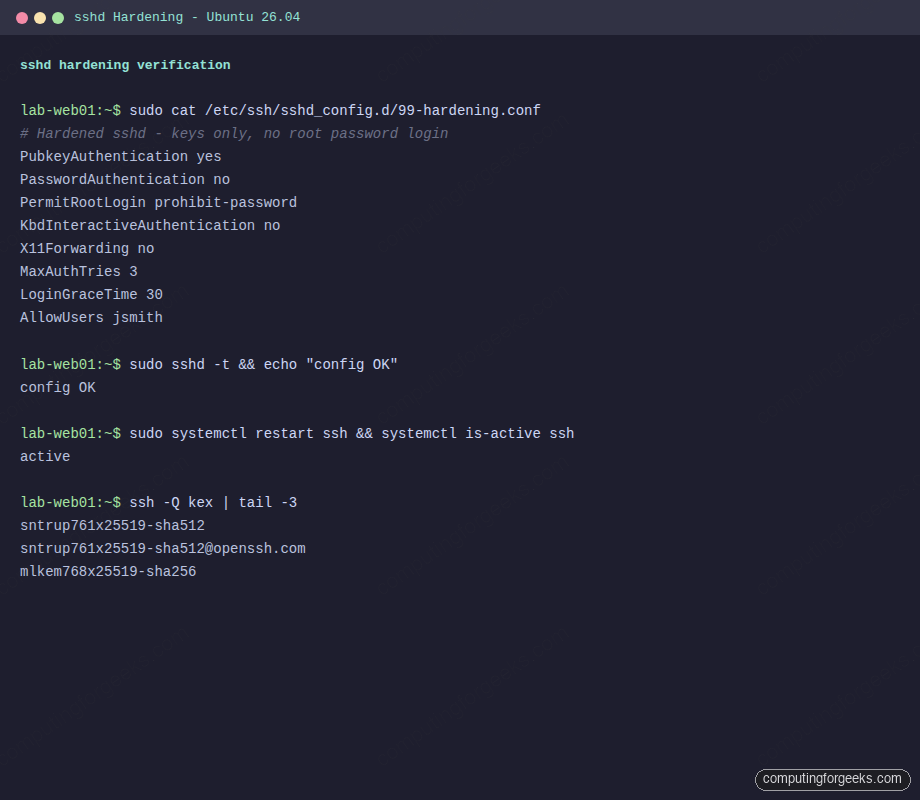
sudo vi /etc/ssh/sshd_config.d/99-hardening.confPaste the following:
# Hardened sshd on Ubuntu 26.04
PubkeyAuthentication yes
PasswordAuthentication no
PermitRootLogin prohibit-password
KbdInteractiveAuthentication no
ChallengeResponseAuthentication no
UsePAM yes
X11Forwarding no
MaxAuthTries 3
LoginGraceTime 30
AllowUsers jsmith
Validate the syntax before reloading. A typo in sshd_config can kill the service on restart and lock you out:
sudo sshd -tSilent output means the config is valid. Now restart the service and confirm it came up:
sudo systemctl restart ssh
sudo systemctl status ssh --no-pager
Keep your current SSH session open and test the new behavior in a second terminal. Attempt a password login, which must now be refused:
ssh -o PreferredAuthentications=password -o PubkeyAuthentication=no [email protected]You should see [email protected]: Permission denied (publickey). That is the correct response. Password auth is dead.
Firewall notes
Keep port 22/tcp open in ufw or whatever firewall you use. If you run ufw, sudo ufw allow ssh is enough. For a full walkthrough, see our UFW configuration guide. Combine the hardened sshd with Fail2ban or CrowdSec to block repeat offenders at the firewall level.
Verify ciphers, MACs, and kex algorithms
OpenSSH ships a set of algorithms it is willing to negotiate. List what the current binary supports:
ssh -Q kex
ssh -Q cipher
ssh -Q mac
On Ubuntu 26.04 running OpenSSH 10.2p1, mlkem768x25519-sha256 appears at the end of the kex list. That is the hybrid post-quantum key exchange built on NIST ML-KEM-768 combined with X25519. OpenSSH 10.0 was the first release to promote it to the preferred default, and 10.2 keeps that stance.
Post-quantum kex in action
When both ends run OpenSSH 9.9 or newer, the handshake negotiates ML-KEM768x25519 automatically. No config changes needed. Confirm the algorithm that was actually agreed on:
ssh -vv [email protected] true 2>&1 | grep "kex: algorithm"Real output from the test VM:
debug1: kex: algorithm: mlkem768x25519-sha256Why it matters: “harvest now, decrypt later” is a real threat model. An attacker capturing your encrypted traffic today could store it and decrypt it once practical quantum computers exist. ML-KEM768x25519 resists that attack while still being fast enough that you will not notice the switch. Ubuntu 26.04 is the first LTS to ship this default. For a broader tour of what the release brings, see our Ubuntu 26.04 LTS features writeup.
Add TOTP 2FA on top of keys
For extra-sensitive servers, layer TOTP (Google Authenticator-compatible) on top of key auth. Even a stolen key then needs the six-digit code from your phone.
sudo apt install -y libpam-google-authenticatorRun the configuration tool as the user that will log in (not as root):
google-authenticator -t -d -f -r 3 -R 30 -WScan the displayed QR code with your TOTP app (Aegis, Authy, 1Password, Google Authenticator). Save the emergency scratch codes somewhere safe.
Append the PAM module to /etc/pam.d/sshd above the @include common-auth line:
auth required pam_google_authenticator.so nullokEdit /etc/ssh/sshd_config.d/99-hardening.conf and add:
AuthenticationMethods publickey,keyboard-interactive
KbdInteractiveAuthentication yes
This requires a valid key AND a valid TOTP code for every login. Restart ssh and test in a second terminal. The nullok flag on the PAM line means users who have not set up TOTP can still log in with key only, which is useful during rollout. Remove it once every user has enrolled.
Revoking a compromised key
If a laptop is lost or a private key leaks, act fast. On every server where that key is authorized, remove the matching line from the user’s authorized_keys. On a multi-user server, the safest pattern is to grep for the key comment or fingerprint and delete exactly that line:
sudo sed -i '/jsmith@workstation$/d' /home/jsmith/.ssh/authorized_keysConfirm the file looks right before disconnecting:
sudo cat /home/jsmith/.ssh/authorized_keysExisting SSH sessions keep working because they are already authenticated. Kill them if the threat is real:
sudo ss -tnp state established '( dport = :22 or sport = :22 )'
sudo pkill -KILL -u jsmith sshd
For fleets of servers, use your configuration management tool. Ansible, Salt, or ssh_authorized_key modules propagate revocations in seconds. Rotating a key on 200 hosts by hand is not a plan.
Key rotation strategy
Rotate keys on a schedule, typically annually or on role changes. The overlap approach keeps you from locking yourself out:
- Generate a new key on your workstation:
ssh-keygen -t ed25519 -f ~/.ssh/id_ed25519_2026 -C "jsmith-2026" - Deploy the new key to all servers via
ssh-copy-idor your config management tool. Both keys now work - Update
~/.ssh/configto pointIdentityFileat the new key - Test for a week. Watch logs for any automation still using the old key
- Remove the old key from
authorized_keyseverywhere - Delete the old private key from your workstation
For servers behind a VPN like WireGuard, rotate keys on the VPN side at the same time. If you ever share SSH access across a team, use certificate-based SSH (OpenSSH CA) instead of raw keys. That topic deserves its own article, but the short version: a CA signs short-lived user certificates, revocation happens centrally, and authorized_keys stays empty.
Troubleshooting
Permission denied (publickey)
The catch-all error. Run ssh -vv and read the client log. Common causes:
- The home directory on the server is group- or world-writable. Fix with
chmod go-w ~ ~/.sshis not mode700, orauthorized_keysis not mode600- The key you are offering is not the one in
authorized_keys. Checkssh -iorIdentityFile AllowUsersinsshd_config.d/does not list the user- SELinux or AppArmor context on
authorized_keysis wrong (rare on Ubuntu but possible aftercpfrom another system)
On the server, watch the sshd journal in real time while you attempt the connection:
sudo journalctl -u ssh -fIt prints the exact reason sshd rejected the connection, which is usually more honest than the client-side error.
Error: “Authentication refused: bad ownership or modes for directory /home/jsmith”
sshd refuses to read authorized_keys if the parent directories have loose permissions. Fix with:
chmod 750 /home/jsmith
chmod 700 /home/jsmith/.ssh
chmod 600 /home/jsmith/.ssh/authorized_keys
chown -R jsmith:jsmith /home/jsmith/.ssh
AppArmor notes on Ubuntu
Ubuntu 26.04 ships an AppArmor profile for sshd in complain mode by default, which means denials are logged but not enforced. If you have switched it to enforce, check sudo aa-status and read /var/log/kern.log for any DENIED entries. Custom AuthorizedKeysFile paths outside ~/.ssh/ usually need profile adjustments.
Agent not forwarding
If ForwardAgent yes does not stick, confirm SSH_AUTH_SOCK on the intermediate host:
echo $SSH_AUTH_SOCK
ssh-add -l
Empty SSH_AUTH_SOCK means the bastion dropped the forward. The usual culprit is sudo stripping the environment variable. Use sudo -E or add Defaults env_keep += "SSH_AUTH_SOCK" to sudoers.
Production hardening checklist
Run through this list before declaring a server production-ready:
PasswordAuthentication noin a drop-in filePermitRootLogin prohibit-passwordornoAllowUsersorAllowGroupslimits who can even try to log in- Ed25519 keys everywhere, RSA only where nothing else works
- Fail2ban or CrowdSec actively banning brute force attempts
- UFW open only on 22/tcp and whatever your application needs
- TOTP 2FA on bastions and any host with privileged access
- Key rotation scheduled, not just hoped for
- Logs shipped to a central aggregator so a compromised host cannot quietly delete evidence
For a broader system-hardening baseline on Ubuntu 26.04 (sysctl tweaks, unattended upgrades, auditd, kernel lockdown), our Ubuntu 26.04 hardening guide picks up where this article stops.
Wrap-up
SSH key authentication is the baseline for every Linux server, not an advanced topic. With Ed25519 keys, a drop-in hardening file, ssh-agent for daily use, and TOTP layered on top of your bastion, you have removed the entire class of password-based attacks. OpenSSH 10.2 on Ubuntu 26.04 goes a step further and encrypts your key exchange against future quantum attackers by default. Set it up once, rotate on schedule, and move on to the next problem.