A fresh Ubuntu 26.04 server boots with a minimal footprint: unattended security updates enabled, sudo-rs replacing the traditional C-based sudo, and AppArmor enforcing 108 profiles out of the box. That’s a solid starting point, but there’s still work to do before putting it on the internet.
This guide covers the post-install essentials: creating a non-root user, hardening SSH, setting up the firewall, enabling fail2ban, configuring swap, and locking down the basics. Nothing exotic, just the things that prevent the most common attacks on exposed servers.
Verified working: April 2026 on Ubuntu 26.04 LTS (Resolute Raccoon), kernel 7.0.0-10-generic, systemd 259.5
What Ubuntu 26.04 Gets Right Out of the Box
Before changing anything, here’s what the default install already handles:
- sudo-rs 0.2.13 replaces the traditional sudo binary. It’s a memory-safe Rust rewrite that eliminates entire classes of privilege escalation bugs
- AppArmor is loaded with 108 enforcing profiles
- Unattended upgrades are enabled by default for security patches
- OpenSSH 10.2 ships with password authentication disabled by default on cloud images, key-based auth only
- Python 3.14 is the system Python (no Python 2 at all)
You’re starting from a better baseline than any previous Ubuntu LTS. The steps below build on it.
Create a Non-Root User
If your server only has the root account (common with some hosting providers), create a regular user immediately. Cloud images typically ship with an ubuntu user that already has sudo access.
adduser deployFollow the prompts to set a password. Then grant sudo privileges:
usermod -aG sudo deployCopy your SSH key to the new user so you can log in without a password:
rsync --archive --chown=deploy:deploy ~/.ssh /home/deployTest the login in a separate terminal before closing your root session:
ssh [email protected]Verify sudo works:
sudo whoamiThis confirms sudo works:
rootThe user is set up. Now lock down SSH access.
Harden SSH
The default SSH configuration on Ubuntu 26.04 is more secure than previous releases (OpenSSH 10.2, keyboard-interactive auth disabled by default), but there are still improvements to make.
Open the SSH daemon configuration:
sudo vi /etc/ssh/sshd_config.d/hardened.confAdd the following (using a drop-in file keeps the main config clean for future upgrades):
# Disable root login
PermitRootLogin no

# Disable password authentication (key-only)
PasswordAuthentication no

# Limit login attempts
MaxAuthTries 3
MaxSessions 3

# Disable X11 forwarding (not needed on servers)
X11Forwarding no

# Set idle timeout (disconnect after 5 minutes of inactivity)
ClientAliveInterval 300
ClientAliveCountMax 2

# Only allow specific users (adjust to your username)
AllowUsers deploy ubuntu
Test the configuration before restarting (a typo here could lock you out):
sudo sshd -tIf no errors, restart the SSH service:
sudo systemctl restart sshdKeep your current session open and test the new settings from a separate terminal before closing it. For more SSH configuration options, see our SSH server setup guide for Ubuntu. Our SSH commands cheat sheet is also handy for day-to-day operations.
Configure UFW Firewall
UFW is installed but inactive by default on Ubuntu 26.04. Enable it with a minimal set of rules:
sudo ufw default deny incoming
sudo ufw default allow outgoing
Allow SSH before enabling the firewall (otherwise you’ll lock yourself out):
sudo ufw allow OpenSSHEnable the firewall:
sudo ufw --force enableCheck the active rules:
sudo ufw status verboseOnly SSH is allowed at this point:
Status: active
Logging: on (low)
Default: deny (incoming), allow (outgoing), deny (routed)

To                         Action      From
--                         ------      ----
22/tcp (OpenSSH)           ALLOW IN    Anywhere
22/tcp (OpenSSH (v6))      ALLOW IN    Anywhere (v6)
Add more rules as you install services. For example, to allow HTTP and HTTPS later:
sudo ufw allow 80/tcp comment 'HTTP'
sudo ufw allow 443/tcp comment 'HTTPS'
For a full reference of UFW commands, check our UFW firewall commands guide.
Install and Configure Fail2ban
Fail2ban monitors log files and temporarily bans IPs that show malicious signs (repeated failed SSH logins, for example). Ubuntu 26.04 ships Fail2ban 1.1.0 in its repos.
sudo apt install -y fail2banCreate a local configuration (never edit jail.conf directly because package updates overwrite it):
sudo vi /etc/fail2ban/jail.localAdd the following:
[DEFAULT]
bantime = 1h
findtime = 10m
maxretry = 5
banaction = ufw

[sshd]
enabled = true
port = ssh
logpath = /var/log/auth.log
maxretry = 3
This bans an IP for 1 hour after 3 failed SSH login attempts within 10 minutes, using UFW as the ban mechanism (which keeps your firewall rules consistent).
Start and enable the service:
sudo systemctl enable --now fail2banVerify it’s running and the SSH jail is active:
sudo fail2ban-client status sshdThe SSH jail is active with zero bans so far:
Status for the jail: sshd
|- Filter
|  |- Currently failed:	0
|  |- Total failed:	0
|  `- File list:	/var/log/auth.log
`- Actions
   |- Currently banned:	0
   |- Total banned:	0
   `- Banned IP list:
Fail2ban is watching. Any IP with 3 failed SSH attempts gets banned for an hour.
Set the Hostname and Timezone
Set a meaningful hostname:
sudo hostnamectl set-hostname web01Set your timezone (replace with your actual timezone):
sudo timedatectl set-timezone Africa/NairobiVerify both:
hostnamectlThe hostname change took effect:
 Static hostname: web01
       Icon name: computer-vm
         Chassis: vm
  Virtualization: kvm
Operating System: Ubuntu Resolute Raccoon (development branch)
          Kernel: Linux 7.0.0-10-generic
    Architecture: x86-64
NTP synchronization is active by default on Ubuntu 26.04 via systemd-timesyncd. You can verify with:
timedatectl status | grep "NTP service"NTP synchronization is active:
NTP service: activeHostname, timezone, and NTP are all set.
Configure Swap
Cloud images typically ship without swap. On servers with limited RAM, adding a swap file prevents out-of-memory kills during traffic spikes.
Check current swap status:
swapon --showIf there’s no output, create a 2 GB swap file:
sudo fallocate -l 2G /swapfile
sudo chmod 600 /swapfile
sudo mkswap /swapfile
sudo swapon /swapfile
Make it persistent across reboots:
echo '/swapfile none swap sw 0 0' | sudo tee -a /etc/fstabReduce swappiness so the kernel prefers RAM over swap (better for servers). While you’re thinking about server maintenance, consider how you’ll handle backups: our guide to automated rsync backups with systemd timers pairs well with a fresh server setup.
echo 'vm.swappiness=10' | sudo tee /etc/sysctl.d/99-swappiness.conf
sudo sysctl -p /etc/sysctl.d/99-swappiness.conf
Verify swap is active:
free -h | grep SwapThe 2 GB swap file is ready:
Swap: 2.0Gi 0B 2.0GiSwap is configured and will persist across reboots.
Verify Automatic Security Updates
Ubuntu 26.04 ships with unattended-upgrades enabled by default. Verify the configuration:
cat /etc/apt/apt.conf.d/20auto-upgradesBoth values are set to 1 for daily updates:
APT::Periodic::Update-Package-Lists "1";
APT::Periodic::Unattended-Upgrade "1";
Both values set to "1" means daily package list updates and daily unattended upgrades. Security patches are applied automatically without intervention.
To see what gets auto-upgraded, check the allowed origins:
grep -v "^//" /etc/apt/apt.conf.d/50unattended-upgrades | grep -v "^$" | head -15To add automatic reboot after kernel updates (optional, useful for unattended servers):
sudo vi /etc/apt/apt.conf.d/50unattended-upgradesFind and uncomment these lines:
Unattended-Upgrade::Automatic-Reboot "true";
Unattended-Upgrade::Automatic-Reboot-Time "03:00";
Here is the overall security status after applying the hardening steps:
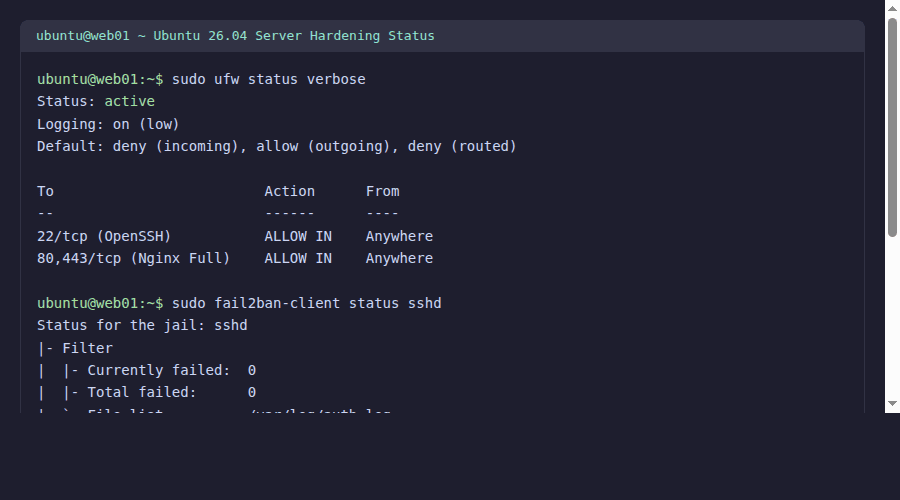
The core security stack is in place. A few housekeeping items remain.
Limit Journal Size
systemd’s journal can grow without bounds on long-running servers. For a deeper dive into querying and filtering logs, see our guide on how to filter systemd logs with journalctl. Set a cap:
sudo vi /etc/systemd/journald.confAdd under the [Journal] section:
SystemMaxUse=200M
MaxRetentionSec=1month
Restart the journal service:
sudo systemctl restart systemd-journaldJournal size is capped. Old entries will be cleaned automatically.
Kernel Network Hardening
Apply basic sysctl tweaks to harden the network stack:
sudo vi /etc/sysctl.d/99-hardening.confAdd the following:
# Ignore ICMP redirects (prevent MITM)
net.ipv4.conf.all.accept_redirects = 0
net.ipv6.conf.all.accept_redirects = 0
net.ipv4.conf.all.send_redirects = 0

# Ignore source-routed packets
net.ipv4.conf.all.accept_source_route = 0
net.ipv6.conf.all.accept_source_route = 0

# Enable reverse path filtering (anti-spoofing)
net.ipv4.conf.all.rp_filter = 1
net.ipv4.conf.default.rp_filter = 1

# Log suspicious packets
net.ipv4.conf.all.log_martians = 1

# Ignore broadcast ICMP (prevent smurf attacks)
net.ipv4.icmp_echo_ignore_broadcasts = 1

# SYN flood protection
net.ipv4.tcp_syncookies = 1
net.ipv4.tcp_max_syn_backlog = 2048
net.ipv4.tcp_synack_retries = 2
Apply the settings:
sudo sysctl -p /etc/sysctl.d/99-hardening.confThe sysctl settings take effect immediately and persist across reboots.
Update All Packages
Finish by running a full system update:
sudo apt update && sudo apt upgrade -yIf a kernel update was installed, reboot:
sudo rebootAfter the reboot, verify everything is running:
uptime && uname -r && sudo ufw status && sudo fail2ban-client status sshdAll services should report active after the reboot.
Quick Checklist
Before moving on to installing applications, confirm these are done:
| Item | Verify command | Expected |
|---|---|---|
| Non-root user with sudo | sudo whoami | root |
| SSH key-only auth | grep PasswordAuth /etc/ssh/sshd_config.d/hardened.conf | no |
| Root login disabled | grep PermitRoot /etc/ssh/sshd_config.d/hardened.conf | no |
| UFW active | sudo ufw status | active |
| Fail2ban running | sudo fail2ban-client status | sshd jail active |
| Swap configured | swapon --show | /swapfile |
| Auto-updates on | cat /etc/apt/apt.conf.d/20auto-upgrades | Both set to "1" |
| Timezone set | timedatectl | Your timezone |
| NTP active | timedatectl | grep NTP | active |
With these basics covered, your server is ready for whatever you plan to run on it. For a complete overview of what changed in Ubuntu 26.04 LTS, including the new kernel, Rust coreutils, and systemd 259, check our features article.