

Four ways to get Node.js on Ubuntu 26.04 LTS, each with trade-offs. The Ubuntu repo ships Node 22 with an ancient npm. NodeSource gives you the same Node 22 with a current npm. nvm and fnm let you switch between Node 22, 24, and 25 on the fly. Pick based on whether you need simplicity or flexibility.
This guide covers all four methods, tested on a fresh Ubuntu 26.04 LTS server. We also cover verifying your install, running a quick HTTP server test, and managing multiple Node.js versions when your projects need different runtimes. For managing versions on other distros, check our guide to managing Node.js versions with NVM on Linux.
Tested April 2026 | Ubuntu 26.04 LTS (Resolute Raccoon), kernel 7.0.0-10-generic
Which Method Should You Use?
| Method | Node Version | npm Version | Multi-version? | Best For |
|---|---|---|---|---|
| Ubuntu repo | 22.22.1 | 9.2.0 | No | Quick system-wide install, CI runners |
| NodeSource | 22.22.2 | 10.9.7 | No | Production servers, single version |
| nvm | 24.14.1 / 25.9.0 | 11.11.0 / 11.12.1 | Yes | Development, multiple projects |
| fnm | 24.14.1 / 25.9.0 | 11.11.0 / 11.12.1 | Yes | Development, fast switching |
The current Node.js LTS line is 24.x (codename “Krypton”). Node 22.x (“Jod”) is the previous LTS, still in active maintenance. Node 25.x is the current release line.
Method 1: Install from Ubuntu Repository
The quickest path. Ubuntu 26.04 ships Node.js 22 in its universe repository. If you’re on an older release, our guide covers Node.js 24 LTS on Ubuntu 24.04 with the same approach.
sudo apt update
sudo apt install -y nodejs npm
This pulls in quite a few dependencies (350+ packages) because Ubuntu bundles npm and its JavaScript toolchain as separate packages.
Verify the install:
node --version && npm --versionNode 22 is installed with npm 9.2.0:
v22.22.1
9.2.0
One thing to watch out for: npm 9.2.0 is well behind the current npm 11.x releases. Some newer packages and lock file formats may not work correctly. If npm version matters for your project, use NodeSource or a version manager instead.
Quick test to confirm Node runs properly:
node -e "console.log('Hello from Node.js ' + process.version)"The output confirms Node.js is working:
Hello from Node.js v22.22.1That confirms the Ubuntu repo method works. If you need a newer npm, the next option is NodeSource.
Method 2: Install from NodeSource
NodeSource maintains an apt repository with up-to-date Node.js packages. Their repo uses a nodistro approach, so it works on Ubuntu 26.04 without needing explicit codename support.
If you installed Node from the Ubuntu repo in Method 1, remove it first:
sudo apt remove -y nodejs npmDownload and run the NodeSource setup script for Node.js 22.x LTS:
curl -fsSL https://deb.nodesource.com/setup_22.x | sudo -E bash -Install Node.js (npm comes bundled this time):
sudo apt install -y nodejsCheck the versions:
node --version && npm --versionNode 22.22.2 with npm 10.9.7, a significant bump over the Ubuntu repo’s npm 9.2.0:
v22.22.2
10.9.7
NodeSource gives you the same Node 22 line but with a current npm (10.9.7 vs Ubuntu’s 9.2.0) and fewer dependency packages. The NodeSource repository also pins at priority 600, so it takes precedence over the Ubuntu repo in future updates.
For Node.js 24.x LTS, replace setup_22.x with setup_24.x in the script URL.
Method 3: Install with nvm (Node Version Manager)
nvm lets you install multiple Node.js versions side by side and switch between them per shell session. It installs to your home directory, so no sudo is needed after the initial setup.
First, grab the latest nvm version number and install it:
NVM_VER=$(curl -sL https://api.github.com/repos/nvm-sh/nvm/releases/latest | grep tag_name | sed 's/.*"v\([^"]*\)".*/\1/')
echo "Installing nvm v${NVM_VER}"
curl -o- https://raw.githubusercontent.com/nvm-sh/nvm/v${NVM_VER}/install.sh | bash
Load nvm into your current shell:
export NVM_DIR="$HOME/.nvm"
[ -s "$NVM_DIR/nvm.sh" ] && . "$NVM_DIR/nvm.sh"
Install the current LTS (Node.js 24) and the latest release (Node.js 25):
nvm install --lts
nvm install node
The LTS install gives you Node.js 24.14.1 with npm 11.11.0:
nvm use --lts
node --version && npm --version
nvm switches to the LTS line and confirms the versions:
Now using node v24.14.1 (npm v11.11.0)
v24.14.1
11.11.0
Switch to the latest release:
nvm use node
node --version && npm --version
Now on the latest release branch:
Now using node v25.9.0 (npm v11.12.1)
v25.9.0
11.12.1
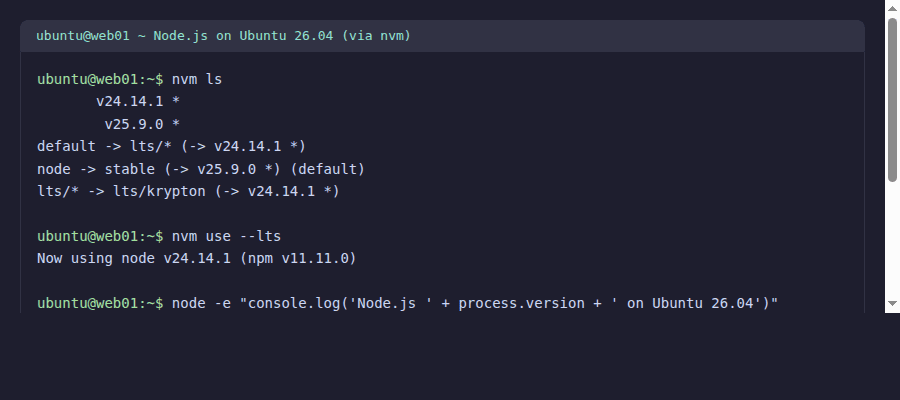
See all installed versions:
nvm lsBoth versions show up with LTS as the default:
       v24.14.1 *
        v25.9.0 *
default -> lts/* (-> v24.14.1 *)
node -> stable (-> v25.9.0 *) (default)
lts/* -> lts/krypton (-> v24.14.1 *)
Both versions are installed and ready to switch between:
Set a default version that loads in every new shell:
nvm alias default lts/*You can also install Node 22 if your project requires it:
nvm install 22
nvm use 22
nvm handles all the downloading and PATH management. For a faster alternative, try fnm.
Method 4: Install with fnm (Fast Node Manager)
fnm is a Rust-based alternative to nvm. It’s faster at switching versions (uses per-shell symlinks instead of modifying PATH) and works with .node-version and .nvmrc files. If you’re setting up a polyglot development environment, you might also want to install Go on Ubuntu alongside your Node.js setup.
Install the prerequisite and fnm itself:
sudo apt install -y unzip
curl -fsSL https://fnm.vercel.app/install | bash
Load fnm into your current shell:
export PATH="$HOME/.local/share/fnm:$PATH"
eval "$(fnm env)"
Install the LTS and current release:
fnm install --lts
fnm install 25
Switch between versions:
fnm use lts-latest
node --version
Confirms Node 24 LTS is active:
v24.14.1Switch to 25 and verify:
fnm use 25
node --version
The current release line is ready:
v25.9.0One thing to note: fnm install latest doesn’t work. Use the major version number directly (like fnm install 25). Also, unzip isn’t installed by default on Ubuntu 26.04 server, so you need to add it before installing fnm.
Quick Test: HTTP Server
Regardless of which method you used, verify Node.js works by spinning up a quick HTTP server:
node -e "
const http = require('http');
const server = http.createServer((req, res) => {
  res.writeHead(200, {'Content-Type': 'text/plain'});
  res.end('Node.js ' + process.version + ' on Ubuntu 26.04\n');
});
server.listen(3000, () => console.log('Listening on port 3000'));
"
For production deployments, you’d typically put Nginx in front of this. Our guide on WordPress with Nginx on Ubuntu covers that reverse proxy pattern in detail. In another terminal (or from your local machine), test it:
curl http://localhost:3000You should see the version string in the response:
Node.js v24.14.1 on Ubuntu 26.04Press Ctrl+C to stop the test server.
Uninstall Node.js
Removal depends on how you installed it:
# Ubuntu repo or NodeSource
sudo apt remove -y nodejs npm
sudo rm -f /etc/apt/sources.list.d/nodesource.list

# nvm
nvm deactivate
rm -rf "$NVM_DIR"
# Then remove the nvm lines from ~/.bashrc

# fnm
rm -rf "$HOME/.local/share/fnm"
# Then remove the fnm lines from ~/.bashrc
That covers all four installation methods and cleanup. A few common questions:
Which Node.js version should I use for production in 2026?
Node.js 24.x (LTS codename “Krypton”) is the recommended choice for production as of April 2026. Node 22.x is still in active maintenance and receives security patches. Node 25.x is the current release line, suitable for development but not for production workloads that need long-term stability. For deeper reading, see our roundup of the best Node.js books for learning.
Can I use nvm and NodeSource together?
Technically yes, but it causes confusion. nvm installs Node to ~/.nvm/versions/ while NodeSource installs to /usr/bin/. When nvm is active, it shadows the system Node. When it’s not, you fall back to the system version. Pick one approach per server to keep things predictable.
Does NodeSource support Ubuntu 26.04 natively?
NodeSource uses a nodistro suite in their repository, which means it works on any Debian-based system regardless of codename. There are no compatibility issues with Ubuntu 26.04.