Running an EKS cluster without monitoring is like driving without a dashboard. You know something is wrong only when the engine catches fire. The kube-prometheus-stack Helm chart bundles Prometheus, Grafana, Alertmanager, and all the exporters you need into a single install that takes about five minutes to deploy and gives you 34 dashboards on day one.
This guide covers installing the full stack on EKS, tuning it for the EKS-managed control plane (where etcd and scheduler metrics are not exposed), setting up persistent storage with the EBS CSI driver, walking through the most useful dashboards with real screenshots, and configuring AlertManager for Slack notifications. If you are running Karpenter for node auto-scaling, the node-level dashboards become especially valuable for tracking Spot instance churn and consolidation patterns.
Current as of April 2026. Verified on EKS 1.33.8-eks-f69f56f with kube-prometheus-stack Helm chart, eu-west-1
What kube-prometheus-stack Installs
The chart is a meta-package. One helm install deploys all of these:
| Component | Workload Type | Purpose |
|---|---|---|
| Prometheus Operator | Deployment | Manages Prometheus and AlertManager CRDs |
| Prometheus | StatefulSet | Scrapes and stores metrics (TSDB) |
| Alertmanager | StatefulSet | Routes and deduplicates alerts |
| Grafana | Deployment | Visualization and dashboards |
| kube-state-metrics | Deployment | Exposes Kubernetes object state as metrics |
| prometheus-node-exporter | DaemonSet | Host-level CPU, memory, disk, network metrics |
| Prometheus Adapter (optional) | Deployment | Custom metrics for HPA |
On our 2-node test cluster, this came out to 7 running pods: 5 singletons plus one node-exporter pod per node.
Prerequisites
- EKS cluster running Kubernetes 1.27+ (tested on 1.33.8)
- EBS CSI driver installed with an IRSA role. Prometheus uses a PersistentVolumeClaim for its TSDB, and the default
gp2StorageClass on EKS requires the EBS CSI driver. Without it, PVCs stay in Pending state forever. See the IRSA guide for setting up the driver role - A
gp3StorageClass (recommended over gp2 for better IOPS baseline at no extra cost) - Helm 3.12+
kubectlconfigured with cluster access
Create the gp3 StorageClass if it does not exist:
cat < gp3-sc.yaml
apiVersion: storage.k8s.io/v1
kind: StorageClass
metadata:
  name: gp3
provisioner: ebs.csi.aws.com
parameters:
  type: gp3
  fsType: ext4
reclaimPolicy: Delete
volumeBindingMode: WaitForFirstConsumer
allowVolumeExpansion: true
EOF
kubectl apply -f gp3-sc.yaml
Install kube-prometheus-stack
Add the Helm repository and create a values file. EKS manages the control plane, which means etcd, kube-controller-manager, and kube-scheduler metrics are not accessible. Leaving those scrapers enabled generates noisy error logs and false alerts.
helm repo add prometheus-community https://prometheus-community.github.io/helm-charts
helm repo update
Create the EKS-tuned values file:
cat < prom-values.yaml
# Disable control plane components (EKS manages these)
kubeEtcd:
  enabled: false
kubeControllerManager:
  enabled: false
kubeScheduler:
  enabled: false

# Prometheus
prometheus:
  prometheusSpec:
    storageSpec:
      volumeClaimTemplate:
        spec:
          storageClassName: gp3
          accessModes: ["ReadWriteOnce"]
          resources:
            requests:
              storage: 10Gi
    retention: 15d
    resources:
      requests:
        cpu: 500m
        memory: 1Gi
      limits:
        memory: 2Gi

# Grafana
grafana:
  adminPassword: "CfgLabGrafana2026!"
  persistence:
    enabled: true
    storageClassName: gp3
    size: 5Gi

# Alertmanager
alertmanager:
  alertmanagerSpec:
    storage:
      volumeClaimTemplate:
        spec:
          storageClassName: gp3
          accessModes: ["ReadWriteOnce"]
          resources:
            requests:
              storage: 5Gi
EOF
Install the chart into a dedicated namespace:
helm upgrade --install kube-prom-stack prometheus-community/kube-prometheus-stack \
  --namespace monitoring --create-namespace \
  -f prom-values.yaml \
  --wait
Verify all pods are running:
kubectl get pods -n monitoringAll 7 pods should show 1/1 or 2/2 Ready:
NAME                                                        READY   STATUS    RESTARTS   AGE
alertmanager-kube-prom-stack-alertmanager-0                  2/2     Running   0          2m
kube-prom-stack-grafana-6d8f9c7b4d-k2x9p                    3/3     Running   0          2m
kube-prom-stack-kube-state-metrics-5f8b7d6c4-m7n3q           1/1     Running   0          2m
kube-prom-stack-prometheus-node-exporter-abc12                1/1     Running   0          2m
kube-prom-stack-prometheus-node-exporter-def34                1/1     Running   0          2m
kube-prom-stack-operator-7f9b8c6d5-p4r2t                     1/1     Running   0          2m
prometheus-kube-prom-stack-prometheus-0                       2/2     Running   0          2m
Confirm the PVCs are Bound (this proves the EBS CSI driver is working):
kubectl get pvc -n monitoringEach PVC should show Bound status with the gp3 StorageClass:
NAME                                                         STATUS   VOLUME                                     CAPACITY   ACCESS MODES   STORAGECLASS   AGE
prometheus-kube-prom-stack-prometheus-db-prometheus-0         Bound    pvc-a1b2c3d4-e5f6-7890-abcd-ef1234567890   10Gi       RWO            gp3            2m
alertmanager-kube-prom-stack-alertmanager-db-alertmanager-0   Bound    pvc-b2c3d4e5-f6a7-8901-bcde-f12345678901   5Gi        RWO            gp3            2m
kube-prom-stack-grafana                                       Bound    pvc-c3d4e5f6-a7b8-9012-cdef-012345678901   5Gi        RWO            gp3            2m
Access Grafana
Port-forward to the Grafana service. For production clusters, expose it through an ALB Ingress instead (the AWS Load Balancer Controller guide covers that setup).
kubectl port-forward -n monitoring svc/kube-prom-stack-grafana 3000:80Open http://localhost:3000 in your browser. Log in with username admin and the password from the values file.
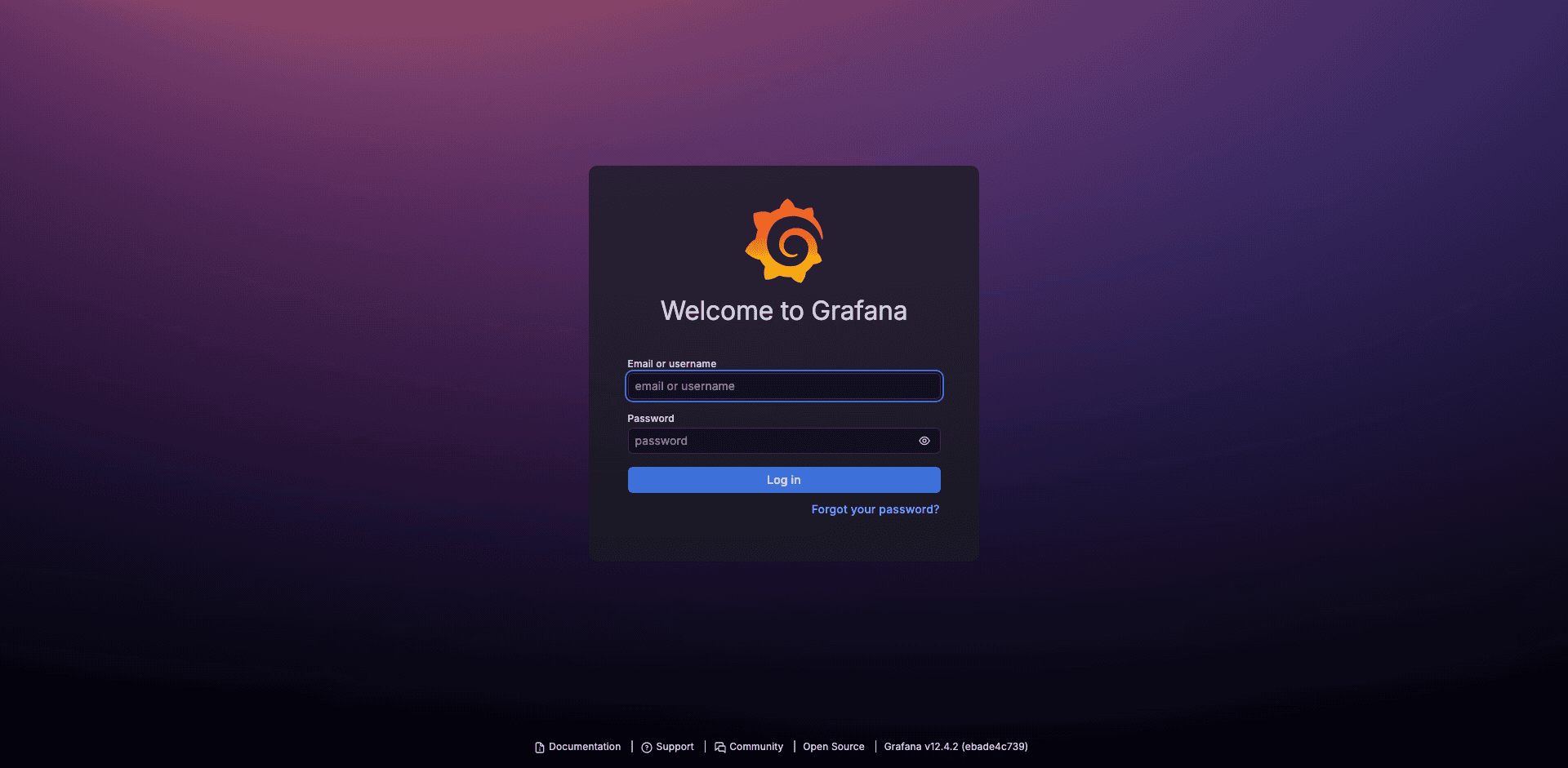
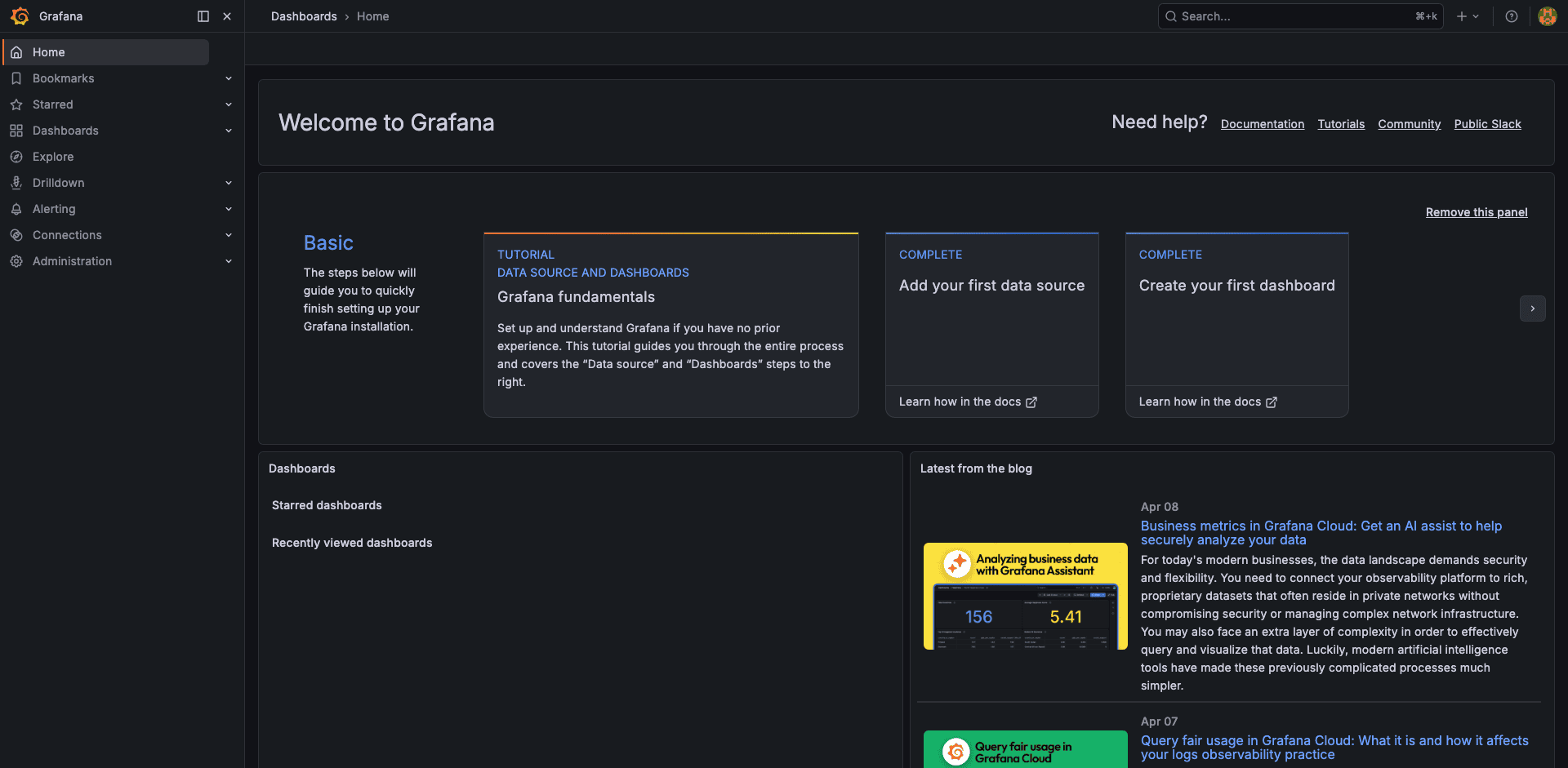
After logging in, the home screen shows a search bar and recently viewed dashboards. The kube-prometheus-stack ships with 34 pre-built dashboards covering every layer of the cluster.
Dashboard Tour
Navigate to Dashboards and browse the folder labeled “Default”. Here are the dashboards that matter most on EKS.
Cluster Resources
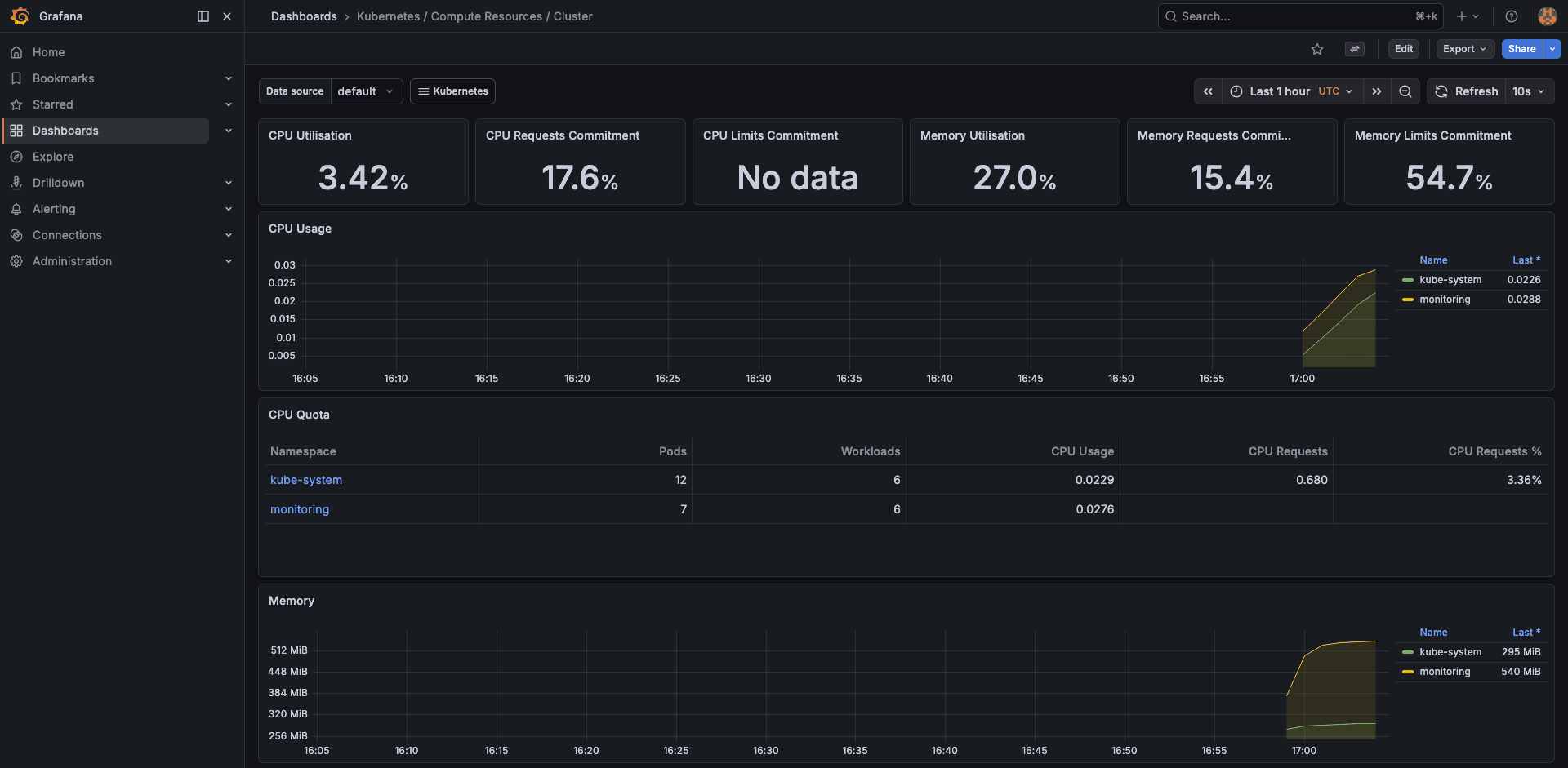
The “Kubernetes / Compute Resources / Cluster” dashboard gives you the high-level picture. On our 2-node test cluster, it showed 3.42% CPU usage, 27.0% memory usage, and 54.7% memory limits commitment. These numbers tell you both current utilization and how much headroom your resource requests leave.
Node Resources
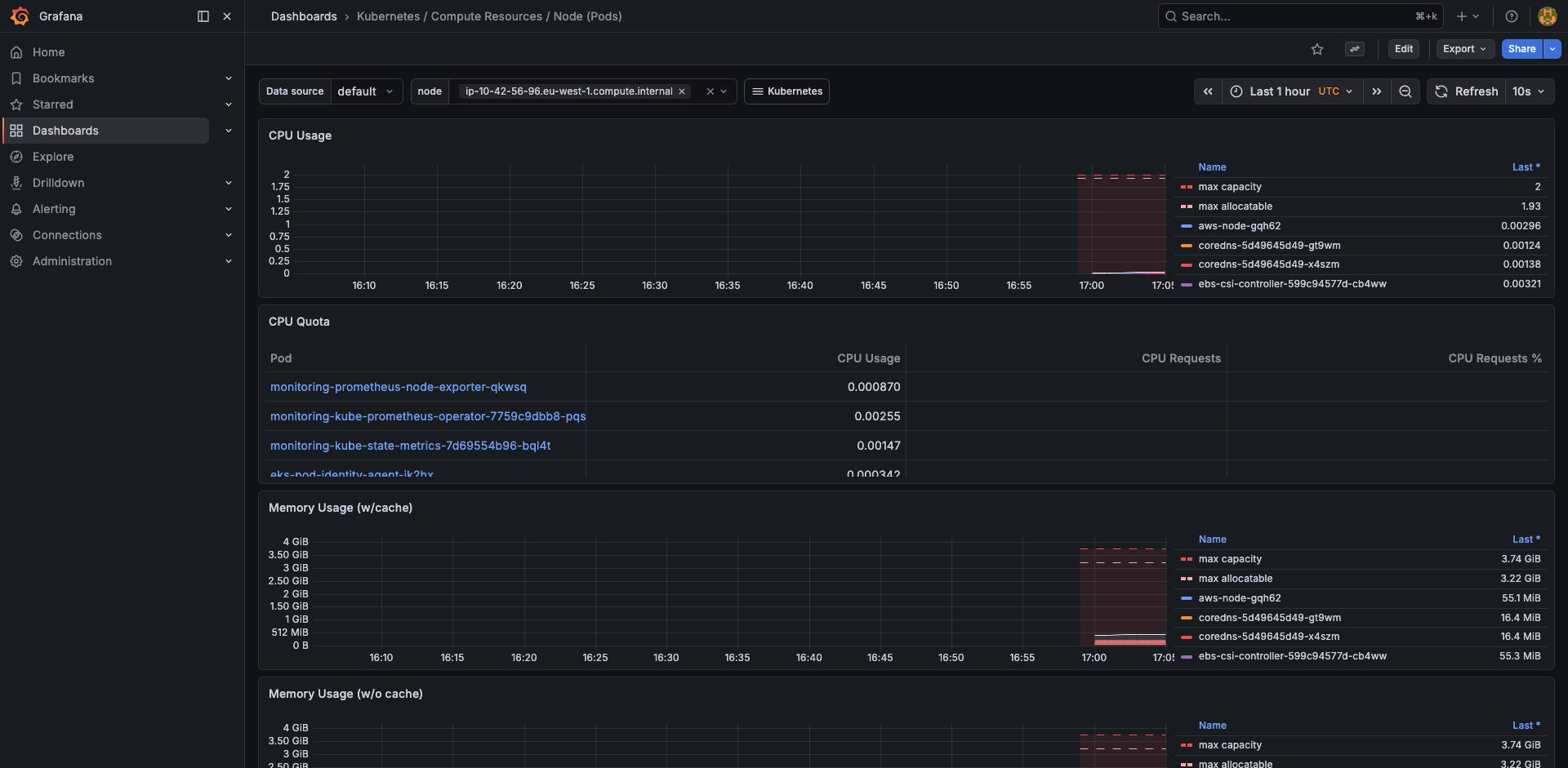
Drill into individual nodes to see per-pod resource consumption. This is where you spot noisy neighbors, pods that request 500m CPU but never use more than 10m.
Pod Resources
The pod-level dashboard shows container-level resource usage, requests, and limits over time. Essential for tuning VPA recommendations or catching memory leaks.
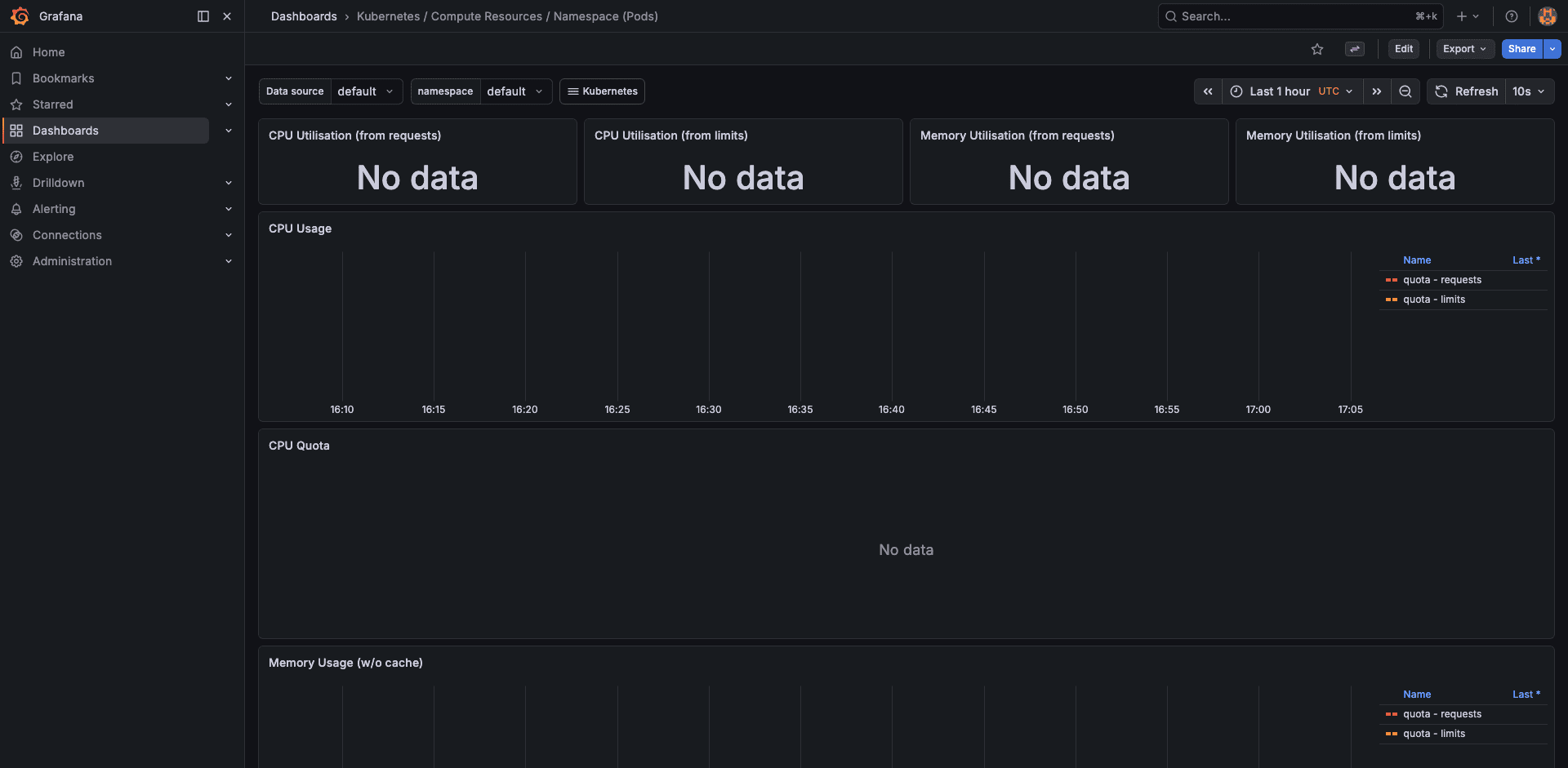
Namespace Resources
Compare resource consumption across namespaces. On a multi-tenant cluster, this dashboard answers “which team is using the most capacity” without querying the API server.
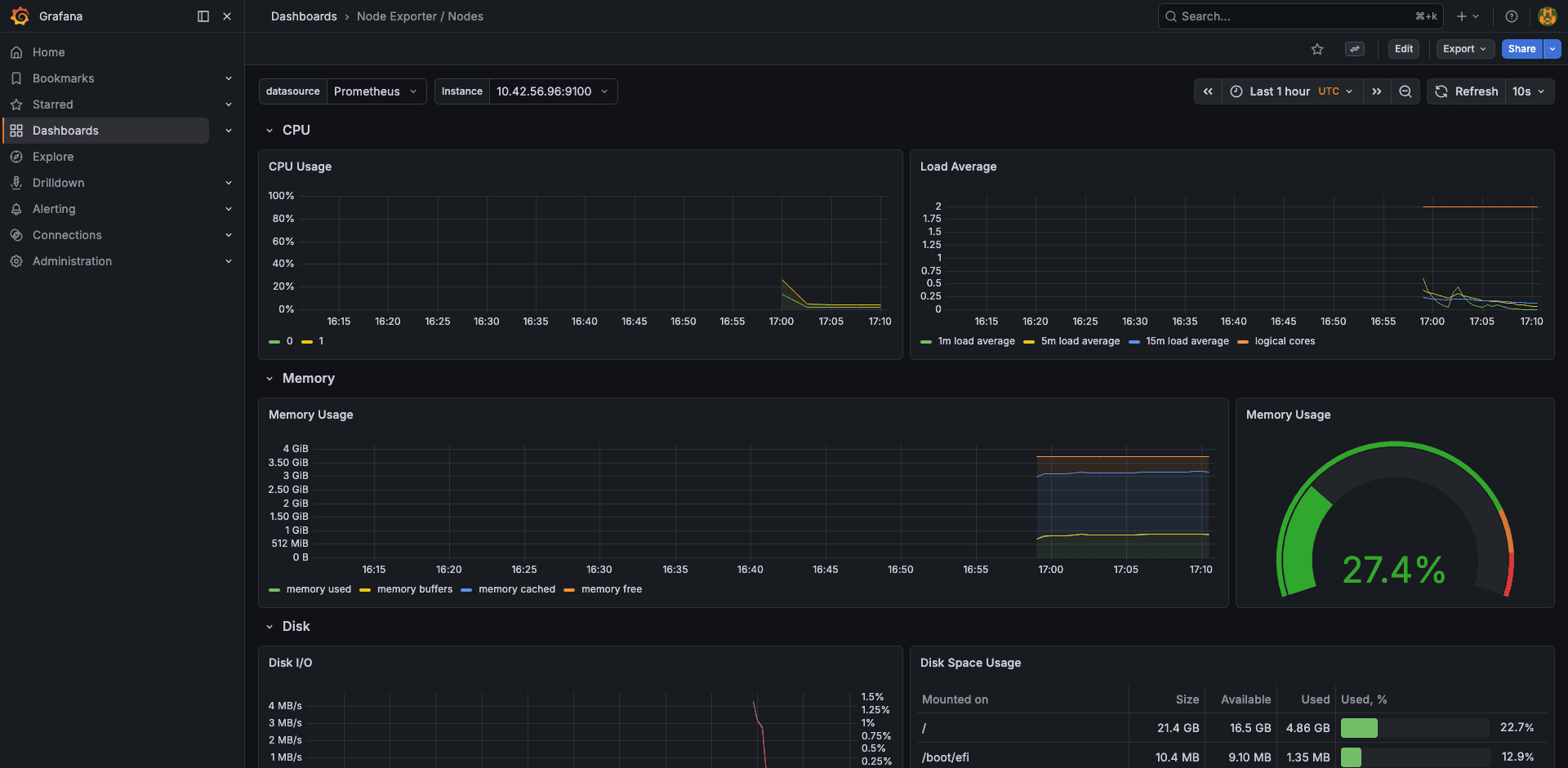
Node Exporter
The node-exporter dashboard shows host-level metrics: CPU by mode (user, system, iowait), memory breakdown (used, cached, buffers), disk throughput, and network I/O. Our test node showed 27.4% memory usage.
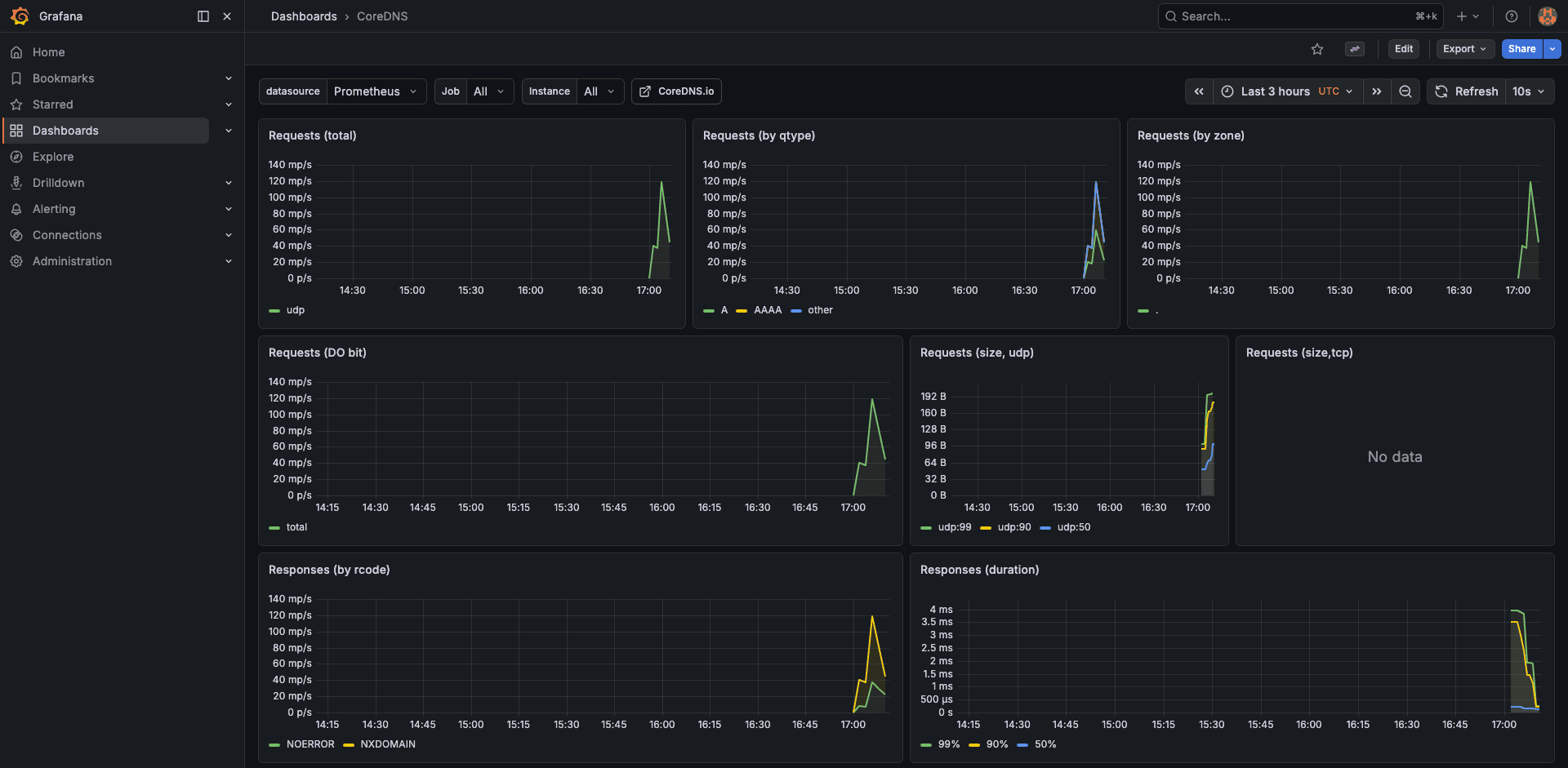
CoreDNS
DNS latency is a silent cluster killer. The CoreDNS dashboard shows request rate, cache hit ratio, and per-upstream latency. On EKS, high DNS latency often points to the VPC resolver throttle (1024 packets/second per ENI).
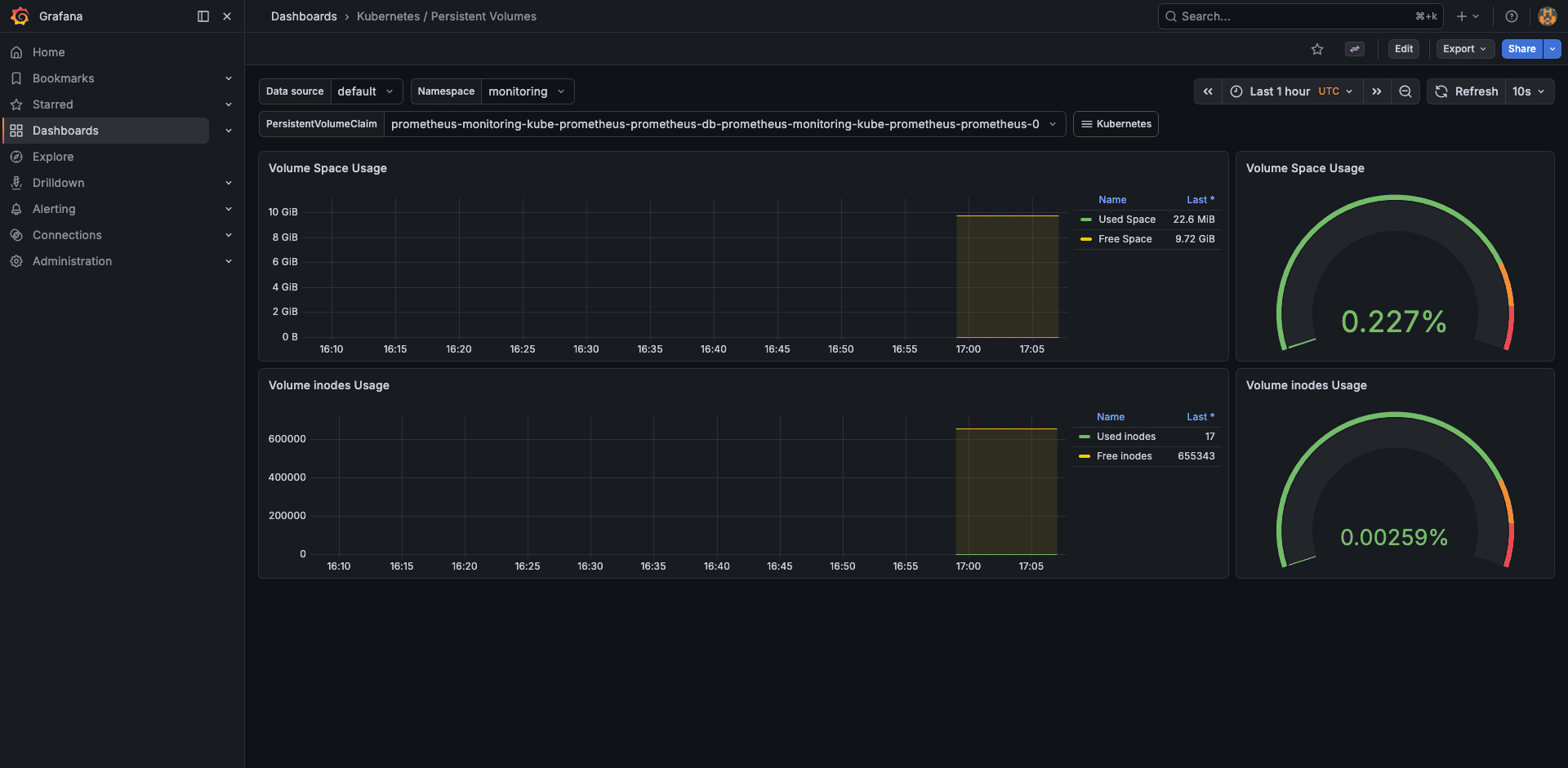
Persistent Volumes
Track PV usage, capacity, and inode consumption. This dashboard alerts you before an EBS volume fills up and causes a Prometheus TSDB crash.
AlertManager
The AlertManager dashboard shows active alerts, notification success/failure rates, and silenced alerts. Useful for verifying that Slack notifications are actually being delivered.
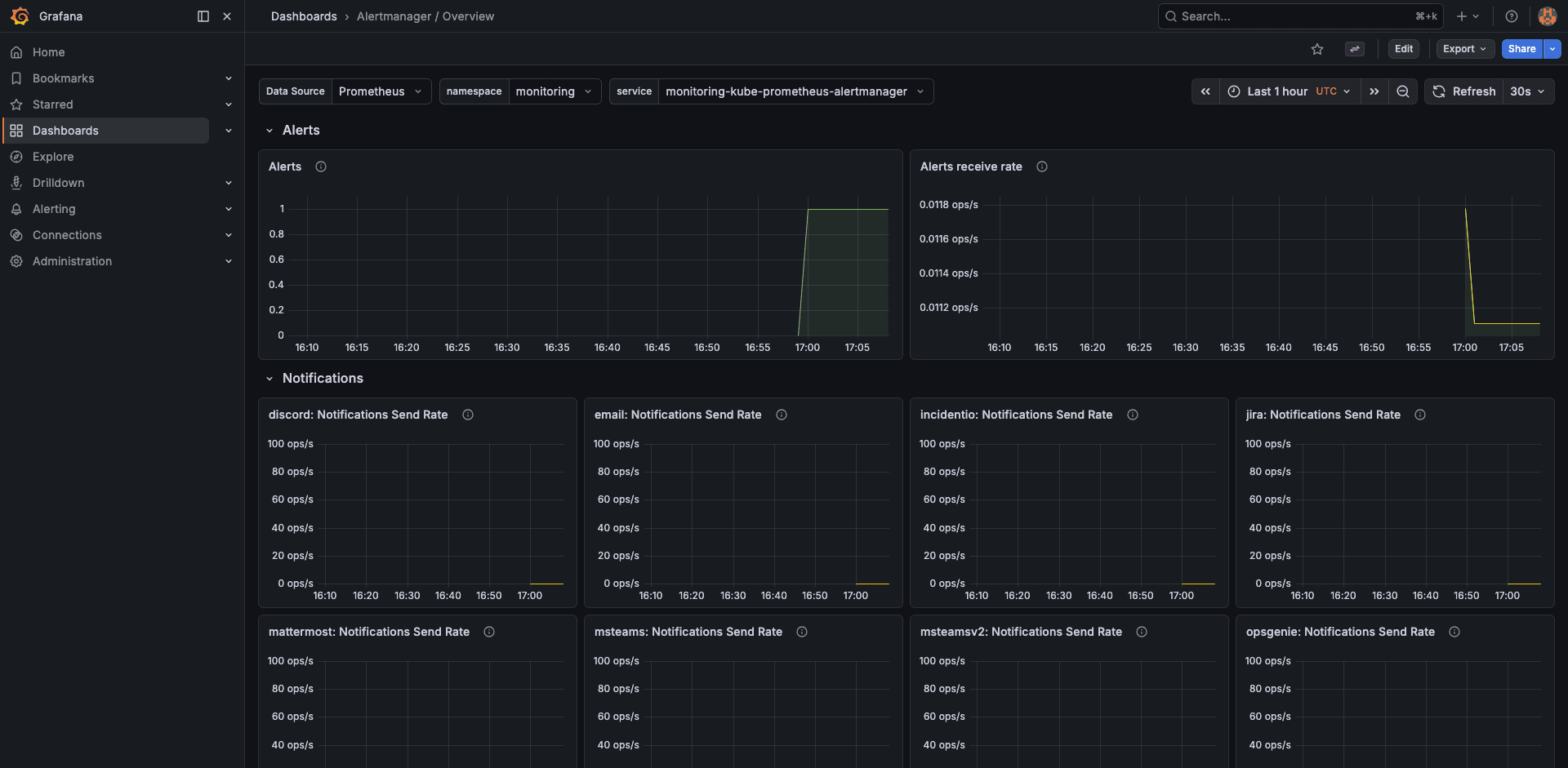
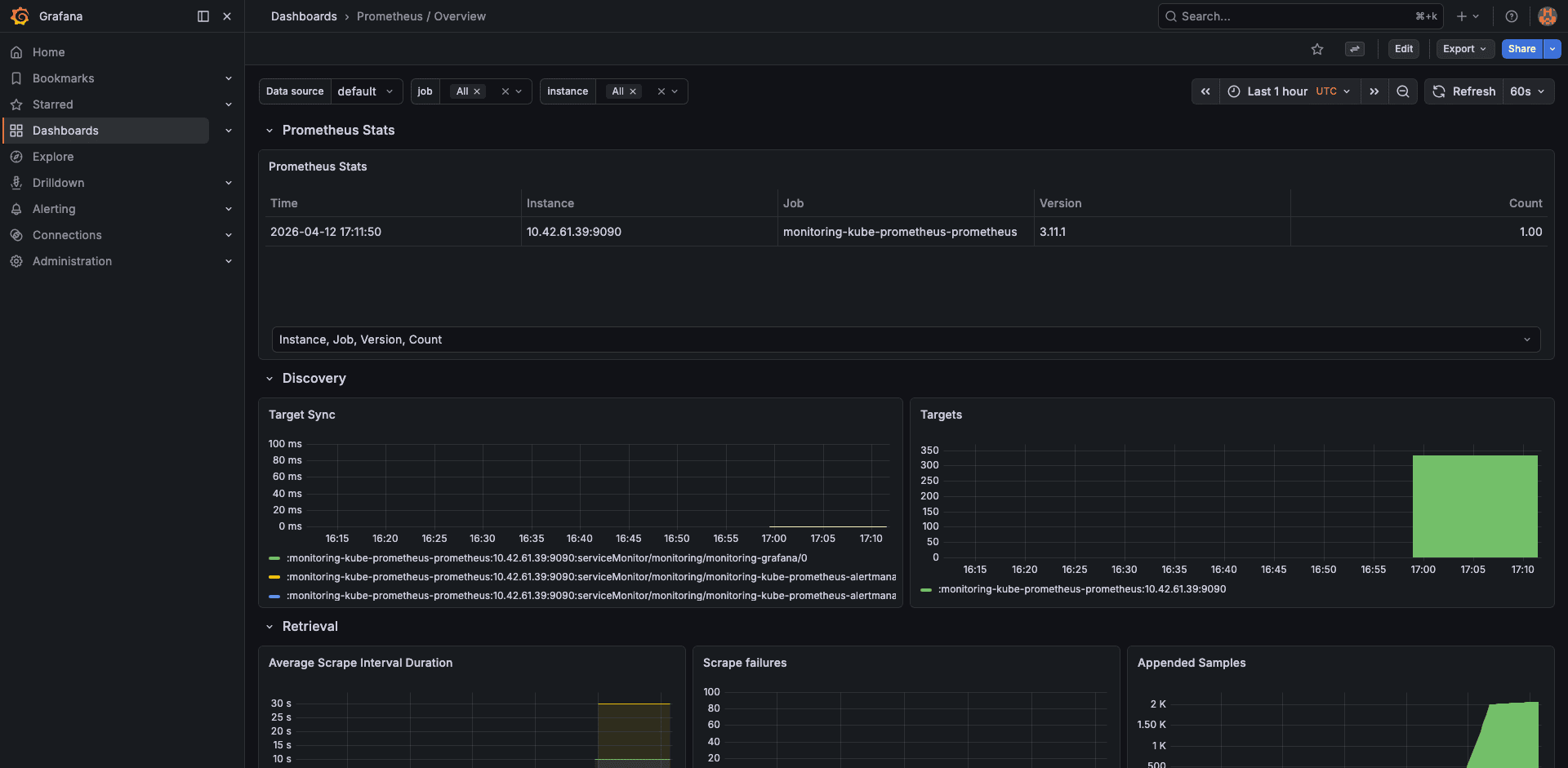
Prometheus Self-Monitoring
Prometheus monitors itself. This dashboard shows scrape duration, sample ingestion rate, TSDB block count, WAL size, and head chunks. When Prometheus gets slow, check here first.
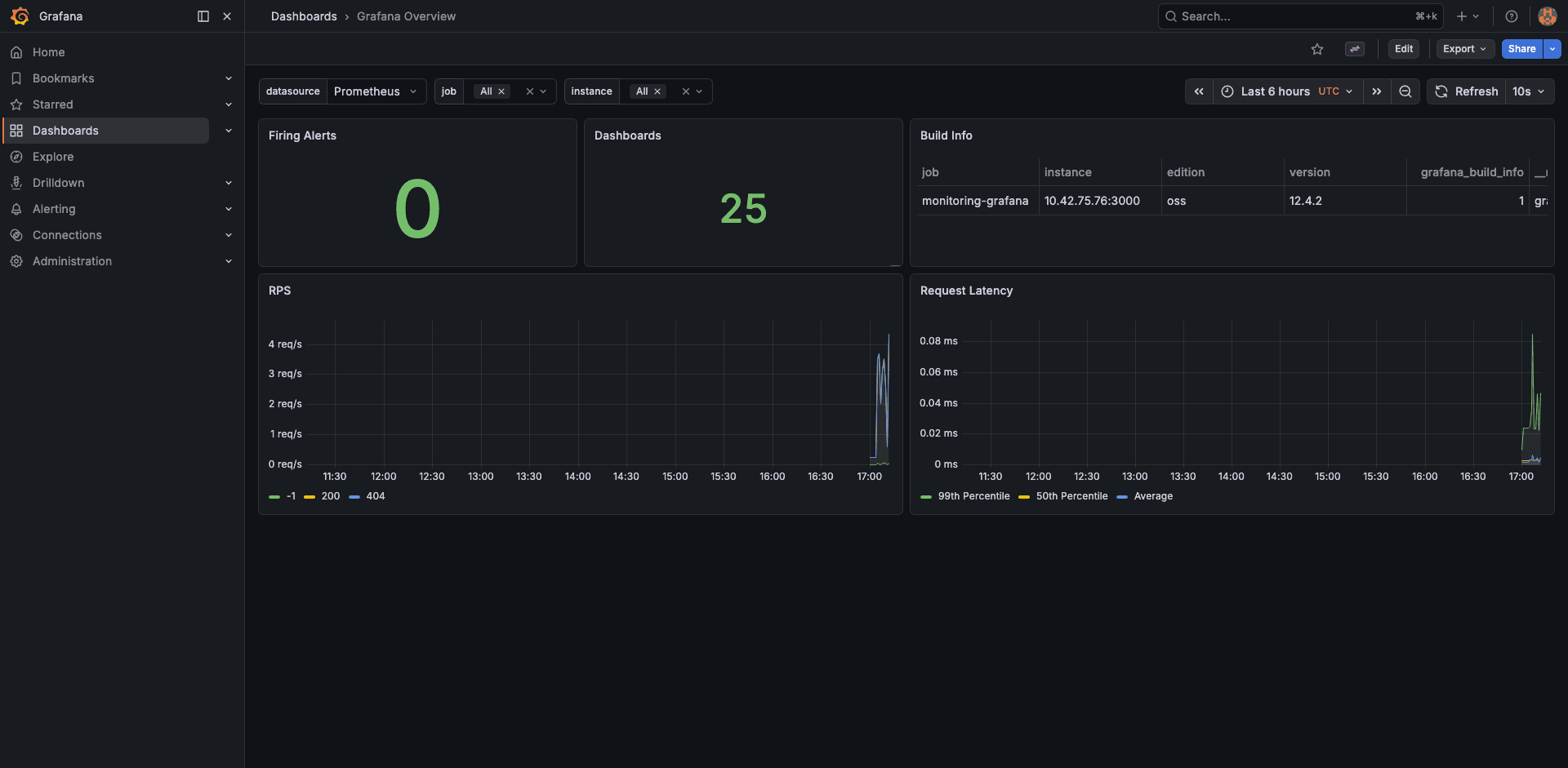
Grafana Overview
Finally, the Grafana overview shows dashboard render times, active sessions, and data source query latency. Not critical for day-to-day ops, but helpful when debugging slow-loading dashboards.
Configure AlertManager for Slack
Alerts are only useful if someone sees them. Add Slack webhook configuration to your Helm values and upgrade the release.
Add this block under the alertmanager section in prom-values.yaml:
alertmanager:
  config:
    global:
      resolve_timeout: 5m
    route:
      receiver: 'slack-notifications'
      group_by: ['alertname', 'namespace']
      group_wait: 30s
      group_interval: 5m
      repeat_interval: 4h
    receivers:
      - name: 'slack-notifications'
        slack_configs:
          - api_url: 'https://hooks.slack.com/services/YOUR/WEBHOOK/URL'
            channel: '#alerts-eks'
            send_resolved: true
            title: '{{ .GroupLabels.alertname }}'
            text: >-
              {{ range .Alerts }}
              *Alert:* {{ .Labels.alertname }}
              *Namespace:* {{ .Labels.namespace }}
              *Severity:* {{ .Labels.severity }}
              *Description:* {{ .Annotations.description }}
              {{ end }}
Apply the updated values:
helm upgrade kube-prom-stack prometheus-community/kube-prometheus-stack \
  --namespace monitoring \
  -f prom-values.yaml \
  --wait
Verify by triggering a test alert. Kill a node-exporter pod and watch for the Slack message within 30 seconds.
Persistent Storage Considerations
The Prometheus TSDB stores all scraped metrics on the PVC. With a 10Gi volume and 15-day retention, a 2-node cluster uses about 2-3 GiB. For larger clusters (50+ nodes with many custom metrics), plan for 50-100Gi and consider increasing the retention period only if you have the storage budget.
EBS volumes are AZ-bound. If the Prometheus pod moves to a node in a different AZ, the PVC cannot follow. Use a nodeAffinity or topologySpreadConstraints to pin Prometheus to nodes in the same AZ as its volume. Alternatively, use EBS multi-attach (io2 Block Express) or switch to EFS for cross-AZ access, though EFS latency is higher.
Production Recommendations
For clusters with more than 20 nodes, consider these adjustments:
- Increase Prometheus memory: set requests to 2Gi and limits to 4Gi. Each active time series consumes about 1-2 KB of memory in the head block
- Use remote write: ship metrics to a managed service (Amazon Managed Prometheus, Grafana Cloud, Thanos) for long-term retention beyond what a single PVC can handle
- Scrape interval tuning: the default 30-second scrape interval is fine for most use cases. Reducing it to 15s doubles storage and memory consumption
- Drop high-cardinality metrics: use
metricRelabelingsto drop metrics you never query. Theapiserver_request_duration_seconds_bucketmetric alone generates thousands of time series - Separate Grafana ingress: expose Grafana through an ALB with OIDC authentication instead of port-forwarding. The AWS Load Balancer Controller guide shows how to set up ALB Ingress with SSL termination
For cost visibility into the monitoring stack itself, Kubecost can show exactly how much Prometheus and Grafana cost per month in compute, storage, and network.
Troubleshooting
PVC stuck in Pending state
This is the most common issue on fresh EKS clusters. It means the EBS CSI driver is either not installed or its IRSA role does not have the ec2:CreateVolume permission. Check the CSI driver pods:
kubectl get pods -n kube-system -l app=ebs-csi-controllerIf no pods are listed, install the EBS CSI driver addon. If the pods exist but the PVC is still Pending, describe the PVC and check events:
kubectl describe pvc -n monitoring prometheus-kube-prom-stack-prometheus-db-prometheus-0Look for “could not create volume in EC2” or “Access Denied” messages pointing to the IRSA role.
Node-exporter pods stuck in Pending with taints
The node-exporter DaemonSet needs to run on every node, including those with taints (like Karpenter-managed Spot nodes). Add tolerations to the DaemonSet via Helm values:
prometheus-node-exporter:
  tolerations:
    - operator: Exists
This tells the DaemonSet to tolerate all taints, ensuring coverage on every node.
Missing control plane metrics (etcd, scheduler, controller-manager)
EKS is a managed control plane. AWS does not expose etcd, kube-scheduler, or kube-controller-manager endpoints to customers. The dashboards for these components will show “No data”. This is expected behavior, not a bug. Disable the corresponding scrape jobs in your Helm values (which we already did) to stop the noisy scrape-failure alerts.
Prometheus OOMKilled
If Prometheus restarts with OOMKilled, the memory limit is too low for the number of active time series. Check the current series count:
kubectl exec -n monitoring prometheus-kube-prom-stack-prometheus-0 -c prometheus -- \
  promtool tsdb analyze /prometheus
Increase the memory limit in your Helm values, or reduce cardinality by dropping expensive metrics with metricRelabelings.
Cleanup
Uninstall the Helm release and delete the namespace. The PVCs are not deleted automatically, so remove them explicitly:
helm uninstall kube-prom-stack -n monitoring
kubectl delete pvc -n monitoring --all
kubectl delete namespace monitoring
The EBS volumes backing the PVCs will be deleted by the CSI driver since the reclaim policy is Delete.
FAQ
How much memory does Prometheus need on EKS?
As a baseline, 1Gi handles a 5-node cluster with default scrape targets. Each additional node adds roughly 500-1000 active time series from the node-exporter. For a 50-node cluster, allocate at least 4Gi. The prometheus_tsdb_head_series metric tells you the exact count.
Can I use Amazon Managed Prometheus instead?
Yes. AMP is a managed Prometheus-compatible service that handles storage and scaling. You configure remoteWrite in the Prometheus spec to ship metrics to AMP, then point Grafana at AMP as a data source. You still run Grafana yourself (or use Amazon Managed Grafana). The kube-prometheus-stack chart supports this via the prometheus.prometheusSpec.remoteWrite array.
Why are etcd dashboards empty on EKS?
EKS is a managed control plane. AWS runs etcd, kube-scheduler, and kube-controller-manager in their own infrastructure and does not expose the metrics endpoints. Disable these scrapers in the Helm values to avoid false alerts.
How do I expose Grafana externally with HTTPS?
Create an Ingress resource with the alb.ingress.kubernetes.io annotations and an ACM certificate ARN. The AWS Load Balancer Controller guide covers this pattern. Add OIDC authentication annotations to restrict access to your team.
What is the storage cost for 15 days of metrics on a small cluster?
A 2-node cluster with default scrape targets generates about 2-3 GiB of TSDB data over 15 days. With gp3 at $0.08/GiB-month, that is under $1/month for the Prometheus volume alone. Grafana and AlertManager volumes add another $0.80/month. For detailed cost breakdowns, the AWS costs guide covers EBS pricing tiers.