Most backup solutions fall into two camps: agent-based tools that require manual scripting on every server, or enterprise platforms that cost more than the servers they protect. UrBackup sits between those extremes. It runs a central server with a web dashboard, auto-discovers clients on your LAN, and handles both file and image backups with built-in deduplication. Open source, no license caps on clients, and the whole thing deploys in under 10 minutes.
This guide covers a full deployment: UrBackup server on Ubuntu 24.04, clients on Rocky Linux 10 and Debian 13, file backups of /home and /etc, backup browsing and restore through the web interface, retention policies, and the common issues you will hit on RHEL-based systems with SELinux. Every command and screenshot comes from real VMs.
Tested April 2026 on Ubuntu 24.04.4 LTS (server), Rocky Linux 10.1, and Debian 13.4 with UrBackup Server 2.5.36 and Client 2.5.29
How UrBackup Works
UrBackup uses a client-server model. The server stores all backup data and exposes a web interface for management. Clients run a lightweight daemon that auto-discovers the server via UDP broadcast on the local network. Once connected, the server initiates backups on a schedule you configure.
Two backup types are available. File backups capture specific directories (like /home, /etc, /var/www) with cross-client deduplication. Image backups snapshot entire filesystems using LVM snapshots or btrfs, producing full disk images suitable for bare-metal restores.
Network ports to keep in mind:
| Port | Protocol | Direction | Purpose |
|---|---|---|---|
| 55413 | TCP | Server | FastCGI (internal) |
| 55414 | TCP | Server | Web interface |
| 55415 | TCP | Server | Internet client connections |
| 35621 | TCP | Client | File transfer |
| 35622 | UDP | Client | Server discovery |
| 35623 | TCP | Client | Commands and image transfer |
Prerequisites
- Server: Ubuntu or Debian (UrBackup provides .deb packages; RHEL support requires building from source)
- Clients: Any Linux distribution (universal .sh installer supports Rocky, Debian, Ubuntu, SUSE, and more)
- All machines on the same network (or routable with internet mode enabled)
- Root or sudo access on server and clients
- Sufficient storage on the server for backup data
Install UrBackup Server on Ubuntu / Debian
Download the latest server package from the official site and install it:
wget https://hndl.urbackup.org/Server/latest/urbackup-server_amd64.deb -O /tmp/urbackup-server.deb
sudo apt install -y /tmp/urbackup-server.deb
The installer creates a urbackup system user, sets up the database at /var/urbackup, and starts the service automatically. Verify it is running:
sudo systemctl status urbackupsrvThe output confirms the server is active:
● urbackupsrv.service - LSB: Server for doing backups
     Active: active (running) since Fri 2026-04-03 11:29:43 UTC; 2min ago
   Main PID: 13785 (urbackupsrv)
     Status: "Taking your SQL requests now..."
The web interface is now available on port 55414. If you are running a firewall, open the required ports:
sudo ufw allow 55413/tcp
sudo ufw allow 55414/tcp
sudo ufw allow 55415/tcp
Secure the Web Interface
The first time you access the web UI, there is no authentication. Anyone on the network can reach the dashboard. Set an admin password immediately using the server CLI:
sudo urbackupsrv reset-admin-pw --password 'YourSecurePassword'The server confirms the account creation:
User account "admin" not present. Created admin user account with specified password.
Updated admin rights.
Open the web interface at http://10.0.1.50:55414 (replace with your server IP). You will see a password prompt:
Install UrBackup Client on Rocky /AlmaLinux
UrBackup provides a universal shell installer for all Linux distributions. Download and run it:
VER=2.5.29
wget "https://hndl.urbackup.org/Client/${VER}/UrBackup%20Client%20Linux%20${VER}.sh" -O /tmp/urbackup-client.sh
sudo bash /tmp/urbackup-client.sh
The installer detects your distribution and snapshot support. For non-interactive installs (useful for automation), add the silent flag:
sudo bash /tmp/urbackup-client.sh -- silentOn Rocky Linux 10, the installer output confirms a successful installation:
Installation of UrBackup Client 2.5.29...
Assuming RedHat (derivative) system
Detected systemd
Detected architecture x86_64-linux-glibc
Installed daemon configuration at /etc/sysconfig/urbackupclient...
Info: Restoring from web interface is disabled per default.
Installing systemd unit...
Starting UrBackup Client service...
Successfully started client service. Installation complete.
Open the required ports on the client firewall. Rocky Linux 10 uses firewalld:
sudo firewall-cmd --permanent --add-port=35621-35623/tcp --add-port=35622/udp
sudo firewall-cmd --reload
If firewalld is not installed (common on minimal cloud images), install it first with:
sudo dnf install -y firewalldStart service
sudo systemctl enable --now firewalldInstall UrBackup Client on Debian 13
The same installer works on Debian. Download and run it:
wget 'https://hndl.urbackup.org/Client/2.5.29/UrBackup%20Client%20Linux%202.5.29.sh' -O /tmp/urbackup-client.sh
sudo bash /tmp/urbackup-client.sh -- silent
Debian’s output is nearly identical, with the correct paths for Debian-based systems:
Installation of UrBackup Client 2.5.29...
Detected Debian (derivative) system
Detected systemd
Installed daemon configuration at /etc/default/urbackupclient...
Starting UrBackup Client service...
Successfully started client service. Installation complete.
Open firewall ports on Debian with ufw:
sudo ufw allow 35621:35623/tcp
sudo ufw allow 35622/udp
Configure Backup Paths on Clients
By default, UrBackup clients do not have any backup paths configured. The server will attempt to back up the client, fail with “no backup dirs”, and enter an exponential backoff. Add the directories you want to protect using the client CLI tool:
sudo /usr/local/bin/urbackupclientctl add-backupdir -d /home -n home
sudo /usr/local/bin/urbackupclientctl add-backupdir -d /etc -n etc
Verify the configured paths:
sudo /usr/local/bin/urbackupclientctl list-backupdirsThe output shows both directories registered for backup:
PATH  NAME FLAGS
----- ---- ----------------------------------------------
/home home follow_symlinks,symlinks_optional,share_hashes
/etc  etc  follow_symlinks,symlinks_optional,share_hashes
Run the same commands on all client machines. The server discovers clients automatically via UDP broadcast and starts the first backup within a few minutes.
Verify Clients in the Web Dashboard
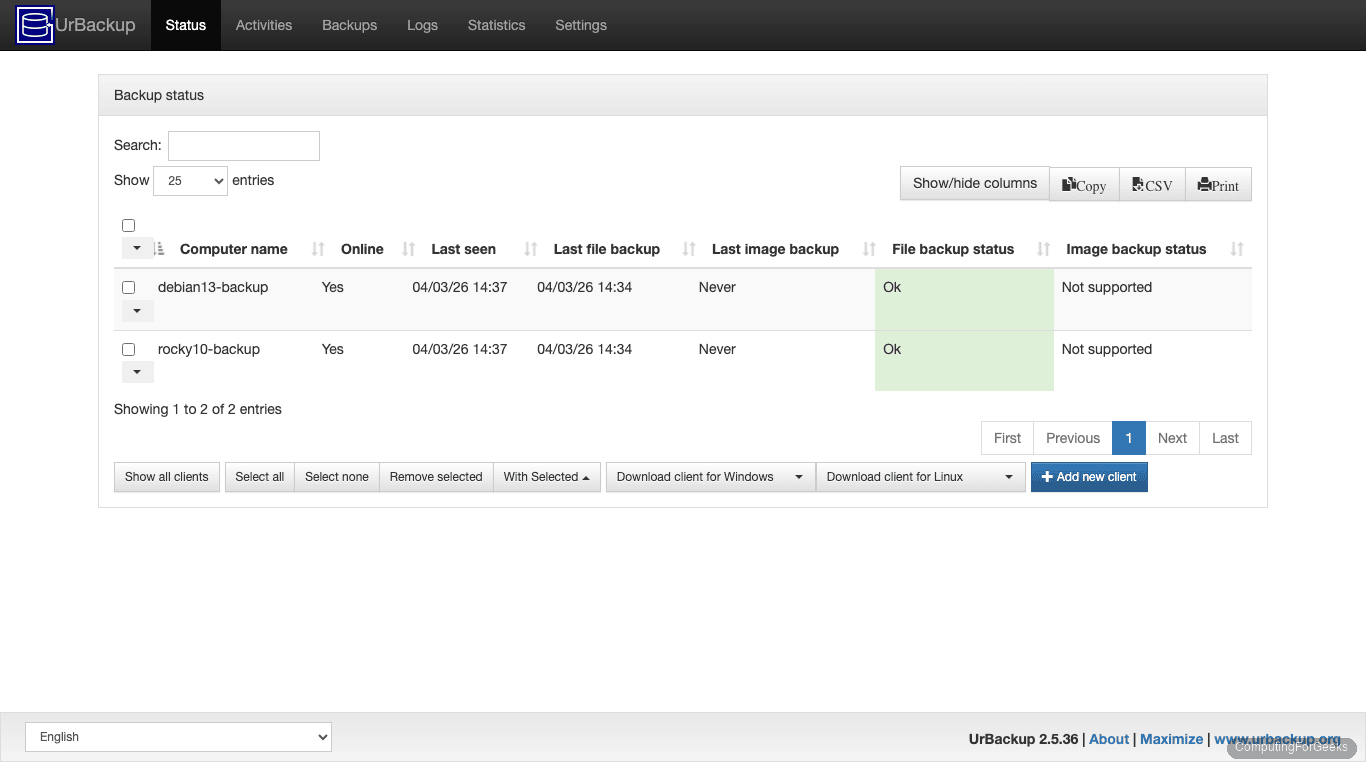
Open the UrBackup web interface and click the Status tab. Both clients should appear with green “Ok” indicators:
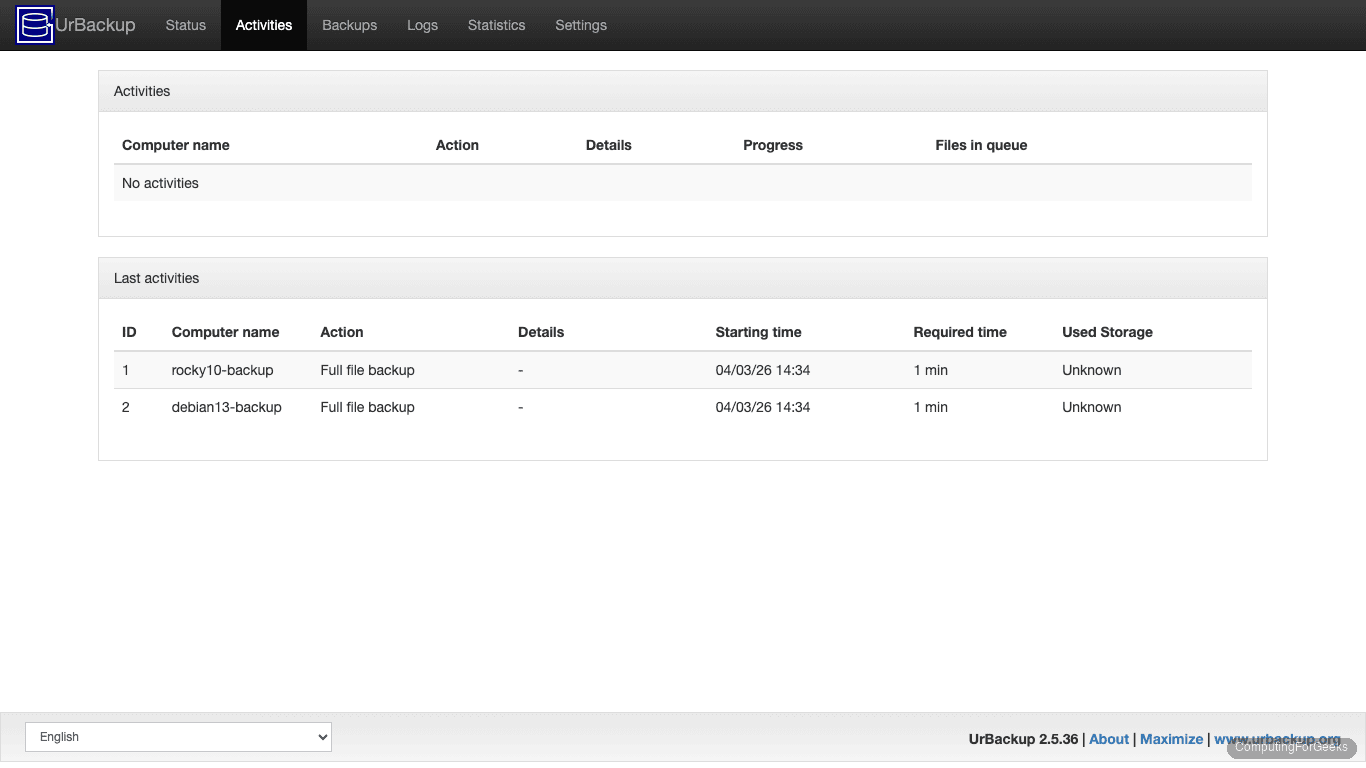
The Activities tab shows backup history with timing data. In our test, both initial full file backups completed in about 1 minute each:
File Backup Settings
The default backup schedule runs an incremental file backup every 5 hours and a full backup every 30 days. Adjust these under Settings > File Backups:
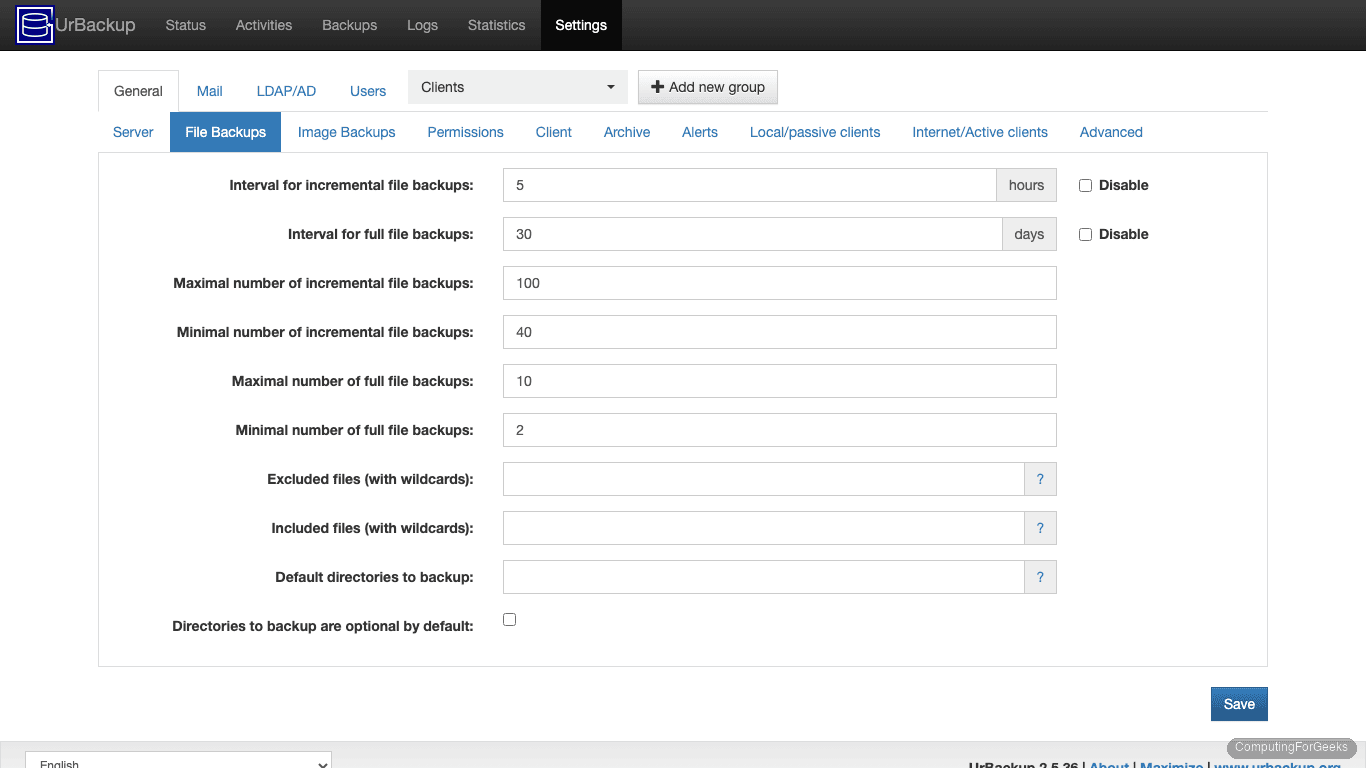
Key settings to configure:
- Interval for incremental file backups: How often incremental backups run (default: 5 hours)
- Interval for full file backups: How often a full backup runs (default: 30 days)
- Minimal/Maximal number of incremental/full backups: Controls retention. The server keeps at least the minimum and deletes beyond the maximum
- Excluded files: Wildcard patterns for files to skip (e.g.,
*.log;*.tmp;*.cache) - Default directories to backup: Server-side default paths that apply when clients have no paths configured
These settings apply globally to all clients in the “Clients” group. Override them per-client by selecting a specific client from the dropdown at the top of the settings page.
Browse and Restore Files
Click the Backups tab to see all clients with their most recent backup times:
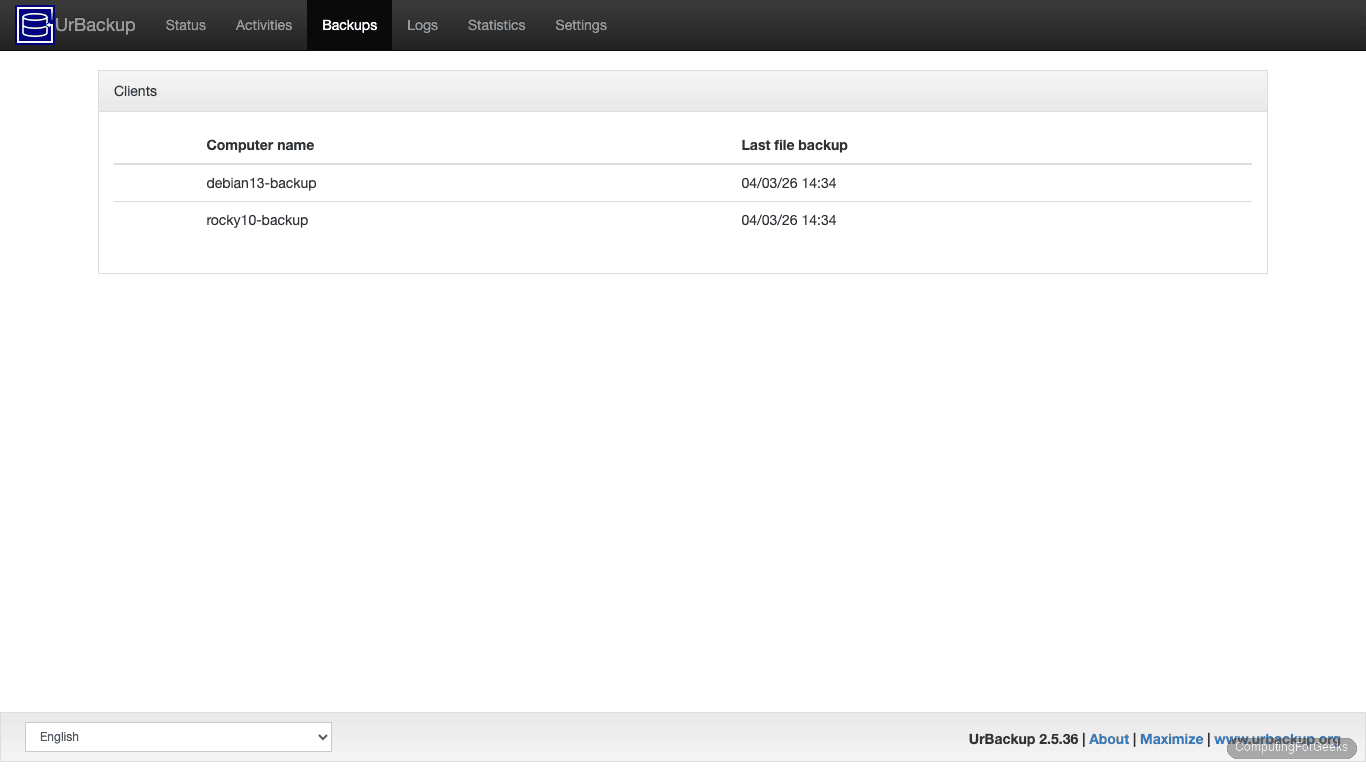
Click a client name to see its backup history. Each entry shows the backup time, whether it was incremental, and the total size:
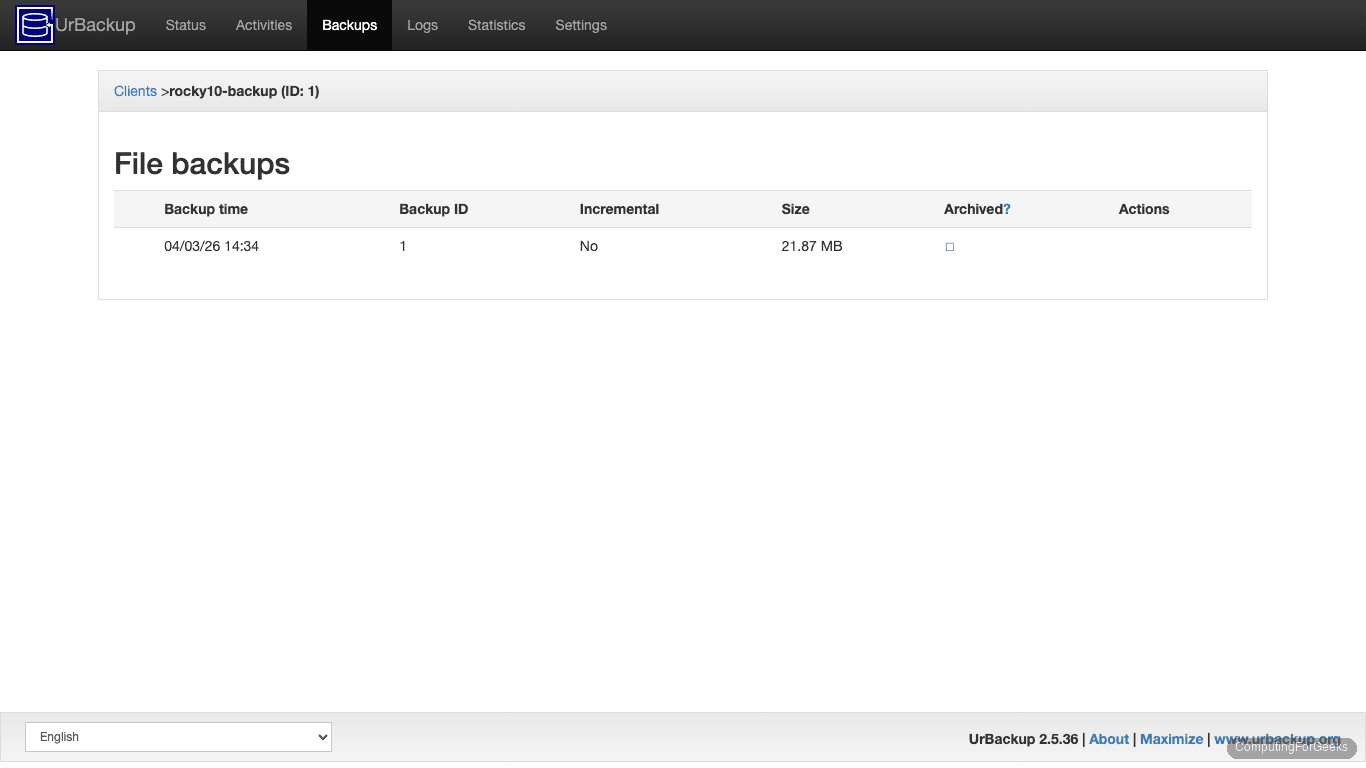
The Rocky Linux 10 client’s first full backup was 21.87 MB, covering /home and /etc. Click on a backup timestamp to browse individual files and download them as a ZIP archive.
For CLI-based restores directly on the client, enable web restore in the client configuration file. On Rocky Linux, edit /etc/sysconfig/urbackupclient; on Debian/Ubuntu, edit /etc/default/urbackupclient. The urbackupclientctl tool also supports restores:
sudo /usr/local/bin/urbackupclientctl statusThe status output shows connection state, running processes, and server details:
{
  "internet_connected": false,
  "internet_status": "wait_local",
  "last_backup_time": 1775216102,
  "running_processes": [],
  "servers": [{"internet_connection": false, "name": "192.168.1.118"}],
  "time_since_last_lan_connection": 1141
}
Retention and Archive Policies
UrBackup manages retention through two mechanisms: the min/max backup counts under Settings > File Backups, and the archive rules under Settings > Archive.
The min/max counts control short-term retention. The server never deletes below the minimum count and always deletes above the maximum. For a typical setup, keep 10 incrementals and 2 full backups as minimums.
For long-term retention (monthly or yearly archives), use the Archive tab:
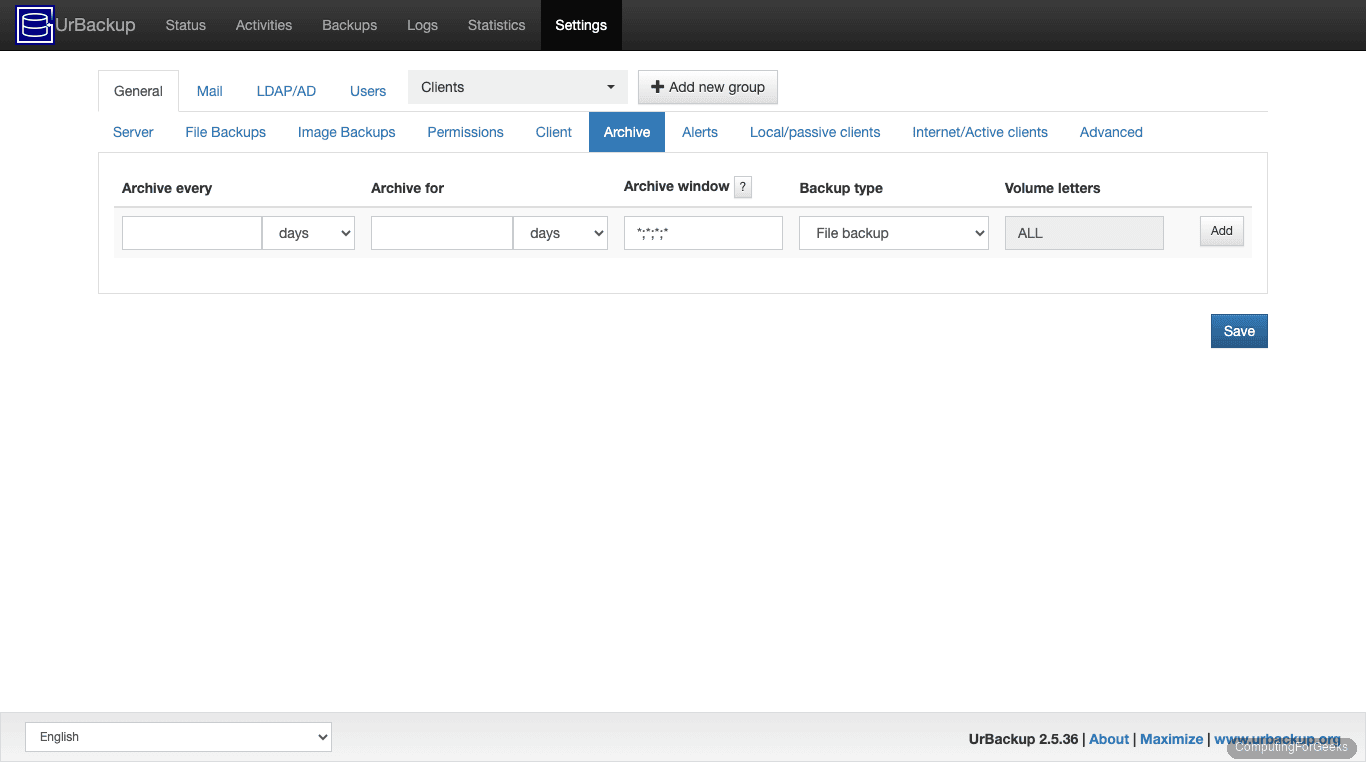
Archive rules use a cron-like “archive window” to select which backups to keep long-term. For example, to keep one backup per month for a year: set “Archive every” to 30 days, “Archive for” to 365 days, and leave the window as *;*;*;* (any time).
Server Settings and Storage
The Settings > Server tab controls where backups are stored and global server behavior:
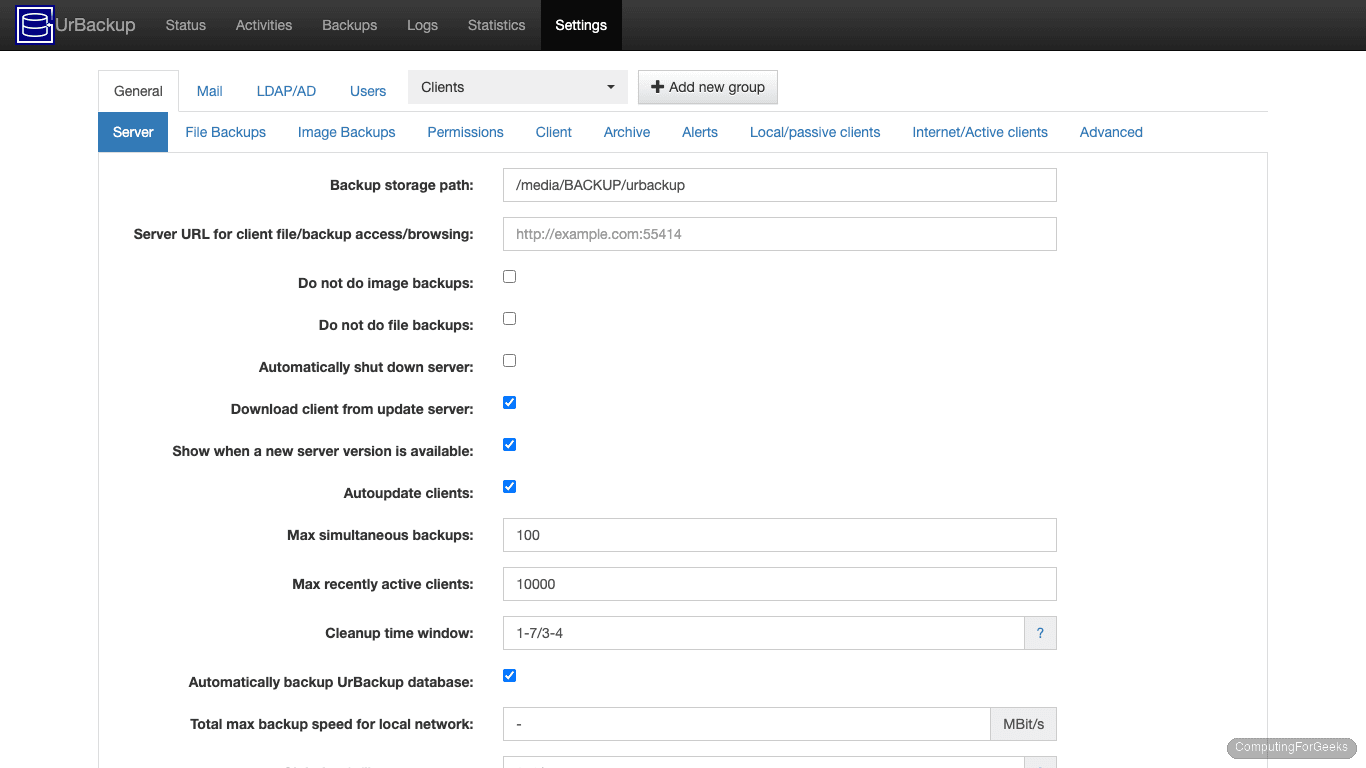
The Backup storage path defaults to /media/BACKUP/urbackup. Change this to a dedicated volume with enough space for your backup retention. A filesystem with deduplication support (like btrfs or XFS with reflinks) can significantly reduce storage usage since UrBackup uses hardlinks for incremental backups.
Other useful settings on this page:
- Max simultaneous backups: Limits concurrent backup jobs to prevent overloading the server
- Cleanup time window: When the server runs retention cleanup (default: 1-7 AM)
- Total max backup speed: Throttle network bandwidth for backups
Logs and Monitoring
The Logs tab shows errors and warnings from backup operations. Configure email notifications here by entering an email address under “Send reports to”:
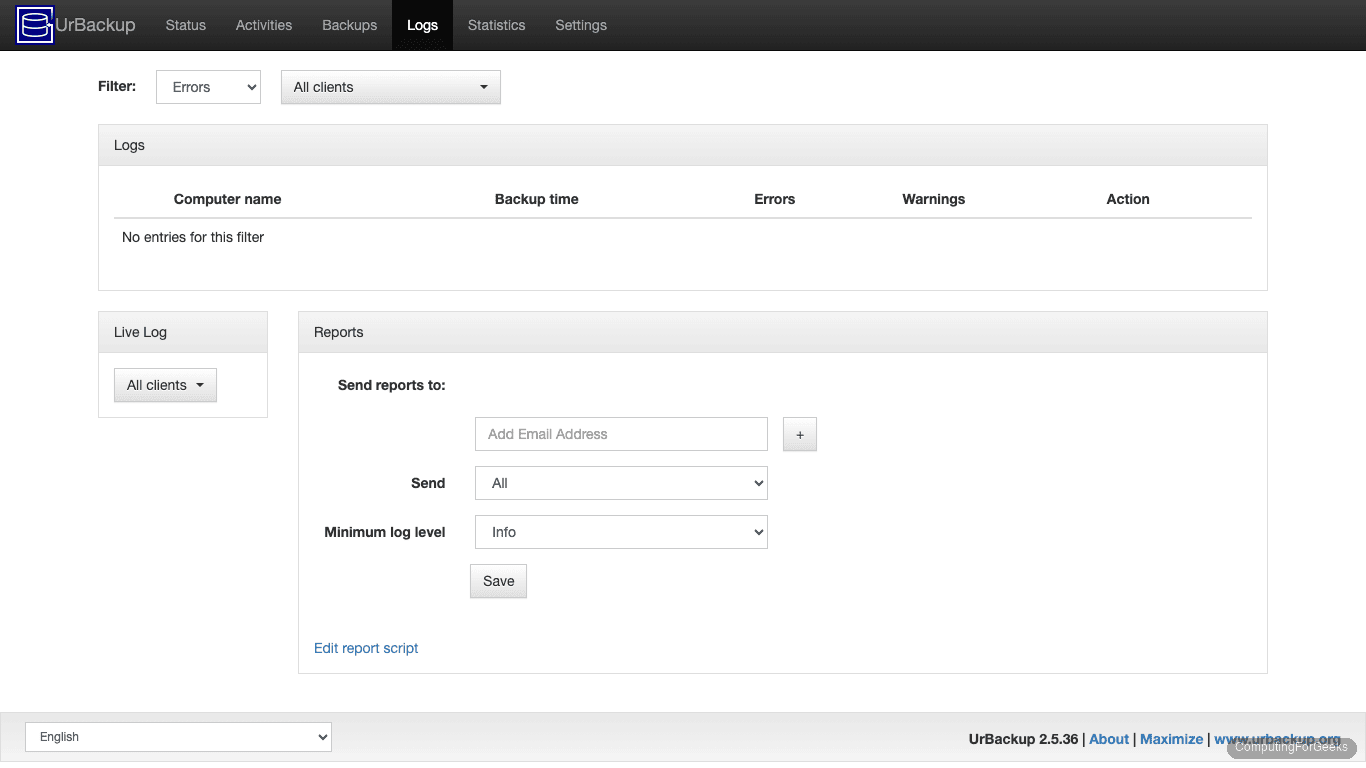
Configure the SMTP server under Settings > Mail to enable email notifications. Reports can be sent for all events, only errors, or only when backups fail.
Rocky Linux 10 vs Debian 13 vs Ubuntu 24.04
| Item | Ubuntu 24.04 (Server) | Rocky Linux 10 (Client) | Debian 13 (Client) |
|---|---|---|---|
| Server package | .deb (official) | Build from source or Docker | .deb (official) |
| Client installer | Universal .sh | Universal .sh | Universal .sh |
| Client config path | /etc/default/urbackupclient | /etc/sysconfig/urbackupclient | /etc/default/urbackupclient |
| Firewall tool | ufw | firewalld | ufw |
| SELinux/AppArmor | AppArmor (no action needed) | SELinux enforcing (monitor AVCs) | AppArmor (no action needed) |
| Image backup support | ext4 + LVM/btrfs | XFS/ext4 + LVM | ext4 + LVM/btrfs |
| Snapshot method | LVM or btrfs | LVM (default on Rocky) | LVM or btrfs |
SELinux on Rocky Linux 10
The UrBackup client runs under an unconfined domain by default, which means SELinux typically does not interfere with basic file backups. However, if you restrict the client further or use image backups that need raw disk access, check for AVC denials after the first backup:
sudo ausearch -m avc -ts recentA clean result shows <no matches>. If you see denials related to the UrBackup client accessing block devices for image backups, you may need a custom SELinux policy module. For file-only backups, no SELinux changes are required.
Client Not Appearing in Dashboard
The most common reason a client does not show up is the firewall blocking UDP port 35622 (discovery). Verify the client service is running:
sudo systemctl status urbackupclientbackendIf the service is running but the client does not appear, check that UDP broadcast traffic can reach between the server and client subnets. On the client, the status output shows the discovered server:
sudo /usr/local/bin/urbackupclientctl statusLook for the "servers" array in the JSON output. If it contains your server’s IP, discovery is working and the issue is likely firewall ports on the server side (55413-55415/tcp).
“No backup dirs” Error
This error appears in the server logs when the client has no directories configured for backup. It triggers an exponential backoff that can delay the next backup attempt by up to 40 minutes. Fix it by adding backup paths on the client (shown in the “Configure Backup Paths” section above), then either restart the server or wait for the backoff to expire.