

If you’ve been paying Docker Desktop license fees for local container development, there’s a better option. Rancher Desktop gives you a full local Kubernetes cluster, a container runtime of your choice, and every CLI tool you need, all completely free and open source.
Rancher Desktop runs K3s under the hood, which means you get a production-grade Kubernetes distribution on your laptop without the overhead of a full K8s control plane. It bundles kubectl, Helm, and your choice of containerd or dockerd (Moby) so you can build images, push to registries, and deploy to a local cluster from a single application. This guide walks through installation on macOS and Linux, runtime selection, and deploying your first workload.
Tested March 2026 | Rancher Desktop v1.22.0 on macOS (Apple Silicon), K3s included
What Rancher Desktop Includes
Rancher Desktop is not just a container runtime. It packages an entire local development stack into one application. Here’s what ships out of the box:
- K3s – Lightweight Kubernetes engine. You can select which Kubernetes version to run from the UI, and switch between versions without reinstalling anything
- Container runtime – Choose between containerd (default) or dockerd (Moby). Switchable from Preferences at any time
- kubectl – Pre-configured and pointed at your local K3s cluster
- nerdctl – Docker-compatible CLI for containerd (used when containerd is the active runtime)
- docker CLI – Available when dockerd/Moby is the active runtime
- Helm – Kubernetes package manager, ready to use
- Built-in image building – Build container images locally and use them directly in your K3s cluster without pushing to a registry
- Port forwarding – Expose Kubernetes services to your host machine through the UI or CLI
The Preferences panel lets you control CPU and memory allocation for the VM, toggle automatic updates, configure Kubernetes versions, and switch container runtimes. On Windows, there’s an additional WSL integration tab.
Install Rancher Desktop on macOS
The fastest path on macOS is Homebrew. This works on both Intel and Apple Silicon Macs.
brew install --cask rancherHomebrew downloads the appropriate binary for your architecture automatically. If you prefer a manual install, grab the DMG from the GitHub releases page and drag it to Applications.
Launch Rancher Desktop from your Applications folder. On first run, it asks you to enable Kubernetes, choose a version, and pick your container engine. Select the K8s version you need (v1.35.3 is the latest at the time of writing) and your preferred runtime.
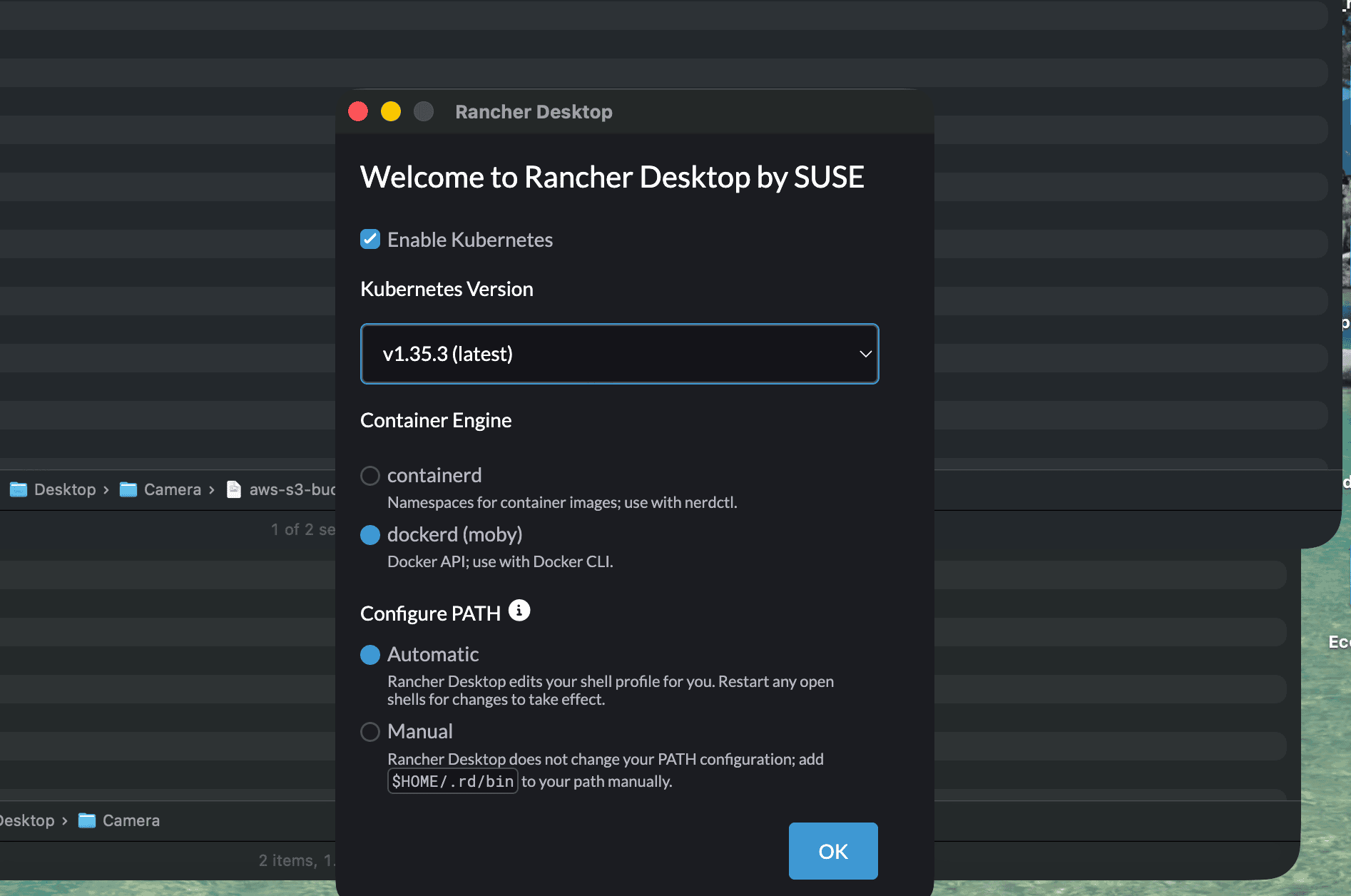
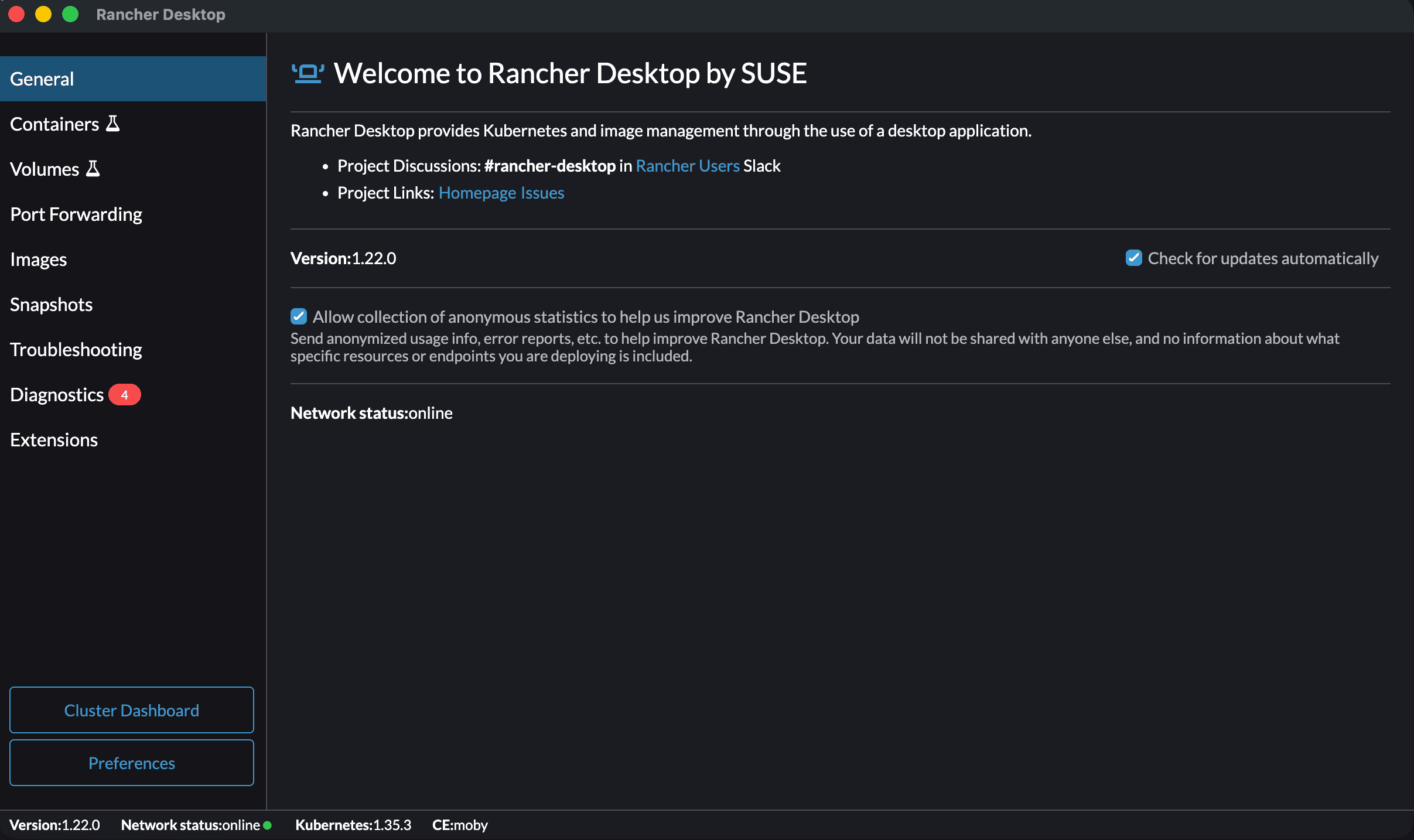
After clicking OK, Rancher Desktop provisions a Lima VM (on macOS) and pulls the K3s binary. This takes a minute or two depending on your internet connection. Once the status bar shows the Kubernetes version and “Network status: online”, your local cluster is ready.
Install Rancher Desktop on Linux
Linux users have two options: the AppImage (works on any distro) or native packages for specific distributions.
For the AppImage approach, download the latest release from GitHub:
VER=$(curl -sL https://api.github.com/repos/rancher-sandbox/rancher-desktop/releases/latest | grep tag_name | head -1 | sed 's/.*"v\([^"]*\)".*/\1/')
echo "Latest version: $VER"
wget "https://github.com/rancher-sandbox/rancher-desktop/releases/download/v${VER}/Rancher.Desktop-${VER}-linux-x86_64.AppImage"
chmod +x Rancher.Desktop-${VER}-linux-x86_64.AppImage
Run the AppImage directly:
./Rancher.Desktop-${VER}-linux-x86_64.AppImageOn Ubuntu and Debian, you can also install via the .deb package from the same releases page. For Fedora and openSUSE, .rpm packages are available. The behavior is identical regardless of installation method.
Linux installations use QEMU instead of Lima for the VM backend. The first launch provisions the VM and downloads K3s, just like on macOS.
Choose Your Container Runtime
This is the first decision Rancher Desktop asks you to make, and it matters more than you might think. You can switch later from Preferences, but switching resets your local images and containers.
Open Preferences > Kubernetes to select your runtime. The two options:
containerd (default) is the runtime that Kubernetes itself uses in production. When you select containerd, you interact with containers through the nerdctl CLI, which is command-compatible with Docker. If your workflow is primarily Kubernetes-native (deploying pods, writing Helm charts, building images for k8s), containerd is the natural fit.
dockerd (Moby) gives you the familiar docker CLI. Pick this if your team’s scripts, CI pipelines, or muscle memory depend on Docker commands. It also supports Docker Compose out of the box, which containerd does not (nerdctl has experimental Compose support, but it’s not at full parity).
| Feature | containerd (nerdctl) | dockerd / Moby (docker) |
|---|---|---|
| CLI tool | nerdctl | docker |
| Docker Compose | Experimental via nerdctl | Full support |
| Kubernetes alignment | Same runtime as production K8s | Extra translation layer |
| Image build | nerdctl build | docker build |
| Resource usage | Slightly lower overhead | Comparable |
| Best for | Kubernetes-first workflows | Docker-centric teams, Compose users |
For most developers starting fresh, containerd is the better default. If you’re migrating from Docker Desktop and don’t want to change any scripts, go with dockerd.
Verify Your Setup
With Rancher Desktop running, open a terminal. The application adds its binaries to your PATH automatically.
Check that kubectl sees your local cluster:
kubectl get nodesYou should see a single node with a Ready status:
NAME                   STATUS   ROLES                  AGE   VERSION
lima-rancher-desktop   Ready    control-plane,master   5m    v1.31.4+k3s1
Verify your container runtime CLI is working. If you chose containerd:
nerdctl psOr if you chose dockerd:
docker psEither command should return an empty container list (or K3s system containers). No errors means the runtime socket is connected properly.
Confirm Helm is available:
helm versionThe output shows the Helm version bundled with your Rancher Desktop release:
version.BuildInfo{Version:"v3.17.1", GitCommit:"980d8ac", GitTreeState:"clean", GoVersion:"go1.23.5"}All three tools (kubectl, container CLI, Helm) are managed by Rancher Desktop. You don’t need to install or update them separately.
Deploy Your First Application
With the cluster running, let’s deploy something real. We’ll use a simple Nginx deployment to confirm everything works end to end. Refer to the kubectl cheat sheet if you need a refresher on common commands.
Create a deployment with two replicas:
kubectl create deployment nginx --image=nginx:latest --replicas=2Watch the pods come up:
kubectl get pods -wWithin a few seconds, both pods should show Running status:
NAME                    READY   STATUS    RESTARTS   AGE
nginx-b6485fcbb-9mhwj   1/1     Running   0          15s
nginx-b6485fcbb-wbxzq   1/1     Running   0          15s
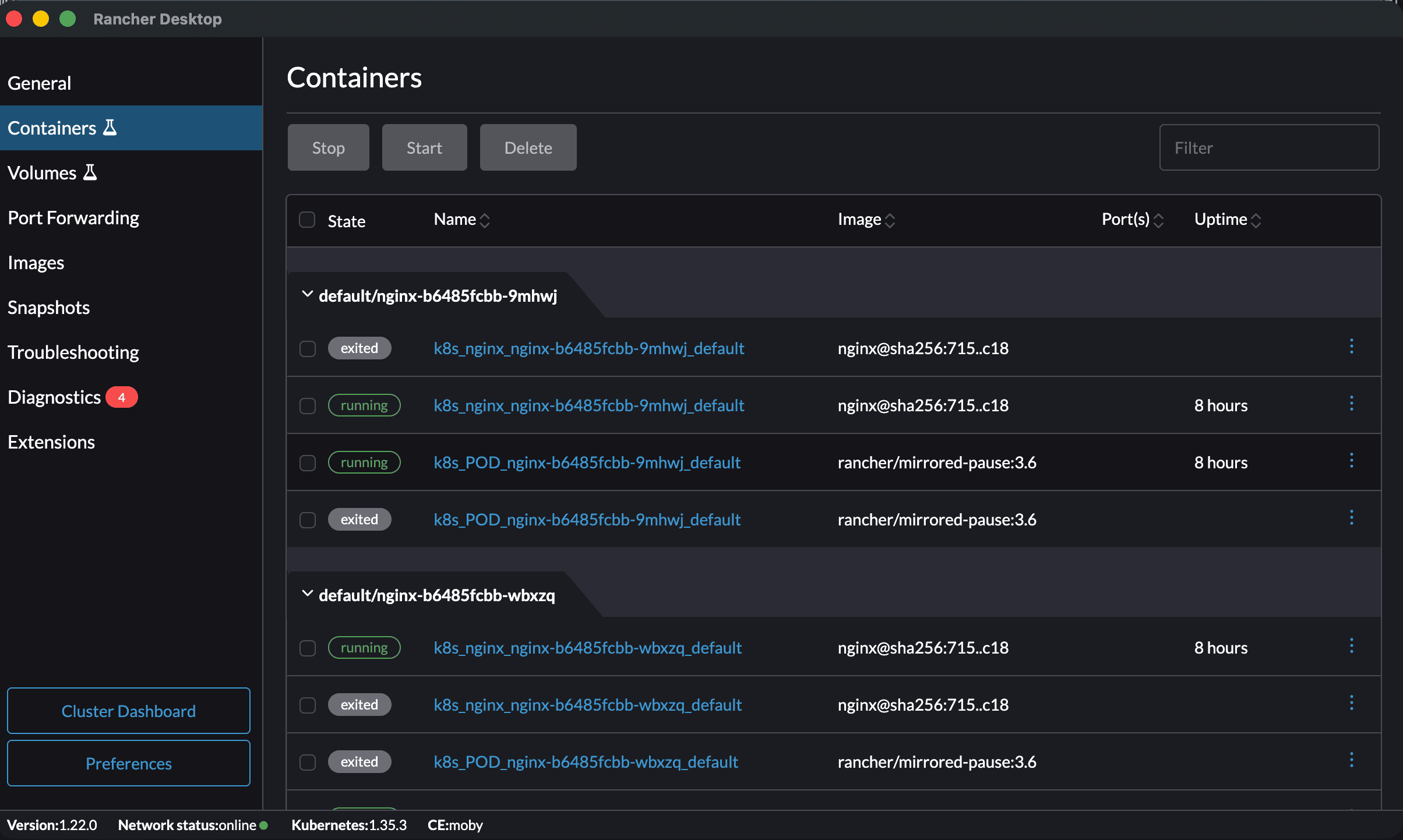
You can also see the running containers in the Rancher Desktop Containers tab, which shows each pod’s containers along with their images and uptime.
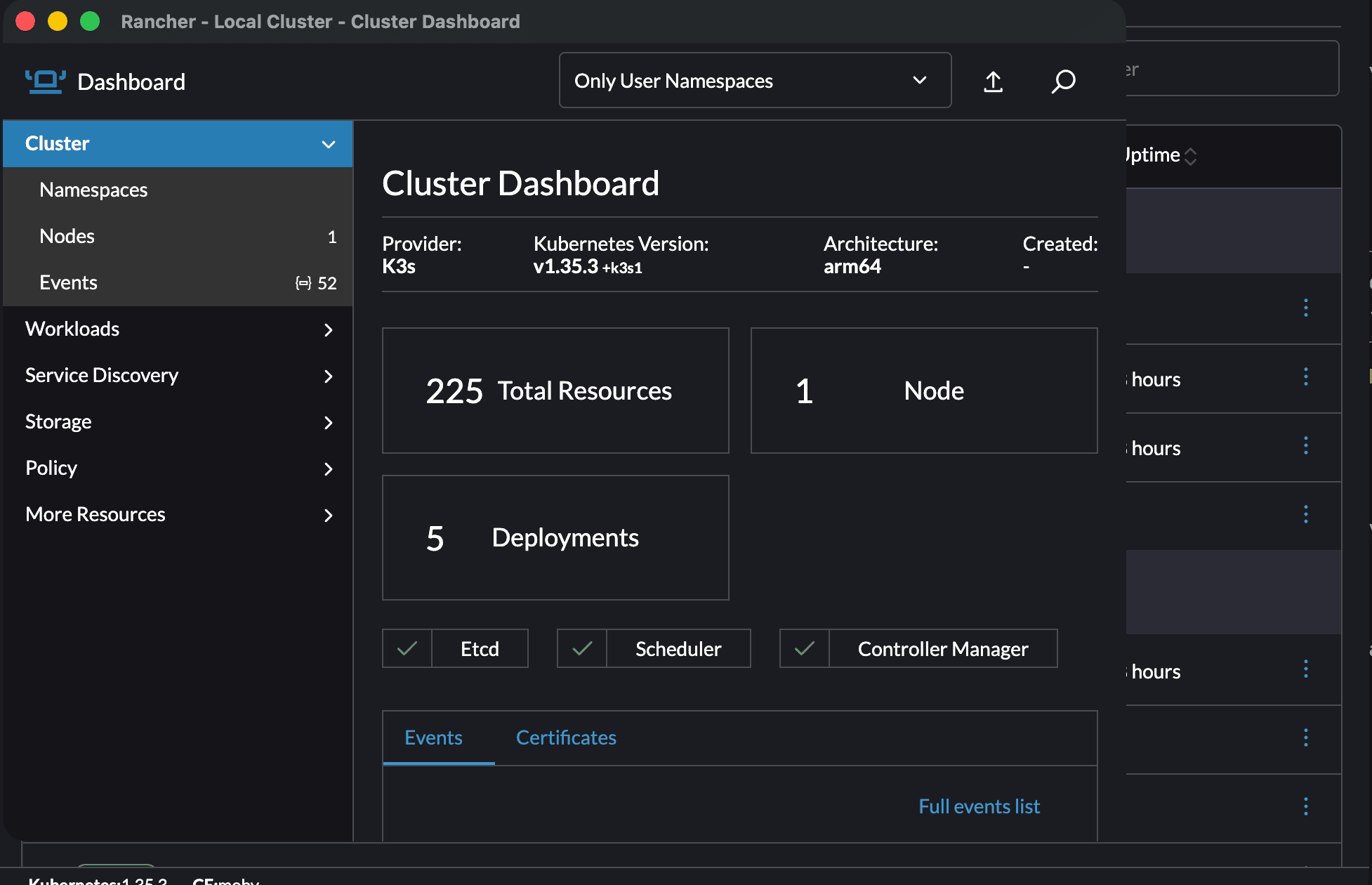
The Cluster Dashboard (accessible via the “Cluster Dashboard” button in the sidebar) provides a Rancher-style overview of your local cluster, including resource counts, component health, and the K3s provider version.
Expose the deployment as a NodePort service:
kubectl expose deployment nginx --type=NodePort --port=80Find the assigned port:
kubectl get svc nginxThe output shows the NodePort mapped to port 80:
NAME    TYPE       CLUSTER-IP     EXTERNAL-IP   PORT(S)        AGE
nginx   NodePort   10.43.12.150   <none>        80:31245/TCP   5s
Rancher Desktop’s port forwarding makes NodePort services accessible on localhost. Open your browser and navigate to http://localhost:31245 (use the actual port from your output). You should see the default Nginx welcome page.
Alternatively, use kubectl’s built-in port forwarding for a predictable port:
kubectl port-forward svc/nginx 8080:80Now http://localhost:8080 reaches your Nginx pods. Press Ctrl+C to stop forwarding when you’re done.
Clean up when finished:
kubectl delete deployment nginx
kubectl delete svc nginx
Rancher Desktop vs Docker Desktop
The comparison comes down to licensing, Kubernetes support, and what you’re willing to pay for. Docker Desktop requires a paid subscription for companies with more than 250 employees or more than $10 million in annual revenue. Rancher Desktop has no such restriction.
| Criteria | Rancher Desktop | Docker Desktop |
|---|---|---|
| License | Apache 2.0 (fully open source) | Proprietary (free tier with limits) |
| Cost for business use | Free | $11-24/user/month for qualifying companies |
| Kubernetes | K3s (built-in, version selectable) | Single-node K8s (optional toggle) |
| Container runtimes | containerd or dockerd (switchable) | dockerd only |
| CLI tools included | kubectl, nerdctl, docker, Helm | docker, docker compose |
| Docker Compose | Via dockerd runtime | Native, tightly integrated |
| Extensions/plugins | Limited | Docker Extensions marketplace |
| VM backend (macOS) | Lima/QEMU | Apple Virtualization or QEMU |
| Resource usage | Comparable | Comparable |
| Windows support | Yes (WSL2) | Yes (WSL2 or Hyper-V) |
Docker Desktop has a more polished GUI and a richer extension ecosystem. If your workflow is purely Docker Compose with no Kubernetes, Docker Desktop’s integration is smoother. But if Kubernetes is part of your development workflow (or you simply don’t want licensing overhead), Rancher Desktop covers everything you need.
Alternative Tools Worth Considering
Rancher Desktop isn’t the only option in this space. Two alternatives are worth knowing about, depending on your specific needs.
Podman Desktop takes a daemonless approach to containers. There’s no background service running, and it supports rootless containers out of the box. Podman Desktop includes a Kubernetes-compatible mode and can generate Kubernetes YAML from running containers. It’s a strong choice if you want containers without any daemon process, though its Kubernetes support is less mature than Rancher Desktop’s K3s integration.
minikube is the original local Kubernetes tool from the Kubernetes project itself. It runs a full (not lightweight) Kubernetes distribution and supports multiple drivers including Docker, QEMU, VirtualBox, and HyperKit. minikube is more configurable than Rancher Desktop for advanced Kubernetes testing scenarios (multi-node clusters, specific K8s versions, feature gates), but it requires more manual setup and doesn’t bundle a container runtime CLI the way Rancher Desktop does.
For day-to-day development where you need both containers and Kubernetes with minimal setup, Rancher Desktop hits the sweet spot. For container-only workflows without Kubernetes, Podman Desktop is leaner. For testing against specific Kubernetes configurations, minikube offers more knobs to turn.
