Restic takes a different approach to backups. Every piece of data is encrypted on the client before it leaves the machine, deduplication happens at the block level across all snapshots, and the repository can live on local disk, SFTP, or any S3-compatible object store. That last part is what makes it especially practical: you point restic at a bucket and forget about managing backup file hierarchies yourself.
This guide walks through setting up restic with MinIO as a self-hosted S3 backend. The exact same restic commands work with AWS S3, Backblaze B2, or Wasabi. If you already have an S3 bucket from any provider, skip the MinIO section and jump straight to initializing the repository. Restic ships as a single static binary with no dependencies, so the installation steps work on any Linux distribution. We also cover automated backups using systemd timers. For other backup tools worth considering, see our guides on BorgBackup with Borgmatic and Kopia.
Tested March 2026 | restic 0.18.1 on Ubuntu 24.04 and Rocky Linux 10.1. Backends verified: self-hosted MinIO, AWS S3 (eu-west-1), and Google Cloud Storage. Works on any Linux distribution with systemd.
Prerequisites
- A Linux server as the backup client (10.0.1.50 in this guide). Any distribution with
systemdworks: Ubuntu, Debian, Rocky, AlmaLinux, RHEL, Fedora, SUSE, Arch, etc. - A second server for MinIO (10.0.1.51), or an existing AWS S3 / Backblaze B2 / Wasabi account
- Root or sudo access on both machines
wget,bzip2, andcurlfor downloading binaries- Tested with: restic 0.18.1 (GitHub binary), MinIO RELEASE.2025-09-07
Install Restic
Restic is a single static binary with zero dependencies. Distribution package managers often ship older versions, so the recommended approach is to grab the latest release directly from GitHub. This works on any Linux distribution.
Pull the latest version number from the GitHub API:
VER=$(curl -sL https://api.github.com/repos/restic/restic/releases/latest | grep tag_name | head -1 | sed 's/.*"v\([^"]*\)".*/\1/')
echo $VER
At the time of writing, this returns:
0.18.1Download, extract, and install the binary:
wget https://github.com/restic/restic/releases/download/v${VER}/restic_${VER}_linux_amd64.bz2
bunzip2 restic_${VER}_linux_amd64.bz2
sudo mv restic_${VER}_linux_amd64 /usr/local/bin/restic
sudo chmod +x /usr/local/bin/restic
On RHEL-based distributions with SELinux enforcing, fix the file context so systemd can execute it later:
sudo restorecon -v /usr/local/bin/resticVerify the installation:
restic versionThe output confirms the installed version:
restic 0.18.1 compiled with go1.25.1 on linux/amd64The $VER variable ensures you always get the latest stable release. When a new version ships, re-run the same commands to upgrade.
Prepare Your Storage Backend
Restic works with any S3-compatible object store, local repositories, SFTP, and native cloud provider APIs. Pick one backend below, complete its setup, then continue to “Initialize the Repository” where the workflow is the same regardless of which option you chose.
Option A: Self-Hosted MinIO
MinIO provides an S3-compatible API on your own hardware. If you already have an AWS S3 bucket, Backblaze B2 account, or Wasabi subscription, skip this entire section. The restic commands in the rest of the guide work identically regardless of the S3 provider.
Run these steps on the MinIO server (10.0.1.51 in this example). MinIO distributes a single static binary, so installation is straightforward:
wget https://dl.min.io/server/minio/release/linux-amd64/minio
sudo mv minio /usr/local/bin/minio
sudo chmod +x /usr/local/bin/minio
Fix SELinux Context for MinIO
On distributions with SELinux enforcing (RHEL, Rocky, AlmaLinux, Fedora), the downloaded binary carries a user_tmp_t context. Without fixing this, systemd refuses to execute it with exit code 203 and a “Permission denied” entry in journalctl. The fix is a single restorecon command:
sudo restorecon -v /usr/local/bin/minioThe relabeling output confirms the context change:
Relabeled /usr/local/bin/minio from unconfined_u:object_r:user_tmp_t:s0 to unconfined_u:object_r:bin_t:s0Skip this step on distributions using AppArmor (Ubuntu, Debian, SUSE) since AppArmor does not enforce file context labels on binaries this way.
Create the MinIO Service
Create a dedicated user and data directory for MinIO:
sudo useradd -r -s /sbin/nologin minio-user
sudo mkdir -p /data/minio
sudo chown minio-user:minio-user /data/minio
Create the environment file with MinIO credentials:
sudo vi /etc/default/minioSet these values:
MINIO_ROOT_USER=minioadmin
MINIO_ROOT_PASSWORD=your-minio-password
MINIO_VOLUMES="/data/minio"
MINIO_OPTS="--console-address :9001"
Lock down permissions on that file since it contains credentials:
sudo chmod 600 /etc/default/minioNow create the systemd unit file:
sudo vi /etc/systemd/system/minio.servicePaste this unit file:
[Unit]
Description=MinIO Object Storage
After=network-online.target
Wants=network-online.target

[Service]
Type=notify
User=minio-user
Group=minio-user
EnvironmentFile=/etc/default/minio
ExecStart=/usr/local/bin/minio server $MINIO_VOLUMES $MINIO_OPTS
Restart=always
RestartSec=5
LimitNOFILE=65536

[Install]
WantedBy=multi-user.target
On Rocky Linux, set the correct SELinux context on the data directory as well:
sudo semanage fcontext -a -t bin_t "/usr/local/bin/minio"
sudo restorecon -v /usr/local/bin/minio
Enable and start MinIO:
sudo systemctl daemon-reload
sudo systemctl enable --now minio
Check the service status:
sudo systemctl status minioThe service should show active (running) with MinIO listening on ports 9000 (API) and 9001 (console).
Open the firewall ports. On distributions using firewalld (RHEL, Rocky, AlmaLinux, Fedora):
sudo firewall-cmd --permanent --add-port=9000/tcp --add-port=9001/tcp
sudo firewall-cmd --reload
On distributions using ufw (Ubuntu, Debian):
sudo ufw allow 9000/tcp
sudo ufw allow 9001/tcp
Create the Backup Bucket
Install the MinIO client (mc) to manage buckets from the command line:
wget https://dl.min.io/client/mc/release/linux-amd64/mc
sudo mv mc /usr/local/bin/mc
sudo chmod +x /usr/local/bin/mc
On SELinux distributions, apply the same context fix:
sudo restorecon -v /usr/local/bin/mcConfigure the alias and create a bucket for restic:
mc alias set local http://127.0.0.1:9000 minioadmin your-minio-password
mc mb local/restic-backup
The bucket creation confirms with:
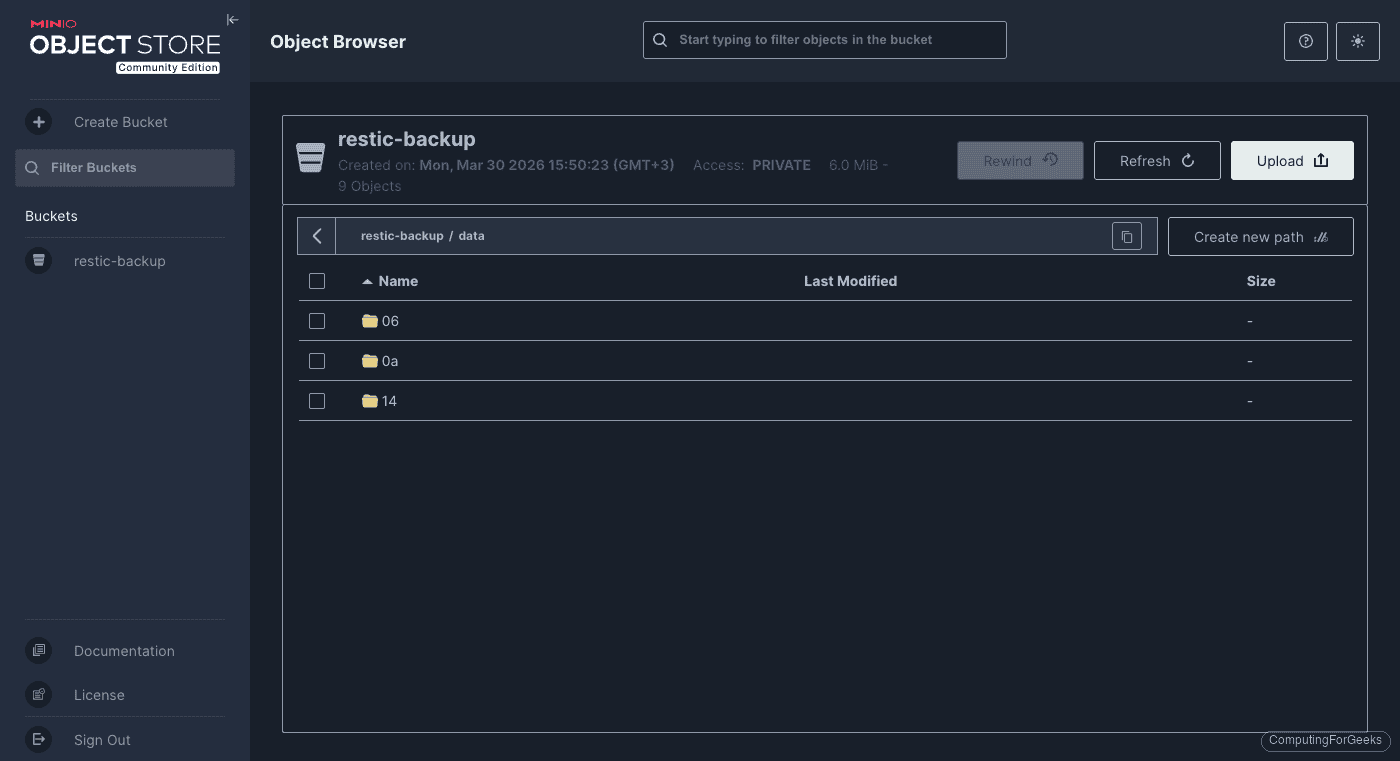
Bucket created successfully `local/restic-backup`.The MinIO Object Browser at http://10.0.1.51:9001 shows the bucket. After restic initializes and runs a backup, the repository structure appears as directories (config, data, index, keys, snapshots):
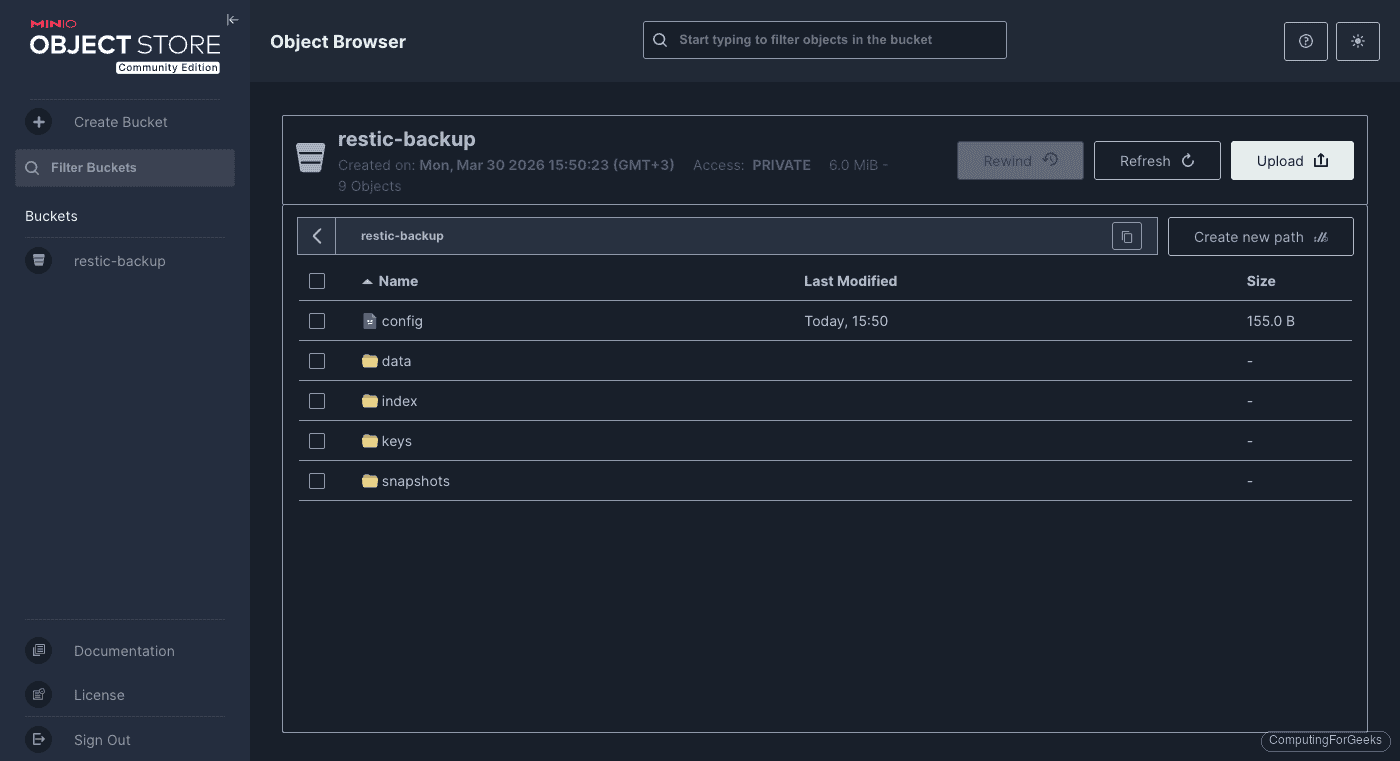
Inside the data/ directory, restic stores encrypted and deduplicated chunks in hex-prefixed subdirectories. These files are opaque without the encryption password:
Option B: AWS S3
Restic supports AWS S3 natively. The setup involves creating a dedicated S3 bucket, an IAM user with minimal permissions, and passing the credentials to restic.
Create an S3 Bucket and IAM User
From any machine with the AWS CLI configured, create the bucket in your preferred region:
aws s3 mb s3://your-restic-backup --region eu-west-1Create a dedicated IAM user for restic (never use your root account credentials for automated backups):
aws iam create-user --user-name restic-backupAttach an inline policy that limits this user to the backup bucket only:
aws iam put-user-policy --user-name restic-backup --policy-name restic-s3-policy --policy-document '{
  "Version": "2012-10-17",
  "Statement": [
    {
      "Effect": "Allow",
      "Action": ["s3:ListBucket", "s3:GetBucketLocation"],
      "Resource": "arn:aws:s3:::your-restic-backup"
    },
    {
      "Effect": "Allow",
      "Action": ["s3:GetObject", "s3:PutObject", "s3:DeleteObject"],
      "Resource": "arn:aws:s3:::your-restic-backup/*"
    }
  ]
}'
Generate access keys for the new user:
aws iam create-access-key --user-name restic-backupSave the AccessKeyId and SecretAccessKey from the output. You will need both on the backup client.
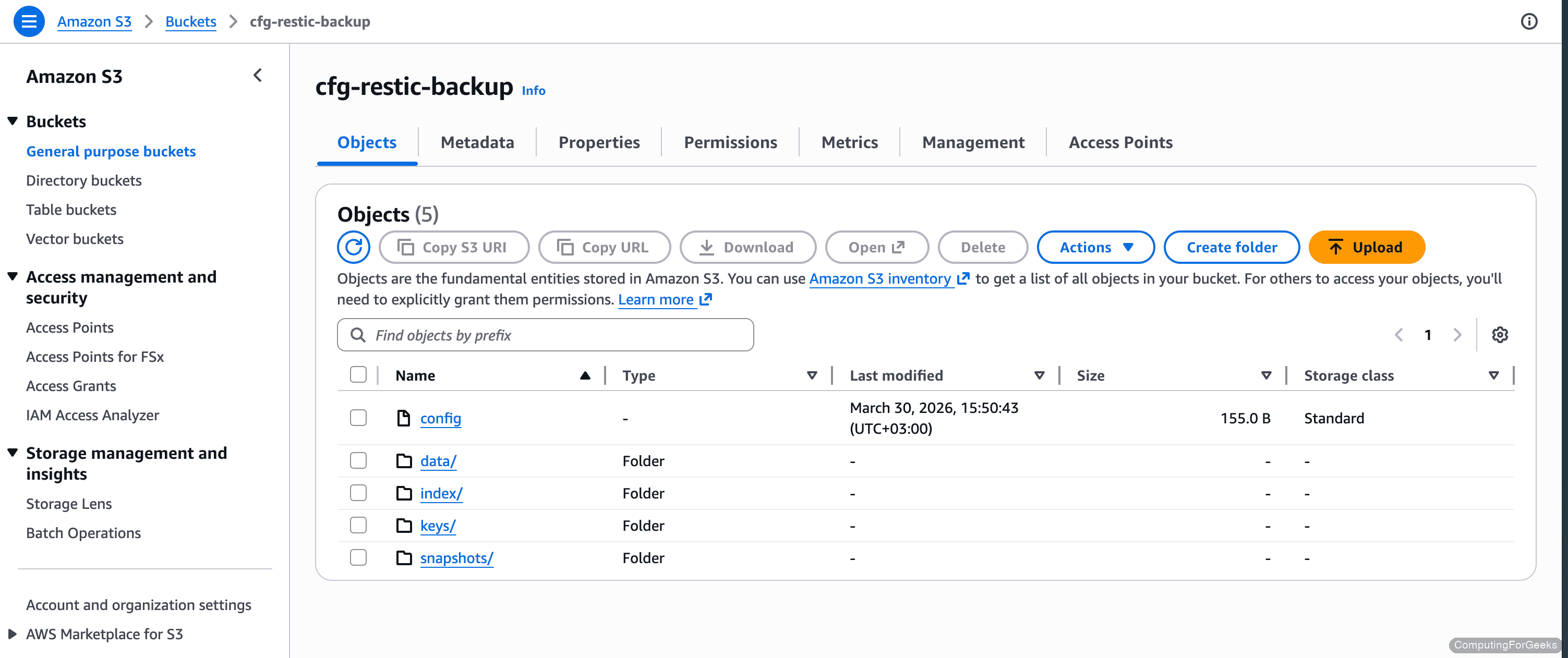
Once restic initializes and backs up data, the S3 bucket contains the encrypted repository structure:
Option C: Google Cloud Storage
Restic also has native Google Cloud Storage support. The authentication uses a service account key file rather than environment variables.
Create a GCS Bucket and Service Account
From a machine with the gcloud CLI, create the bucket:
gcloud storage buckets create gs://your-restic-backup --location=europe-west1 --project=your-project-idCreate a dedicated service account for restic:
gcloud iam service-accounts create restic-backup \
  --display-name="Restic Backup Service Account" \
  --project=your-project-id
Grant the service account permission to read and write objects in the backup bucket:
gcloud storage buckets add-iam-policy-binding gs://your-restic-backup \
  --member="serviceAccount:[email protected]" \
  --role="roles/storage.objectAdmin"
Generate a JSON key file and copy it to the backup client:
gcloud iam service-accounts keys create restic-gcs-key.json \
  --iam-account=restic-backup@your-project-id.iam.gserviceaccount.com
Transfer the key file to the backup client and secure it:
scp restic-gcs-key.json [email protected]:/etc/restic-gcs-key.json
ssh [email protected] "chmod 600 /etc/restic-gcs-key.json"
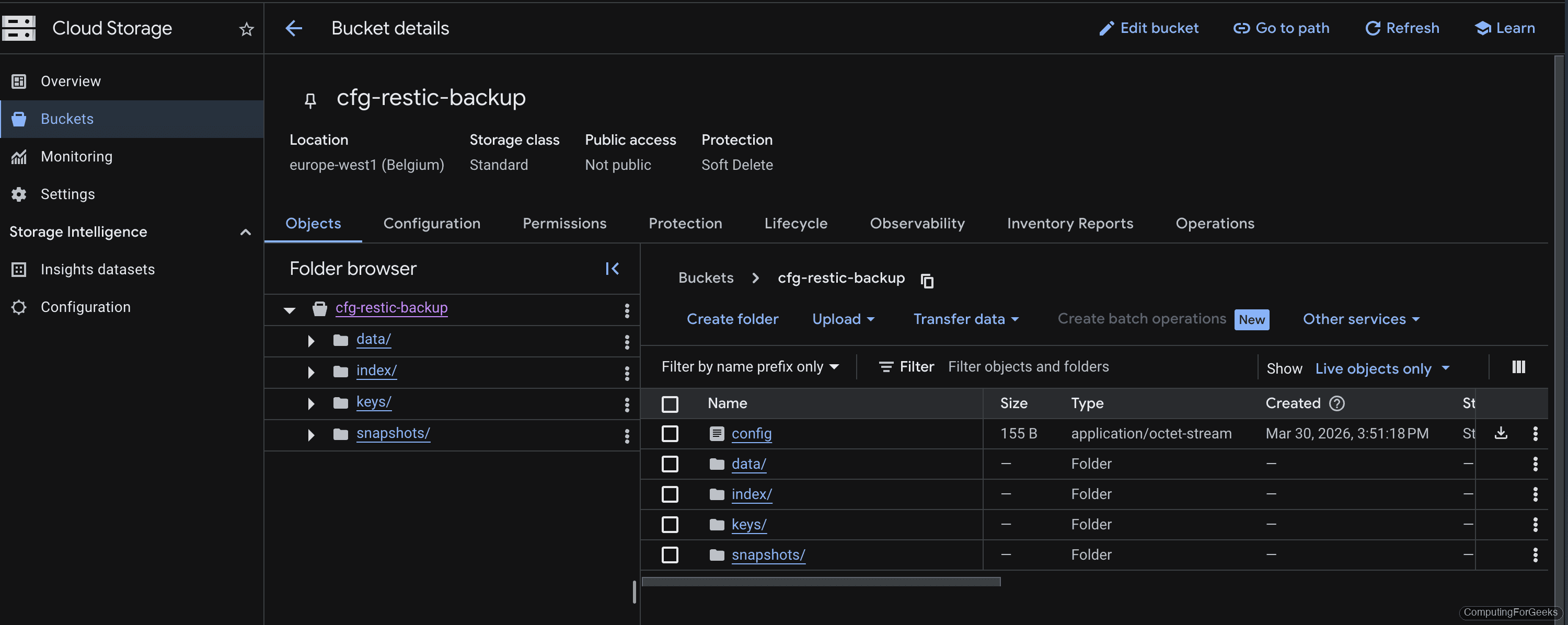
The GCS bucket in the Cloud Storage browser shows the same restic repository layout after initialization:
With your storage backend ready, the restic commands from here forward are identical regardless of which option you chose.
Initialize the Restic Repository
Back on the backup client (10.0.1.50), set the environment variables that restic needs to connect to the storage backend and encrypt the repository. The specific variables depend on which backend you configured above.
For MinIO:
export AWS_ACCESS_KEY_ID=minioadmin
export AWS_SECRET_ACCESS_KEY=your-minio-password
export RESTIC_REPOSITORY=s3:http://10.0.1.51:9000/restic-backup
For AWS S3:
export AWS_ACCESS_KEY_ID=your-access-key-id
export AWS_SECRET_ACCESS_KEY=your-secret-access-key
export RESTIC_REPOSITORY=s3:s3.eu-west-1.amazonaws.com/your-restic-backup
For Google Cloud Storage:
export GOOGLE_APPLICATION_CREDENTIALS=/etc/restic-gcs-key.json
export GOOGLE_PROJECT_ID=your-project-id
export RESTIC_REPOSITORY=gs:your-restic-backup:/
All backends need the encryption password:
export RESTIC_PASSWORD=your-restic-encryption-passwordCritical: the RESTIC_PASSWORD is the encryption key for every snapshot in this repository. If you lose it, the backups become unrecoverable. Store it in a password manager or a secure vault, not just in a shell history.
Initialize the repository:
restic initRestic creates the repository structure inside the S3 bucket:
created restic repository d4fa81b8e9 at s3:http://10.0.1.51:9000/restic-backup

Please note that knowledge of your password is required to access
the repository. Losing your password means that your data is
irrecoverably lost.
Create Your First Backup
With the repository initialized, run a backup of the directories you want to protect. This example backs up /srv/data and /etc:
restic backup /srv/data /etc --tag initial --verboseRestic scans, deduplicates, encrypts, and uploads the data. The verbose output shows exactly what happened:
open repository
repository d4fa81b8 opened (version 2, compression level auto)
lock repository
no parent snapshot found, will read all files
load index files

start scan on [/srv/data /etc]
start backup on [/srv/data /etc]

Files:          81 new,     0 changed,     0 unmodified
Dirs:            7 new,     0 changed,     0 unmodified
Added to the repository: 44.779 MiB (44.765 MiB stored)

processed 81 files, 44.749 MiB in 0:01
snapshot 02a654d5 saved
All 81 files (44.749 MiB) were encrypted and stored. The “stored” size is nearly identical because random binary data does not compress, which is expected. Text-heavy directories like /etc typically compress to 30-50% of original size.
List all snapshots in the repository:
restic snapshotsThe snapshot table shows the ID, timestamp, hostname, tags, and paths:
repository d4fa81b8 opened (version 2, compression level auto)
ID        Time                 Host        Tags        Paths
-----------------------------------------------------------------------
02a654d5  2026-03-28 14:22:01  backup01    initial     /srv/data
                                                       /etc
-----------------------------------------------------------------------
1 snapshots
Incremental Backups and Deduplication
Restic’s block-level deduplication is where it really shines. On subsequent runs, only new and changed blocks get uploaded. To demonstrate, modify an existing file and add a new one:
echo "updated config" | sudo tee -a /srv/data/configs/app.conf
dd if=/dev/urandom of=/srv/data/newfile.bin bs=1K count=200 2>/dev/null
Now run the backup again:
restic backup /srv/data /etc --verboseThe difference is dramatic compared to the initial backup:
repository d4fa81b8 opened (version 2, compression level auto)
lock repository
using parent snapshot 02a654d5

Files:           1 new,     1 changed,    80 unmodified
Dirs:            0 new,     2 changed,     5 unmodified
Added to the repository: 234.370 KiB (213.473 KiB stored)

processed 82 files, 44.944 MiB in 0:00
snapshot 7b3e91f2 saved
Out of 82 files totaling 45 MiB, restic transferred only 234 KiB. It recognized the 80 unchanged files from the parent snapshot and skipped them entirely. This is what makes restic practical for daily automated backups: the network and storage cost after the first run is minimal.
Restore from Backup
Restoring an entire snapshot takes a single command. Specify the target directory where restic should write the restored files (it recreates the original directory structure inside it):
restic restore latest --target /tmp/restore-testThe restore completes almost instantly for this dataset:
repository d4fa81b8 opened (version 2, compression level auto)
restoring snapshot 7b3e91f2 of [/srv/data /etc] at 2026-03-28 14:25:33
Summary: Restored 88 files/dirs (44.944 MiB) in 0:00
Verify the restored files match the originals:
diff -r /srv/data /tmp/restore-test/srv/dataNo output from diff means every file matches. You can also use restic diff to compare two snapshots directly if you need to see what changed between backups.
For partial restores, use the --include flag to extract only specific paths:
restic restore latest --target /tmp/partial --include "/srv/data/configs/"This pulls just the configs directory without touching anything else. Useful when a single config file gets corrupted and you need it back quickly.
Retention and Pruning
Without a retention policy, the repository grows indefinitely. The restic forget command marks old snapshots for removal based on your retention rules, and --prune reclaims the storage immediately. A sensible starting policy keeps 7 daily, 4 weekly, and 6 monthly snapshots:
restic forget --keep-daily 7 --keep-weekly 4 --keep-monthly 6 --pruneRestic evaluates each snapshot against the retention rules and reports the outcome:
repository d4fa81b8 opened (version 2, compression level auto)
Applying Policy: keep 7 daily, 4 weekly, 6 monthly snapshots

keep 2 snapshots:
ID        Time                 Host        Tags        Reasons        Paths
---------------------------------------------------------------------------------
02a654d5  2026-03-28 14:22:01  backup01    initial     daily snapshot  /srv/data, /etc
7b3e91f2  2026-03-28 14:25:33  backup01                daily snapshot  /srv/data, /etc
---------------------------------------------------------------------------------
2 snapshots

no snapshots were removed, running prune
counting files in repo
[0:00] 100.00%  8 / 8 packs

finding old index files
saved new indexes as [4a8b2c1d]

done
Since we only have two snapshots, nothing was removed. Once you accumulate more than 7 daily snapshots, the oldest ones outside the retention window get pruned automatically. Run this command after every backup (the systemd timer in the next section handles this).
Verify Repository Integrity
Restic can verify the internal consistency of a repository regardless of backend. Run this periodically (weekly is a good starting point) to catch corruption before you need to restore:
restic checkA healthy repository shows:
using temporary cache in /tmp/restic-check-cache-1547467285
create exclusive lock for repository
load indexes
check all packs
check snapshots, trees and blobs
[0:00] 100.00%  1 / 1 snapshots
no errors were found
For a deeper check that re-reads and verifies every data blob (slower, uses bandwidth on cloud backends):
restic check --read-dataUse the quick check daily or weekly. Reserve --read-data for monthly verification since it downloads and re-verifies every chunk in the repository.
Automate with Systemd Timer
Manual backups are backups that don’t happen. A systemd timer runs the backup on a schedule, retries on failure, and logs everything to journald. Start by storing the credentials in a secure environment file.
Create the environment file:
sudo vi /etc/restic-envAdd the repository credentials matching your chosen backend. For MinIO:
AWS_ACCESS_KEY_ID=minioadmin
AWS_SECRET_ACCESS_KEY=your-minio-password
RESTIC_PASSWORD=your-restic-encryption-password
RESTIC_REPOSITORY=s3:http://10.0.1.51:9000/restic-backup
For AWS S3, use your IAM access key and the S3 repository URL instead:
AWS_ACCESS_KEY_ID=your-access-key-id
AWS_SECRET_ACCESS_KEY=your-secret-access-key
RESTIC_PASSWORD=your-restic-encryption-password
RESTIC_REPOSITORY=s3:s3.eu-west-1.amazonaws.com/your-restic-backup
For GCS, point to the service account key file and set the project ID:
GOOGLE_APPLICATION_CREDENTIALS=/etc/restic-gcs-key.json
GOOGLE_PROJECT_ID=your-project-id
RESTIC_PASSWORD=your-restic-encryption-password
RESTIC_REPOSITORY=gs:your-restic-backup:/
Lock down the file permissions so only root can read it:
sudo chmod 600 /etc/restic-envCreate the backup service unit:
sudo vi /etc/systemd/system/restic-backup.serviceThe service runs restic backup and then prunes old snapshots in a single shot:
[Unit]
Description=Restic Backup to S3
After=network-online.target
Wants=network-online.target

[Service]
Type=oneshot
EnvironmentFile=/etc/restic-env
ExecStart=/usr/local/bin/restic backup /srv/data /etc --tag automated
ExecStartPost=/usr/local/bin/restic forget --keep-daily 7 --keep-weekly 4 --keep-monthly 6 --prune
Nice=10
IOSchedulingClass=best-effort
IOSchedulingPriority=7
The Nice and IOSchedulingPriority settings keep the backup from starving other processes on a busy server.
Create the timer:
sudo vi /etc/systemd/system/restic-backup.timerAdd the timer configuration:
[Unit]
Description=Run Restic Backup Daily

[Timer]
OnCalendar=*-*-* 03:00:00
RandomizedDelaySec=600
Persistent=true

[Install]
WantedBy=timers.target
The Persistent=true setting ensures the backup runs on next boot if the server was powered off at 3 AM. The 10-minute random delay prevents multiple servers from hammering the S3 backend simultaneously.
Enable and start the timer:
sudo systemctl daemon-reload
sudo systemctl enable --now restic-backup.timer
Verify the timer is scheduled:
systemctl list-timers restic-backup.timerThe output shows when the next backup will trigger:
NEXT                        LEFT          LAST  PASSED  UNIT                 ACTIVATES
Sun 2026-03-29 03:00:00 UTC 12h left      n/a   n/a     restic-backup.timer  restic-backup.service

1 timers listed.
To test the backup immediately without waiting for the schedule:
sudo systemctl start restic-backup.service
journalctl -u restic-backup.service --no-pager -n 20
Check the journal output to confirm the backup and pruning completed successfully. Any errors (network timeouts, permission issues, wrong credentials) appear here.
Choosing a Storage Backend
All the backends covered in this guide (MinIO, AWS S3, Google Cloud Storage) use the same restic commands for backup, restore, and maintenance. The choice comes down to cost, control, and where your infrastructure lives.
| Storage Provider | Cost (per TB/month) | Durability | Best For |
|---|---|---|---|
| MinIO (self-hosted) | Hardware cost only | Depends on disk setup | Full control, no egress fees, air-gapped backups |
| AWS S3 Standard | $23 | 99.999999999% | Enterprise integration, lifecycle policies, Glacier tiering |
| Google Cloud Storage | $20 (Standard) | 99.999999999% | GCP-native workloads, multi-region replication |
| Backblaze B2 | $6 | 99.999999999% | Budget cloud backup, free egress to Cloudflare |
| Wasabi | $7 | 99.999999999% | No egress fees, predictable pricing |
For homelab and small business setups, Backblaze B2 or Wasabi hit the sweet spot between cost and durability. If you need air-gapped or on-premises backups (compliance, data sovereignty), MinIO on a separate physical server with RAID gives you that without monthly fees. AWS S3 and GCS make sense when you are already in those ecosystems and want lifecycle rules for automatic tiering to cheaper storage classes.
For more Linux backup strategies, check out our guide on Duplicati for cross-platform backups or our bash script approach for simple directory backups. The restic documentation covers additional backends including SFTP, REST server, and Azure Blob Storage.