

Getting Apache Guacamole installed is only half the job. The real value comes when you start connecting it to your actual infrastructure: Windows desktops over RDP, Linux servers over SSH, and VNC sessions to graphical desktops. This guide walks through setting up all three connection types in Guacamole 1.6.0, both through the web UI and the REST API.
If you haven’t deployed Guacamole yet, start with one of these guides: Install Guacamole on Ubuntu, Install Guacamole on Debian, or Deploy Guacamole with Docker Compose. Once your instance is up and you can log in to the web UI, come back here to wire up your connections. We’ll cover RDP to a Windows Server 2025 box, SSH to a Linux server, and VNC to an Ubuntu desktop, plus API-based provisioning for automation.
Tested March 2026 | Apache Guacamole 1.6.0 via Docker Compose on Ubuntu 24.04, connecting to Windows Server 2025 (RDP), Rocky Linux 10 (SSH), Ubuntu 24.04 Desktop (VNC)
Prerequisites
Before creating connections, confirm these are in place:
- A working Apache Guacamole 1.6.0 instance (accessible via browser, admin login working)
- For RDP: a Windows server with Remote Desktop enabled and port 3389/tcp open
- For SSH: a Linux server with
openssh-serverrunning and port 22/tcp reachable from the Guacamole host - For VNC: a Linux desktop with a VNC server (TigerVNC, x11vnc, or vino) listening on port 5901
- Network connectivity between the Guacamole server (specifically the
guacdcontainer) and each target machine
All connections in Guacamole are created under Settings > Connections. Log in as guacadmin (or whatever admin account you’ve configured), click your username in the top-right corner, and select Settings. The Connections tab is where everything lives.
Set Up an RDP Connection (Windows Server)
RDP is probably the most common reason people deploy Guacamole. It gives you full Windows desktop access through the browser, no local RDP client needed. Before configuring Guacamole, make sure Remote Desktop is enabled on the Windows side.
Windows Prerequisites
On the Windows Server 2025 target machine:
- Open Settings > System > Remote Desktop and toggle it on
- Confirm the user account you’ll connect with is in the Remote Desktop Users group
- Verify the Windows Firewall allows inbound TCP port 3389 (it should by default when Remote Desktop is enabled)
- If Network Level Authentication (NLA) causes issues with Guacamole, you can disable it under System Properties > Remote > uncheck “Allow connections only from computers running Remote Desktop with NLA”
Create the RDP Connection in Guacamole
Navigate to Settings > Connections, then click New Connection. Fill in the following sections:
Name and Protocol:
- Name: Something descriptive like
Windows Server 2025 RDP - Protocol: RDP
Network Parameters:
- Hostname: The IP or FQDN of the Windows server (e.g.,
10.0.1.50) - Port:
3389
Authentication:
- Username: The Windows user account (e.g.,
Administrator) - Password: The account password
- Domain: Only needed for Active Directory environments
- Security mode: Set to
NLAfor best security. If you get authentication errors, tryTLSorAnyas fallbacks - Ignore server certificate: Check this if the Windows server uses a self-signed certificate (most do)
Display and Experience Settings:
These parameters control how the remote desktop looks and feels in the browser. They map directly to standard RDP experience options:
- enable-wallpaper: Shows the desktop wallpaper instead of a solid color. Minor bandwidth increase, but makes the experience feel more natural
- enable-theming: Renders Windows themes and visual styles. Without this, everything looks like Windows Classic
- enable-font-smoothing: ClearType font rendering. Highly recommended because text looks terrible without it
Drive Sharing (Optional):
Guacamole can expose a virtual drive inside the RDP session, which is useful for transferring files between the browser and the Windows desktop:
- enable-drive: Set to
true - drive-path: The path on the Guacamole server where uploaded files are stored (e.g.,
/shared) - drive-name: The name shown in Windows Explorer (e.g.,
Guacamole Shared)
Session Recording (Optional):
For audit purposes, Guacamole can record the entire session as a video:
- recording-path: Directory on the Guacamole server to store recordings (e.g.,
/recordings) - recording-name: Filename pattern (e.g.,
${GUAC_USERNAME}-${GUAC_DATE}-${GUAC_TIME})
Click Save when done. The connection now appears on the Guacamole home page. Click it to launch the RDP session directly in your browser.
Set Up an SSH Connection (Linux Server)
SSH connections give you a full terminal session in the browser. Guacamole renders it as a proper terminal emulator with color support, clipboard integration, and even SFTP-based file transfer. For sysadmins who manage dozens of Linux servers, this beats keeping a pile of PuTTY sessions open.
Linux Server Prerequisites
On the target Linux server, confirm that the SSH service is running and the firewall allows incoming connections on port 22.
Check the SSH service status:
systemctl status sshdThe output should show active (running). On Ubuntu/Debian, the service is called ssh instead of sshd.
If the SSH server isn’t installed:
sudo dnf install -y openssh-server   # Rocky/RHEL
sudo apt install -y openssh-server   # Ubuntu/Debian
Open the firewall port if needed:
sudo firewall-cmd --add-service=ssh --permanent && sudo firewall-cmd --reloadOn Ubuntu with ufw:
sudo ufw allow 22/tcpCreate the SSH Connection in Guacamole
Go to Settings > Connections > New Connection and configure these fields:
Name and Protocol:
- Name:
Linux Server SSH - Protocol: SSH
Network:
- Hostname:
10.0.1.30(your Linux server’s IP) - Port:
22
Authentication:
- Username: The Linux user account
- Password: The user’s password
For key-based authentication, paste the private key content directly into the Private key field. If the key has a passphrase, enter it in the Passphrase field. This is more secure than password auth and avoids having credentials stored in Guacamole’s database in plain text.

Terminal Appearance:
These settings control how the terminal looks in the browser:
- Color scheme: Options include
green-black(classic),white-black,gray-black, andblack-white. Pick whatever is easiest on your eyes - Font size: Default is 12. Bump it to 14 or 16 for high-DPI displays
SFTP File Transfer (Optional):
Guacamole can use SFTP over the same SSH connection for browser-based file uploads and downloads:
- Enable SFTP: Check this box
- SFTP root directory: The directory the file browser starts in (e.g.,
/home/jkmutaior/)
With SFTP enabled, pressing Ctrl+Alt+Shift inside the session opens the Guacamole sidebar, where a file transfer panel lets you upload and download files directly through the browser.
Save the connection. The terminal renders directly in the browser with full clipboard support. Copying text from the remote session and pasting it locally (and vice versa) works through the Guacamole clipboard panel.
Set Up a VNC Connection (Linux Desktop)
VNC gives you graphical access to a Linux desktop. Unlike RDP, which is built into Windows, VNC requires a separate server on the Linux side. TigerVNC and x11vnc are the most common choices.
Linux Desktop Prerequisites
The target machine needs a VNC server running. On Ubuntu Desktop with TigerVNC:
sudo apt install -y tigervnc-standalone-serverSet a VNC password for the user:
vncpasswdThis prompts for a password that VNC clients (including Guacamole) will use to connect. It is separate from the Linux user password.
Start the VNC server on display :1 (port 5901):
vncserver :1 -geometry 1920x1080 -depth 24Verify it’s listening:
ss -tlnp | grep 5901You should see vncserver (or Xvnc) listening on port 5901. Open the firewall if the Guacamole server is on a different machine:
sudo ufw allow 5901/tcpCreate the VNC Connection in Guacamole
Back in Guacamole, create another new connection:
Name and Protocol:
- Name:
Ubuntu Desktop VNC - Protocol: VNC
Network:
- Hostname:
10.0.1.40 - Port:
5901(5900 + display number)
Authentication:
- Password: The VNC password set with
vncpasswd
Display:
- Color depth: 24-bit for best quality, 16-bit if bandwidth is limited
VNC authentication is simpler than RDP or SSH. There’s just the VNC password. Some VNC servers support no authentication at all (not recommended outside trusted networks). Save and connect.
Guacamole Home Page
After creating all three connections, the Guacamole home page shows them as clickable tiles. Each connection displays its name and protocol type.
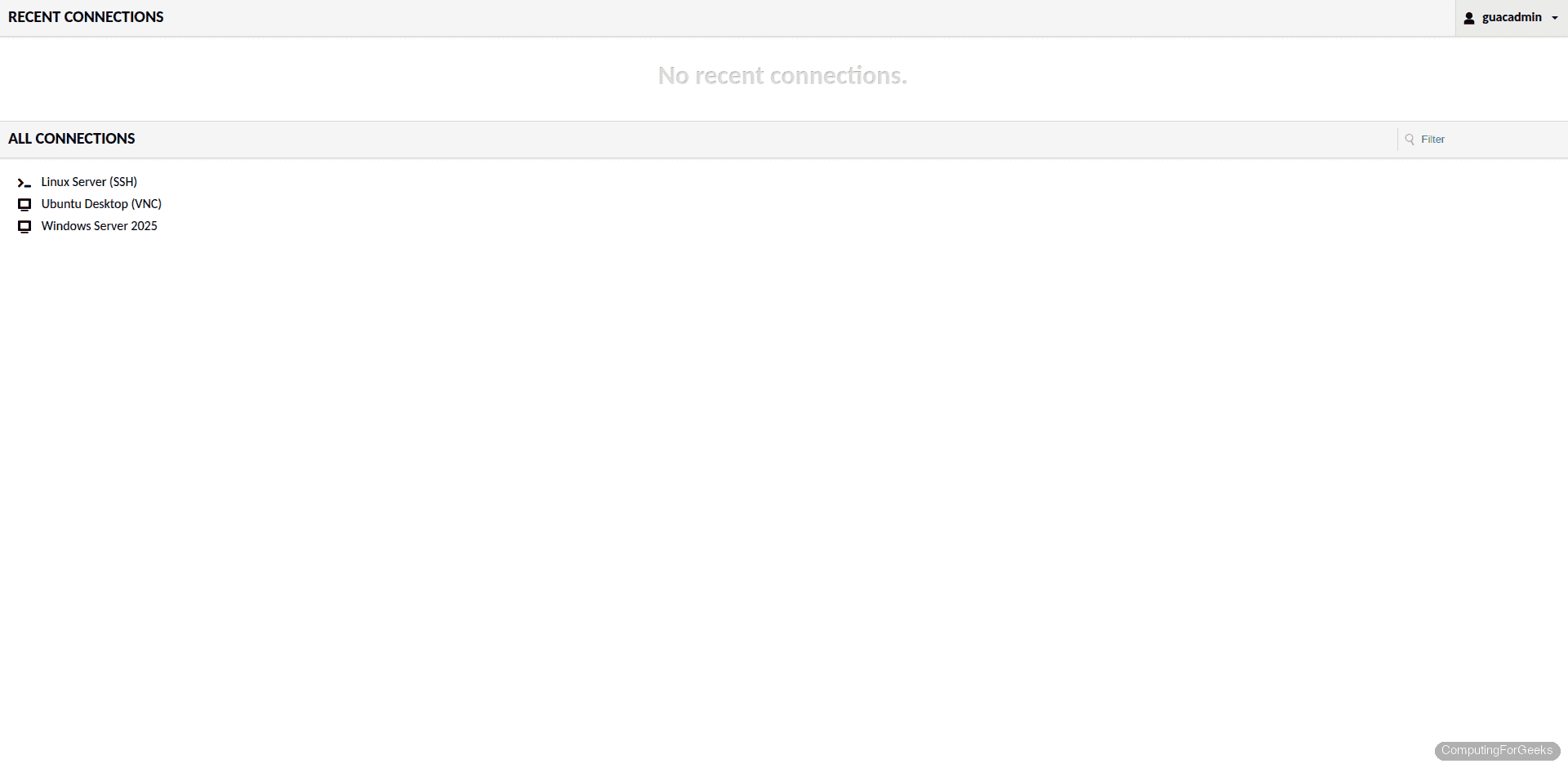
Click any connection to open it in the current browser tab. The session loads within a couple of seconds. Guacamole uses the guacd proxy daemon behind the scenes to translate between the web socket connection in your browser and the native RDP/SSH/VNC protocol.
A few things worth knowing about the in-session experience:
- Ctrl+Alt+Shift opens the Guacamole sidebar menu. This is where clipboard sync, file transfer (if SFTP is enabled), and session settings live
- Clipboard: The sidebar has a text area that acts as a bridge between your local clipboard and the remote session. Paste text into it to send to the remote machine, or copy from the remote session and grab it from the text area
- Recent Connections: The home page shows your most recent connections at the top, so frequently used servers are always one click away
- Multiple sessions: Open several connections in separate browser tabs. Each session is independent
Create Connections via the REST API
The web UI works fine for a handful of connections, but if you’re managing 50 servers across multiple environments, clicking through forms gets old fast. Guacamole exposes a REST API that lets you automate connection management. The official documentation covers the full API surface.
Get an Authentication Token
Every API call requires a token. Obtain one by posting credentials to the token endpoint:
curl -s -X POST "https://guacamole.example.com/api/tokens" \
  -d "username=guacadmin&password=guacadmin"
The response includes an authToken field. Extract it and store it in a variable for subsequent calls:
TOKEN=$(curl -s -X POST "https://guacamole.example.com/api/tokens" \
  -d "username=guacadmin&password=guacadmin" | python3 -c "import sys,json; print(json.load(sys.stdin)['authToken'])")
Create an SSH Connection
With the token in hand, create a connection by POSTing a JSON payload:
curl -s -X POST "https://guacamole.example.com/api/session/data/postgresql/connections?token=$TOKEN" \
  -H "Content-Type: application/json" \
  -d '{
    "parentIdentifier": "ROOT",
    "name": "Web Server SSH",
    "protocol": "ssh",
    "parameters": {
      "hostname": "10.0.1.30",
      "port": "22",
      "username": "deploy",
      "password": "securepassword",
      "color-scheme": "green-black",
      "font-size": "14",
      "enable-sftp": "true",
      "sftp-root-directory": "/home/deploy"
    },
    "attributes": {
      "max-connections": "2",
      "max-connections-per-user": "1"
    }
  }'
A successful response returns the connection object with its assigned identifier. The parentIdentifier of ROOT places the connection at the top level. To put it inside a connection group, use the group’s identifier instead.
The same pattern works for RDP and VNC connections. Change the protocol field and adjust the parameters to match the protocol’s expected values. The data source in the URL (postgresql in this example) depends on your Guacamole backend. Docker Compose deployments typically use postgresql, while manual installs might use mysql.
List All Connections
Verify the connection was created:
curl -s "https://guacamole.example.com/api/session/data/postgresql/connections?token=$TOKEN" | python3 -m json.toolThis returns all connections in the data source as a JSON object, keyed by connection identifier.
User Access Control
Running everything under the guacadmin account is fine for testing, but in production you’ll want individual user accounts with access limited to specific connections. Guacamole’s permission model is straightforward: users get explicit access to individual connections or connection groups.
Create a User
Go to Settings > Users > New User. Fill in the username and password. Under Permissions, leave administrative options unchecked for regular users. The key section is Connections at the bottom, where you check the boxes next to each connection this user should be able to access.
For example, a developer might only need SSH access to staging servers, while a support engineer might need RDP access to specific Windows machines. Each user sees only their permitted connections on the home page.
Connection Groups
When you have many connections, groups keep things organized. Create them under Settings > Connections > New Group. Common grouping strategies:
- By environment: Production, Staging, Development
- By team: Engineering, Support, QA
- By location: US-East, EU-West, APAC
- By protocol: All SSH, All RDP, All VNC
Groups can be assigned to users just like individual connections. Grant a user access to a group and they automatically see all connections inside it.
Guacamole also supports balancing groups, which distribute users across multiple connections. This is useful when you have a pool of identical jump hosts and want to load-balance sessions across them.
Practical Tips
After managing Guacamole with a few dozen connections, these are the things that save headaches:
Change the default password immediately. The guacadmin/guacadmin credentials are the first thing any scanner will try. Go to Settings > Users, edit the guacadmin user, and set a strong password. Better yet, create a new admin account, log in with it, and disable guacadmin entirely.
Set connection limits. The max-connections and max-connections-per-user attributes prevent a single user from consuming all available sessions. This matters because each active connection consumes memory on the guacd proxy, and RDP sessions in particular are heavy.
Enable session recording for compliance. If your environment requires audit trails, configure recording-path on sensitive connections. Guacamole stores recordings in its own format, which you can replay through the web UI or convert with guacenc.
Use connection groups from the start. Organizing by environment (Production, Staging, Dev) prevents the home page from becoming an unsorted mess as your connection count grows. It’s much easier to set up groups early than to reorganize 80 connections later.
Set idle timeouts for RDP sessions. Windows sessions that are left connected but idle still consume resources on both the Windows server and the Guacamole proxy. Configure Group Policy on the Windows side to disconnect idle sessions after a reasonable period (30 to 60 minutes for most use cases).
Monitor guacd resource usage. The guacd daemon handles all protocol translation. With many concurrent sessions (especially RDP at high resolution), it can consume significant CPU and memory. Keep an eye on it with docker stats if you’re running the Docker deployment, and allocate resources accordingly.
