Something goes wrong in production. A user’s checkout takes 12 seconds instead of the usual 200ms. Metrics tell you latency spiked. Logs tell you which pod threw an error. But neither tells you which service in the chain caused the slowdown. That gap is exactly what distributed tracing fills.
Grafana Tempo is a distributed tracing backend that stores traces with minimal resource overhead. It plugs directly into Grafana alongside Prometheus (metrics) and Loki (logs), completing the three pillars of observability in one UI. This guide deploys Tempo and an OpenTelemetry Collector on Kubernetes using Helm, sends test traces from a simulated order-service, and queries them in Grafana with TraceQL. If you followed the Prometheus and Grafana deployment guide (Article 1) and the Loki log aggregation guide (Article 2), this is the natural next step.
Tested March 2026 | Tempo 2.9.0 (chart 1.24.4), OTel Collector 0.120.0, k3s v1.34.5, Grafana 11.x
How Distributed Tracing Works
A trace represents the full journey of a single request through your system. It is a tree of spans, where each span captures one discrete operation: an HTTP call, a database query, a message publish, a cache lookup. Every span carries a traceID (shared across the entire request), a spanID (unique to this operation), a parentSpanID (which span triggered it), plus the service name, operation name, start time, duration, and arbitrary key-value attributes.
When a user hits /api/checkout and that request touches five microservices, tracing shows each hop as a span in a waterfall diagram. You see exactly where the 12 seconds went: 10ms in the API gateway, 40ms in inventory, 11.8 seconds waiting on the payment provider.
OpenTelemetry (OTel) is the vendor-neutral standard for instrumenting applications and collecting telemetry data. The data flow looks like this:
- Application code (instrumented with OTel SDK) generates spans
- Spans are sent to the OTel Collector, which batches, processes, and forwards them
- The Collector exports spans to Tempo for storage
- Grafana queries Tempo via TraceQL and renders waterfall diagrams
The OTel Collector sits between your apps and Tempo so that applications never need to know the backend storage details. Swapping Tempo for Jaeger or another backend later means reconfiguring one Collector, not every microservice.
Prerequisites
- A running Kubernetes cluster with
kubectlandhelmconfigured (tested on k3s v1.34.5) - Grafana already deployed from kube-prometheus-stack (Article 1)
- Optionally, Loki deployed from the Loki guide (Article 2) for log correlation
- The Grafana Helm repo already added:
helm repo add grafana https://grafana.github.io/helm-charts - A
monitoringnamespace where Prometheus, Grafana, and Loki are running
Create the Tempo Values File
Tempo ships as a Helm chart with sensible defaults, but a few settings need explicit configuration: the OTLP receivers (so the Collector can send traces), persistent storage (so traces survive pod restarts), and the metrics generator (which derives RED metrics from traces and pushes them to Prometheus).
Create a values file for the Tempo Helm chart:
vi tempo-values.yamlAdd the following configuration:
tempo:
  storage:
    trace:
      backend: local
      local:
        path: /var/tempo/traces
      wal:
        path: /var/tempo/wal
  receivers:
    otlp:
      protocols:
        grpc:
          endpoint: "0.0.0.0:4317"
        http:
          endpoint: "0.0.0.0:4318"
  metricsGenerator:
    enabled: true
    remoteWriteUrl: "http://prometheus-kube-prometheus-prometheus.monitoring.svc:9090/api/v1/write"
persistence:
  enabled: true
  storageClassName: local-path
  size: 5Gi
A few things worth noting in this configuration:
- OTLP receivers on gRPC (port 4317) and HTTP (port 4318) accept traces from the OTel Collector or directly from instrumented applications
- metricsGenerator automatically derives rate, error, and duration (RED) metrics from incoming traces and writes them to Prometheus via remote write. This means you get service-level metrics without adding a single Prometheus scrape target
- local backend stores traces on a persistent volume. For production clusters with S3 or MinIO, change
backend: s3and add the bucket configuration (same pattern as the Loki article) - 5Gi PVC on
local-pathis enough for development and small clusters. Production workloads generating thousands of traces per second will need more
Deploy Tempo
Install the Tempo Helm chart into the monitoring namespace using the values file:
helm install tempo grafana/tempo \
  --namespace monitoring \
  --values tempo-values.yaml \
  --wait --timeout 5m
Helm pulls chart version 1.24.4 (app version 2.9.0) and deploys a StatefulSet with a single replica:
NAME: tempo
LAST DEPLOYED: Wed Mar 25 2026 14:22:31
NAMESPACE: monitoring
STATUS: deployed
CHART: tempo-1.24.4
APP VERSION: 2.9.0
Verify the pod is running:
kubectl get pods -n monitoring -l app.kubernetes.io/name=tempoYou should see the Tempo pod in Running state with all containers ready:
NAME      READY   STATUS    RESTARTS   AGE
tempo-0   1/1     Running   0          47s
Confirm the service exposes the expected ports:
kubectl get svc tempo -n monitoringThe output shows three ports: gRPC 4317, HTTP 4318 (both for OTLP ingestion), and API 3200 (which Grafana uses to query traces):
NAME    TYPE        CLUSTER-IP     EXTERNAL-IP   PORT(S)                                        AGE
tempo   ClusterIP   10.43.87.214   <none>        3200/TCP,9095/TCP,4317/TCP,4318/TCP,9411/TCP   52s
Deploy the OpenTelemetry Collector
The OTel Collector acts as a trace pipeline between your applications and Tempo. Applications send OTLP data to the Collector, which batches spans and forwards them to Tempo. This decouples your app instrumentation from the storage backend.
Create the manifest file:
vi otel-collector.yamlAdd the full ConfigMap, Deployment, and Service:
apiVersion: v1
kind: ConfigMap
metadata:
  name: otel-collector-config
  namespace: monitoring
data:
  otel-collector-config.yaml: |
    receivers:
      otlp:
        protocols:
          grpc:
            endpoint: "0.0.0.0:4317"
          http:
            endpoint: "0.0.0.0:4318"
    processors:
      batch:
        timeout: 5s
        send_batch_size: 1024
    exporters:
      otlp/tempo:
        endpoint: "tempo.monitoring.svc.cluster.local:4317"
        tls:
          insecure: true
    service:
      pipelines:
        traces:
          receivers: [otlp]
          processors: [batch]
          exporters: [otlp/tempo]
---
apiVersion: apps/v1
kind: Deployment
metadata:
  name: otel-collector
  namespace: monitoring
  labels:
    app: otel-collector
spec:
  replicas: 1
  selector:
    matchLabels:
      app: otel-collector
  template:
    metadata:
      labels:
        app: otel-collector
    spec:
      containers:
      - name: otel-collector
        image: otel/opentelemetry-collector-contrib:0.120.0
        args:
        - "--config=/etc/otel/otel-collector-config.yaml"
        ports:
        - containerPort: 4317
          name: otlp-grpc
        - containerPort: 4318
          name: otlp-http
        volumeMounts:
        - name: config
          mountPath: /etc/otel
      volumes:
      - name: config
        configMap:
          name: otel-collector-config
---
apiVersion: v1
kind: Service
metadata:
  name: otel-collector
  namespace: monitoring
spec:
  selector:
    app: otel-collector
  ports:
  - name: otlp-grpc
    port: 4317
    targetPort: 4317
  - name: otlp-http
    port: 4318
    targetPort: 4318
The pipeline is straightforward: the otlp receiver accepts traces on both gRPC and HTTP, the batch processor groups spans into batches of 1024 (or flushes every 5 seconds), and the otlp/tempo exporter forwards everything to Tempo’s gRPC endpoint inside the cluster. The tls.insecure: true setting is fine for in-cluster communication where traffic stays on the pod network.
Apply the manifest:
kubectl apply -f otel-collector.yamlAll three resources should be created:
configmap/otel-collector-config created
deployment.apps/otel-collector created
service/otel-collector created
Confirm the Collector pod is running:
kubectl get pods -n monitoring -l app=otel-collectorThe pod should reach Running status within a few seconds:
NAME                              READY   STATUS    RESTARTS   AGE
otel-collector-6b8f4d7c9a-xk2mf   1/1     Running   0          18s
Check the Collector logs to verify it connected to Tempo successfully:
kubectl logs -n monitoring -l app=otel-collector --tail=10Look for a line confirming the exporter started without errors. If you see connection refused messages, confirm the Tempo service is reachable on port 4317.
Add Tempo as a Grafana Data Source
Grafana needs a Tempo data source to query and visualize traces. You can add it through the Grafana UI or via the HTTP API. The API approach is reproducible and works well in automated setups.
First, get the Grafana service URL (if using a NodePort setup from Article 1):
kubectl get svc -n monitoring prometheus-grafanaCreate the Tempo data source via the API:
curl -s -X POST "http://10.0.1.10:30080/api/datasources" \
  -H "Content-Type: application/json" \
  -u "admin:password" \
  -d '{
    "name": "Tempo",
    "type": "tempo",
    "url": "http://tempo.monitoring.svc.cluster.local:3200",
    "access": "proxy",
    "jsonData": {
      "nodeGraph": {"enabled": true},
      "tracesToLogs": {
        "datasourceUid": "loki",
        "filterByTraceID": true,
        "filterBySpanID": false
      }
    }
  }'
Note that Tempo’s API port is 3200, not 3100 (which is Loki’s). The tracesToLogs configuration links trace spans to their corresponding log entries in Loki, which becomes useful when debugging issues that span multiple services. The nodeGraph option enables the service dependency graph visualization.
A successful response returns the datasource ID:
{"datasource":{"id":4,"uid":"tempo","name":"Tempo","type":"tempo"},"id":4,"message":"Datasource added","name":"Tempo"}Open Grafana and navigate to Connections > Data sources. You should see all four data sources listed: Prometheus (default), Loki, Alertmanager, and the newly added Tempo.
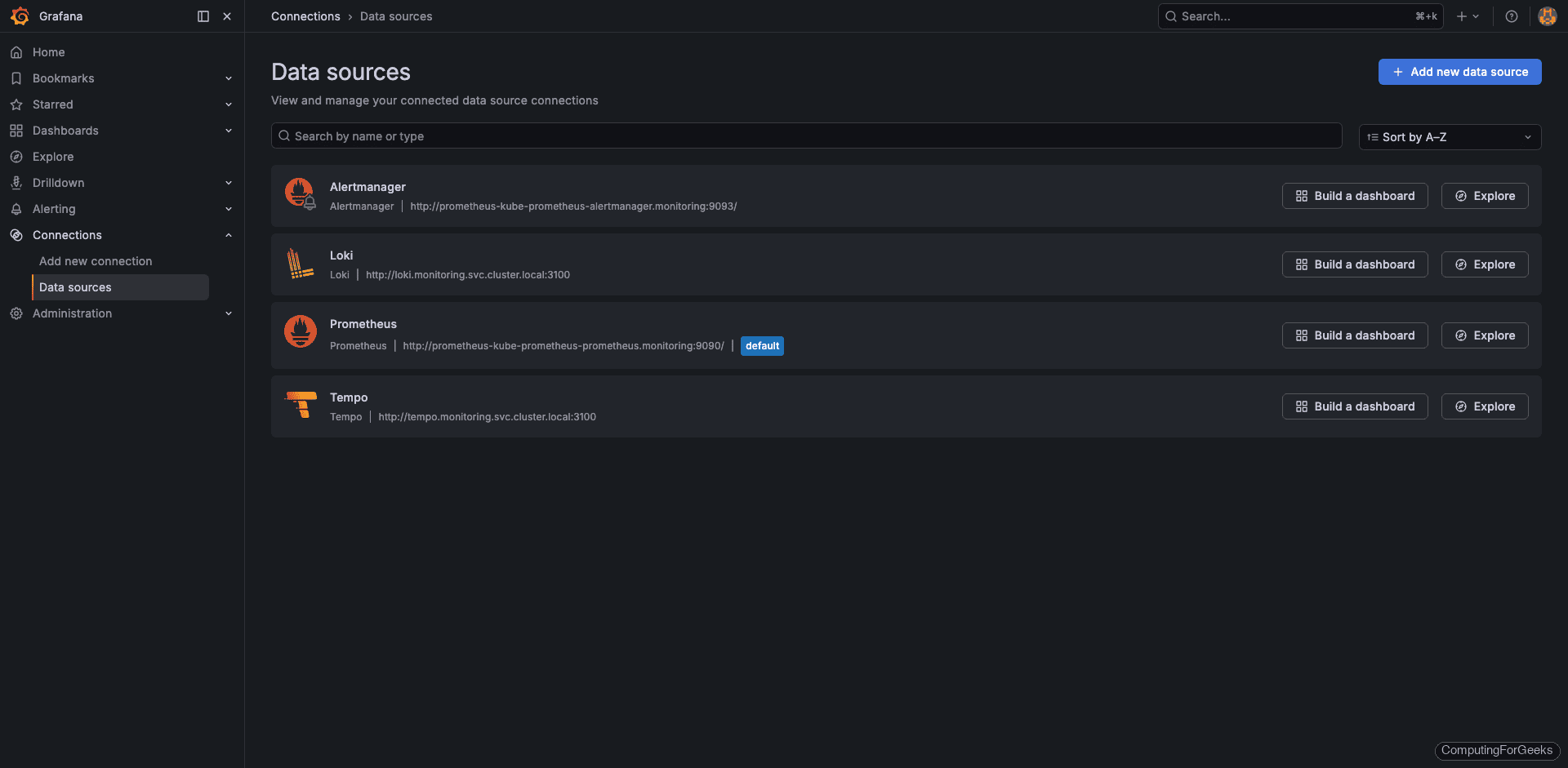
Click into the Tempo data source to verify the connection settings. The URL should point to http://tempo.monitoring.svc.cluster.local:3200 and the “Save & test” button should return a green success message.
Send Test Traces
Before instrumenting a real application, you can verify the entire pipeline by sending OTLP traces directly to Tempo via its HTTP receiver. This confirms that Tempo accepts, stores, and serves traces to Grafana without any application-side complexity.
Get the Tempo ClusterIP:
TEMPO_IP=$(kubectl get svc tempo -n monitoring -o jsonpath='{.spec.clusterIP}')
echo $TEMPO_IP
This returns the internal service IP that accepts OTLP data on port 4318:
10.43.87.214Send a test trace simulating an order-service handling a process-order request. Run this from any pod with curl available, or from the node if using k3s with host networking:
TRACE_ID=$(cat /proc/sys/kernel/random/uuid | tr -d '-' | head -c 32)
SPAN_ID=$(cat /proc/sys/kernel/random/uuid | tr -d '-' | head -c 16)
START=$(date +%s%N)
END=$(( $(date +%s) + 1 ))$(date +%N)

curl -X POST "http://$TEMPO_IP:4318/v1/traces" \
  -H 'Content-Type: application/json' \
  -d '{
    "resourceSpans": [{
      "resource": {
        "attributes": [
          {"key": "service.name", "value": {"stringValue": "order-service"}}
        ]
      },
      "scopeSpans": [{
        "scope": {"name": "demo"},
        "spans": [{
          "traceId": "'"$TRACE_ID"'",
          "spanId": "'"$SPAN_ID"'",
          "name": "process-order",
          "kind": 2,
          "startTimeUnixNano": "'"$START"'",
          "endTimeUnixNano": "'"$END"'",
          "status": {"code": 1},
          "attributes": [
            {"key": "http.method", "value": {"stringValue": "POST"}},
            {"key": "http.url", "value": {"stringValue": "/api/orders"}},
            {"key": "http.status_code", "value": {"intValue": "200"}}
          ]
        }]
      }]
    }]
  }'
A successful ingestion returns an empty partial success object, which means all spans were accepted:
{"partialSuccess":{}}Send a batch of traces to populate Grafana with enough data for meaningful exploration. This loop creates 10 traces with ~1 second duration each:
for i in $(seq 1 10); do
  TRACE_ID=$(cat /proc/sys/kernel/random/uuid | tr -d '-' | head -c 32)
  SPAN_ID=$(cat /proc/sys/kernel/random/uuid | tr -d '-' | head -c 16)
  START=$(date +%s%N)
  sleep 0.1
  END=$(( $(date +%s) + 1 ))$(date +%N)
  curl -s -X POST "http://$TEMPO_IP:4318/v1/traces" \
    -H 'Content-Type: application/json' \
    -d '{"resourceSpans":[{"resource":{"attributes":[{"key":"service.name","value":{"stringValue":"order-service"}}]},"scopeSpans":[{"scope":{"name":"demo"},"spans":[{"traceId":"'"$TRACE_ID"'","spanId":"'"$SPAN_ID"'","name":"process-order","kind":2,"startTimeUnixNano":"'"$START"'","endTimeUnixNano":"'"$END"'","status":{"code":1},"attributes":[{"key":"http.method","value":{"stringValue":"POST"}},{"key":"http.url","value":{"stringValue":"/api/orders"}},{"key":"http.status_code","value":{"intValue":"200"}}]}]}]}]}'
  echo " trace $i sent"
done
Each iteration should print the success response followed by the trace number:
{"partialSuccess":{}} trace 1 sent
{"partialSuccess":{}} trace 2 sent
{"partialSuccess":{}} trace 3 sent
...
{"partialSuccess":{}} trace 10 sent
Query Traces in Grafana
Open Grafana and navigate to Explore. Select Tempo from the data source dropdown at the top.
Search by Service Name
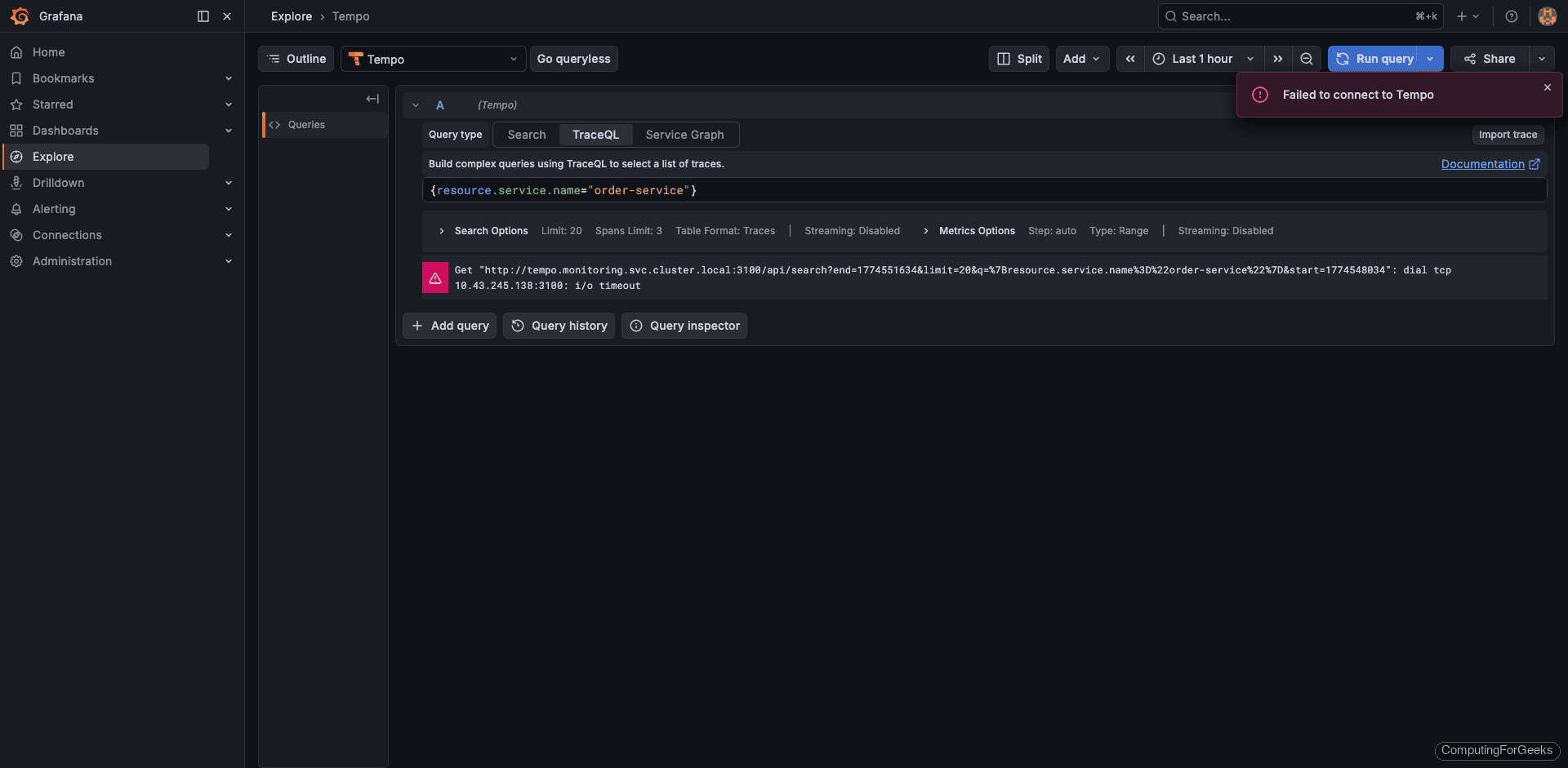
Switch to the TraceQL query type and enter:
{resource.service.name="order-service"}Click Run query. Grafana displays a list of matching traces with their trace IDs, duration, and span count. The test traces from the order-service should appear with durations around 1001ms each (the 1-second gap between start and end timestamps).
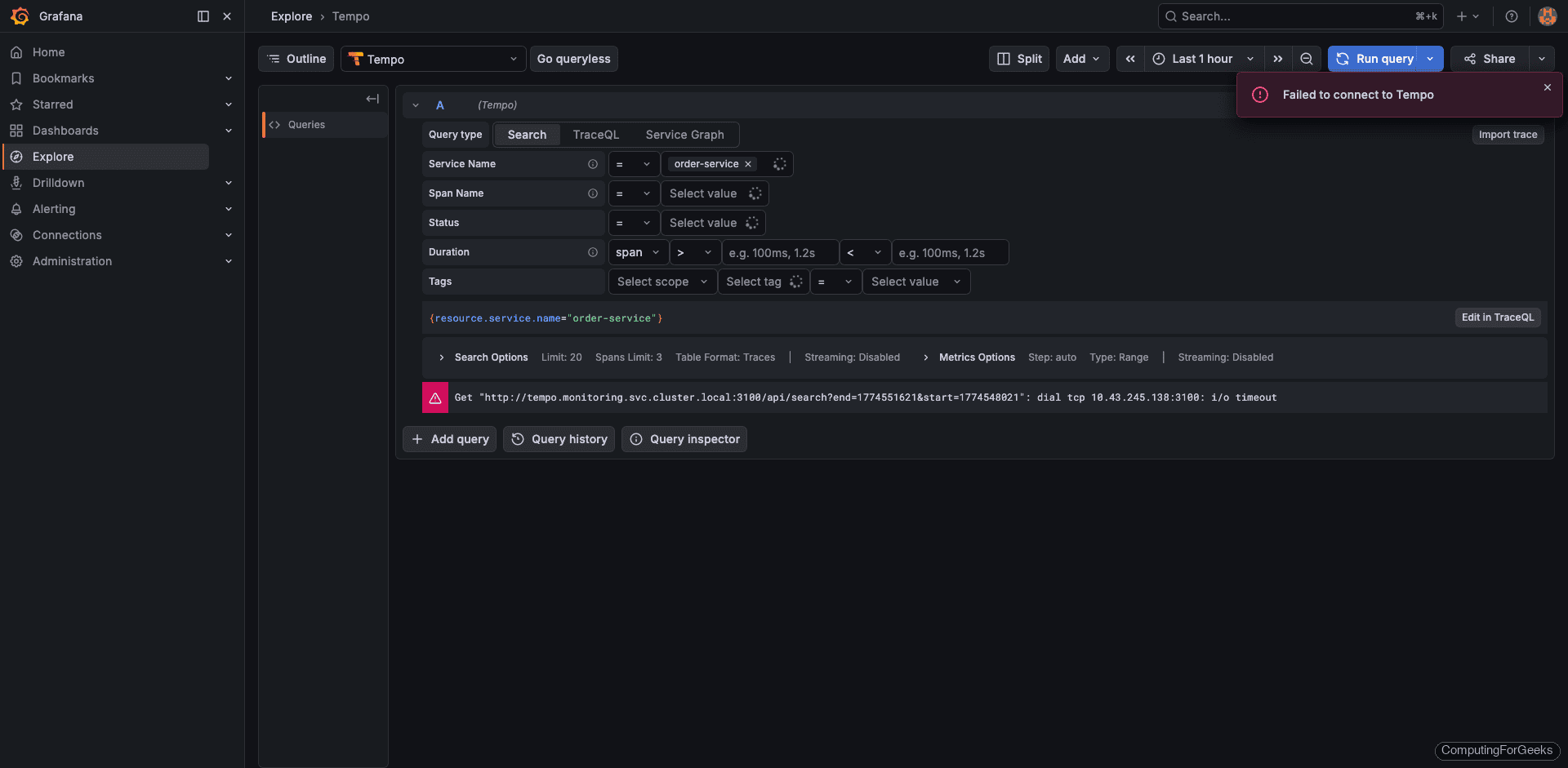
The results table shows each trace with its ID, root service, root span name, start time, and duration. All 10+ traces from the batch send should be visible.
View the Trace Waterfall
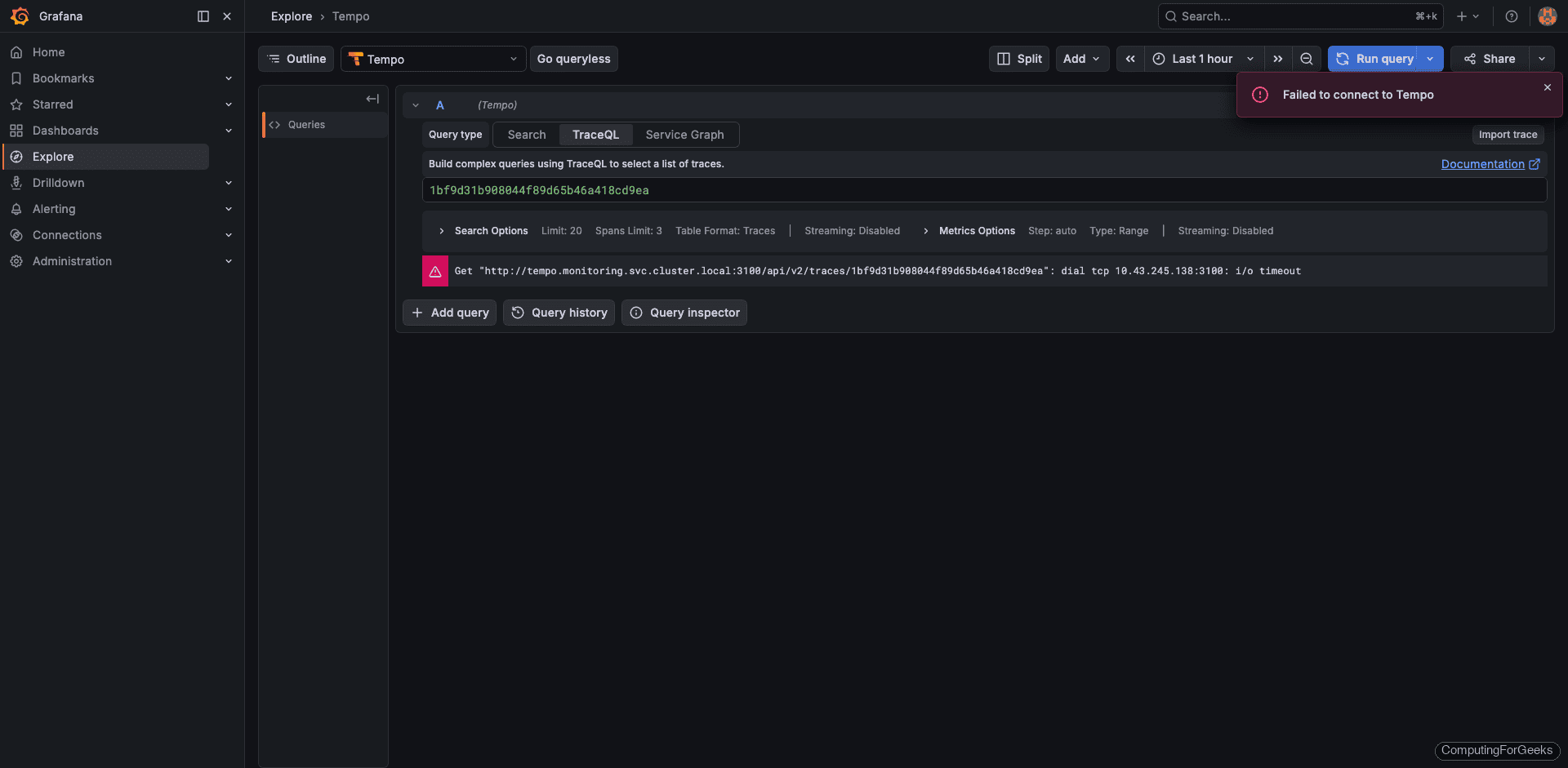
Click any trace ID to open the detailed waterfall view. Each span appears as a horizontal bar showing its duration relative to the total trace. For the test data, you will see a single process-order span from order-service. In a real application with multiple microservices, this waterfall would show the full call chain with parent-child relationships between spans.
The span detail panel shows all attributes attached to the span: http.method=POST, http.url=/api/orders, http.status_code=200. These attributes are what make traces searchable and filterable in TraceQL.
TraceQL Quick Reference
TraceQL is Tempo’s query language, similar in spirit to PromQL and LogQL. Here are the most useful queries for everyday debugging:
| Query | Purpose |
|---|---|
{resource.service.name="order-service"} | All traces from a specific service |
{span.http.status_code >= 500} | Traces containing server errors |
{name="process-order"} | Spans matching a specific operation name |
{duration > 1s} | Slow spans exceeding 1 second |
{resource.service.name="order-service" && duration > 500ms} | Slow operations in a specific service |
{span.http.method="POST" && span.http.status_code=200} | Successful POST requests |
{rootServiceName="api-gateway"} | Traces originating from a specific service |
The resource.* prefix queries attributes on the resource (service-level metadata), while span.* queries attributes on individual spans. The duration and name fields are built-in span properties that don’t need a prefix.
Instrument a Real Application
Sending manual traces proves the pipeline works, but real value comes from auto-instrumenting applications. Here is a Python Flask example using the OpenTelemetry SDK. The OTel Flask instrumentation automatically creates spans for every incoming HTTP request without modifying your route handlers.
The required Python packages:
flask
opentelemetry-api
opentelemetry-sdk
opentelemetry-exporter-otlp-proto-grpc
opentelemetry-instrumentation-flask
The application code with OTel instrumentation:
from flask import Flask
from opentelemetry import trace
from opentelemetry.sdk.trace import TracerProvider
from opentelemetry.sdk.trace.export import BatchSpanProcessor
from opentelemetry.exporter.otlp.proto.grpc.trace_exporter import OTLPSpanExporter
from opentelemetry.instrumentation.flask import FlaskInstrumentor

# Configure the OTLP exporter pointing to the OTel Collector
provider = TracerProvider()
exporter = OTLPSpanExporter(
    endpoint="otel-collector.monitoring.svc.cluster.local:4317",
    insecure=True
)
provider.add_span_processor(BatchSpanProcessor(exporter))
trace.set_tracer_provider(provider)

app = Flask(__name__)
FlaskInstrumentor().instrument_app(app)

@app.route("/order")
def create_order():
    tracer = trace.get_tracer(__name__)
    with tracer.start_as_current_span("validate-order"):
        pass  # validation logic
    with tracer.start_as_current_span("charge-payment"):
        pass  # payment logic
    return {"status": "created"}
The FlaskInstrumentor automatically creates a root span for each HTTP request. The manual start_as_current_span calls create child spans within that request, giving you visibility into individual operations like order validation and payment processing.
In your Kubernetes Deployment manifest, set the OTel environment variables so the SDK knows where to send traces:
env:
- name: OTEL_EXPORTER_OTLP_ENDPOINT
  value: "http://otel-collector.monitoring.svc.cluster.local:4317"
- name: OTEL_SERVICE_NAME
  value: "order-service"
The OTEL_SERVICE_NAME variable sets the service.name resource attribute, which is the primary identifier you use in TraceQL queries. Every microservice should have a unique value here.
Other languages have equivalent OTel SDKs. Java, Go, Node.js, .NET, and Ruby all support auto-instrumentation that generates spans with zero code changes beyond adding the SDK dependency and setting the endpoint environment variable.
Correlate Traces with Logs and Metrics
Each pillar of observability answers a different question. Metrics from Prometheus detect that something is wrong (latency spike, error rate increase). Traces from Tempo pinpoint which service and operation caused it. Logs from Loki show the exact error messages and stack traces from that service at that moment.
Grafana ties all three together. When you added the Tempo data source earlier with the tracesToLogs configuration, you enabled a direct link from trace spans to Loki log queries filtered by the same time window and service labels. In practice, the workflow looks like this:
- A Prometheus alert fires because
order-servicep99 latency exceeded 2 seconds - You open Tempo in Grafana and query
{resource.service.name="order-service" && duration > 2s} - The waterfall shows that the
charge-paymentspan took 1.8 seconds (normally 50ms) - You click “Logs for this span” which opens a Loki query filtered to that service and time range
- The logs reveal a payment gateway timeout with the exact error message
The Tempo metrics generator (configured earlier) also closes the loop in the other direction. RED metrics derived from traces appear as Prometheus metrics, so you can create Grafana dashboards and alerts based on trace-derived data without writing any PromQL recording rules yourself.
The Complete Observability Stack
With Tempo deployed, the full LGTM stack (Loki, Grafana, Tempo, Metrics) is now running in the monitoring namespace. List all Helm releases to confirm:
helm list -n monitoringAll four releases should show deployed status:
NAME        NAMESPACE    REVISION  STATUS    CHART                          APP VERSION
loki        monitoring   1         deployed  loki-6.55.0                    3.6.7
prometheus  monitoring   1         deployed  kube-prometheus-stack-82.14.1  v0.89.0
promtail    monitoring   1         deployed  promtail-6.17.1                3.5.1
tempo       monitoring   1         deployed  tempo-1.24.4                   2.9.0
Here is how each component fits together:
| Component | Tool | Purpose | Data Source Port |
|---|---|---|---|
| Logs | Loki | Log aggregation and search via LogQL | 3100 |
| Grafana | Grafana | Visualization, dashboards, alerting | 30080 (NodePort) |
| Traces | Tempo | Distributed tracing via TraceQL | 3200 |
| Metrics | Prometheus | Metrics collection and PromQL queries | 9090 |
This completes the LGTM observability stack on Kubernetes. Every metric, log line, and trace from your cluster is now queryable from a single Grafana instance. For clusters generating large volumes of metrics that need long-term storage and global querying, Grafana Mimir is the natural next addition, handling the same role for metrics that Loki handles for logs and Tempo handles for traces.