GitLab 18 shipped with a hard PostgreSQL 16 requirement, removed the legacy git_data_dirs configuration, and enforced CI/CD job token allowlists. Skip any of these during an upgrade and you’re looking at a broken instance. This guide covers the full upgrade from GitLab 17.x to 18.x on self-managed Linux package (Omnibus) installations, with every command tested on a real system.
GitLab enforces strict upgrade stops between major versions. You cannot jump directly from, say, 17.4 to 18.10. Each required stop version runs database migrations that later versions depend on. Miss one and the upgrade fails with cryptic migration errors that are painful to untangle. The path documented here follows GitLab’s official upgrade path and has been verified end to end. If you’re installing GitLab from scratch instead, see Install GitLab CE on Ubuntu / Debian or Install GitLab on Rocky Linux / AlmaLinux.
Verified working: March 2026 | Full upgrade path verified on Rocky Linux 10.1 and Ubuntu 24.04 LTS, GitLab CE 17.11.7 → 18.10.1). PostgreSQL 16.11. Commands for RHEL/Rocky/Alma 8, 9, 10 and Ubuntu/Debian included.
What Changed in GitLab 18 (Breaking Changes)
Before touching a single package, understand what GitLab 18.0 broke. These are the changes most likely to bite you during or after the upgrade:
| Change | Impact | Action Required |
|---|---|---|
| PostgreSQL 14/15 dropped | GitLab 18.0 requires PostgreSQL 16.5 minimum | Omnibus auto-upgrades PostgreSQL on 17.11. External DB users must upgrade manually before 18.0 |
git_data_dirs removed | Deprecated since 17.8, fully removed in 18.0 | Migrate to gitaly['configuration'] with storage setting. Append /repositories to the path |
| CI/CD Job Token allowlist enforced | Cross-project API calls using job tokens require explicit allowlist entries | Populate allowlists in Settings > CI/CD > Job token permissions before upgrading |
| Terraform CI/CD templates removed | Terraform.gitlab-ci.yml and variants no longer exist | Migrate to OpenTofu CI/CD component |
| Dependency Proxy token scope enforcement | Tokens need both read_registry and write_registry scopes | Audit and update token scopes before upgrade |
| Omnibus base image changed to Ubuntu 24.04 | Bundled libraries and paths may differ | Review any custom scripts that reference bundled binary paths |
The full list of removals is documented in GitLab 18 changes. Read it before proceeding.
Required Upgrade Path
GitLab mandates stopping at specific versions during major upgrades. Each stop version runs batched database migrations that subsequent versions expect to find completed. The required stops between 17.x and 18.x are:
| Stop | Version | Why It’s Required |
|---|---|---|
| 1 | 17.3.7 | Database schema changes for CI pipelines |
| 2 | 17.5.5 | Background migration checkpoint |
| 3 | 17.8.7 | Deprecation enforcement (git_data_dirs warning starts here) |
| 4 | 17.11.7 | Final 17.x stop. PostgreSQL auto-upgrade to 16 happens here |
| 5 | 18.2.8 | First 18.x required stop |
| 6 | 18.5.5 | Second 18.x required stop |
| 7 | 18.8.7 | Third 18.x required stop |
Always upgrade to the latest patch of each stop version (e.g., 17.8.7, not 17.8.0). Patch releases fix bugs that can cause upgrade failures. If you’re already past a stop version (for example, running 17.9), skip it and go to the next one.
Your specific path depends on your current version. For example, starting from 17.4.2:
17.4.2 → 17.5.5 → 17.8.7 → 17.11.7 → 18.2.8 → 18.5.5 → 18.8.7 → 18.10.1Starting from 17.11.0:
17.11.0 → 17.11.7 → 18.2.8 → 18.5.5 → 18.8.7 → 18.10.1Use the GitLab Upgrade Path tool to calculate your exact path by entering your current and target versions.
Prerequisites
Confirm the following before starting:
- A running GitLab 17.x instance (CE or EE) installed via Linux package (Omnibus). This guide does not cover Docker, Helm, or source installations.
- Supported OS: RHEL/Rocky/AlmaLinux 8, 9, or 10; Ubuntu 20.04, 22.04, or 24.04; Debian 11, 12, or 13. The upgrade process is the same across all distros. Only the package install commands differ.
- Root or sudo access to the GitLab server.
- Enough disk space for a full backup. Check with
df -h /var/opt/gitlab. A backup of a small instance with a few projects runs about 500 MB to 2 GB. Large instances with container registry blobs can be 50 GB+. - A maintenance window. While GitLab advertises zero-downtime upgrades, major version jumps are safer with a short downtime window (30 to 60 minutes per stop, depending on database size).
- Tested on: Rocky Linux 10.1 with GitLab CE 17.11.7, upgraded to GitLab CE 18.10.1
Check Your Current Version and Health
Start by confirming what you’re running:
cat /opt/gitlab/embedded/service/gitlab-rails/VERSIONThis returns the exact version string, for example 17.11.7. You can also get a more detailed view with the environment info rake task:
sudo gitlab-rake gitlab:env:infoThe output shows the GitLab version, Ruby, Rails, PostgreSQL, Redis, Sidekiq, and Go versions all in one place. Confirm PostgreSQL is at 14 or higher (it will be upgraded to 16 at the 17.11 stop).
Run the built-in health check to catch problems before they become upgrade blockers:
sudo gitlab-rake gitlab:check SANITIZE=trueThis validates Git, Gitaly, repositories, and hooks. Fix any errors it reports before proceeding. Also verify that all services are running:
sudo gitlab-ctl statusEvery service should show run: with a PID and uptime. If anything shows down:, investigate and fix it first.
Verify Background Migrations Are Complete
This step is critical. GitLab runs batched background migrations asynchronously after each upgrade. If you jump to the next version before they finish, the upgrade will fail with errors like Expected batched background migration to be marked as 'finished', but it is 'active'.
Check migration status from the command line:
sudo gitlab-rake gitlab:background_migrations:statusEvery migration must show a finished or finalized status. If any show active or paused, wait for them to complete. On a small instance this takes minutes; on large instances with millions of rows it can take hours.
For a more precise check, query the database directly:
sudo gitlab-psql -c "SELECT job_class_name, table_name, status FROM batched_background_migrations WHERE status NOT IN(3, 6);"An empty result set means all migrations are done (status 3 = finished, 6 = finalized). During our test upgrade, the 17.11.7 install returned zero pending migrations immediately. After the jump to 18.2.8, four new migrations appeared and took about 6 minutes to complete on a small instance with one project. The 18.5.5 stop introduced 13 migrations (10 minutes), and 18.8.7 added 19 more (15 minutes). Plan accordingly for larger databases.
If migrations are stuck, force them to run immediately:
sudo gitlab-rake gitlab:background_migrations:finalizeWait for this to complete before moving to the next step. Do not skip this. Seriously.
Back Up Everything
Create a full application backup. This covers repositories, databases, uploads, CI artifacts, LFS objects, and more:
sudo gitlab-backup create STRATEGY=copyThe STRATEGY=copy flag creates a copy of the data before archiving, which prevents issues if data changes during the backup process. The backup file lands in /var/opt/gitlab/backups/ with a timestamp in the filename.
The backup command does not include two critical files that you must save separately:
sudo cp /etc/gitlab/gitlab-secrets.json /root/gitlab-secrets.json.bak
sudo cp /etc/gitlab/gitlab.rb /root/gitlab.rb.bak
Without gitlab-secrets.json, encrypted database columns (two-factor authentication secrets, CI/CD variables, runner tokens) become unreadable. Lose this file and you lose access to all encrypted data permanently.
Verify the backup was created:
ls -lh /var/opt/gitlab/backups/You should see a .tar file with a name like 1711234567_2026_03_26_17.11.7_gitlab_backup.tar. Copy this file and the two config backups to an off-server location (an S3 bucket, NFS mount, or another machine) before proceeding.
Fix git_data_dirs Before Upgrading to 18.0
GitLab 18.0 removed the git_data_dirs configuration directive. If your /etc/gitlab/gitlab.rb still uses it, the upgrade will fail. Check whether you’re affected:
sudo grep -n "git_data_dirs" /etc/gitlab/gitlab.rbIf you see an active (uncommented) git_data_dirs block, you need to migrate it. The old format looks like this:
# OLD format (will break on 18.0)
git_data_dirs({
  "default" => { "path" => "/var/opt/gitlab/git-data" }
})
Replace it with the new Gitaly storage configuration. Open the file:
sudo vi /etc/gitlab/gitlab.rbComment out the old git_data_dirs block and add the new format:
# NEW format (required for 18.0+)
gitaly['configuration'] = {
  storage: [
    {
      name: 'default',
      path: '/var/opt/gitlab/git-data/repositories'
    }
  ]
}
Notice the /repositories suffix on the path. The old git_data_dirs appended this automatically; the new format requires you to specify it explicitly. Getting this wrong means Gitaly can’t find your repositories.
After editing, reconfigure and verify Gitaly starts cleanly:
sudo gitlab-ctl reconfigure
sudo gitlab-ctl status gitaly
Test that repositories are accessible by cloning or viewing a project in the web UI.
Populate CI/CD Job Token Allowlists
GitLab 18.0 enforces job token allowlists. If any of your CI/CD pipelines make cross-project API calls using the CI_JOB_TOKEN, those calls will fail after the upgrade unless the target projects have explicitly allowed the calling project.
Check which projects use cross-project job token access by looking for CI_JOB_TOKEN references in your .gitlab-ci.yml files. Common patterns include:
- Triggering pipelines in other projects
- Downloading artifacts from other projects
- Accessing the container registry of another project
- Making API calls to other project endpoints
For each target project, go to Settings > CI/CD > Job token permissions and add the calling projects to the allowlist. Do this before the upgrade, not after, because debugging broken pipelines post-upgrade is harder than preparing the allowlists in advance.
Package Naming by Distro
Before diving into the upgrade commands, know how GitLab packages are named on your OS. The upgrade logic is identical across all distros. Only the install command and package suffix differ:
| Distro | Package Manager | Install Command Example | List Versions |
|---|---|---|---|
| Rocky / Alma / RHEL 10 | dnf | sudo dnf install -y gitlab-ce-17.11.7-ce.0.el10.x86_64 | sudo dnf --showduplicates list gitlab-ce |
| Rocky / Alma / RHEL 9 | dnf | sudo dnf install -y gitlab-ce-17.11.7-ce.0.el9.x86_64 | sudo dnf --showduplicates list gitlab-ce |
| Rocky / Alma / RHEL 8 | dnf / yum | sudo dnf install -y gitlab-ce-17.11.7-ce.0.el8.x86_64 | sudo dnf --showduplicates list gitlab-ce |
| Ubuntu 20.04 / 22.04 / 24.04 | apt | sudo apt install -y gitlab-ce=17.11.7-ce.0 | sudo apt-cache madison gitlab-ce |
| Debian 11 / 12 / 13 | apt | sudo apt install -y gitlab-ce=17.11.7-ce.0 | sudo apt-cache madison gitlab-ce |
Notice that RHEL-family packages include the OS version suffix (el8, el9, el10), while Debian/Ubuntu packages use a single format regardless of release. For the rest of this guide, commands are shown for both families at each upgrade step.
Upgrade Step by Step
The process is the same for every stop: install the target version, wait for reconfigure and migrations to finish, verify background migrations are complete, then move to the next stop. Repeat until you reach your target version.
Each step below assumes you’ve completed the previous one and verified background migrations. Do not rush through these.
Upgrade to 17.11.7 (Last Stop Before 18.x)
If you’re already on 17.11.x, upgrade to the latest patch. If you’re on an earlier 17.x, follow the required stops (17.3.7, 17.5.5, 17.8.7) first using the same procedure shown here.
List available 17.11.x packages to confirm they exist in your repository:
# RHEL / Rocky / AlmaLinux
sudo dnf --showduplicates list gitlab-ce | grep 17.11

# Ubuntu / Debian
sudo apt-cache madison gitlab-ce | grep 17.11
Install the specific version:
# RHEL / Rocky / AlmaLinux (replace el9 with el8 or el10 for your version)
sudo dnf install -y gitlab-ce-17.11.7-ce.0.el9.x86_64

# Ubuntu / Debian
sudo apt install -y gitlab-ce=17.11.7-ce.0
The package install triggers gitlab-ctl reconfigure automatically and runs database migrations. This takes a few minutes depending on your database size.
Verify the version once the install finishes:
cat /opt/gitlab/embedded/service/gitlab-rails/VERSIONThe output should show 17.11.7. Confirm all services are running:
sudo gitlab-ctl statusWait for background migrations to complete before proceeding:
sudo gitlab-psql -c "SELECT job_class_name, table_name, status FROM batched_background_migrations WHERE status NOT IN(3, 6);"Empty result means you’re clear. This is also the version where Omnibus auto-upgrades PostgreSQL to version 16 if you’re still on 14 or 15. Watch the reconfigure output for PostgreSQL upgrade messages. If the auto-upgrade fails, trigger it manually:
sudo gitlab-ctl pg-upgradeConfirm PostgreSQL 16 is running:
sudo gitlab-psql -c "SELECT version();"You should see PostgreSQL 16.x in the output. If it still shows 14 or 15, do not proceed to 18.0.
Cross the Major Version Boundary: Upgrade to 18.2.8
This is the first 18.x required stop. The jump from 17.11 to 18.2 is where most of the breaking changes take effect. Make sure you’ve handled the git_data_dirs migration and job token allowlists before running this.
# RHEL / Rocky / AlmaLinux
sudo dnf install -y gitlab-ce-18.2.8-ce.0.el9.x86_64

# Ubuntu / Debian
sudo apt install -y gitlab-ce=18.2.8-ce.0
The reconfigure step will take longer than usual because 18.0 includes significant database schema changes. During our test, four new background migrations appeared after this step and took about 6 minutes to complete. Monitor the output for errors. If you see migration failures, check the troubleshooting section below.
Verify the upgrade succeeded:
cat /opt/gitlab/embedded/service/gitlab-rails/VERSION
sudo gitlab-ctl status
Wait for background migrations again:
sudo gitlab-psql -c "SELECT job_class_name, table_name, status FROM batched_background_migrations WHERE status NOT IN(3, 6);"Sign into the web UI and verify you can browse projects, view merge requests, and access the CI/CD section. This quick sanity check catches issues early.
Continue Through 18.x Stops
Repeat the same process for each remaining stop. The pattern is identical: install, wait for reconfigure, check background migrations, verify services, move on.
Upgrade to 18.5.5 (13 background migrations followed in our test, ~10 minutes):
# RHEL / Rocky / AlmaLinux
sudo dnf install -y gitlab-ce-18.5.5-ce.0.el9.x86_64

# Ubuntu / Debian
sudo apt install -y gitlab-ce=18.5.5-ce.0
Check migrations and services, then upgrade to 18.8.7 (19 migrations, ~15 minutes):
# RHEL / Rocky / AlmaLinux
sudo dnf install -y gitlab-ce-18.8.7-ce.0.el9.x86_64

# Ubuntu / Debian
sudo apt install -y gitlab-ce=18.8.7-ce.0
Finally, upgrade to the latest release:
# RHEL / Rocky / AlmaLinux
sudo dnf install -y gitlab-ce-18.10.1-ce.0.el9.x86_64

# Ubuntu / Debian
sudo apt install -y gitlab-ce=18.10.1-ce.0
After reaching 18.10.1, run the full verification suite one more time:
cat /opt/gitlab/embedded/service/gitlab-rails/VERSION
sudo gitlab-ctl status
sudo gitlab-rake gitlab:check SANITIZE=true
sudo gitlab-rake gitlab:doctor:secrets
All checks should pass. If gitlab:doctor:secrets reports decryption failures, your gitlab-secrets.json may have been corrupted during the upgrade. Restore it from the backup you created earlier.
Post-Upgrade Verification
A successful package install doesn’t mean everything works. Run these checks to confirm the instance is healthy.
Service Health
Confirm all GitLab components are running:
sudo gitlab-ctl statusThe output lists every service (puma, sidekiq, gitaly, redis, postgresql, nginx, and others) with their PID and uptime. Everything should show run:.
Environment Info
Get a full snapshot of the upgraded environment:
sudo gitlab-rake gitlab:env:infoVerify the GitLab version shows 18.10.1, PostgreSQL shows 16.x, and all paths are correct.
Repository Integrity
Run a filesystem consistency check across all repositories:
sudo gitlab-rake gitlab:git:fsckThis scans every repository for corruption. On large instances with thousands of repos, this takes time. Run it during off-peak hours if needed.
Encrypted Data Integrity
Verify that secrets and encrypted columns are readable:
sudo gitlab-rake gitlab:doctor:secretsThis checks that CI/CD variables, runner tokens, two-factor secrets, and other encrypted data can be decrypted. Any failures here mean gitlab-secrets.json has an issue.
Upload and Artifact Integrity
Check that uploaded files, CI artifacts, and LFS objects are intact:
sudo gitlab-rake gitlab:artifacts:check
sudo gitlab-rake gitlab:lfs:check
sudo gitlab-rake gitlab:uploads:check
These compare stored checksums against the actual files on disk. Missing or corrupted files will be reported.
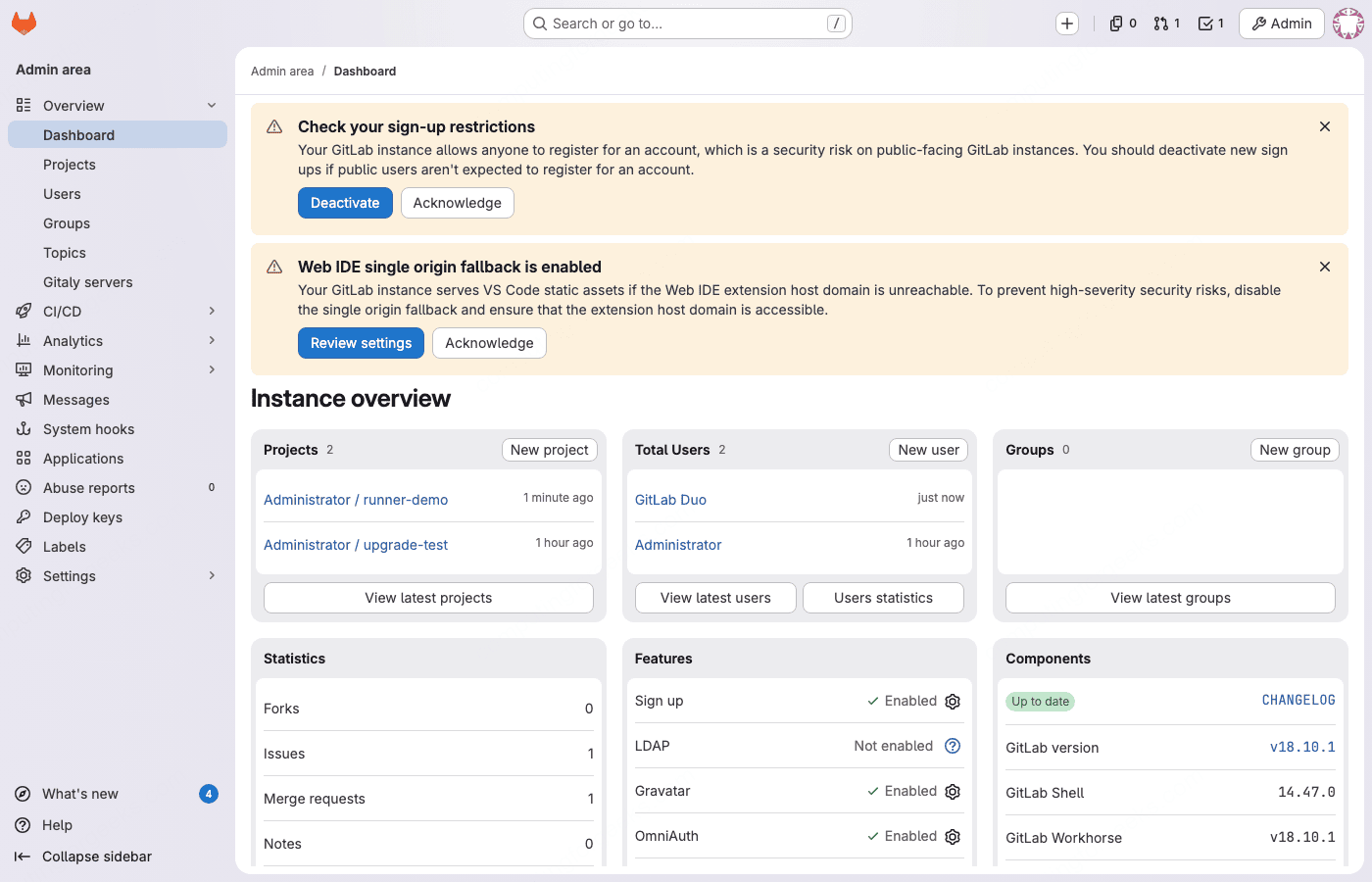
After our test upgrade from 17.11.7 to 18.10.1, all integrity checks passed with zero failures across repositories, secrets, artifacts, uploads, and LFS objects.
The admin dashboard confirms the upgrade completed successfully:
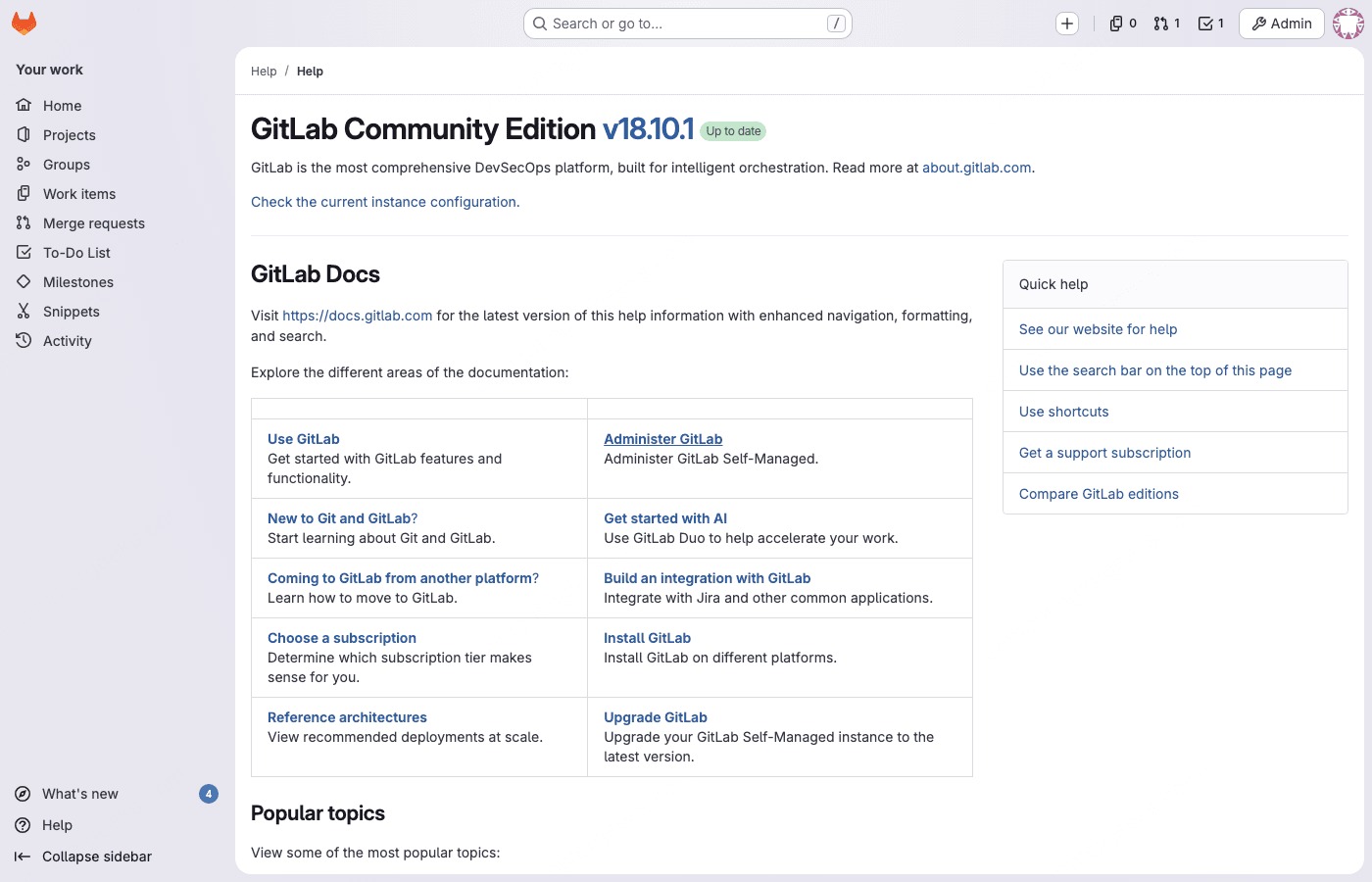
The help page clearly shows the upgraded version:
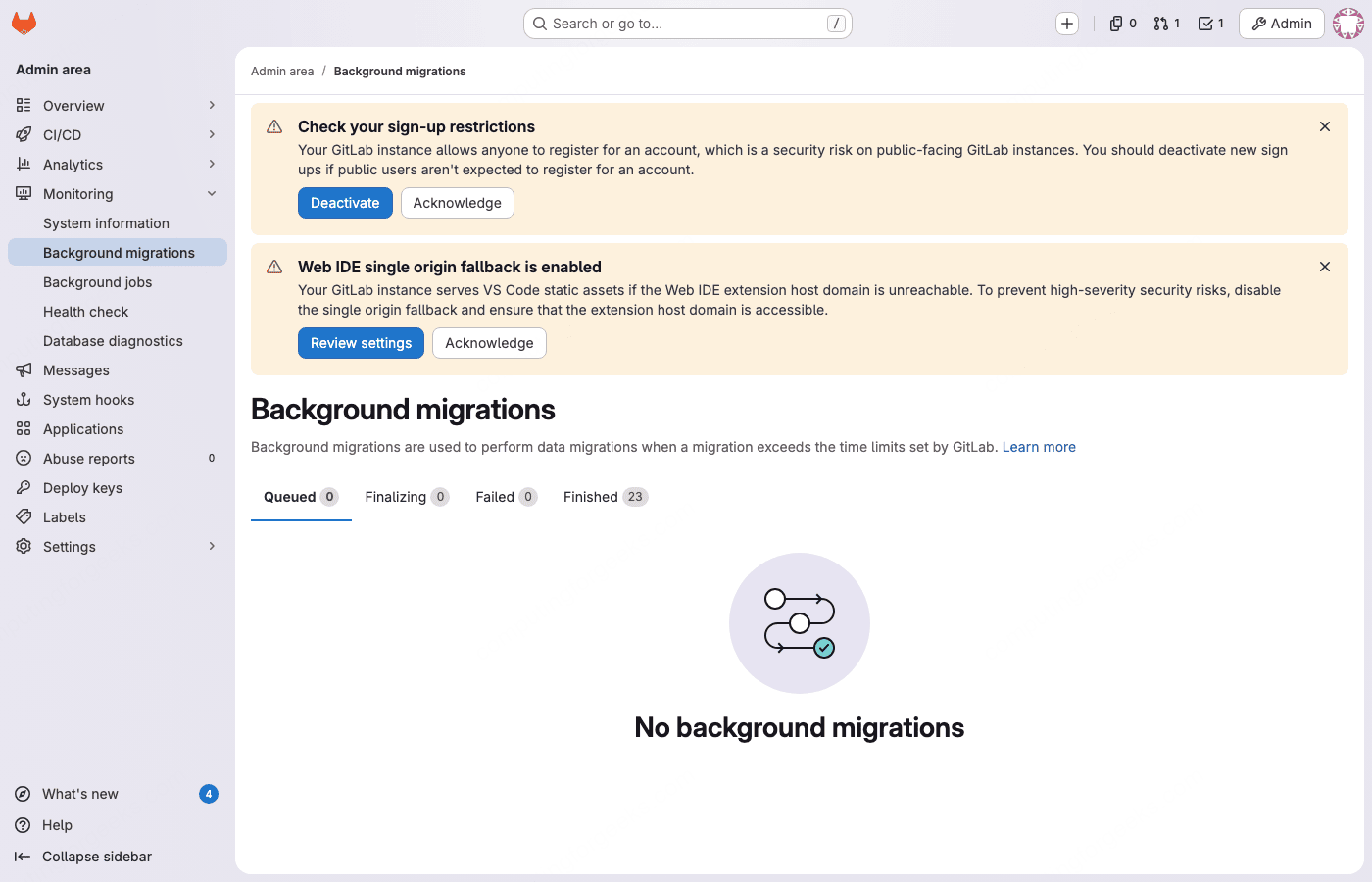
Background migrations should show “No background migrations” in the admin area after the final upgrade. If any remain, wait for them to finish before declaring the upgrade complete.
Verify CI/CD Pipelines Work
Runners and pipelines are the first thing teams notice when something breaks. After the upgrade, verify the entire CI/CD chain is functional.
Check that runners are connected from the command line:
sudo gitlab-rails runner "puts Ci::Runner.online.count"This returns the number of online runners. If the count is zero and you had runners before the upgrade, the runners likely need to be upgraded too.
Upgrade GitLab Runner
GitLab Runner should match the major version of your GitLab instance. On the runner machine, upgrade the package:
Upgrade the runner package on the runner machine:
# RHEL / Rocky / AlmaLinux
sudo dnf update -y gitlab-runner

# Ubuntu / Debian
sudo apt update && sudo apt install -y gitlab-runner
Verify the runner version and status:
gitlab-runner --version
gitlab-runner verify
The verify command checks connectivity to your GitLab instance and confirms the runner is registered and alive.
Trigger a Test Pipeline
The real test is whether a pipeline runs end to end. Create a simple test project or use an existing one. Here’s a minimal .gitlab-ci.yml that exercises the pipeline engine:
stages:
  - test
  - build

version-check:
  stage: test
  script:
    - echo "GitLab CI running on $(hostname)"
    - cat /etc/os-release | head -2
    - echo "Pipeline triggered at $(date)"

build-job:
  stage: build
  script:
    - echo "Build stage works"
    - echo "Runner version:" && gitlab-runner --version 2>/dev/null || echo "Not a runner shell"
  needs:
    - version-check
Push this to a project and verify the pipeline triggers, both jobs run in order, and both show green (passed). Check the job logs for the actual output to confirm the runner is executing on the expected infrastructure.
If you use Docker executors, test a pipeline that pulls an image and runs commands inside it. If you use Kubernetes executors, verify pod scheduling still works. The upgrade shouldn’t break executor functionality, but configuration drift between GitLab and Runner versions can cause subtle failures.
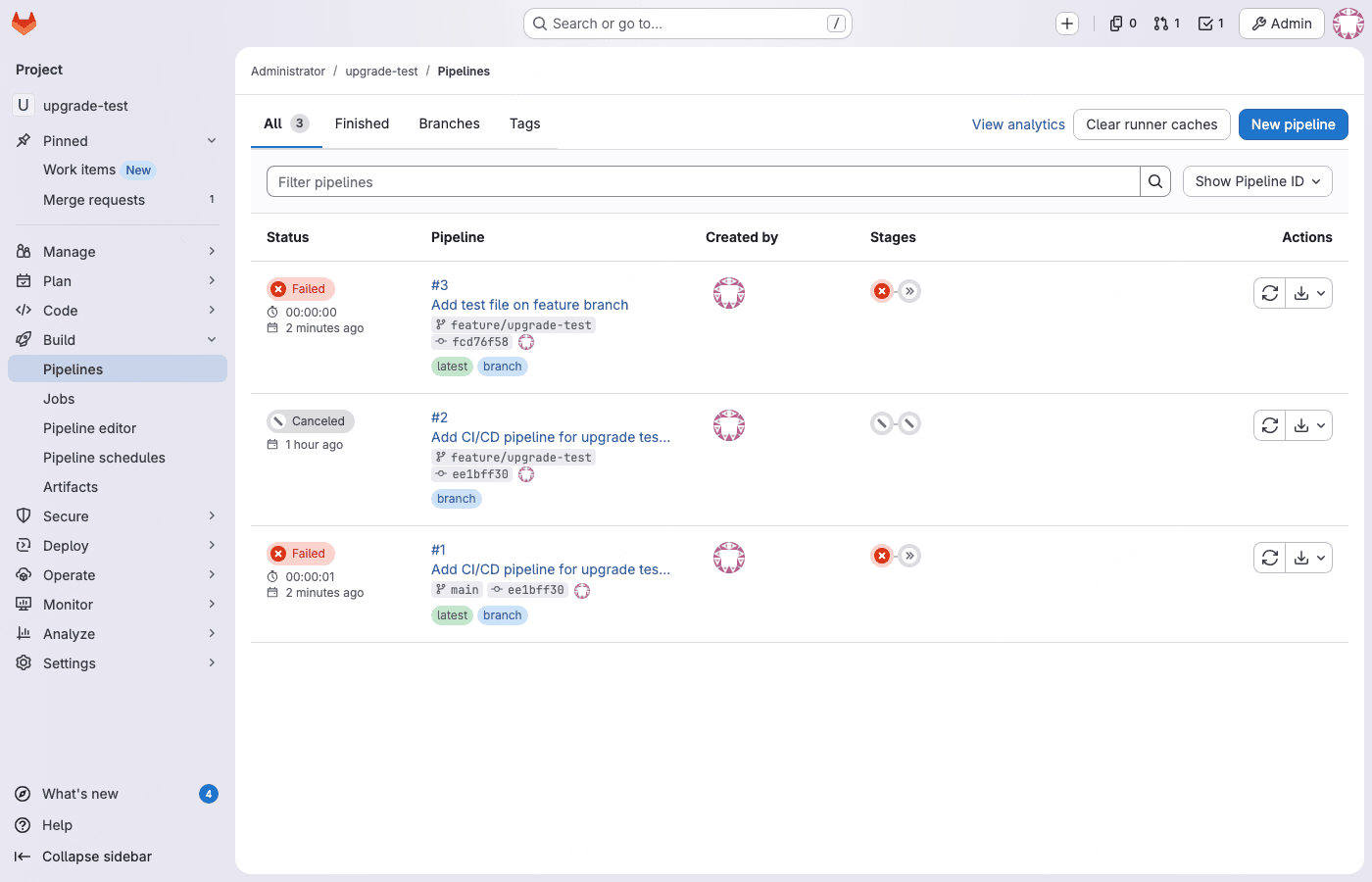
In our test, the project created before the upgrade was fully intact after reaching 18.10.1. The repository files, CI/CD pipeline definitions, issues, and merge requests all survived:
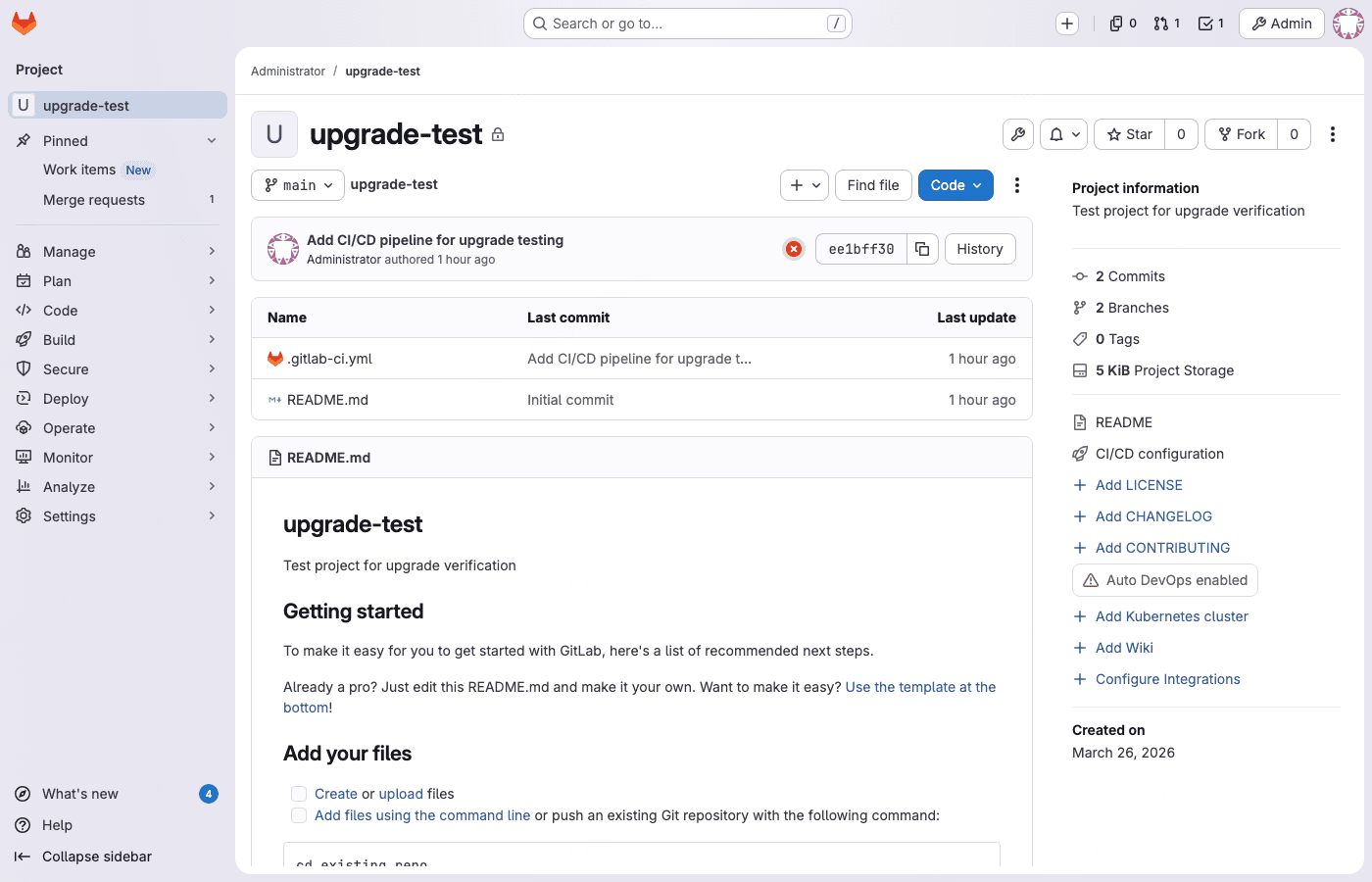
Existing pipelines were preserved with their original status (pending and canceled). New pipelines triggered correctly after registering a runner:
Troubleshooting Common Upgrade Failures
Error: “column organization_id of relation fork_networks contains null values”
This PG::NotNullViolation error hits during the 18.0 migration if background migrations from 17.x didn’t fully populate the organization_id column in the fork_networks table. Fix it by running this SQL before retrying the upgrade:
sudo gitlab-psql -c "UPDATE fork_networks SET organization_id = projects.organization_id FROM projects WHERE fork_networks.root_project_id = projects.id AND fork_networks.organization_id IS NULL;"After the fix, run reconfigure to retry the failed migrations:
sudo gitlab-ctl reconfigureError: “Expected batched background migration to be marked as ‘finished'”
You tried to upgrade before background migrations completed. This is the most common upgrade failure. Do not proceed until all migrations show finished status. Force-complete them:
sudo gitlab-rake gitlab:background_migrations:finalizeThen retry the package install. The migrations will not re-run from scratch; they pick up where they left off.
Error: “PG::CheckViolation” During 18.9.x Migrations
GitLab 18.9.0 and 18.9.1 had a bug where database migrations failed with PG::CheckViolation errors on tables that skipped batched migrations because they only had one record. This was fixed in 18.9.2. If you hit this, upgrade directly to 18.9.3 or later instead of stopping at 18.9.0.
Error: “Unknown field” in KAS Configuration
The Kubernetes Agent Server (KAS) configuration schema changed in 18.0. If you have custom KAS settings in gitlab.rb, check the KAS configuration documentation for the updated field names. The most common fix is removing deprecated fields and updating to the new schema.
PostgreSQL Auto-Upgrade Fails at 17.11
If the automatic PostgreSQL upgrade from 14/15 to 16 fails during the 17.11 install, trigger it manually:
sudo gitlab-ctl pg-upgradeIf this also fails, check the PostgreSQL error log for specifics:
sudo tail -100 /var/log/gitlab/postgresql/currentCommon causes include insufficient disk space for the upgrade (it needs roughly 2x the current database size temporarily) and custom PostgreSQL extensions that aren’t compatible with version 16.
NGINX Returns 502 After Upgrade
A 502 Bad Gateway usually means Puma hasn’t finished starting. GitLab’s Puma workers take 60 to 120 seconds to boot, especially after a major upgrade when Rails initializers run cache warmups. Wait 2 to 3 minutes and try again. If it persists:
sudo gitlab-ctl tail pumaLook for errors in the Puma log. Memory pressure is a common culprit; if the server has less than 8 GB of RAM, Puma workers may be killed by the OOM killer during startup. Check dmesg for OOM messages.
Cockpit Conflicts with Prometheus (Port 9090, RHEL Family)
Rocky Linux 9/10, AlmaLinux 9/10, and RHEL 9/10 ship with Cockpit’s systemd socket listening on port 9090, the same port GitLab’s bundled Prometheus uses. Ubuntu and Debian are not affected unless Cockpit was manually installed. During our test on Rocky 10, Prometheus crashed repeatedly with bind: address already in use. The fix is straightforward:
sudo systemctl stop cockpit.socket
sudo systemctl disable cockpit.socket
sudo gitlab-ctl restart prometheus
Verify Prometheus is running after the fix:
sudo gitlab-ctl status prometheusYou should see run: prometheus: with a PID and uptime. If you need Cockpit, change its port in /etc/cockpit/cockpit.conf before re-enabling it.
Rollback Procedure
If the upgrade goes sideways and you need to get back to the previous version, the process involves downgrading the package and restoring the database backup. You cannot simply downgrade the package because newer database migrations are not backwards-compatible.
Stop the application services:
sudo gitlab-ctl stop puma
sudo gitlab-ctl stop sidekiq
Downgrade the package to the version you backed up from:
# RHEL / Rocky / AlmaLinux (replace el9 with el8 or el10 for your version)
sudo dnf remove -y gitlab-ce
sudo dnf install -y gitlab-ce-17.11.7-ce.0.el9.x86_64

# Ubuntu / Debian
sudo apt install -y gitlab-ce=17.11.7-ce.0 --allow-downgrades
Restore the configuration files:
sudo cp /root/gitlab-secrets.json.bak /etc/gitlab/gitlab-secrets.json
sudo cp /root/gitlab.rb.bak /etc/gitlab/gitlab.rb
Restore the database from the backup you created earlier:
sudo gitlab-ctl stop puma
sudo gitlab-ctl stop sidekiq
sudo gitlab-backup restore BACKUP=TIMESTAMP_VERSION
Replace TIMESTAMP_VERSION with the backup filename without the _gitlab_backup.tar suffix. For example, if your backup file is 1711234567_2026_03_26_17.11.7_gitlab_backup.tar, use BACKUP=1711234567_2026_03_26_17.11.7.
After the restore completes, reconfigure and start all services:
sudo gitlab-ctl reconfigure
sudo gitlab-ctl start
sudo gitlab-rake gitlab:check SANITIZE=true
Verify everything works before opening access to users.
Upgrade Checklist (Quick Reference)
Use this checklist for each stop version in the upgrade path:
| # | Step | Command / Action |
|---|---|---|
| 1 | Check background migrations | sudo gitlab-psql -c "SELECT ... WHERE status NOT IN(3, 6);" |
| 2 | Create backup | sudo gitlab-backup create STRATEGY=copy |
| 3 | Back up secrets + config | sudo cp /etc/gitlab/gitlab-secrets.json /root/ |
| 4 | Install target version | sudo dnf install gitlab-ce-X.Y.Z or sudo apt install gitlab-ce=X.Y.Z |
| 5 | Verify version | cat /opt/gitlab/embedded/service/gitlab-rails/VERSION |
| 6 | Check all services | sudo gitlab-ctl status |
| 7 | Wait for migrations | sudo gitlab-psql -c "SELECT ... WHERE status NOT IN(3, 6);" |
| 8 | Quick UI check | Sign in, browse a project, check CI/CD |
| 9 | Proceed to next stop | Repeat from step 1 |
Key File Paths Reference
| File / Directory | Purpose |
|---|---|
/etc/gitlab/gitlab.rb | Main configuration file |
/etc/gitlab/gitlab-secrets.json | Encryption keys for database secrets |
/opt/gitlab/embedded/service/gitlab-rails/VERSION | Current GitLab version |
/var/opt/gitlab/backups/ | Backup storage directory |
/var/opt/gitlab/git-data/repositories/ | Git repository data |
/var/opt/gitlab/postgresql/data/ | PostgreSQL database files |
/var/log/gitlab/ | All GitLab service logs |
/var/opt/gitlab/registry/config.yml | Container registry configuration |
What’s New Worth Knowing in GitLab 18
After the upgrade, these are the notable features and changes you get access to:
- Duo AI features are now included in Premium and Ultimate tiers. Code Suggestions in your IDE, AI-powered code review on merge requests, and a chat assistant inside the IDE all ship with the license (requires enabling Duo and connecting to GitLab’s AI gateway).
- CI/CD Catalog for reusable pipeline components reached general availability. Think of it as GitLab’s answer to GitHub Actions Marketplace. You can publish and consume versioned CI/CD components across projects.
- Granular job token permissions replace the old blanket “limit CI_JOB_TOKEN access” toggle with fine-grained project and group allowlists.
- Passkey authentication (18.10) lets users sign in without passwords using FIDO2/WebAuthn hardware keys or platform authenticators.
- SHA-256 SAML certificates are now supported, replacing the old SHA-1 requirement for SAML SSO configurations.
- Delayed project deletion is available for all tiers (including Free), giving a recovery window before projects are permanently removed.
The complete release notes for each 18.x version are published at about.gitlab.com/releases.
FAQ
Can I skip required stop versions?
No. GitLab will either refuse to start or fail during database migrations if you skip a required stop. The stops exist because each version runs specific migrations that later versions depend on. There are no shortcuts.
How long does the full upgrade take?
Each stop takes 10 to 30 minutes for a small instance (under 50 projects). Most of that time is the package install and reconfigure step. Background migrations add waiting time between stops. For a full path from 17.0 to 18.10 with 8 stops, plan for 3 to 5 hours total, including migration wait times. Large instances with millions of CI job records or merge requests will take significantly longer at the migration steps.
Should I upgrade GitLab Runner before or after GitLab?
After. Upgrade GitLab first, verify it works, then upgrade the Runner. GitLab Runner is backwards-compatible with older GitLab versions, but a newer Runner with an older GitLab can cause unexpected behavior.
Does the upgrade cause downtime?
Yes, briefly. During each package install, GitLab restarts its services and runs database migrations. This causes 2 to 10 minutes of downtime per stop. Zero-downtime upgrades are possible within minor versions but not recommended for major version jumps because of the schema changes involved.
What if I’m running an external PostgreSQL database?
Omnibus’s automatic PostgreSQL upgrade only works for the bundled database. If you use an external PostgreSQL server (RDS, Cloud SQL, or your own), you must upgrade it to PostgreSQL 16 manually before upgrading GitLab to 18.0. The upgrade will check the PostgreSQL version and refuse to proceed if it’s below 16.5.
Are the upgrade steps the same on Ubuntu and Debian?
Yes. The upgrade logic, stop versions, background migration checks, and verification commands are identical across all Linux distributions. The only difference is the package install command: dnf install gitlab-ce-VERSION-ce.0.el9 on RHEL family, apt install gitlab-ce=VERSION-ce.0 on Debian/Ubuntu. All gitlab-ctl, gitlab-rake, and gitlab-psql commands work the same everywhere.
Can I upgrade from an EOL distro (CentOS 7, Ubuntu 18.04) directly?
GitLab stopped building packages for CentOS 7 and Ubuntu 18.04 well before 18.0. You need to first migrate your GitLab instance to a supported OS (Rocky 9, Ubuntu 22.04/24.04, Debian 12/13), then perform the version upgrade. Attempting to upgrade GitLab on an EOL distro will fail because the packages simply don’t exist in the repository. Back up your instance, install a fresh supported OS, restore the backup, then follow this upgrade guide.