

Running your own ChatGPT-like interface on hardware you control is no longer a weekend project for tinkerers. Open WebUI (formerly Ollama WebUI) has crossed 124,000 GitHub stars and 282 million Docker pulls because it makes self-hosted AI chat feel polished. You get conversation history, model switching, document uploads for RAG, admin controls, and a responsive interface that works on mobile.
This guide walks through deploying Open WebUI with Ollama as the backend on Ubuntu 24.04, including Docker Compose setup, SSL with Nginx and Let’s Encrypt, and a full walkthrough of the admin interface. If you already have Ollama running from our Ollama installation guide, you can skip straight to the Docker Compose section.
Tested March 2026 on Ubuntu 24.04.2 LTS with Open WebUI 0.8.10, Ollama 0.18.2, Docker 29.3.0, Gemma 3 4B/1B
Prerequisites
- Ubuntu 24.04 LTS server (Debian 13 also works)
- Minimum 4 GB RAM for small models (1B-3B), 8 GB or more for 7B models
- 10 GB free disk for Docker images and model data
- Root or sudo access
- A domain name pointed to your server (for SSL)
- (Optional) NVIDIA GPU for faster inference
Install Docker and Docker Compose
Open WebUI ships as a Docker container, so Docker is the only hard dependency. If you already have Docker installed, skip to the next section. For a more detailed walkthrough, see our guide on installing Docker and Docker Compose on Ubuntu 24.04.
Add Docker’s official GPG key and repository:
sudo apt-get update
sudo apt-get install -y ca-certificates curl gnupg
sudo install -m 0755 -d /etc/apt/keyrings
curl -fsSL https://download.docker.com/linux/ubuntu/gpg | sudo gpg --dearmor -o /etc/apt/keyrings/docker.gpg
sudo chmod a+r /etc/apt/keyrings/docker.gpg
echo "deb [arch=$(dpkg --print-architecture) signed-by=/etc/apt/keyrings/docker.gpg] https://download.docker.com/linux/ubuntu $(. /etc/os-release && echo $VERSION_CODENAME) stable" | sudo tee /etc/apt/sources.list.d/docker.list > /dev/null
Install Docker Engine and the Compose plugin:
sudo apt-get update
sudo apt-get install -y docker-ce docker-ce-cli containerd.io docker-buildx-plugin docker-compose-plugin
Verify the installation:
docker --version
docker compose version
You should see Docker 29.x and Compose v5.x confirmed:
Docker version 29.3.0, build 5927d80
Docker Compose version v5.1.1
Install Ollama
Ollama handles model management and inference. The official install script downloads the binary, creates the ollama system user, and sets up a systemd service:
curl -fsSL https://ollama.com/install.sh | shThe installer finishes with a confirmation message showing the API is available on port 11434:
>>> The Ollama API is now available at 127.0.0.1:11434.
>>> Install complete. Run "ollama" from the command line.
Confirm Ollama is running:
ollama --version
systemctl status ollama --no-pager
The service should show active (running):
ollama version is 0.18.2
● ollama.service - Ollama Service
     Loaded: loaded (/etc/systemd/system/ollama.service; enabled; preset: enabled)
     Active: active (running) since Wed 2026-03-25 00:24:20 UTC; 7s ago
   Main PID: 3247 (ollama)
      Tasks: 8 (limit: 4658)
     Memory: 43.2M (peak: 53.4M)
        CPU: 118ms
     CGroup: /system.slice/ollama.service
             └─3247 /usr/local/bin/ollama serve
Pull a Model
Pull at least one model before starting Open WebUI. Gemma 3 4B from Google is a good starting point for systems with 8 GB or more RAM:
ollama pull gemma3:4bFor servers with only 4 GB of RAM (or less free memory after Docker overhead), the 1B variant runs comfortably:
ollama pull gemma3:1bVerify the downloaded models:
ollama listThe output shows model names, sizes, and last modified dates:
NAME         ID              SIZE      MODIFIED
gemma3:1b    8648f39daa8f    815 MB    11 seconds ago
gemma3:4b    a2af6cc3eb7f    3.3 GB    24 minutes ago
Configure Ollama for Docker Access
By default, Ollama listens only on 127.0.0.1. Docker containers use a bridge network and cannot reach localhost on the host. You need Ollama to listen on all interfaces so the Open WebUI container can connect:
sudo mkdir -p /etc/systemd/system/ollama.service.d
echo -e '[Service]\nEnvironment="OLLAMA_HOST=0.0.0.0:11434"' | sudo tee /etc/systemd/system/ollama.service.d/override.conf
sudo systemctl daemon-reload
sudo systemctl restart ollama
Quick test to confirm Ollama responds on all interfaces:
curl -s http://localhost:11434/api/tags | python3 -m json.toolThis returns a JSON list of your downloaded models.
Deploy Open WebUI with Docker Compose
Create a project directory and a docker-compose.yml file:
mkdir -p ~/open-webui
vi ~/open-webui/docker-compose.yml
Add the following configuration:
services:
  open-webui:
    image: ghcr.io/open-webui/open-webui:main
    container_name: open-webui
    ports:
      - "3000:8080"
    environment:
      - OLLAMA_BASE_URL=http://host.docker.internal:11434
    extra_hosts:
      - "host.docker.internal:host-gateway"
    volumes:
      - open-webui-data:/app/backend/data
    restart: unless-stopped

volumes:
  open-webui-data:
A few things worth noting in this compose file. The OLLAMA_BASE_URL environment variable tells Open WebUI where to find the Ollama API. The extra_hosts directive maps host.docker.internal to the host machine’s IP, which is how the container reaches Ollama running on the host. The named volume open-webui-data persists your chat history, user accounts, and settings across container restarts.
Start the container:
cd ~/open-webui
sudo docker compose up -d
The first pull downloads about 1.5 GB. Check that the container is healthy:
sudo docker ps --format 'table {{.Names}}\t{{.Status}}\t{{.Ports}}'After 30 to 60 seconds, the status should show “healthy”:
NAMES        STATUS                    PORTS
open-webui   Up 43 seconds (healthy)   0.0.0.0:3000->8080/tcp, [::]:3000->8080/tcp
Open WebUI is now accessible on port 3000. For quick local testing, visit http://your-server-ip:3000. The next section covers proper SSL setup for production use.
Configure SSL with Nginx Reverse Proxy
Production deployments need HTTPS. This section sets up Nginx as a reverse proxy with a free Let’s Encrypt certificate. You need a domain or subdomain pointed to your server’s public IP.
Install Nginx and Certbot:
sudo apt-get install -y nginx certbotStop Nginx temporarily so Certbot can bind to port 80 for domain verification:
sudo systemctl stop nginx
sudo certbot certonly --standalone -d openwebui.example.com --non-interactive --agree-tos -m [email protected]
Replace openwebui.example.com with your actual domain. Once the certificate is issued, create the Nginx configuration:
sudo vi /etc/nginx/sites-available/open-webuiAdd the following server blocks:
server {
    listen 443 ssl http2;
    server_name openwebui.example.com;

    ssl_certificate /etc/letsencrypt/live/openwebui.example.com/fullchain.pem;
    ssl_certificate_key /etc/letsencrypt/live/openwebui.example.com/privkey.pem;

    ssl_protocols TLSv1.2 TLSv1.3;
    ssl_ciphers HIGH:!aNULL:!MD5;

    client_max_body_size 50M;

    location / {
        proxy_pass http://127.0.0.1:3000;
        proxy_set_header Host $host;
        proxy_set_header X-Real-IP $remote_addr;
        proxy_set_header X-Forwarded-For $proxy_add_x_forwarded_for;
        proxy_set_header X-Forwarded-Proto $scheme;
        proxy_http_version 1.1;
        proxy_set_header Upgrade $http_upgrade;
        proxy_set_header Connection "upgrade";
        proxy_read_timeout 300s;
    }
}

server {
    listen 80;
    server_name openwebui.example.com;
    return 301 https://$host$request_uri;
}
The WebSocket headers (Upgrade and Connection) are important because Open WebUI uses WebSockets for streaming chat responses. The proxy_read_timeout 300s setting prevents Nginx from closing the connection during slow CPU inference. The client_max_body_size 50M allows document uploads for the RAG feature.
Enable the site and restart Nginx:
sudo ln -sf /etc/nginx/sites-available/open-webui /etc/nginx/sites-enabled/
sudo rm -f /etc/nginx/sites-enabled/default
sudo nginx -t
sudo systemctl start nginx
sudo systemctl enable nginx
Verify SSL is working:
curl -sI https://openwebui.example.com | head -3A successful response shows HTTP 200 with the nginx server header:
HTTP/2 200
server: nginx/1.24.0 (Ubuntu)
content-type: text/html; charset=utf-8
Verify certificate auto-renewal is configured:
sudo certbot renew --dry-runOpen your firewall for HTTPS traffic if you have UFW enabled:
sudo ufw allow 'Nginx Full'
sudo ufw status
Create Your Admin Account
Open https://openwebui.example.com in your browser. The first screen you see is the Open WebUI welcome page with a “Get Started” button.

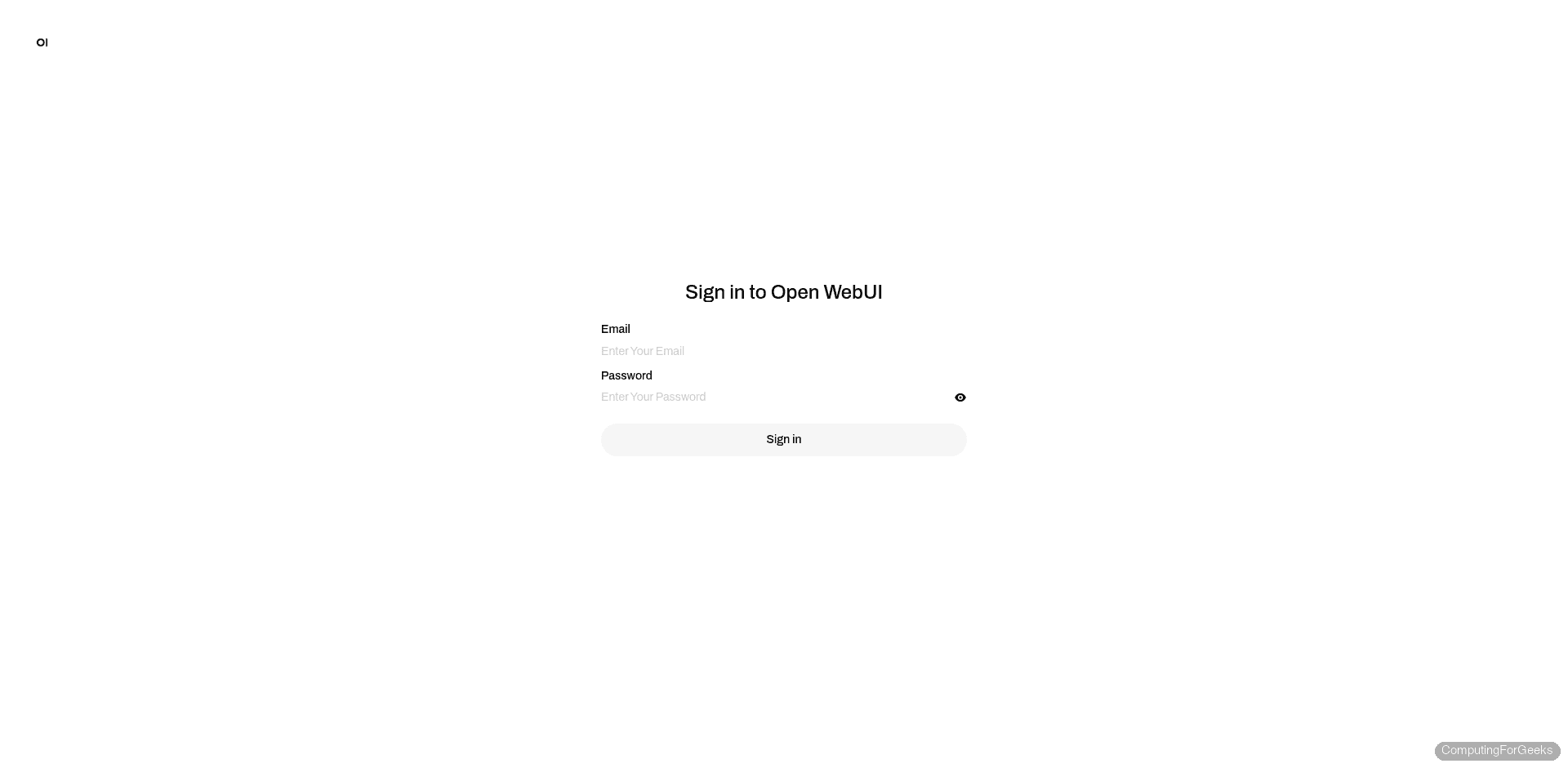
Click “Get Started” to reach the sign-in form. Since this is a fresh installation, the first account you create automatically becomes the administrator. Click “Sign up” if shown, or fill in the sign-in form with your email and a strong password.
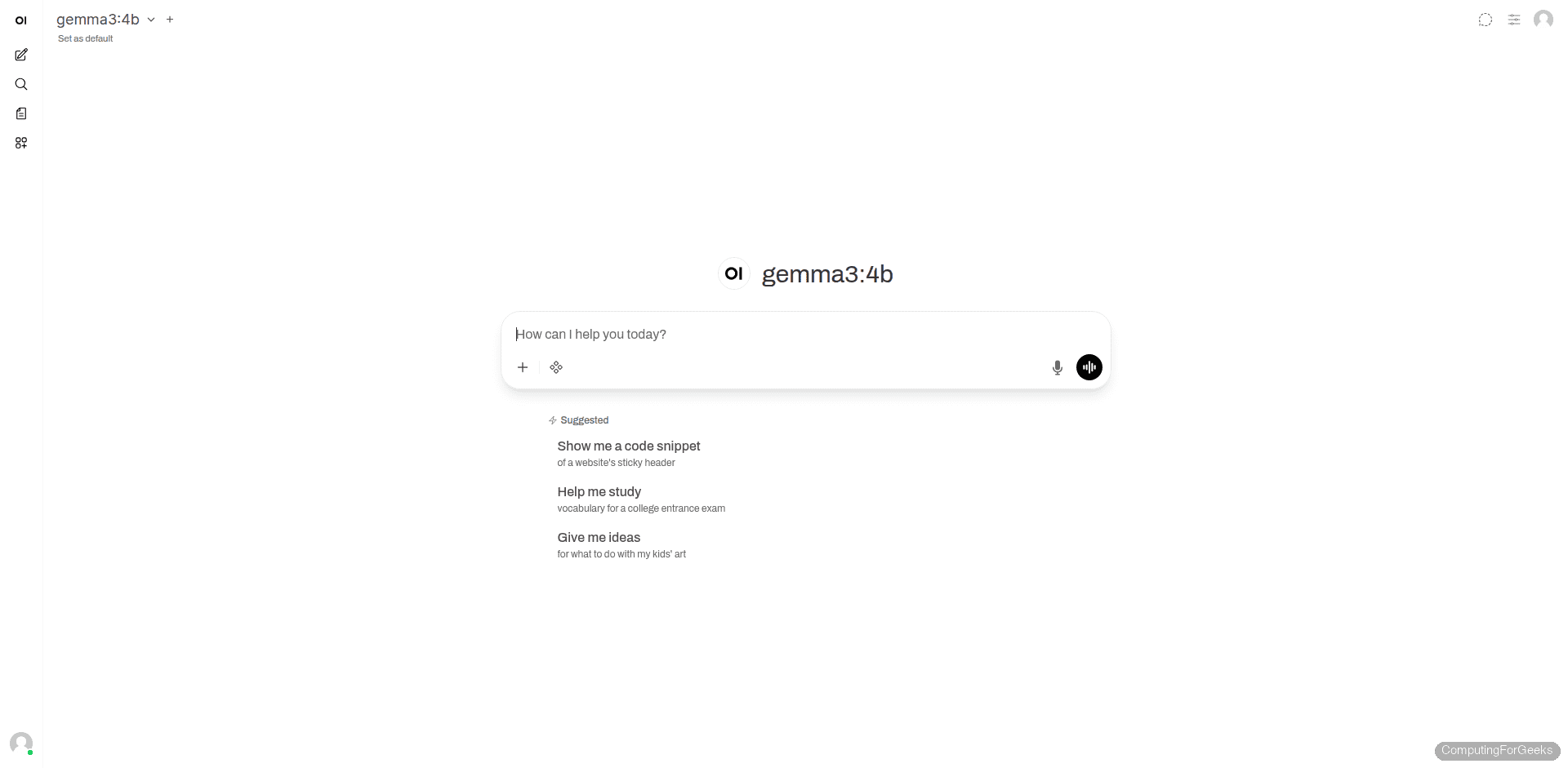
After signing in, the main chat interface loads with your Ollama models already detected. The interface is clean and familiar if you have used ChatGPT before.
Using the Chat Interface
The main chat screen shows your selected model at the top, a prompt input at the bottom, and suggested conversation starters in the center. The sidebar provides access to chat history, search, and workspace features.
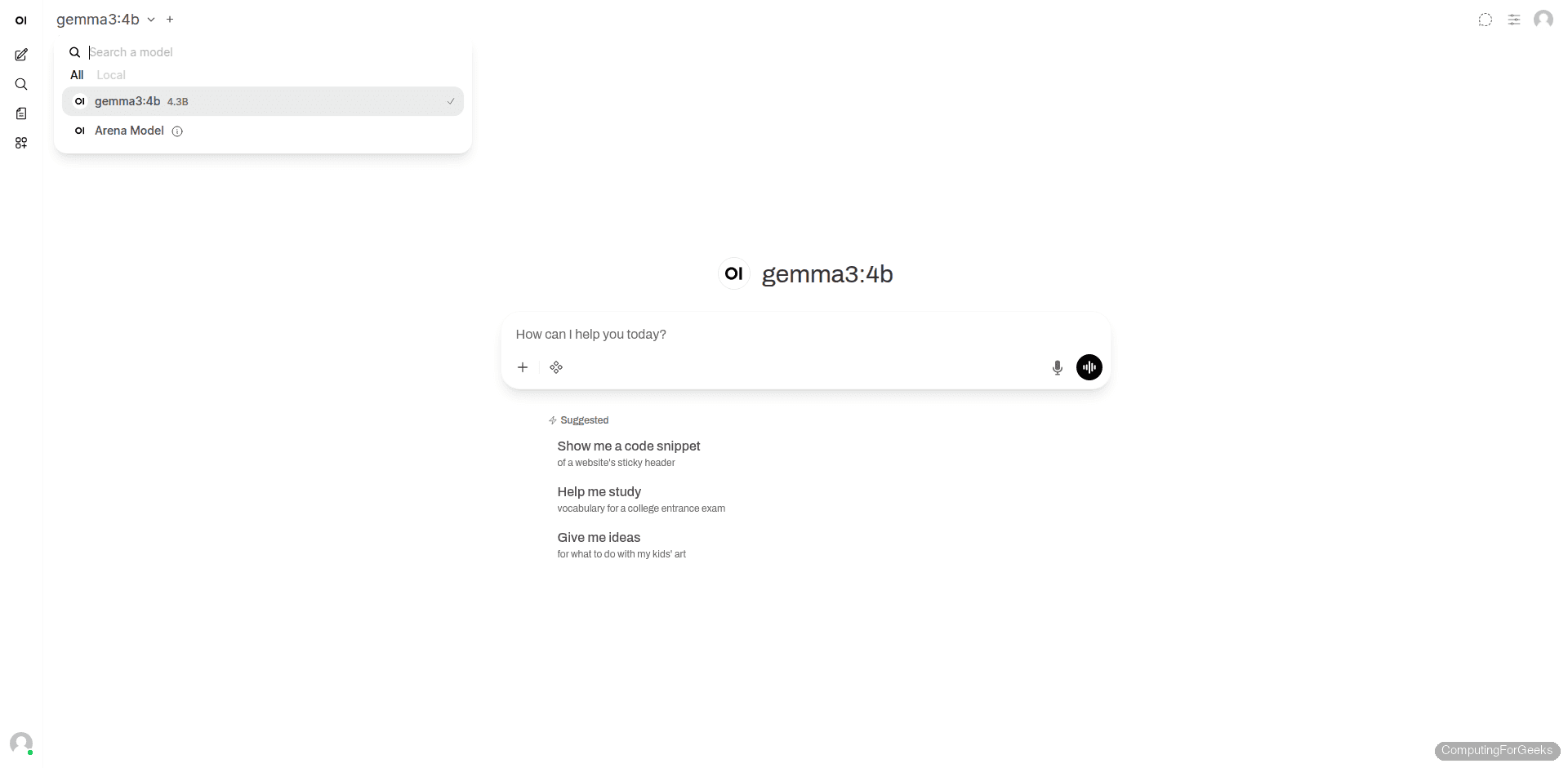
Click the model name at the top left to switch between models. The dropdown shows all models available on your Ollama server, including their parameter counts. You can also search for models or filter by local vs. remote.
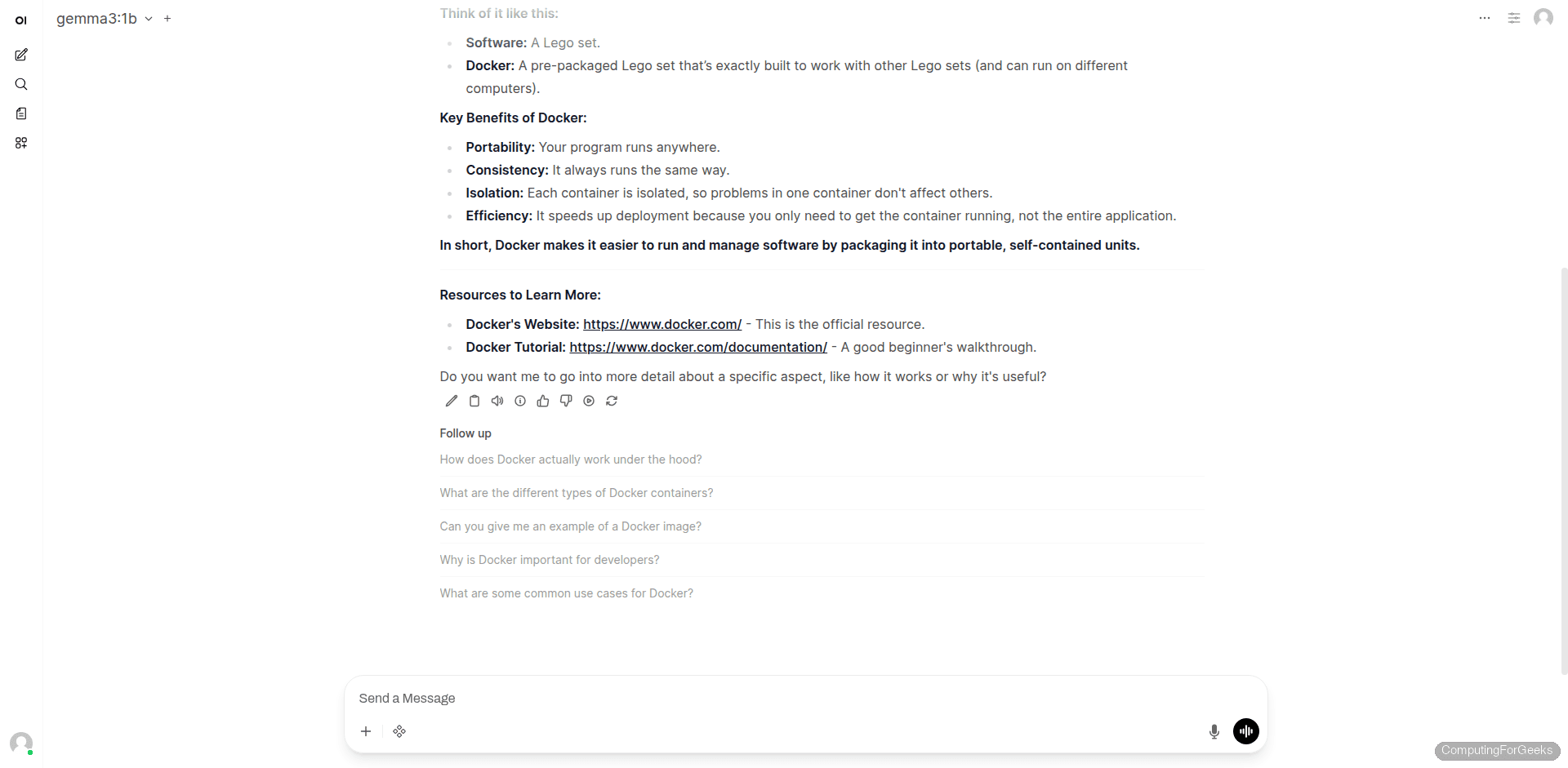
Type a prompt and press Enter to chat. The model generates a response with markdown formatting, code blocks, and follow-up suggestions. On CPU inference, responses take 10 to 60 seconds depending on model size and prompt length.
Admin Panel Walkthrough
The admin panel is where you manage users, configure Ollama connections, and adjust system-wide settings. Access it from the top menu bar. These pages are only visible to admin accounts.
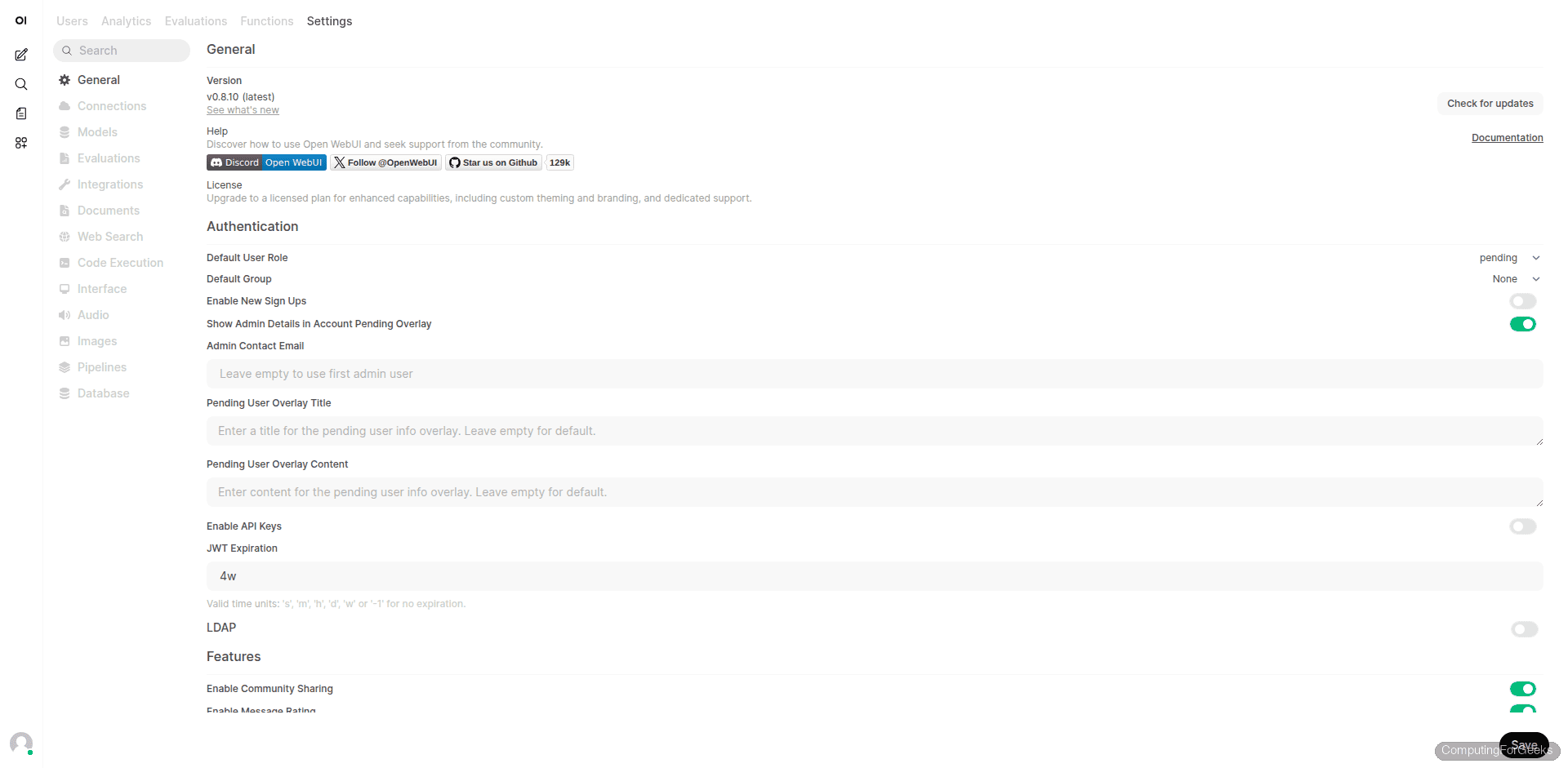
Admin Settings
The Settings page controls general behavior, authentication policies, default user roles, and feature toggles. You can set a custom signup title, enable or disable new user registration, configure LDAP, and toggle community sharing.
Connections
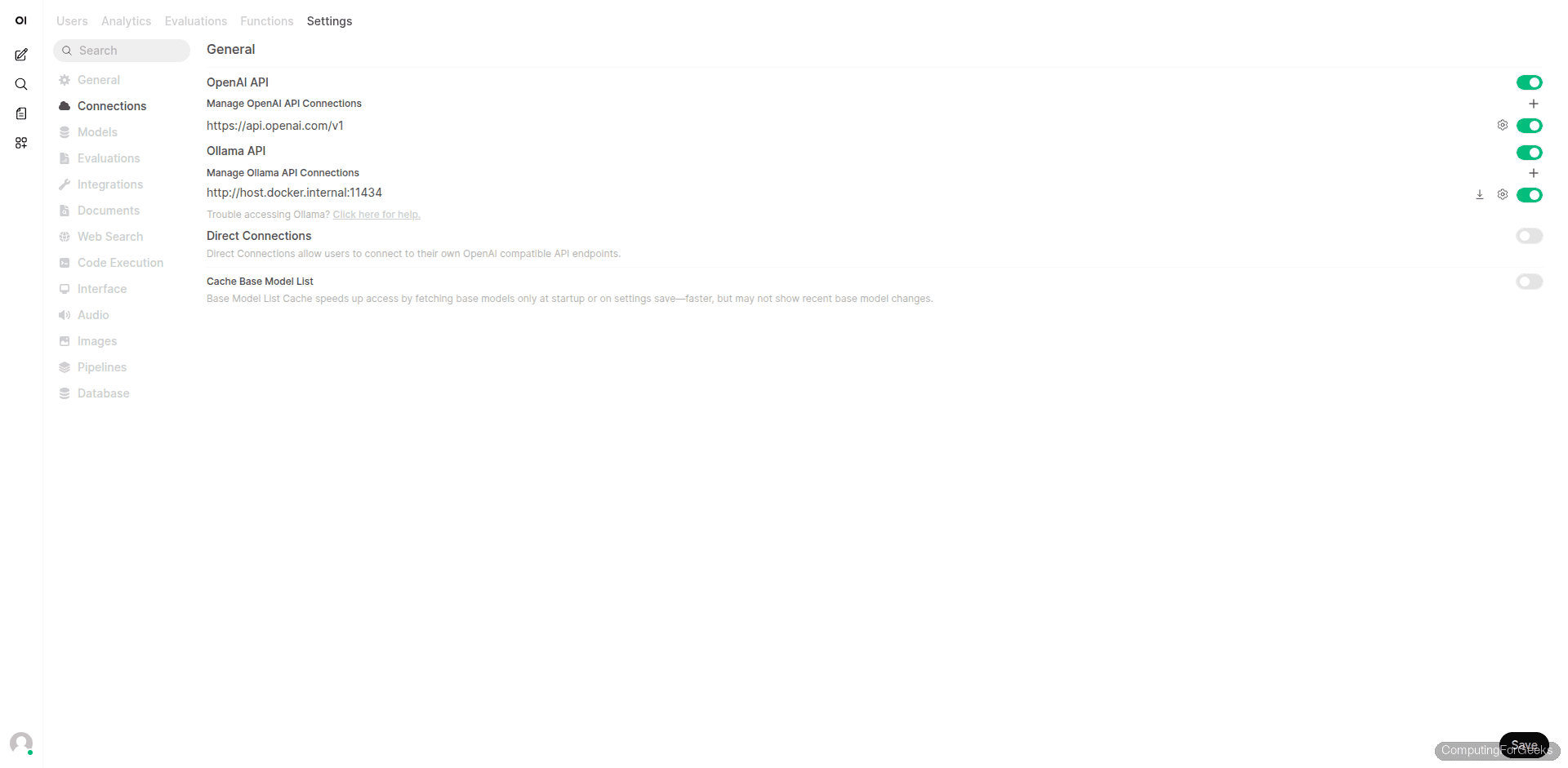
The Connections page shows your configured API endpoints. By default, Open WebUI connects to Ollama using the URL you specified in OLLAMA_BASE_URL. You can also add OpenAI-compatible API endpoints here if you want to combine local models with cloud APIs like OpenAI or Anthropic.
User Management
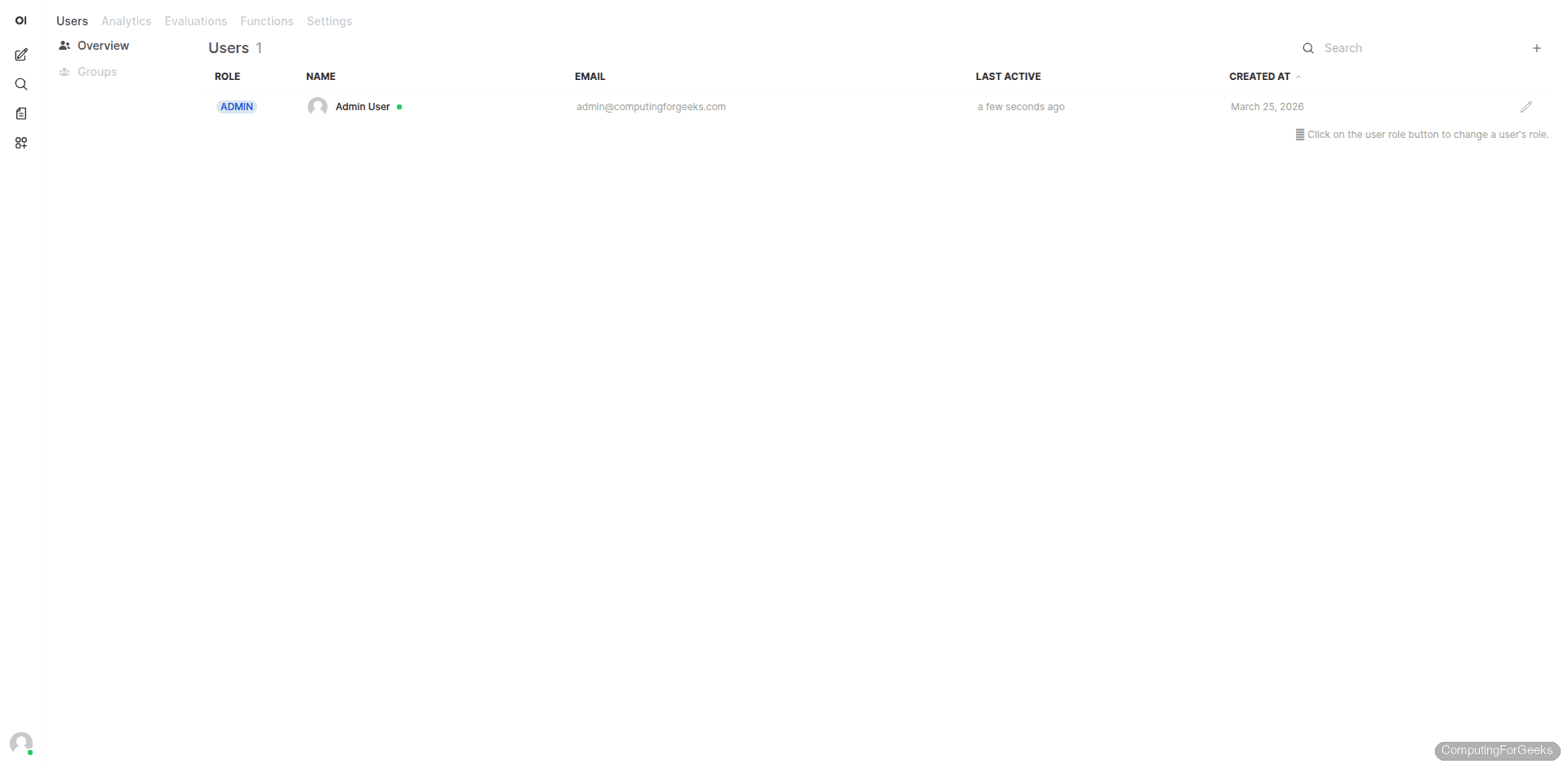
The Users page lists all registered accounts with their roles, email addresses, and last activity timestamps. From here you can change user roles (Admin, User, Pending), edit accounts, or disable users. The first account created is always an admin.
Workspace
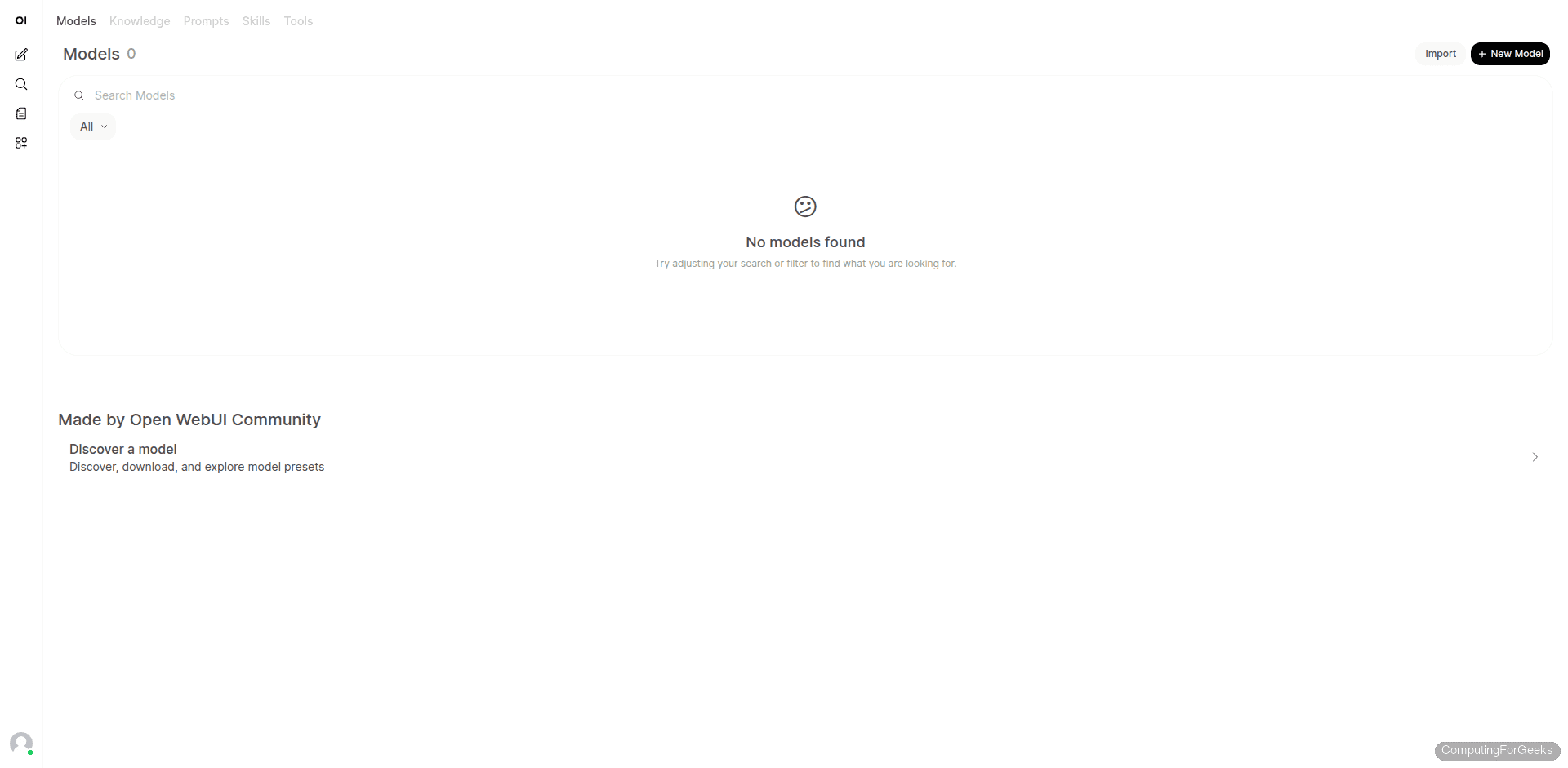
The Workspace area lets you create custom models (with system prompts and parameter overrides), manage knowledge bases for RAG, create prompt templates, and install community tools and skills. The Models tab shows custom model configurations, while the Knowledge tab lets you upload documents for retrieval-augmented generation.
Connect to a Remote Ollama Server
If Ollama runs on a different machine (for example, a GPU server), point Open WebUI to it by changing the OLLAMA_BASE_URL environment variable in your Docker Compose file:
    environment:
      - OLLAMA_BASE_URL=http://192.168.1.100:11434
On the remote Ollama server, make sure it listens on all interfaces. Create a systemd override:
sudo mkdir -p /etc/systemd/system/ollama.service.d
echo -e '[Service]\nEnvironment="OLLAMA_HOST=0.0.0.0:11434"' | sudo tee /etc/systemd/system/ollama.service.d/override.conf
sudo systemctl daemon-reload
sudo systemctl restart ollama
Open the firewall on the Ollama server:
sudo ufw allow 11434/tcpRestart the Open WebUI container to pick up the new URL:
cd ~/open-webui
sudo docker compose down
sudo docker compose up -d
You can also change the Ollama URL directly in the admin panel under Settings > Connections without modifying the compose file. The admin UI makes it easy to add multiple Ollama backends or mix local and cloud APIs.
GPU Acceleration with NVIDIA
If your server has an NVIDIA GPU, Ollama automatically uses it after you install the NVIDIA drivers. This dramatically speeds up inference, especially for larger models.
Install the NVIDIA driver on Ubuntu 24.04:
sudo ubuntu-drivers install
sudo reboot
After reboot, verify the GPU is detected:
nvidia-smiRestart Ollama to pick up the GPU:
sudo systemctl restart ollama
ollama ps
The ollama ps output shows the GPU percentage used by loaded models. With GPU acceleration, a 7B model responds in 2 to 5 seconds instead of 30 to 60 seconds on CPU.
Useful Docker Compose Variations
The basic compose file works for most setups. Here are some common variations.
Open WebUI with Bundled Ollama
If you want everything in Docker without a host-level Ollama installation, use the bundled image:
services:
  open-webui:
    image: ghcr.io/open-webui/open-webui:ollama
    container_name: open-webui
    ports:
      - "3000:8080"
    volumes:
      - open-webui-data:/app/backend/data
      - ollama-data:/root/.ollama
    restart: unless-stopped

volumes:
  open-webui-data:
  ollama-data:
This image bundles Ollama inside the Open WebUI container. The trade-off is a larger container and less control over Ollama configuration.
With NVIDIA GPU Passthrough in Docker
For GPU inference inside Docker, install the NVIDIA Container Toolkit first, then add GPU resources to the compose file:
services:
  ollama:
    image: ollama/ollama
    container_name: ollama
    ports:
      - "11434:11434"
    volumes:
      - ollama-data:/root/.ollama
    deploy:
      resources:
        reservations:
          devices:
            - capabilities: [gpu]
    restart: unless-stopped

  open-webui:
    image: ghcr.io/open-webui/open-webui:main
    container_name: open-webui
    ports:
      - "3000:8080"
    environment:
      - OLLAMA_BASE_URL=http://ollama:11434
    volumes:
      - open-webui-data:/app/backend/data
    depends_on:
      - ollama
    restart: unless-stopped

volumes:
  ollama-data:
  open-webui-data:
Upgrading Open WebUI
Open WebUI releases frequently. To upgrade to the latest version:
cd ~/open-webui
sudo docker compose pull
sudo docker compose up -d
Your data persists in the named volume, so upgrades do not affect chat history, user accounts, or settings.
Troubleshooting
Error: “model requires more system memory (4.0 GiB) than is available”
We hit this on a 4 GB RAM server when trying to load the gemma3:4b model (4.3 billion parameters). The model itself needs about 3.3 GB in memory, and after Docker, Ollama, and the OS take their share, there is not enough left.
The fix is to use a smaller model. Gemma 3 1B runs well on servers with 4 GB RAM. For 7B models, plan for at least 8 GB of total system RAM, or better yet, 16 GB.
ollama pull gemma3:1bOpen WebUI Cannot Connect to Ollama
If the Connections page shows a red status or models do not appear, check these three things:
- Ollama must be listening on 0.0.0.0, not just 127.0.0.1. Check with
ss -tlnp | grep 11434 - The
OLLAMA_BASE_URLin Docker Compose must usehttp://host.docker.internal:11434(not localhost) - The
extra_hostsdirective withhost-gatewaymust be present in the compose file
Test from inside the container:
sudo docker exec open-webui curl -s http://host.docker.internal:11434/api/tagsIf this returns an empty response or an error, Ollama is not reachable from the container.
Container Stays Unhealthy
Open WebUI needs 30 to 60 seconds to initialize its database and run migrations on first start. Check the logs:
sudo docker logs open-webui --tail 50If you see repeated database migration lines, the startup is still in progress. If you see Python errors, the container may need more memory. Open WebUI itself needs about 500 MB of RAM to run.
Open WebUI RAM Requirements
The total RAM you need depends on which model you plan to run. Open WebUI and Docker together use about 1 GB. The rest goes to the LLM.
| Model | Model RAM | Total System RAM Needed |
|---|---|---|
| gemma3:1b | ~1 GB | 4 GB |
| gemma3:4b | ~3.3 GB | 8 GB |
| llama3.1:8b | ~4.7 GB | 8 GB (16 GB recommended) |
| deepseek-r1:8b | ~4.9 GB | 8 GB (16 GB recommended) |
| llama3.1:70b | ~40 GB | 64 GB (or GPU with 48 GB VRAM) |
With a GPU, the model loads into VRAM instead of system RAM. A single NVIDIA RTX 4090 (24 GB VRAM) comfortably runs any 7B or 13B model.
What Open WebUI Can Do Beyond Basic Chat
Open WebUI is more than a chat wrapper. A few features worth exploring after your initial setup:
- RAG (Retrieval-Augmented Generation) – Upload PDFs, text files, or web pages into a knowledge base. The model answers questions using your documents as context, which is useful for internal wikis or documentation
- Multi-model conversations – Switch models mid-conversation or compare responses from different models side by side
- Custom model presets – Create model configurations with specific system prompts, temperature settings, and parameter overrides. A “Code Review” preset could use a low temperature with a system prompt focused on code analysis
- Web search integration – Connect to SearXNG or other search engines to let the model access current information
- Image generation – Integrate with Stable Diffusion or DALL-E for image generation within the chat
- Multi-user with role-based access – Create user accounts with different permission levels, useful for teams sharing a single deployment
