Running Proxmox VE without a proper backup target is asking for trouble. The built-in vzdump tool can dump VMs to local storage, but that puts your backups on the same disks as your VMs. Proxmox Backup Server (PBS) solves this with chunk-level deduplication, client-side encryption, and native PVE integration that makes it feel like a first-party feature rather than an add-on.
This walkthrough covers installing PBS 4.1 on a Debian 13 server, creating a datastore, connecting it to your Proxmox VE cluster, running your first VM backup, and verifying the result. Everything here was tested on a real two-node Proxmox cluster. If you already back up VMs with BorgBackup or NFS exports, PBS replaces all of that with a single, purpose-built solution that understands VM disk formats natively.
Verified working: March 2026 on Debian 13.1 (kernel 6.12.74), Proxmox Backup Server 4.1.5, Proxmox VE 9.x
What You Need
- A Debian 13 (Trixie) server or VM with at least 2 CPU cores and 4 GB RAM
- A dedicated disk or partition for the backup datastore (50 GB minimum for testing, production needs vary)
- Network connectivity to your Proxmox VE host(s) on TCP port 8007
- Root access on both the PBS server and the PVE host
Prepare the Backup Disk
PBS stores backup chunks on a standard Linux filesystem. ext4, XFS, and ZFS all work. For production, ZFS is recommended because of its built-in checksumming. For this guide, ext4 on a dedicated disk keeps things straightforward.
Format the backup disk and mount it:
mkfs.ext4 -L pbs-datastore /dev/sda
mkdir -p /backup
echo "/dev/sda /backup ext4 defaults 0 2" | tee -a /etc/fstab
mount /backup
Confirm the mount:
df -h /backupOn this test system, the 50 GB disk is ready:
Filesystem      Size  Used Avail Use% Mounted on
/dev/sda         49G  2.1M   47G   1% /backup
Install Proxmox Backup Server on Debian 13
PBS is not in the standard Debian repos. Add the Proxmox package repository first. Download the GPG key:
wget -q https://enterprise.proxmox.com/debian/proxmox-release-trixie.gpg \
  -O /etc/apt/trusted.gpg.d/proxmox-release-trixie.gpg
Add the no-subscription repository (free for home labs and testing):
cat > /etc/apt/sources.list.d/pbs-no-subscription.list << 'EOF'
deb http://download.proxmox.com/debian/pbs trixie pbs-no-subscription
EOF
Install the server package:
apt update
apt install -y proxmox-backup-server
The installer sets up two systemd services automatically: proxmox-backup.service (API server) and proxmox-backup-proxy.service (HTTPS proxy for the web UI). Both start on boot. Verify they're running:
systemctl status proxmox-backup.service --no-pagerThe service should show active:
● proxmox-backup.service - Proxmox Backup API Server
     Loaded: loaded
     Active: active (running)
Check the installed version:
proxmox-backup-manager versionsThis test system shows PBS 4.1.5:
proxmox-backup-server 4.1.5-2 running version: 4.1.5Access the Web Interface
PBS serves its web UI over HTTPS on port 8007. Open your browser and navigate to https://192.168.1.135:8007 (replace with your server's IP). Accept the self-signed certificate warning.
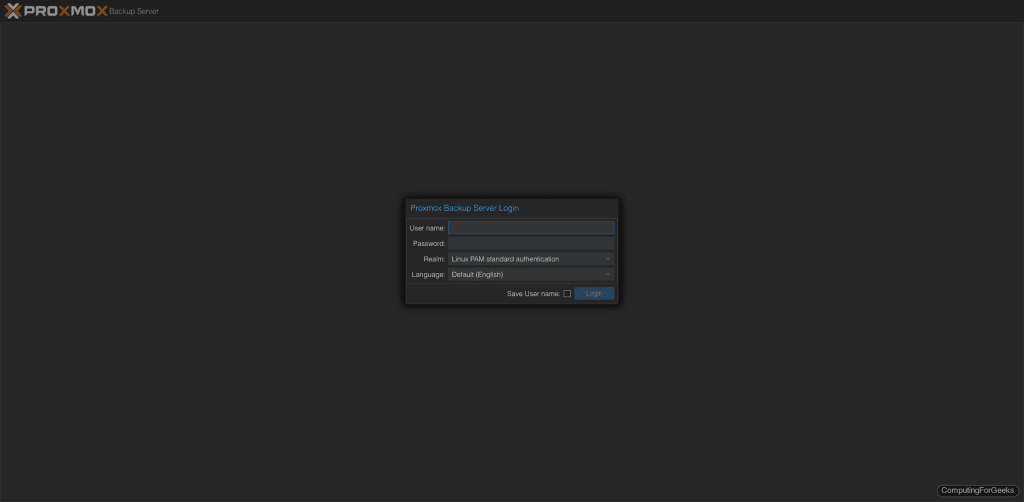
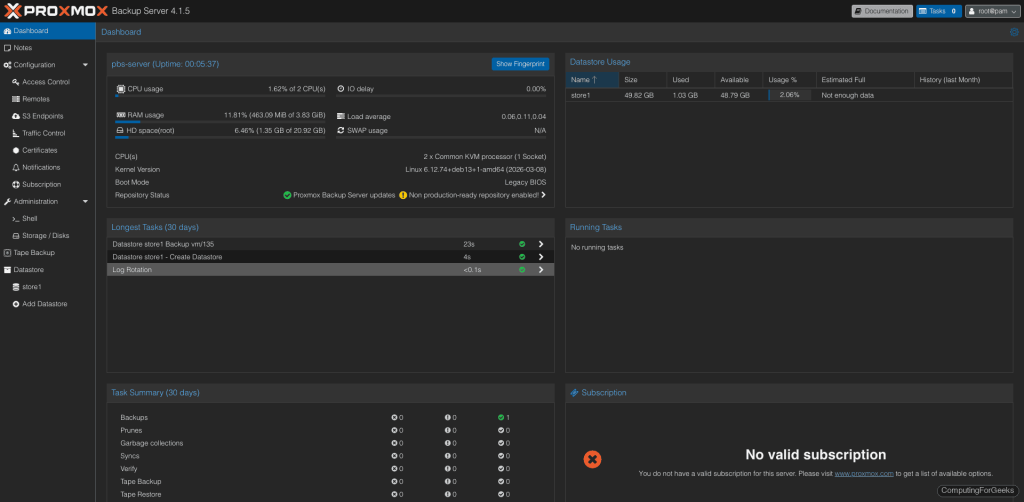
Log in with root and the Linux PAM password you set during Debian installation. After logging in, the dashboard gives you an overview of server resources, datastore status, and recent backup tasks.
Create a Datastore
A datastore is where PBS stores all backup chunks. Each datastore lives on its own filesystem path. Create one on the backup disk we mounted earlier:
proxmox-backup-manager datastore create store1 /backup/store1PBS creates 65,538 subdirectories under .chunks/ for deduplication storage. This takes a moment:
Chunkstore create: 1%
Chunkstore create: 2%
...
Chunkstore create: 100%
Access time update check successful.
TASK OK
Verify the datastore exists:
proxmox-backup-manager datastore listThe output confirms the path and name:
┌────────┬────────────────┬─────────┐
│ name   │ path           │ comment │
╞════════╪════════════════╪═════════╡
│ store1 │ /backup/store1 │         │
└────────┴────────────────┴─────────┘
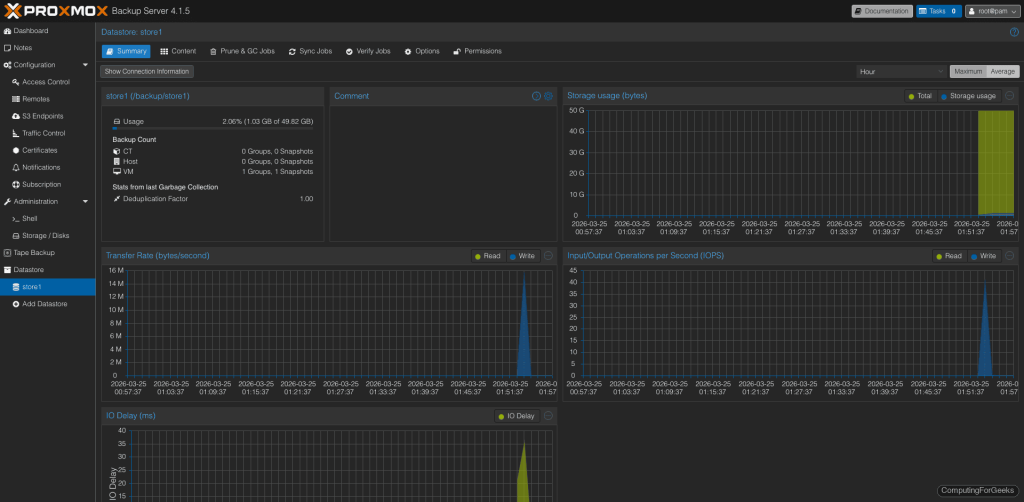
Clicking on the datastore in the web UI shows usage graphs, transfer rates, and the deduplication factor (which improves as more backups accumulate).
Connect PBS to Proxmox VE
PBS integrates as a native storage backend in PVE. First, get the SSL certificate fingerprint from the PBS server. PVE uses this to verify it's talking to the right backup server:
proxmox-backup-manager cert info | grep FingerprintCopy the fingerprint hash (you'll need it in the next step):
Fingerprint (sha256): b1:af:7c:f6:30:79:67:09:a2:21:ff:68:e1:12:05:71:e1:6f:82:2f:f0:4a:80:86:54:93:5d:e9:e5:64:24:80Now on the Proxmox VE host, add PBS as a storage target. You can do this from the PVE web UI (Datacenter > Storage > Add > Proxmox Backup Server) or from the command line:
pvesm add pbs pbs-store1 \
  --server 192.168.1.135 \
  --datastore store1 \
  --username root@pam \
  --fingerprint 'b1:af:7c:f6:30:79:67:09:a2:21:ff:68:e1:12:05:71:e1:6f:82:2f:f0:4a:80:86:54:93:5d:e9:e5:64:24:80' \
  --password 'YourPBSPassword' \
  --content backup
Confirm the storage is active:
pvesm status | grep pbsThe output should show the datastore with its capacity:
pbs-store1 pbs active 51290592 265296 48387472 0.52%Back Up a VM to PBS
With the storage connected, backing up a VM is a single command. From the PVE host, run vzdump with the PBS storage target:
vzdump 135 --storage pbs-store1 --mode snapshot --compress zstdReplace 135 with your VM ID. The --mode snapshot creates a consistent backup without shutting down the VM. PBS streams the data with deduplication in real time:
INFO: started backup task 'a5ae2dd5-0d14-4eed-9240-cfb171ebf4b7'
INFO:  22% (15.6 GiB of 70.0 GiB) in 3s, read: 5.2 GiB/s, write: 128.0 MiB/s
INFO:  62% (44.0 GiB of 70.0 GiB) in 9s, read: 6.1 GiB/s, write: 5.3 MiB/s
INFO: 100% (70.0 GiB of 70.0 GiB) in 24s, read: 3.2 GiB/s, write: 5.3 MiB/s
INFO: backup is sparse: 67.46 GiB (96%) total zero data
INFO: backup was done incrementally, reused 67.54 GiB (96%)
INFO: transferred 70.00 GiB in 24 seconds (2.9 GiB/s)
INFO: Finished Backup of VM 135 (00:00:27)
70 GB VM backed up in 27 seconds. PBS detected that 96% of the data was either zeros (sparse allocation) or already existed from the deduplication index, so only the unique chunks were transferred. The second backup of the same VM will be even faster.
The backup appears in the PBS web UI under the datastore's Content tab:
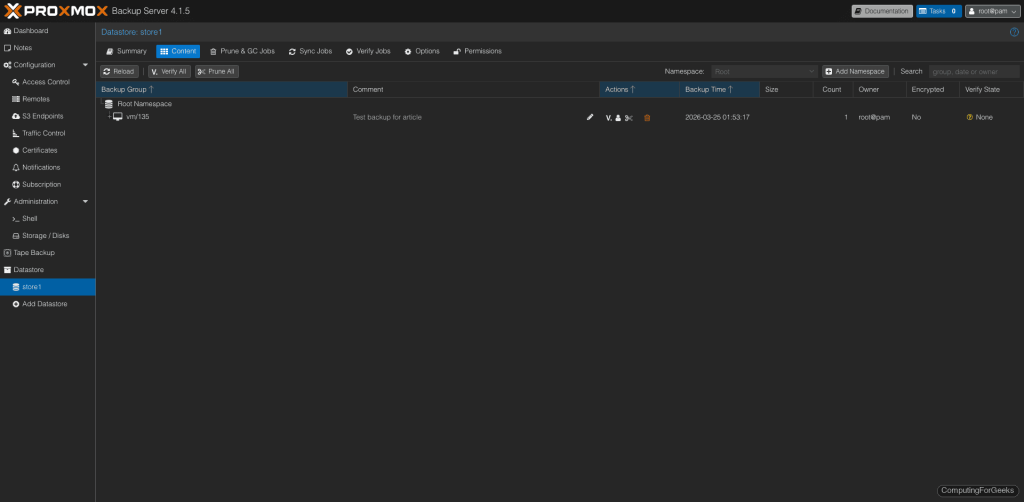
You can also run backups from the PVE web UI: select a VM, click Backup, choose the PBS storage, and click "Backup now".
Schedule Automatic Backups
Manual backups are for testing. Production environments need scheduled jobs. On the PVE host, create a backup job that runs daily at 2:00 AM for all VMs:
pvesh create /cluster/backup \
  --storage pbs-store1 \
  --schedule "02:00" \
  --all 1 \
  --mode snapshot \
  --compress zstd \
  --mailnotification always \
  --mailto root@localhost
The PVE web UI also has a Backup section under Datacenter where you can create and manage these jobs visually. Each job shows its last run status and next scheduled time.
Set Retention and Pruning
Without pruning, backup snapshots accumulate indefinitely. Configure retention on the PBS datastore to automatically clean up old backups. From the PBS server:
proxmox-backup-manager datastore update store1 \
  --keep-daily 7 \
  --keep-weekly 4 \
  --keep-monthly 6
This keeps 7 daily, 4 weekly, and 6 monthly snapshots per VM. Older snapshots get pruned automatically. After pruning, run garbage collection to actually reclaim the disk space from orphaned chunks:
proxmox-backup-manager garbage-collection start store1In production, schedule both prune and GC jobs from the PBS web UI under each datastore's "Prune & GC Jobs" tab. A weekly GC run is typically sufficient.
Verify Backup Integrity
Verification reads every chunk in a backup and checks it against stored SHA-256 checksums. This catches silent disk corruption (bitrot) before you need to restore. Run a manual verify:
proxmox-backup-manager verify store1For ongoing protection, create a scheduled verify job from the PBS web UI. Running verification weekly on your most critical VM backups gives you confidence that a restore will actually work when you need it.
Restore a VM from PBS
Restoring works from the PVE web UI or command line. From the PVE host, list available backups:
pvesm list pbs-store1 --content backupRestore a VM (this creates a new VM from the backup):
qmrestore pbs-store1:backup/vm/135/2026-03-25T01:53:17Z 200 --storage local-lvmReplace the backup ID with the actual snapshot name from the list command, and 200 with the target VMID. The --storage flag specifies where to place the restored VM's disks.
From the PVE web UI, the process is simpler: go to the PBS storage in the left panel, select a backup, and click Restore. PVE handles VMID assignment and disk placement automatically.
PBS Ports and Firewall
PBS uses a single port for everything: TCP 8007. The web UI, REST API, and all backup/restore traffic run over this HTTPS port. If you have a firewall between your PVE hosts and the PBS server, open port 8007:
ufw allow 8007/tcpOn RHEL-family systems or if using firewalld:
firewall-cmd --add-port=8007/tcp --permanent
firewall-cmd --reload
Going Further
- Client-side encryption - PBS supports encrypting backups on the PVE side before they leave the network. Enable it in the PVE storage configuration with an encryption key. The PBS server never sees the plaintext data
- Datastore sync - Replicate backups between two PBS servers for off-site protection. Configure a sync job from the PBS web UI under each datastore
- User and token management - Create dedicated backup users with API tokens instead of using root. Limit each PVE cluster to its own PBS user for access control
- ZFS for production - Replace the ext4 datastore with ZFS for built-in checksumming, compression, and snapshot capabilities. Proxmox VM snapshots complement PBS backups for quick rollbacks
- Tape backup - PBS 4.x includes native tape drive support for long-term archival. Connect an LTO drive and create tape backup jobs from the web UI