

FreeBSD 15.0 landed on December 2, 2025, and it is the most significant release in years. The headline addition is pkgbase, which finally lets you manage the entire base system as individual packages through pkg. Alongside that, you get OpenSSL 3.5 with quantum-resistant cryptography, OpenZFS 2.4, and a native inotify implementation that makes Linux compatibility even smoother.
This guide walks through a complete FreeBSD 15.0 installation on a KVM or Proxmox virtual machine using ZFS as the root filesystem. We cover every installer screen, post-install configuration, FreeBSD package management with pkg, service management, ZFS basics, and converting the VM into a reusable Proxmox template. Whether you are setting up a production server or a lab environment, these steps apply to bare metal and most hypervisors.
What’s New in FreeBSD 15.0
Here are the major changes shipping in FreeBSD 15.0-RELEASE:
- pkgbase – the base system is now managed as ~310 individual packages via
pkg. You can update, remove, or lock base system components independently instead of runningfreebsd-update. - OpenSSL 3.5.4 LTS – ships with ML-KEM and ML-DSA support for quantum-resistant cryptography. This is a long-term support release of OpenSSL.
- OpenZFS 2.4.0 – improved performance, better Linux compatibility layer, and new pool features.
- OpenSSH 10.0p2 – quantum-resistant key agreement enabled by default using ML-KEM.
- Native inotify – Linux applications running under Linuxulator can now use inotify natively without workarounds.
- Support timeline – FreeBSD 15.0 is supported until September 30, 2026. The 15.x series receives updates until December 31, 2029.
Full details are in the official FreeBSD 15.0 release announcement.
Prerequisites
Before starting the installation, make sure you have:
- A bare metal server or virtual machine (KVM, Proxmox, VMware, or VirtualBox)
- At least 1 GB RAM (4 GB or more recommended when using ZFS)
- 20 GB or more of disk space
- A working network connection
- FreeBSD 15.0-RELEASE ISO downloaded from download.freebsd.org
For KVM and Proxmox, use the FreeBSD-15.0-RELEASE-amd64-disc1.iso image. The memstick image works for bare metal USB installs.
Step 1: Boot the Installer
Attach the ISO to your VM or write it to a USB drive and boot from it. After a brief autoboot countdown, the FreeBSD installer presents the welcome screen.
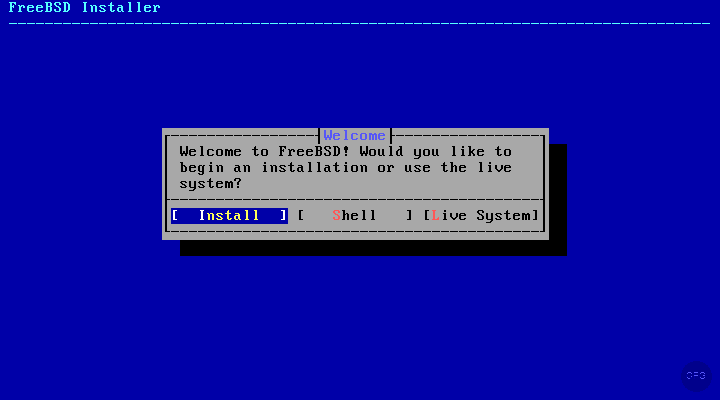
Select Install to begin the guided installation. The Shell option drops you to a live command prompt if you need to do manual partitioning or troubleshooting before running the installer.
Step 2: Keymap and Hostname
The installer first asks you to select a keyboard layout. For most users, the default US keymap works fine.
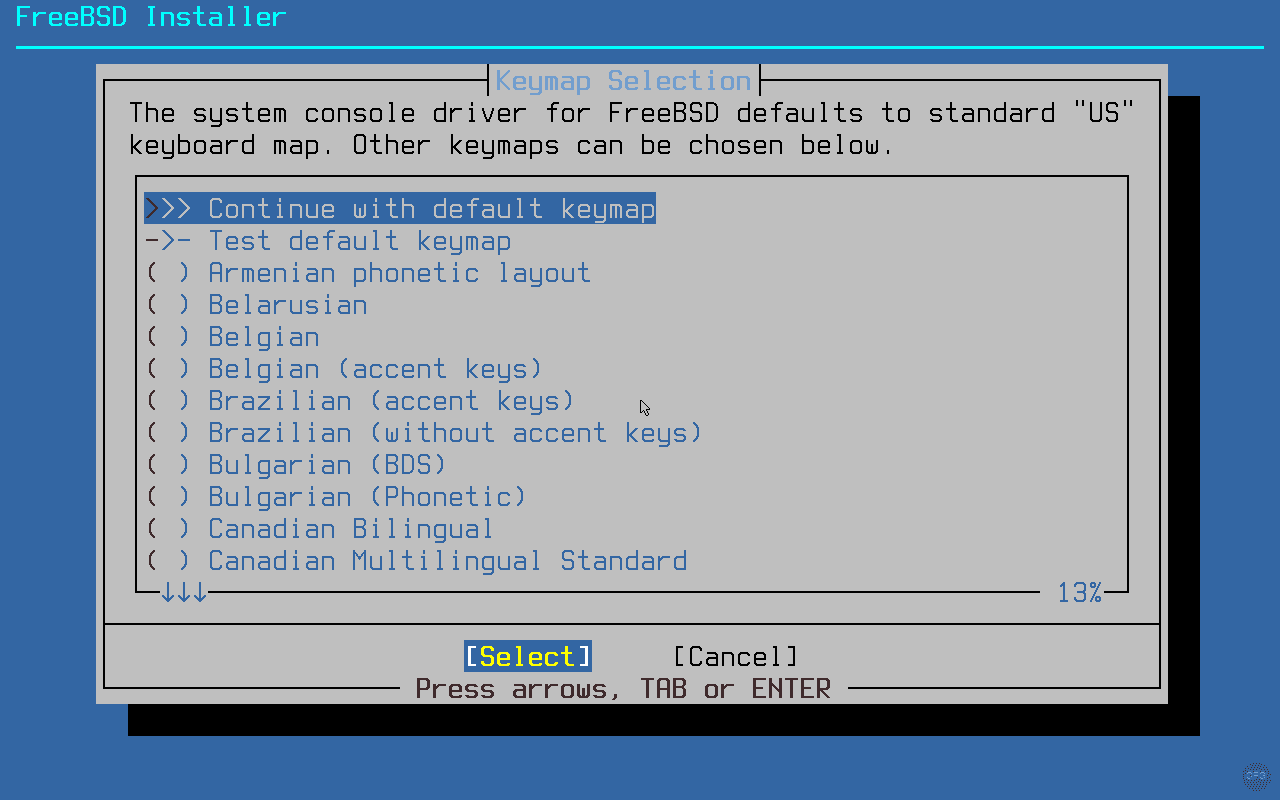
Next, set a hostname for your system. Use a fully qualified domain name if this is a production server, or a short name like freebsd15 for lab use. You can always change it later with sysrc hostname="newhostname".
Step 3: Choose Installation Type
This screen is new in FreeBSD 15.0 and reflects the introduction of pkgbase. You now get two installation methods:
- Distribution Sets (traditional) – installs the base system from compressed archives, just like every previous FreeBSD release. Updates are handled through
freebsd-update. - Packages (Tech Preview) – installs the base system as individual
pkgpackages (pkgbase). Updates come throughpkg upgradeinstead offreebsd-update.
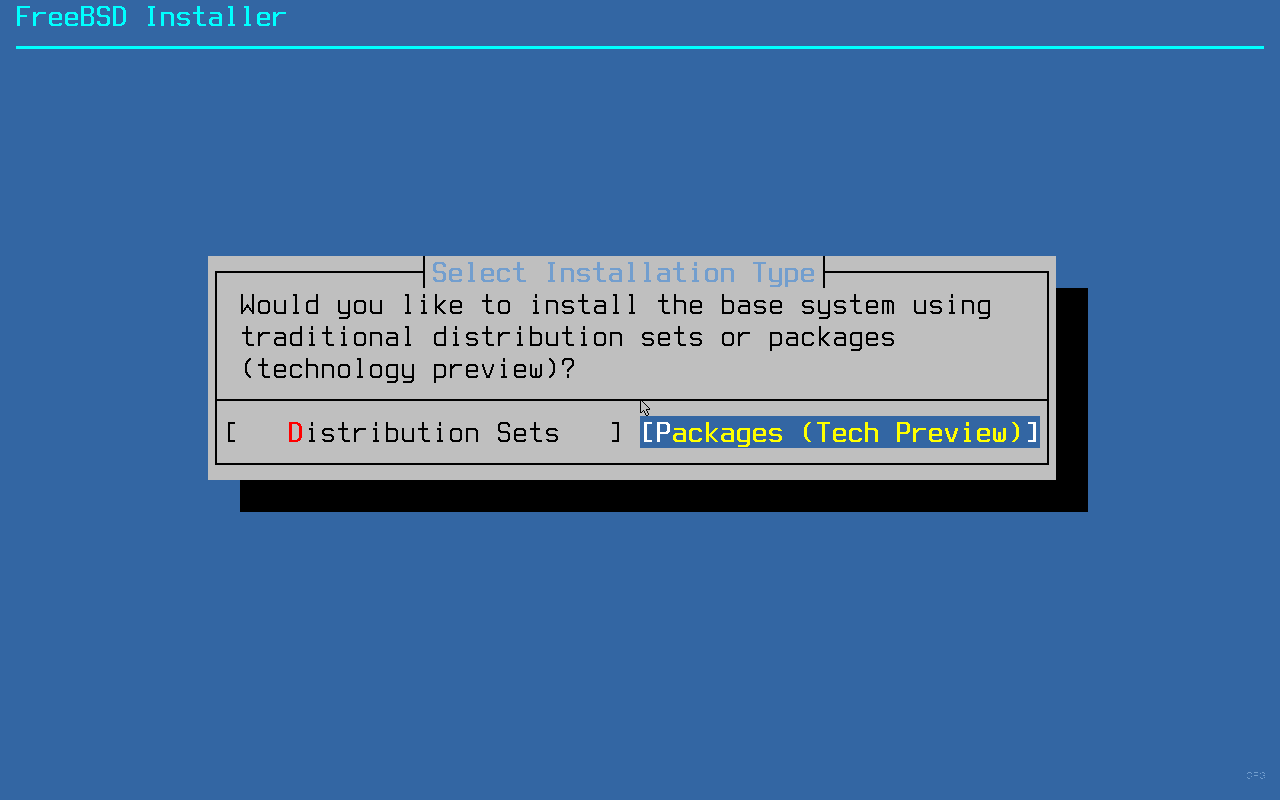
For production systems, stick with Distribution Sets since it is the proven, stable path. The Packages method is marked as a tech preview and works well in practice, but the traditional method has years of battle-testing behind it. If you want to try pkgbase on a lab system, go for it.
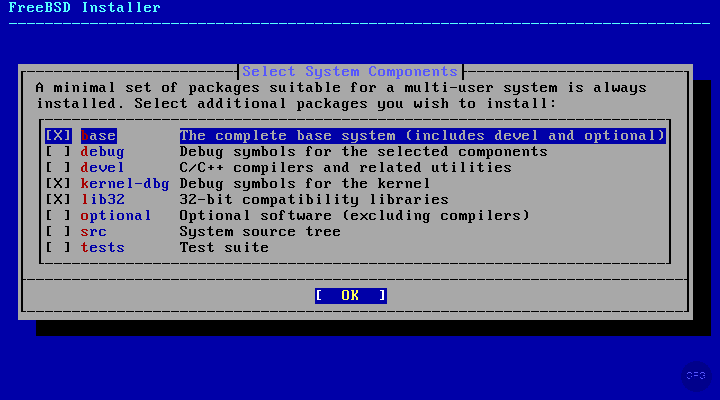
After choosing the installation type, select which components to install. The defaults (base system, kernel, lib32) are fine for most server deployments. Add ports if you plan to compile software from source, though most people just use pkg for binary packages.
Step 4: Partition the Disk
The installer offers several partitioning methods. For servers, ZFS is the clear winner. It gives you checksumming, compression, snapshots, and boot environments out of the box with no extra setup. UFS is simpler and uses less RAM, so it still makes sense for memory-constrained VMs (under 1 GB).
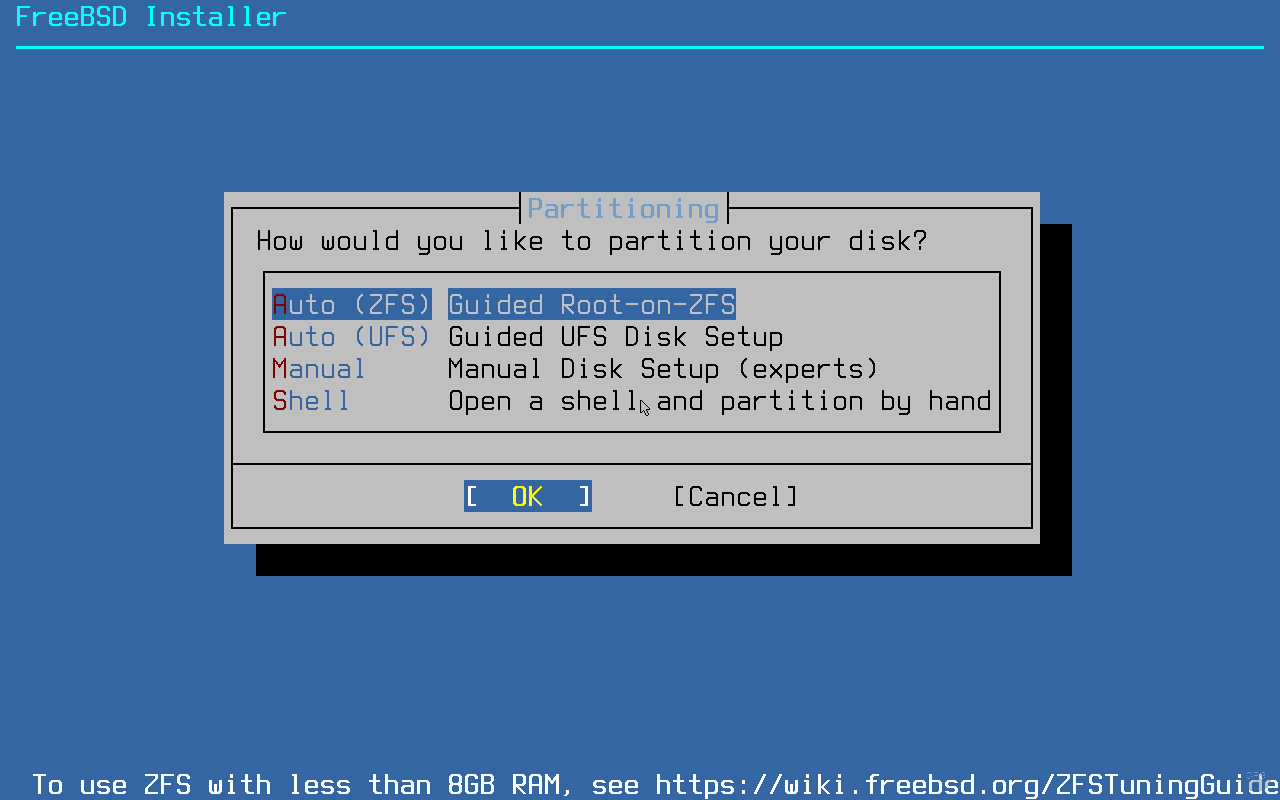
Select Auto (ZFS) and the installer presents the ZFS configuration screen. The defaults work well for a single-disk system. Key options to review:
- Pool Type/Disks – stripe for a single disk, mirror for two disks
- Swap Size – 2 GB is a good default for servers with 4-8 GB RAM
- Encrypt Disks – enable GELI encryption if needed (adds a passphrase prompt at boot)
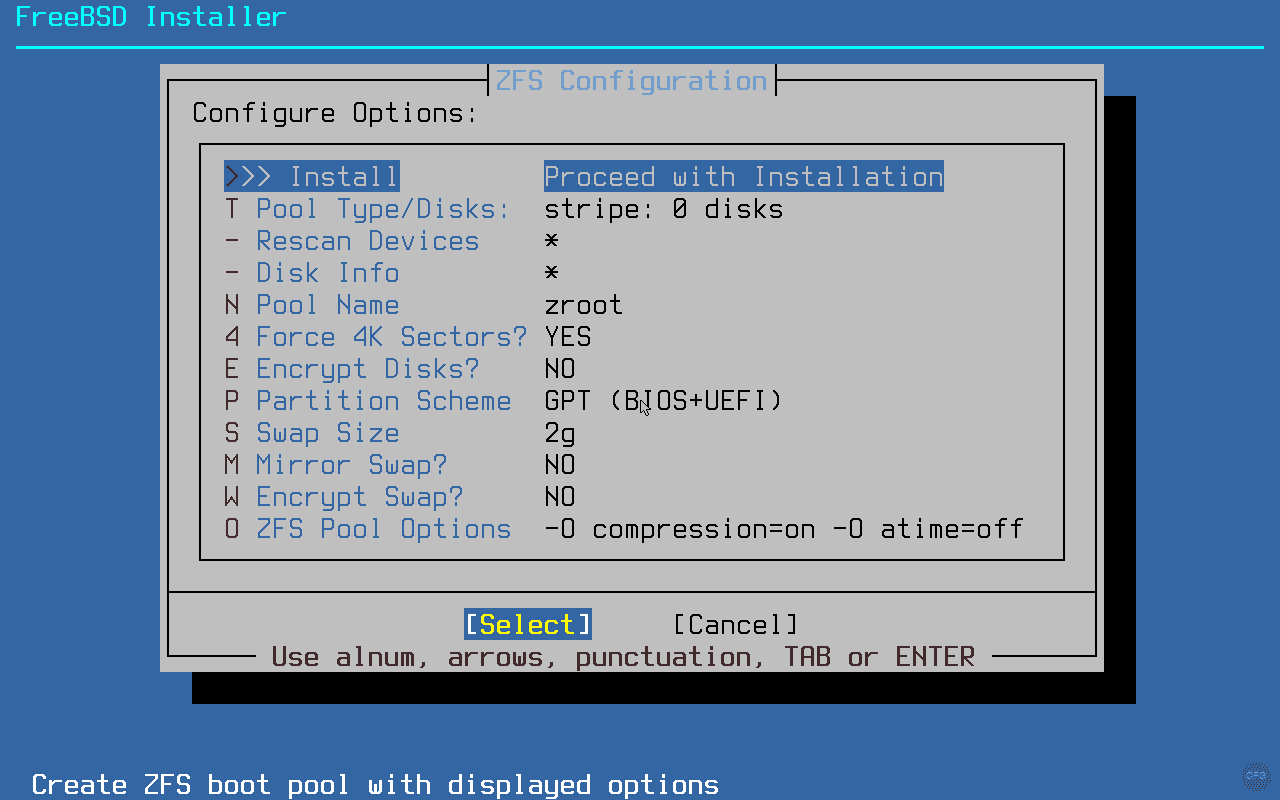
Select Install at the top of the ZFS configuration screen, then choose your disk. Confirm that you want to destroy the disk contents and the installation begins.
Step 5: Wait for Installation
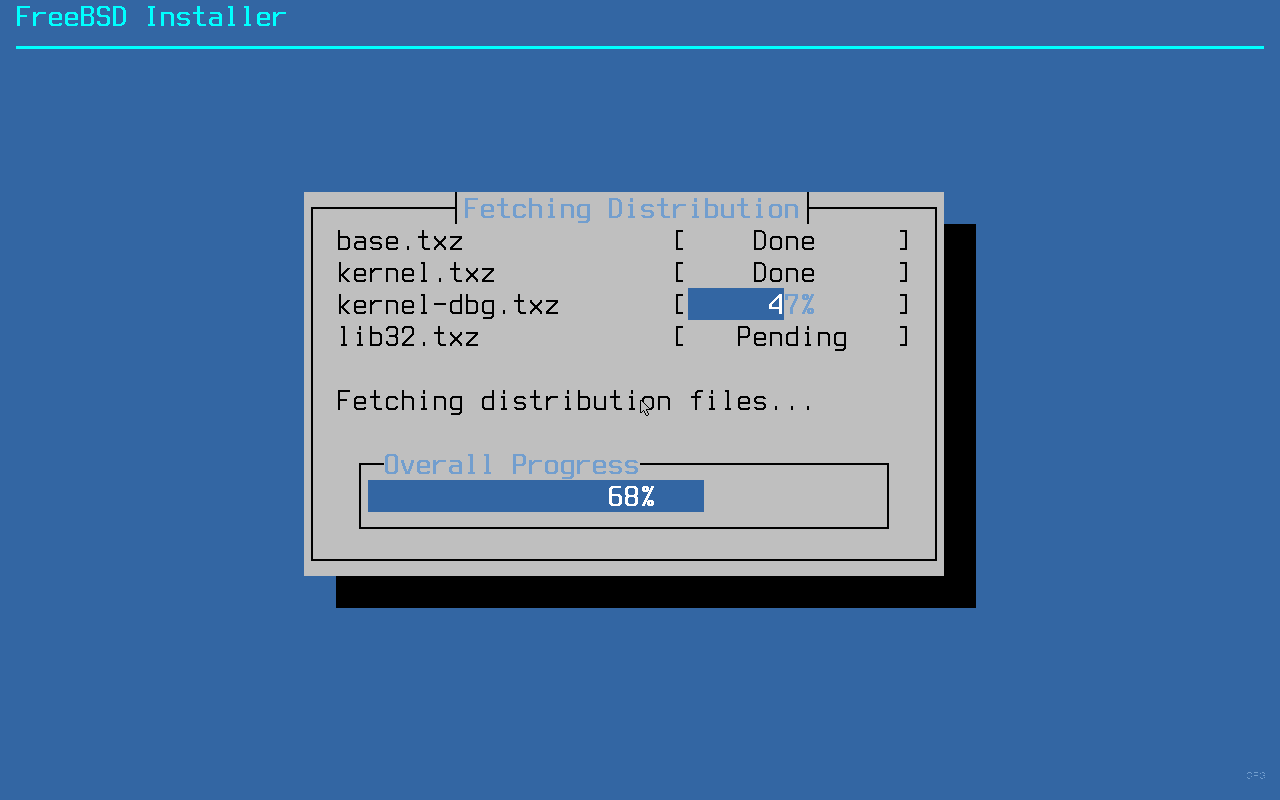
The installer fetches and extracts the distribution sets (or installs pkgbase packages if you chose the Packages method). This takes a few minutes depending on your network speed and disk performance.
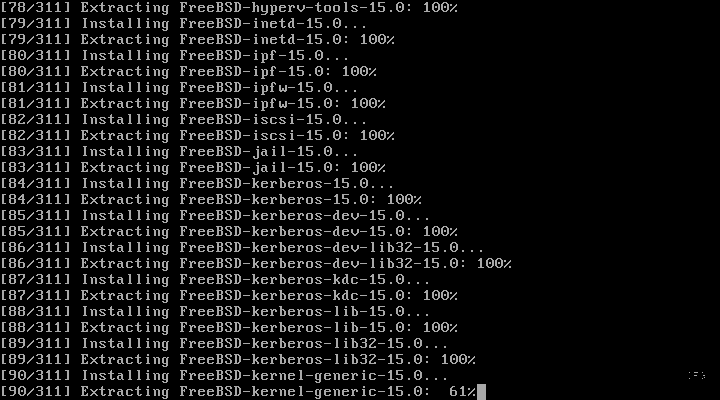
If you chose the pkgbase installation method, you will see individual packages being installed instead of distribution archives.
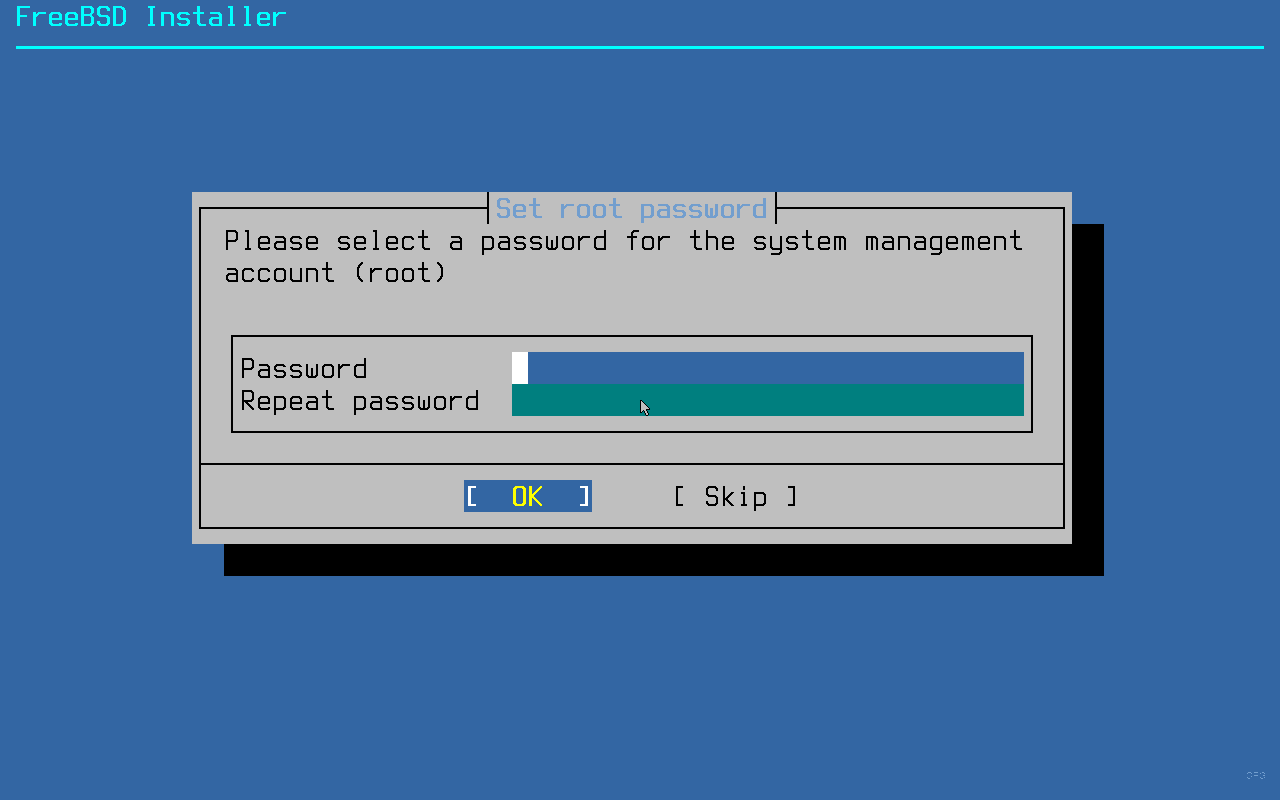
Step 6: Set Root Password
Once the base system is installed, set a strong root password. You will create a regular user account later, but the root password is still needed for single-user mode recovery and console access.
Step 7: Configure Time Zone and Services
The installer asks whether the system clock is set to UTC. For servers, always choose Yes. This avoids daylight saving time issues and keeps logs consistent across time zones.
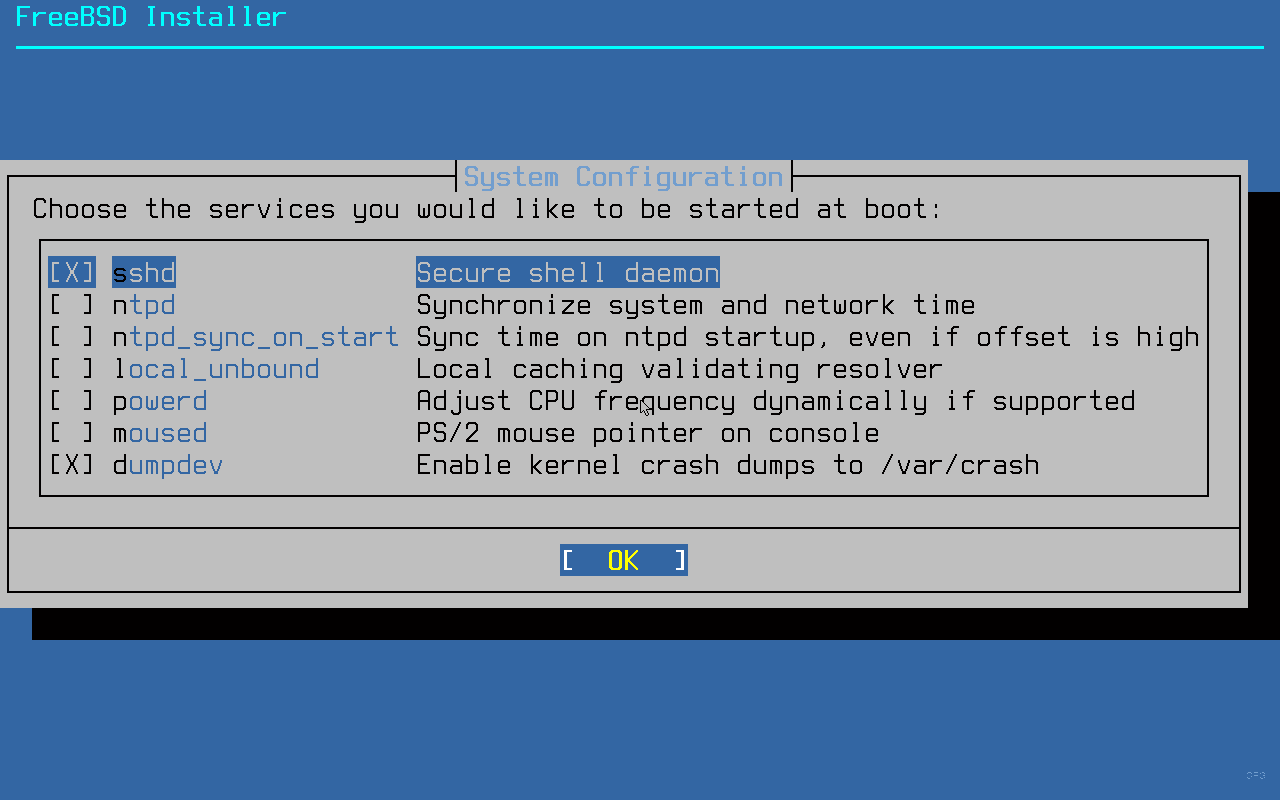
Next, select your region and time zone. After that, the system configuration screen lets you enable startup services. At minimum, enable these:
- sshd – remote SSH access (essential for headless servers)
- ntpd – time synchronization via NTP
- dumpdev – enables kernel crash dumps for debugging
Step 8: System Hardening
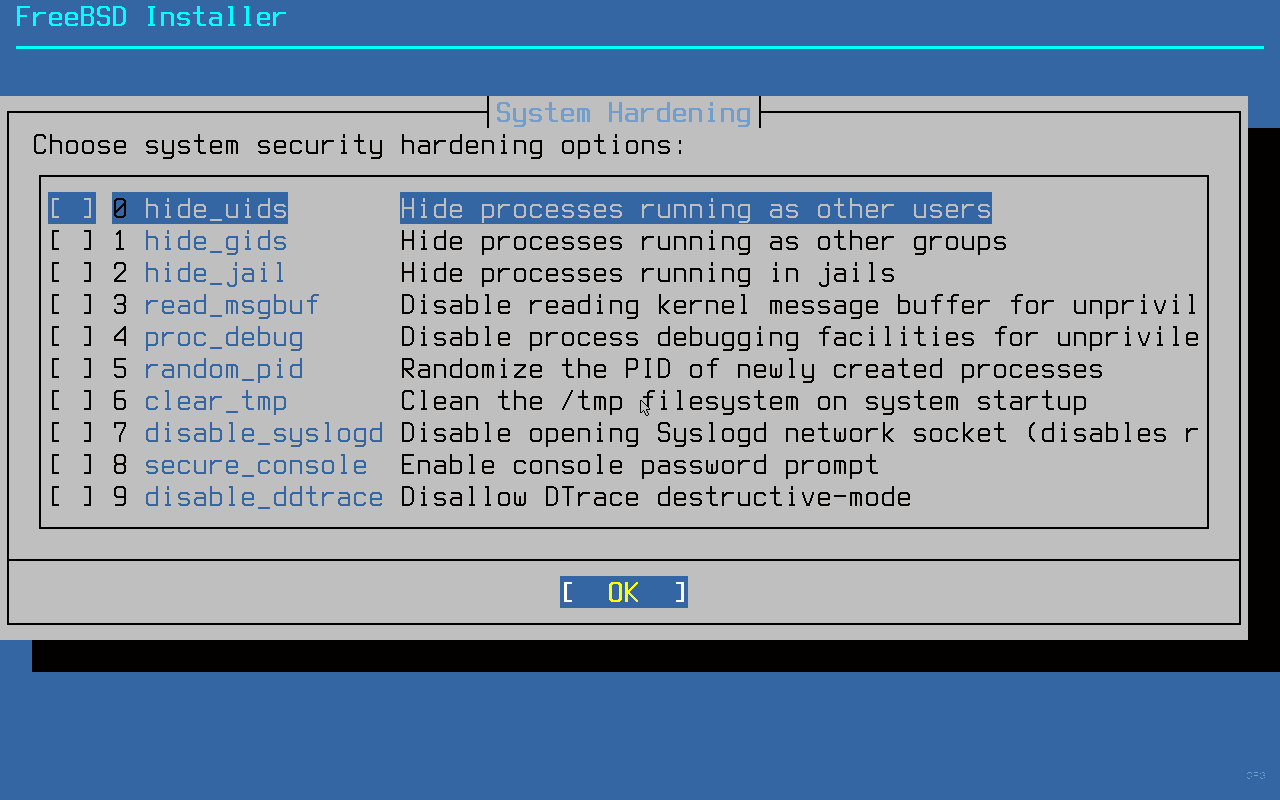
FreeBSD includes built-in hardening options that you can enable during installation. Here is what each option does:
- hide_uids – prevents unprivileged users from seeing processes owned by other users
- hide_gids – same as above but for group-based visibility
- hide_jail – hides processes in other jails
- read_msgbuf – restricts access to kernel message buffer
- proc_debug – prevents unprivileged process debugging
- random_pid – randomizes process IDs (makes PID prediction attacks harder)
- clear_tmp – clears
/tmpon every boot - disable_syslogd – prevents syslogd from binding to a network socket
- disable_sendmail – disables the Sendmail service entirely
For servers, enable at least hide_uids, hide_gids, clear_tmp, random_pid, and disable_sendmail (unless you actually need Sendmail).
Step 9: Create a User Account
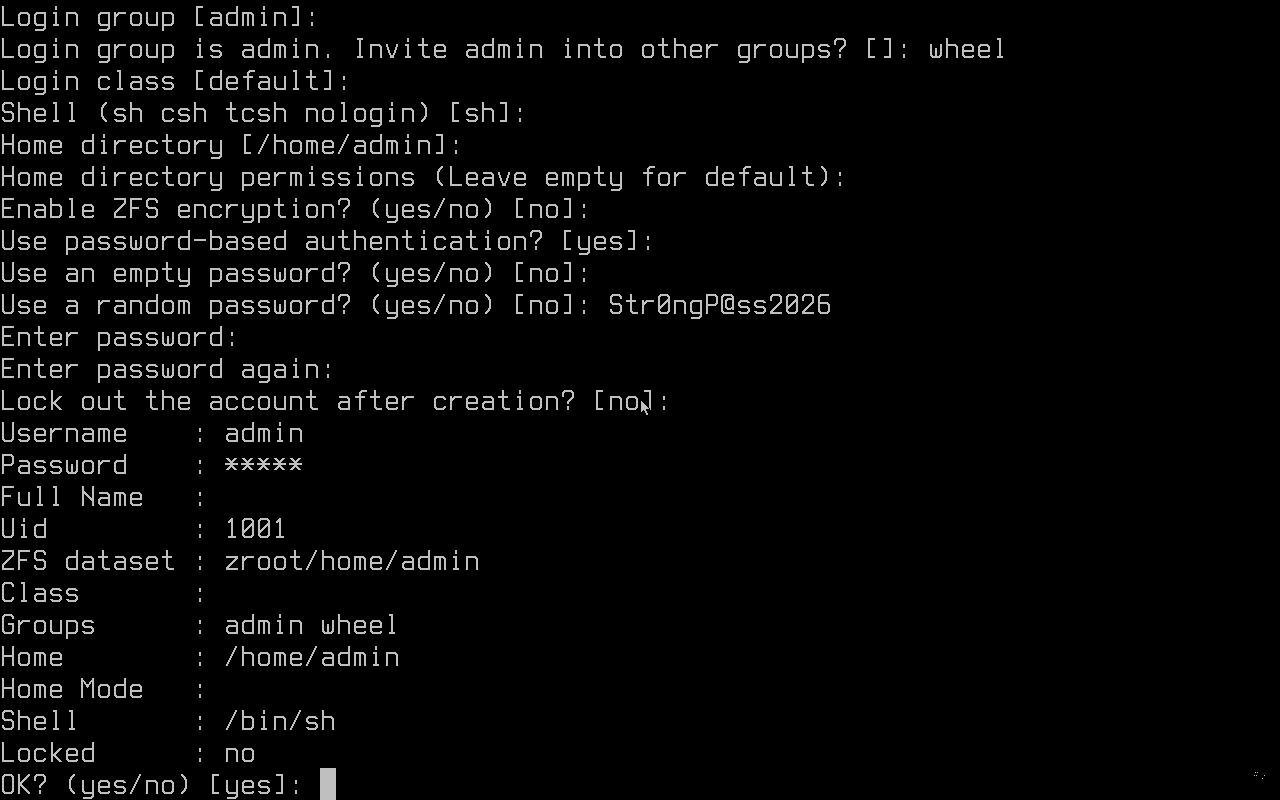
The installer asks if you want to add user accounts. Always create at least one regular user and add it to the wheel group. The wheel group is required for su access to root and for sudo once you install it.
When prompted for “Login group”, press Enter to accept the default (same as username). When asked for “Other groups”, type wheel. Accept defaults for everything else unless you have specific shell preferences.
Step 10: Finish and Reboot
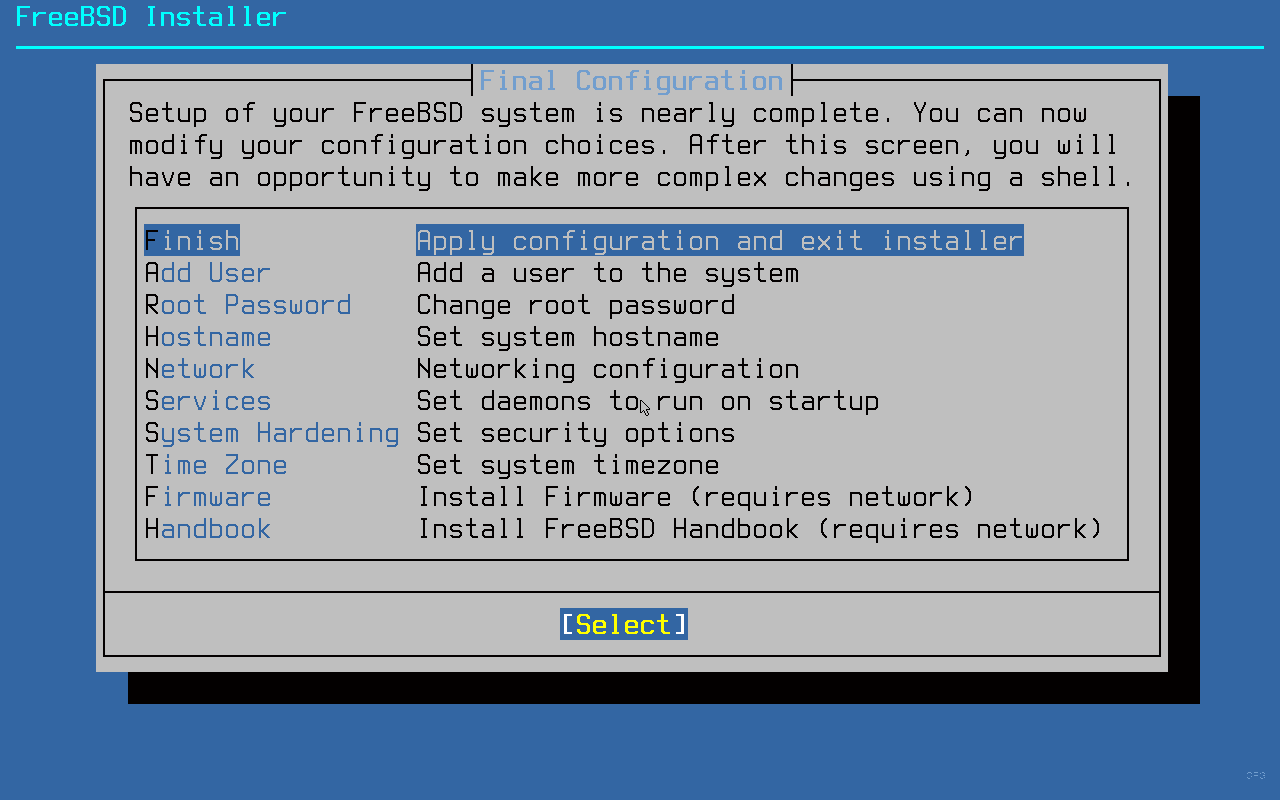
The final configuration screen gives you a last chance to make changes. If everything looks good, select Exit.
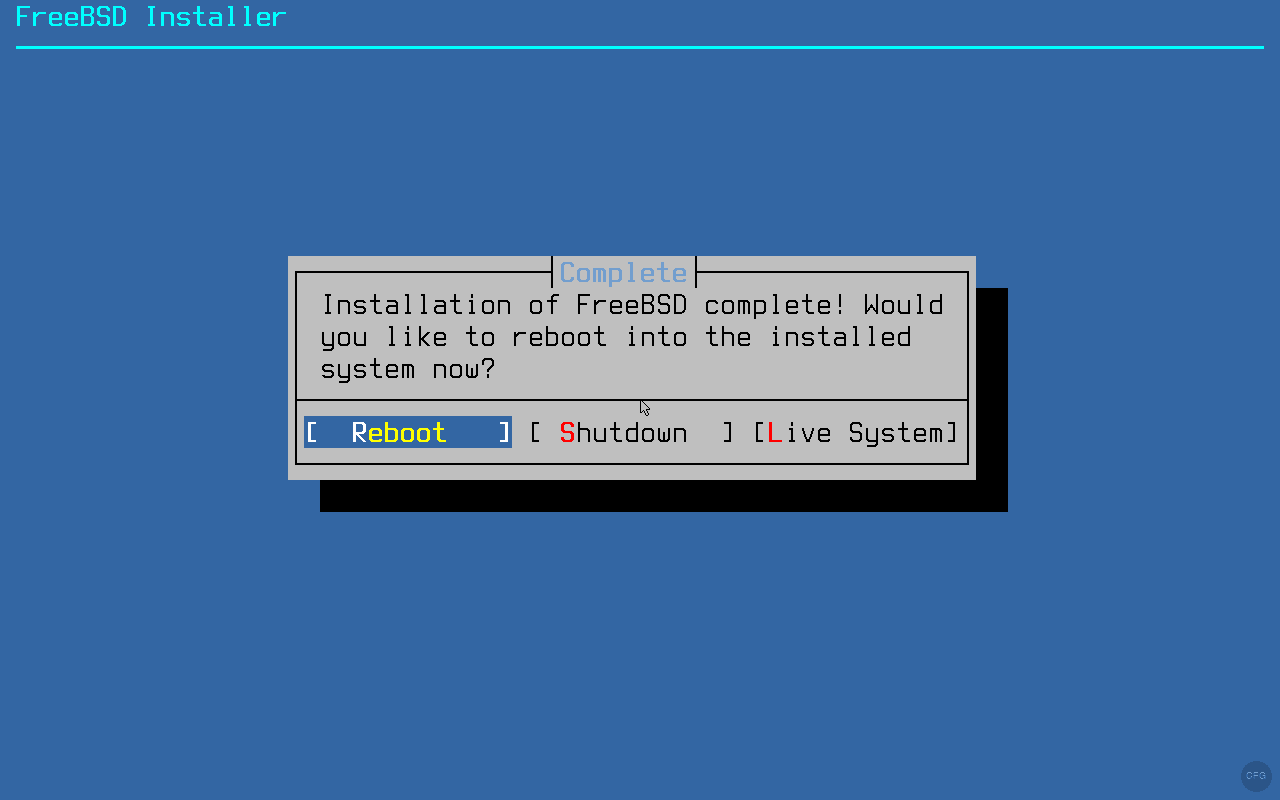
The installer confirms that installation is complete and asks if you want to reboot. Select Reboot and remove the ISO from your VM settings (or eject the USB drive) so the system boots from disk.
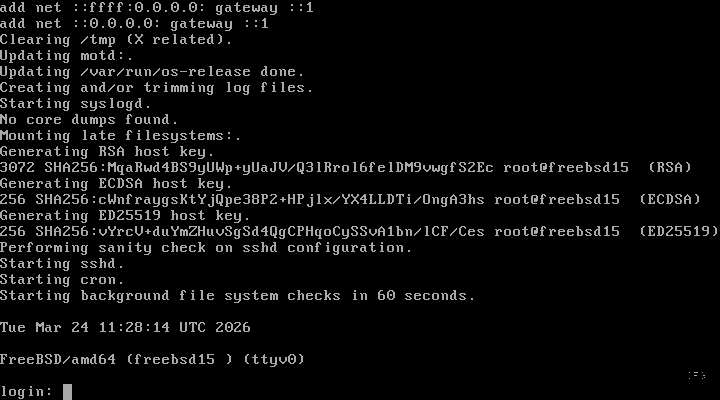
After rebooting, you are greeted with the FreeBSD login prompt. Log in as root or with the user account you created.
Post-Install Setup
After logging in, run through these essential post-install tasks to get the system ready for use.
If your network interface did not pick up a DHCP lease automatically, enable it with sysrc and request an address. For more details on configuring static IP and hostname, see our guide on setting hostname and static IP on FreeBSD.
sysrc ifconfig_vtnet0="DHCP"
dhclient vtnet0
The interface name may differ on your system. Use ifconfig to find the correct one. On KVM/Proxmox VMs, it is typically vtnet0.
Bootstrap the pkg package manager. On a fresh install, running any pkg command triggers the bootstrap automatically.
pkg updateYou should see the package repository catalog being fetched:
The package management tool is not yet installed on your system.
Do you want to fetch and install it now? [y/N]: y
Bootstrapping pkg from pkg+http://pkg.FreeBSD.org/FreeBSD:15:amd64/quarterly, please wait...
Verifying signature with trusted certificate pkg.freebsd.org.2013102301... done
Installing pkg-1.21.5...
Extracting pkg-1.21.5: 100%
Updating FreeBSD repository catalogue...
FreeBSD repository is up to date.
All repositories are up to date.
Install essential tools. At minimum, grab a text editor and sudo for privilege escalation.
pkg install -y vim sudoAfter installing sudo, allow wheel group members to use it by uncommenting the appropriate line in the sudoers file.
visudoFind and uncomment this line:
%wheel ALL=(ALL:ALL) ALLVerify that SSH is enabled and running so you can connect remotely.
sysrc sshd_enable=YES
service sshd status
The output confirms the SSH daemon is active:
sshd is running as pid 1043.By default, FreeBSD disables root SSH login. If you need it temporarily for initial setup, edit /etc/ssh/sshd_config and set PermitRootLogin yes, then restart sshd. For production systems, use your regular user with sudo instead.
Package Management with pkg
FreeBSD uses pkg for binary package management. It is fast, reliable, and covers over 34,000 packages. Here are the commands you will use daily. For a deeper comparison with OpenBSD package management, check our FreeBSD and OpenBSD package and service management guide.
Search for packages by name. This searches both package names and descriptions.
pkg search nginxThe search returns matching packages from the repository:
freenginx-1.28.0                Robust and small HTTP server and mail proxy server
modsecurity3-nginx-1.0.3_3      Instruction detection and prevention engine / nginx wrapper
nginx-1.28.0_10,3               Robust and small HTTP server and mail proxy server
nginx-devel-1.27.4              Robust and small HTTP server and mail proxy server
nginx-full-1.28.0_10,3          Robust and small HTTP server and mail proxy server
nginx-lite-1.28.0_10,3          Robust and small HTTP server and mail proxy server
nginx-naxsi-1.28.0_10,3         Robust and small HTTP server and mail proxy server
p5-Nginx-ReadBody-0.07_2        Nginx request body reader
p5-Nginx-Simple-0.07_2          Easy to use interface to Nginx
Install a package with the -y flag to skip confirmation prompts.
pkg install -y nginxThe installer fetches and installs the package along with any dependencies:
Updating FreeBSD repository catalogue...
FreeBSD repository is up to date.
All repositories are up to date.
The following 1 package(s) will be affected (of 0 checked):

New packages to be INSTALLED:
        nginx: 1.28.0_10,3

Number of packages to be installed: 1

Proceed with this action? [y/N]: y
[1/1] Installing nginx-1.28.0_10,3...
[1/1] Extracting nginx-1.28.0_10,3: 100%
=====
Message from nginx-1.28.0_10,3:

--
Recent version of the NGINX introduces dynamic modules support.  In
FreeBSD ports tree this feature was enabled by default with the DSO
knob.  Several modules have been converted to dynamic modules.

To load a module at boot time, please add the following lines to the
/usr/local/etc/nginx/nginx.conf configuration file:

    load_module /usr/local/libexec/nginx/ngx_mail_module.so;
    load_module /usr/local/libexec/nginx/ngx_stream_module.so;
List all installed packages with version information.
pkg info | head -10This shows the first 10 installed packages:
FreeBSD-bhyve-15.0               Bhyve tools
FreeBSD-caroot-15.0              SSL certificates
FreeBSD-clibs-15.0               C libraries
FreeBSD-clang-15.0               Clang compiler
FreeBSD-devd-15.0                Device state change daemon
FreeBSD-dma-15.0                 DragonFly Mail Agent
FreeBSD-ee-15.0                  Easy editor
FreeBSD-elftoolchain-15.0        ELF toolchain utilities
FreeBSD-fetch-15.0               Fetch utility
FreeBSD-ftpd-15.0                FTP daemon
Find out which package installed a specific file.
pkg which /usr/local/sbin/nginxThe output shows the owning package:
/usr/local/sbin/nginx was installed by package nginx-1.28.0_10,3Check installed packages for known security vulnerabilities. Run this regularly or set up a cron job for it.
pkg audit -FA clean system reports no issues:
Fetching vuln.xml.xz: 100%    1 MiB   1.1MB/s    00:01
0 problem(s) in 0 package(s) found.
Lock a package to prevent it from being upgraded. This is useful when you need to pin a specific version.
pkg lock nginxTo unlock it later when you are ready to upgrade:
pkg unlock nginxRemove packages that were installed as dependencies but are no longer needed by any installed package.
pkg autoremoveService Management
FreeBSD uses rc.d for service management, controlled through the service command and sysrc for persistent configuration. This is similar to Linux systemd but simpler and more predictable.
Enable a service to start at boot using sysrc. This writes the setting to /etc/rc.conf.
sysrc nginx_enable=YESThe output confirms the change:
nginx_enable: -> YESStart the service immediately.
service nginx startYou should see a clean start confirmation:
Starting nginx.Check the status of a running service.
service nginx statusThe output confirms nginx is running with its process ID:
nginx is running as pid 2617.List all services that are currently enabled to start at boot.
service -eThis shows all enabled services and their rc.d script paths:
/etc/rc.d/syslogd
/etc/rc.d/ntpd
/etc/rc.d/sshd
/etc/rc.d/sendmail
/etc/rc.d/cron
/usr/local/etc/rc.d/nginx
ZFS Basics
If you chose ZFS during installation, your system has a full ZFS pool with multiple datasets. Here are the essential commands for managing your ZFS setup.
Check the status of your ZFS pool to verify everything is healthy.
zpool statusA healthy single-disk pool looks like this:
  pool: zroot
 state: ONLINE
config:

        NAME        STATE     READ WRITE CKSUM
        zroot       ONLINE       0     0     0
          da0p3     ONLINE       0     0     0

errors: No known data errors
List all ZFS datasets and their disk usage.
zfs listThe installer creates several datasets by default:
NAME                 USED  AVAIL  REFER  MOUNTPOINT
zroot                1.45G  17.1G    96K  /zroot
zroot/ROOT           1.03G  17.1G    96K  none
zroot/ROOT/default   1.03G  17.1G  1.03G  /
zroot/home           416M   17.1G   416M  /home
zroot/tmp            104K   17.1G   104K  /tmp
zroot/usr             96K   17.1G    96K  /usr
zroot/usr/ports       96K   17.1G    96K  /usr/ports
zroot/usr/src         96K   17.1G    96K  /usr/src
zroot/var            2.08M  17.1G    96K  /var
zroot/var/audit       96K   17.1G    96K  /var/audit
zroot/var/crash       96K   17.1G    96K  /var/crash
zroot/var/log        520K   17.1G   520K  /var/log
zroot/var/mail       192K   17.1G   192K  /var/mail
zroot/var/tmp         96K   17.1G    96K  /var/tmp
Each dataset can have its own compression, quota, and snapshot policies. ZFS compression is enabled by default on FreeBSD, and atime is off, both of which improve performance for server workloads.
Tips and Tricks
A few practical tips that save time on a fresh FreeBSD 15.0 system.
If you installed with the pkgbase method, the base system is split into about 310 packages. You can see them all with:
pkg info | grep FreeBSD | wc -lThis returns the count of base system packages:
310Use sysrc for rc.conf changes. Never edit /etc/rc.conf by hand. The sysrc utility handles quoting, escaping, and syntax validation. It also shows you the before and after values, so you can verify changes immediately.
Run pkg audit regularly. Set up a cron job to check for vulnerabilities daily. Add this to root’s crontab with crontab -e:
@daily /usr/local/sbin/pkg audit -F -qZFS compression and atime. Both are configured optimally out of the box. Compression uses lz4 by default (fast with good ratios), and atime is disabled so the filesystem does not write a timestamp every time a file is read. No tuning needed.
For KVM/Proxmox VMs, install qemu-guest-agent so the hypervisor can properly communicate with the guest (graceful shutdown, IP reporting, filesystem freeze for snapshots).
pkg install -y qemu-guest-agent
sysrc qemu_guest_agent_enable=YES
sysrc qemu_guest_agent_flags="-d -v -l /var/log/qemu-ga.log"
service qemu-guest-agent start
Converting to a Proxmox Template
If you use Proxmox and want to spin up FreeBSD VMs quickly, convert this installation into a template. First, clean up the system inside the VM.
pkg clean -y
rm -rf /var/log/*.log /var/log/*.gz
rm -rf /tmp/*
history -c
Shut down the VM cleanly.
shutdown -p nowOn the Proxmox host, convert the VM to a template. Replace VMID with your actual VM ID.
qm template VMIDYou can now clone this template whenever you need a fresh FreeBSD 15.0 VM. Each clone gets its own disk and can be customized independently.
Conclusion
FreeBSD 15.0 is a strong release that modernizes how the base system is managed without breaking the stability FreeBSD is known for. The pkgbase system, quantum-resistant cryptography defaults, and OpenZFS 2.4 make it well-suited for production server deployments.
For database workloads on FreeBSD, check out our guide on installing MariaDB on FreeBSD. To explore what shipped in this release, see our FreeBSD 15 new features walkthrough covering pkgbase, post-quantum crypto, and ZFS 2.4. For container-style workload isolation, our FreeBSD Jails with VNET networking guide walks through the complete setup. The FreeBSD Handbook is the definitive reference for everything else.
