The Prometheus Blackbox exporter lets you probe endpoints over HTTP, HTTPS, TCP, DNS, and ICMP to monitor website uptime, response times, and SSL certificate expiration. Unlike other exporters that run on the target host, Blackbox exporter runs on your monitoring server and probes external targets – making it perfect for uptime monitoring without installing anything on the monitored systems.
Prerequisites
- A running Prometheus 3 instance – see Install Prometheus 3 on Ubuntu / Debian
- Ubuntu 24.04/Debian 13 or Rocky Linux 10/AlmaLinux 10
- Grafana for dashboarding (optional but recommended) – see Install Grafana on Ubuntu / Debian
Step 1: Install Blackbox Exporter
Create a dedicated user for the service:
Ubuntu/Debian:
sudo useradd --no-create-home --shell /bin/false blackbox_exporterRocky/AlmaLinux:
sudo useradd --no-create-home --shell /sbin/nologin blackbox_exporterDownload and install the latest Blackbox exporter release:
VER=$(curl -sI https://github.com/prometheus/blackbox_exporter/releases/latest | grep -i ^location | grep -o v[0-9.]* | sed s/^v//)
echo "Installing blackbox_exporter $VER"
wget https://github.com/prometheus/blackbox_exporter/releases/download/v${VER}/blackbox_exporter-${VER}.linux-amd64.tar.gz
tar xvf blackbox_exporter-${VER}.linux-amd64.tar.gz
sudo cp blackbox_exporter-${VER}.linux-amd64/blackbox_exporter /usr/local/bin/
sudo chown blackbox_exporter:blackbox_exporter /usr/local/bin/blackbox_exporter
At the time of writing, this installs Blackbox exporter 0.28.0. Verify the installation:
blackbox_exporter --versionYou should see the version confirmed:
blackbox_exporter, version 0.28.0 (branch: HEAD, revision: a3a5bc1c)
  build user:       root@3bd0b3f5b6e9
  build date:       20260220-08:15:44
  go version:       go1.24.0
  platform:         linux/amd64
On Rocky/AlmaLinux, set the SELinux context:
sudo dnf install -y policycoreutils-python-utils
sudo semanage fcontext -a -t bin_t "/usr/local/bin/blackbox_exporter"
sudo restorecon -v /usr/local/bin/blackbox_exporter
sudo semanage port -a -t http_port_t -p tcp 9115
Step 2: Configure Blackbox Exporter Modules
Blackbox exporter uses modules to define how to probe targets. Each module specifies the protocol, expected response, and timeout. Create the configuration directory and file:
sudo mkdir -p /etc/blackbox_exporter
sudo vi /etc/blackbox_exporter/blackbox.yml
Add the following module definitions covering HTTP, TCP, DNS, and ICMP probes:
modules:
  http_2xx:
    prober: http
    timeout: 10s
    http:
      valid_http_versions: ["HTTP/1.1", "HTTP/2.0"]
      valid_status_codes: [200, 301, 302]
      method: GET
      follow_redirects: true
      preferred_ip_protocol: "ip4"
      tls_config:
        insecure_skip_verify: false

  http_post:
    prober: http
    timeout: 10s
    http:
      method: POST
      valid_status_codes: [200, 201, 202, 204]
      preferred_ip_protocol: "ip4"

  tcp_connect:
    prober: tcp
    timeout: 5s
    tcp:
      preferred_ip_protocol: "ip4"

  dns_lookup:
    prober: dns
    timeout: 5s
    dns:
      query_name: "example.com"
      query_type: "A"
      preferred_ip_protocol: "ip4"
      valid_rcodes:
        - NOERROR

  icmp:
    prober: icmp
    timeout: 5s
    icmp:
      preferred_ip_protocol: "ip4"
Key points about the modules:
- http_2xx – Standard HTTP check that follows redirects and validates TLS certificates. The
valid_status_codesincludes 301/302 to handle redirected sites - http_post – For probing POST endpoints like API health checks
- tcp_connect – Simple TCP connection check, useful for databases, mail servers, or any TCP service
- dns_lookup – Queries a DNS server and validates the response code
- icmp – ICMP ping probe. Requires NET_RAW capability (covered in the systemd service)
Set the correct ownership:
sudo chown -R blackbox_exporter:blackbox_exporter /etc/blackbox_exporterStep 3: Create the Systemd Service
Create the systemd unit file for Blackbox exporter:
sudo vi /etc/systemd/system/blackbox_exporter.serviceAdd the following service definition:
[Unit]
Description=Prometheus Blackbox Exporter
Documentation=https://github.com/prometheus/blackbox_exporter
Wants=network-online.target
After=network-online.target

[Service]
Type=simple
User=blackbox_exporter
Group=blackbox_exporter
ExecStart=/usr/local/bin/blackbox_exporter \
  --config.file=/etc/blackbox_exporter/blackbox.yml \
  --web.listen-address=0.0.0.0:9115
Restart=always
RestartSec=5
SyslogIdentifier=blackbox_exporter
AmbientCapabilities=CAP_NET_RAW

[Install]
WantedBy=multi-user.target
The AmbientCapabilities=CAP_NET_RAW line is required for ICMP probes. Without it, ping-based probes will fail with permission errors even though the service runs as a non-root user.
Start and enable the service:
sudo systemctl daemon-reload
sudo systemctl enable --now blackbox_exporter
Verify it’s running:
sudo systemctl status blackbox_exporterThe service should show active (running):
● blackbox_exporter.service - Prometheus Blackbox Exporter
     Loaded: loaded (/etc/systemd/system/blackbox_exporter.service; enabled; preset: enabled)
     Active: active (running) since Mon 2026-03-24 11:30:15 UTC; 4s ago
       Docs: https://github.com/prometheus/blackbox_exporter
   Main PID: 5123 (blackbox_export)
      Tasks: 6 (limit: 4557)
     Memory: 11.8M
        CPU: 0.067s
     CGroup: /system.slice/blackbox_exporter.service
             └─5123 /usr/local/bin/blackbox_exporter --config.file=/etc/blackbox_exporter/blackbox.yml ...
Test a probe manually to confirm it’s working:
curl -s "http://localhost:9115/probe?target=https://google.com&module=http_2xx" | grep probe_successA successful probe returns:
probe_success 1Step 4: Configure Prometheus Scrape Config for Blackbox
The Blackbox exporter uses a special scrape configuration in Prometheus. Unlike standard exporters where Prometheus scrapes the exporter’s own metrics endpoint, Blackbox requires relabeling to pass the target URL as a parameter. This is the part that catches most people.
Add this job to your /etc/prometheus/prometheus.yml scrape_configs section:
  - job_name: "blackbox_http"
    metrics_path: /probe
    params:
      module: [http_2xx]
    static_configs:
      - targets:
          - https://computingforgeeks.com
          - https://google.com
          - https://github.com
          - https://prometheus.io
          - https://grafana.com
    relabel_configs:
      - source_labels: [__address__]
        target_label: __param_target
      - source_labels: [__param_target]
        target_label: instance
      - target_label: __address__
        replacement: localhost:9115

  - job_name: "blackbox_tcp"
    metrics_path: /probe
    params:
      module: [tcp_connect]
    static_configs:
      - targets:
          - computingforgeeks.com:443
          - google.com:443
          - github.com:22
    relabel_configs:
      - source_labels: [__address__]
        target_label: __param_target
      - source_labels: [__param_target]
        target_label: instance
      - target_label: __address__
        replacement: localhost:9115

  - job_name: "blackbox_icmp"
    metrics_path: /probe
    params:
      module: [icmp]
    static_configs:
      - targets:
          - 8.8.8.8
          - 1.1.1.1
    relabel_configs:
      - source_labels: [__address__]
        target_label: __param_target
      - source_labels: [__param_target]
        target_label: instance
      - target_label: __address__
        replacement: localhost:9115
Here’s what the relabeling does step by step:
- Takes the target URL from
__address__(e.g.,https://google.com) and stores it as the__param_targetparameter - Copies the target URL to the
instancelabel so it shows up correctly in Prometheus queries - Replaces
__address__with the Blackbox exporter’s address (localhost:9115), because that’s where Prometheus actually sends the scrape request
Without this relabeling, Prometheus would try to scrape the target URLs directly instead of going through the Blackbox exporter.
Validate and reload Prometheus:
promtool check config /etc/prometheus/prometheus.yml
sudo systemctl reload prometheus
Step 5: Monitor SSL Certificate Expiration
One of the most valuable metrics from Blackbox exporter is SSL certificate expiration. The probe_ssl_earliest_cert_expiry metric returns the Unix timestamp when the certificate expires, which you can compare against the current time.
This PromQL query shows how many days until each certificate expires:
(probe_ssl_earliest_cert_expiry - time()) / 86400Run this in the Prometheus query UI to see the results. A value of 30 means the certificate expires in 30 days.
Other useful HTTP probe metrics to explore:
probe_duration_seconds– Total probe time including DNS, TLS handshake, and responseprobe_http_duration_seconds– Broken down by phase (resolve, connect, tls, processing, transfer)probe_http_status_code– The HTTP status code returnedprobe_http_version– Whether the site responded with HTTP/1.1 or HTTP/2probe_tls_version_info– TLS version used for the connection
Step 6: Create Alert Rules for Website Monitoring
Add alert rules that fire when a website goes down or an SSL certificate is approaching expiration. Create or edit the rules file:
sudo vi /etc/prometheus/rules/blackbox-alerts.ymlAdd these alert rules:
groups:
  - name: blackbox_alerts
    rules:
      - alert: WebsiteDown
        expr: probe_success{job="blackbox_http"} == 0
        for: 3m
        labels:
          severity: critical
        annotations:
          summary: "Website {{ $labels.instance }} is down"
          description: "HTTP probe has been failing for {{ $labels.instance }} for more than 3 minutes."

      - alert: SSLCertExpiringSoon
        expr: (probe_ssl_earliest_cert_expiry - time()) / 86400 < 30
        for: 1h
        labels:
          severity: warning
        annotations:
          summary: "SSL certificate expiring soon for {{ $labels.instance }}"
          description: "SSL certificate for {{ $labels.instance }} expires in {{ $value | printf \"%.0f\" }} days."

      - alert: SSLCertExpiryCritical
        expr: (probe_ssl_earliest_cert_expiry - time()) / 86400 < 7
        for: 1h
        labels:
          severity: critical
        annotations:
          summary: "SSL certificate expiring in less than 7 days for {{ $labels.instance }}"
          description: "SSL certificate for {{ $labels.instance }} expires in {{ $value | printf \"%.0f\" }} days. Renew immediately."

      - alert: HighHTTPLatency
        expr: probe_http_duration_seconds{job="blackbox_http"} > 5
        for: 5m
        labels:
          severity: warning
        annotations:
          summary: "High HTTP latency for {{ $labels.instance }}"
          description: "HTTP response time for {{ $labels.instance }} has been above 5 seconds for 5 minutes. Current: {{ $value | printf \"%.2f\" }}s"
Validate and set ownership:
promtool check rules /etc/prometheus/rules/blackbox-alerts.yml
sudo chown prometheus:prometheus /etc/prometheus/rules/blackbox-alerts.yml
A clean validation shows:
Checking /etc/prometheus/rules/blackbox-alerts.yml
  SUCCESS: 4 rules found
Reload Prometheus to pick up the new rules:
sudo systemctl reload prometheusHow to Monitor Internal Services with TCP Probes
Beyond website monitoring, Blackbox exporter is excellent for checking internal service availability. Use TCP probes to verify that databases, message queues, and other services are accepting connections. Add these to your Prometheus scrape config:
  - job_name: "blackbox_internal_tcp"
    metrics_path: /probe
    params:
      module: [tcp_connect]
    static_configs:
      - targets:
          - 10.0.1.30:5432
        labels:
          service: "postgresql"
      - targets:
          - 10.0.1.31:3306
        labels:
          service: "mariadb"
      - targets:
          - 10.0.1.32:6379
        labels:
          service: "redis"
      - targets:
          - 10.0.1.33:5672
        labels:
          service: "rabbitmq"
    relabel_configs:
      - source_labels: [__address__]
        target_label: __param_target
      - source_labels: [__param_target]
        target_label: instance
      - target_label: __address__
        replacement: localhost:9115
This approach gives you connection-level monitoring without installing any exporter on the target hosts. The TCP probe simply attempts a connection and reports success or failure – if the port accepts connections, the service is at least partially functional. For deeper health checks, combine TCP probes with application-specific exporters.
You can create targeted alert rules for internal services:
      - alert: DatabaseUnreachable
        expr: probe_success{job="blackbox_internal_tcp", service=~"postgresql|mariadb"} == 0
        for: 1m
        labels:
          severity: critical
        annotations:
          summary: "Database {{ $labels.service }} at {{ $labels.instance }} is unreachable"
          description: "TCP connection to {{ $labels.service }} has been failing for more than 1 minute."
Step 7: Verify Blackbox Targets in Prometheus
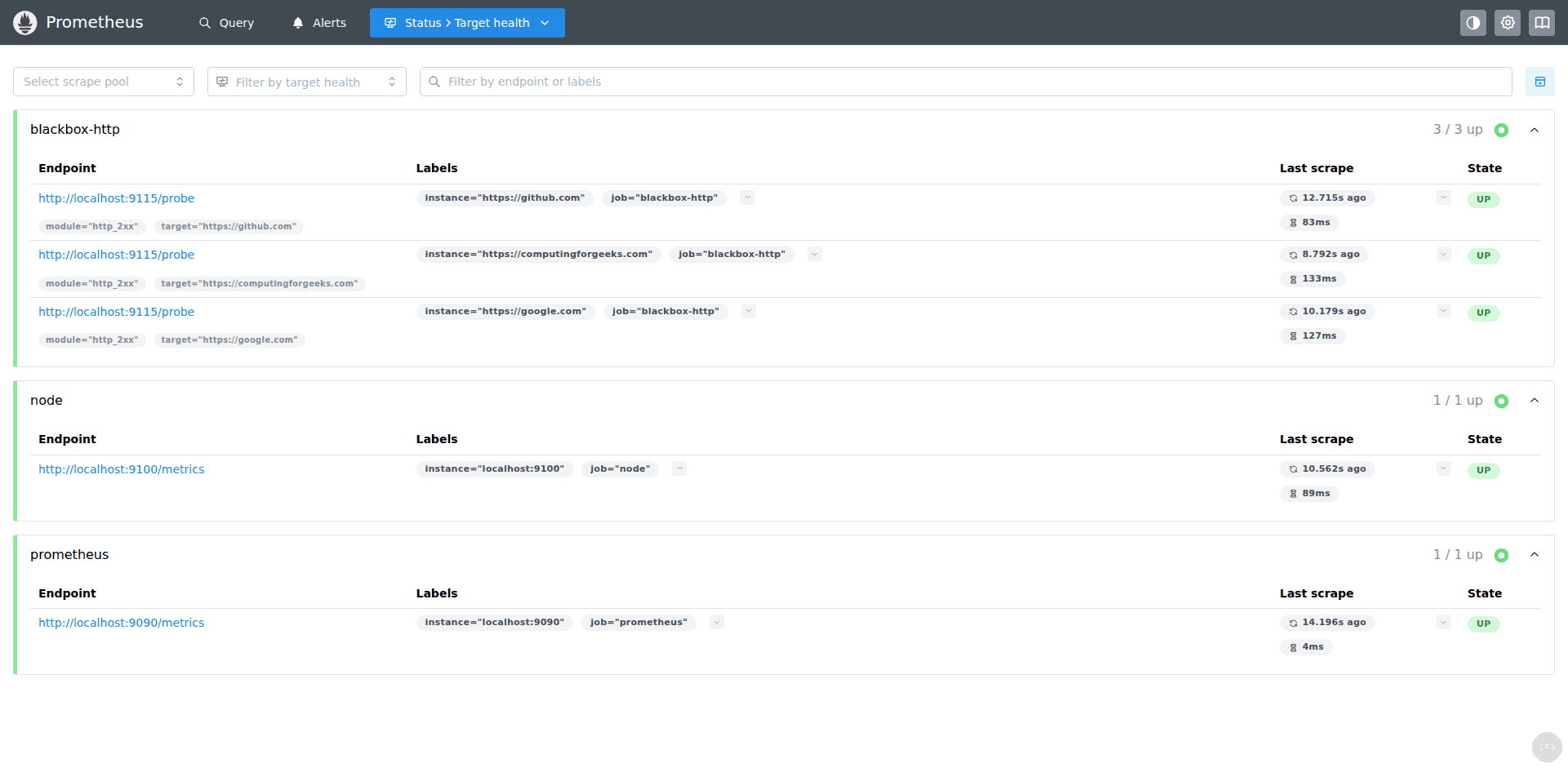
After reloading Prometheus, check the Status > Targets page. You should see your blackbox_http, blackbox_tcp, and blackbox_icmp jobs with all targets showing UP status:
Try querying SSL certificate expiry in the Prometheus query UI. Enter the expression (probe_ssl_earliest_cert_expiry - time()) / 86400 and click Execute to see days until each certificate expires:
Step 8: Build a Grafana Dashboard for HTTP Monitoring
Create a Grafana dashboard to visualize website availability and response times. You can import the community dashboard 7587 (Prometheus Blackbox Exporter) from Dashboards > New > Import, or build a custom one with these key panels.
Essential PromQL queries for your dashboard panels:
Website availability (up/down status):
probe_success{job="blackbox_http"}HTTP response time breakdown by phase:
probe_http_duration_seconds{job="blackbox_http"}SSL certificate days until expiry:
(probe_ssl_earliest_cert_expiry{job="blackbox_http"} - time()) / 86400HTTP status codes:
probe_http_status_code{job="blackbox_http"}Uptime percentage over last 24 hours:
avg_over_time(probe_success{job="blackbox_http"}[24h]) * 100For the response time panel, use the “Time series” visualization type with a legend showing each target. For the availability panel, a “Stat” panel with thresholds (green for 1, red for 0) gives a clear at-a-glance view.
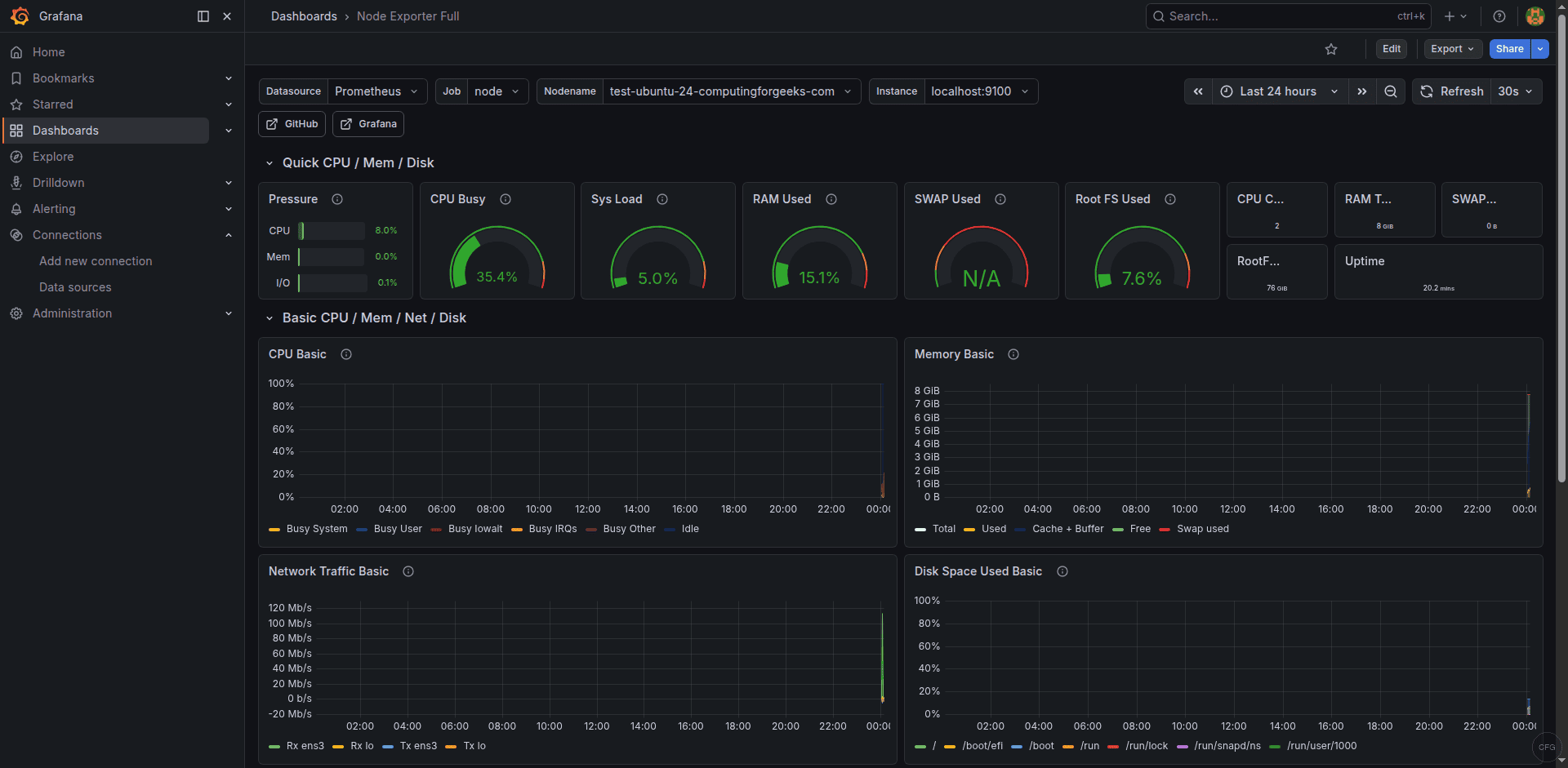
A well-configured Grafana dashboard gives you a single-pane view of all monitored endpoints with response times and availability history:
Step 9: Open Firewall Port
Blackbox exporter listens on port 9115. Only open this port if other systems need to access it directly – in most setups, only the local Prometheus instance queries it.
Ubuntu/Debian (UFW):
sudo ufw allow 9115/tcp comment "Blackbox Exporter"
sudo ufw reload
Rocky/AlmaLinux (firewalld):
sudo firewall-cmd --permanent --add-port=9115/tcp
sudo firewall-cmd --reload
How to Test Probes from the Command Line
You can test individual probes without waiting for Prometheus to scrape. This is useful for debugging and verifying new probe configurations.
Test an HTTP probe against a specific URL:
curl -s "http://localhost:9115/probe?target=https://computingforgeeks.com&module=http_2xx" | grep -E "probe_(success|duration|http_status|ssl_earliest)"This returns the key metrics for that probe:
probe_duration_seconds 0.487231
probe_http_status_code 200
probe_ssl_earliest_cert_expiry 1.756123456e+09
probe_success 1
Test a TCP connection probe:
curl -s "http://localhost:9115/probe?target=github.com:22&module=tcp_connect" | grep probe_successA successful TCP connection shows:
probe_success 1Test a DNS probe:
curl -s "http://localhost:9115/probe?target=8.8.8.8&module=dns_lookup" | grep probe_successTroubleshooting Common Issues
Probes show “probe_success 0” for HTTPS sites
If HTTP probes fail for HTTPS sites, the most common cause is SSL certificate validation failure. Check the detailed probe output:
curl -s "http://localhost:9115/probe?target=https://example.com&module=http_2xx&debug=true"The debug output shows each phase of the probe including any TLS errors. If the target uses a self-signed certificate, either add insecure_skip_verify: true to the module’s tls_config (not recommended for production) or add the CA certificate to the system trust store.
ICMP probes fail with “permission denied”
ICMP (ping) requires raw socket access. If the systemd service doesn’t have AmbientCapabilities=CAP_NET_RAW, ICMP probes will always fail. Verify the capability is set:
grep AmbientCapabilities /etc/systemd/system/blackbox_exporter.serviceIf it’s missing, add it to the [Service] section and restart.
All targets show as DOWN in Prometheus
If every Blackbox target shows DOWN in Prometheus but manual curl probes work, the issue is almost always in the relabeling configuration. The most common mistake is forgetting to set metrics_path: /probe in the scrape job. Without it, Prometheus tries to scrape /metrics on the Blackbox exporter for each target, which returns exporter metrics rather than probe results.
Double-check that your scrape config includes all three relabel steps as shown in Step 4.
DNS probes return unexpected results
The DNS module’s query_name in the blackbox.yml config is used for all probes using that module. If you need to query different domains, create separate modules for each, or use the target as the DNS server address and keep the query_name as your test domain. For more details, see the Blackbox exporter configuration reference.
Conclusion
With Blackbox exporter configured, you now have external endpoint monitoring for HTTP availability, TCP connectivity, DNS resolution, and SSL certificate expiration. The alert rules will notify you before certificates expire and when websites become unreachable. Combine this with node_exporter for internal host metrics and you have a complete monitoring stack covering both infrastructure health and service availability.