Alertmanager handles alert deduplication, grouping, silencing, and routing for Prometheus. It takes alerts from Prometheus and sends notifications to the right people through the right channels – email, Slack, PagerDuty, Microsoft Teams, and more. This guide covers a full Alertmanager setup with real-world routing configurations on both Ubuntu and Rocky Linux.
How Does Alertmanager Work?
Prometheus evaluates alert rules and sends firing alerts to Alertmanager. From there, Alertmanager does the heavy lifting:
- Grouping – Combines related alerts into a single notification (e.g., all InstanceDown alerts in one message)
- Deduplication – Prevents the same alert from being sent repeatedly
- Routing – Directs alerts to different receivers based on labels (severity, team, service)
- Inhibition – Suppresses less important alerts when a more critical one is firing
- Silencing – Temporarily mutes specific alerts during maintenance windows
For more details on the architecture, see the official Alertmanager documentation.
Prerequisites
- A running Prometheus 3 instance – see Install Prometheus 3 on Ubuntu / Debian
- Ubuntu 24.04/Debian 13 or Rocky Linux 10/AlmaLinux 10
- SMTP credentials for email alerts (Gmail, Mailgun, or any SMTP server)
- Slack workspace with webhook URL (for Slack integration)
Step 1: Install Alertmanager
Create a dedicated user for the Alertmanager service:
Ubuntu/Debian:
sudo useradd --no-create-home --shell /bin/false alertmanagerRocky/AlmaLinux:
sudo useradd --no-create-home --shell /sbin/nologin alertmanagerCreate the configuration and data directories:
sudo mkdir -p /etc/alertmanager /var/lib/alertmanager
sudo chown alertmanager:alertmanager /var/lib/alertmanager
Download and install the latest Alertmanager release:
VER=$(curl -sI https://github.com/prometheus/alertmanager/releases/latest | grep -i ^location | grep -o v[0-9.]* | sed s/^v//)
echo "Installing Alertmanager $VER"
wget https://github.com/prometheus/alertmanager/releases/download/v${VER}/alertmanager-${VER}.linux-amd64.tar.gz
tar xvf alertmanager-${VER}.linux-amd64.tar.gz
sudo cp alertmanager-${VER}.linux-amd64/{alertmanager,amtool} /usr/local/bin/
sudo chown alertmanager:alertmanager /usr/local/bin/{alertmanager,amtool}
At the time of writing, this installs Alertmanager 0.31.1. Verify the installation:
alertmanager --versionYou should see the version and build info:
alertmanager, version 0.31.1 (branch: HEAD, revision: e8d9fba4)
  build user:       root@71dc7c3e3a06
  build date:       20260228-14:18:37
  go version:       go1.24.0
  platform:         linux/amd64
On Rocky/AlmaLinux, set the SELinux context for the binaries:
sudo dnf install -y policycoreutils-python-utils
sudo semanage fcontext -a -t bin_t "/usr/local/bin/alertmanager"
sudo semanage fcontext -a -t bin_t "/usr/local/bin/amtool"
sudo restorecon -v /usr/local/bin/{alertmanager,amtool}
sudo semanage port -a -t http_port_t -p tcp 9093
Step 2: Configure Email Alerts (SMTP)
Email is the most common notification channel. The Alertmanager configuration uses YAML and supports multiple notification integrations in a single file.
sudo vi /etc/alertmanager/alertmanager.ymlStart with a basic email configuration. Replace the SMTP settings with your actual mail server credentials:
global:
  resolve_timeout: 5m
  smtp_smarthost: 'smtp.gmail.com:587'
  smtp_from: '[email protected]'
  smtp_auth_username: '[email protected]'
  smtp_auth_password: 'your-app-password'
  smtp_require_tls: true

templates:
  - '/etc/alertmanager/templates/*.tmpl'

route:
  receiver: 'email-notifications'
  group_by: ['alertname', 'instance']
  group_wait: 30s
  group_interval: 5m
  repeat_interval: 4h

  routes:
    - match:
        severity: critical
      receiver: 'critical-email'
      repeat_interval: 1h

    - match:
        severity: warning
      receiver: 'email-notifications'
      repeat_interval: 4h

receivers:
  - name: 'email-notifications'
    email_configs:
      - to: '[email protected]'
        send_resolved: true

  - name: 'critical-email'
    email_configs:
      - to: '[email protected]'
        send_resolved: true
        headers:
          Subject: '[CRITICAL] {{ .GroupLabels.alertname }} firing on {{ .GroupLabels.instance }}'
Key settings to understand:
group_wait: 30s– Wait 30 seconds for related alerts to arrive before sending the first notificationgroup_interval: 5m– Wait 5 minutes before sending updates about new alerts in the same grouprepeat_interval: 4h– Don’t re-send the same alert more often than every 4 hourssend_resolved: true– Send a notification when an alert resolves (goes back to normal)
For Gmail, you’ll need to generate an App Password in your Google Account settings. Regular passwords won’t work with SMTP if 2FA is enabled.
Step 3: Add Slack Integration
Slack is ideal for team-visible alerts. Create an incoming webhook in your Slack workspace under Apps > Incoming Webhooks, then add a Slack receiver to the configuration.
Update the receivers section in /etc/alertmanager/alertmanager.yml to include Slack:
receivers:
  - name: 'email-notifications'
    email_configs:
      - to: '[email protected]'
        send_resolved: true

  - name: 'critical-email'
    email_configs:
      - to: '[email protected]'
        send_resolved: true

  - name: 'slack-notifications'
    slack_configs:
      - api_url: 'https://hooks.slack.com/services/T00000000/B00000000/XXXXXXXXXXXXXXXXXXXXXXXX'
        channel: '#alerts'
        title: '{{ .GroupLabels.alertname }}'
        text: >-
          {{ range .Alerts }}
          *Alert:* {{ .Annotations.summary }}
          *Description:* {{ .Annotations.description }}
          *Severity:* {{ .Labels.severity }}
          {{ end }}
        send_resolved: true
        color: '{{ if eq .Status "firing" }}danger{{ else }}good{{ end }}'

  - name: 'slack-critical'
    slack_configs:
      - api_url: 'https://hooks.slack.com/services/T00000000/B00000000/XXXXXXXXXXXXXXXXXXXXXXXX'
        channel: '#critical-alerts'
        title: 'CRITICAL: {{ .GroupLabels.alertname }}'
        text: >-
          {{ range .Alerts }}
          *Alert:* {{ .Annotations.summary }}
          *Instance:* {{ .Labels.instance }}
          *Description:* {{ .Annotations.description }}
          {{ end }}
        send_resolved: true
Step 4: Add Microsoft Teams Webhook
Microsoft Teams supports incoming webhooks through Power Automate workflows (the old Office 365 Connector method is being deprecated). Create a workflow that accepts an HTTP POST and posts to a Teams channel, then use the webhook URL in Alertmanager.
Add a Teams receiver using the webhook_configs integration:
  - name: 'teams-notifications'
    webhook_configs:
      - url: 'https://prod-XX.westus.logic.azure.com:443/workflows/XXXXX/triggers/manual/paths/invoke?api-version=2016-06-01'
        send_resolved: true
        http_config:
          follow_redirects: true
For richer formatting in Teams, you’ll need an intermediate webhook relay that transforms the Alertmanager JSON payload into an Adaptive Card format. The prometheus-msteams project handles this conversion.
Step 5: Add PagerDuty Integration
PagerDuty is the standard for on-call alerting. Create a Prometheus integration in PagerDuty to get a routing key, then add this receiver:
  - name: 'pagerduty-critical'
    pagerduty_configs:
      - routing_key: 'your-pagerduty-events-v2-routing-key'
        severity: '{{ .GroupLabels.severity }}'
        description: '{{ .GroupLabels.alertname }}: {{ .CommonAnnotations.summary }}'
        details:
          firing: '{{ .Alerts.Firing | len }}'
          resolved: '{{ .Alerts.Resolved | len }}'
          instance: '{{ .GroupLabels.instance }}'
PagerDuty uses the Events API v2 with routing keys (not service keys from v1). Get the routing key from Services > Service Directory > Your Service > Integrations > Events API v2.
Step 6: Configure Severity-Based Route Tree
The real power of Alertmanager is its routing tree. Here’s a production-ready route configuration that sends critical alerts to PagerDuty and Slack, warnings to email, and informational alerts to Slack only:
route:
  receiver: 'email-notifications'
  group_by: ['alertname', 'cluster', 'service']
  group_wait: 30s
  group_interval: 5m
  repeat_interval: 4h

  routes:
    - match:
        severity: critical
      receiver: 'pagerduty-critical'
      continue: true
      repeat_interval: 30m

    - match:
        severity: critical
      receiver: 'slack-critical'
      repeat_interval: 1h

    - match:
        severity: warning
      receiver: 'slack-notifications'
      repeat_interval: 4h

    - match_re:
        alertname: '^(Watchdog|InfoInhibitor)$'
      receiver: 'null'

receivers:
  - name: 'null'

  - name: 'email-notifications'
    email_configs:
      - to: '[email protected]'
        send_resolved: true

  - name: 'pagerduty-critical'
    pagerduty_configs:
      - routing_key: 'your-pagerduty-routing-key'

  - name: 'slack-critical'
    slack_configs:
      - api_url: 'https://hooks.slack.com/services/XXXXX'
        channel: '#critical-alerts'
        send_resolved: true

  - name: 'slack-notifications'
    slack_configs:
      - api_url: 'https://hooks.slack.com/services/XXXXX'
        channel: '#alerts'
        send_resolved: true
Notice the continue: true on the first critical route. This tells Alertmanager to keep matching after this route, so critical alerts go to both PagerDuty AND Slack. Without continue, routing stops at the first match.
The null receiver is a common pattern for dropping alerts you don’t want notifications for, like the Watchdog heartbeat alert from kube-prometheus-stack.
Step 7: Configure Inhibition Rules
Inhibition rules suppress less important alerts when a related critical alert is firing. This prevents alert floods – when a server is down, you don’t need separate notifications for every service on that server.
Add this to your alertmanager.yml:
inhibit_rules:
  - source_match:
      severity: 'critical'
    target_match:
      severity: 'warning'
    equal: ['alertname', 'instance']

  - source_match:
      alertname: 'InstanceDown'
    target_match_re:
      alertname: '.+'
    equal: ['instance']
The first rule says: if a critical alert is firing, suppress any warning alerts with the same alertname and instance. The second rule suppresses all alerts for an instance when InstanceDown is firing – because if the machine is down, alerting on high CPU or low disk on that same machine is noise.
Step 8: Create Custom Notification Templates
The default Alertmanager notification format is functional but verbose. Custom templates let you control exactly what information appears in each notification and how it’s formatted.
Create the templates directory and a custom email template:
sudo mkdir -p /etc/alertmanager/templates
sudo vi /etc/alertmanager/templates/email.tmpl
Add a clean, production-friendly email template:
{{ define "email.custom.subject" }}
[{{ .Status | toUpper }}] {{ .GroupLabels.alertname }} ({{ .Alerts | len }} alerts)
{{ end }}

{{ define "email.custom.html" }}
<h2>{{ .GroupLabels.alertname }}</h2>
<p>Status: <strong>{{ .Status | toUpper }}</strong></p>
<table border="1" cellpadding="5">
  <tr><th>Instance</th><th>Severity</th><th>Summary</th></tr>
  {{ range .Alerts }}
  <tr>
    <td>{{ .Labels.instance }}</td>
    <td>{{ .Labels.severity }}</td>
    <td>{{ .Annotations.summary }}</td>
  </tr>
  {{ end }}
</table>
{{ end }}
Reference the template in your email receiver config by adding html and headers fields:
  - name: 'email-notifications'
    email_configs:
      - to: '[email protected]'
        send_resolved: true
        html: '{{ template "email.custom.html" . }}'
        headers:
          Subject: '{{ template "email.custom.subject" . }}'
Templates use Go’s text/template syntax. The most common variables are .Status, .GroupLabels, .CommonLabels, .CommonAnnotations, and .Alerts (which you iterate with range). Each alert inside .Alerts has .Labels, .Annotations, .StartsAt, and .EndsAt.
Step 9: Create the Systemd Service
Create the systemd unit file for Alertmanager:
sudo vi /etc/systemd/system/alertmanager.serviceAdd the following service definition:
[Unit]
Description=Prometheus Alertmanager
Documentation=https://prometheus.io/docs/alerting/latest/alertmanager/
Wants=network-online.target
After=network-online.target

[Service]
Type=simple
User=alertmanager
Group=alertmanager
ExecStart=/usr/local/bin/alertmanager \
  --config.file=/etc/alertmanager/alertmanager.yml \
  --storage.path=/var/lib/alertmanager \
  --web.listen-address=0.0.0.0:9093 \
  --cluster.listen-address=""
Restart=always
RestartSec=5
SyslogIdentifier=alertmanager

[Install]
WantedBy=multi-user.target
The --cluster.listen-address="" flag is critical for single-node deployments, especially on cloud VMs. Without it, Alertmanager tries to find a private IP for its gossip protocol and fails with “no private IP found” on many cloud providers. If you’re running a multi-node Alertmanager cluster, remove this flag and use --cluster.peer instead.
Set ownership on the configuration file and start the service:
sudo chown alertmanager:alertmanager /etc/alertmanager/alertmanager.yml
sudo systemctl daemon-reload
sudo systemctl enable --now alertmanager
Verify the service is running:
sudo systemctl status alertmanagerThe service should show active (running):
● alertmanager.service - Prometheus Alertmanager
     Loaded: loaded (/etc/systemd/system/alertmanager.service; enabled; preset: enabled)
     Active: active (running) since Mon 2026-03-24 11:05:32 UTC; 4s ago
       Docs: https://prometheus.io/docs/alerting/latest/alertmanager/
   Main PID: 4521 (alertmanager)
      Tasks: 7 (limit: 4557)
     Memory: 18.4M
        CPU: 0.234s
     CGroup: /system.slice/alertmanager.service
             └─4521 /usr/local/bin/alertmanager --config.file=/etc/alertmanager/alertmanager.yml ...
Step 9: Open Firewall Ports
Alertmanager listens on port 9093. Open it in your firewall.
Ubuntu/Debian (UFW):
sudo ufw allow 9093/tcp comment "Alertmanager"
sudo ufw reload
Rocky/AlmaLinux (firewalld):
sudo firewall-cmd --permanent --add-port=9093/tcp
sudo firewall-cmd --reload
Step 10: Access the Alertmanager Web UI
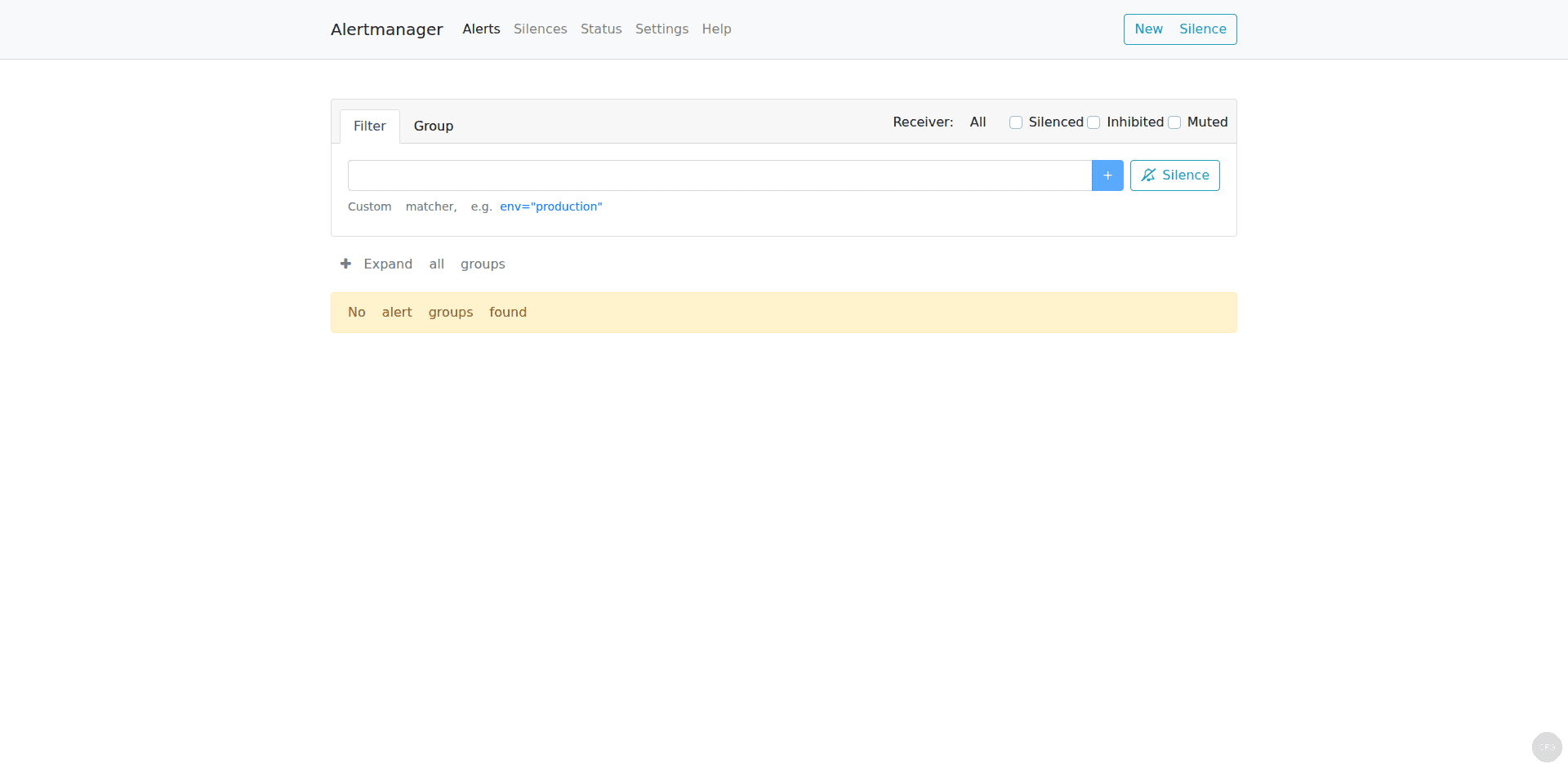
Open your browser and navigate to http://your-server-ip:9093. The Alertmanager UI shows active alerts, silences, and the current routing configuration:
How to Manage Silences with amtool
Silences temporarily mute alerts during maintenance windows. The amtool CLI makes managing silences easy without touching the web UI.
First, configure amtool to know where Alertmanager is running:
sudo mkdir -p /etc/amtool
echo "alertmanager.url: http://localhost:9093" | sudo tee /etc/amtool/config.yml
Create a silence for a specific alert during a maintenance window:
amtool silence add alertname=InstanceDown instance="10.0.1.20:9100" --duration=2h --comment="Scheduled maintenance on web-02"The command returns a silence ID that you can use to manage it:
4b5e8f2a-1c3d-4e5f-9a8b-7c6d5e4f3a2bList all active silences:
amtool silence queryYou’ll see a table of all active silences with their matchers and expiry times:
ID                                    Matchers                                          Ends                  Created By  Comment
4b5e8f2a-1c3d-4e5f-9a8b-7c6d5e4f3a2b  alertname=InstanceDown instance=10.0.1.20:9100    2026-03-24 13:05:32   admin       Scheduled maintenance on web-02
Expire a silence before its scheduled end time:
amtool silence expire 4b5e8f2a-1c3d-4e5f-9a8b-7c6d5e4f3a2bYou can also query the current alert status:
amtool alert queryHow to Validate Your Configuration
Always validate the Alertmanager config before restarting the service. A bad config will prevent Alertmanager from starting, which means no alerts get delivered.
amtool check-config /etc/alertmanager/alertmanager.ymlA successful validation returns:
Checking '/etc/alertmanager/alertmanager.yml'  SUCCESS
Found:
 - global config
 - route
 - 1 inhibit rules
 - 5 receivers
 - 0 templates
How to Debug Alert Routing
When alerts aren’t reaching the expected receiver, use amtool to test which route an alert would match:
amtool config routes test --config.file=/etc/alertmanager/alertmanager.yml severity=critical alertname=InstanceDownThis shows the receiver that would handle an alert with those labels:
pagerduty-criticalYou can also view the full route tree:
amtool config routes show --config.file=/etc/alertmanager/alertmanager.ymlThis prints a visual representation of your entire routing hierarchy, making it easy to spot misconfigurations.
Connect Alertmanager to Prometheus
If you haven’t already configured Prometheus to send alerts to Alertmanager, add the alerting block to your /etc/prometheus/prometheus.yml:
alerting:
  alertmanagers:
    - static_configs:
        - targets:
            - localhost:9093
Reload Prometheus after the change:
sudo systemctl reload prometheusVerify the connection by checking the Prometheus UI under Status > Runtime & Build Information. The Alertmanager should appear as a discovered endpoint.
How to Test Alert Notifications
Don’t wait for a real incident to find out your alerts are broken. Use amtool to send a test alert through the entire pipeline:
amtool alert add test_alert severity=critical instance="test-server:9090" --annotation=summary="This is a test alert" --annotation=description="Testing the alerting pipeline"This creates a real alert in Alertmanager that will be routed through your configured receivers. Check your email, Slack, or PagerDuty to confirm delivery. The test alert will auto-resolve after Alertmanager’s resolve_timeout (5 minutes with the default config).
You can also trigger test alerts from Prometheus by temporarily lowering the threshold on an existing rule. For example, change HighCPUUsage threshold from 85 to 1 temporarily – this will fire on any system with more than 1% CPU usage, which is essentially every running system. Remember to revert the change after testing.
High Availability with Alertmanager Clustering
For production environments where a single Alertmanager is a single point of failure, run multiple instances in a cluster. Alertmanager uses a gossip protocol to synchronize silences and notification state across instances. Each instance needs the --cluster.peer flag pointing to the other instances:
ExecStart=/usr/local/bin/alertmanager \
  --config.file=/etc/alertmanager/alertmanager.yml \
  --storage.path=/var/lib/alertmanager \
  --web.listen-address=0.0.0.0:9093 \
  --cluster.listen-address=0.0.0.0:9094 \
  --cluster.peer=10.0.1.11:9094 \
  --cluster.peer=10.0.1.12:9094
In the Prometheus configuration, list all Alertmanager instances so that if one goes down, alerts still reach the others:
alerting:
  alertmanagers:
    - static_configs:
        - targets:
            - 10.0.1.10:9093
            - 10.0.1.11:9093
            - 10.0.1.12:9093
The cluster automatically deduplicates notifications, so you won’t get triple alerts even though all three instances receive the same firing alert from Prometheus. Port 9094 needs to be open between the Alertmanager nodes for gossip communication.
Set Up Alerting in Grafana
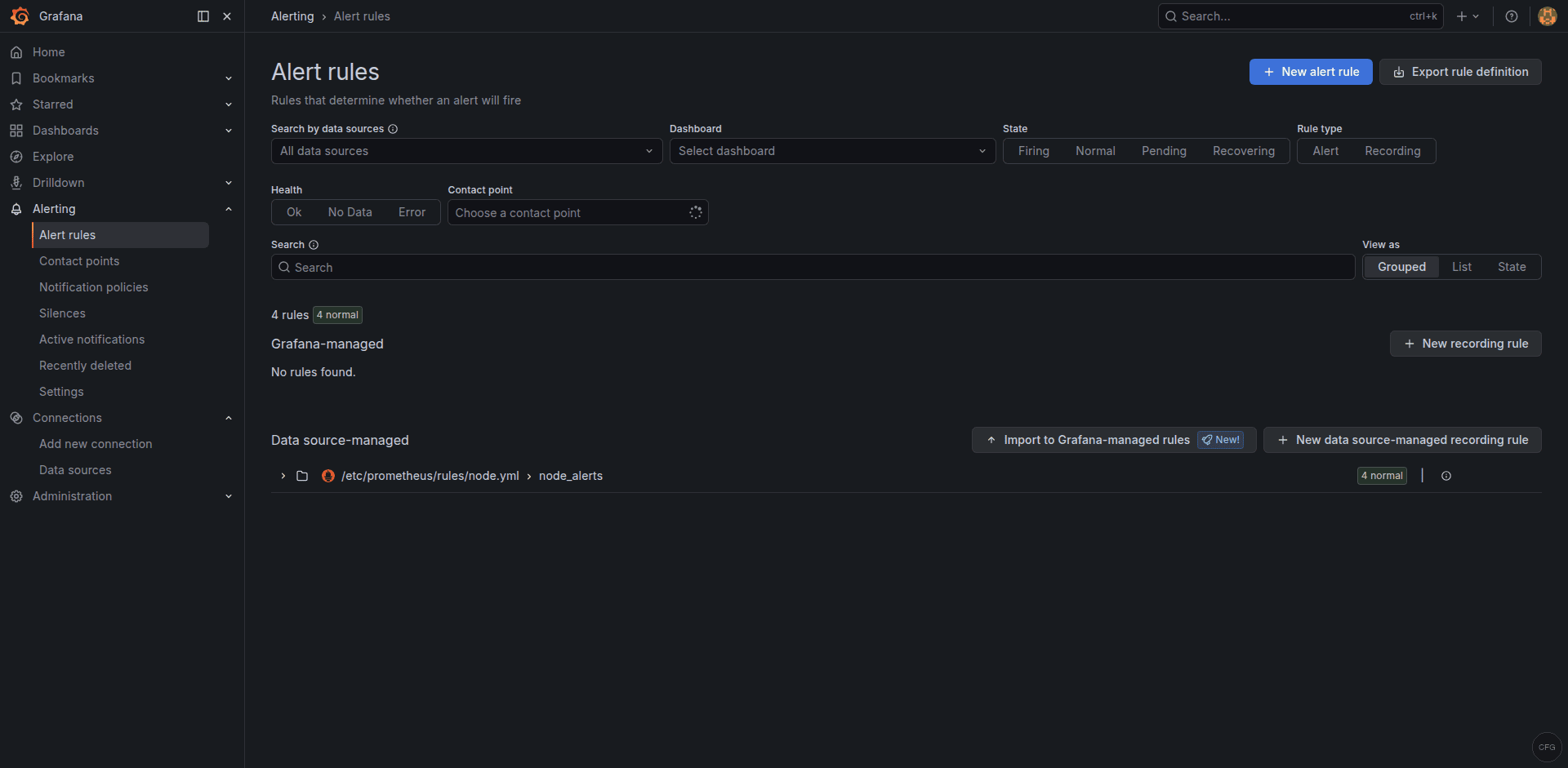
Grafana can also use Alertmanager as a notification target. In Grafana, go to Alerting > Contact points and add a new contact point with type “Alertmanager”. Set the URL to http://localhost:9093. This lets Grafana-managed alerts use the same routing and grouping logic as Prometheus alerts.
Troubleshooting Common Issues
Alertmanager fails with “no private IP found”
This is the most common issue on cloud VMs. Alertmanager’s cluster discovery tries to find a private RFC 1918 IP address for gossip communication. On cloud instances with only public interfaces or NAT-ed networking, it fails.
The fix for single-node deployments is to disable clustering entirely:
--cluster.listen-address=""Add this to your systemd service ExecStart line. For multi-node clusters, explicitly set the bind address:
--cluster.listen-address="10.0.1.10:9094"Emails not being delivered
Check the Alertmanager logs for SMTP errors:
sudo journalctl -u alertmanager -n 50 --no-pager | grep -i smtpCommon issues: wrong port (use 587 for TLS, 465 for SSL), authentication failure (Gmail needs App Password, not regular password), or firewall blocking outbound SMTP. Test SMTP connectivity from the server:
curl -v telnet://smtp.gmail.com:587Alerts are firing but no notifications arrive
First verify alerts are reaching Alertmanager:
amtool alert queryIf alerts appear there but notifications aren’t sent, the issue is in the route configuration. Test your routing:
amtool config routes test --config.file=/etc/alertmanager/alertmanager.yml severity=warning alertname=HighCPUUsageIf the test shows the wrong receiver, adjust your route matchers. Also check if the alert might be inhibited by an active inhibition rule or silenced by an active silence.
Slack messages not formatting correctly
Slack notification text uses Go template syntax. Common mistakes include missing range blocks for iterating over alerts and incorrect template variable names. Test your templates with a simple config first, then add complexity. The Alertmanager logs will show template rendering errors if the syntax is wrong.
Alertmanager restarts lose silence state
Alertmanager stores silence data in its --storage.path directory. If you’re running Alertmanager with a temporary storage path or the directory gets wiped, silences will be lost on restart. Make sure /var/lib/alertmanager is persistent and backed up. The nflog (notification log) that tracks which notifications were already sent is also stored there – without it, Alertmanager may re-send alerts that were already delivered.
Alerts are grouping incorrectly
The group_by setting determines which alerts are bundled into a single notification. If you group by ['alertname'] only, all InstanceDown alerts for different servers will be sent as one message. If you want separate notifications per server, add 'instance' to the group_by list. Be careful not to group by too many labels – this can lead to one notification per alert, which defeats the purpose of grouping and causes alert flood during outages.
Frequently Asked Questions
Can I run Alertmanager on a different server than Prometheus?
Yes. Update the Prometheus alertmanagers target to point to the remote server IP and port. Make sure port 9093 is open in the firewall between the two servers. Running Alertmanager separately is common in larger deployments where you want the alerting system to survive even if the Prometheus server has issues.
How do I add a new notification channel without downtime?
Edit the Alertmanager config file and reload the service. Alertmanager supports hot reloading – either send SIGHUP to the process or POST to the /-/reload endpoint if --web.enable-lifecycle is enabled. Validate the config first with amtool check-config to avoid breaking a running instance.
Conclusion
Alertmanager is the critical link between Prometheus detection and human action. With the routing, inhibition, and multi-channel configuration covered here, you have a production-ready alerting pipeline that routes critical issues to PagerDuty, sends warnings to Slack, and uses email as the catch-all. Fine-tune the group_wait, group_interval, and repeat_interval values based on your team’s response patterns – the defaults here are a solid starting point that prevent alert fatigue without missing real incidents.