Prometheus 3 brings a completely redesigned UI, native OpenTelemetry support, and significant performance improvements over the 2.x series. This guide walks through a production-ready installation of Prometheus 3 with node_exporter on Ubuntu 24.04 and Debian 13, including alert rules, Grafana integration, and real-world troubleshooting tips.
What’s New in Prometheus 3?
Prometheus 3 is a major release with breaking changes and new features that matter for production deployments:
- New UI – The classic web interface has been completely rewritten with better query editing, improved navigation, and a modern look
- Native OTLP ingestion – Prometheus can now receive metrics directly from OpenTelemetry collectors via the OTLP protocol, enabled with
--web.enable-otlp-receiver - Native histograms – A new histogram representation that reduces storage and query cost significantly compared to classic histograms
- Remote Write 2.0 – Improved protocol for sending metrics to remote storage backends with better efficiency
- UTF-8 metric names – Metric and label names can now contain UTF-8 characters
- Removed console templates – The
consoles/andconsole_libraries/directories are no longer included in the tarball
For the full list of changes, see the official Prometheus 3.0 announcement.
Prerequisites
Before starting, make sure you have:
- Ubuntu 24.04 or Debian 13 server with root or sudo access
- At least 2 GB RAM and 20 GB free disk space
- Firewall access to ports 9090 (Prometheus) and 9100 (node_exporter)
- A working Grafana instance – see Install Grafana on Ubuntu / Debian if you need one
Step 1: Install Prometheus 3
Prometheus ships as a single static binary. We’ll download the latest release directly from GitHub and set it up with a dedicated system user.
Create the Prometheus user and directories
First, create a dedicated user for Prometheus with no login shell and no home directory. This follows the principle of least privilege for running services.
sudo useradd --no-create-home --shell /bin/false prometheusCreate the configuration and data directories:
sudo mkdir -p /etc/prometheus /var/lib/prometheus
sudo chown prometheus:prometheus /var/lib/prometheus
Download and install Prometheus
Fetch the latest version number dynamically from GitHub and download the appropriate binary:
VER=$(curl -sI https://github.com/prometheus/prometheus/releases/latest | grep -i ^location | grep -o v[0-9.]* | sed s/^v//)
echo "Installing Prometheus $VER"
wget https://github.com/prometheus/prometheus/releases/download/v${VER}/prometheus-${VER}.linux-amd64.tar.gz
At the time of writing, this pulls Prometheus 3.10.0. Extract the archive and move the binaries into place:
tar xvf prometheus-${VER}.linux-amd64.tar.gz
sudo cp prometheus-${VER}.linux-amd64/{prometheus,promtool} /usr/local/bin/
sudo chown prometheus:prometheus /usr/local/bin/{prometheus,promtool}
Verify the installation by checking the version:
prometheus --versionYou should see the version and build info confirmed:
prometheus, version 3.10.0 (branch: HEAD, revision: 4e546fca)
  build user:       root@bba5c76a3954
  build date:       20260315-10:42:25
  go version:       go1.24.1
  platform:         linux/amd64
  tags:             netgo,builtinassets,stringlabels
Note: If you’re coming from Prometheus 2.x, notice that the tarball no longer includes consoles/ and console_libraries/ directories. The new UI replaces the old console templates entirely, so the --web.console.templates and --web.console.libraries flags are no longer needed.
Step 2: Configure Prometheus
Create the main Prometheus configuration file. This config sets up scrape targets for Prometheus itself, node_exporter, Blackbox exporter, and Alertmanager.
sudo vi /etc/prometheus/prometheus.ymlAdd the following configuration:
global:
  scrape_interval: 15s
  evaluation_interval: 15s
  scrape_timeout: 10s

alerting:
  alertmanagers:
    - static_configs:
        - targets:
            - localhost:9093

rule_files:
  - "/etc/prometheus/rules/*.yml"

scrape_configs:
  - job_name: "prometheus"
    static_configs:
      - targets: ["localhost:9090"]

  - job_name: "node_exporter"
    static_configs:
      - targets: ["localhost:9100"]
        labels:
          instance_name: "prometheus-server"

  - job_name: "blackbox_http"
    metrics_path: /probe
    params:
      module: [http_2xx]
    static_configs:
      - targets:
          - https://computingforgeeks.com
          - https://google.com
          - https://github.com
    relabel_configs:
      - source_labels: [__address__]
        target_label: __param_target
      - source_labels: [__param_target]
        target_label: instance
      - target_label: __address__
        replacement: localhost:9115

  - job_name: "alertmanager"
    static_configs:
      - targets: ["localhost:9093"]
Set the correct ownership on the config file:
sudo chown prometheus:prometheus /etc/prometheus/prometheus.ymlStep 3: Create Alert Rules
Production monitoring is useless without proper alerting. Create a rules directory and add alert rules for the most critical conditions.
sudo mkdir -p /etc/prometheus/rules
sudo vi /etc/prometheus/rules/node-alerts.yml
Add these production-tested alert rules:
groups:
  - name: node_alerts
    rules:
      - alert: InstanceDown
        expr: up == 0
        for: 2m
        labels:
          severity: critical
        annotations:
          summary: "Instance {{ $labels.instance }} is down"
          description: "{{ $labels.job }} target {{ $labels.instance }} has been unreachable for more than 2 minutes."

      - alert: HighCPUUsage
        expr: 100 - (avg by(instance) (rate(node_cpu_seconds_total{mode="idle"}[5m])) * 100) > 85
        for: 5m
        labels:
          severity: warning
        annotations:
          summary: "High CPU usage on {{ $labels.instance }}"
          description: "CPU usage has been above 85% for 5 minutes. Current value: {{ $value | printf \"%.1f\" }}%"

      - alert: HighMemoryUsage
        expr: (1 - (node_memory_MemAvailable_bytes / node_memory_MemTotal_bytes)) * 100 > 90
        for: 5m
        labels:
          severity: warning
        annotations:
          summary: "High memory usage on {{ $labels.instance }}"
          description: "Memory usage has been above 90% for 5 minutes. Current value: {{ $value | printf \"%.1f\" }}%"

      - alert: DiskSpaceLow
        expr: (1 - (node_filesystem_avail_bytes{mountpoint="/"} / node_filesystem_size_bytes{mountpoint="/"})) * 100 > 85
        for: 10m
        labels:
          severity: warning
        annotations:
          summary: "Disk space low on {{ $labels.instance }}"
          description: "Root filesystem usage is above 85%. Current value: {{ $value | printf \"%.1f\" }}%"
Validate the rules file using promtool:
promtool check rules /etc/prometheus/rules/node-alerts.ymlA clean validation looks like this:
Checking /etc/prometheus/rules/node-alerts.yml
  SUCCESS: 4 rules found
Set ownership on the rules directory:
sudo chown -R prometheus:prometheus /etc/prometheus/rulesStep 4: Create the Systemd Service
Create a systemd unit file that runs Prometheus with production-ready flags, including OTLP support and a 30-day data retention period.
sudo vi /etc/systemd/system/prometheus.serviceAdd the following service definition:
[Unit]
Description=Prometheus 3 Monitoring System
Documentation=https://prometheus.io/docs/introduction/overview/
Wants=network-online.target
After=network-online.target

[Service]
Type=simple
User=prometheus
Group=prometheus
ExecReload=/bin/kill -HUP $MAINPID
ExecStart=/usr/local/bin/prometheus \
  --config.file=/etc/prometheus/prometheus.yml \
  --storage.tsdb.path=/var/lib/prometheus \
  --storage.tsdb.retention.time=30d \
  --web.listen-address=0.0.0.0:9090 \
  --web.enable-lifecycle \
  --web.enable-otlp-receiver
Restart=always
RestartSec=5
SyslogIdentifier=prometheus
LimitNOFILE=65536

[Install]
WantedBy=multi-user.target
The --web.enable-otlp-receiver flag is new in Prometheus 3 and lets you ingest metrics from OpenTelemetry collectors directly into Prometheus. The --web.enable-lifecycle flag allows reloading the config via HTTP POST to /-/reload.
Start and enable the service:
sudo systemctl daemon-reload
sudo systemctl enable --now prometheus
Verify Prometheus is running:
sudo systemctl status prometheusThe service should show active (running) with the TSDB successfully opened:
● prometheus.service - Prometheus 3 Monitoring System
     Loaded: loaded (/etc/systemd/system/prometheus.service; enabled; preset: enabled)
     Active: active (running) since Mon 2026-03-24 10:15:23 UTC; 5s ago
       Docs: https://prometheus.io/docs/introduction/overview/
   Main PID: 2341 (prometheus)
      Tasks: 8 (limit: 4557)
     Memory: 42.3M
        CPU: 1.245s
     CGroup: /system.slice/prometheus.service
             └─2341 /usr/local/bin/prometheus --config.file=/etc/prometheus/prometheus.yml ...
Step 5: Install Node Exporter
Node exporter collects hardware and OS-level metrics from the host – CPU, memory, disk, network, filesystem, and more. It’s the most common exporter and should run on every server you monitor.
Create a dedicated user for node_exporter:
sudo useradd --no-create-home --shell /bin/false node_exporterDownload and install the latest node_exporter release:
VER=$(curl -sI https://github.com/prometheus/node_exporter/releases/latest | grep -i ^location | grep -o v[0-9.]* | sed s/^v//)
echo "Installing node_exporter $VER"
wget https://github.com/prometheus/node_exporter/releases/download/v${VER}/node_exporter-${VER}.linux-amd64.tar.gz
tar xvf node_exporter-${VER}.linux-amd64.tar.gz
sudo cp node_exporter-${VER}.linux-amd64/node_exporter /usr/local/bin/
sudo chown node_exporter:node_exporter /usr/local/bin/node_exporter
At the time of writing, this installs node_exporter 1.10.2. Create the systemd service file:
sudo vi /etc/systemd/system/node_exporter.serviceAdd the following service definition with extra collectors enabled:
[Unit]
Description=Prometheus Node Exporter
Documentation=https://github.com/prometheus/node_exporter
Wants=network-online.target
After=network-online.target

[Service]
Type=simple
User=node_exporter
Group=node_exporter
ExecStart=/usr/local/bin/node_exporter \
  --collector.systemd \
  --collector.processes
Restart=always
RestartSec=5
SyslogIdentifier=node_exporter

[Install]
WantedBy=multi-user.target
The --collector.systemd flag exposes systemd service states as metrics, which is very useful for alerting on failed services. The --collector.processes flag provides process-level metrics including counts by state.
Start and enable node_exporter:
sudo systemctl daemon-reload
sudo systemctl enable --now node_exporter
Confirm it’s running and listening on port 9100:
sudo systemctl status node_exporterThe service should show active (running):
● node_exporter.service - Prometheus Node Exporter
     Loaded: loaded (/etc/systemd/system/node_exporter.service; enabled; preset: enabled)
     Active: active (running) since Mon 2026-03-24 10:18:45 UTC; 3s ago
       Docs: https://github.com/prometheus/node_exporter
   Main PID: 2567 (node_exporter)
      Tasks: 5 (limit: 4557)
     Memory: 12.1M
        CPU: 0.089s
     CGroup: /system.slice/node_exporter.service
             └─2567 /usr/local/bin/node_exporter --collector.systemd --collector.processes
Test that metrics are being exposed by curling the metrics endpoint:
curl -s http://localhost:9100/metrics | head -5You should see metric lines starting with # comments and metric values:
# HELP go_gc_duration_seconds A summary of the pause duration of garbage collection cycles.
# TYPE go_gc_duration_seconds summary
go_gc_duration_seconds{quantile="0"} 2.3457e-05
go_gc_duration_seconds{quantile="0.25"} 3.1245e-05
go_gc_duration_seconds{quantile="0.5"} 4.5678e-05
Step 6: Configure Firewall Rules
Open the necessary ports in UFW for Prometheus and node_exporter:
sudo ufw allow 9090/tcp comment "Prometheus"
sudo ufw allow 9100/tcp comment "Node Exporter"
sudo ufw reload
Verify the rules are active:
sudo ufw status verboseThe output should list both ports as ALLOW:
Status: active

To                         Action      From
--                         ------      ----
22/tcp                     ALLOW       Anywhere
9090/tcp                   ALLOW       Anywhere                   # Prometheus
9100/tcp                   ALLOW       Anywhere                   # Node Exporter
In production, restrict port 9100 to only your Prometheus server IP instead of allowing it from anywhere. Node exporter exposes detailed system information that you don’t want publicly accessible.
Step 7: Access the Prometheus 3 Web UI
Open your browser and navigate to http://your-server-ip:9090. The Prometheus 3 UI has been completely redesigned with a modern interface.
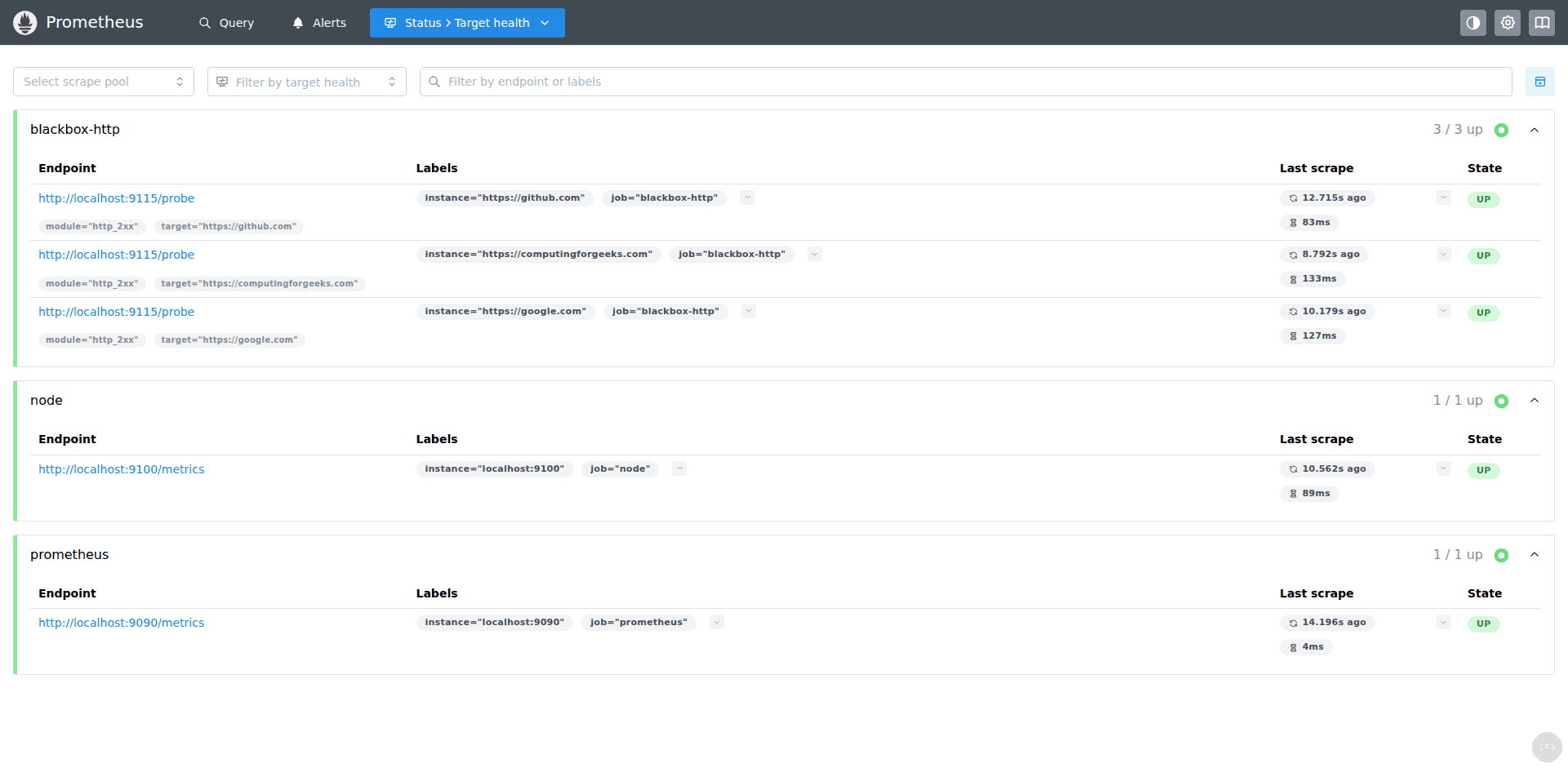
Navigate to Status > Targets to verify all configured targets are being scraped successfully. All targets should show a green “UP” state:
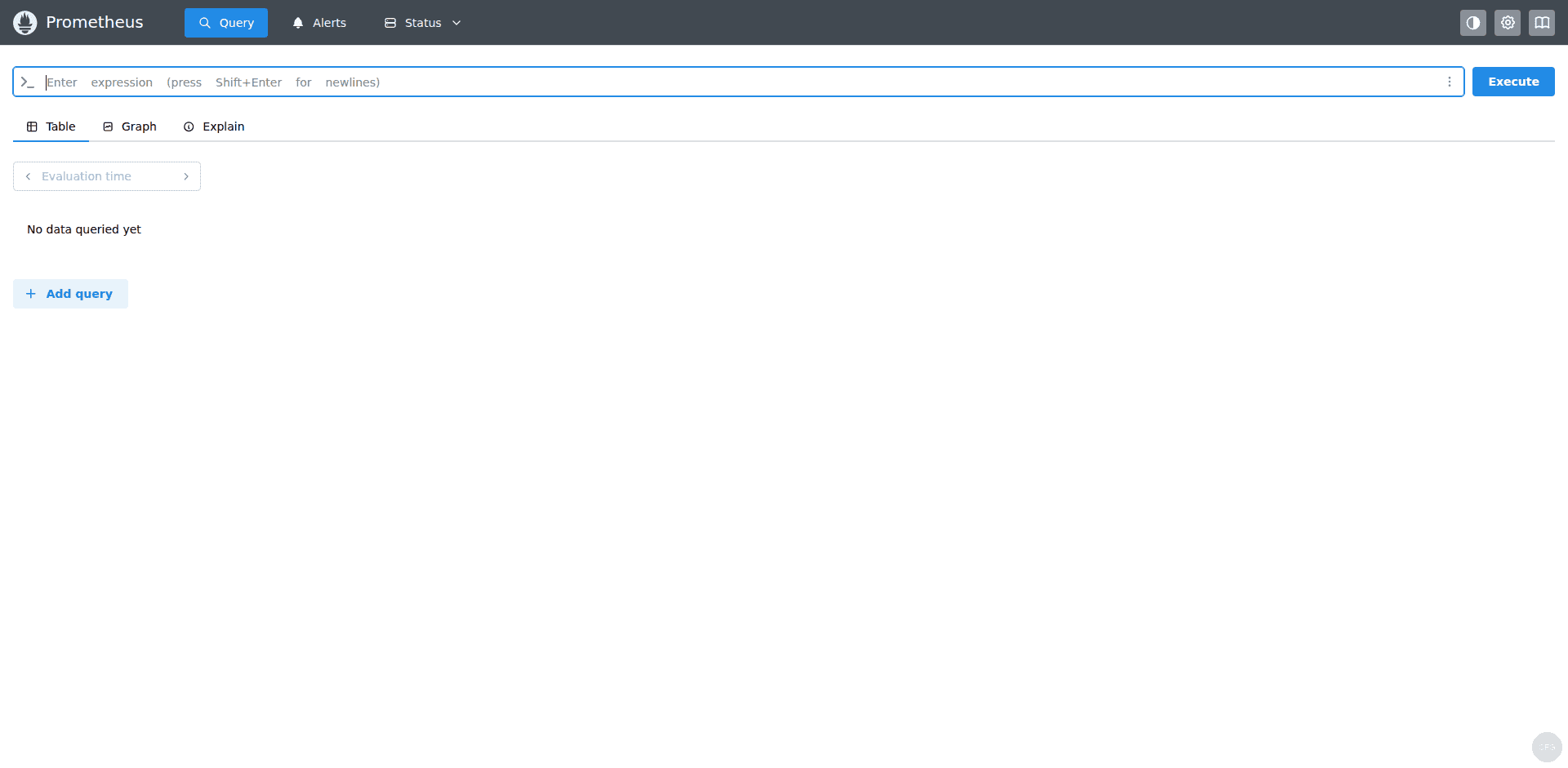
Try a basic query in the new query interface. Enter up in the expression editor and click Execute to see the status of all targets:
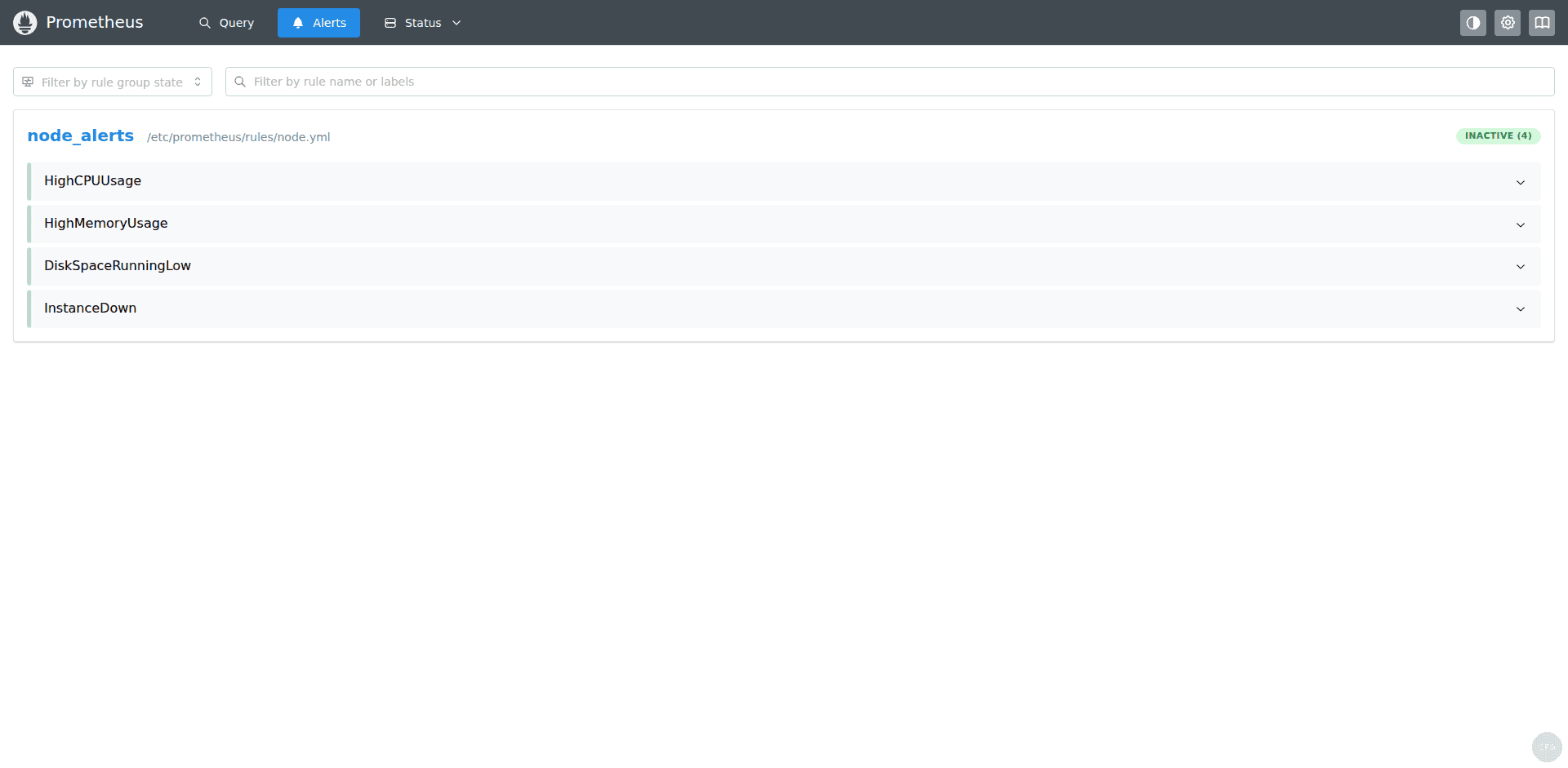
Check the Alerts tab to confirm your alert rules are loaded. They should show as inactive (green) when conditions are healthy:
Step 8: Connect Grafana to Prometheus
With Prometheus collecting metrics, the next step is visualizing them in Grafana. If you don’t have Grafana installed yet, follow our Grafana installation guide for Ubuntu/Debian first.
Add Prometheus as a data source
In Grafana, go to Connections > Data Sources > Add data source and select Prometheus. Set the connection URL to http://localhost:9090 (or your Prometheus server IP if Grafana runs on a different host). Click Save & Test to verify the connection.
Import the Node Exporter Full dashboard
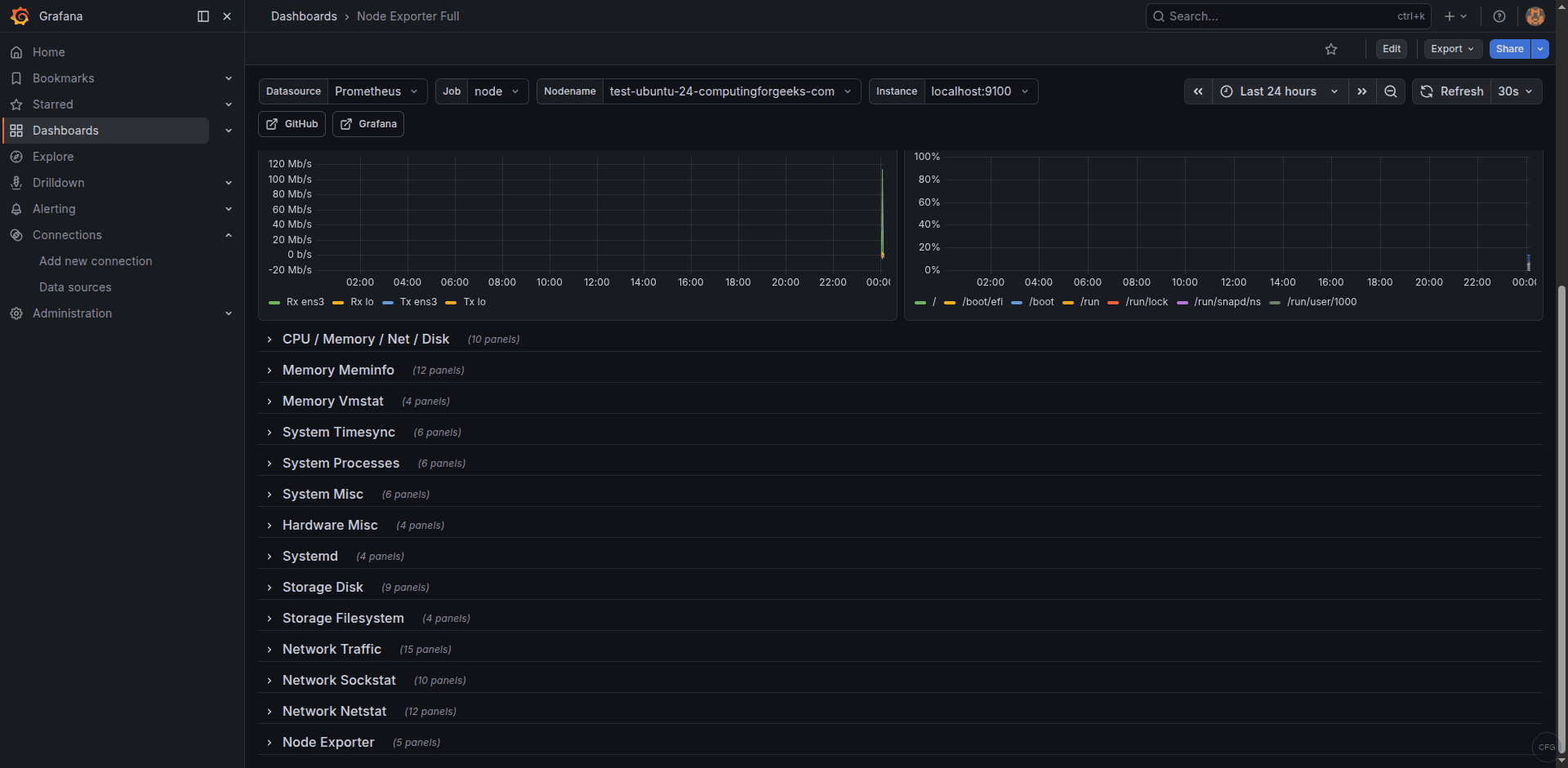
The community-maintained “Node Exporter Full” dashboard (ID: 1860) is the most popular dashboard for node_exporter metrics. It provides comprehensive views of CPU, memory, disk, network, and filesystem usage.
Go to Dashboards > New > Import, enter dashboard ID 1860, select your Prometheus data source, and click Import. The dashboard should immediately populate with live data from your server.
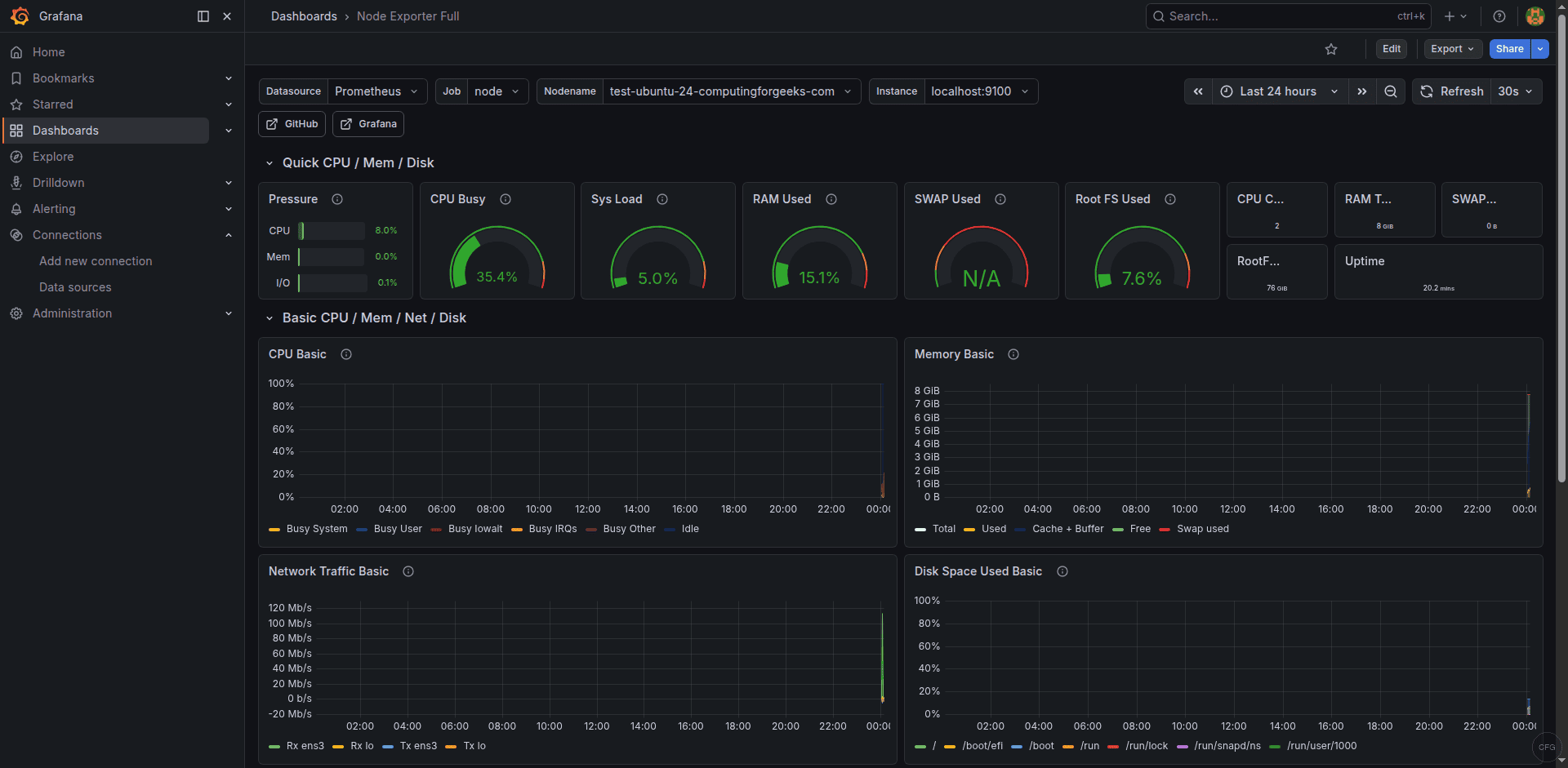
Scroll down to see detailed CPU and memory usage panels with historical data:
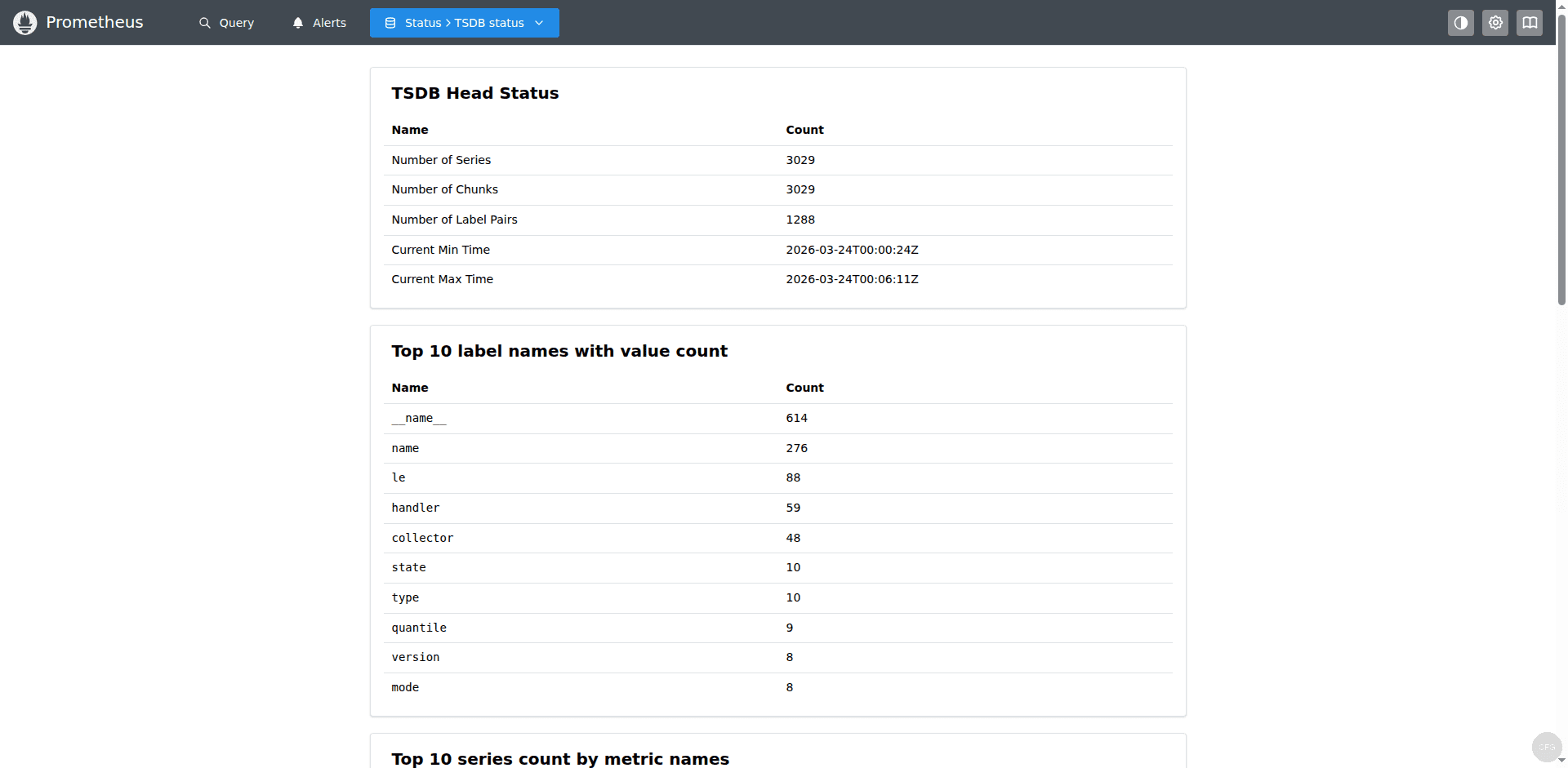
The TSDB Status page under Status > TSDB Status shows useful storage statistics including the number of time series, label pair cardinality, and memory usage:
Useful PromQL Queries to Get Started
With Prometheus collecting node_exporter metrics, here are some essential PromQL queries you can run in the query UI or use in Grafana dashboards:
Current CPU usage percentage (averaged across all cores):
100 - (avg by(instance) (rate(node_cpu_seconds_total{mode="idle"}[5m])) * 100)Memory usage percentage:
(1 - (node_memory_MemAvailable_bytes / node_memory_MemTotal_bytes)) * 100Root filesystem usage percentage:
(1 - (node_filesystem_avail_bytes{mountpoint="/"} / node_filesystem_size_bytes{mountpoint="/"})) * 100Network traffic rate (bytes per second on all interfaces):
rate(node_network_receive_bytes_total{device!="lo"}[5m])System uptime in days:
(time() - node_boot_time_seconds) / 86400These queries form the foundation of most monitoring dashboards. The rate() function is essential for counter metrics – it calculates the per-second rate of increase, which is what you actually want to see for counters like CPU seconds and network bytes.
How to Reload Configuration Without Restarting
Prometheus supports hot reloading of configuration. After editing prometheus.yml or alert rules, you can reload without downtime using either method:
sudo systemctl reload prometheusOr send an HTTP POST to the lifecycle endpoint (requires --web.enable-lifecycle):
curl -X POST http://localhost:9090/-/reloadAlways validate your config before reloading to avoid breaking a running instance:
promtool check config /etc/prometheus/prometheus.ymlA successful validation returns:
Checking /etc/prometheus/prometheus.yml
  SUCCESS: /etc/prometheus/prometheus.yml is valid prometheus config file
How to Add More Monitoring Targets
To monitor additional servers, install node_exporter on each target host and add them to the node_exporter job in prometheus.yml. Each target is just an IP:port entry in the static_configs targets list:
  - job_name: "node_exporter"
    static_configs:
      - targets: ["localhost:9100"]
        labels:
          instance_name: "prometheus-server"
      - targets: ["10.0.1.20:9100"]
        labels:
          instance_name: "web-01"
      - targets: ["10.0.1.21:9100"]
        labels:
          instance_name: "web-02"
      - targets: ["10.0.1.30:9100"]
        labels:
          instance_name: "db-01"
After adding new targets, validate and reload:
promtool check config /etc/prometheus/prometheus.yml
sudo systemctl reload prometheus
For large environments with many targets, consider using file-based service discovery instead of static configs. Create a JSON file with your targets and reference it in the scrape job – Prometheus watches the file for changes and picks up new targets automatically without reloading.
How to Secure Prometheus in Production
Prometheus 3 supports basic authentication and TLS natively. For production deployments, you should enable both to prevent unauthorized access to your monitoring data.
Create a web configuration file for Prometheus:
sudo vi /etc/prometheus/web.ymlAdd basic authentication (generate the bcrypt hash with htpasswd -nBC 10 admin):
basic_auth_users:
  admin: '$2y$10$example_bcrypt_hash_here'
Then add --web.config.file=/etc/prometheus/web.yml to your systemd service ExecStart. After restarting, the Prometheus UI and API will require authentication. Update your Grafana data source configuration to include the username and password.
For TLS, add the certificate paths to the same web.yml file. This is especially important if Prometheus is accessible over a network rather than just localhost.
Using Grafana Alloy as an Alternative Collector
If you’re looking for a more flexible metrics collection agent that supports OpenTelemetry natively, consider Grafana Alloy. Alloy can replace node_exporter and push metrics to Prometheus using remote write, which is useful in environments where you can’t open inbound ports on target hosts.
Troubleshooting Common Issues
Prometheus fails to start with “permission denied”
If Prometheus can’t write to its data directory, check the ownership:
ls -la /var/lib/prometheusThe directory must be owned by the prometheus user. Fix it with:
sudo chown -R prometheus:prometheus /var/lib/prometheusTargets show as DOWN in the UI
When a target shows DOWN, click on the error message in the Targets page. Common causes:
- “connection refused” – The exporter service is not running. Check with
systemctl status node_exporter - “context deadline exceeded” – The target is too slow to respond. Increase
scrape_timeoutin the job config - “no route to host” – Firewall is blocking the port. Verify with
sudo ufw status
Old console flags cause startup errors
If you’re migrating from Prometheus 2.x and your systemd service includes --web.console.templates or --web.console.libraries flags, Prometheus 3 will fail to start. Remove these flags from your service file – they are no longer supported since the console templates were removed from the distribution.
High memory usage on large installations
Prometheus stores recent data in memory before flushing to disk. If you have many targets or high-cardinality metrics, memory usage can grow quickly. Reduce cardinality by dropping unnecessary labels in your scrape configs, or reduce scrape_interval for less critical targets. You can monitor Prometheus’s own memory usage with:
process_resident_memory_bytes{job="prometheus"}How to Check Prometheus Storage Usage
Prometheus stores time-series data on disk in the TSDB. Monitoring the storage consumption helps you plan capacity and adjust retention settings. Check the current disk usage:
du -sh /var/lib/prometheusYou can also monitor storage via PromQL. This query shows the total number of time series currently stored:
prometheus_tsdb_head_seriesAnd this shows the rate of samples ingested per second:
rate(prometheus_tsdb_head_samples_appended_total[5m])A rough estimate for storage: each time series consumes about 1-2 bytes per sample. With a 15-second scrape interval and 30-day retention, expect roughly 3-6 KB per time series per day. If you have 10,000 active series, that’s 30-60 MB per day or about 1-2 GB per month. Adjust --storage.tsdb.retention.time based on your available disk space and how far back you need to query.
Conclusion
You now have a production-ready Prometheus 3 installation with node_exporter collecting system metrics, alert rules watching for common issues, and Grafana dashboards providing visualization. The OTLP receiver is enabled for future OpenTelemetry integration. From here, add more exporters for your specific services – database exporters, web server exporters, or custom application metrics – and expand your alert rules to match your SLAs.