

Grafana Alloy is a vendor-agnostic OpenTelemetry Collector distribution with programmable pipelines. It replaces Prometheus node_exporter, Promtail, and the deprecated Grafana Agent in a single binary – collecting metrics, logs, and traces from your infrastructure and forwarding them to any compatible backend.
This guide walks through installing Grafana Alloy on Ubuntu 24.04 and Debian 13, configuring it to collect system metrics (replacing node_exporter), gather systemd journal and file logs, and forward everything to Grafana Mimir and Loki backends. By the end, you will have a fully working telemetry pipeline with Grafana dashboards showing real data from your server.
What You Need
- A server running Ubuntu 24.04 LTS or Debian 13 with at least 2GB RAM and root access
- An internet connection for package downloads
- A metrics backend like Grafana Mimir or Prometheus for receiving metrics (optional – Alloy can run standalone)
- A log aggregation backend like Grafana Loki for receiving logs (optional)
1. Add the Grafana APT Repository
Grafana Alloy is distributed through the official Grafana APT repository, which also hosts Grafana, Loki, and other Grafana Labs tools. Start by importing the GPG signing key and adding the repository.
Install the prerequisite package for handling GPG keys:
sudo apt update && sudo apt install -y gpgDownload and store the Grafana GPG key:
sudo mkdir -p /etc/apt/keyrings
sudo wget -qO /etc/apt/keyrings/grafana.asc https://apt.grafana.com/gpg-full.key
sudo chmod 644 /etc/apt/keyrings/grafana.asc
Add the Grafana stable repository:
echo "deb [signed-by=/etc/apt/keyrings/grafana.asc] https://apt.grafana.com stable main" | sudo tee /etc/apt/sources.list.d/grafana.listUpdate the package index to pick up the new repository:
sudo apt update2. Install Grafana Alloy
With the repository configured, install Alloy:
sudo apt install -y alloyVerify the installation by checking the version:
alloy --versionYou should see the installed version confirmed:
alloy, version v1.14.1 (branch: HEAD, revision: fea47a9)
  build user:       root@08ed26cefed2
  build date:       2026-03-17T15:26:21Z
  go version:       go1.25.7
  platform:         linux/amd64
The APT package creates a dedicated alloy system user, installs a systemd service unit, and places the default configuration at /etc/alloy/config.alloy.
3. Configure Alloy for System Metrics Collection
Alloy uses a declarative configuration language where components are wired together in a pipeline. Each component has inputs and outputs that you connect to build your telemetry flow. The configuration file lives at /etc/alloy/config.alloy.
Open the configuration file:
sudo vi /etc/alloy/config.alloyReplace the contents with the following configuration. This sets up system metrics collection using the built-in prometheus.exporter.unix component, which replaces the standalone node_exporter:
// ========================================
// Grafana Alloy Configuration
// Collects: system metrics, journal logs, file logs
// ========================================
logging {
  level  = "info"
  format = "logfmt"
}

// ========================================
// METRICS: System metrics (replaces node_exporter)
// ========================================
prometheus.exporter.unix "system" {
  disable_collectors = ["ipvs", "btrfs", "infiniband", "nfs", "nfsd"]
}

prometheus.scrape "system" {
  targets         = prometheus.exporter.unix.system.targets
  forward_to      = [prometheus.remote_write.mimir.receiver]
  scrape_interval = "15s"
}

prometheus.remote_write "mimir" {
  endpoint {
    url = "http://localhost:9009/api/v1/push"
  }
}
The prometheus.exporter.unix component enables over 40 Linux collectors by default – CPU, memory, disk, network, filesystem, load average, and more. The scraped metrics are forwarded to a Mimir instance via prometheus.remote_write. If you are using Prometheus instead of Mimir, change the URL to your Prometheus remote write endpoint (typically http://localhost:9090/api/v1/write with remote write enabled).
4. Add Log Collection to the Configuration
One of Alloy’s biggest advantages over running separate tools is collecting both metrics and logs from a single agent. Append the following log collection blocks to the same configuration file:
// ========================================
// LOGS: Systemd journal
// ========================================
loki.relabel "journal" {
  forward_to = []

  rule {
    source_labels = ["__journal__systemd_unit"]
    target_label  = "unit"
  }
  rule {
    source_labels = ["__journal__hostname"]
    target_label  = "hostname"
  }
  rule {
    source_labels = ["__journal_priority_keyword"]
    target_label  = "level"
  }
}

loki.source.journal "system" {
  forward_to    = [loki.write.loki.receiver]
  relabel_rules = loki.relabel.journal.rules
  labels        = {job = "journal"}
  max_age       = "12h"
}

// ========================================
// LOGS: File-based logs
// ========================================
loki.source.file "varlog" {
  targets = [
    {__path__ = "/var/log/syslog", job = "syslog"},
    {__path__ = "/var/log/auth.log", job = "auth"},
  ]
  forward_to    = [loki.write.loki.receiver]
  tail_from_end = true
}

loki.write "loki" {
  endpoint {
    url = "http://localhost:3100/loki/api/v1/push"
  }
}
The journal collector extracts useful labels like the systemd unit name, hostname, and log priority level. The file collector tails /var/log/syslog and /var/log/auth.log. Both forward to a Loki instance for storage and querying. On Debian 13, replace /var/log/syslog with /var/log/messages if rsyslog is not installed.
5. Add Trace Collection (Optional)
If you plan to collect distributed traces from instrumented applications, add an OpenTelemetry receiver that forwards traces to Grafana Tempo:
// ========================================
// TRACES: OTLP receiver -> Tempo
// ========================================
otelcol.receiver.otlp "default" {
  grpc {
    endpoint = "0.0.0.0:4320"
  }
  http {
    endpoint = "0.0.0.0:4321"
  }

  output {
    traces = [otelcol.exporter.otlp.tempo.input]
  }
}

otelcol.exporter.otlp "tempo" {
  client {
    endpoint = "localhost:4317"
    tls {
      insecure = true
    }
  }
}
This configures Alloy to accept OTLP traces on ports 4320 (gRPC) and 4321 (HTTP), then forward them to a local Tempo instance. Applications instrumented with OpenTelemetry SDKs can send traces directly to these endpoints.
6. Set Permissions for Log Access
The alloy user needs permission to read systemd journal entries and log files. Add it to the required groups:
sudo usermod -aG systemd-journal alloy
sudo usermod -aG adm alloy
Without these group memberships, the journal and file log collectors will fail silently.
7. Configure the Alloy Environment File
Alloy reads its startup arguments from /etc/default/alloy. Open it and set the configuration file path and any custom arguments:
sudo vi /etc/default/alloySet the following values:
CONFIG_FILE=/etc/alloy/config.alloy
CUSTOM_ARGS=--server.http.listen-addr=0.0.0.0:12345
The CUSTOM_ARGS flag exposes the Alloy built-in web UI on all interfaces at port 12345. By default it only binds to localhost.
8. Start and Enable Alloy
Start the Alloy service and enable it to start on boot:
sudo systemctl enable --now alloyVerify it is running:
sudo systemctl status alloyThe output should show the service as active and running:
● alloy.service - Vendor-agnostic OpenTelemetry Collector distribution with programmable pipelines
     Loaded: loaded (/usr/lib/systemd/system/alloy.service; enabled; preset: enabled)
     Active: active (running) since Mon 2026-03-23 22:18:30 UTC; 10min ago
       Docs: https://grafana.com/docs/alloy
   Main PID: 7237 (alloy)
      Tasks: 10 (limit: 9489)
     Memory: 72.3M (peak: 73.3M)
        CPU: 18.729s
     CGroup: /system.slice/alloy.service
             └─7237 /usr/bin/alloy run --server.http.listen-addr=0.0.0.0:12345 ...
9. Open Firewall Ports
If UFW is active on your server, allow the Alloy web UI port and the OTLP receiver ports:
sudo ufw allow 12345/tcp
sudo ufw allow 4320/tcp
sudo ufw allow 4321/tcp
Port 12345 is the Alloy web UI, ports 4320 and 4321 are the OTLP gRPC and HTTP receivers for trace ingestion. Open these only if you need remote access or trace collection from other hosts.
How Does the Alloy Pipeline Work?
The Alloy configuration language uses a component-based architecture. Each component has a type, a label, and a set of arguments. Components are connected through their exports – one component’s output feeds into another’s input, forming a directed acyclic graph (DAG).
In our configuration, the pipeline looks like this:
| Component | Role | Sends To |
|---|---|---|
prometheus.exporter.unix | Collects CPU, memory, disk, network metrics | prometheus.scrape |
prometheus.scrape | Scrapes the exporter targets every 15s | prometheus.remote_write |
prometheus.remote_write | Sends metrics to Mimir/Prometheus | Mimir HTTP endpoint |
loki.source.journal | Reads systemd journal entries | loki.write |
loki.source.file | Tails syslog and auth.log | loki.write |
loki.write | Pushes log entries to Loki | Loki HTTP endpoint |
otelcol.receiver.otlp | Accepts OTLP traces from apps | otelcol.exporter.otlp |
otelcol.exporter.otlp | Forwards traces to Tempo | Tempo gRPC endpoint |
The Alloy web UI at http://your-server:12345/graph renders this pipeline visually, showing the data flow between components in real time.
10. Access the Alloy Web UI
Open your browser and navigate to http://your-server-ip:12345. The Alloy UI shows the running components, their health status, and live metrics about data throughput.
Click Graph in the top navigation to see the visual component pipeline. Each node represents a component, and the edges show the data flow direction:
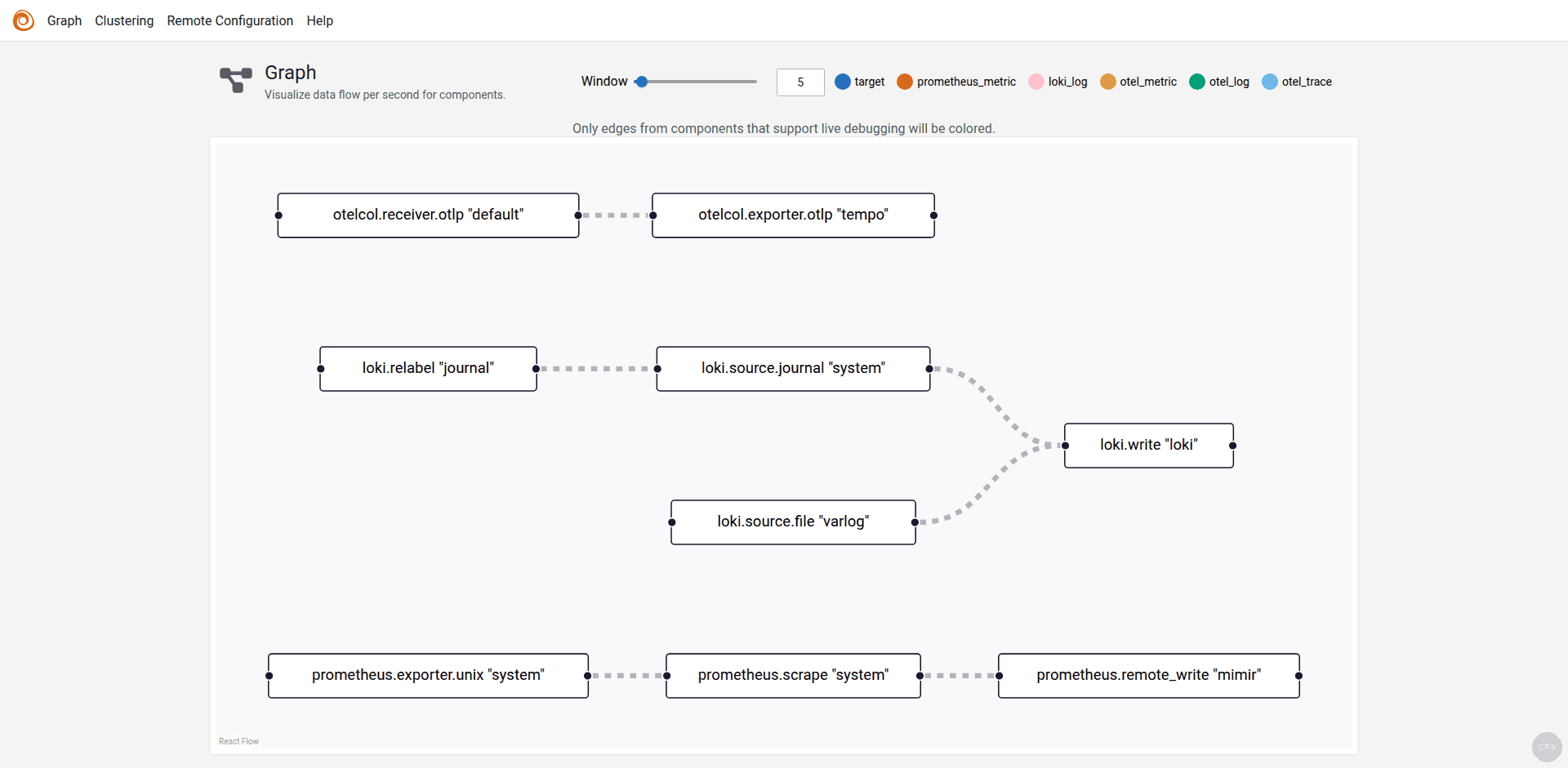
The graph confirms that metrics flow from prometheus.exporter.unix through prometheus.scrape to prometheus.remote_write (Mimir), while journal and file logs flow through loki.write to Loki, and traces flow from the OTLP receiver to Tempo.
11. Verify Metrics in Grafana
If you have Grafana installed with a Mimir or Prometheus data source configured, you can immediately see the metrics Alloy is collecting. Import the Node Exporter Full dashboard (ID 1860) from Grafana.com to get a comprehensive view of your server’s CPU, memory, disk, and network utilization.
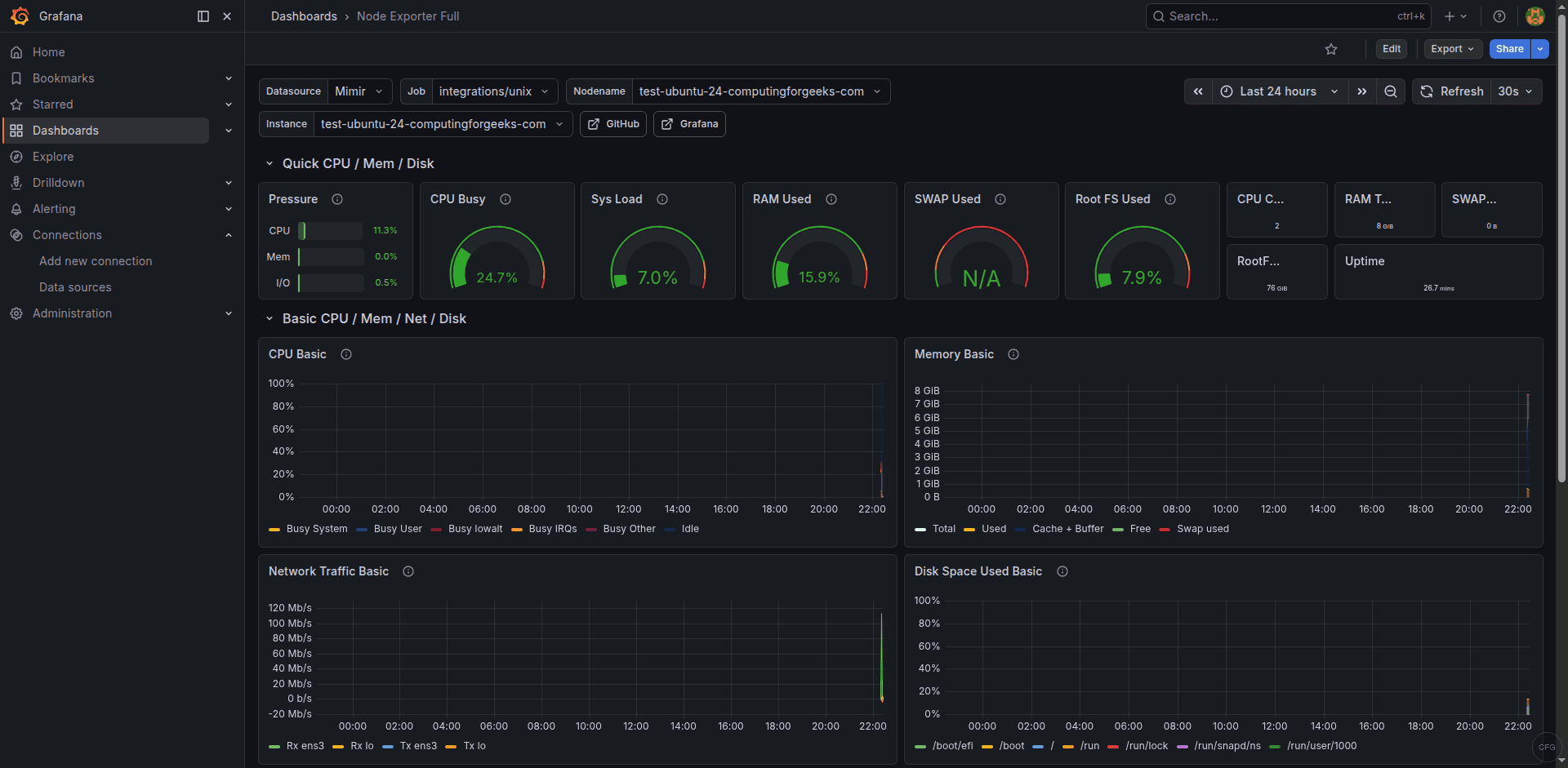
All these metrics are being collected by Alloy’s built-in prometheus.exporter.unix component – no separate node_exporter binary needed.
12. Verify Logs in Grafana
Switch to the Loki data source in Grafana’s Explore view and run a simple LogQL query to confirm journal logs are flowing:
{job="journal"}You should see systemd journal entries appearing with labels for the unit name, hostname, and log level:
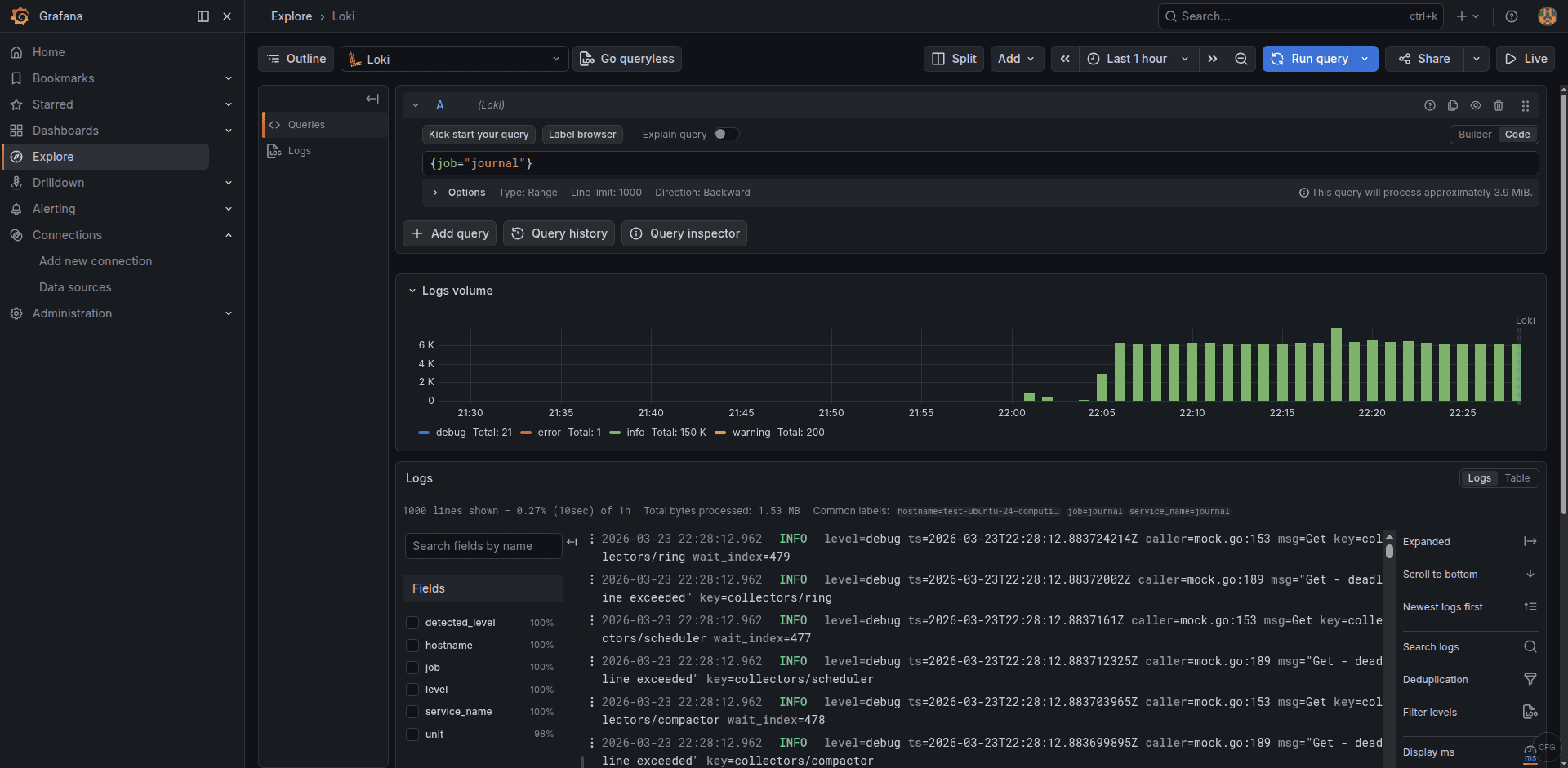
The log volume graph at the top shows ingestion rate over time, and each log entry displays the extracted labels from the loki.relabel rules.
Troubleshooting Common Issues
Error: “accepts 1 arg(s), received 0”
This means the CONFIG_FILE variable is not set in /etc/default/alloy. The Alloy systemd service expects $CONFIG_FILE to point to your configuration file. Make sure the file contains CONFIG_FILE=/etc/alloy/config.alloy.
Journal logs not appearing in Loki
The most common cause is missing group membership. Run id alloy and verify the user is in the systemd-journal and adm groups. If you just added the groups, restart the service with sudo systemctl restart alloy for the changes to take effect.
Metrics not reaching Mimir or Prometheus
Check the Alloy logs for connection errors:
sudo journalctl -u alloy -f --grep "remote_write"Common issues include the backend not running, wrong port number, or a firewall blocking the connection. Verify the backend is reachable with curl -s http://localhost:9009/ready for Mimir or curl -s http://localhost:9090/-/ready for Prometheus.
Alloy using too much memory
The prometheus.remote_write component buffers metrics when the backend is unreachable. If the backend is down for a long time, memory usage climbs. Set queue limits in the remote_write config to cap memory usage. In production, Alloy typically uses 50-100MB of RAM for a standard server monitoring setup.
Summary
Grafana Alloy consolidates your telemetry pipeline into a single agent – collecting system metrics, logs, and traces without running separate tools. The configuration above gives you a production-ready setup that replaces node_exporter, Promtail, and an OpenTelemetry Collector in one binary.
For production deployments, consider adding TLS to the remote_write and loki_write endpoints, setting up queue configuration for resilience during backend outages, and monitoring Alloy’s own health metrics at the /metrics endpoint.






