

PDF size under 1 MB becomes inevitable in various scenarios, such as uploading attachments and archiving. Let’s learn how to achieve such a compact size.
The use of PDF format for information sharing and documentation has increased. However, their hefty size creates trouble, especially while sharing or storing. To eliminate this trouble, you must reduce the size of your file to an acceptable level, for example, under 1 MB. To carry out this task, you will find a plethora of online and offline tools.
However, the problem with most of the tools is that they have limited compression capabilities or are unreliable regarding data privacy. To eradicate these loopholes, using a proficient PDF management tool like HiPDF is paramount. In this guide, you will learn how to compress PDF under 1mb online using HiPDF. Also, we will equip you with some offline methods to cover an all-encompassing landscape of PDF compression.
Reasons to Compress PDFs to Less Than 1 MB
Not only easy management, but less PDF size also eases several tasks. Sometimes, it becomes a necessity to compress your PDFs under 1MB. For example, below are some of the compelling reasons for compression:
Restricted File Size Limit
Many online platforms, such as job application sites, educational portals, and government websites, impose strict file size limits. For instance, websites like LinkedIn and Blackboard often restrict file sizes to maintain server performance and avoid excessive storage use.
Email Attachments
Email services often have attachment size restrictions. For example, Gmail allows a size limit of up to 25 MB for sending files via email. Thus, a smaller PDF ensures smooth delivery and downloading by the other end user.
Efficient Storage Management
If you have subscribed to a proprietary cloud storage provider, you cannot take the risk of getting your space occupied by unnecessary, heavy files. On the other hand, you can efficiently manage space by compressing your PDF files with minimal damage done to your file content.
Effective Way to Compress PDF Under 1MB Online
Having understood the paramountcy of PDF compression under 1 MB, it is now essential to address the ways to perform it. When it comes to online compression solutions, HiPDF is a powerful choice. The tool shrinks the size of your bulky files within a few clicks. Using HiPDF, you can rest assured about the integrity of your PDF content, thanks to its smart algorithms. Whether your PDF contains images, tables, charts, or other graphics, all these details will be accurately preserved in the compressed file.
Let’s have a glance at the attributes that make HiPDF stand out:
- Different compression levels (low, medium, high) to let you control the document quality and file size
- High quality of the content (images, graphics, & embedded text) while reducing the file size to a great extent
- Compression up to 5 files in a single go to save time and effort, rather than processing each file separately
- Vast integrations with cloud storage platforms to facilitate smooth uploading, downloading, and storing of files
How to Compress PDF Under 1 MB Using HiPDF?
To equip you with easy navigation of the tool, we have provided the step-by-step process below to reduce your PDF size using HiPDF:
- Step 1: Access the “Compress PDF Online“ tool on the HiPDF’s official site.
- Step 2: Click the “Choose Files” option to upload your PDF.
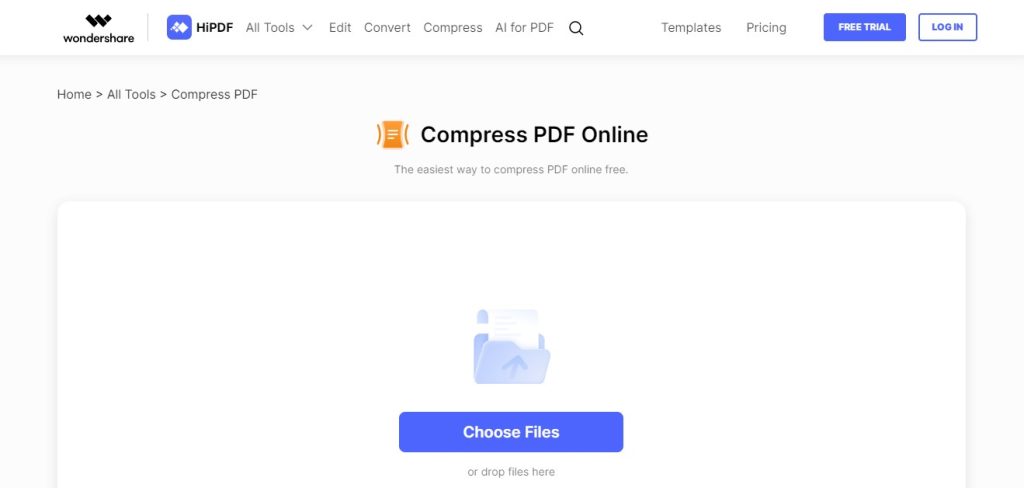
- Step 3: Choose the desired compression level. Click “Compress” to proceed.

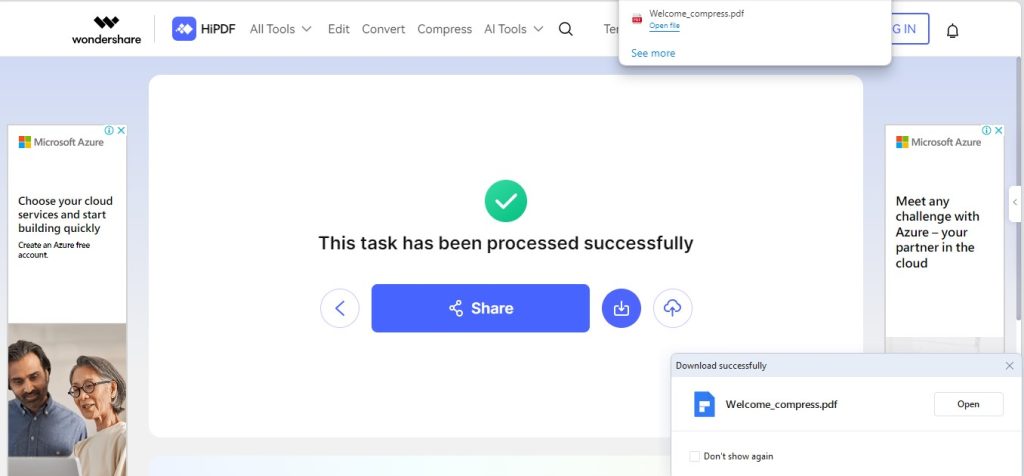
- Step 4: The tool will instantly process your file and automatically download the compressed version.
Why Choose HiPDF for PDF Compression?
The tool is a blessing for dealing with your PDF documents effortlessly and effectively. Below are the reasons why you should opt for HiPDF as an ultimate PDF compressor:
- The tool offers basic compression services for free, without any software installation or login details.
- Whether on a PC, tablet, MacBook, or mobile phone, you can use it effortlessly since it’s completely web-based.
- Its smart compression engines ensure that the compressed PDFs retain their original quality as much as possible.
- Beyond compression, HiPDF allows you to convert PDF files, edit PDFs, perform OCR, and so on.
- HiPDF is equipped with AI technology, allowing you to chat with your documents, detect AI content, summarize documents, and more.
How to Compress PDF Under 1MB Offline?
In the above section, we observed an online method to shrink PDF size to 1 MB. However, using offline methods often becomes indispensable because of document confidentiality and other reasons. Also, some users need to perform the compression task in bulk without navigating to the web each time. Therefore, they prioritize the use of offline tools. If you’re also among them, we have compiled three different methods for your convenience.
1. Compress PDF Under 1 MB Using Adobe Acrobat
Adobe Acrobat DC is a feature-rich PDF management tool that allows you to reduce PDF file size in bulk. Also, its compression quality is reliable since the tool is one of the industry leaders in PDF management.
Here is how you can use Acrobat DC for PDF compression under 1 MB:
- Step 1: Open the desired PDF file in Adobe Acrobat.
- Step 2: Navigate to “File” > “Save As Other” > “Reduced Size PDF.”
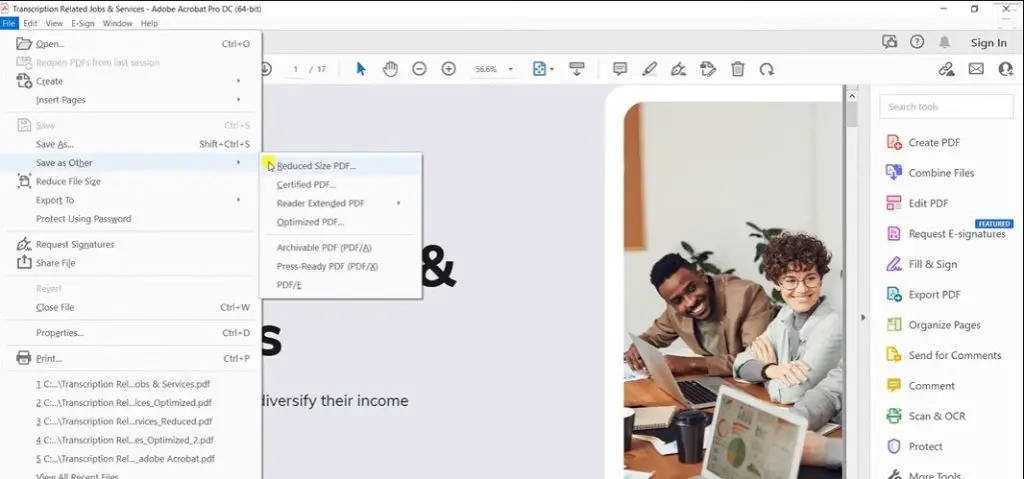
- Step 3: Select the desired version compatibility from the dropdown.
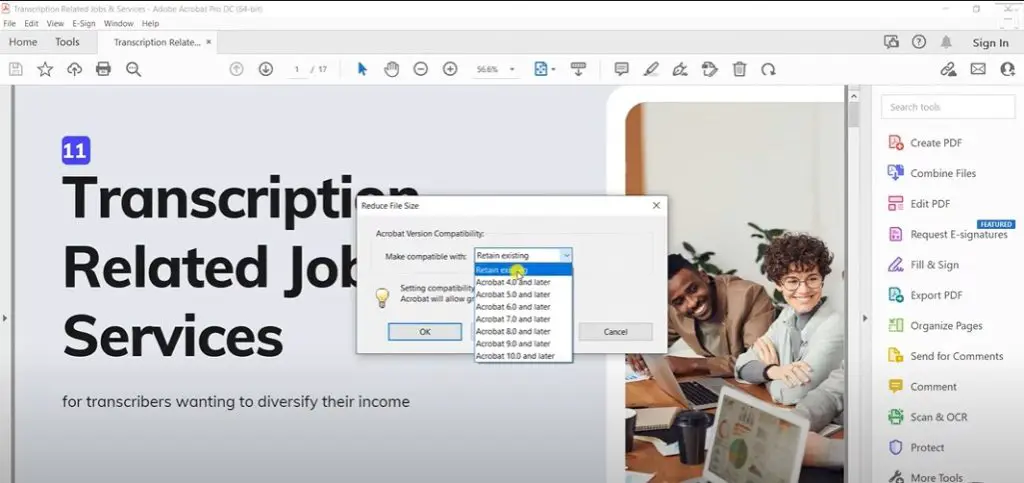
- Step 4: Save the optimized PDF file by clicking the “Save” option.
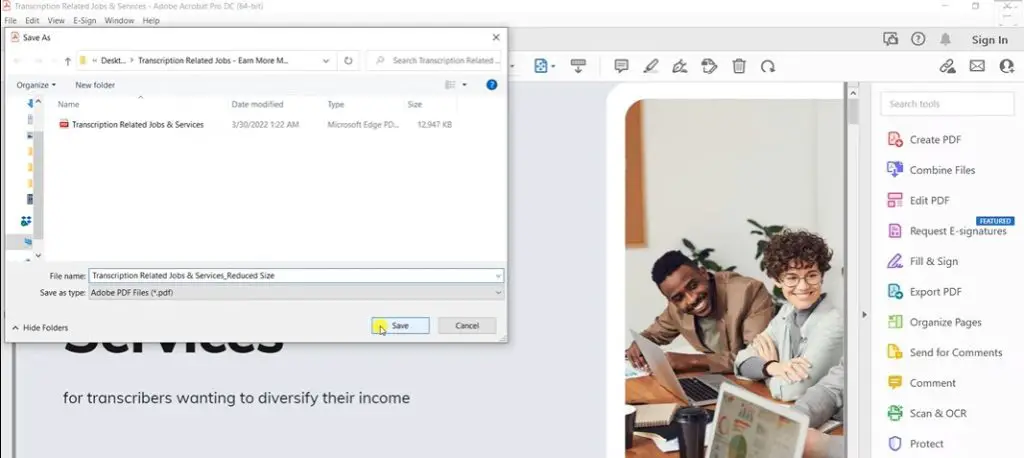
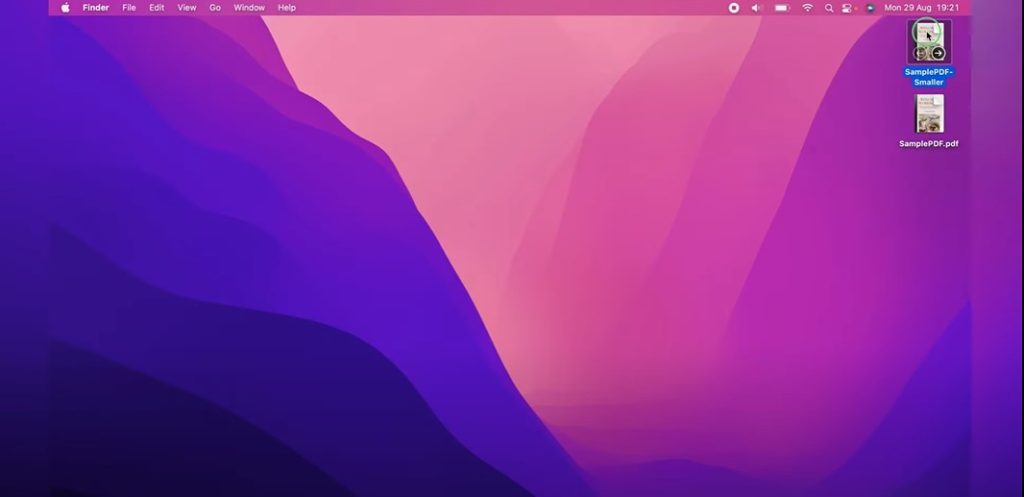
2. Compress PDF Under 1 MB Using Preview on Mac
If you’re a Mac user and frequently deal with PDF files, you can opt to use the Preview application. Preview is a built-in PDF management tool on Mac that can also serve to compress PDF files. The benefit of using this method is that you won’t have to install an external application to perform compressions.
Below is the guide to using the Preview application for PDF compression:
- Step 1: Open the desired PDF with Preview.
- Step 2: Go to “File” > “Export.”
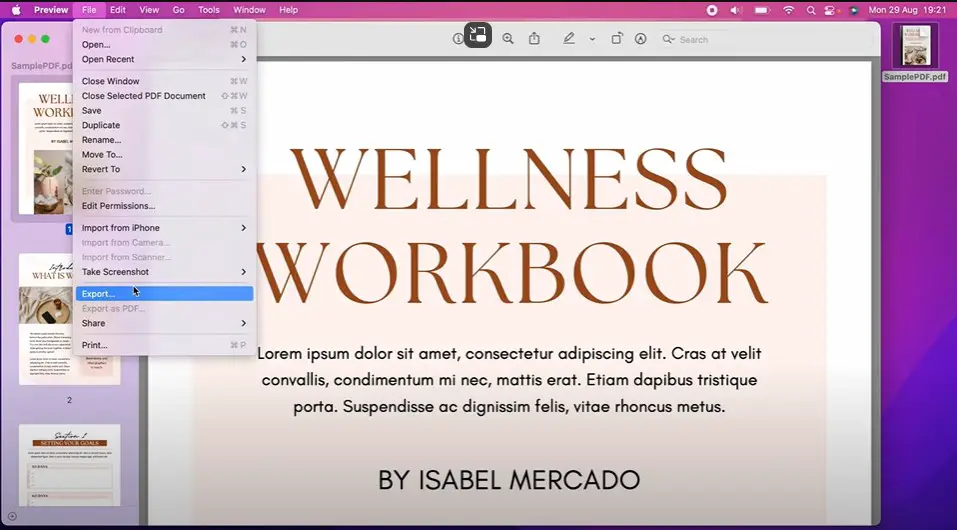
- Step 3: Rename the PDF file, set its location, and choose “PDF” as the output format. Choose “Reduce File Size” from the “Quartz Filter” dropdown menu.
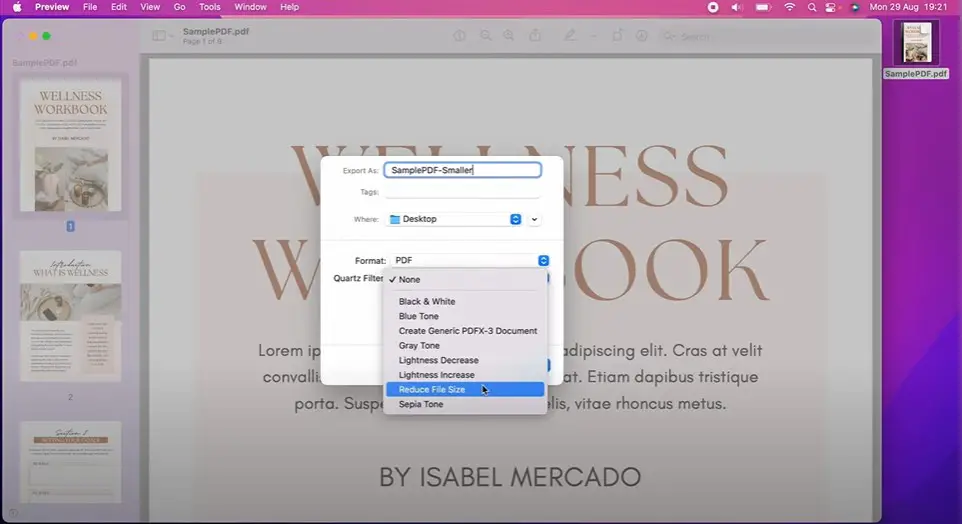
- Step 4: Save the PDF file with the new size. You can access it by navigating to the destined location.
3. Compress PDF Under 1 MB Using Microsoft Word
Although Microsoft Word does not contain a specified PDF compression feature, you can still use it tactically to reduce file size. The software allows you to save documents as PDFs and offers some compression options. While this method doesn’t explicitly compress the PDF in the way specialized tools do, it optimizes documents for web publication. The procedure inherently involves reducing file size by compressing images and removing unnecessary data.
Let’s learn to reduce file size using MS Word:
- Step 1: Open it with Microsoft Word.
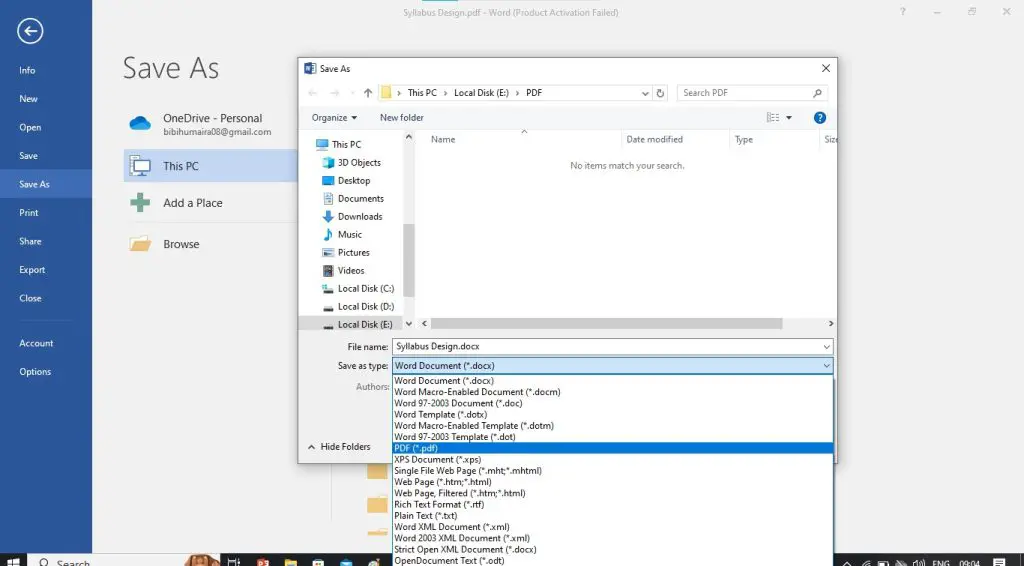
- Step 2: Navigate to “File” > “Save As.” Choose “PDF” as the output format.
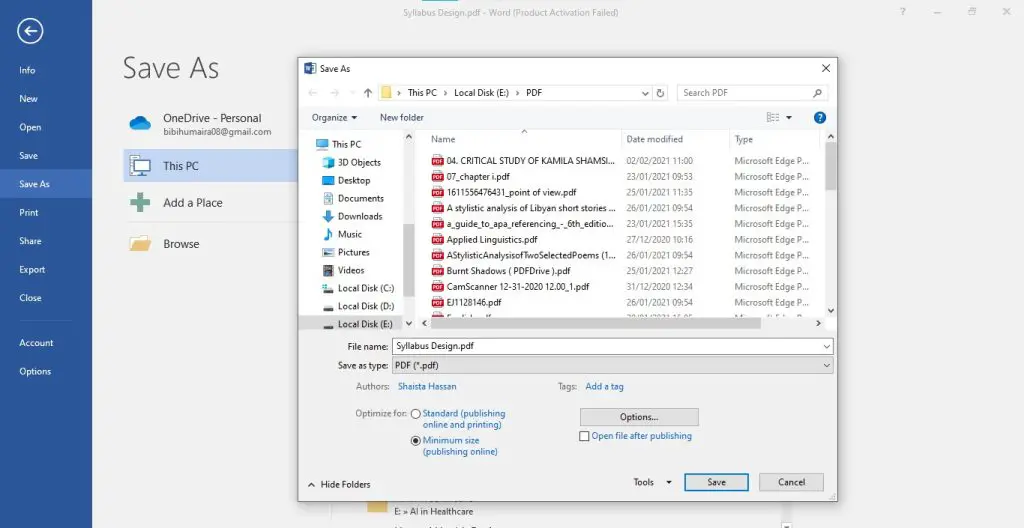
- Step 3: Select the “Minimum size (publishing online)” under “Optimize for.” Click the “Save” button to get the compressed PDF.
Conclusion
PDF compression is not a daunting task if done with an appropriate tool and technique. To resolve your compression-related headaches, the article went through a complete journey of exploring different PDF compression solutions. Here’s what we sifted:
While offline methods like Adobe Acrobat, Preview on Mac, and Microsoft Word are effective, they either come with higher costs or limited functionality. In contrast, HiPDF stands out as the best option for compressing PDFs under 1MB. Here’s why:
- Simple, web-based interface that is accessible to everyone
- A range of tools beyond just compression, adding value to the user.
- Free services, making it a reliable choice for both individuals and businesses.
- Preserved quality of documents even after a high degree of compression.
Try HiPDF to enter into a realm of convenience and efficient document management!
