VirtIO drivers give Windows VMs running on KVM/QEMU direct (paravirtualized) access to disk, network, and memory devices on the host. Without them, the hypervisor emulates legacy hardware like IDE disks and Intel e1000 NICs, which caps I/O performance well below what the hardware can deliver. With VirtIO drivers installed, disk throughput and network performance typically improve by 2x to 10x.
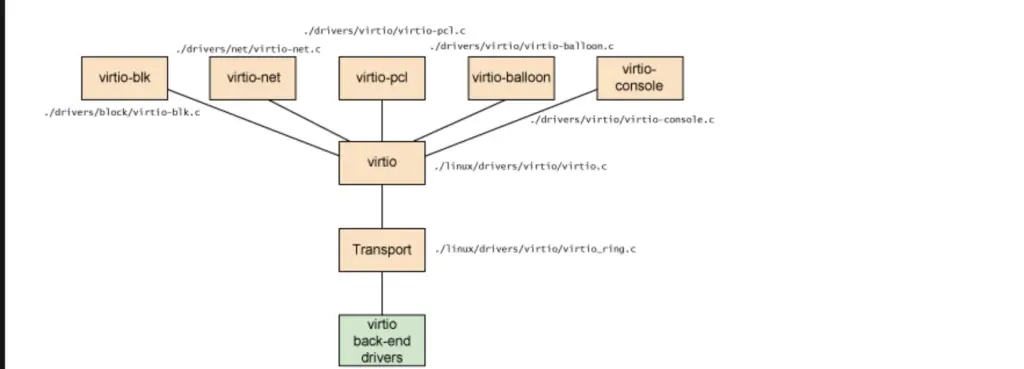
This guide covers installing VirtIO drivers on Windows Server 2025/2022 and Windows 11/10 guests running on Proxmox VE, KVM/libvirt, or any QEMU-based hypervisor. The steps include downloading the driver ISO, attaching it to the VM, running the installer, and setting up the QEMU Guest Agent.
What VirtIO Drivers Include
The virtio-win package bundles several components:
| Driver | Purpose |
|---|---|
viostor | Block device (disk) driver. Replaces emulated IDE/SATA. |
vioscsi | SCSI controller driver for virtio-scsi disks. |
NetKVM | Network adapter driver. Replaces emulated e1000/rtl8139. |
Balloon | Memory ballooning for dynamic RAM management. |
vioserial | Serial port driver for host-guest communication. |
qxldod | Display driver for QXL/VirtIO-GPU video adapter. |
pvpanic | Panic notification driver (signals host on BSOD). |
qemu-ga | QEMU Guest Agent for VM management (shutdown, snapshot, IP reporting). |
Download the VirtIO Drivers ISO
The VirtIO drivers are distributed as an ISO image maintained by the Fedora project. Download either the stable or latest build on your hypervisor host:
# Stable release (recommended for production)
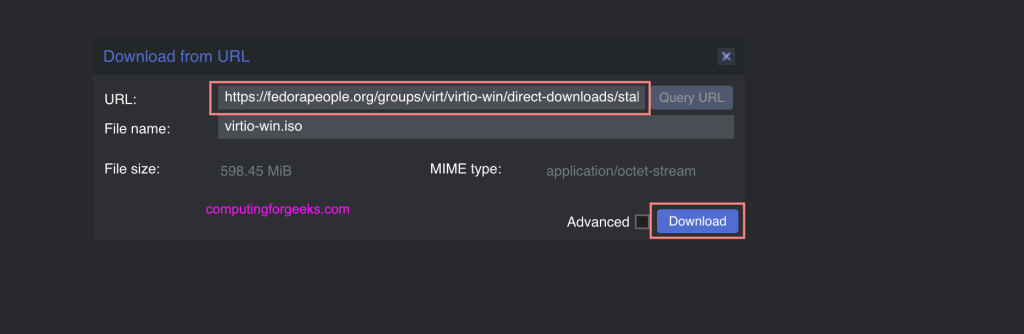
wget https://fedorapeople.org/groups/virt/virtio-win/direct-downloads/stable-virtio/virtio-win.iso

# Latest build (newest drivers, less testing)
wget https://fedorapeople.org/groups/virt/virtio-win/direct-downloads/latest-virtio/virtio-win.iso
On RHEL, Rocky, or AlmaLinux hosts with the virtualization stack installed, you can also install the ISO via the package manager:
sudo dnf install virtio-winThis places the ISO at /usr/share/virtio-win/virtio-win.iso.
Move the ISO to Your Hypervisor’s Storage
Place the ISO where your hypervisor can access it:
# KVM/libvirt
sudo mv virtio-win.iso /var/lib/libvirt/images/

# Proxmox VE
sudo mv virtio-win.iso /var/lib/vz/template/iso/
On Proxmox, you can also download the ISO directly through the web UI. Navigate to your storage node, select ISO Images, and click Download from URL:
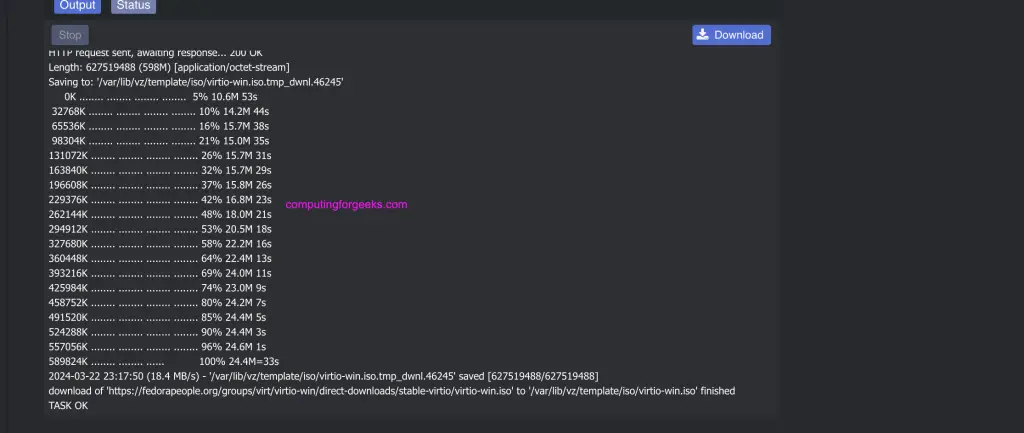
The ISO appears in the storage directory once the download completes:
Attach the ISO to the Windows VM
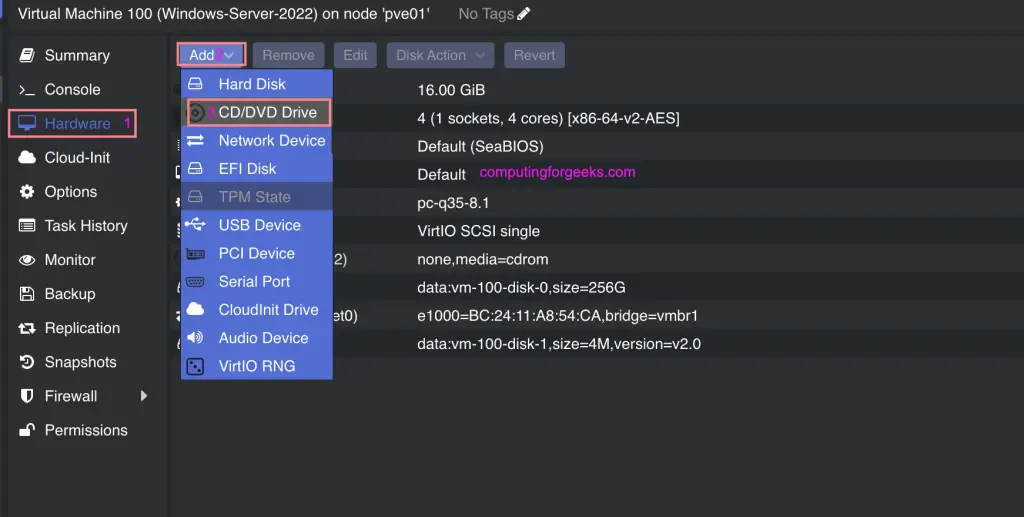
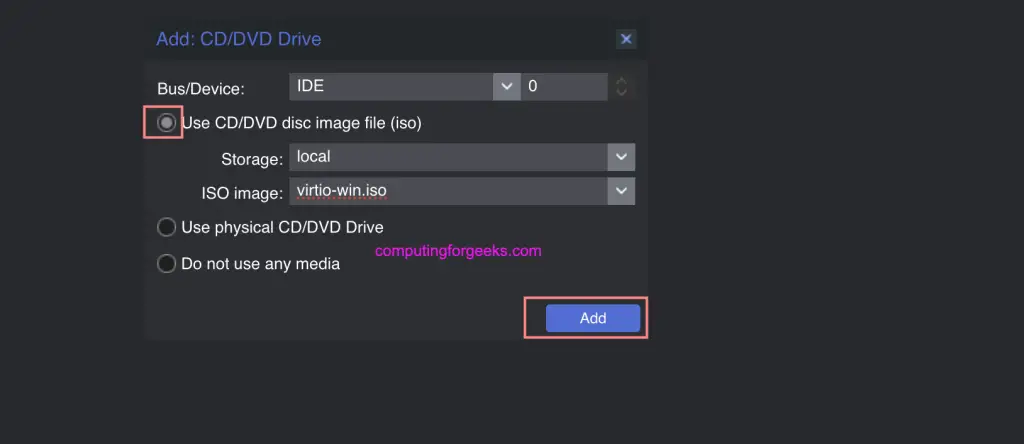
Add a CD/DVD drive to your Windows VM and attach the VirtIO ISO. In Proxmox, go to Hardware > Add > CD/DVD Drive:
Select the virtio-win.iso file from the ISO storage:
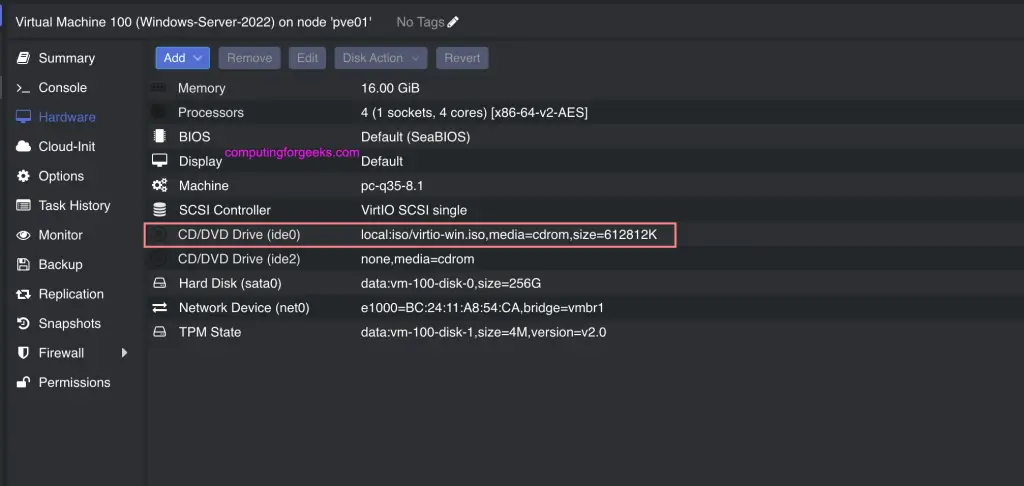
Verify the CD/DVD drive is attached in the VM’s hardware list:
For KVM/libvirt with virt-manager, click Add Hardware > Storage > Device type: CDROM device, then browse to the ISO.
Install VirtIO Drivers Inside Windows
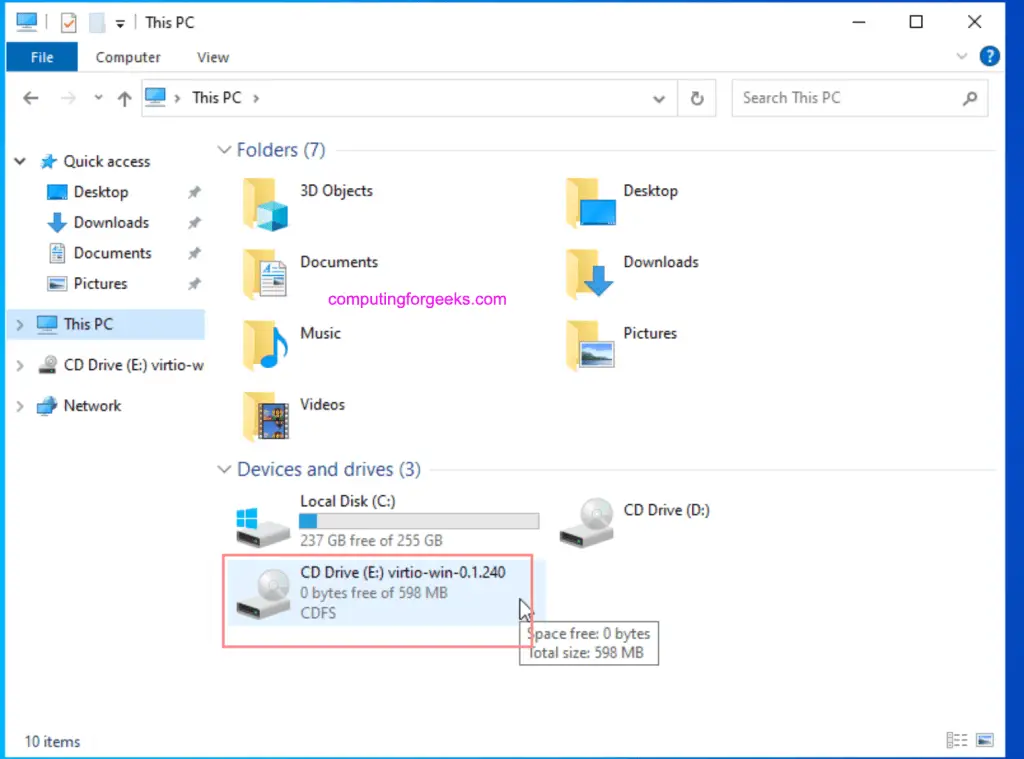
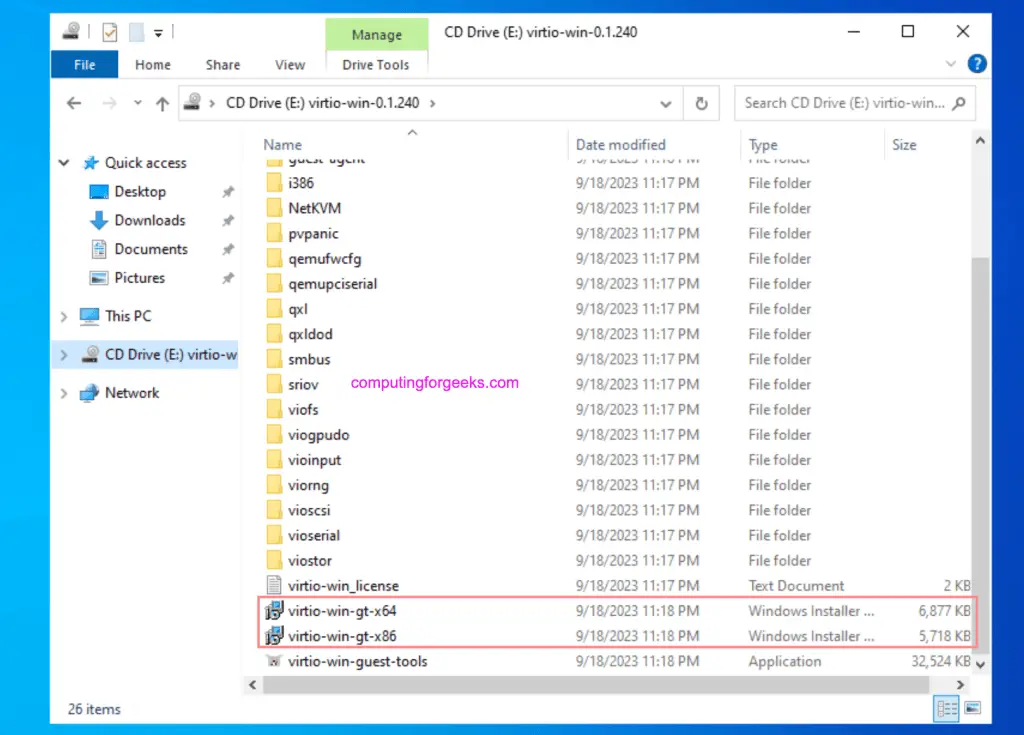
Log into the Windows VM and open File Explorer. The VirtIO ISO appears as a CD drive. Open it to see the driver directories and installers:
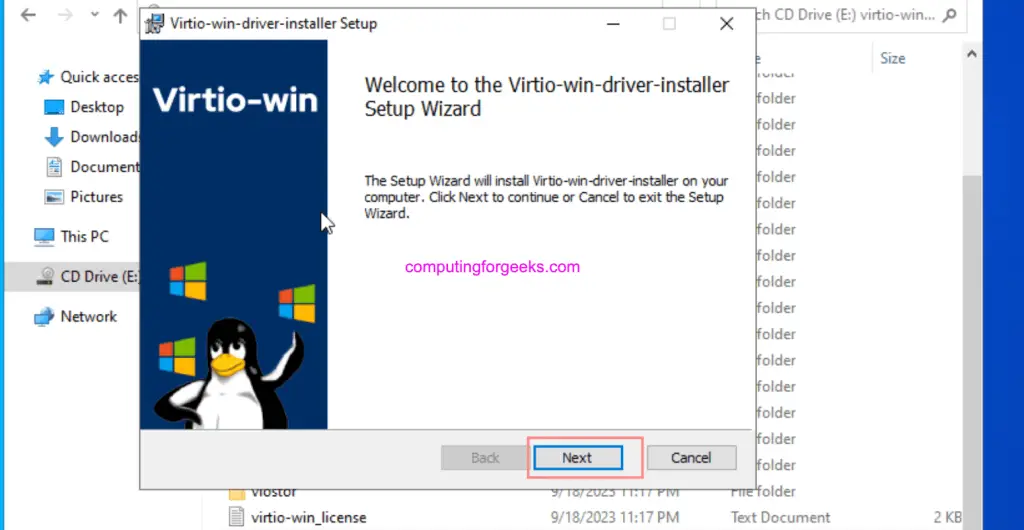
Double-click virtio-win-gt-x64.msi (for 64-bit Windows) to launch the driver installer:
Accept the license agreement and click Next:
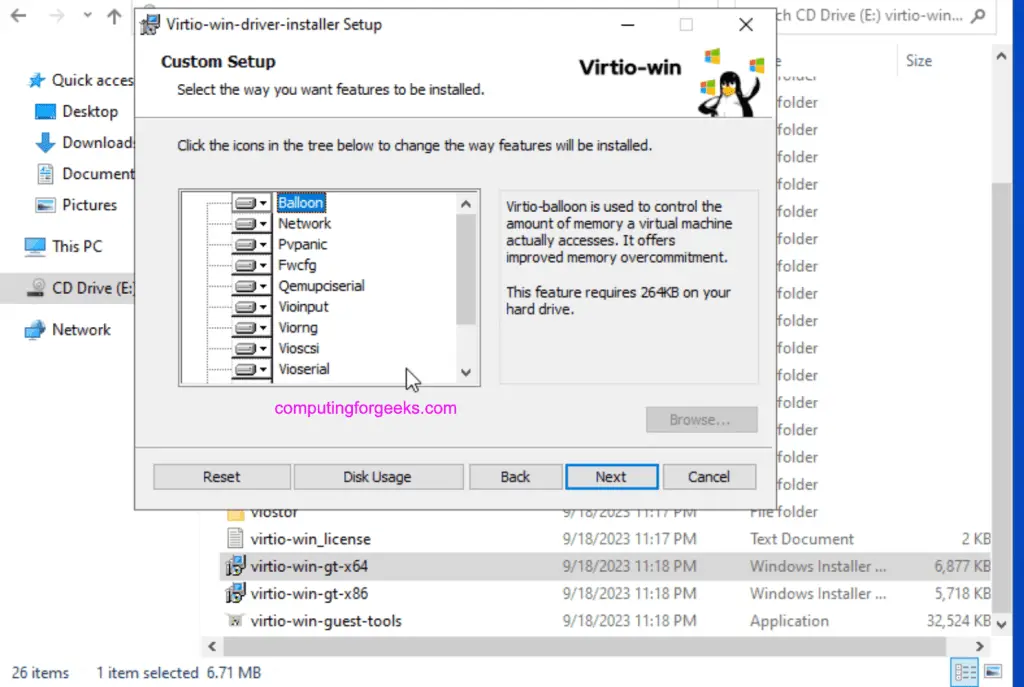
Leave the default feature selection (all drivers) and click Next:
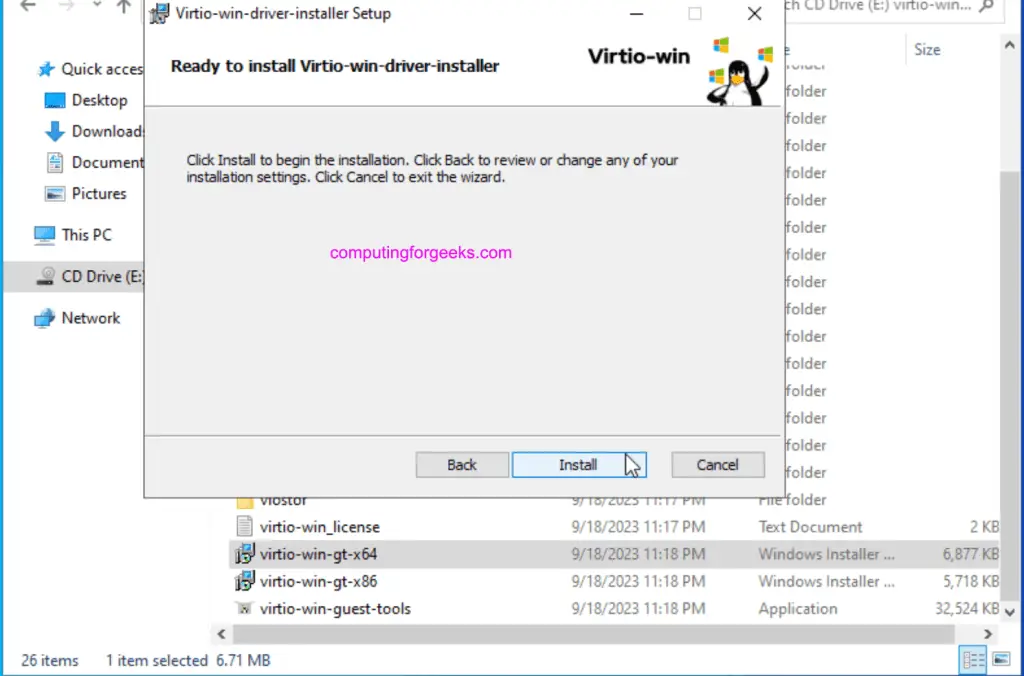
Click Install to begin the driver installation:
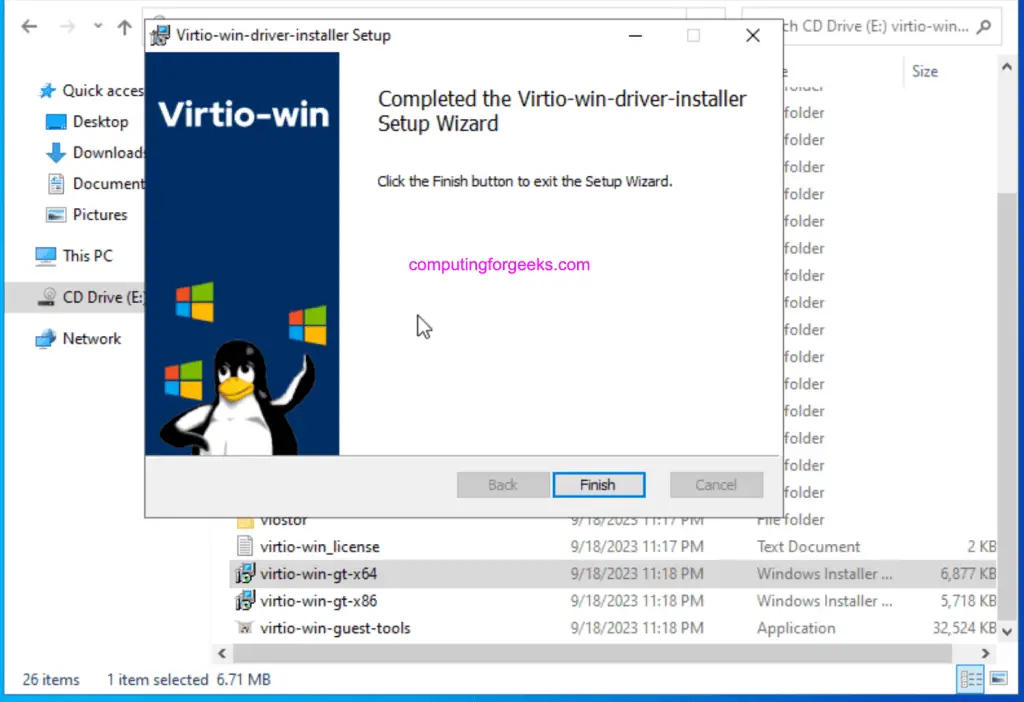
The installer completes in under a minute. Click Finish:
Install QEMU Guest Agent
The QEMU Guest Agent enables the hypervisor to communicate with the Windows VM for operations like graceful shutdown, filesystem freeze (for consistent snapshots), and IP address reporting. It also installs the SPICE agent for improved clipboard sharing and display scaling in remote sessions.
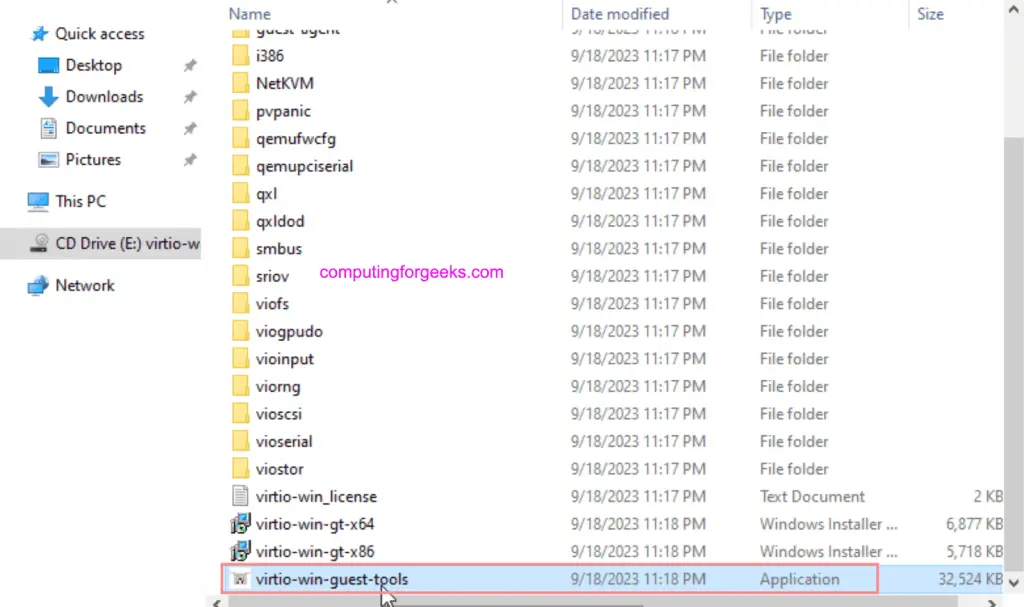
From the same VirtIO CD drive in File Explorer, double-click virtio-win-guest-tools.exe:
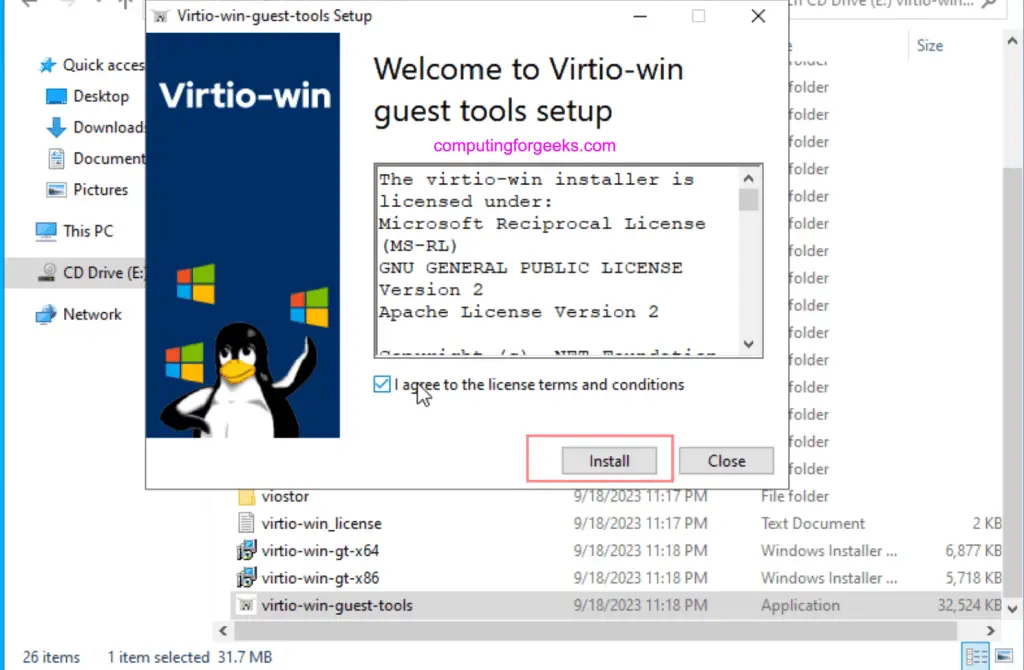
Accept the license and click Install:
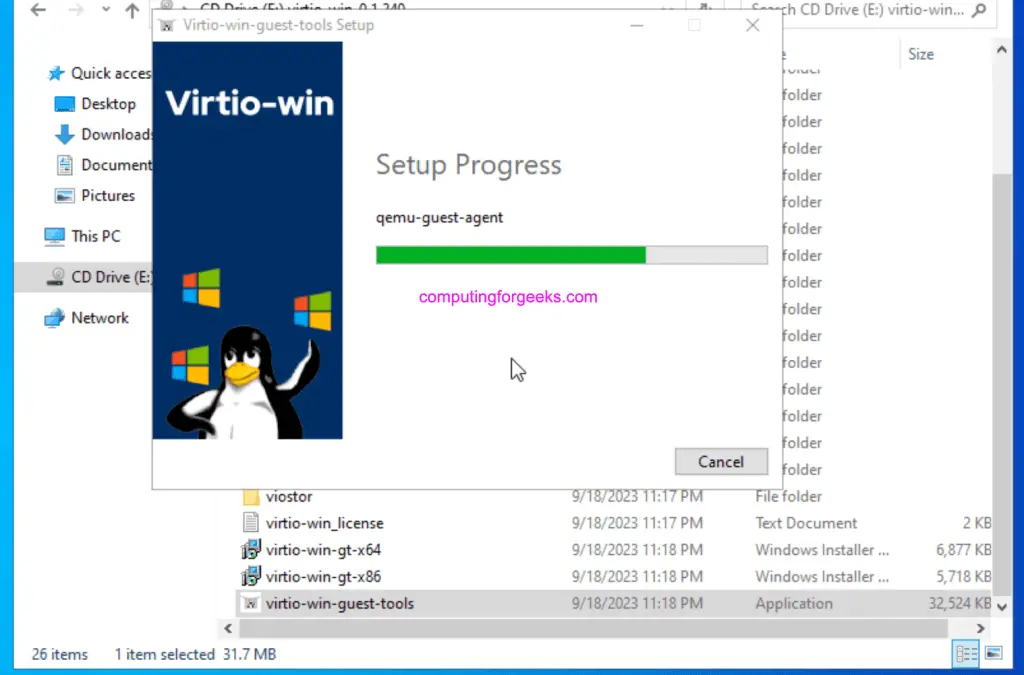
The installation takes a few seconds:
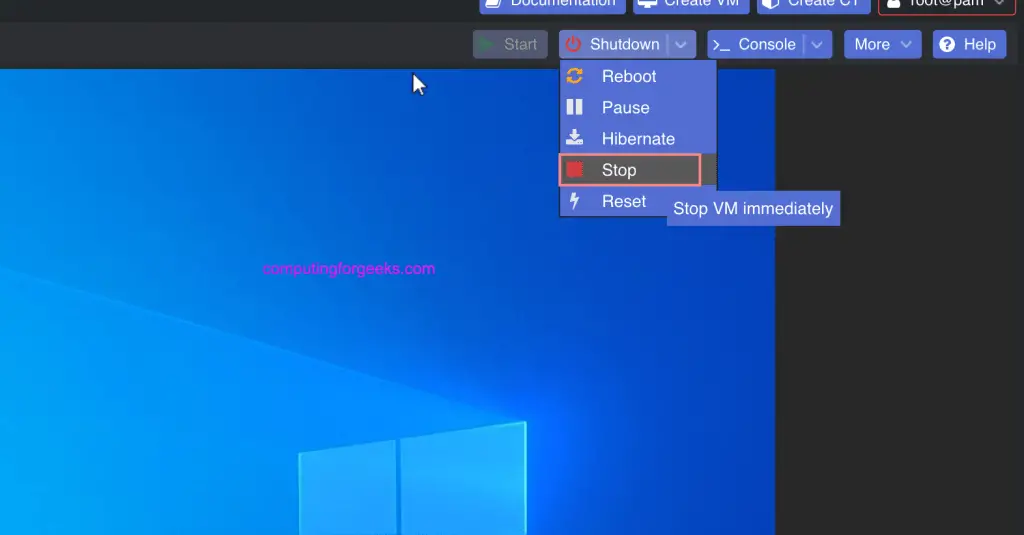
After both the VirtIO drivers and Guest Agent are installed, stop and start the VM (not just reboot) from the hypervisor to ensure the new drivers are fully loaded:
Alternative: Install Directly Inside the VM
If the VM has internet access, you can skip the ISO attachment entirely. Download the MSI installer directly inside the Windows VM from the Fedora VirtIO downloads page. Run virtio-win-gt-x64.msi for 64-bit systems or virtio-win-gt-x86.msi for 32-bit.
Verify Drivers Are Active
After restarting the VM, open Device Manager in Windows. The VirtIO drivers should appear under their respective categories:
- Disk drives: “Red Hat VirtIO SCSI Disk Device” (instead of QEMU HARDDISK)
- Network adapters: “Red Hat VirtIO Ethernet Adapter” (instead of Intel E1000)
- System devices: VirtIO Balloon Driver, VirtIO Serial Driver
- Display adapters: Red Hat QXL controller (if using QXL video)
To confirm the Guest Agent is running, check in services.msc that “QEMU Guest Agent” and “SPICE Agent” services are started. On the Proxmox side, the VM summary should now show the guest’s IP address and OS details reported by the agent.